Website Forms in Odoo: Contact us messages as leads
Turn the Odoo website Contact us form into CRM leads: turn on Leads, set the form's action and sales team, follow a visitor's message and convert it to an opportunity.
- Community and Enterprise
- 5 min read
- Odoo + AI tutorial
Your website’s Contact us page works: people write. But the messages land in someone’s mailbox, get forwarded twice, and the request for 40 chairs sits next to an SEO offer until somebody has time. With website forms and CRM leads, every message becomes a lead in Odoo, with the sender’s name, company, e-mail and question, in one list your sales team works from. This guide turns on leads, points the Contact us form to the CRM, follows a visitor’s message and converts it into an opportunity.
It works the same in Community and Enterprise. The versions we tested are listed at the end.
This guide is also an AI tutorial. At the end, an AI assistant connected to Odoo sorts a week of Contact us messages in one go (real requests, duplicates, customer questions, spam) and builds the sales team a page where one button turns a message into an opportunity.See it in action ↓Before you start
- The Website and CRM apps installed (Odoo adds the link between them, the module Contact Form, by itself).
- A Contact us page: every Odoo website has one at
/contactus.
1. Turn on leads
Open CRM → Configuration → Settings, tick Leads and press Save. Odoo adds a Leads menu: a list of requests to qualify before they enter the pipeline.
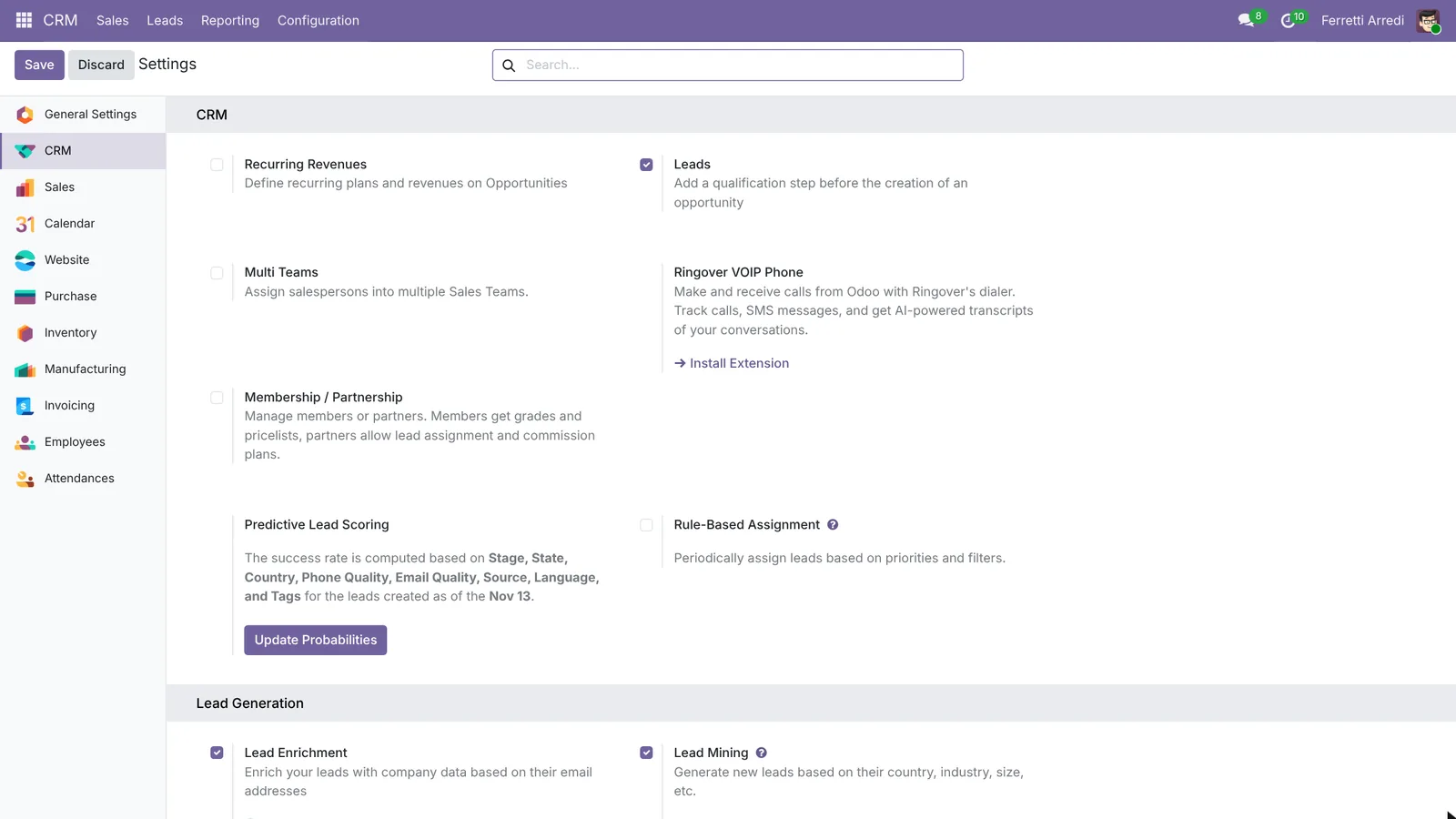 Leads are the waiting room in front of the pipeline.
Then open CRM → Configuration → Sales Teams, open the team that will receive the website’s messages (here Sales) and check that its Leads box is ticked. A team without it gets opportunities, not leads.
2. Point the Contact us form to the CRM
Out of the box the Contact us form sends an e-mail. Open your website, go to the Contact us page and press Edit. Click the form: the options of the form appear on the right. Set Action to Create an Opportunity. Right under it, pick the Sales Team (and, if one person handles them, the Salesperson). Press Save.
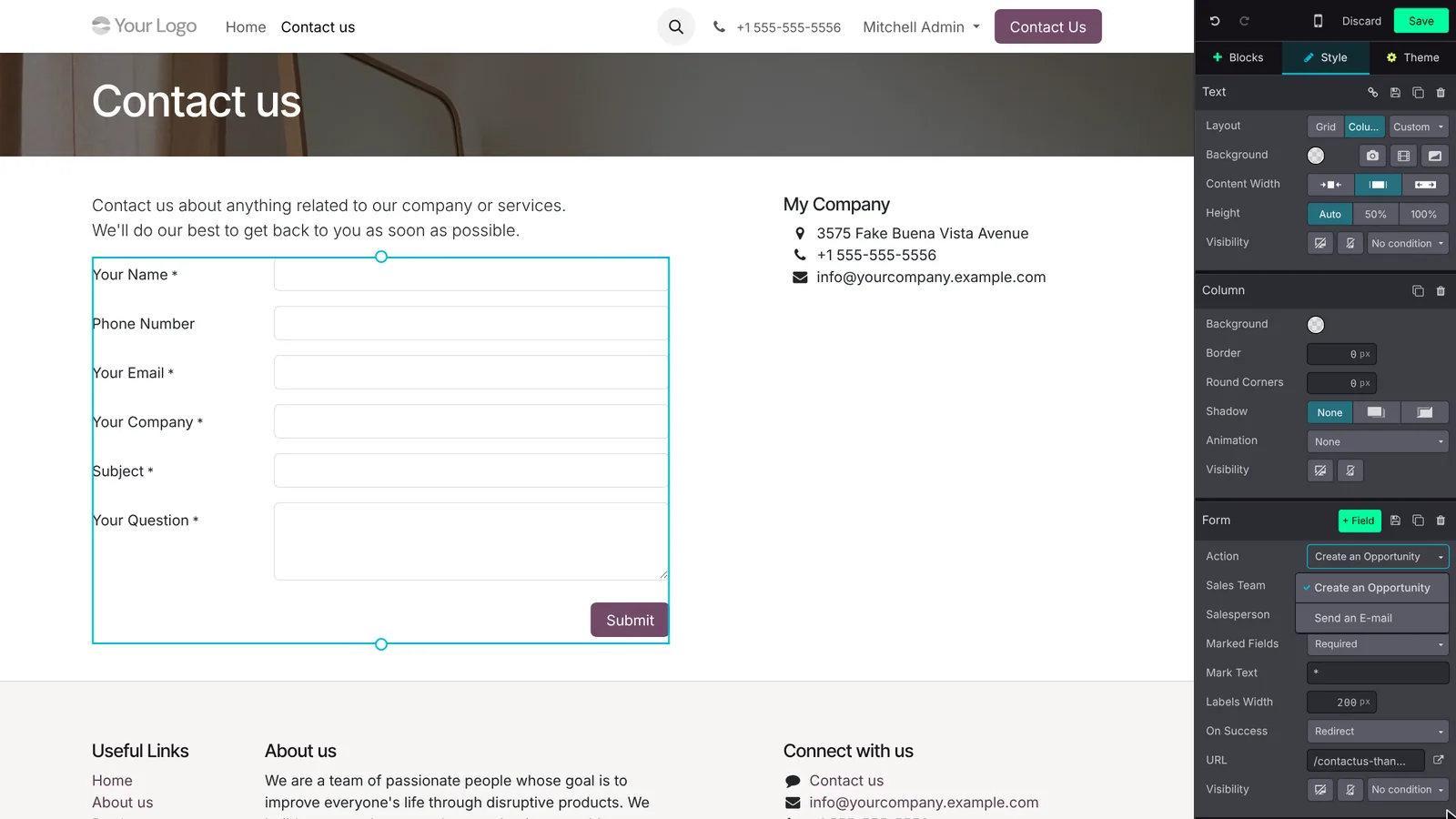 Create an Opportunity: the name says opportunity, but with Leads on you get a lead.
The fields change with the action: the form now writes the visitor’s name, phone, e-mail, company, subject and question straight into the lead.
3. A visitor writes
Laura Rossi of Studio Rossi Architetti needs 20 meeting chairs. She fills in the Contact us form and presses Submit: she sees the thank-you page, and you don’t have to forward anything.
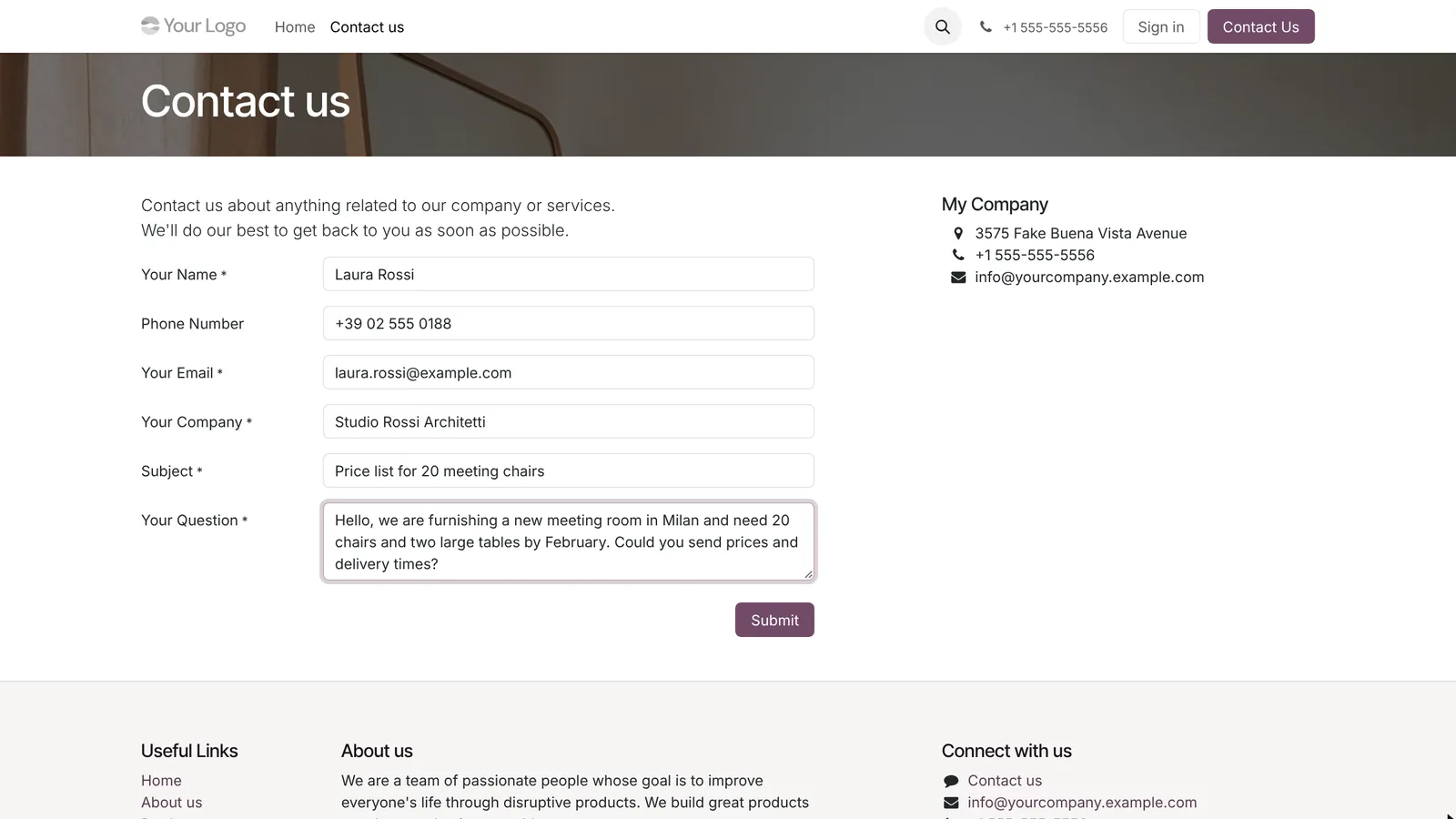 The visitor’s side: nothing changes for her.
4. The message is a lead
Open CRM → Leads. Laura’s message is there, titled with her subject, in the Sales team and with no salesperson yet. Open it: contact name, company, e-mail and phone are filled, and her question is in the Internal Notes.
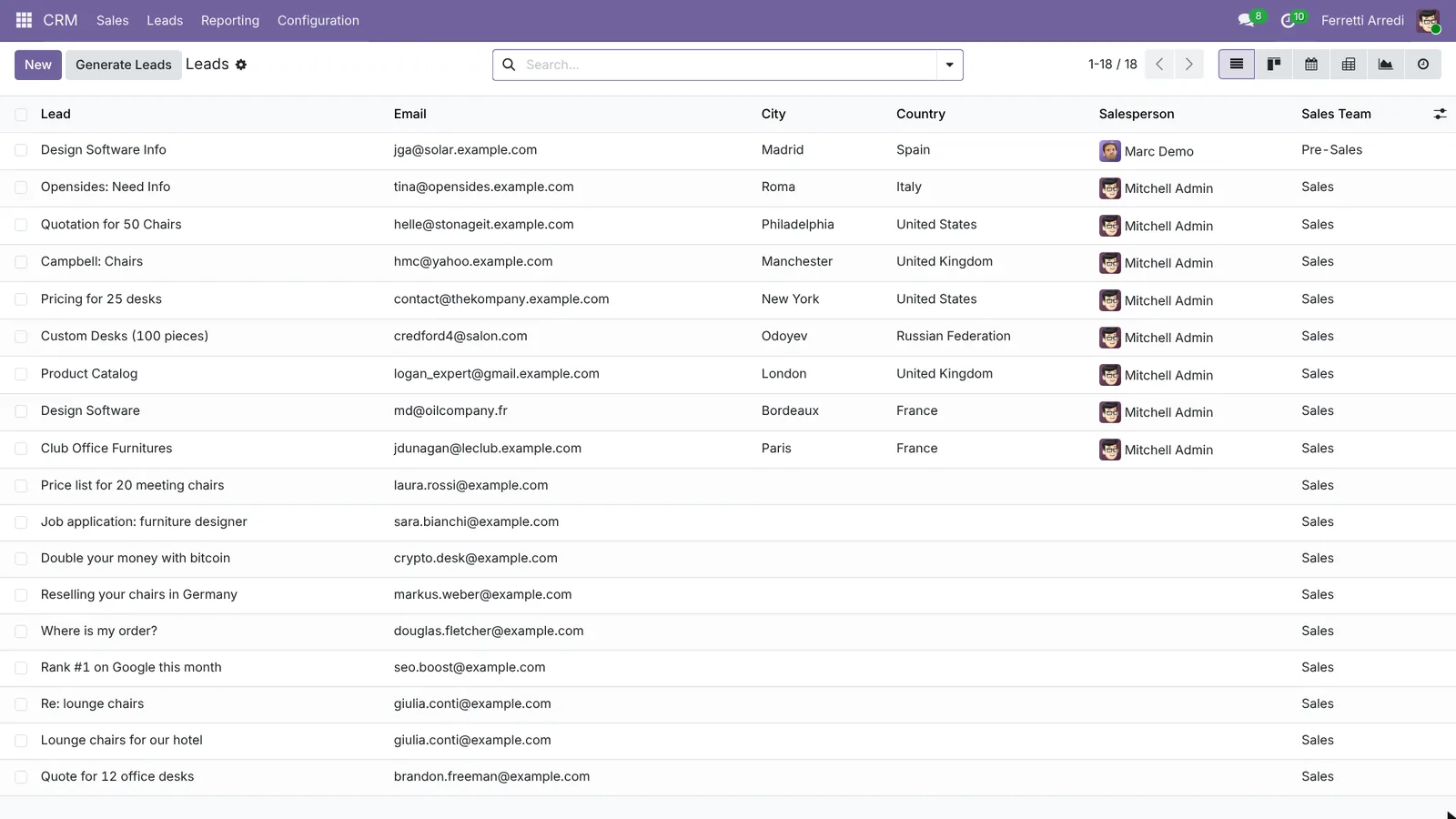 Every form message of the week in one list, ready to sort.
5. Convert the real ones
On Laura’s lead press Convert to Opportunity. In the window choose Convert to opportunity, pick a Salesperson, and under Customer choose Create a new customer (or link an existing one). Press Create Opportunity.
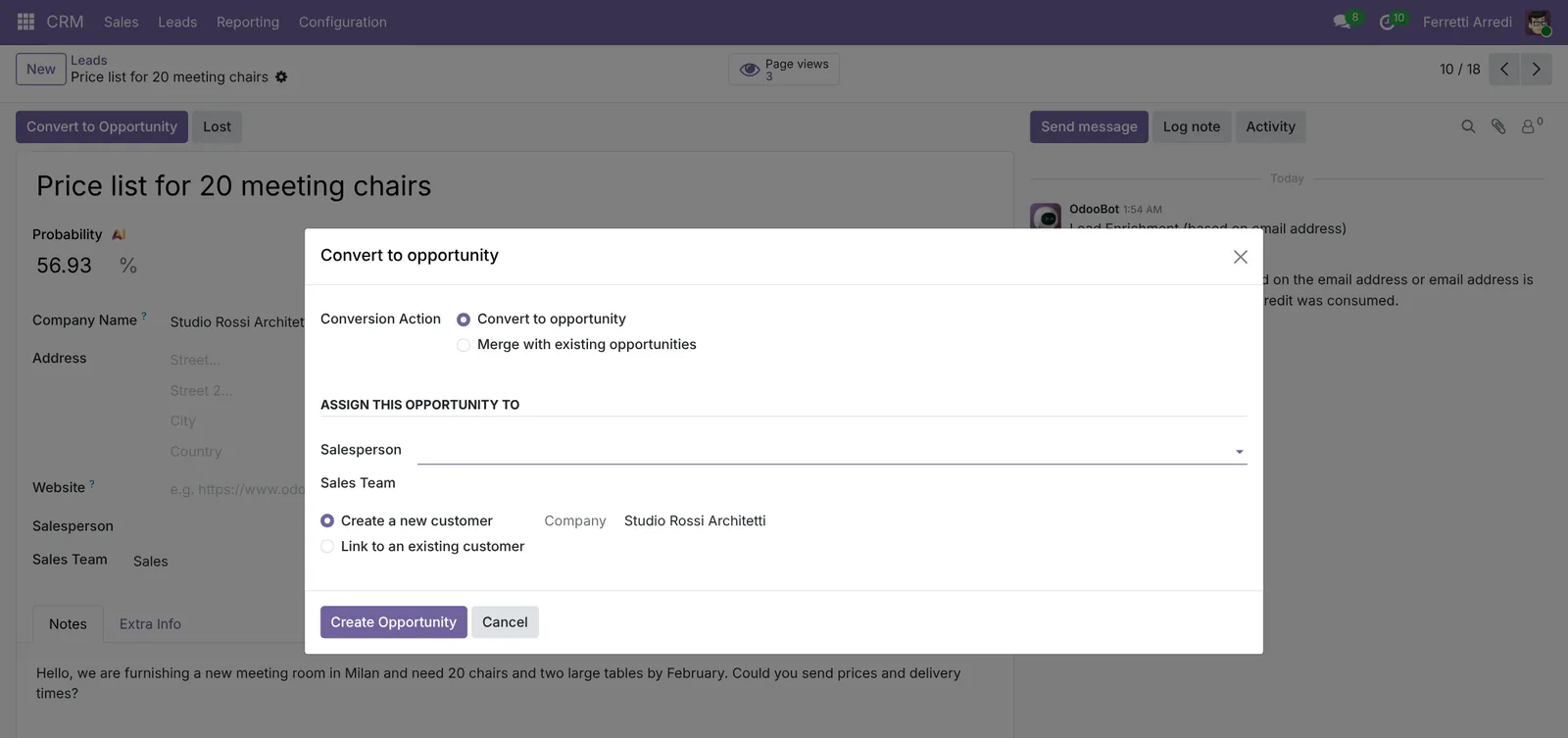 One window decides who follows it and which customer it belongs to.
The opportunity is now in the pipeline in the New stage, linked to Studio Rossi Architetti, Laura Rossi, with the whole story in the chatter.
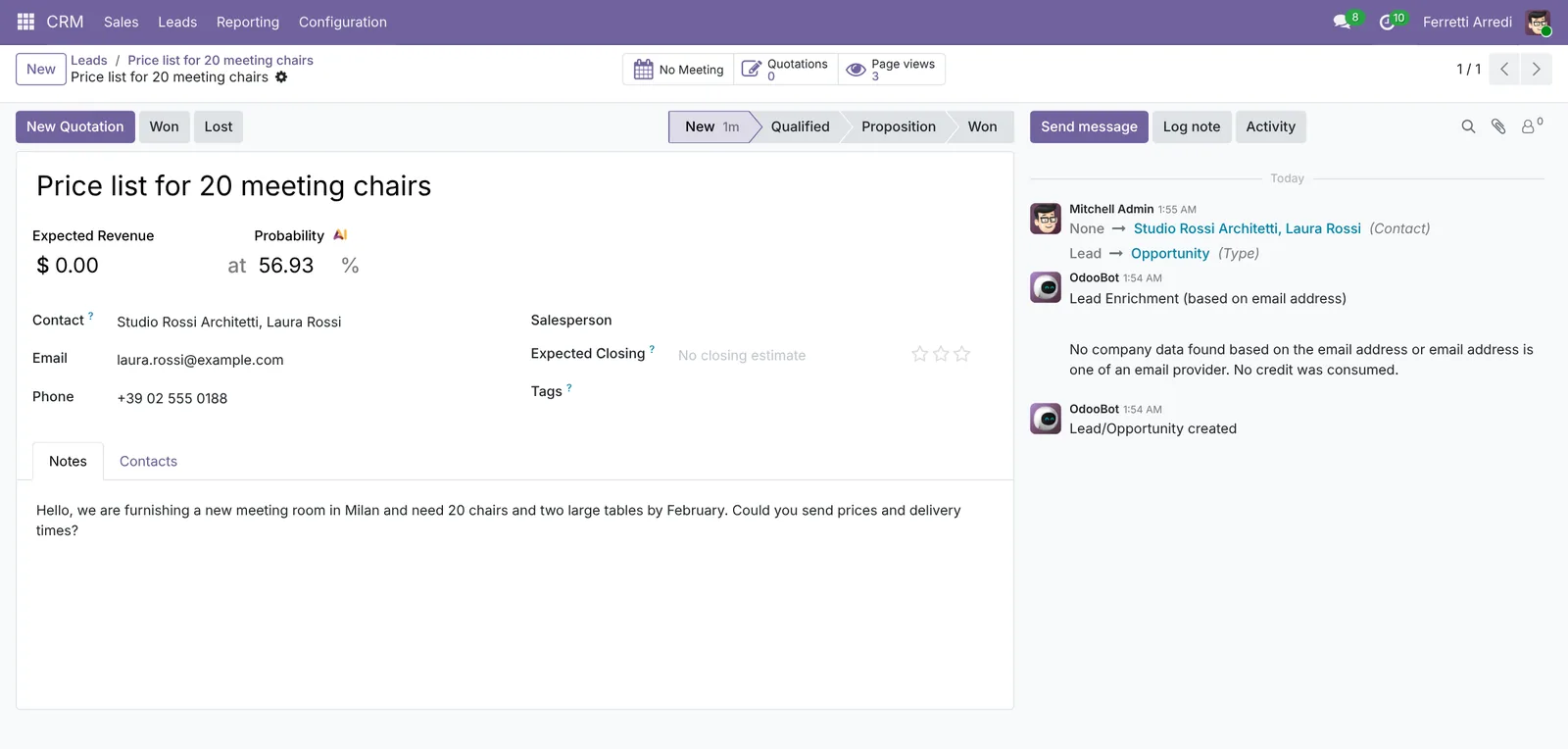 From a website message to a sales opportunity in two clicks.
Spam and messages that aren’t sales (job applications, delivery questions) don’t need converting: press Lost or archive them.
Common mistakes
- Leaving the form on Send an E-mail. Installing CRM doesn’t change the form: until you set Create an Opportunity, nothing reaches the CRM.
- A sales team without Leads. The messages skip the Leads list and appear as opportunities in the pipeline, spam included.
- Nobody assigned. With no Salesperson in the form options, new leads notify no one. Pick one, or have someone sort the list every morning.
- Converting duplicates one by one. When the same person writes twice, choose Merge with existing opportunities in the convert window, so the history stays in one place.
Website forms with AI: ask your AI assistant through MCP
With the Hawklify MCP server, Claude, ChatGPT and other assistants work in your Odoo as you, with your permissions. Odoo collects the messages, but somebody still has to read each one, recognize the existing customer behind an e-mail address, spot the same request sent twice and throw away the spam. An assistant does that pass in seconds.
Next to the Leads list, in the browser. Smart mode is on: the assistant reads the leads and your contacts, explains, and asks once before it changes anything.
Nine messages, and only four are real requests:
- Brandon Freeman is a contact of Azure Interior, an existing customer of Marc Demo: 12 office desks.
- Giulia Conti, Hotel Belvedere: 40 lounge chairs (about €30,000), and two days later the same request again with 40 side tables. One opportunity, not two.
- Markus Weber, Weber Wohnen GmbH: wants to resell your chairs in Germany.
- Laura Rossi, Studio Rossi Architetti: 20 meeting chairs and two tables, sent today.
Douglas Fletcher of Deco Addict asks where his sofas are: that's a customer question, not a lead. Two are spam (SEO, bitcoin) and one is a job application.
Merge Giulia's two, make opportunities of the four (Azure to Marc, the new ones to you), note Douglas's question on Deco Addict and archive the other three?
Done. The pipeline has 4 new opportunities: Azure Interior for Marc Demo, Hotel Belvedere, Weber Wohnen and Studio Rossi for you, each linked to its customer.
The spam and the job application are archived, and Douglas's question is on Deco Addict's record for whoever handles deliveries.
A page for the website’s requests. The assistant builds a small app (an artifact) on Odoo’s live data, where one button turns a message into an opportunity for the right salesperson.
Here it is, live from Odoo. Five new messages since yesterday: three real requests, one question from a customer and one spam.
The page matches each sender's e-mail with your contacts, so an existing customer goes to their own salesperson. Each button writes in Odoo under the name of whoever presses it.
Website requests
Contact us · 5 new messages · live from Odoo
Activity
Make opportunity converts the lead and links the customer; Archive can be undone from the Archived filter.
Versions we tested
| Version | Result |
|---|---|
| Odoo 16 | Same steps. The editor’s options use the older panel: Action is a drop-down under Form. |
| Odoo 17 | Same steps and screens as 16. |
| Odoo 18 | Same steps and screens as 16. |
| Odoo 19 | As in this guide. The screenshots come from Odoo 19. The website has no sales team set at first: pick it in the form options, or the messages arrive as opportunities. |
| Odoo 20 | The Contact us page has a new layout and the editor folds the Form options: open them to find Action. Convert to Opportunity converts at once, with no window: assign the salesperson on the opportunity. |
Frequently asked questions
Why does the Contact us form send an e-mail instead of creating a lead?
Because that's the form's default action, even with CRM installed. Open the page in the website editor, click the form and set Action to Create an Opportunity.
The messages arrive as opportunities, not leads. Why?
Odoo makes a lead only when the form's sales team has the Leads option ticked. With no team, or a team without Leads, the message goes straight to the pipeline as an opportunity.
Who gets notified of a new message?
The Salesperson set in the form options, if any. Without one the lead waits in CRM, Leads for whoever looks: set a salesperson or assign the leads every day.
What happens when the same person writes twice?
Odoo creates two leads. When you convert the second one, pick Merge with existing opportunities in the window, or ask the assistant below to find the duplicates.
Questa guida è disponibile anche in italiano: Moduli del sito in Odoo: i messaggi Contattaci come lead
Related Odoo guides
 CRMCRM pipeline in Odoo: stages, activities, lost reasonsSet up the Odoo CRM pipeline: add and order stages, create opportunities, plan the next activity and mark lost deals with a reason. Community and Enterprise.
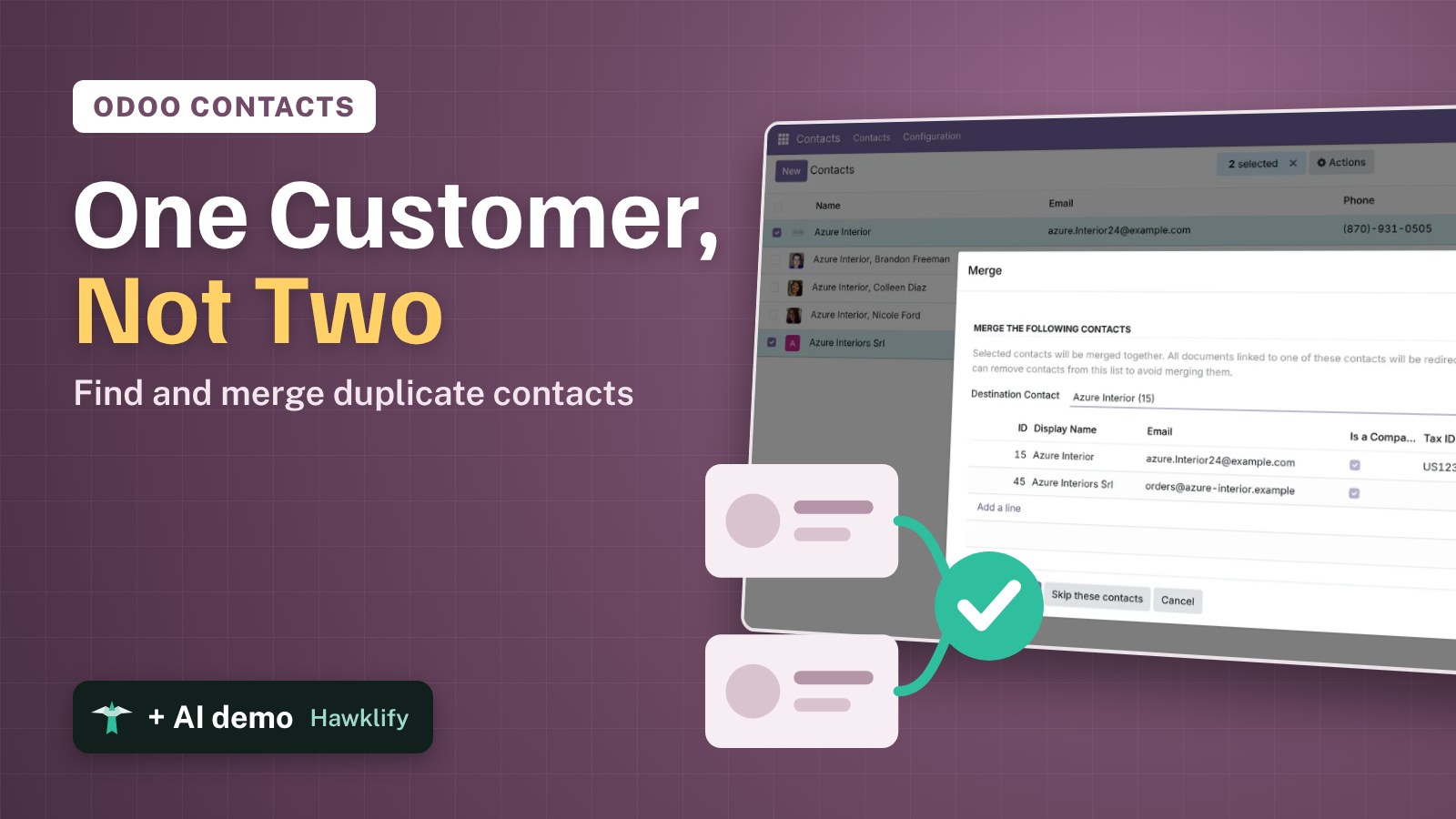 CRMDuplicate contacts in Odoo: merge them, keep the historyFind duplicate customers in Odoo, merge them into one contact with every quotation, invoice and message, and let Odoo hunt for the rest. Community and Enterprise.
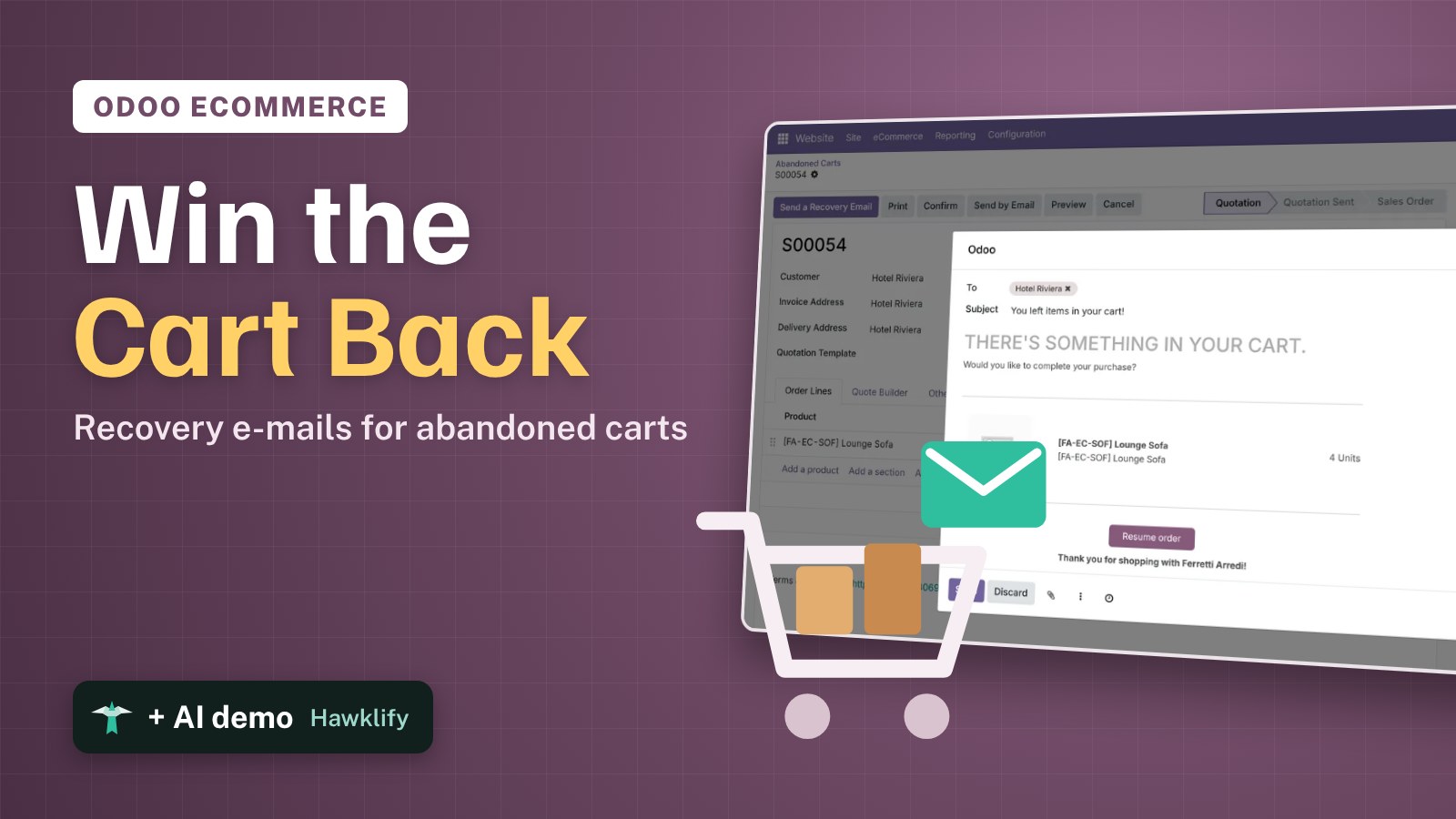 Website & eCommerceAbandoned carts in Odoo: win sales back by e-mailWin back abandoned carts in Odoo eCommerce: turn on the automatic recovery e-mail, find the carts left on your shop, and send one by hand. Community and Enterprise.