Duplicate contacts in Odoo: merge them, keep the history
Find duplicate customers in Odoo, merge them into one contact with every quotation, invoice and message, and let Odoo hunt for the rest. Community and Enterprise.
- Community and Enterprise
- 4 min read
- Odoo + AI tutorial
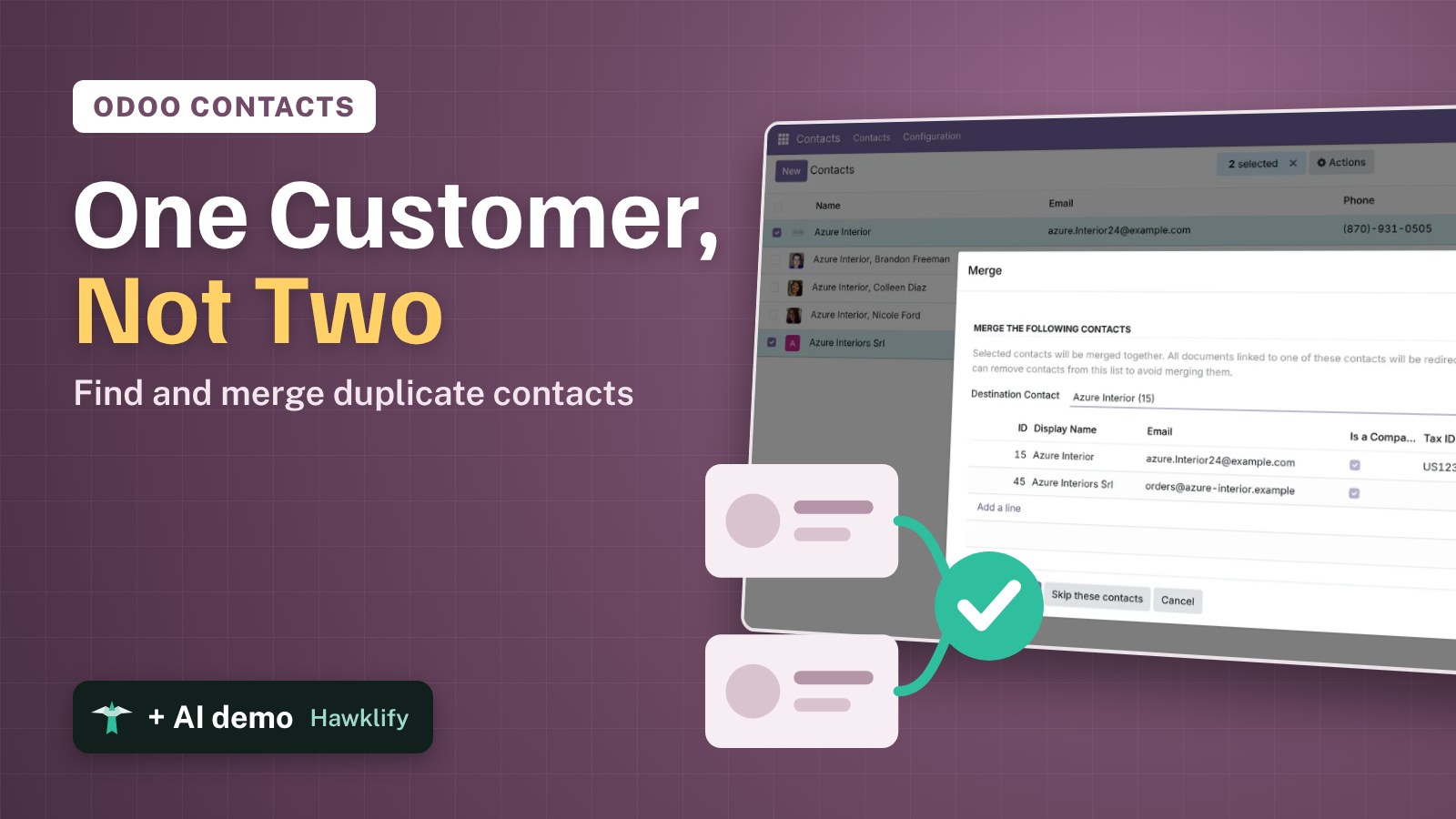
Every Odoo database that has been used for a while has them: Azure Interior and Azure Interiors Srl, one with the quotations, the other with the invoices. Reports split the customer in two, salespeople call twice, and nobody knows which address is right. Odoo can merge two contacts into one and move every document to the one you keep. This guide finds a duplicate, merges it, and then lets Odoo look for the others.
It works the same in Community and Enterprise. The versions we tested are listed at the end.
This guide is also an AI tutorial. At the end, an AI assistant connected to Odoo finds the duplicates Odoo's own tool misses and merges them after one question, and stops a salesperson from creating a new one.See it in action ↓Before you start
- The Contacts app installed (Sales, Invoicing or CRM install it too).
- An Odoo user with the Administration / Settings access right: only an administrator can merge contacts with different emails, or more than three at once.
- Two contacts for the same customer, here Azure Interior and Azure Interiors Srl, each with its own quotation.
1. Find the duplicate
Open Contacts and switch to the list view. Search for Azure: the same customer shows up twice, plus the people who work there.
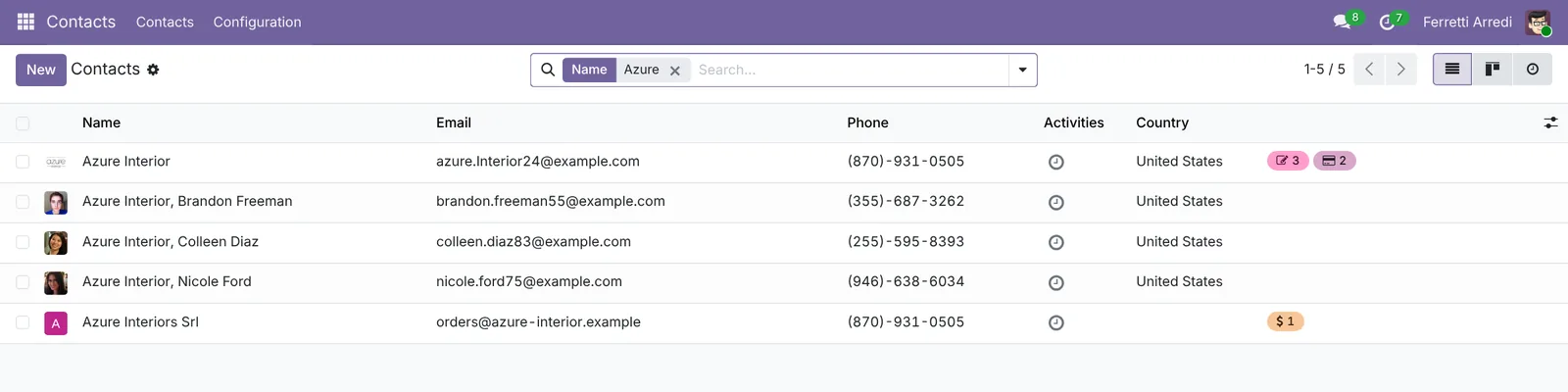 Two companies for one customer.
2. Merge the two contacts
- Tick Azure Interior and Azure Interiors Srl. Tick the companies only, not the people under them.
- Open Actions and choose Merge.
- Odoo lists the two contacts. In Destination Contact, pick the one to keep: the one with the right VAT number and address.
- Press Merge Contacts.
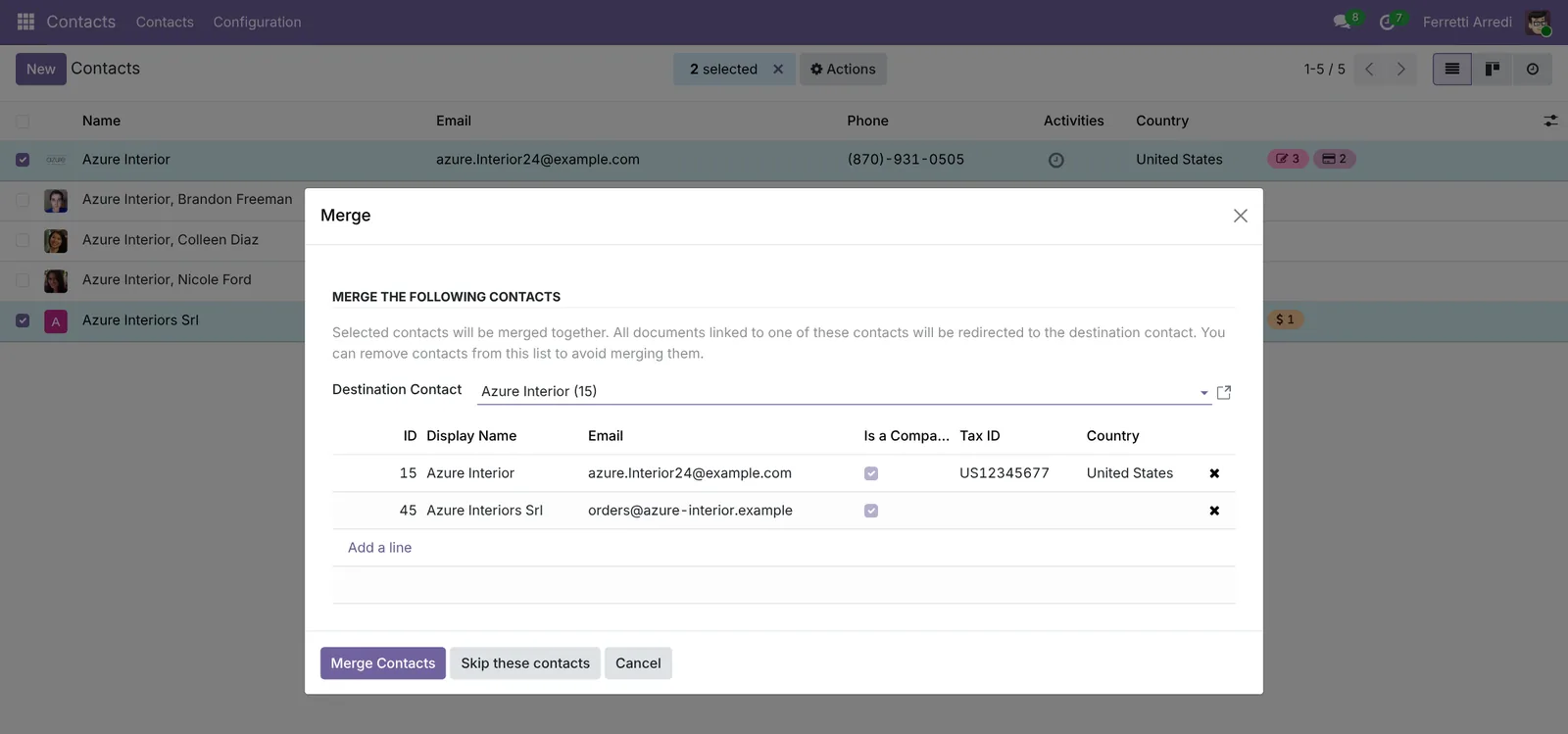 Pick the contact to keep. The other one goes away.
The quotation, the invoices, the messages and the people of Azure Interiors Srl now belong to Azure Interior.
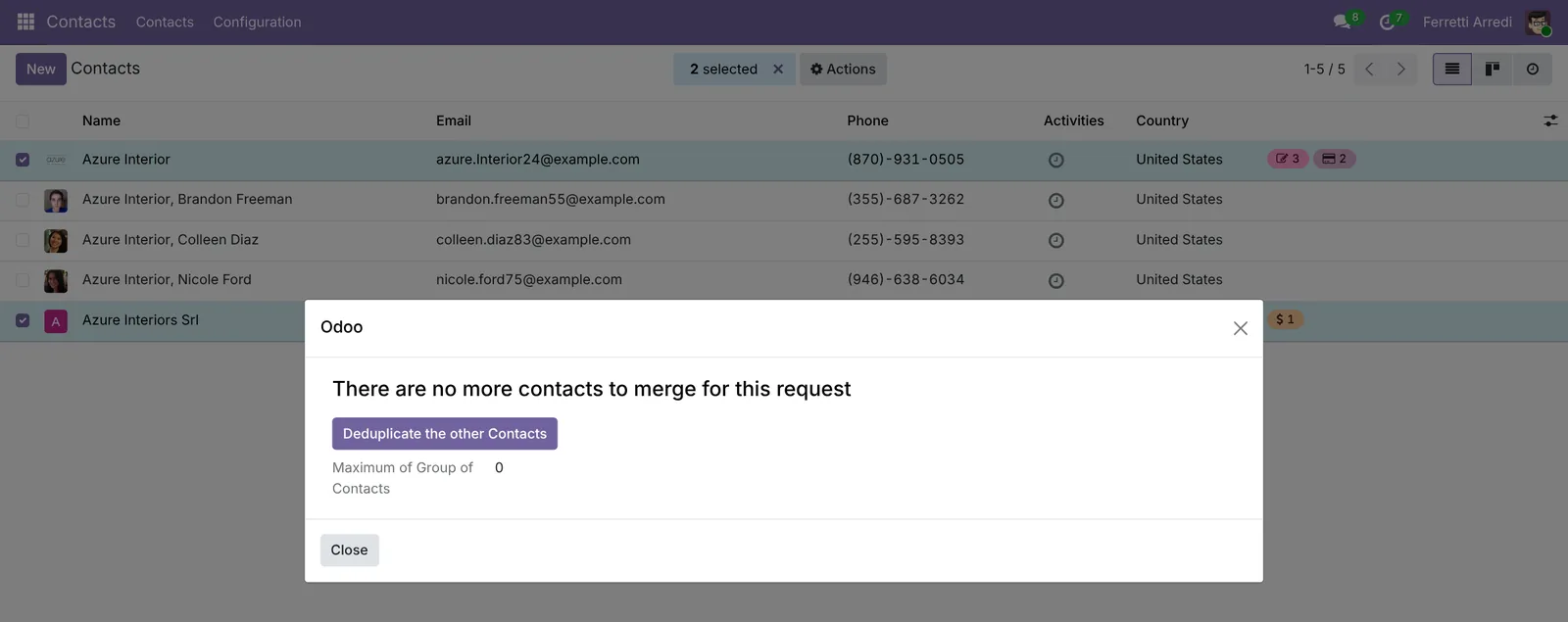 Done. Odoo offers to look for more.
3. Let Odoo find the rest
Press Deduplicate the other Contacts.
- Tell Odoo what to compare. Here, untick the other fields and tick Email: two contacts with the same email are almost always the same customer.
- Press Merge with Manual Check.
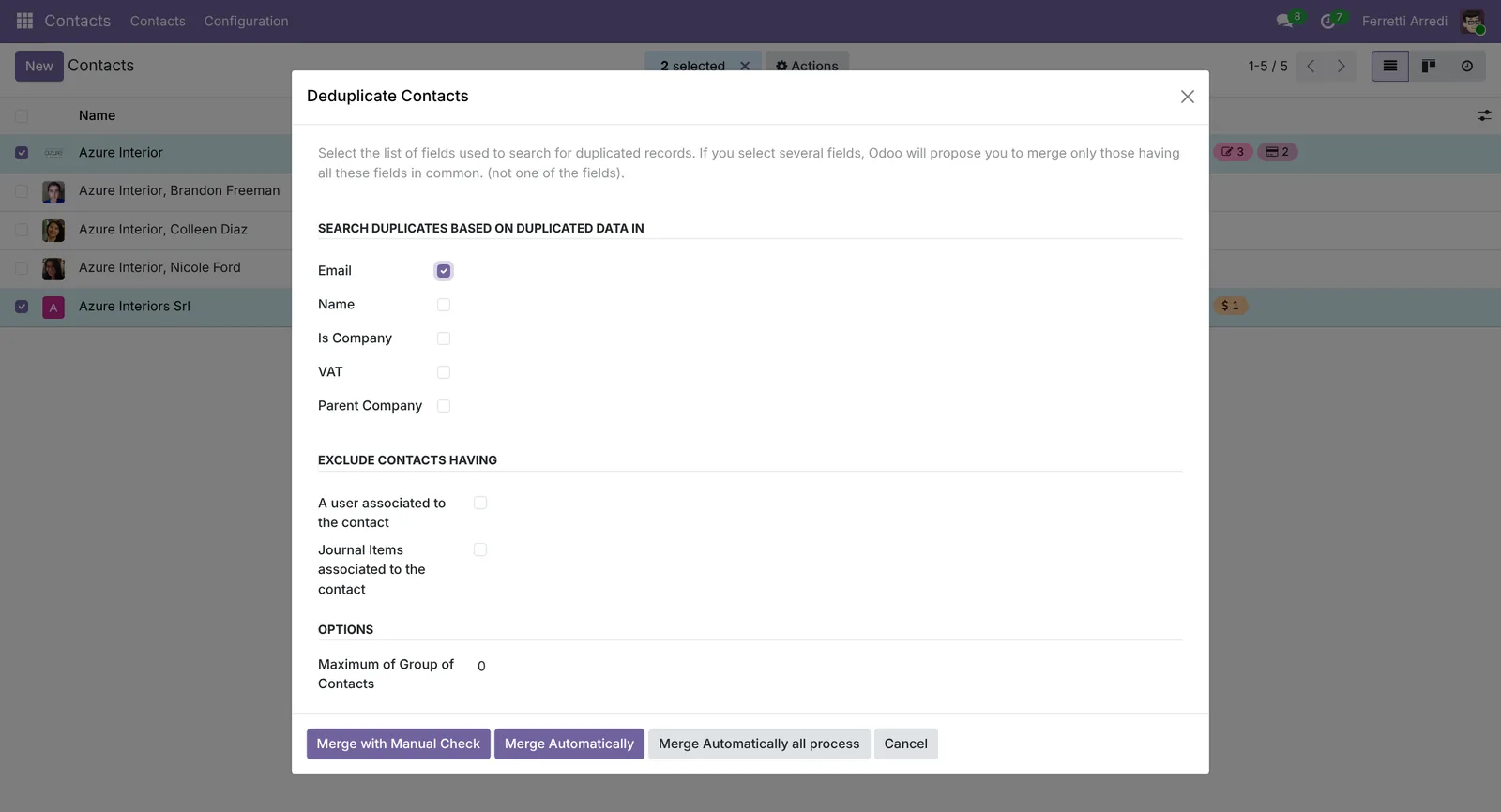 Compare on the email only.
Odoo shows each group it finds, one at a time. Here, two Bar Centrale with the same email: press Merge Contacts, or Skip these contacts for a group that is not a real duplicate.
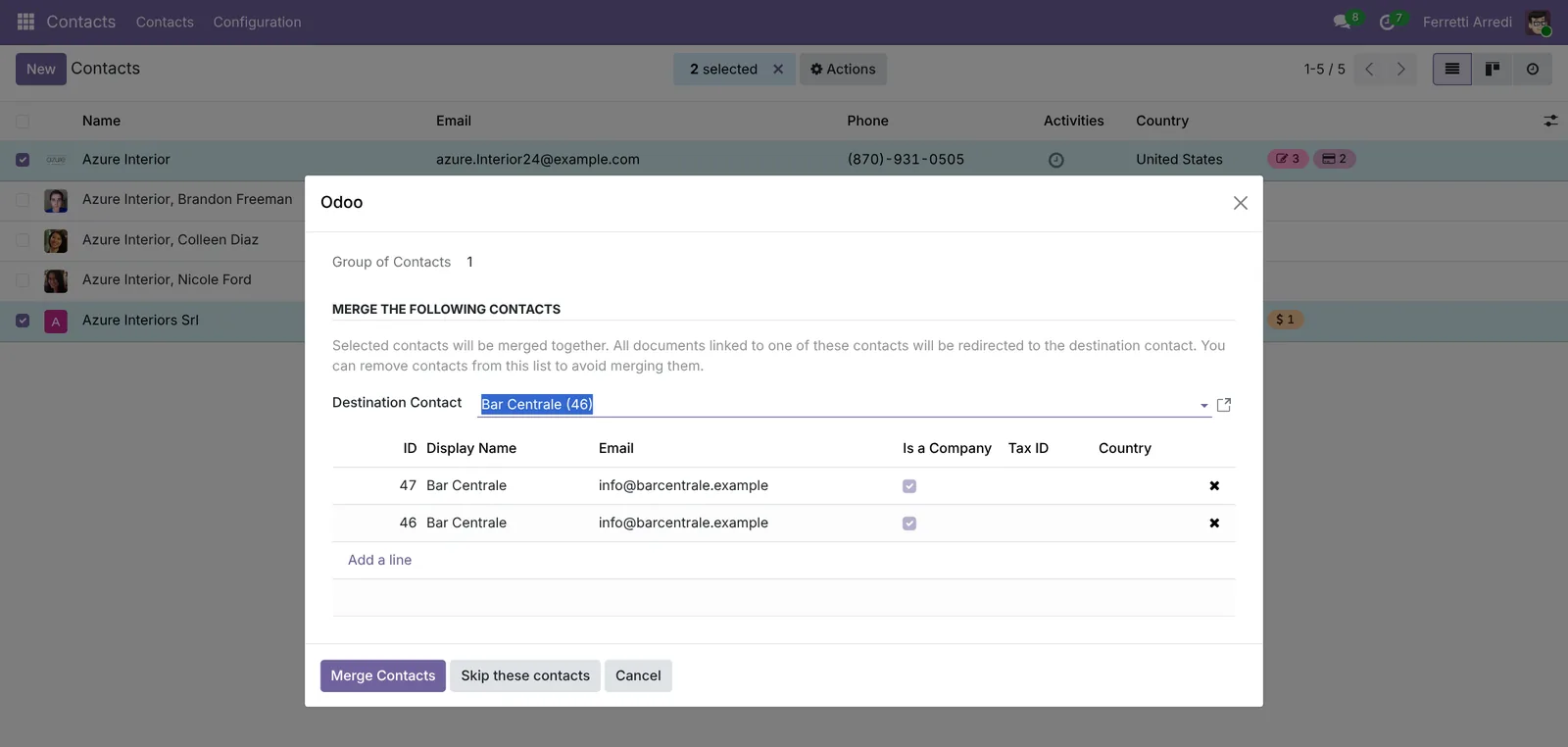 One group at a time: you decide each merge.
Merge Automatically merges every group without asking. Use it only with a strict rule, such as the same VAT number.
Common mistakes
- Keeping the wrong record. The destination contact keeps its own name, address and VAT number. Pick the clean one.
- Ticking the people too. Odoo refuses to merge a company with one of its own contacts. Tick the companies only.
- Comparing on the name. Two shops called Casa Verdi in two cities are two customers. Compare on the email or the VAT number, and check each group.
- Merging in bulk without looking. A merge can’t be undone. Use Merge with Manual Check until you trust the rule.
Duplicate contacts with AI: ask your AI assistant through MCP
With the Hawklify MCP server, Claude, ChatGPT and other assistants work in your Odoo as you, with your permissions. Odoo’s Deduplicate only groups identical values. Real duplicates look different: Hotel Bianchi and Hotel Bianchi S.p.A., Marco Neri and Neri, Marco, a VAT number typed with a space. The assistant compares names, VAT numbers, email domains and phones, and because a merge can’t be undone, it asks once before merging. Smart mode is on here.
4 pairs are the same customer, written differently:
Hotel BianchiandHotel Bianchi S.p.A.: the same VAT, typed with a space.Lago DesignandLago Design srl: same email domain, same city.Marco NeriandNeri, Marco: the same mobile number.Studio Rossi ArchitettiandRossi Architetti Studio: same email domain and phone.
The two Casa Verdi are two different shops, in Milano and Roma, each with its own VAT. I'll leave them apart.
Maison Dubois is in Lyon with a French VAT, but filed under Italy.
In each pair I'll keep the record with the VAT and the full address, and move the other one's quotations to it. A merge can't be undone. Shall I go ahead?
Done:
- 4 duplicates merged: each kept customer now has both quotations.
- Maison Dubois: country Italy → France.
8 customers left, all different.
Before a duplicate is born. A salesperson adds a customer from their phone: the assistant checks the VAT number and the email domain first, finds the customer already in Odoo, and adds the new person to it instead of a second company.
Hawklify
Your Odoo, from the chat you already use
Send a message, a photo or a voice note: the assistant reads and works in Odoo through Hawklify, with your permissions.
Met a new customer at the fair: Hotel Bianchi, Via Roma 12, Milano, VAT IT09876540155. Contact: Giulia Conti, [email protected]. Add them please.
Hotel Bianchi is already a customer: Hotel Bianchi S.p.A., same VAT, same address. Last order in September, $4,750.
I won't create a second company. Shall I add Giulia Conti as a contact person under it?
Yes, add her
Done. Giulia Conti is now a contact of Hotel Bianchi S.p.A., with her email. Her quotes will land on the same customer, with its whole history.
Versions we tested
| Version | Result |
|---|---|
| Odoo 16 | Same steps. Merge is in the Action menu, and the list shows the name in a column of its own. |
| Odoo 17 | Like 16, with the Actions menu. |
| Odoo 18 | Same steps. |
| Odoo 19 | As in this guide. The screenshots come from Odoo 19. |
| Odoo 20 | Like 19. |
Frequently asked questions
What happens to the quotations and invoices of the contact that disappears?
They move to the contact you keep: quotations, orders, invoices, payments, messages and child contacts. The other contact is deleted, so its name only stays in the history of the documents.
Can I undo a merge?
No. Odoo deletes the merged contact. Check the destination contact before you press Merge Contacts, and keep the record with the right VAT number and address.
Why does Deduplicate not find all my duplicates?
It groups contacts whose fields are exactly the same: the same name, email, VAT number or parent company. "Hotel Bianchi" and "Hotel Bianchi S.p.A.", or a VAT typed with a space, are different values for Odoo.
Why does Odoo refuse to merge two contacts?
Only an administrator can merge contacts with different emails, or more than three contacts at once. And a company can't be merged with one of its own people: tick the companies only.
Questa guida è disponibile anche in italiano: Contatti duplicati Odoo: uniscili senza perdere lo storico
Related Odoo guides
 SalesSales orders in Odoo: from quotation to invoiceTake a sale through Odoo from start to finish: create the quotation, confirm the order, deliver the goods and post the invoice. Community and Enterprise.
 CRMCRM pipeline in Odoo: stages, activities, lost reasonsSet up the Odoo CRM pipeline: add and order stages, create opportunities, plan the next activity and mark lost deals with a reason. Community and Enterprise.
 Settings & ProductivityMulti-company in Odoo: two companies in one databaseRun two companies in one Odoo: create the company, give users access, use the switcher, share customers and see what each company keeps. Community and Enterprise.