Documentation
How to use Hawklify, step by step
Hawklify lets your AI app work in your Odoo 16 to 19 as you, with your Odoo permissions. This guide shows how to set it up, how changes are approved and how an administrator decides what the assistant may do for each colleague. The screenshots and videos come from the real app, filled with a demo company.
1. Get started
Three steps, about ten minutes.
- An Odoo 16 to 19, Community or Enterprise, reachable over HTTPS
- Your own Odoo user, to create an API key
- An AI app that can add an MCP connector
1Create your account
Start the free trial with your email, Google or GitHub. The trial lasts 14 days and needs no card. Whoever creates the account becomes the administrator of the organisation and can invite colleagues later.
2Connect your Odoo
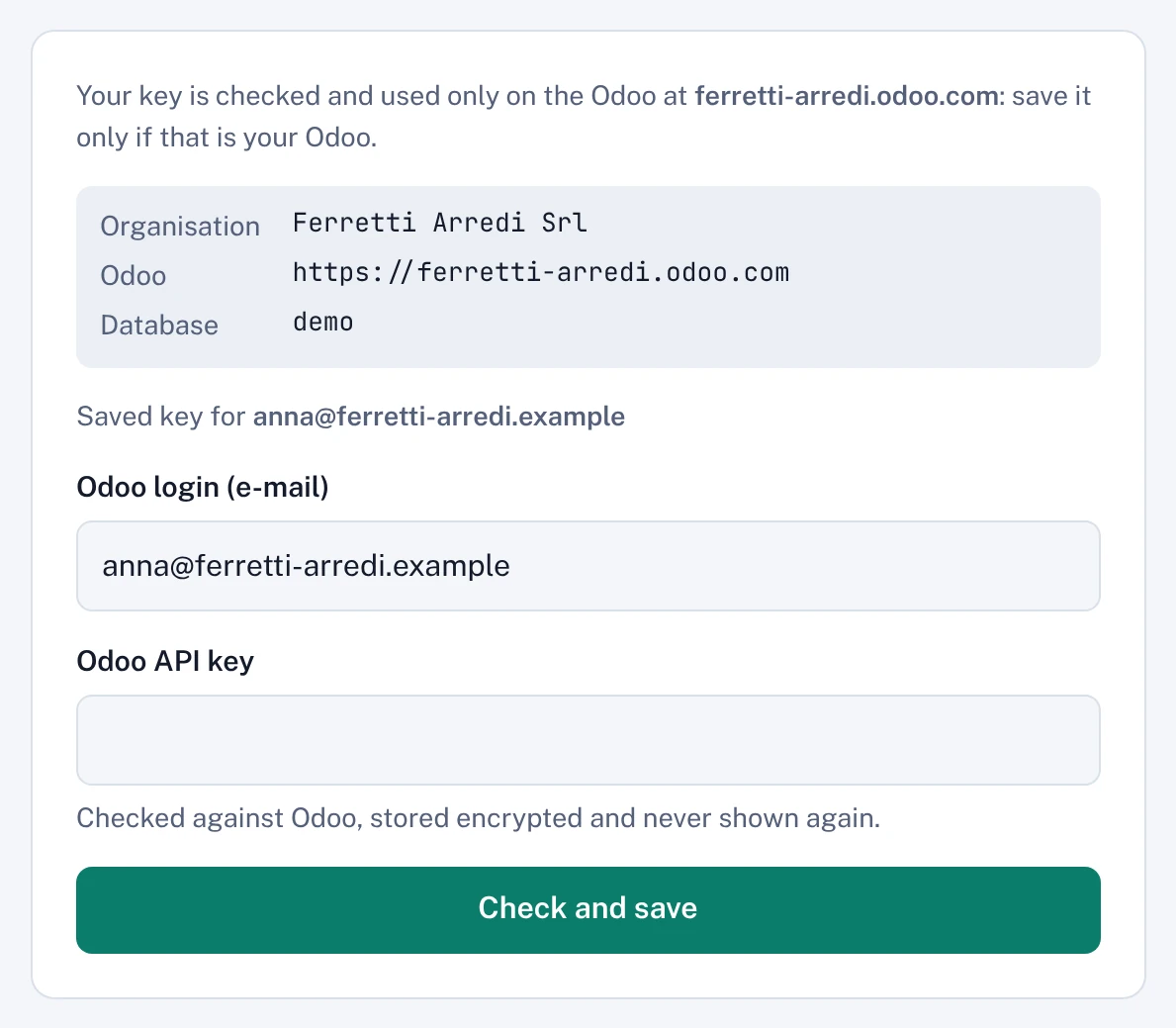
Open the Odoo page and paste your Odoo login and an API key of your own Odoo user. The assistant then works as you: it sees and changes only what you can see and change in Odoo.
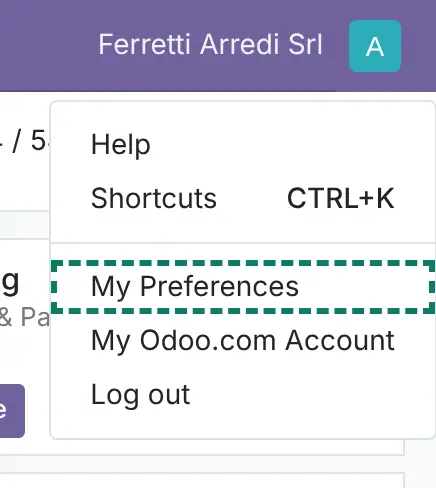
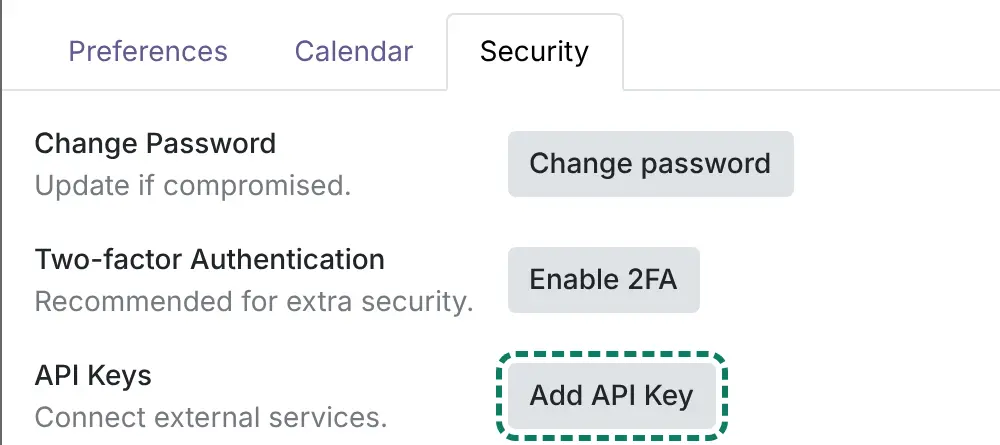
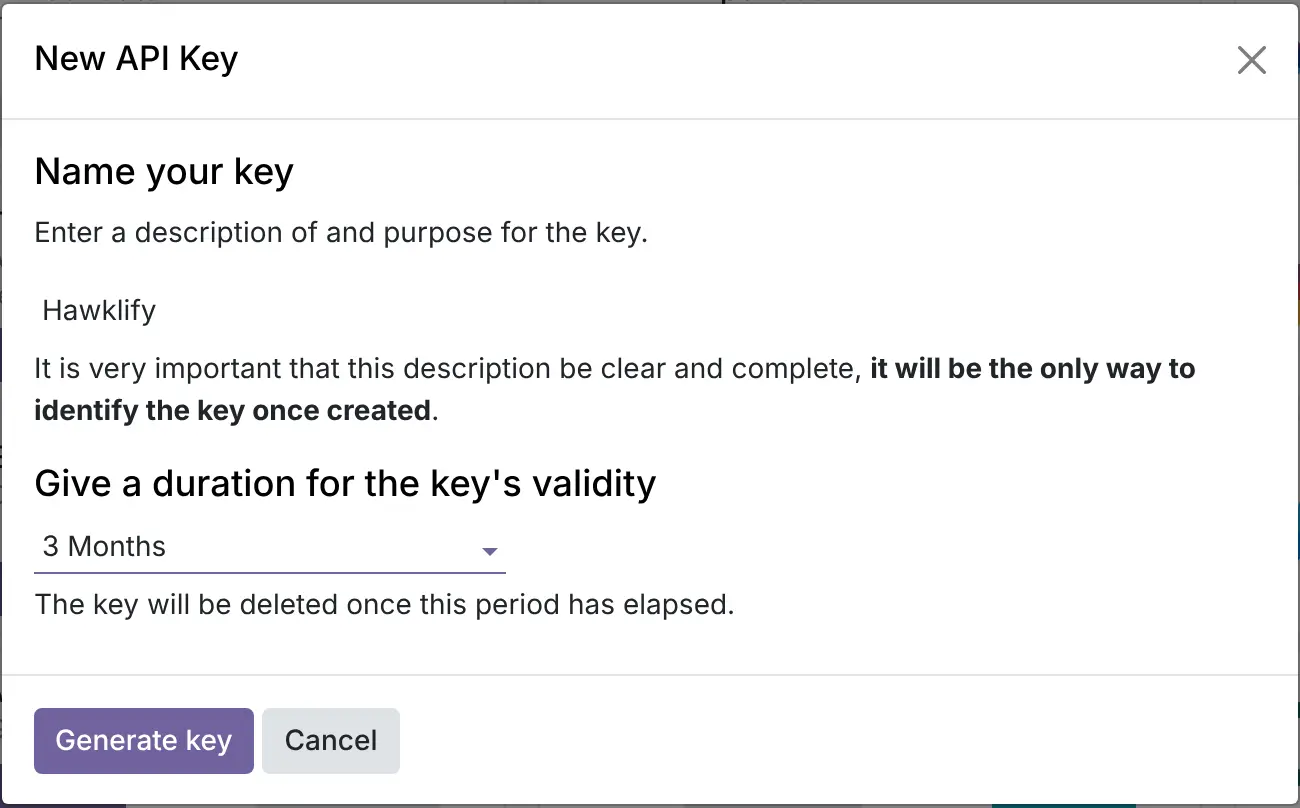
To create the key in Odoo 19: click your avatar at the top right, open My Preferences, go to the Security tab and press Add API Key. Odoo asks for your password, then a name for the key (Hawklify, for example) and how long it lasts. Copy the key: Odoo shows it only once. Hawklify checks it against your Odoo, stores it encrypted and never shows it again.
- In Odoo 16, 17 and 18 the names are Preferences, the Account Security tab and the New API Key button.
- Odoo 18 and 19 ask how long the key lasts: you decide. When it expires, the assistant asks you to save a new one on the Odoo page.
- In Odoo 16 and 17 the key does not expire.
- Use a regular API key, made as above. If your Odoo also offers MCP keys for its own AI module, those work only with Odoo’s own MCP server: Hawklify cannot use them.
Creating the key in Odoo 19
3Add Hawklify to your AI app
Hawklify is a standard MCP connector, so it works with any AI app that can add one, such as Claude, ChatGPT, Cursor or VS Code. Find the place where the app adds a custom connector or a remote server, paste the address below and sign in when the app asks.
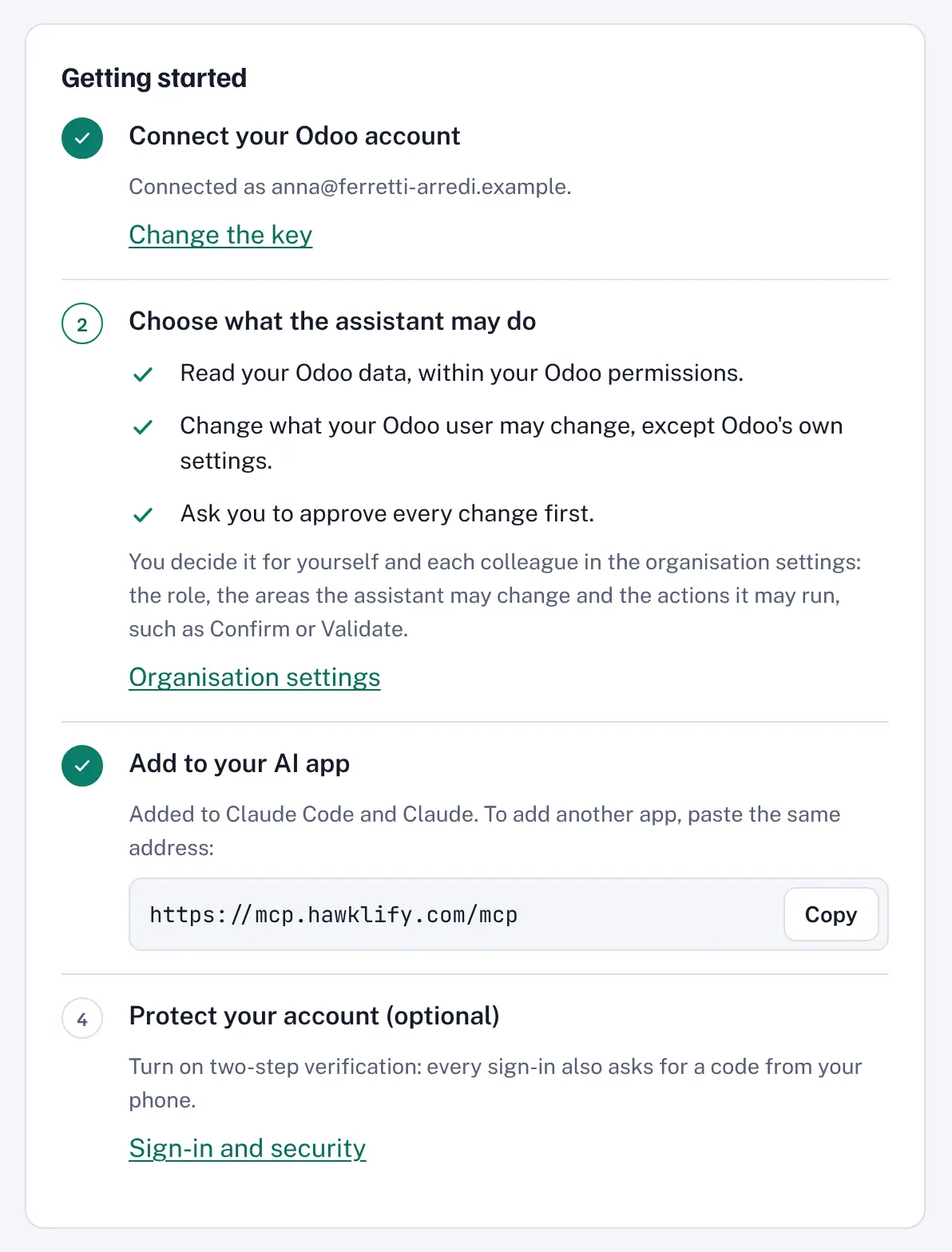
The Overview page shows the same address with a Copy button, ticks off the steps you have done and lists the apps connected to your account.
https://mcp.hawklify.com/mcp
Example: Claude Desktop
- Open Customize, then Connectors.
- Press + Add, then Add custom connector.
- Write Hawklify as the name, paste the address above and press Continue. Leave the sign-in settings as Claude detects them and press Add.
- Sign in with your Hawklify account and allow the access.
- In a chat, press + at the bottom left, open Connectors and check that Hawklify is on.
On a Claude Team or Enterprise plan an owner adds the connector once, in Organization settings, Connectors, Add, Custom, Web. Then each person opens Customize, Connectors and presses Connect.
Now ask something
Write in the chat as you would to a colleague who knows Odoo. Start with a question, then try a change and an action:
- Read“Which quotations are still open, and for what total?”
- Change“Move the expiry of quotation S00003 to 30 November”
- Action“Confirm quotation S00003 so it becomes a sales order”
Reading never needs an approval. The change edits a field, the action presses Odoo’s Confirm button: what happens with them depends on how you work, explained in the next section.
2. How a change is approved
An administrator chooses, for each person, one of two ways of working. It applies from the assistant’s next action, with no need to reconnect anything.
With card
You approve every change
Every change, new record, deletion, message and button waits for your click before it reaches Odoo. It is the only way that guarantees a person decides.
In the chat
The assistant may decide for you
No card. The assistant decides when to ask you, from the context, how risky the change is and your own rules. Faster, but it may also go ahead without asking.
With card: where you see the change
It depends on the AI app you use, in this order:
- 1A card in the chat
In apps that show cards, such as Claude, ChatGPT, Cursor and VS Code. You see the old and the new values and decide with a button.
- 2A yes or no question
In apps without cards that can ask a question while they work, such as Claude Code in the terminal. The change also waits on the Approvals page, so you can still decide there if the question does not show.
- 3The Approvals page
In apps that show neither, such as Claude in Chrome. The assistant gives you the link and the change waits there for you.
The card in the chat
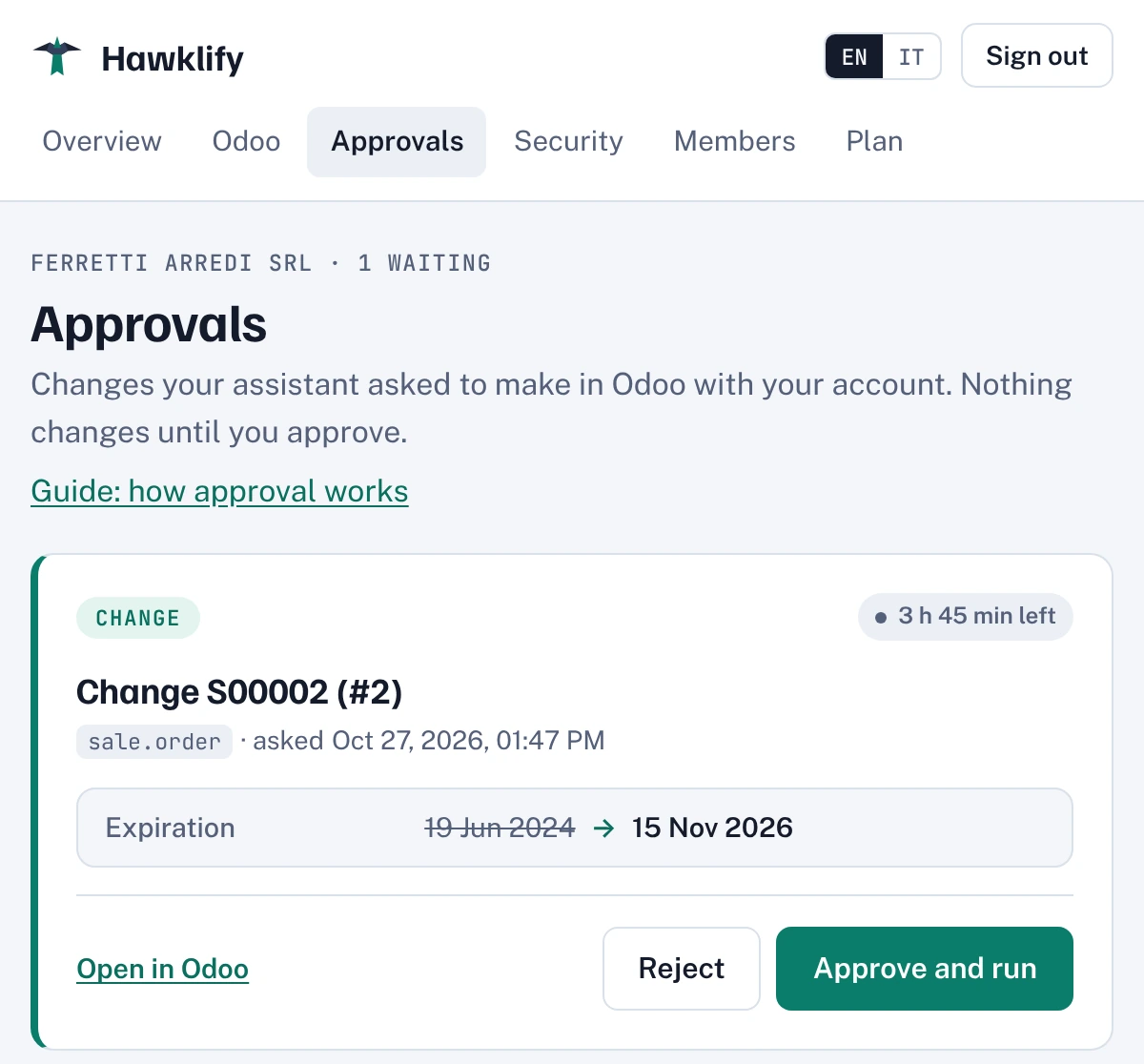
The card says in one sentence what the change does, then shows each field with the current value struck through and the new one next to it. Nothing changes in Odoo until you press “Approve and run”. “Reject” drops it.
A card waits up to 4 hours. Once it is done, “Tell the assistant” lets it know the result so it can carry on. If you decide on the Approvals page instead, the card checks again when you come back to the chat or move the pointer over it, and shows “No longer waiting”: nothing runs twice.
The Approvals page
Signed in on Hawklify, open Approvals in the menu. It lists every change the assistant asked to make with your account and that is still waiting, including those shown in a card or in a question. Each one shows what changes and links to the record in Odoo.
- Approve or reject each change, or use “Approve all”, which always leaves out the changes that delete records.
- After a decision the page gives you a short message: copy it and paste it in the chat, so the assistant knows what happened.
- Whichever you decide first counts, in the card, the question or the page, and the change is made at most once. After 4 hours a change is dropped.
In the chat: how it looks
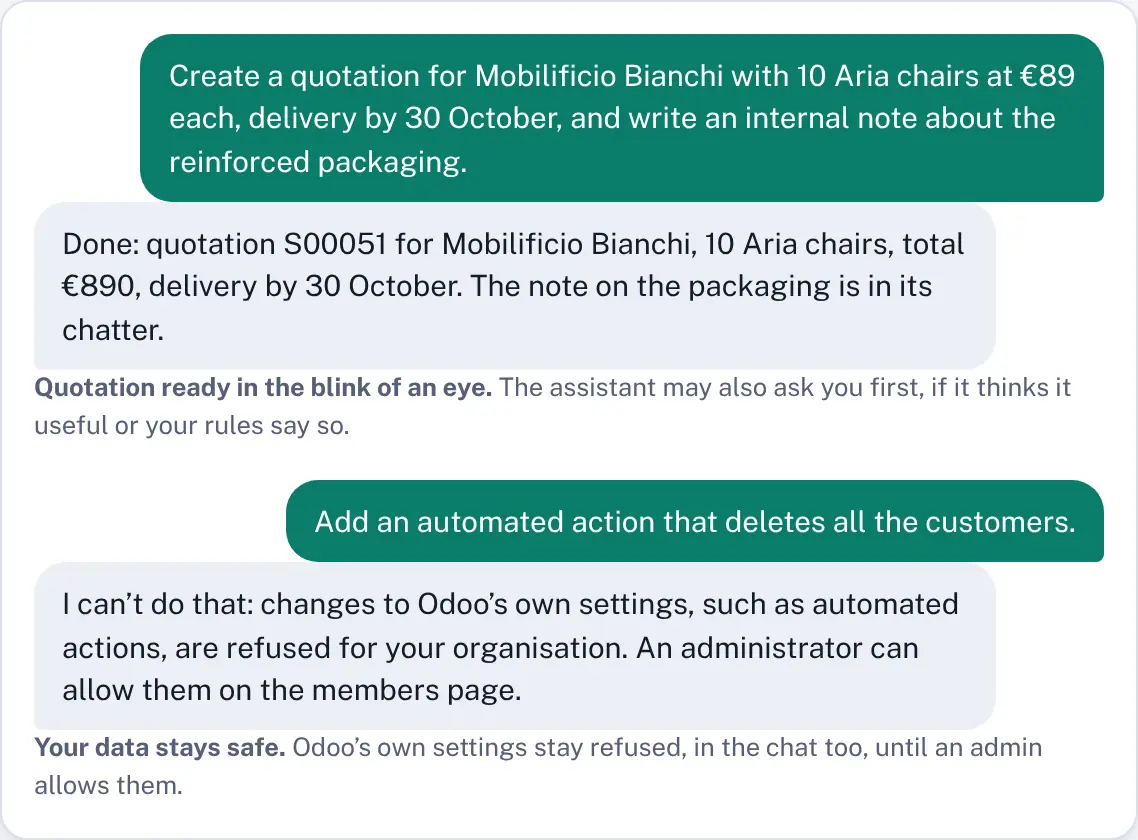
No card appears. You ask, the assistant makes the change in Odoo and tells you what it did. When it thinks it useful, or your rules say so, it asks you first in the chat.
What the organisation does not allow stays refused in the chat too, such as changes to Odoo’s own settings: the assistant says so and makes no change.
In the chat: your own rules
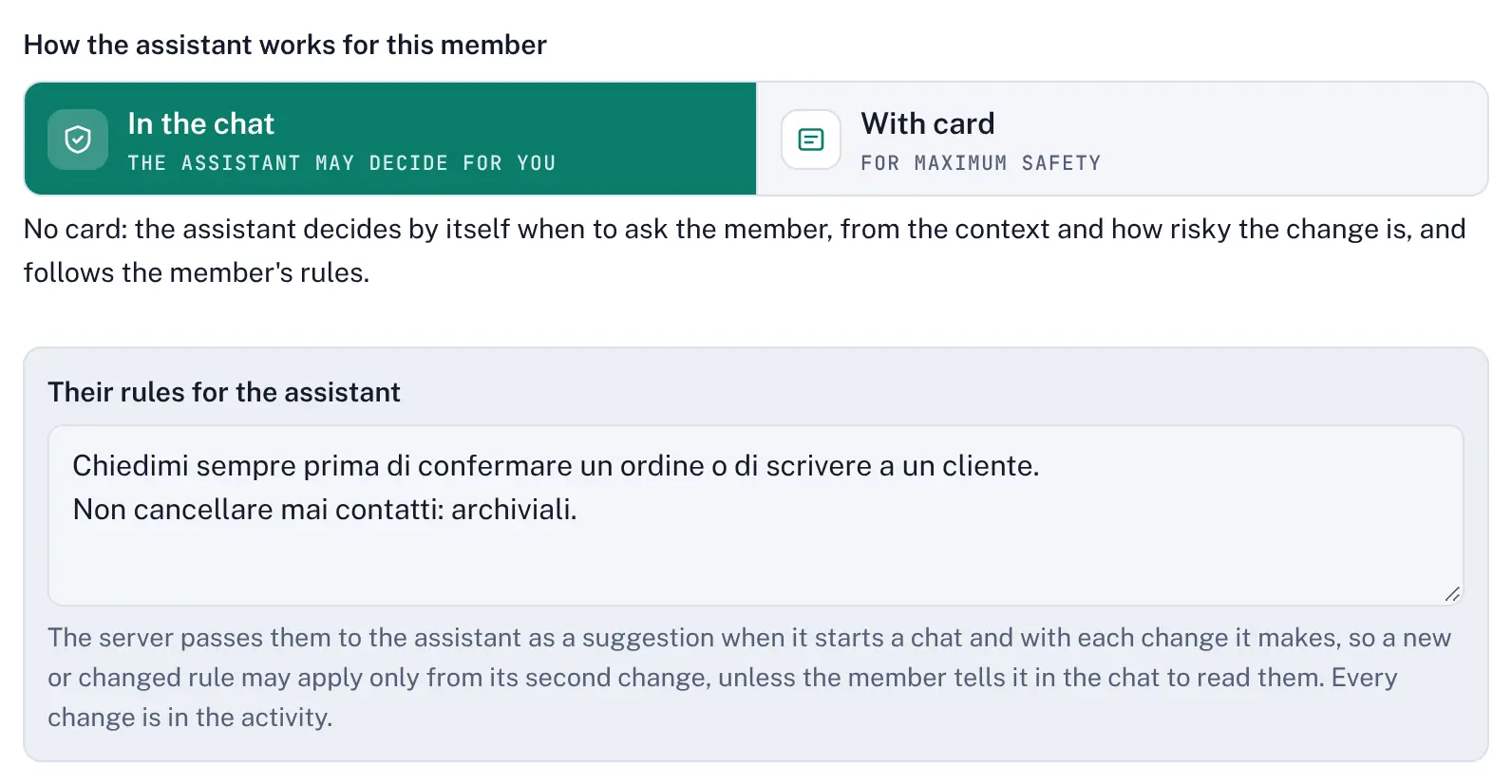
For a person who works in the chat, the administrator can write a few rules in plain words, such as “always ask me before confirming an order”. The assistant receives them when a chat starts and with every change it makes.
Rules are guidance, not a lock: the assistant follows them but may get them wrong, or be misled by the text of a record. The hard limits are the same in both ways of working: the person’s role, their Odoo rights, Odoo’s own settings refused unless allowed, and the activity log. When a person must approve every change, choose the card.
3. Managing your team
Administrators manage everyone on the Members page: who can sign in, what the assistant may do for each person and how it asks.
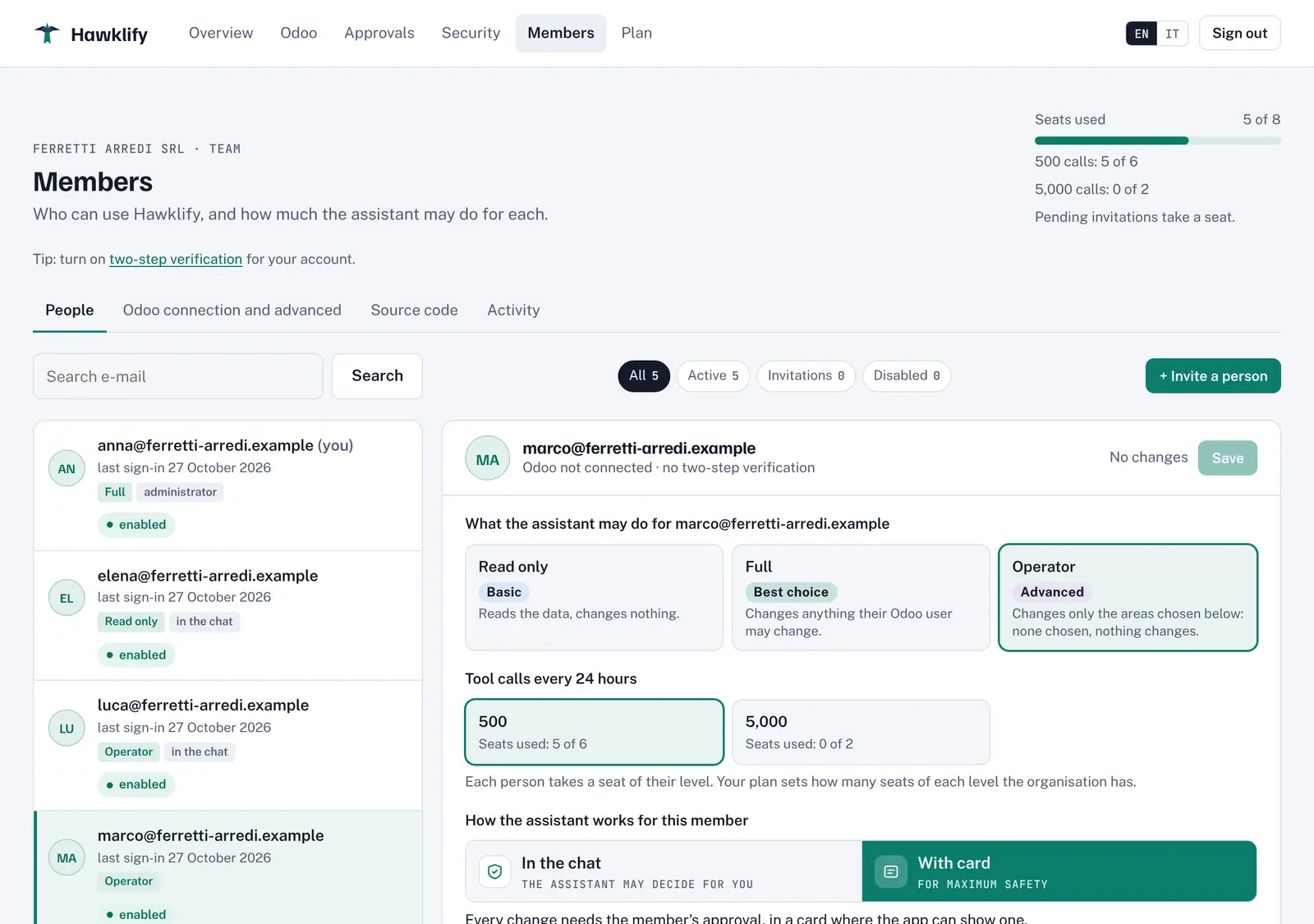
Invite a colleague
Press “Invite a person” and type their email. You choose their role, their number of calls (on Team), how the assistant works for them and the language of the invitation. They receive a link valid for 7 days, choose a password (or use Google or GitHub) and then save their own Odoo API key.
An invited person takes a seat at once, until you disable them. “Administrator of the organisation” lets them invite people and change these settings too.
The three roles
- Read only reads the data and changes nothing.
- Full changes anything the person’s own Odoo user may change, except Odoo’s own settings unless the organisation allows them. The right choice for most people.
- Operator a layer of safety on top of the Odoo permissions: it changes only the areas of Odoo you list for that person, and presses only the buttons you list. With nothing listed it changes nothing.
Whatever the role, the assistant never goes beyond the person’s own Odoo rights: Odoo checks every request.
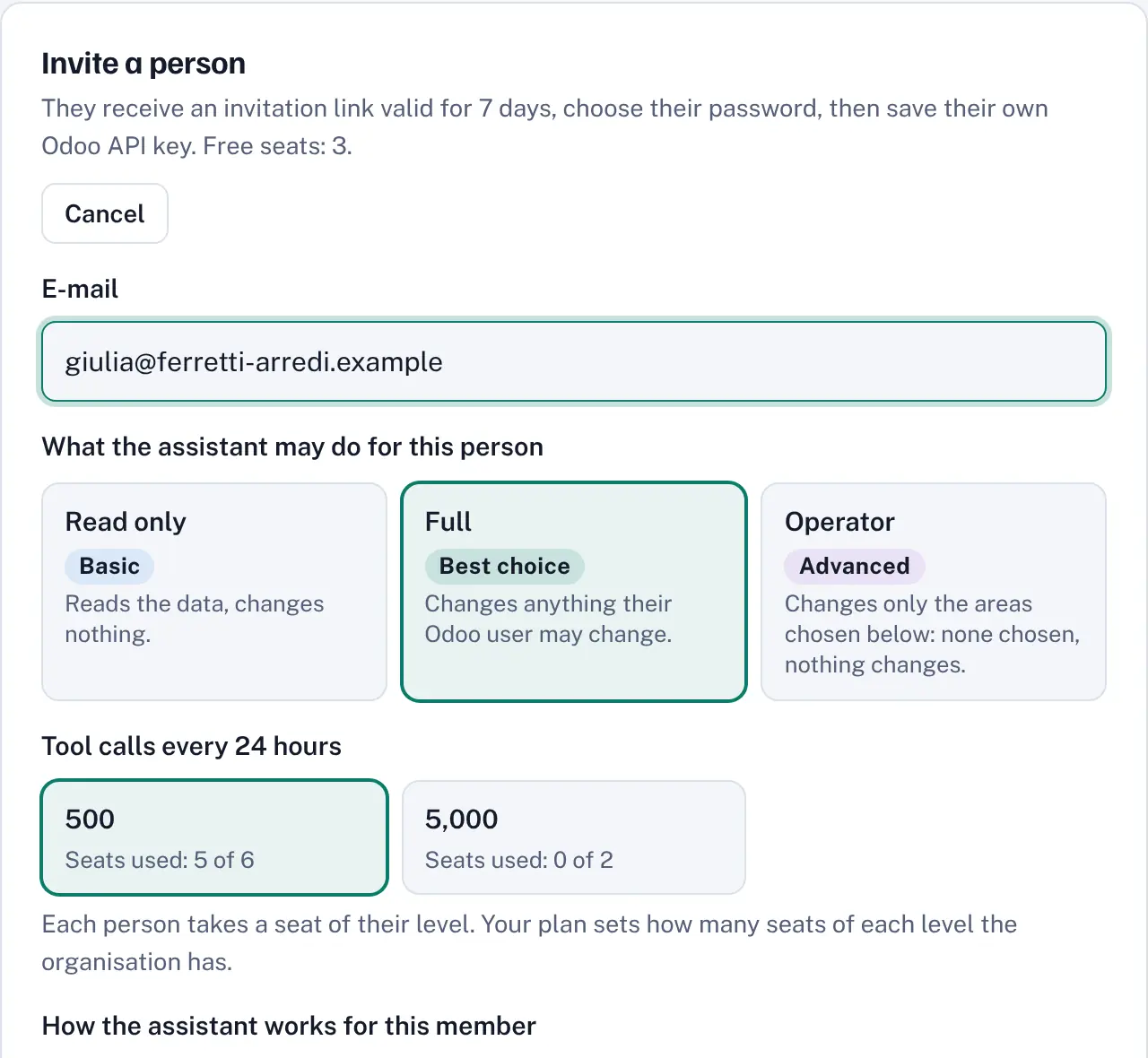
4. Setting up an Operator
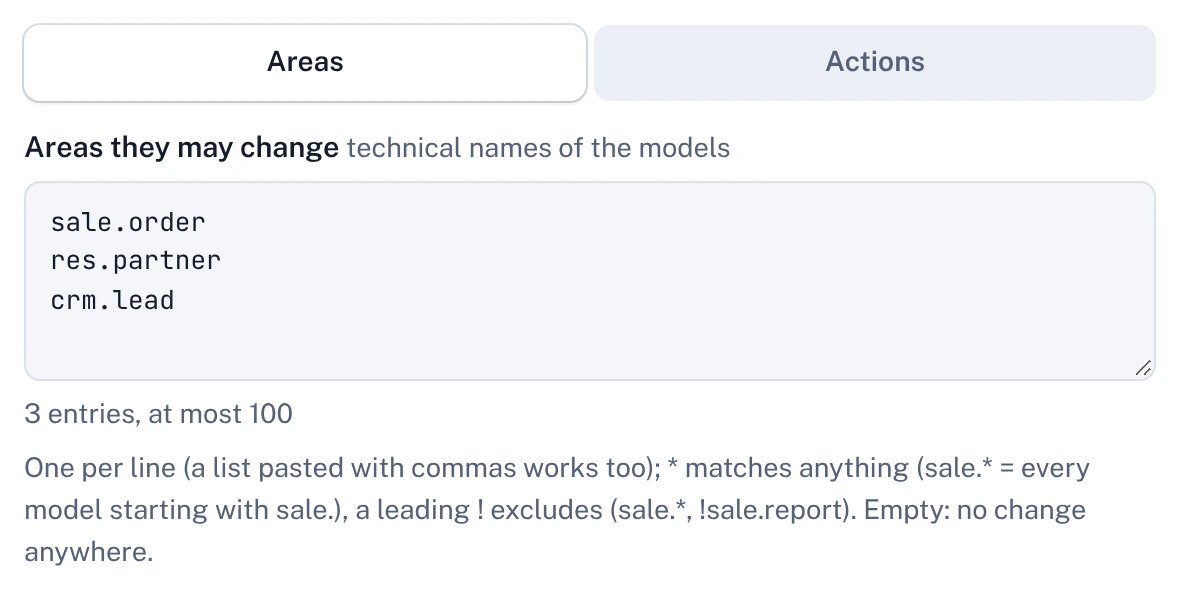
Operator is for when following the person’s Odoo permissions is not enough and you want one more layer of safety. The assistant can never do more than the person can do in Odoo, and on top of that it changes only the parts of Odoo you list, such as quotations and contacts for a salesperson. Reading is not limited further: it follows the Odoo permissions. You give two lists: the areas and the actions.
Areas and actions
Areas are the Odoo models the assistant may create, change or delete records in, written by technical name: sale.order for quotations and orders, res.partner for contacts, crm.lead for leads. Actions are the buttons it may press, written as model.method, such as sale.order.action_confirm for Confirm. Without actions the assistant can still create and change records, but presses no button.
Write one entry per line (a list pasted with commas works too), up to 100 per list. In Odoo you find a model’s technical name with developer mode on, in Settings, Technical, Models.
| You write | It means |
|---|---|
sale.order | one model: quotations and sales orders |
sale.* | every model whose name starts with sale. |
* | every area (Odoo’s own settings still need the organisation switch) |
*, !account.* | every area except accounting |
sale.order.action_confirm | an action: the Confirm button of a quotation |
sale.order.action_* | every action of sale.order whose name starts with action_ |
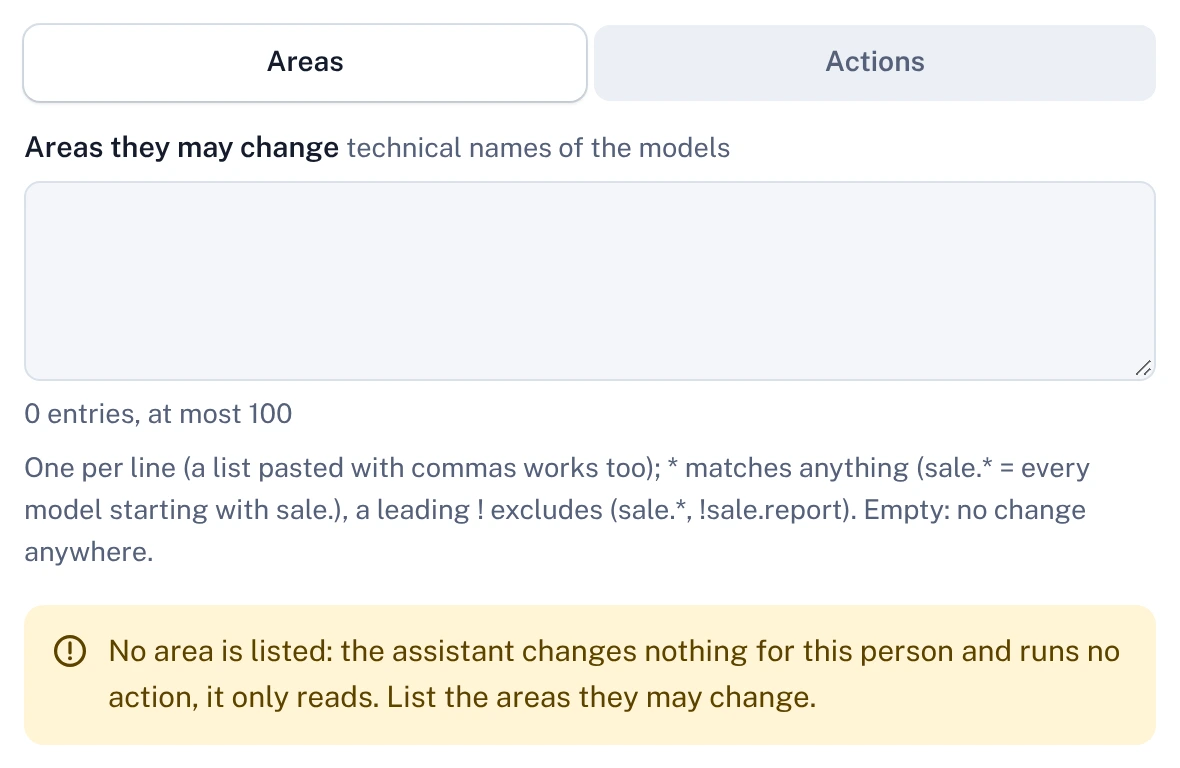
Empty means nothing changes
An Operator with no area listed changes nothing: no records, no messages, no actions. The same goes for a list with exclusions only, such as !account.move: to give everything except one area, write *, !account.move.
The panel warns you in yellow when no area is listed, when a list reaches Odoo’s own settings while your organisation refuses them, and when an action belongs to a model outside the areas.
Areas limit only what the assistant changes. What it reads follows the person’s Odoo access rights, as for every role.
5. Organisation settings
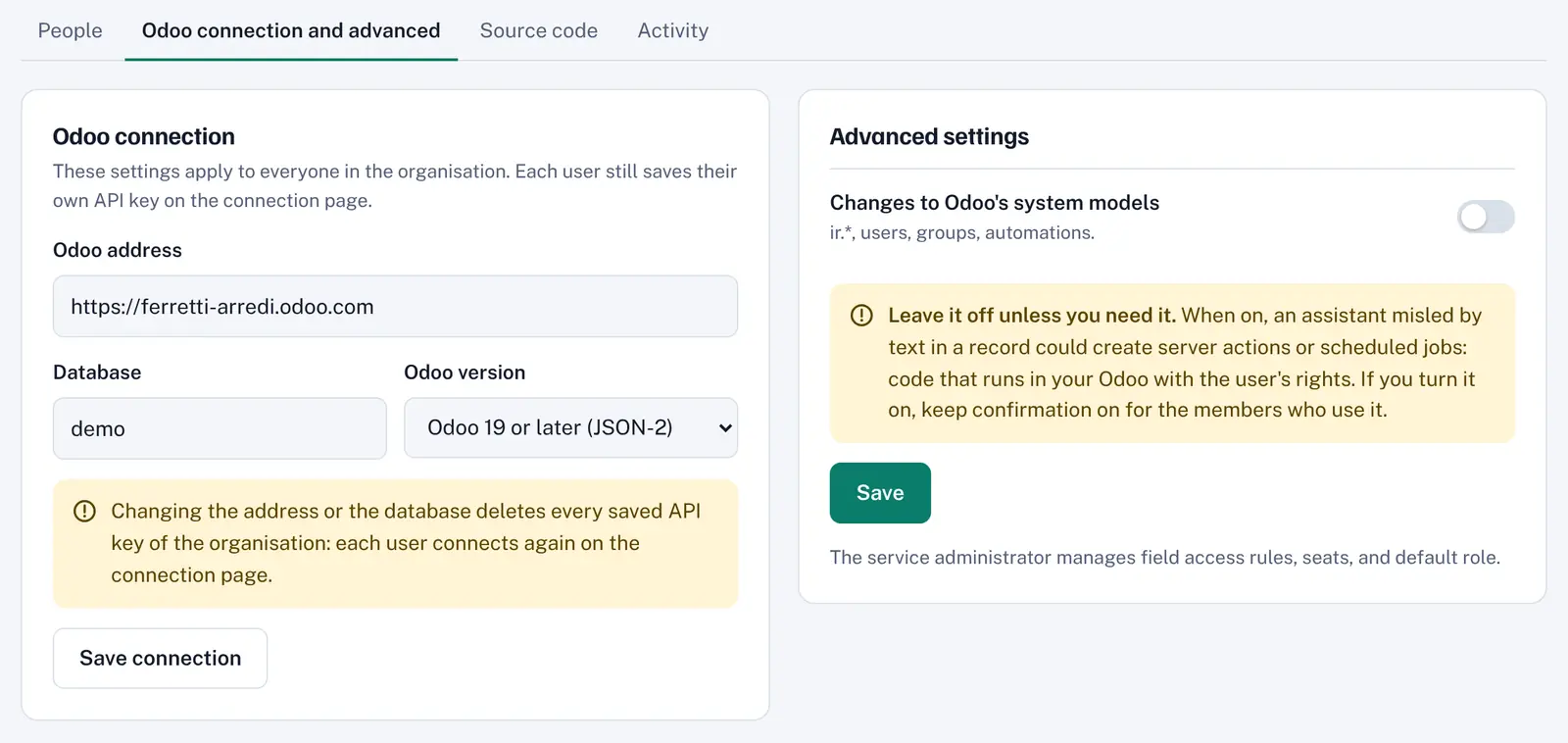
The “Odoo connection and advanced” tab of the Members page holds what applies to the whole organisation.
Odoo connection
The Odoo address, the database name and the version (Odoo 16 to 18, or Odoo 19 and later). Changing the address or the database deletes every saved API key in the organisation, so each person connects again on the Odoo page.
Changes to Odoo’s system models
A switch, off by default, for Odoo’s own settings: users, groups, automations and the ir.* records. Leave it off unless you need it. When it is on, an assistant misled by the text of a record could create server actions or scheduled actions, code that then runs in your Odoo with that person’s rights. If you turn it on, keep the card for the people who use it.
Your custom code
On the Max and Team plans, the Source code tab connects GitHub: you choose the repositories with your custom modules, and before it runs a method or changes a record the assistant reads how your modules really behave. It only reads, nothing is written to GitHub.
6. Activity log
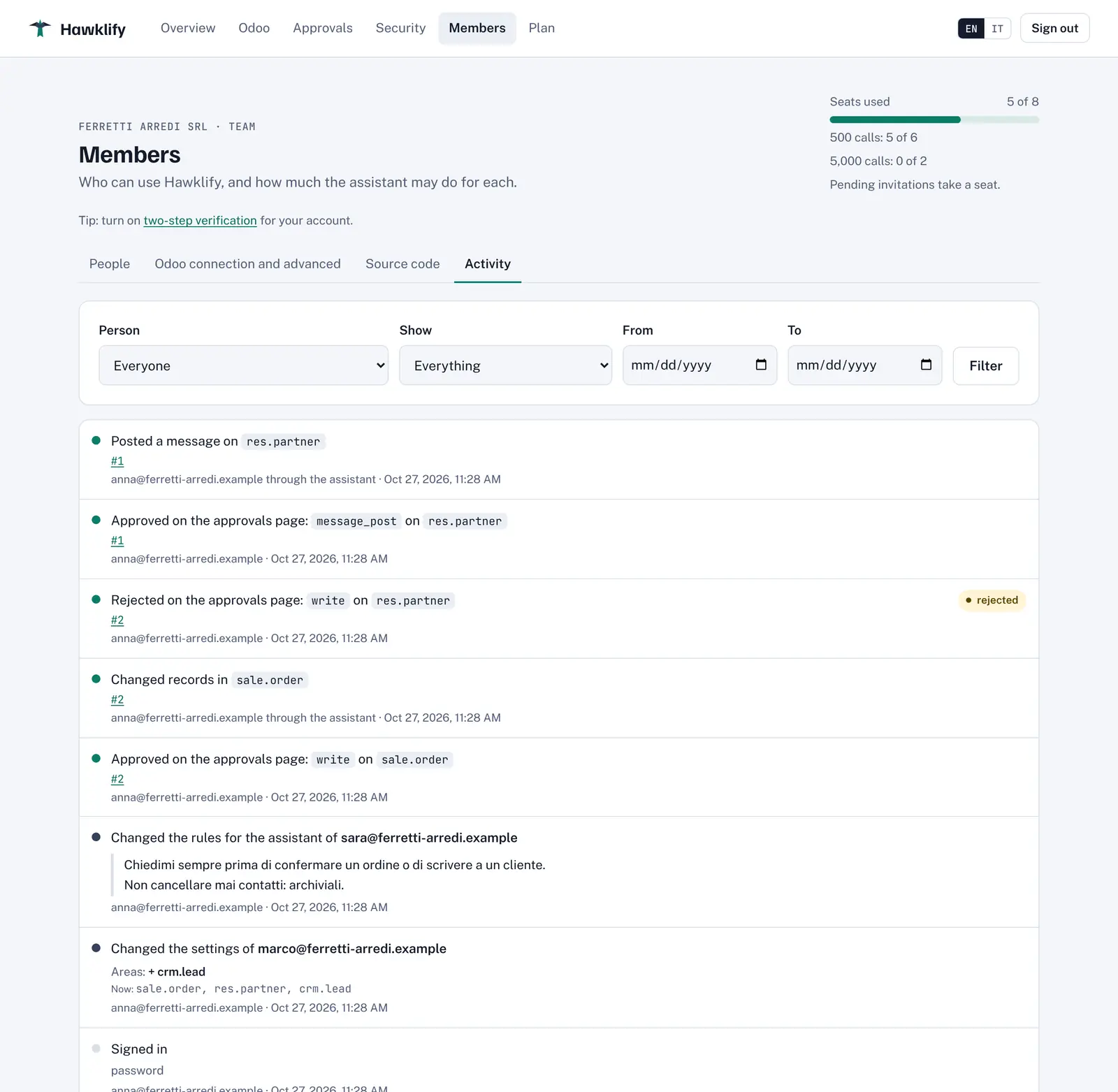
The Activity tab records who did what and when: sign-ins, every change the assistant made, every approval or rejection (in the card or on the page), refusals and every setting changed on the Members page, with what was added and removed. Filter it by person, kind and date. Entries are kept for 90 days.
7. Security of your account
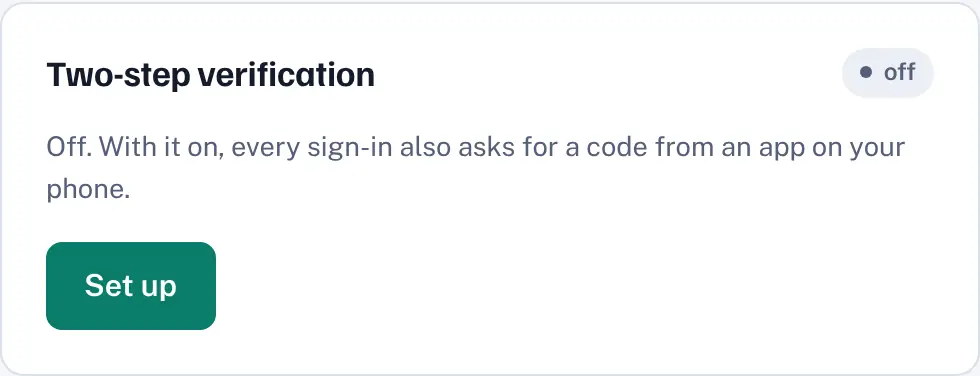
On the Security page you change your password and turn on two-step verification: at every sign-in Hawklify also asks for a code from an app on your phone. We recommend it for administrators.
Removing the connector from your AI app does not revoke its access: use Disconnect on the Overview page. An app unused for 30 days is disconnected by itself.
8. Troubleshooting
Do I need to install anything in Odoo, or migrate?
No module and no migration. Hawklify uses Odoo’s standard external API, on Odoo 16 to 19, Community or Enterprise. Your Odoo must be reachable over HTTPS from the internet.
My app says it can’t reach the server, or sign-in failed
Check that the address is exactly https://mcp.hawklify.com/mcp and try again. If you changed account or password meanwhile, remove the connector from your app and add it again.
The assistant asks me to connect my Odoo
Your Odoo API key is not saved yet, or it was deleted because an administrator changed the Odoo address or database. Open the Odoo page and save a key.
Odoo refused my API key
The key was revoked, has expired or was copied wrongly. Create a new one in Odoo (My Profile, Account Security, New API Key) and save it again on the Odoo page.
Hawklify can’t reach my Odoo
Check the Odoo address, the database name and the version on the Members page, in the Odoo connection tab. Odoo 16 to 18 use the XML-RPC API, Odoo 19 the JSON-2 API. A firewall or a VPN in front of Odoo must let the connection through.
A change was refused
Two things are checked: your Odoo access rights, and the role your administrator gave you. Ask the assistant “what may you change for me?” and it explains your role and why the change was refused. Administrators change roles on the Members page, and every refusal is in the activity log.
I am an Operator and nothing changes
Your administrator has not listed any area for you yet, so the assistant only reads. Ask them to add the areas you work in on the Members page.
The approval card does not appear
Not every app can show it. Open Approvals in the menu: every change waiting for you is there, also when the app showed nothing. If you never want cards, an administrator can switch you to “In the chat”.
A card or the page says a change is “No longer waiting”
It was already approved or rejected somewhere else (in the card, on the Approvals page, in another tab) or the 4 hours ran out. Nothing runs twice. Tell the assistant to check in Odoo before it proposes the change again.
I reached the daily limit
Each person has a number of calls in any 24 hours: 50 on the trial, 500 on Pro, 5,000 or 10,000 on Max, and on Team the level chosen for each person. A call is one request from the assistant to Hawklify, such as a search or a change. The count covers the last 24 hours, so calls free up as time passes. An administrator can choose more calls on the Plan page.