CRM pipeline in Odoo: stages, activities, lost reasons
Set up the Odoo CRM pipeline: add and order stages, create opportunities, plan the next activity and mark lost deals with a reason. Community and Enterprise.
- Community and Enterprise
- 5 min read
- Odoo + AI tutorial
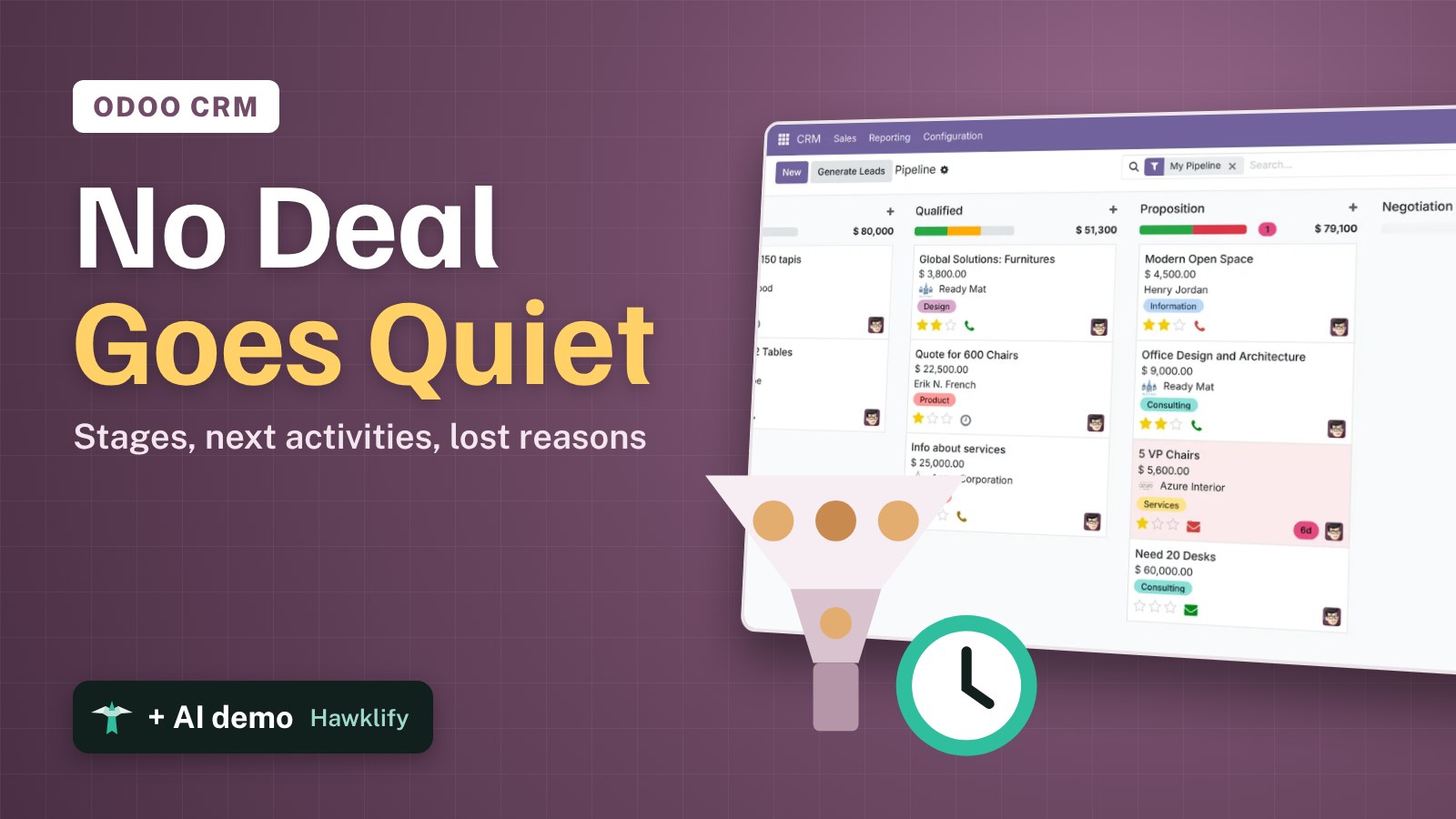
A deal rarely dies with a no. It dies because nobody calls back. The Odoo CRM keeps every opportunity in a pipeline, one column per stage, and lets you plan the next activity on each one: a call, an email, a meeting, with a date. This guide adds a stage, creates an opportunity, plans its next step, moves it forward, marks one lost with a reason, and shows the list where every next step sits.
It works the same in Community and Enterprise. The versions we tested are listed at the end.
This guide is also an AI tutorial. At the end, an AI assistant connected to Odoo finds the deals that went quiet and plans the right next step on each, and updates an opportunity from one chat message right after a customer visit.See it in action ↓Before you start
- The CRM app installed.
- An Odoo user with the Sales / Administrator access right, to add or move stages. Salespeople can do everything else.
1. Add a stage and put it in the right place
Open CRM. The pipeline opens on My Pipeline, with one column per stage: New, Qualified, Proposition, Won.
To add a stage, use the column at the far right: Add Stage (in older versions, + Stage after the last column). Type its name, here Negotiation, and confirm.
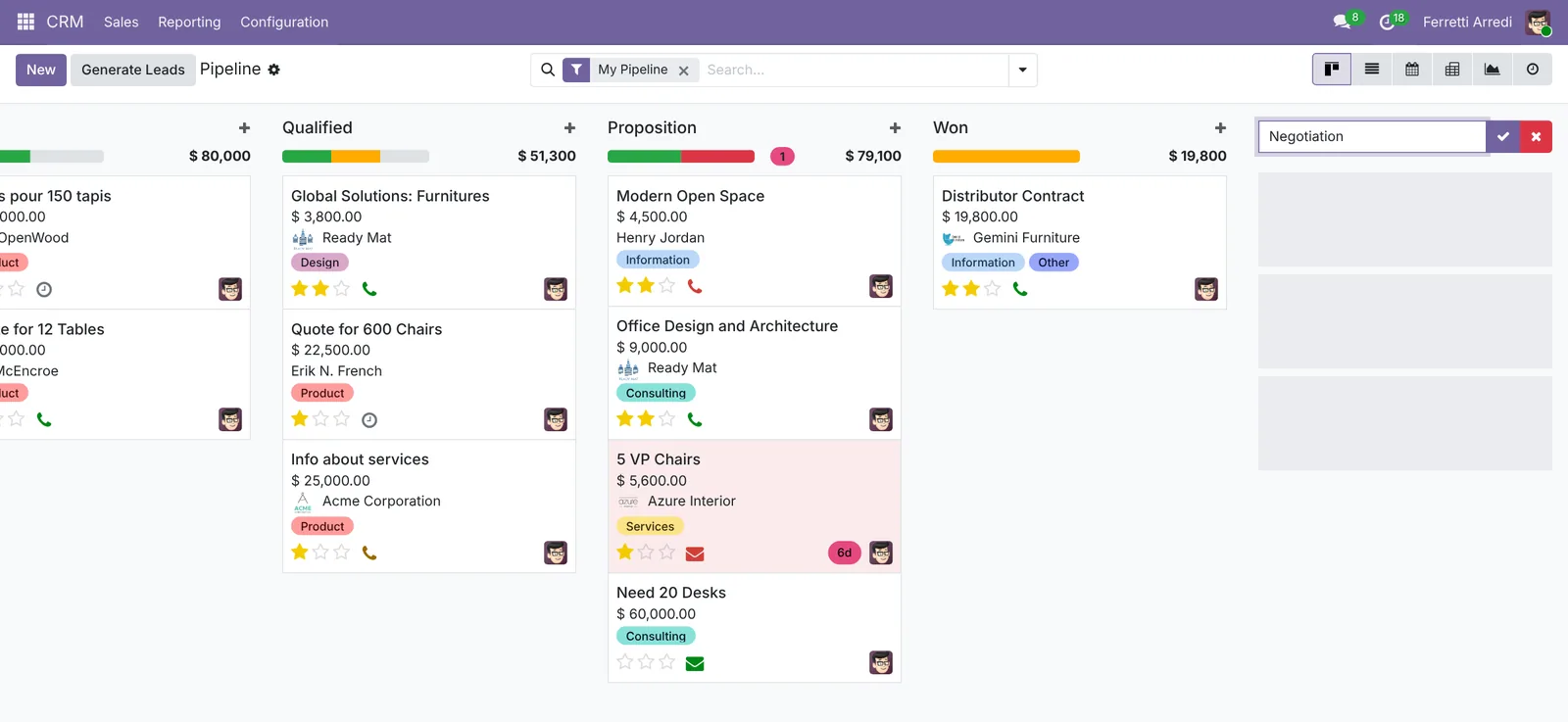 A new stage always goes last.
A new stage lands after Won. Drag the column by its title and drop it before Won: stages go in the order a deal moves through them.
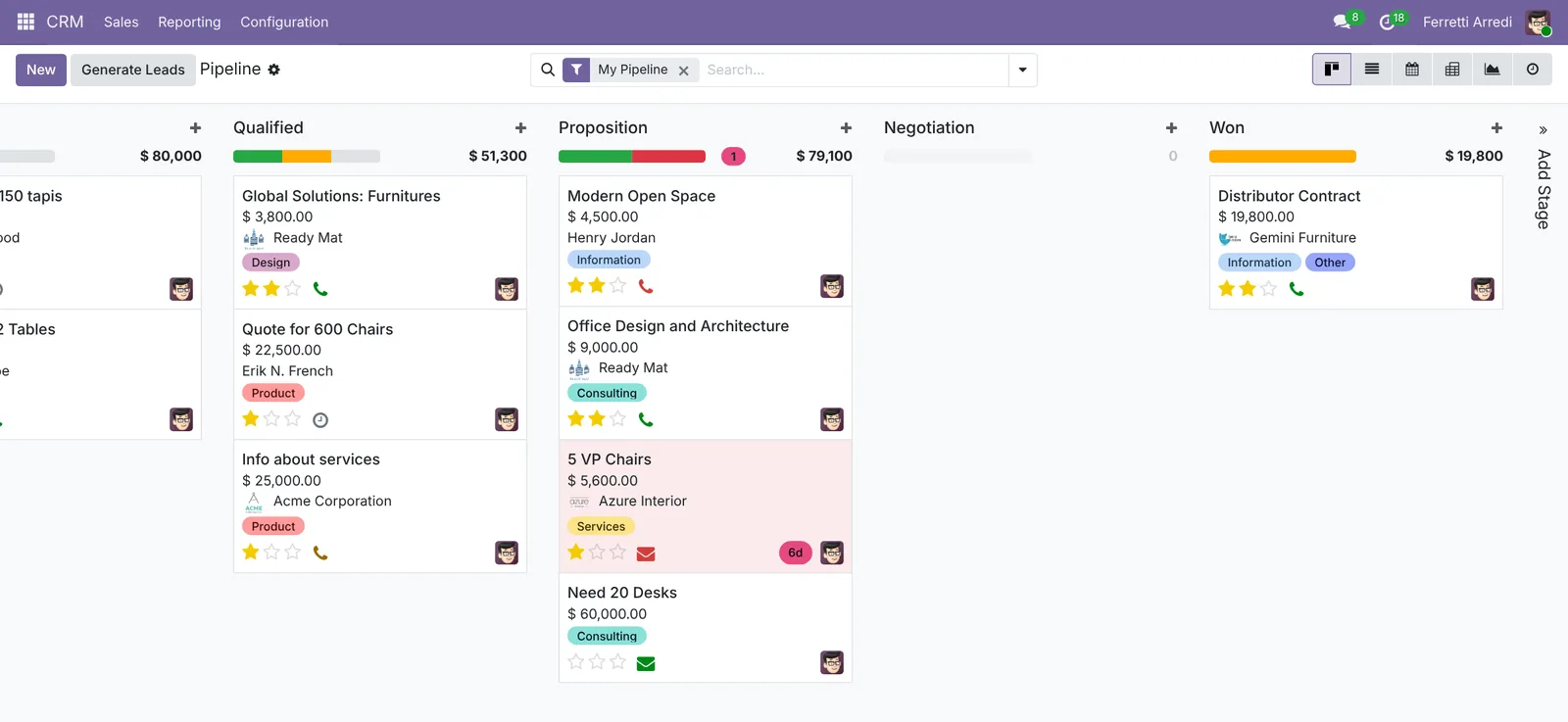 Negotiation now sits between Proposition and Won.
2. Create an opportunity
Press + on top of the New column. In the small form, fill in the customer (here Wood Corner), the name of the opportunity (Showroom chairs) and the Expected Revenue (8,400). Press Add: the card appears in the column.
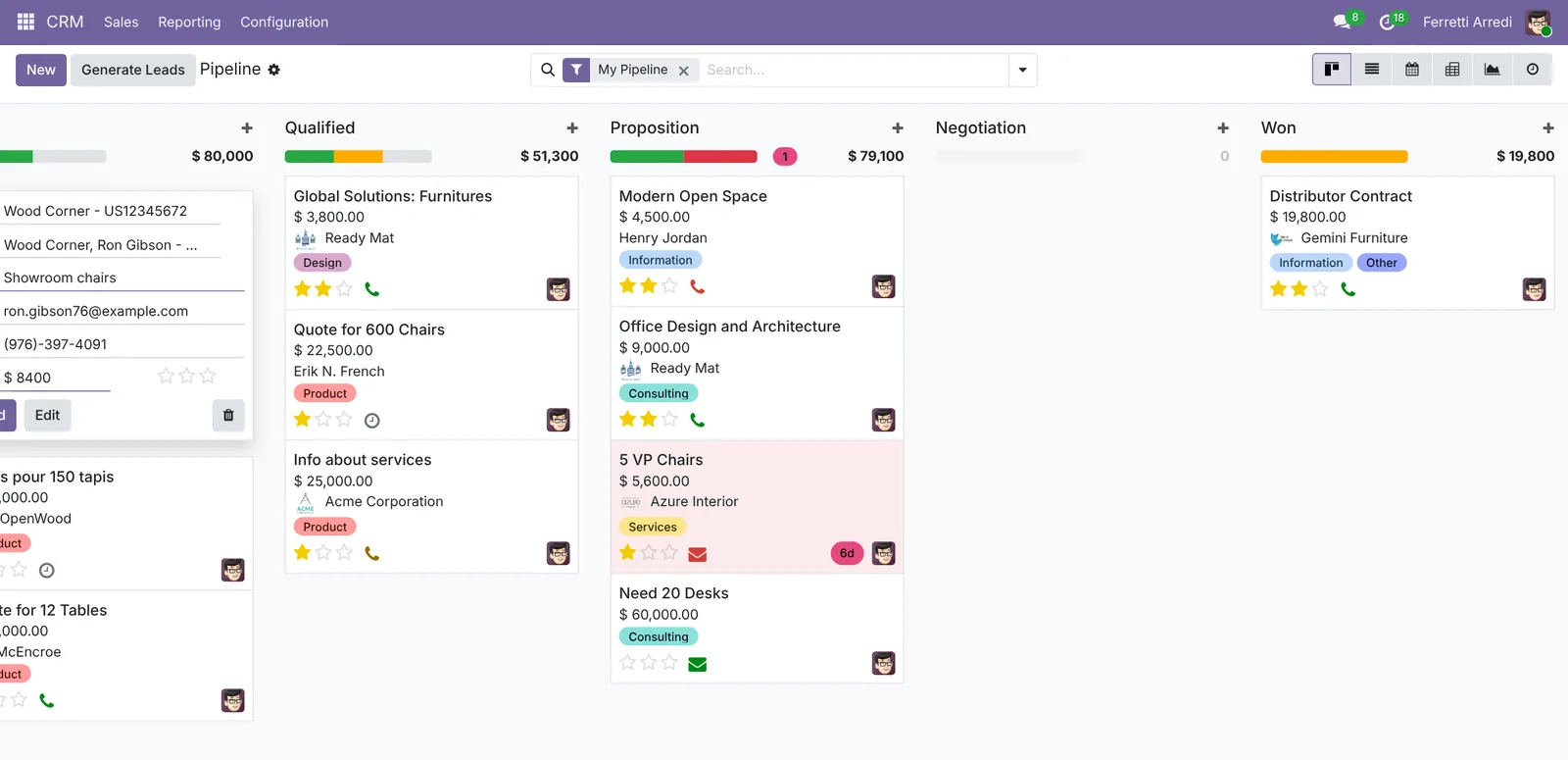 Three fields are enough to start.
3. Plan the next activity
Open the card. Press Activity above the chatter on the right. In Schedule Activity:
- Choose the type: Call.
- Summary: Send the fabric samples.
- Check the Due Date and who it is Assigned to.
- Press Save (Schedule in older versions).
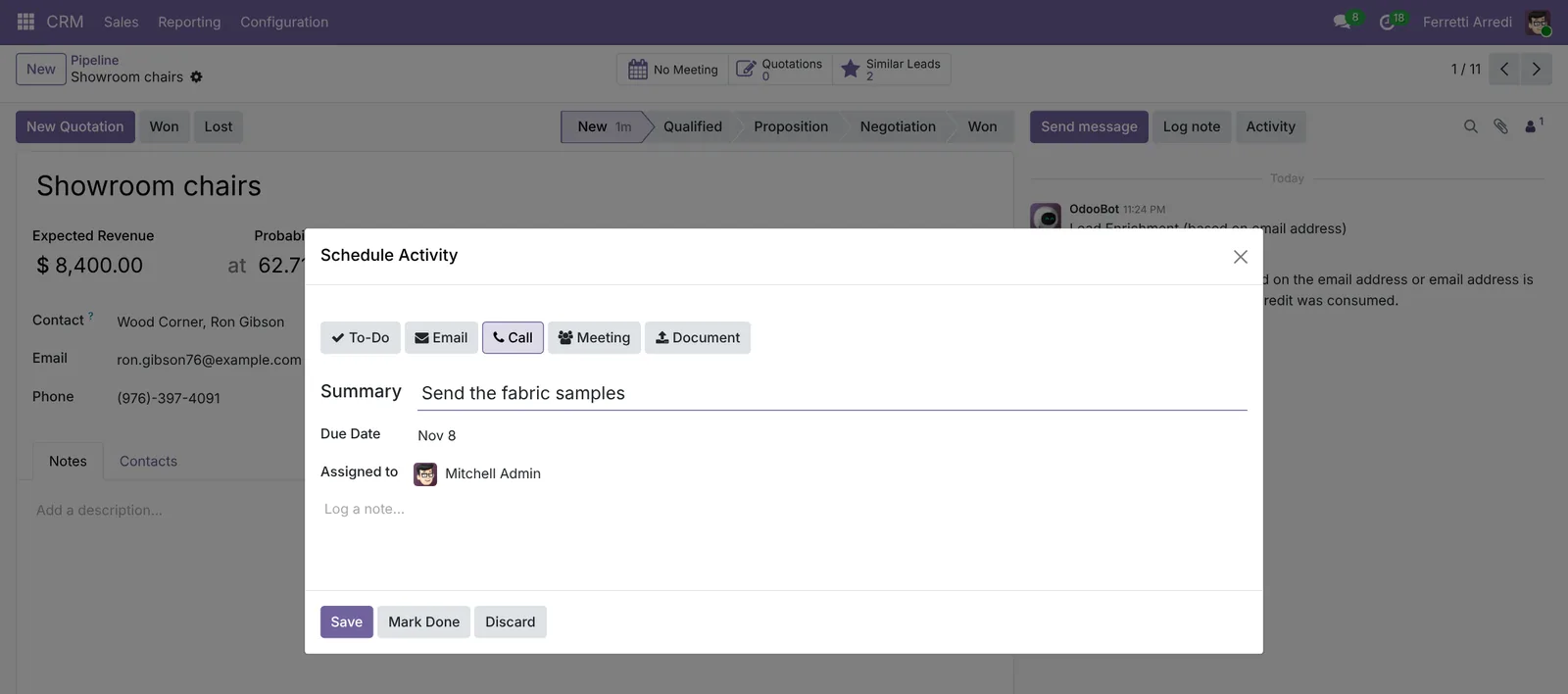 One next step, with a date and a person.
The card in the pipeline now shows a clock: green while the date is ahead, orange on the day, red when it is late. A grey clock means nothing is planned, and that is the deal that goes quiet.
4. Move it through the pipeline
When the customer confirms interest, click Qualified in the status bar at the top of the opportunity, or drag the card to the next column in the pipeline. The chatter keeps the history of every stage change.
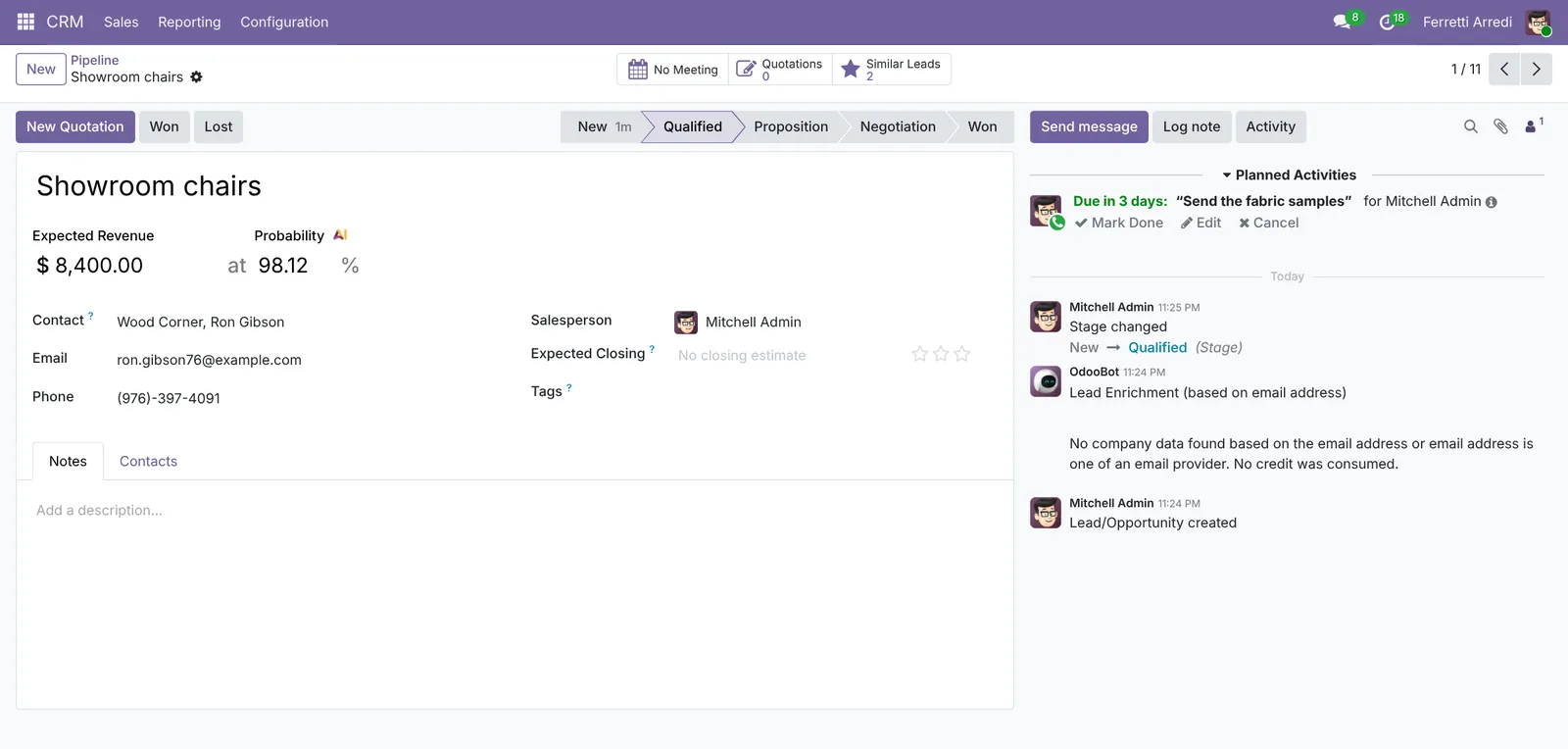 Qualified, with the call still planned.
5. Mark it lost, with a reason
Not every deal is won. Press Lost, choose a Lost Reason (here Too expensive), add a closing note if you want, and press Mark as Lost.
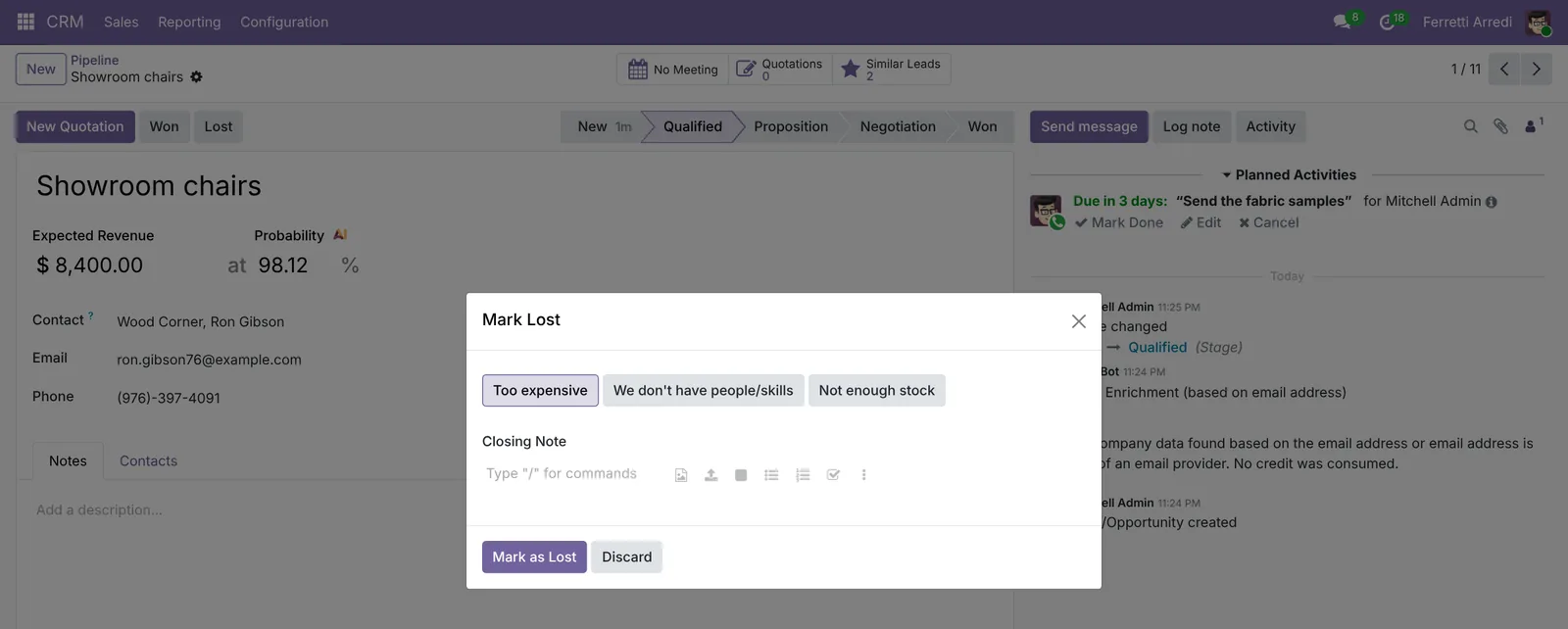 The reason is what you learn from a lost deal.
The opportunity leaves the pipeline. Add your own reasons in CRM → Configuration → Lost Reasons, then group the lost deals by reason in Reporting to see why you lose.
6. Every next step in one list
Switch the pipeline to the Activity view (the clock icon at the top right). Each row is an opportunity, each column an activity type, and each cell the next date. Red cells are late.
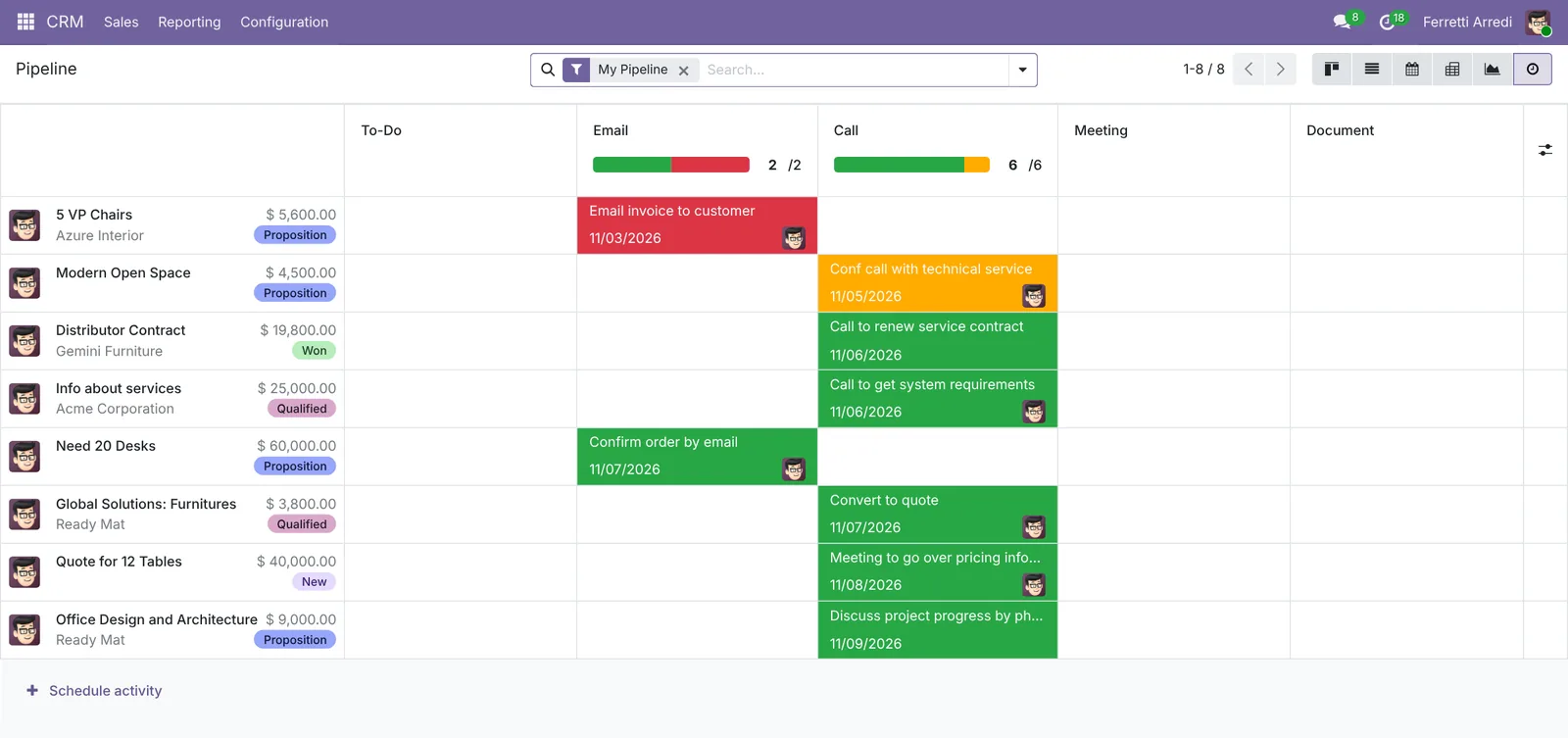 Late, today and planned, for every opportunity.
Common mistakes
- Opportunities with no next activity. Nobody gets reminded, and the deal goes quiet. Plan the next step before you leave the card.
- Too many stages. Five or six is plenty. A stage that nobody uses only slows the pipeline down.
- Marking deals lost with no reason. Then the reporting can’t tell you why you lose.
- Deleting lost opportunities. Archive them by marking them lost: the history stays and you can restore them.
CRM pipeline with AI: ask your AI assistant through MCP
With the Hawklify MCP server, Claude, ChatGPT and other assistants work in your Odoo as you, with your permissions. The Activity view shows which deals have no next step. It doesn’t tell you what each customer asked in their last email, which is where the right next step comes from. The assistant reads both.
On the computer. Depending on how your organisation set up the server, the assistant makes the change straight away or first shows you a card to approve. Here Smart mode is on.
Three opportunities have gone quiet, $56,500 in total:
- Open space for 40 people, Azure Interior, $28,000: no next step. On October 14 they asked if you can deliver before January 15. Nobody answered.
- Reception desks, Lumber Inc, $16,000: no next step. On October 20 they said their budget is approved for the first quarter: get back to them at the start of December.
- Meeting room tables, Gemini Furniture, $12,500: the to-do Send the quote is overdue since October 12. They asked for a version with oak tops.
Done, each one fits what the customer said:
- Azure Interior: a call tomorrow, November 6, to confirm delivery before January 15.
- Lumber Inc: a call on December 1, when their budget opens.
- Gemini Furniture: the overdue to-do moved to tomorrow, now Send a version with oak tops.
On the phone, after a visit. The salesperson writes what happened in a chat, and the assistant, connected to Odoo through Hawklify, turns it into the right fields:
Hawklify
Your Odoo, from the chat you already use
Send a message, a photo or a voice note: the assistant reads and works in Odoo through Hawklify, with your permissions.
Just left Lumber Inc. They want 12 reception desks, not 8. Budget ok, they decide by Dec 10. Main contact is now Sara Neri, procurement.
Reception desks, Lumber Inc. With 12 desks at the price you quoted ($2,000 each):
- Expected revenue: $16,000 → $24,000
- Expected closing: Dec 10
- Stage: Qualified → Proposition
- Sara Neri is not in Odoo yet: I'll add her under Lumber Inc.
Save it all, with your notes from the visit, and plan a call on Dec 3?
Yes, save it
Saved. The opportunity is now $24,000 in Proposition, closing Dec 10, with your visit in the notes. Call with Sara Neri planned for Dec 3.
Versions we tested
| Version | Result |
|---|---|
| Odoo 16 | Same steps. The new stage is added with + Stage after the last column. In Schedule Activity the type is a dropdown, and the button is Schedule. The lost reason is a dropdown too. |
| Odoo 17 | Like 16: + Stage, an Activity Type dropdown and Schedule. |
| Odoo 18 | Like 17. |
| Odoo 19 | As in this guide: Add Stage at the far right, activity types and lost reasons as buttons, and Save. The screenshots come from Odoo 19. |
| Odoo 20 | Same screens and buttons as 19. |
Frequently asked questions
How do I change the order of the stages?
Drag the column by its title, left or right, in the kanban view of the pipeline. The order is the same for everyone who uses that sales team's pipeline.
Where do the lost opportunities go?
A lost opportunity is archived, so it leaves the pipeline. To see it, filter on Lost (or Archived) in the search bar. Open it and press Restore to bring it back.
Can every sales team have its own stages?
Yes. Open the stage (the gear on the column, then Edit) and set the Sales Team field. A stage with no team is shared by all teams.
What does the red clock on a card mean?
The next activity is overdue. Green means planned for later, orange is due today, and a grey clock means no activity is planned at all.
Questa guida è disponibile anche in italiano: CRM Odoo: pipeline, fasi, attività e motivi di perdita
Related Odoo guides
 SalesQuotation templates in Odoo: a full quote in a minuteBuild a quotation template in Odoo with optional products and online signature, send a quote in a minute, and let the customer sign it online. Community and Enterprise.
 MarketingEmail marketing in Odoo: newsletters that get readSend newsletters with Odoo Email Marketing: a mailing list, contacts pasted in one go, a mailing from a layout, a test email, and who opened and clicked.
 Automation & CustomizationAutomation rules in Odoo: follow-ups that never slipCreate an automation rule in Odoo: when a sales order over $5,000 is confirmed, the sales manager gets a To-Do to call the customer. No code.