Quotation templates in Odoo: a full quote in a minute
Build a quotation template in Odoo with optional products and online signature, send a quote in a minute, and let the customer sign it online. Community and Enterprise.
- Community and Enterprise
- 5 min read
- Odoo + AI tutorial
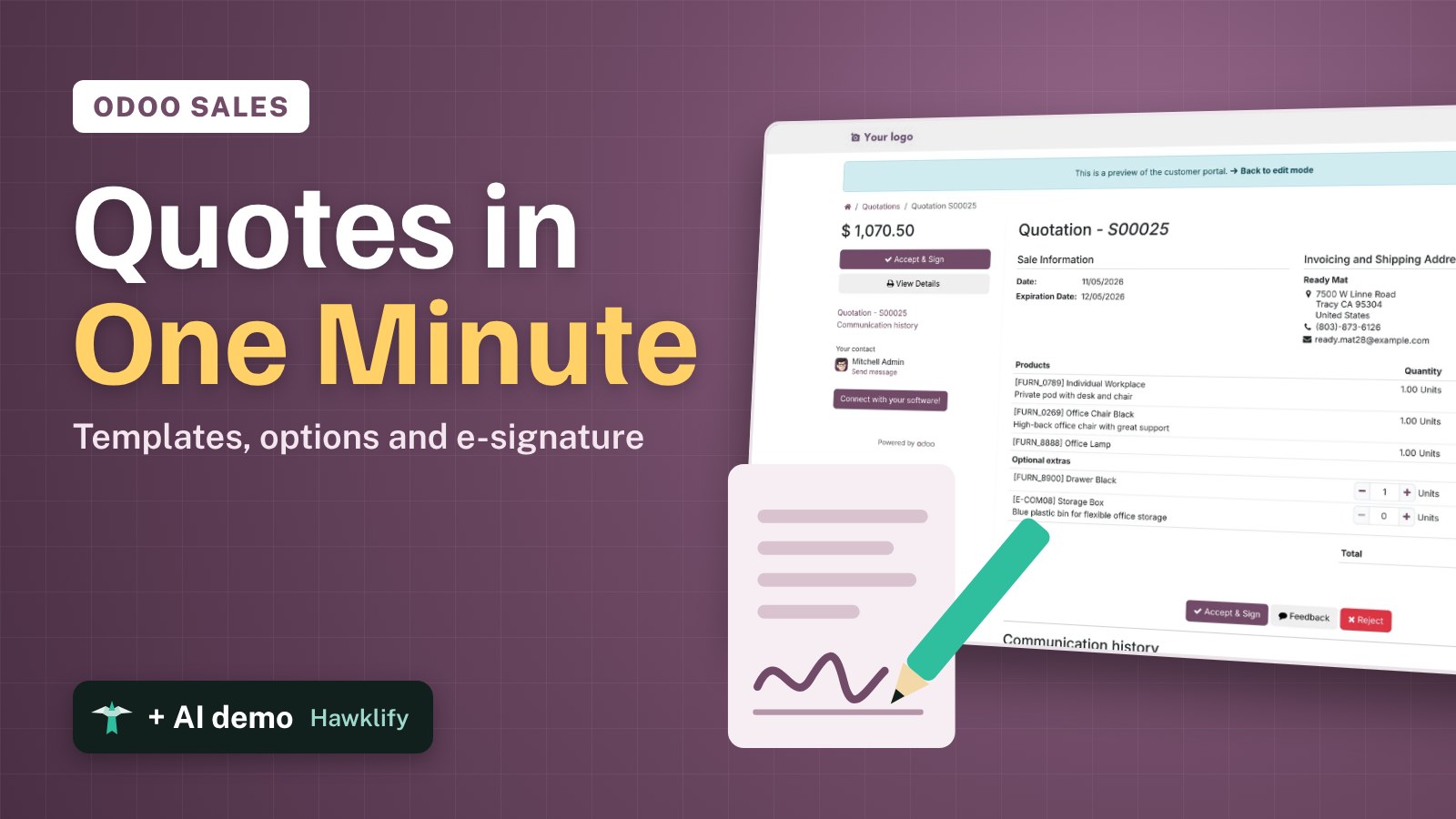
Writing the same quote again and again wastes time and leaves room for mistakes: a forgotten product, an old price. A quotation template fills a quote with the right lines in one click, offers optional extras, and lets the customer sign online. This guide builds a template, sends a quote with it, and signs it as the customer.
It works the same in Community and Enterprise. The versions we tested are listed at the end.
This guide is also an AI tutorial. At the end, an AI assistant connected to Odoo finds the quotations that went quiet and plans a follow-up call on each, and changes a template to match the extras customers really pick.See it in action ↓Before you start
- The Sales app installed, with Quotation Templates ticked in Sales → Configuration → Settings.
- Online Signature ticked in the same settings (it is by default).
- A user with the Sales / Administrator access right to create templates.
1. Create the template
Open Sales → Configuration → Quotation Templates and press New. Give it a name, here New Hire Desk Kit, and the number of days the quote stays valid.
Add the products that always go together with Add a product: a workplace, a chair and a lamp.
Tick Online Signature: the customer signs the quote on the web. Untick Online Payment, unless you have a payment provider set up.
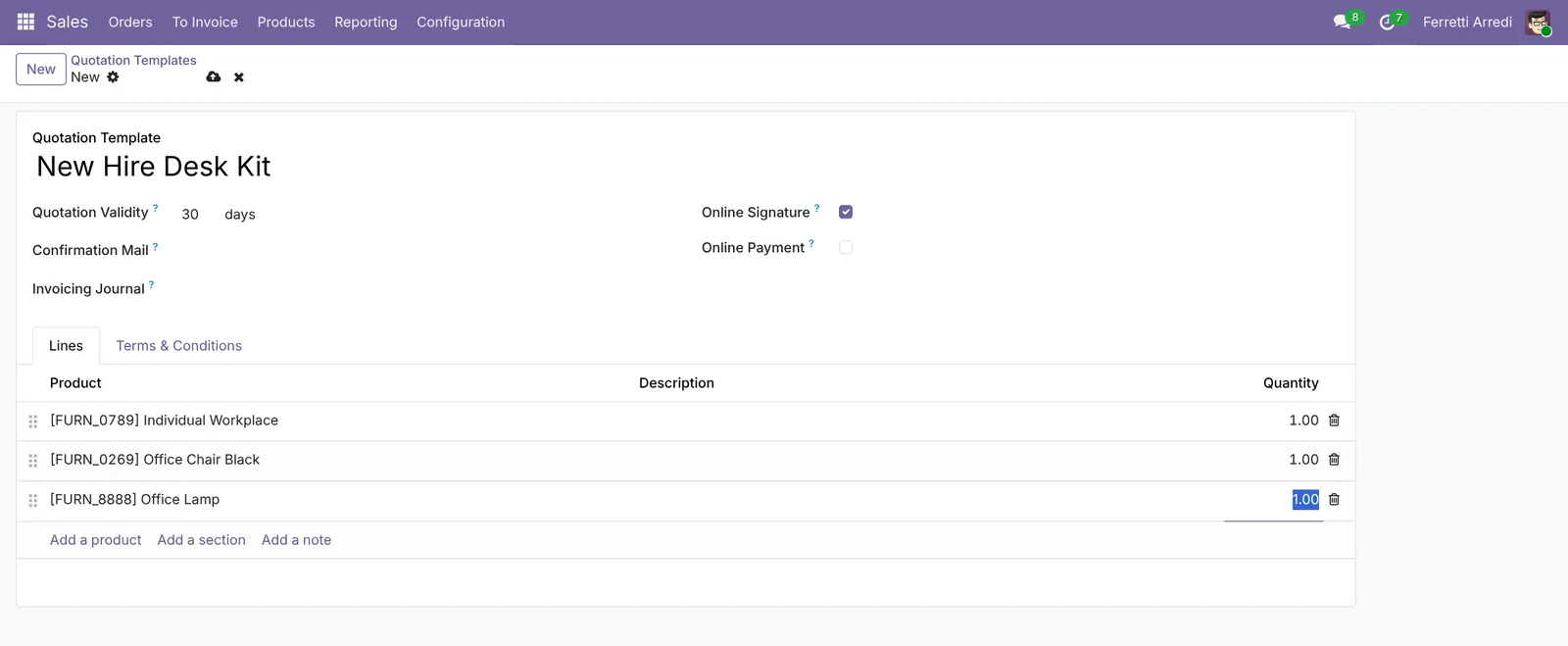 Three products, valid 30 days, signed online.
2. Add optional products
Optional products are extras the customer can add on the quote: a drawer unit, a storage box. Press Add a section and call it Optional extras. Open the section’s menu (the three dots) and choose Set Optional. Then add the products to it with Add a line in the same menu.
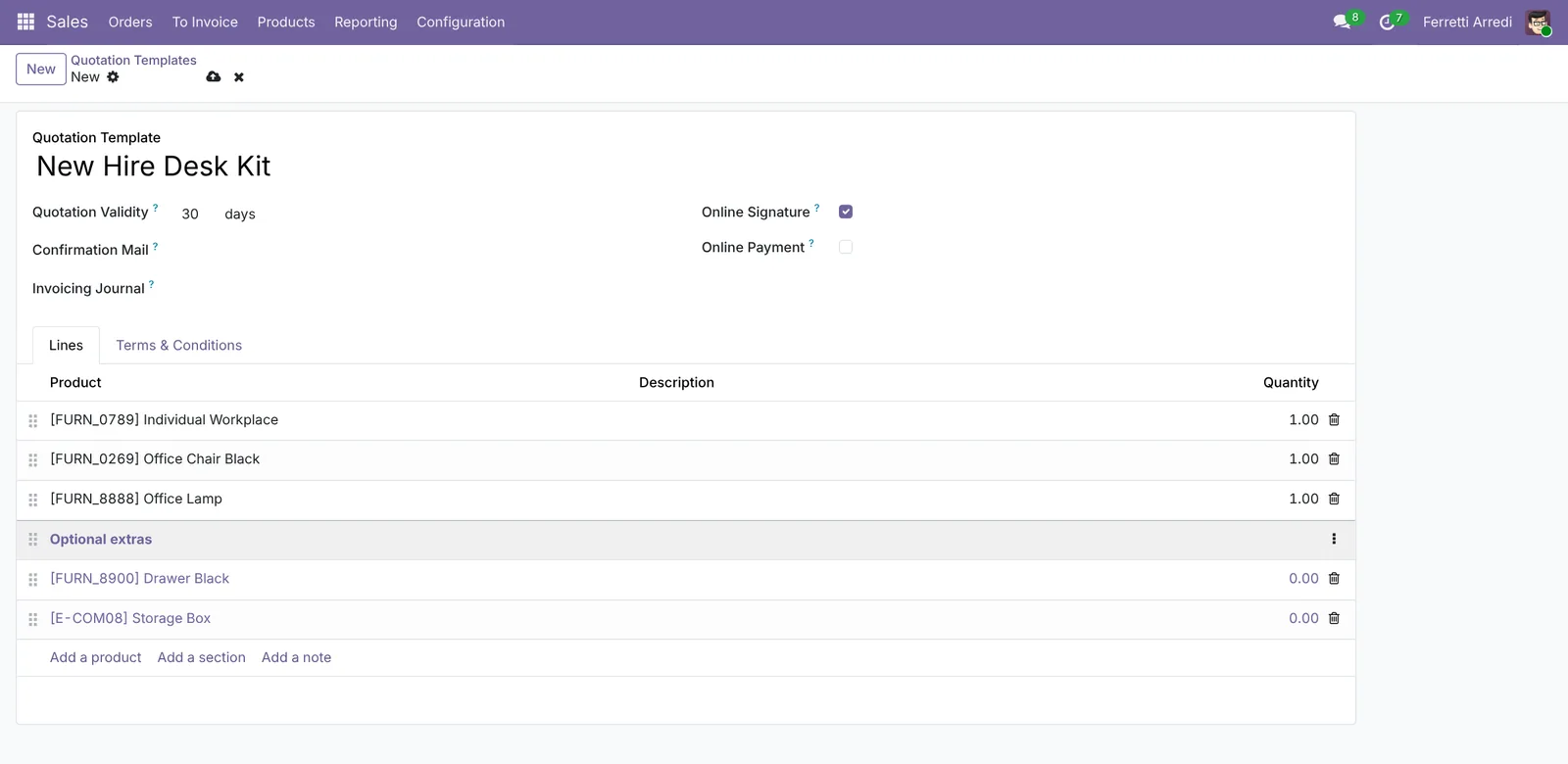 The optional section: shown on the quote at zero quantity.
Save the template.
3. Make a quote in a minute
Open Sales → Orders → Quotations and press New. Choose the customer, here Ready Mat, and pick the Quotation Template. Every line fills in, with today’s prices.
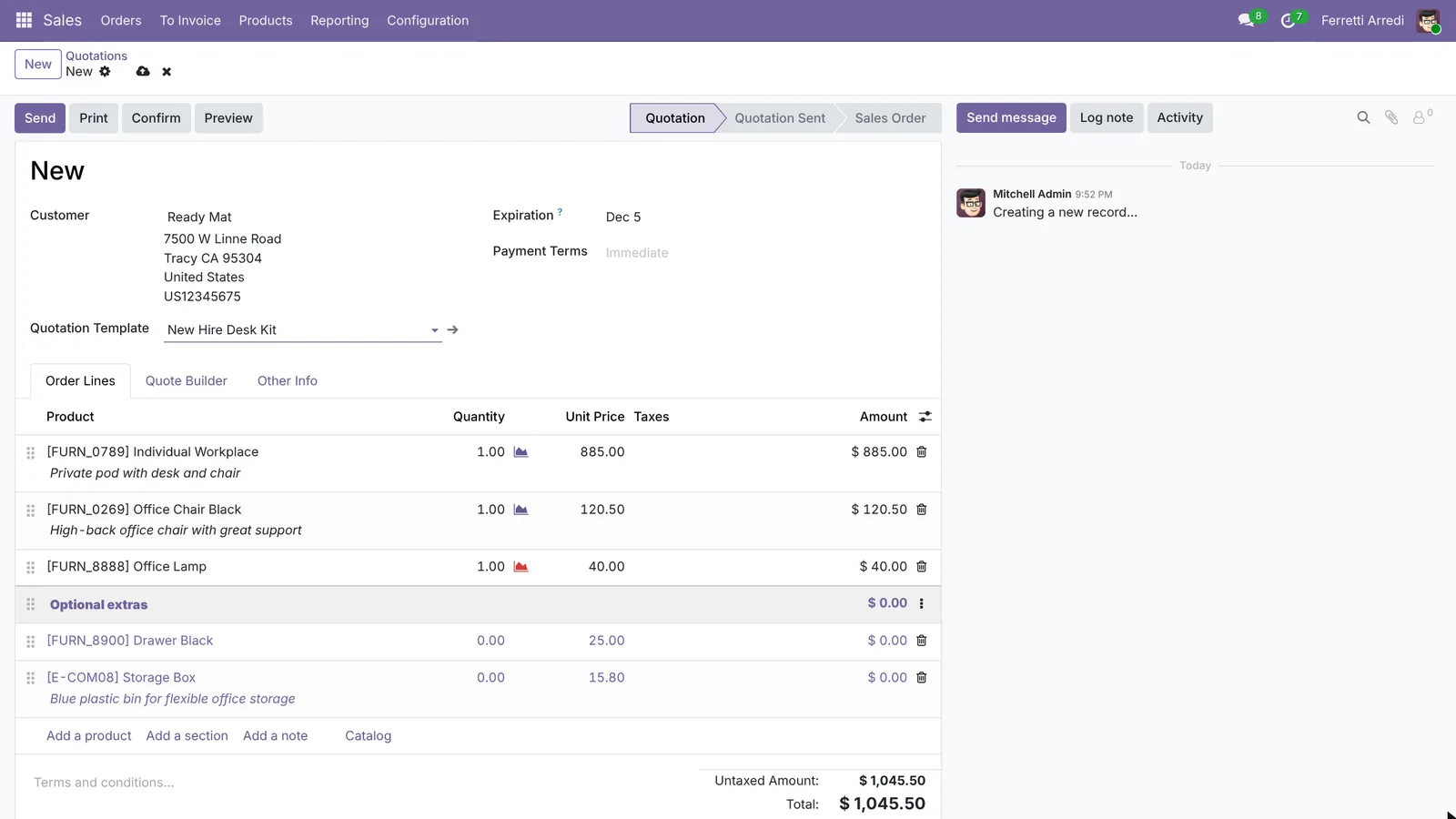 The template fills the quote, optional extras included.
Change anything that is different for this customer, and save.
4. Send it
Press Send. Odoo writes the email with the quote attached as a PDF and a link to see it online. Send it.
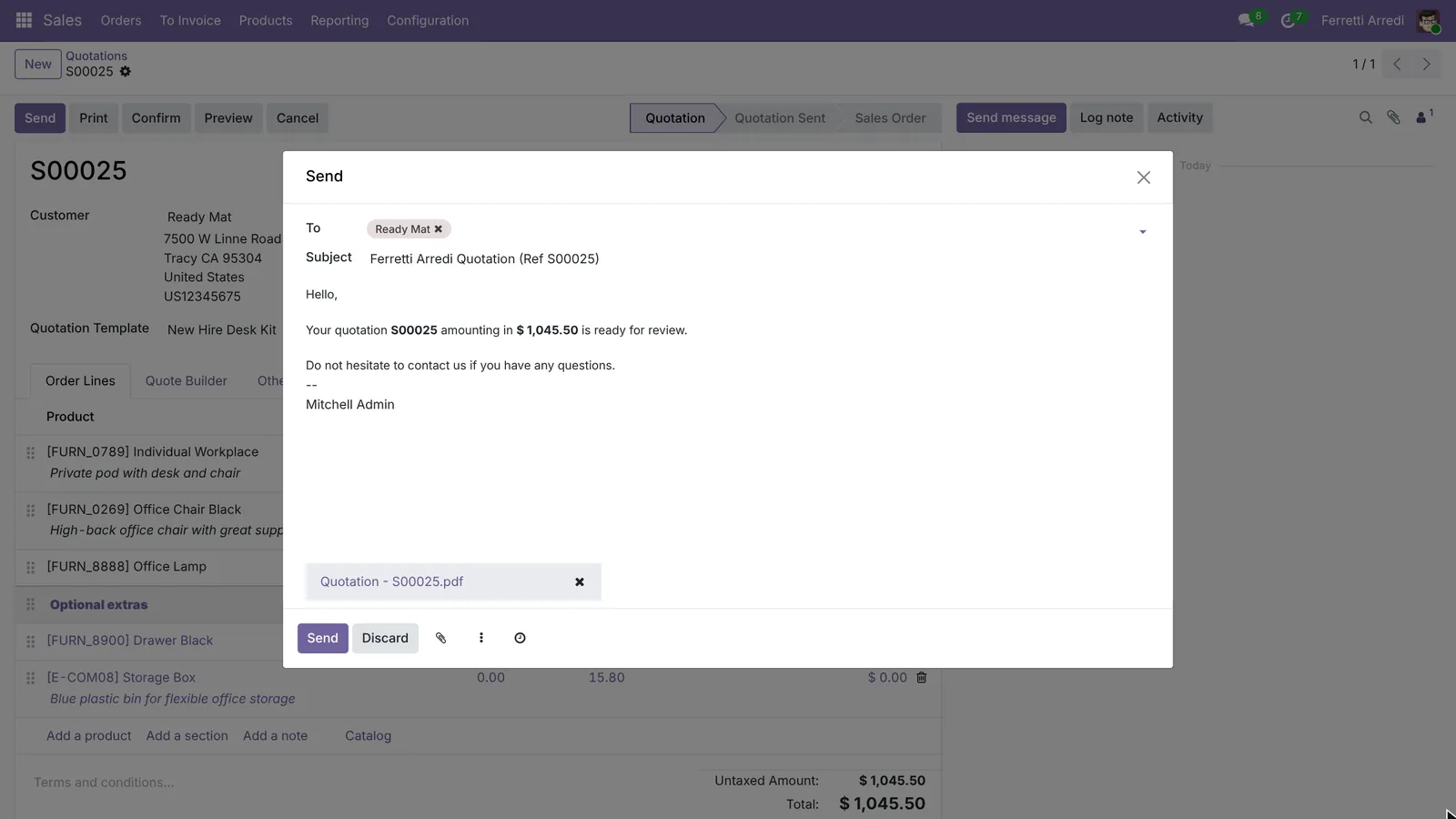 The email links to the online quote.
5. The customer adds an extra and signs
Press Preview to see what the customer sees. On the online quote, they add an optional product with + and the total updates.
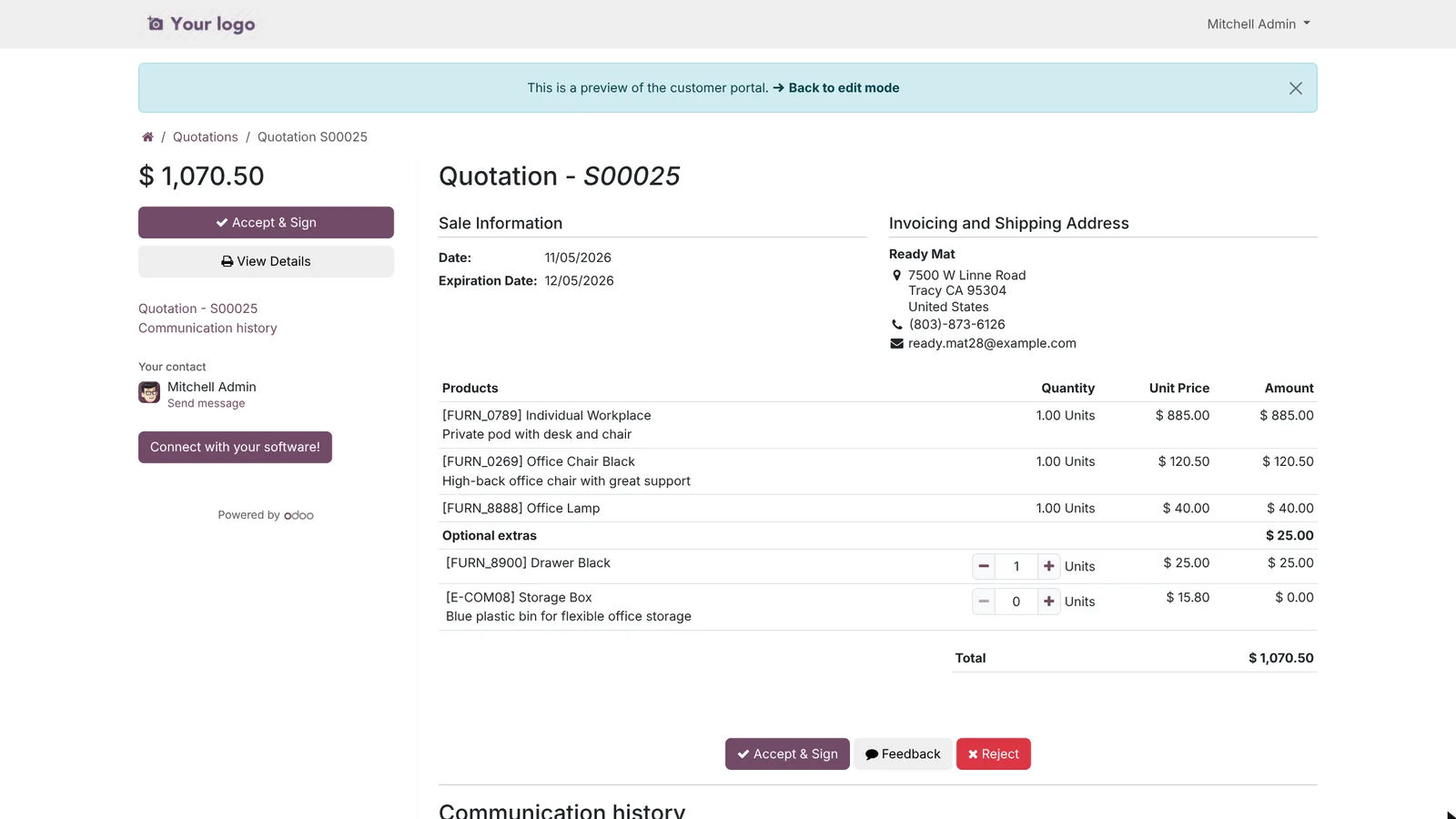 The customer adds a drawer unit: the total goes up by 25.00.
Then they press Accept & Sign. Their name becomes the signature, or they draw one.
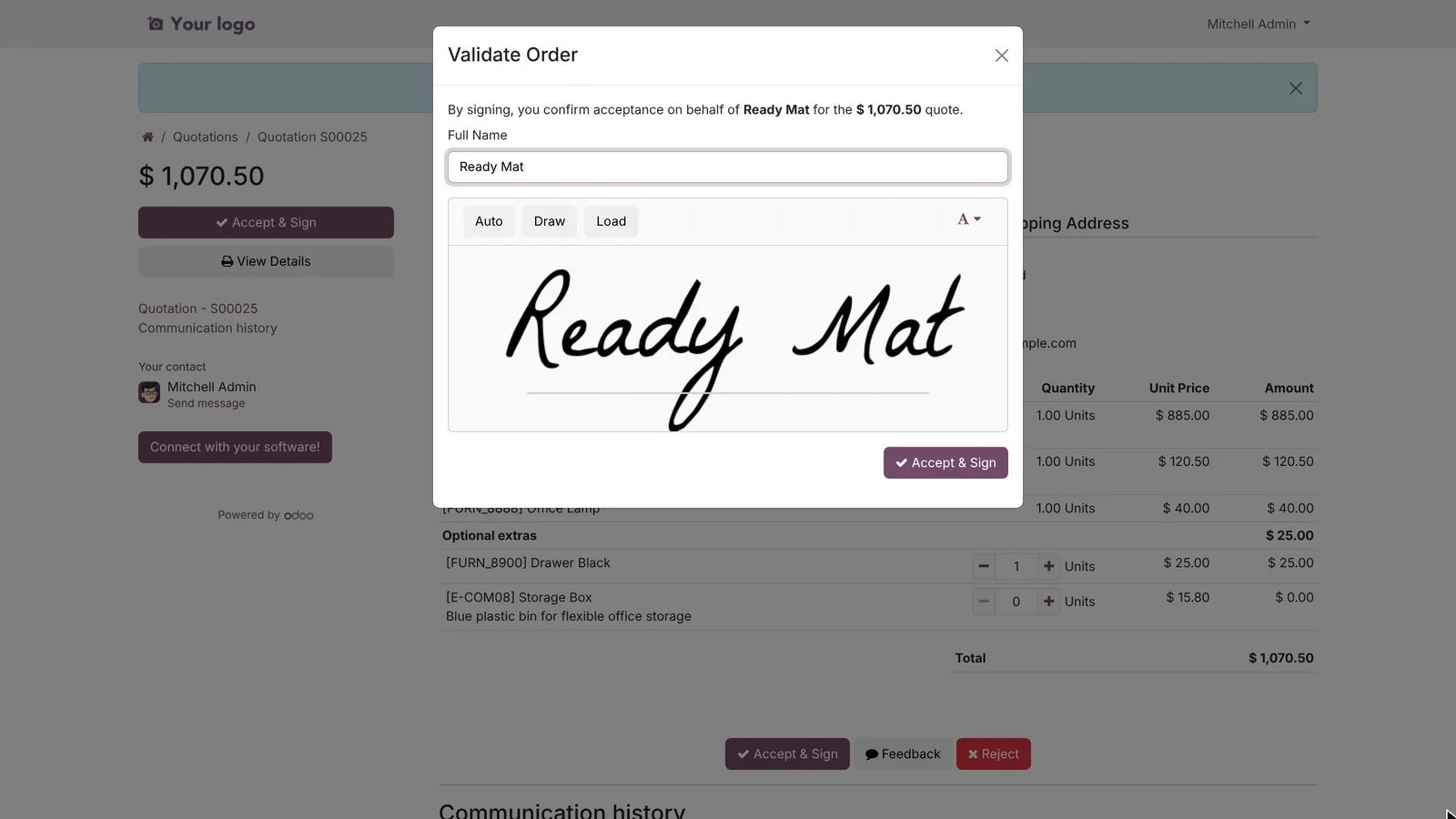 One click to sign.
Back in Odoo, the quotation is now a Sales Order, with the signed PDF in the chatter.
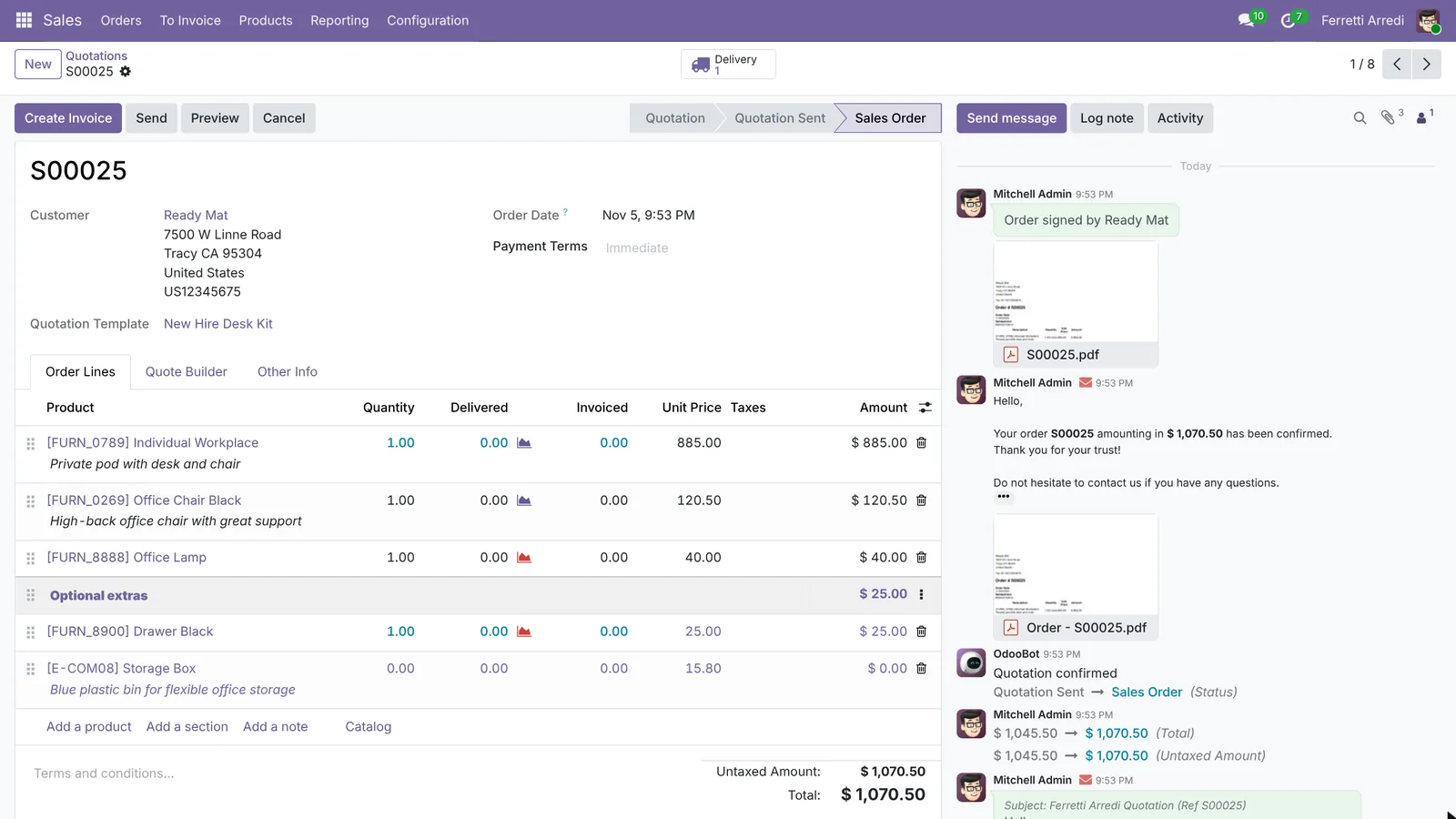 Signed online, confirmed in Odoo.
Common mistakes
- Online Payment ticked without a provider. The customer signs and then gets stuck on a payment step. Untick it, or set up a provider first.
- Editing the template to fix one quote. Change the quote, not the template: the template is the starting point of every future quote.
- One template for everything. Make one template per offer you send often. A short list of good templates beats one long template people edit every time.
- A validity that is too long. Old quotes come back at old prices. 30 days is a good default.
Quotation templates with AI: ask your AI assistant through MCP
With the Hawklify MCP server, Claude, ChatGPT and other assistants work in your Odoo as you, with your permissions. A template makes quotes fast. Knowing which quotes went quiet, and whether the template still matches what customers buy, means reading every quotation made from it.
On the computer. Depending on how your organisation set up the server, the assistant makes the change straight away or first shows you a card to approve. Here Smart mode is on.
Three quotations sent more than a week ago are still waiting, $3,009.00 in total:
S00076The Jackson Group: $1,446.00, sent October 28, no activity planned.S00075Ready Mat: $1,003.00, sent October 26, no activity planned.S00077Deco Addict: $560.00, sent October 27, a call is already planned for tomorrow.
Done. S00075 (Ready Mat) and S00076 (The Jackson Group) each have a call planned for tomorrow, November 6, assigned to you. S00077 keeps the call it already had.
Next to the template. In a side panel of the browser, the assistant starts from the template you have open. Here card mode is on: the template changes only after you approve the card.
11 quotations since September, 8 confirmed.
- Drawer Black: added in 7 of the 8 confirmed orders, always 1 per desk.
- Storage Box: added once, and removed again before signing.
The drawer is part of the kit in practice. Move it into the main lines with quantity 1, and drop the Storage Box?
Approval needed in OdooUpdate
In the New Hire Desk Kit template, move Drawer Black from the optional extras to the main lines (quantity 1), and remove Storage Box.
sale.order.template · 1 record
New Hire Desk Kit
| Field | Current | New |
|---|---|---|
| Lines | 4 products, Drawer Black × 1 added | |
| Optional extras | none |
Change applied in Odoo.
Organisation administrators can turn the approval cards off on the Members page.
Done. New quotations from New Hire Desk Kit now include the Drawer Black by default, and the optional extras section is empty.
Versions we tested
| Version | Result |
|---|---|
| Odoo 16 | Same steps. Optional products have their own Optional Products tab on the template and on the quote. |
| Odoo 17 | Like 16: the Optional Products tab. |
| Odoo 18 | Like 16 and 17: the Optional Products tab. |
| Odoo 19 | As in this guide: optional products are a section marked Set Optional. The screenshots come from Odoo 19. |
| Odoo 20 | Like 19. The menu is Sales → Configuration → Templates. The validity and Online Signature are in the template’s Settings tab, which has no Online Payment box. New on the quotations opens a menu of your templates, so you pick it before the customer. |
Frequently asked questions
Do I need Odoo Enterprise for quotation templates?
No. Quotation templates, optional products and the online signature work in Community with the Sales app. Turn on Quotation Templates in Sales, Configuration, Settings if the menu is missing.
What happens when the customer signs?
The quotation is confirmed and becomes a sales order. Odoo attaches the signed PDF to the order's chatter and, with Inventory installed, creates the delivery.
Can the customer pay online when signing?
Yes, with Online Payment ticked on the template and a payment provider set up in Invoicing, such as Stripe. Without a provider, untick Online Payment, or the customer cannot finish.
Can I change a quote made from a template?
Yes. The template only fills in the lines. Change quantities, prices or products on the quote before you send it; the template stays as it was.
Questa guida è disponibile anche in italiano: Modelli di preventivo Odoo: preventivi in un minuto
Related Odoo guides
 SalesSales orders in Odoo: from quotation to invoiceTake a sale through Odoo from start to finish: create the quotation, confirm the order, deliver the goods and post the invoice. Community and Enterprise.
 CRMCRM pipeline in Odoo: stages, activities, lost reasonsSet up the Odoo CRM pipeline: add and order stages, create opportunities, plan the next activity and mark lost deals with a reason. Community and Enterprise.
 AccountingPayment terms in Odoo: due dates that get you paidSet payment terms in Odoo so every invoice gets the right due date, register the payment, then find overdue invoices and send a reminder. Community and Enterprise.