Payment terms in Odoo: due dates that get you paid
Set payment terms in Odoo so every invoice gets the right due date, register the payment, then find overdue invoices and send a reminder. Community and Enterprise.
- Community and Enterprise
- 5 min read
- Odoo + AI tutorial
An invoice without a due date gets paid when the customer remembers. Odoo can put the right due date on every invoice, show you which ones are late, and send the reminder. This guide looks at a payment term, gives a customer their terms, creates and pays an invoice, then finds the overdue ones and sends a reminder.
It works the same in Community and Enterprise. The versions we tested are listed at the end.
This guide is also an AI tutorial. At the end, an AI assistant connected to Odoo sends a customer one polite reminder listing all their late invoices, and tells you when an invoice will really be paid, judged from how the customer pays.See it in action ↓Before you start
- The Invoicing app installed (or Accounting in Enterprise).
- A user with the Invoicing / Billing Administrator access right to change payment terms. Creating invoices needs the Billing right.
1. Look at a payment term
Open Invoicing → Configuration → Payment Terms. Odoo comes with the common ones: immediate payment, 15, 30 and 45 days, end of the following month.
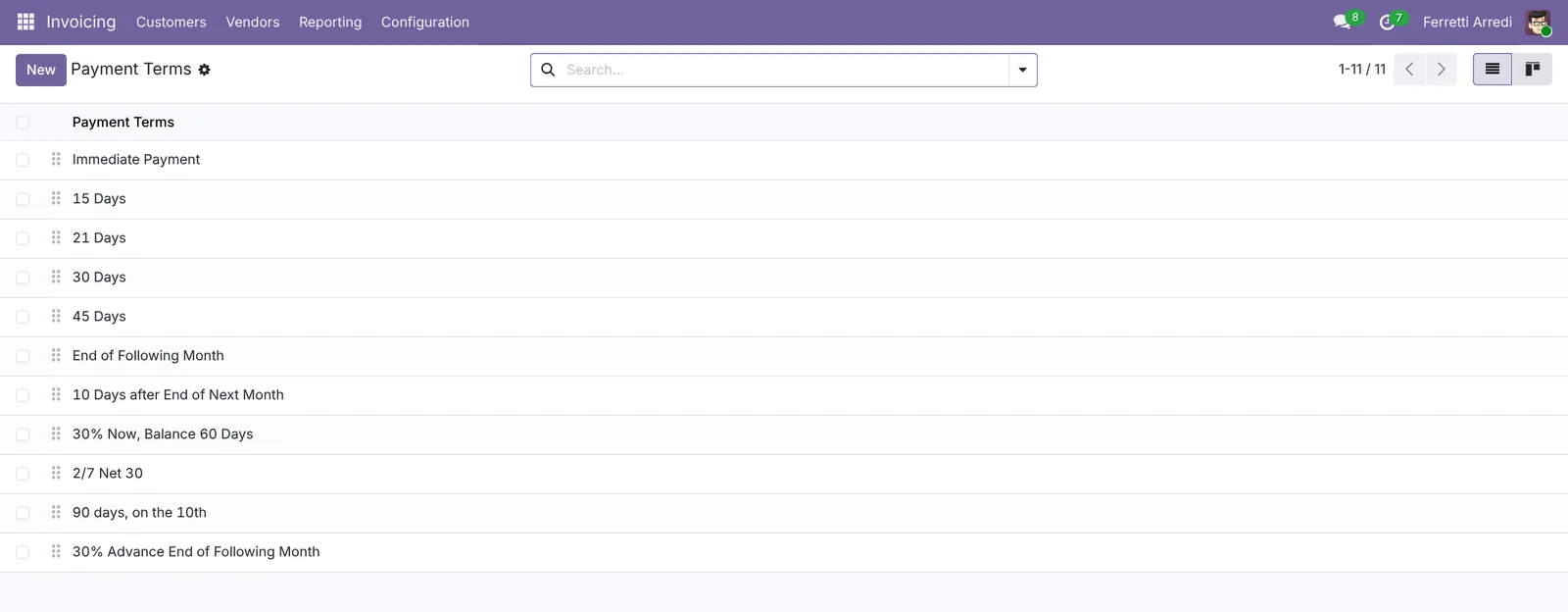 The payment terms that come with Odoo.
Open 30% Now, Balance 60 Days. Each line is a share of the amount and when it is due, counted from the invoice date. The preview on the right shows the due dates for an example invoice.
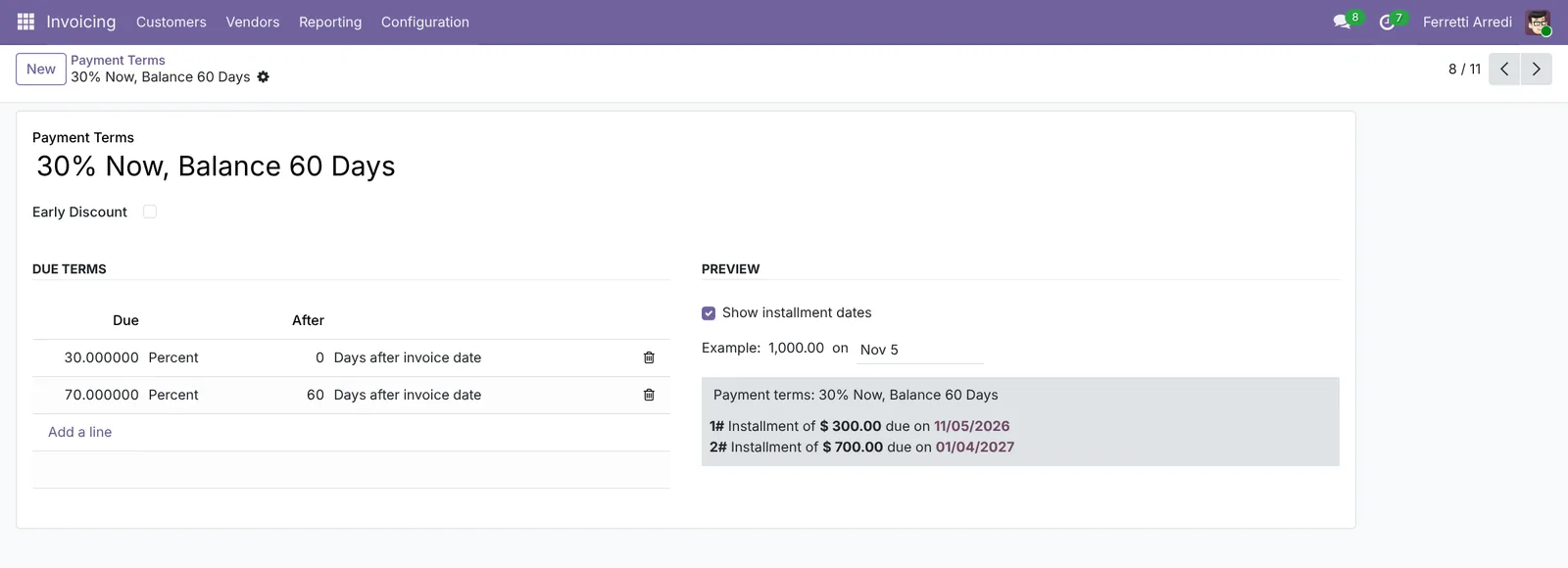 Two installments: 30% today, 70% in 60 days.
Press New to make your own the same way, for example 50% now and 50% at 30 days.
2. Give the customer their terms
Open Invoicing → Customers → Customers and open the customer, here Gemini Furniture. In the Sales & Purchase tab, set Payment Terms to 30 Days and save.
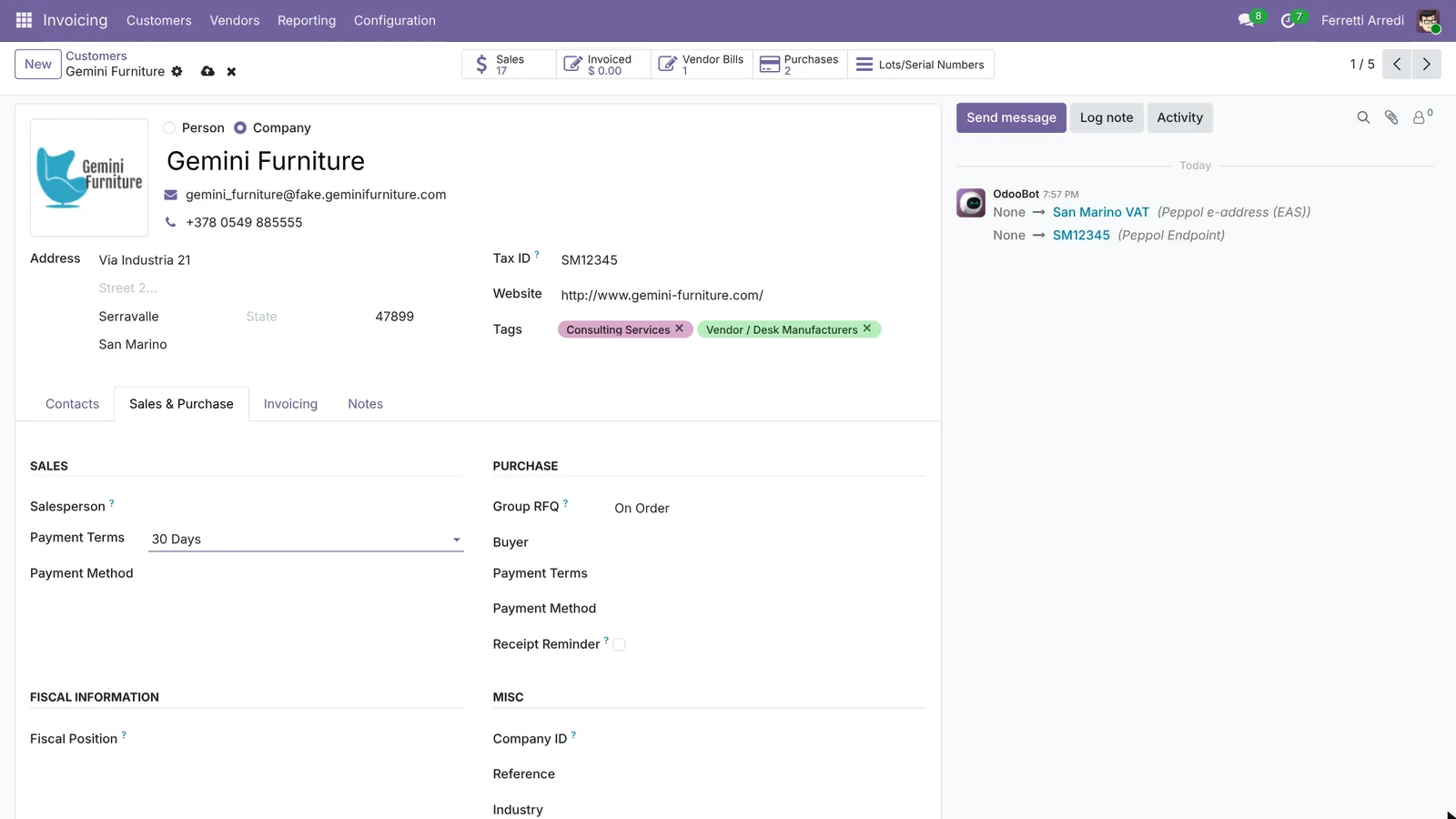 Every new quote and invoice for this customer gets 30 days.
3. Create the invoice
Open Customers → Invoices and press New. Choose Gemini Furniture: the payment terms fill in by themselves. Add the products and press Confirm.
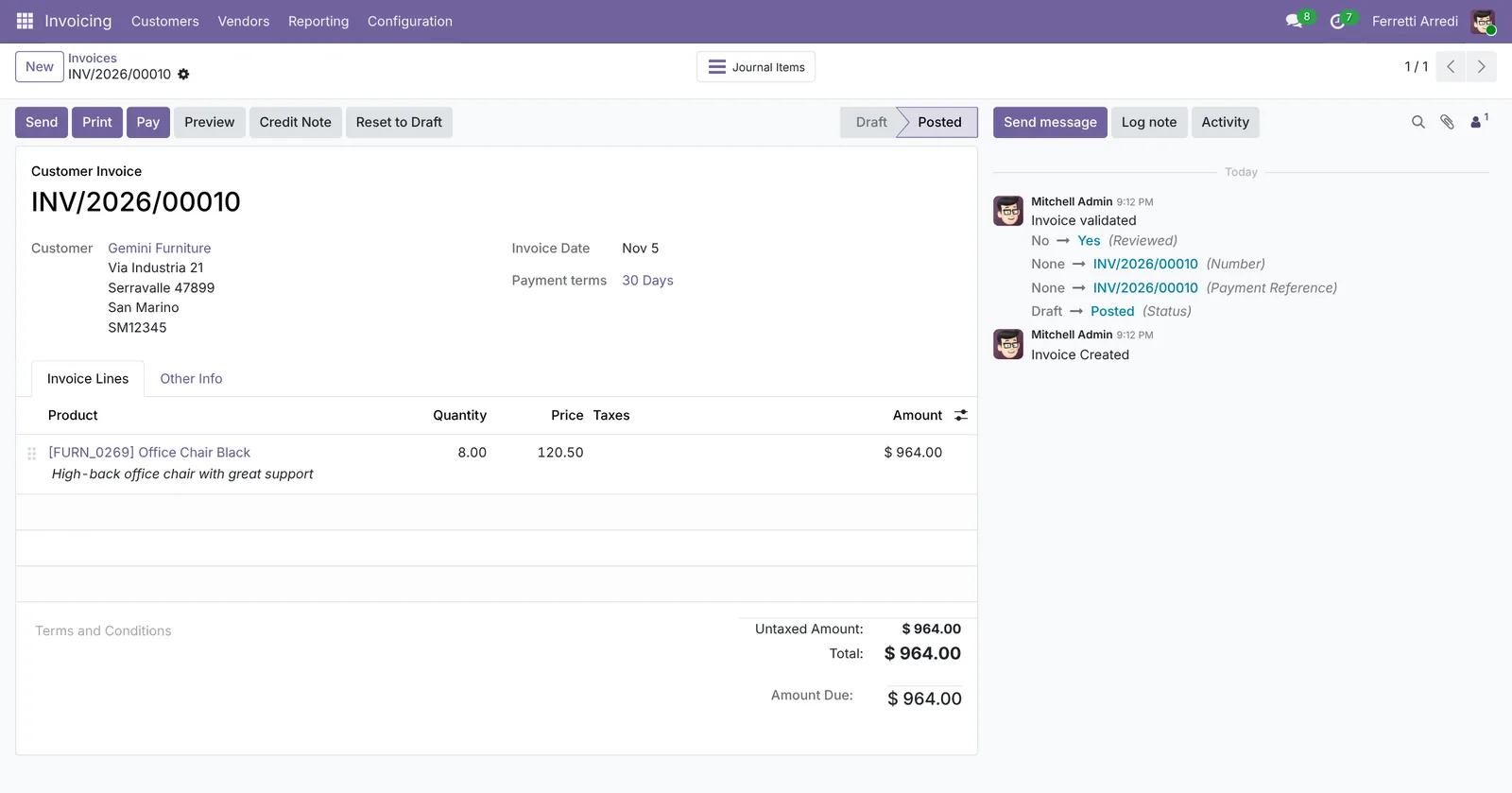 Posted, with the customer’s 30 days.
Odoo computes the due date from the invoice date and the terms. That date is what makes the invoice overdue later.
4. Register the payment
When the money arrives, press Pay on the invoice. Check the journal, the amount and the date, and press Create Payment.
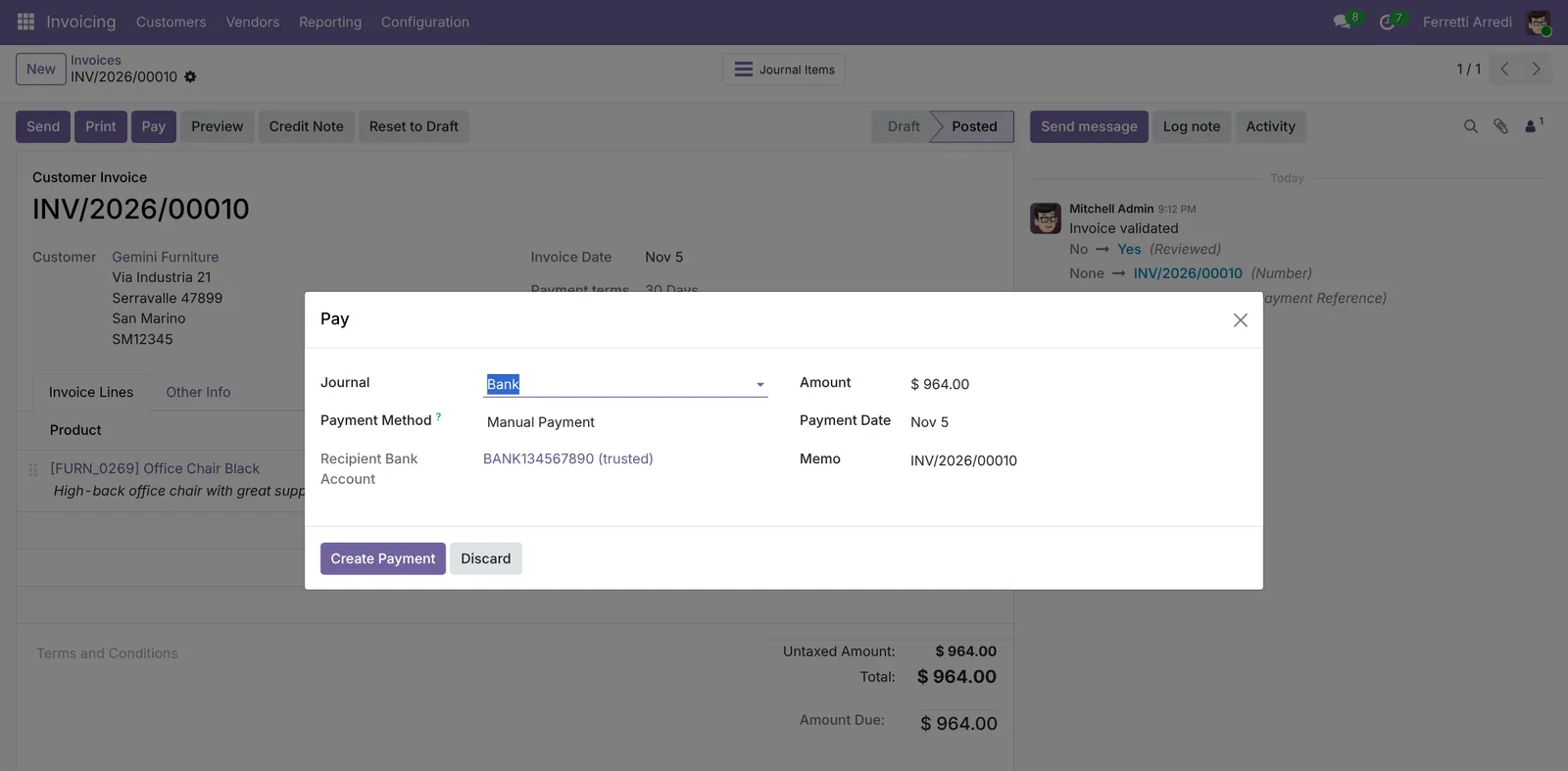 One payment for the full amount.
The invoice turns Paid. With the Enterprise Accounting app, you can match the payment with the bank transaction instead: see our guide on bank reconciliation.
5. Find the overdue invoices
Open Customers → Invoices, open the search options and pick the Overdue filter. The list keeps the invoices whose due date has passed and that are not paid.
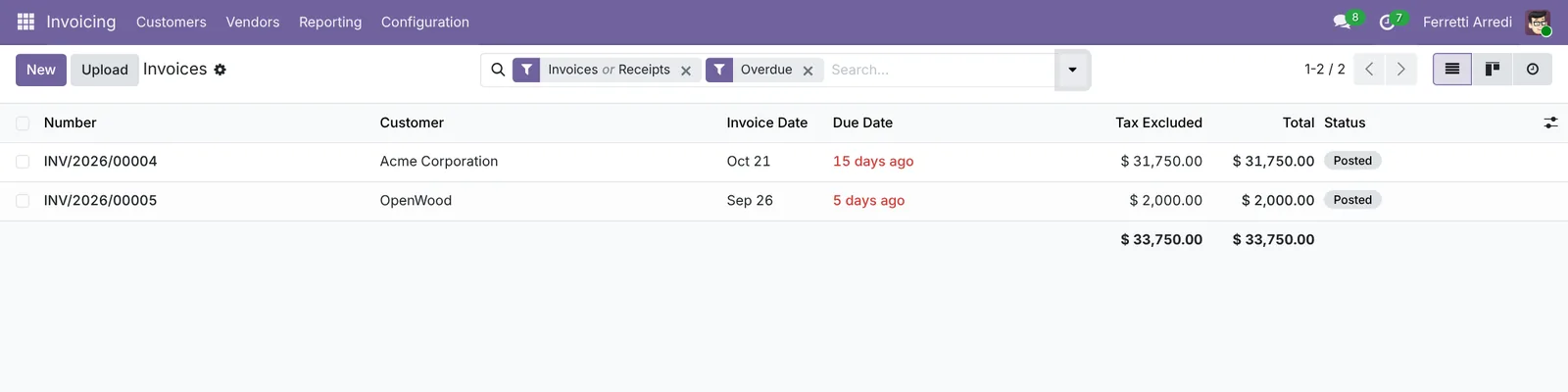 Two invoices past their due date.
Group by Customer to see who owes the most.
6. Send a reminder
Open the oldest one and press Send. Odoo writes the email with the invoice attached. Add a line that asks for the payment, and send it.
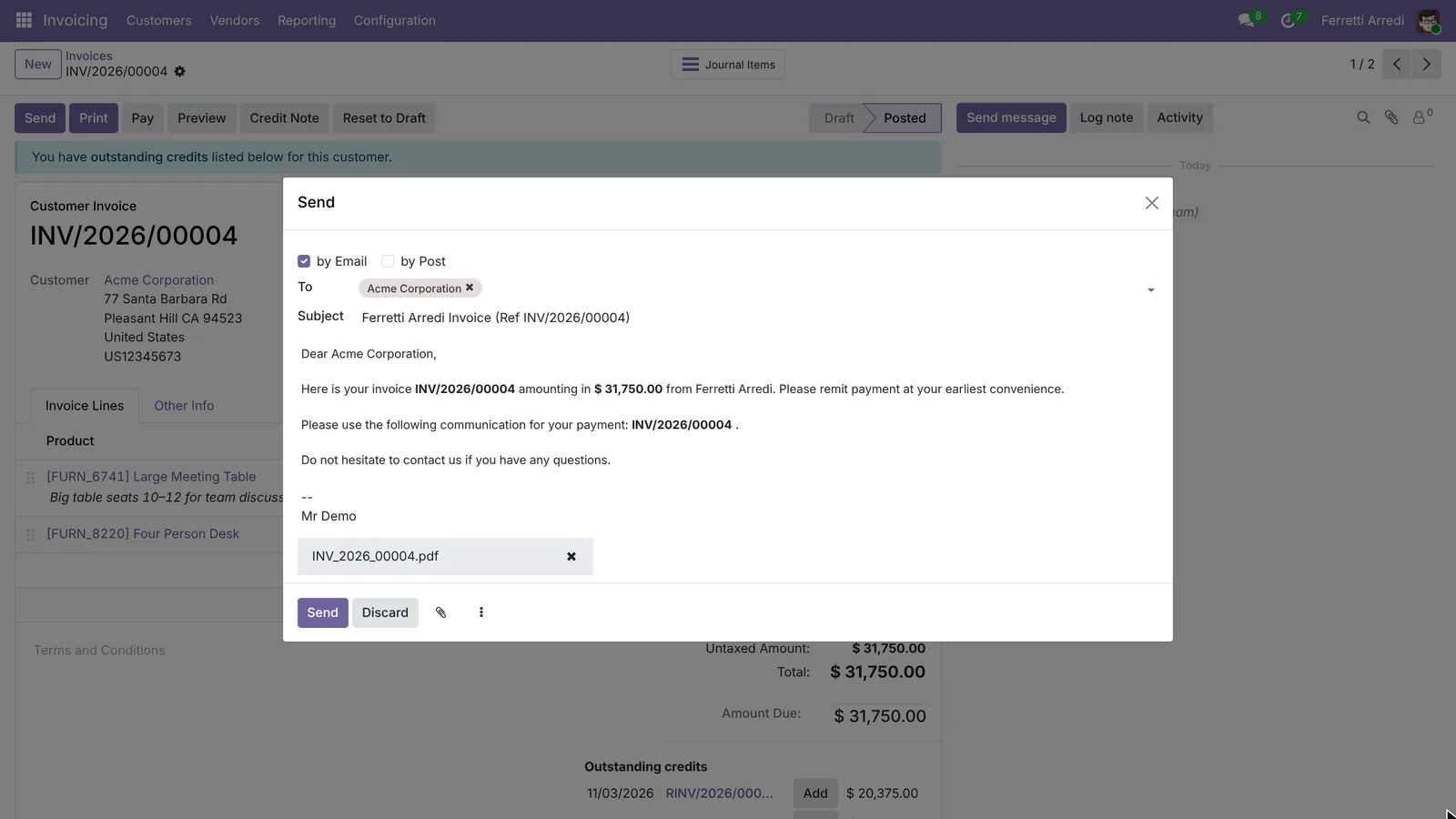 The invoice goes again, with a polite reminder.
The email lands in the invoice’s chatter, so everyone sees that the customer was reminded and when.
Common mistakes
- Terms on the invoice, not on the customer. Set them once on the customer, or every invoice starts with immediate payment.
- Changing a payment term in use. Invoices already posted keep their due dates; new ones take the change. Create a new term rather than editing one that many customers use.
- Registering a payment against the wrong invoice. With several open invoices, check the amount and the reference before you create the payment.
- Reminders by phone only. A reminder sent from Odoo stays on the invoice. The next person who calls the customer knows it was already done.
Payment terms with AI: ask your AI assistant through MCP
With the Hawklify MCP server, Claude, ChatGPT and other assistants work in your Odoo as you, with your permissions. Odoo lists the overdue invoices. Writing one reminder that covers all of a customer’s late invoices, or knowing when a customer will really pay, means reading their history invoice by invoice.
On the computer. Depending on how your organisation set up the server, the assistant makes the change straight away or first shows you a card to approve. Here card mode is on: the email leaves only after you approve it.
Gemini Furniture has three overdue invoices, $2,016.00 in total:
INV/2026/24529: $964.00, due October 10, 26 days late.INV/2026/24530: $420.00, due October 25, 11 days late.INV/2026/24531: $632.00, due November 1, 4 days late.
INV/2026/24532 ($482.00) is due November 19, not late yet. Want me to send them a reminder?
Approval needed in OdooMessage
Send Gemini Furniture a reminder on INV/2026/24529 listing the three overdue invoices, $2,016.00 in total.
account.move · 1 record
INV/2026/24529
| Field | Current | New |
|---|---|---|
| To | Gemini Furniture | |
| Message | Dear Gemini Furniture, three of our invoices are now past their due date: INV/2026/24529, INV/2026/24530 and INV/2026/24531, $2,016.00 in total. Could you let us know when we can expect the payment? |
Change applied in Odoo.
Organisation administrators can turn the approval cards off on the Members page.
It's in the chatter of INV/2026/24529, sent to Gemini Furniture by email: the three late invoices and the $2,016.00 total. Their reply will land on the same invoice.
Next to the invoice. In a side panel of the browser, the assistant starts from the invoice you have open:
Due December 5. But over their last 12 invoices Gemini paid 17 days late on average, never more than 26.
So expect the $964.00 around December 22, and plan for it in the cash forecast.
Shall I put a reminder on this invoice for December 8, three days after the due date, before it drifts like the others?
Done. INV/2026/00010 has a to-do for you on December 8: Call Gemini Furniture, they pay 17 days late on average.
Versions we tested
| Version | Result |
|---|---|
| Odoo 16 | The payment term form is one table, with a Due Type (Percent, Balance), a value, months and days per line. The invoice buttons are Send & Print and Register Payment. Overdue is in the Filters menu. |
| Odoo 17 | The payment term form has the Due Terms and the preview, as in this guide. The invoice buttons are Send & Print and Register Payment. |
| Odoo 18 | The invoice buttons are Send and Pay, as in this guide. |
| Odoo 19 | As in this guide: the invoice buttons are Send and Pay. The screenshots come from Odoo 19. |
| Odoo 20 | Same screens and buttons as 19. |
Frequently asked questions
Where do I set a customer's payment terms?
On the customer: Sales & Purchase tab, Payment Terms. Every new quotation and invoice for that customer takes them. You can still change the terms on a single invoice before you confirm it.
Can an invoice be paid in installments?
Yes. A payment term can have several lines, such as 30% now and the balance in 60 days. Odoo then creates one due date per installment, and the invoice is overdue as soon as the first one passes.
How do I see which invoices are late?
Open Customers, Invoices and use the Overdue filter. It lists the posted invoices whose due date has passed and that are not paid yet. Group by customer to see who owes the most.
Can Odoo send payment reminders by itself?
Automatic follow-up levels with scheduled reminders come with Odoo Enterprise. In Community you send the reminder yourself from the invoice, as in this guide, or ask an AI assistant to do it for every late invoice.
Questa guida è disponibile anche in italiano: Termini di pagamento Odoo: scadenze e incassi puntuali
Related Odoo guides
 AccountingAged receivables in Odoo: who owes you, and since whenRead the aged receivable report in Odoo Enterprise: who owes you, how late, the invoices behind each amount, and how to send a customer a reminder of what is overdue.
 AccountingBank reconciliation in Odoo: match payments to invoicesReconcile bank transactions in Odoo Enterprise: match payments to invoices, handle a payment with no reference, and book bank fees with a model.
 SalesSales orders in Odoo: from quotation to invoiceTake a sale through Odoo from start to finish: create the quotation, confirm the order, deliver the goods and post the invoice. Community and Enterprise.