Aged receivables in Odoo: who owes you, and since when
Read the aged receivable report in Odoo Enterprise: who owes you, how late, the invoices behind each amount, and how to send a customer a reminder of what is overdue.
- Enterprise
- 4 min read
- Odoo + AI tutorial
Unpaid invoices don’t hurt on the day they are due. They hurt a month later, when the cash isn’t there. The aged receivable report shows, for each customer, how much they owe and how late it is, in columns of 30 days. This guide reads the report, opens the invoices behind a customer’s amount, and sends that customer a reminder with everything that is overdue.
The report and the reminders are part of Odoo Enterprise. The versions we tested are listed at the end.
This guide is also an AI tutorial. At the end, an AI assistant connected to Odoo sends you this week's cash forecast every Monday, and tells you whether a customer deserves more credit from how they really pay.See it in action ↓Before you start
- Odoo Enterprise with the Accounting app.
- Posted customer invoices with a due date. Payments must be matched to their invoices, or the invoices still look open.
1. Open the aged receivable report
Open Accounting → Reporting → Aged Receivable. Each line is a customer. Each column is how late the money is, counted from the due date:
- At Date: not due yet.
- 1-30, 31-60, 61-90, 91-120: days late.
- Older: more than 120 days late.
The total line at the bottom is all the money your customers owe you, today.
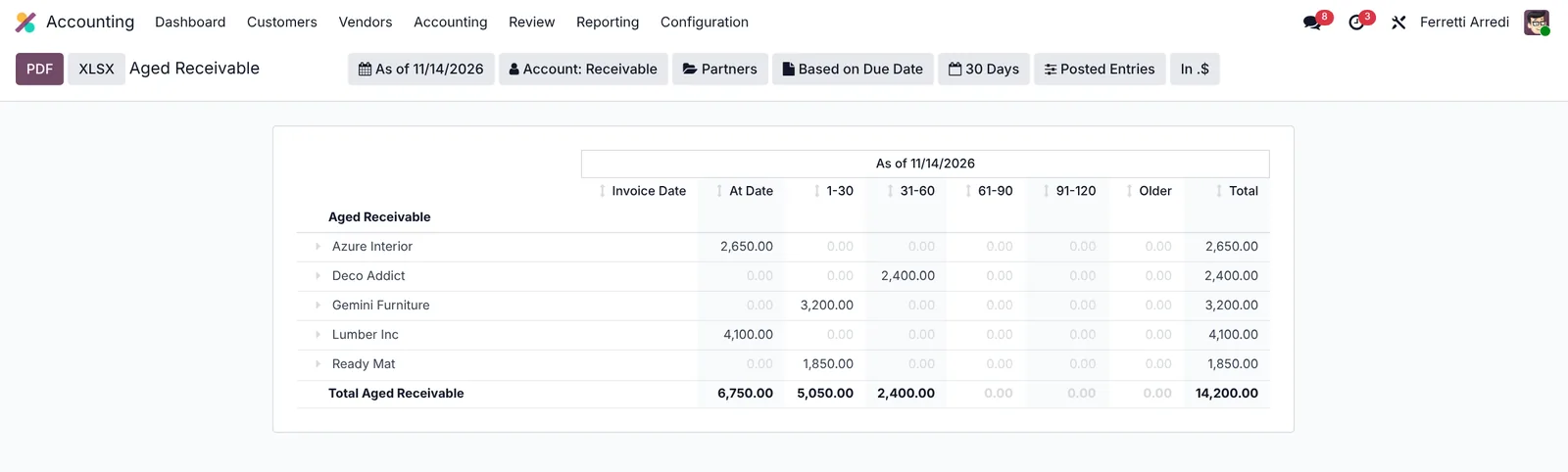 $14,200 owed, $5,050 of it up to 30 days late.
2. See the invoices behind a customer
Click the small arrow next to a customer to unfold it. Here Gemini Furniture owes $3,200, in the 1-30 column: one invoice, Meeting room tables, issued on September 21.
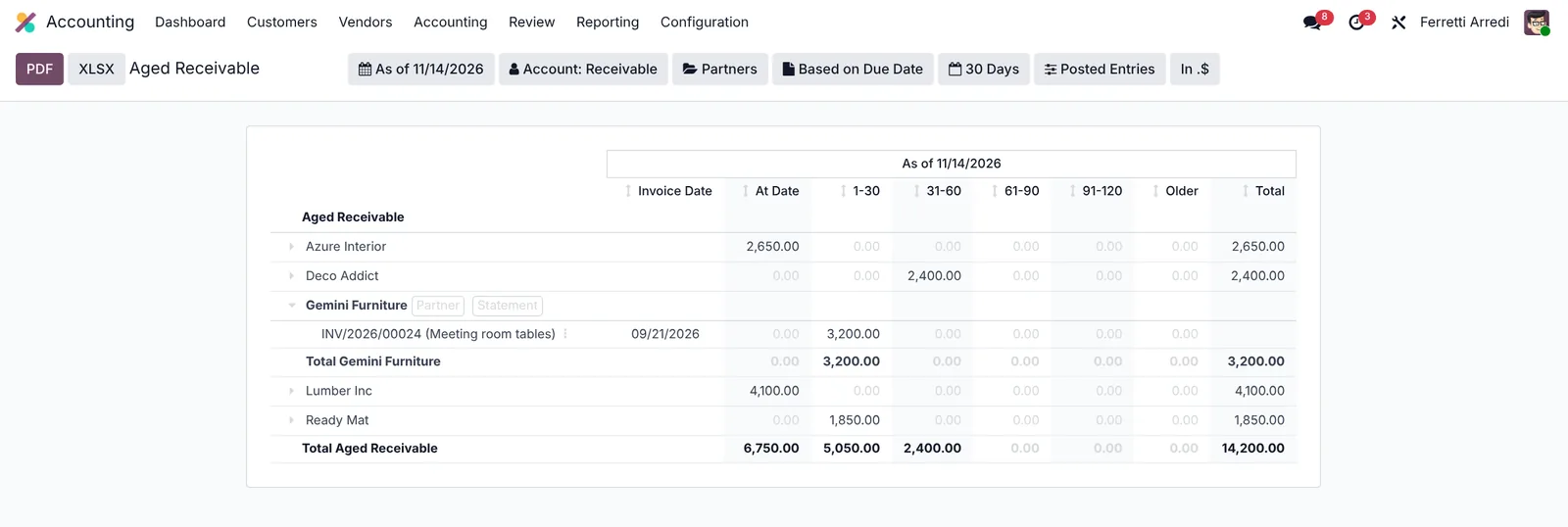 One invoice, between 1 and 30 days late.
To open the invoice, use the ⋮ menu on its line and choose View Journal Entry. The invoice shows the due date, October 21, and the amount still due.
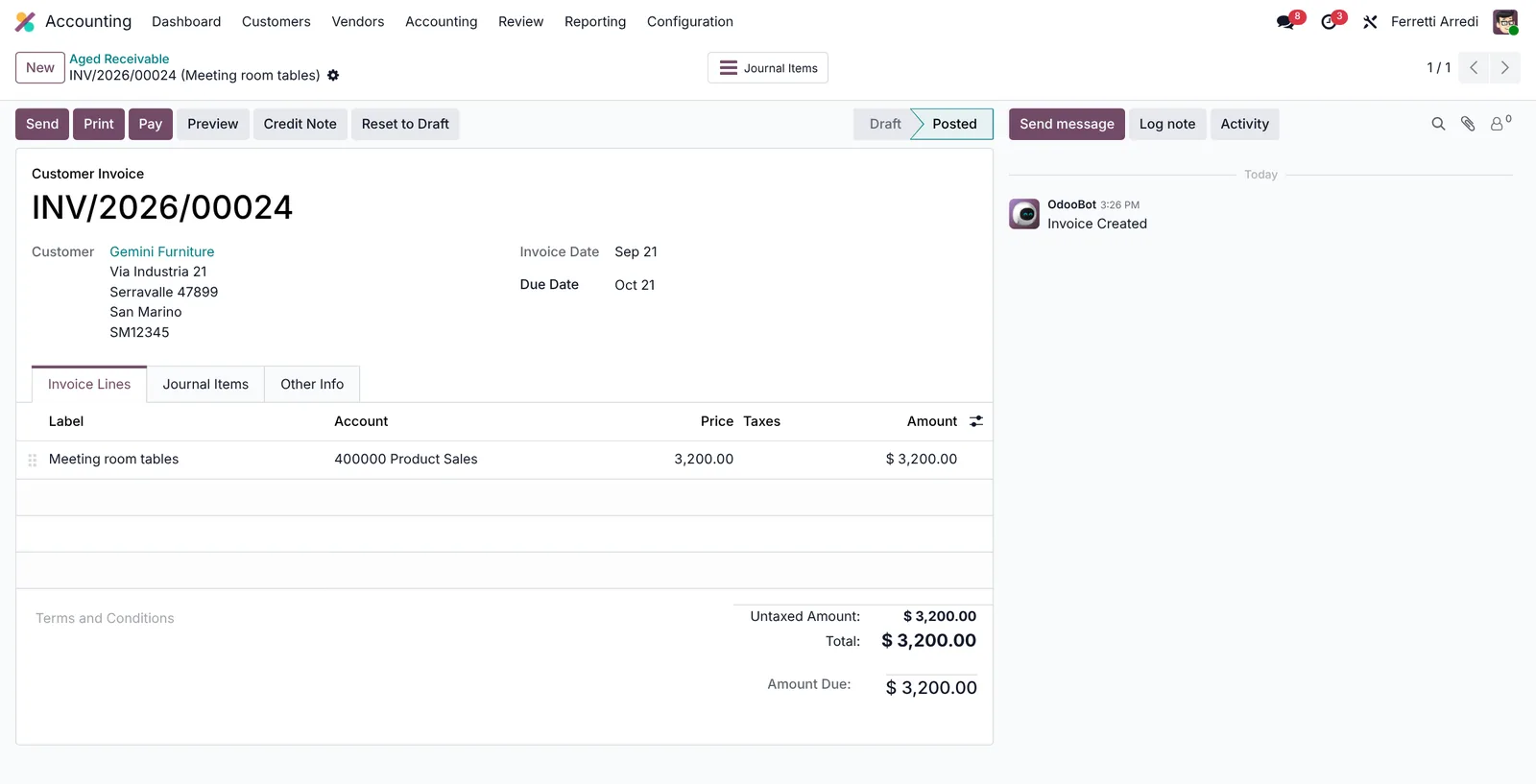 Due on October 21, still $3,200 to pay.
3. Send a reminder
Open Customers → Customers and the customer, Gemini Furniture. The Due button at the top shows what they owe; press it to open their follow-up report, with every open invoice and its due date.
Press Send. Odoo writes the email from the reminder template and attaches the list of open invoices as a PDF. Check the recipients and the text, then press Print & Send.
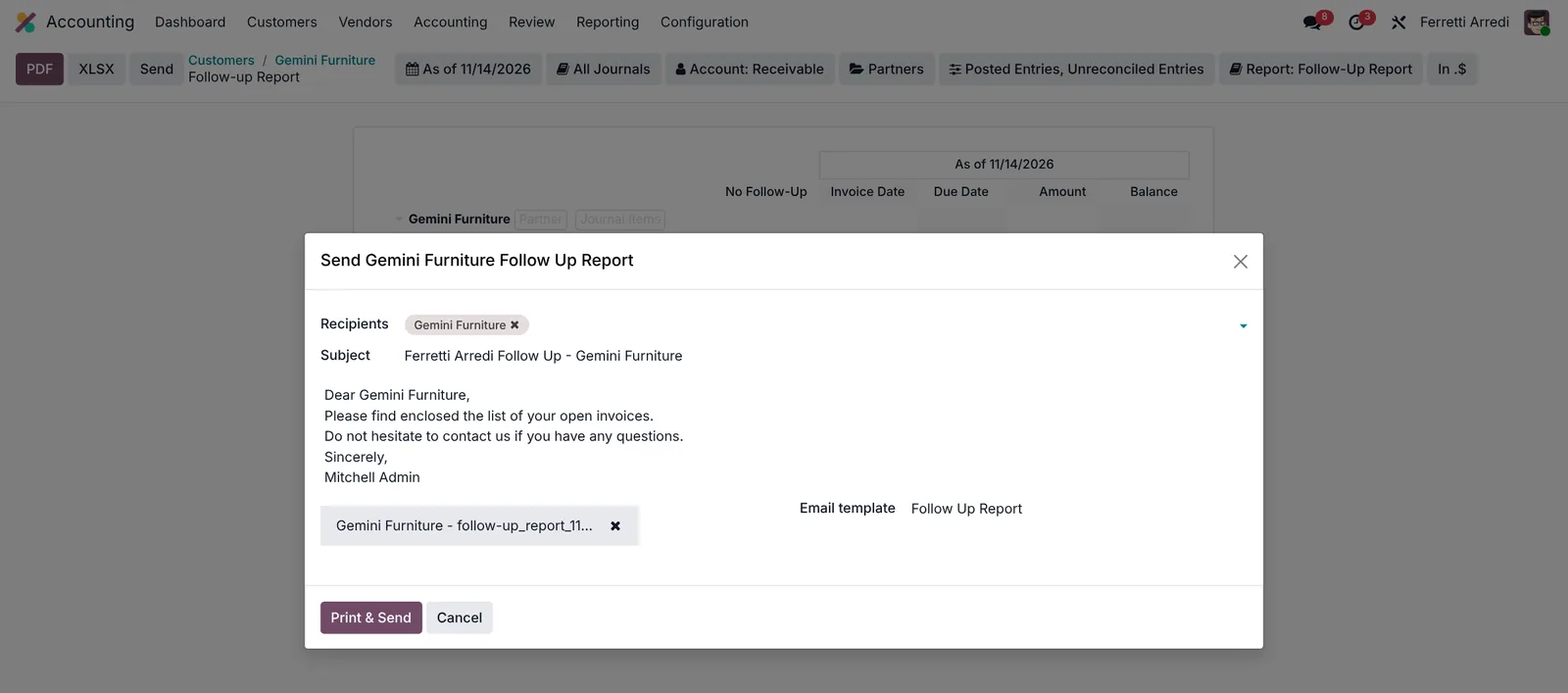 The email and the list of open invoices, ready to send.
The reminder is logged in the customer’s chatter, so everyone knows they were reminded, and when.
Common mistakes
- Payments not matched to invoices. The invoice stays open and the customer looks late when they already paid. Reconcile the bank first.
- Reading only the total. A big amount in At Date is fine; a small one in 61-90 is the one to call about.
- Reminding everyone the same way. A customer who is always a month late and one who never is need different messages.
- Forgetting the payment terms. Invoices with no due date fall in At Date forever. Set payment terms on the customer.
Aged receivables with AI: ask your AI assistant through MCP
With the Hawklify MCP server, Claude, ChatGPT and other assistants work in your Odoo as you, with your permissions. The aging report shows who is late. It doesn’t show who is late for them: a customer who always pays a month late isn’t a worry, a customer who always pays on time and now doesn’t, is. That needs a year of payment history next to today’s open invoices.
Every Monday, on the phone. A scheduled task in the AI app runs the check at 8:00 and the answer arrives as a chat message. Depending on how your organisation set up the server, the assistant makes the change straight away or first shows you a card to approve. Here Smart mode is on: it asks once, in the chat.
Hawklify
Your Odoo, from the chat you already use
Send a message, a photo or a voice note: the assistant reads and works in Odoo through Hawklify, with your permissions.
Cash this week: $6,750 in, $5,720 out.
Three customers are late, two of them not like them:
- Gemini Furniture, $3,200: 24 days late. They always pay within 4 days.
- Ready Mat, $1,850: 18 days late. They always pay on time.
- Deco Addict, $2,400: 33 days late, their habit (29 to 38 days).
Send a reminder to Gemini Furniture and Ready Mat?
Yes, send both
Sent, each written for that customer: Gemini Furniture about INV/2026/00062, Ready Mat about INV/2026/00063. Deco Addict is left alone.
Next to the report. In a side panel of the browser, the assistant starts from the report you have open. A credit decision needs the history the report doesn’t show:
Late, but reliable:
- Open now: $2,400, 33 days late.
- Last 12 months: 14 invoices, all paid, always 29 to 38 days after the due date.
- Their terms say 15 Days. In practice they pay in about 48 days.
The risk is low, the delay is a habit. Set their terms to 45 Days, so the due dates match how they pay, and note it on the contact?
Done. Deco Addict now has 45 Days terms, and a note on the contact: pays in 29 to 38 days after the due date, always pays, terms set to 45 Days on Nov 16. The new order can go ahead.
Versions we tested
| Version | Result |
|---|---|
| Odoo 16 | The total line is at the top of the report. Click an invoice line to open it. On the customer, Due opens a follow-up page: press Follow Up, keep Email ticked in Send and Print, and press Send. |
| Odoo 17 | Like 16. |
| Odoo 18 | The customer’s button is Customer Statement: it opens the statement, then Send and Print & Send. |
| Odoo 19 | As in this guide. The screenshots come from Odoo 19. |
| Odoo 20 | The customer’s button is Open Items. Send opens Send Reminder, then Print & Send. |
Frequently asked questions
Is the aging based on the invoice date or the due date?
On the due date by default (the Based on Due Date filter), so At Date is what is not due yet and 1-30 is up to 30 days late. You can switch it to the invoice date in the same filter.
Can I see the situation at the end of last month?
Yes. Change the date filter at the top (As of) to the last day of the month. The report shows what was open on that day, even if it has been paid since.
Can I export it?
Yes, with PDF or XLSX at the top left. The export keeps the lines you unfolded.
Is the aged receivable report in Community?
No. The accounting reports, the aged receivable included, and the follow-up reminders are part of Odoo Enterprise. In Community you can filter the customer invoices on overdue ones, but there is no aging by period.
Questa guida è disponibile anche in italiano: Scadenzario clienti Odoo: chi ti deve soldi e da quando
Related Odoo guides
 AccountingPayment terms in Odoo: due dates that get you paidSet payment terms in Odoo so every invoice gets the right due date, register the payment, then find overdue invoices and send a reminder. Community and Enterprise.
 AccountingBank reconciliation in Odoo: match payments to invoicesReconcile bank transactions in Odoo Enterprise: match payments to invoices, handle a payment with no reference, and book bank fees with a model.
 SalesSales orders in Odoo: from quotation to invoiceTake a sale through Odoo from start to finish: create the quotation, confirm the order, deliver the goods and post the invoice. Community and Enterprise.