Bank reconciliation in Odoo: match payments to invoices
Reconcile bank transactions in Odoo Enterprise: match payments to invoices, handle a payment with no reference, and book bank fees with a model.
- Enterprise
- 6 min read
- Odoo + AI tutorial
At month end the bank says one thing and your books say another. The payments are in the bank, the invoices are still open, and someone has to tell Odoo which belongs to which. That is bank reconciliation. This guide matches two customer payments to their invoices, then creates a reconciliation model so a recurring bank fee is booked in one click.
Bank reconciliation is an Enterprise feature. The versions we tested are listed at the end.
This guide is also an AI tutorial. At the end, an AI assistant connected to Odoo matches a transfer with a cryptic label to the right invoice, and finds the morning payment that covers two invoices at once.See it in action ↓Before you start
- Odoo Enterprise with the Accounting app, and a bank journal with transactions: imported from a file, synchronised with your bank, or typed in with New.
- Customer invoices in the Posted state. Open invoices are what a payment is matched to.
- A user with the Accounting / Administrator access right to configure models; reconciling needs the Accountant right.
1. Find the transactions to reconcile
Open Accounting → Dashboard. The Bank card shows the balance and a button with the number of transactions to reconcile.
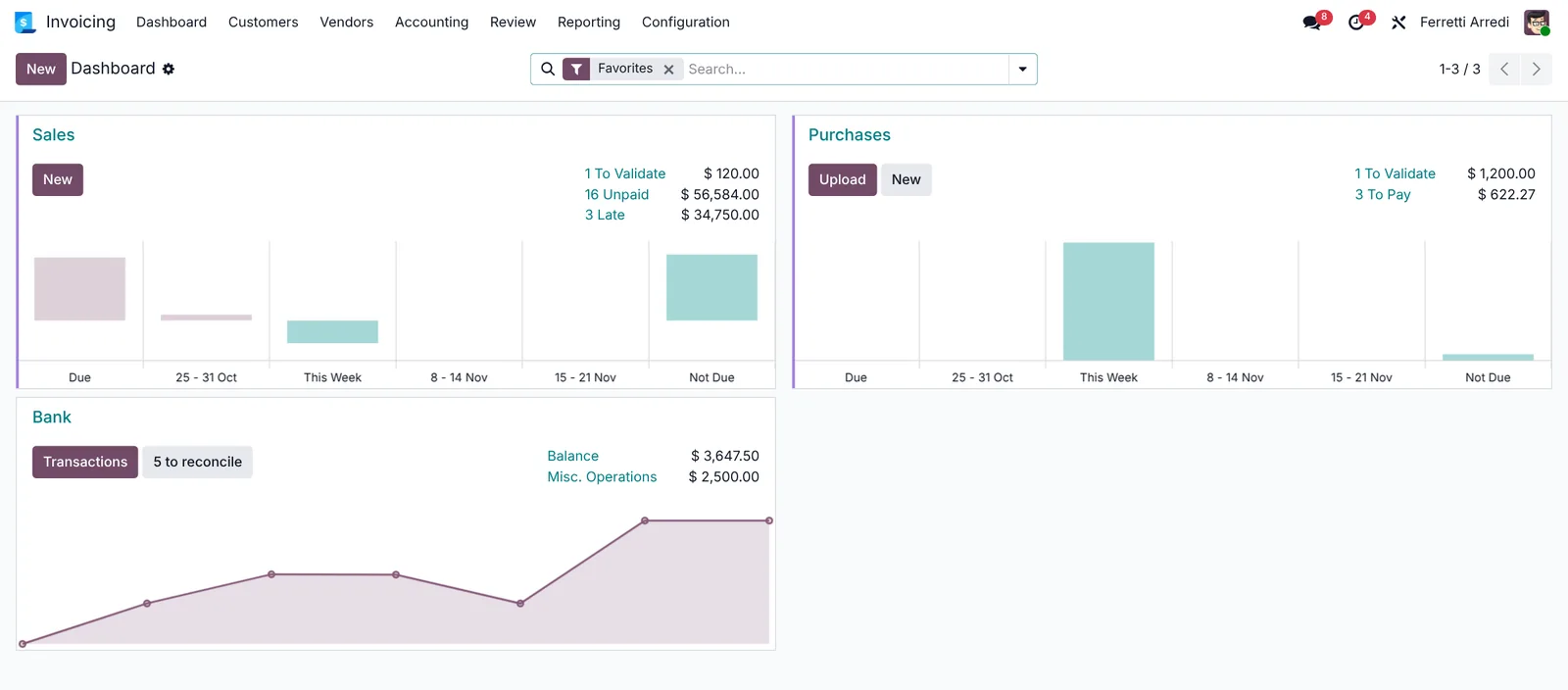 The Bank card: five transactions are waiting.
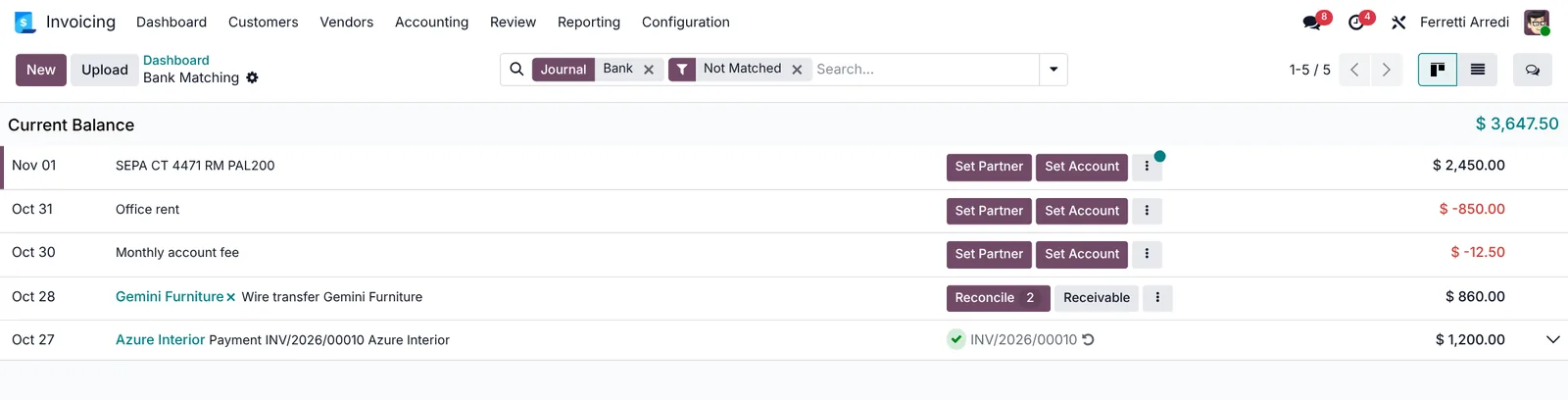
Press it. Every transaction that is not matched yet is a row, with the date, the label, the partner when Odoo knows it, and the amount. Transactions come from a file you Upload (CSV, OFX, CAMT and more), from an online bank synchronisation, or from New.
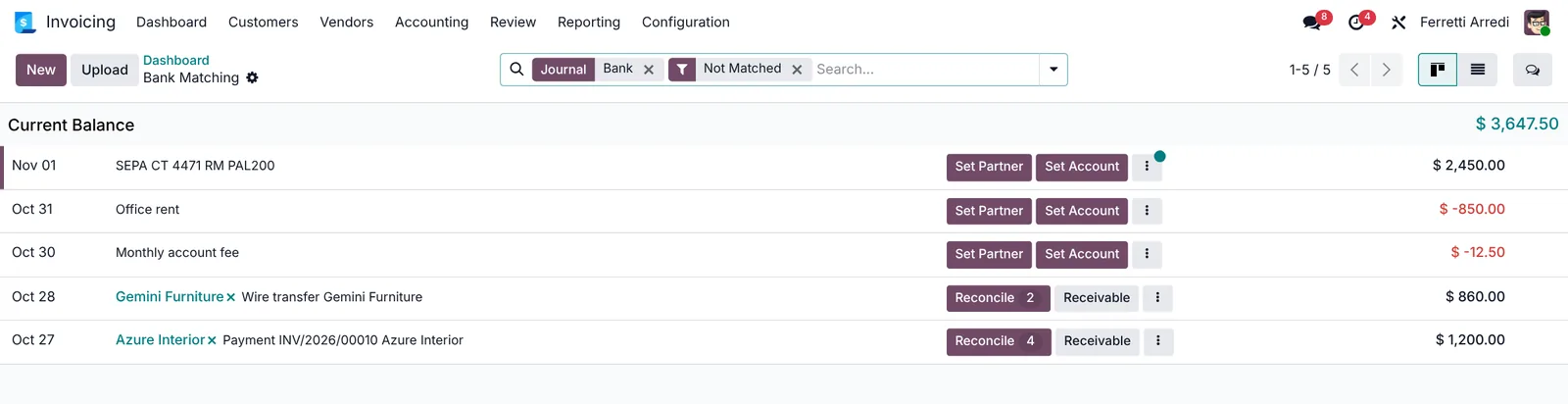 Five transactions, none matched yet.
2. Match a payment to its invoice
The first payment has the invoice number in its label, and Odoo knows the partner. Press Reconcile on that row: the number on the button says how many open items could match. Tick the invoice with the same amount and press Select.
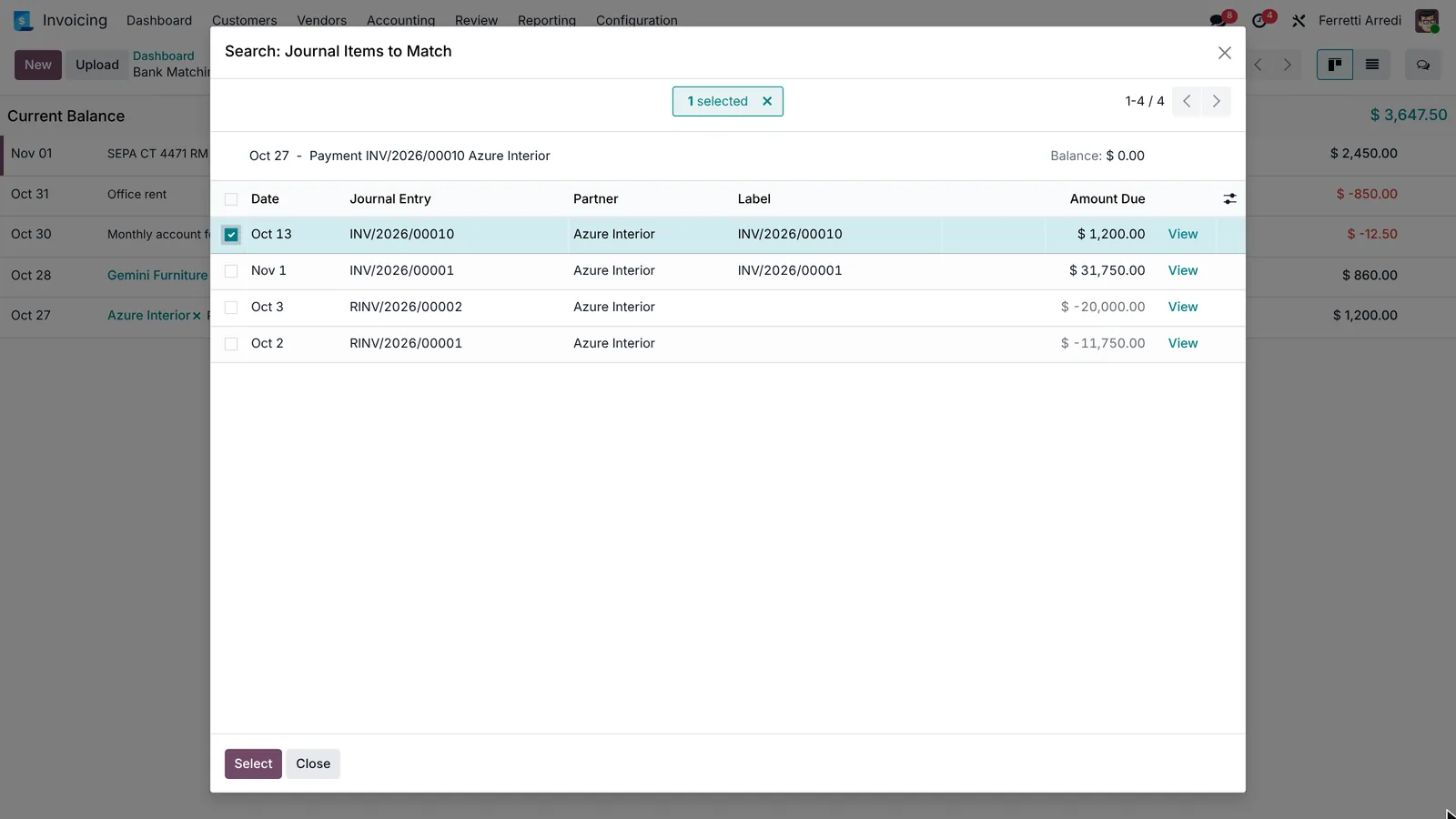 Tick the open invoice that this payment settles.
The row turns into a green check with the invoice number, and the invoice is now Paid. Press the undo arrow next to it if you picked the wrong one.
 Reconciled: one transaction less to work on.
Do the same for a payment that has no invoice number in its label, such as a wire transfer from a customer. If the partner is set, Reconcile lists that partner’s open invoices, and you pick the one with the right amount. If the partner is empty, press Set Partner first.
3. Build a reconciliation model for a recurring cost
Some transactions are not invoices at all: the bank takes a monthly fee. A reconciliation model teaches Odoo to book it for you. Open Accounting → Configuration → Reconciliation Models and press New.
- Type a Name, for example Monthly account fee.
- In Label, choose Contains and type a text that is always in the bank label, for example account fee.
- In Counterpart Items, add a line with the expense Account, here 620000 Bank Fees. The default amount is 100% of the balance.
- Save. The model stays Manual.
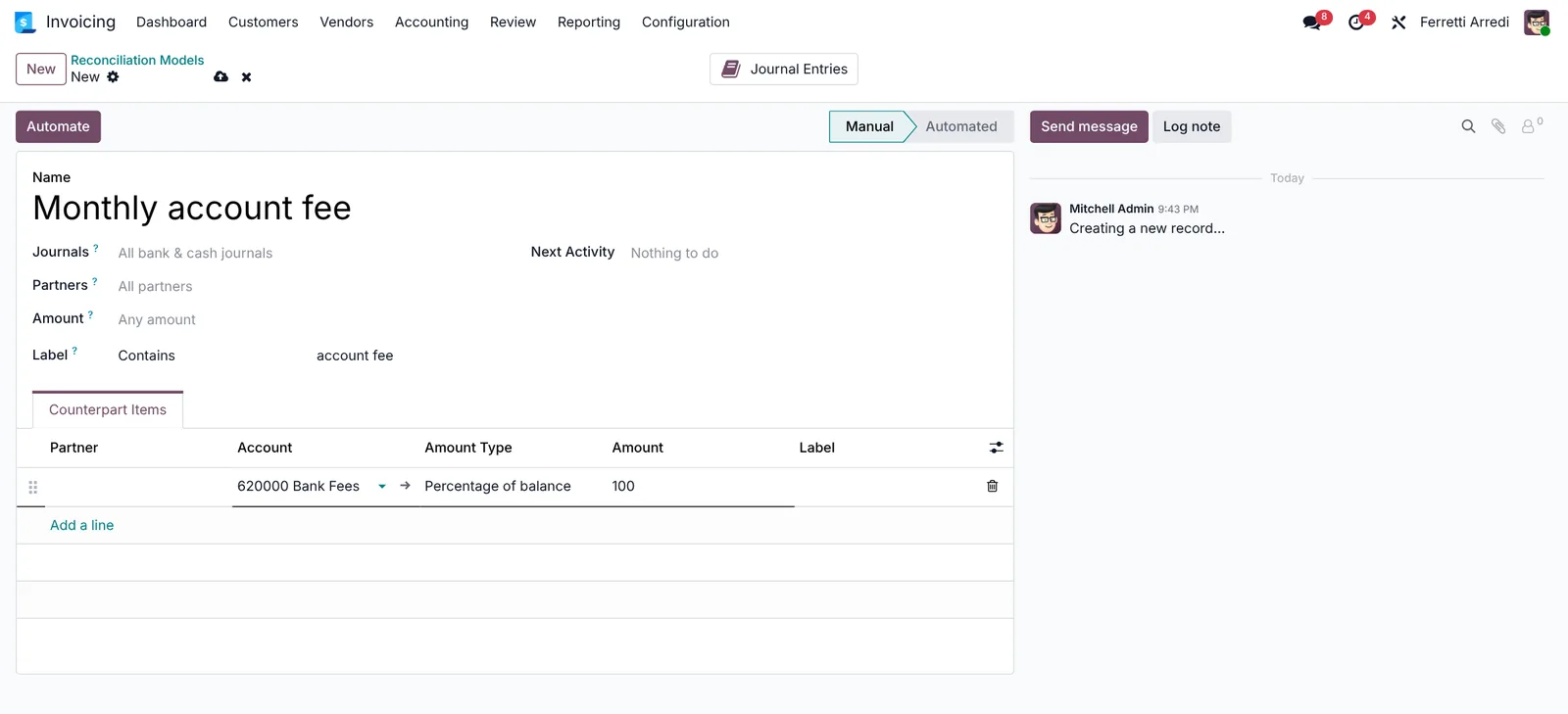 The model: label contains “account fee”, book to Bank Fees.
4. Use the model on the fee
Go back to the transactions. Every transaction that fits the model’s conditions now shows a button with the model’s name.
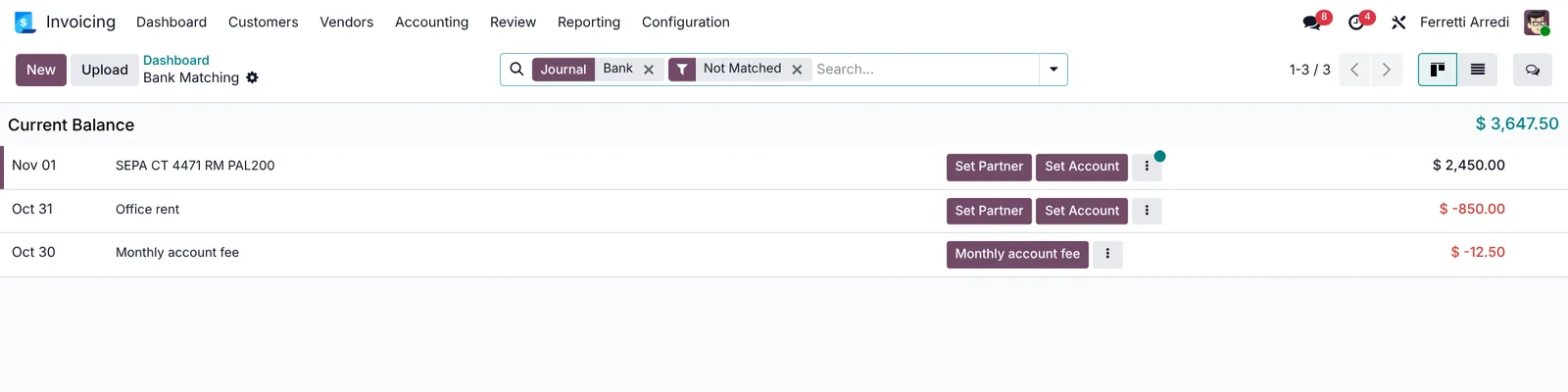 The model appears as a button on the fee.
Press it. Odoo books the amount to Bank Fees and reconciles the transaction.
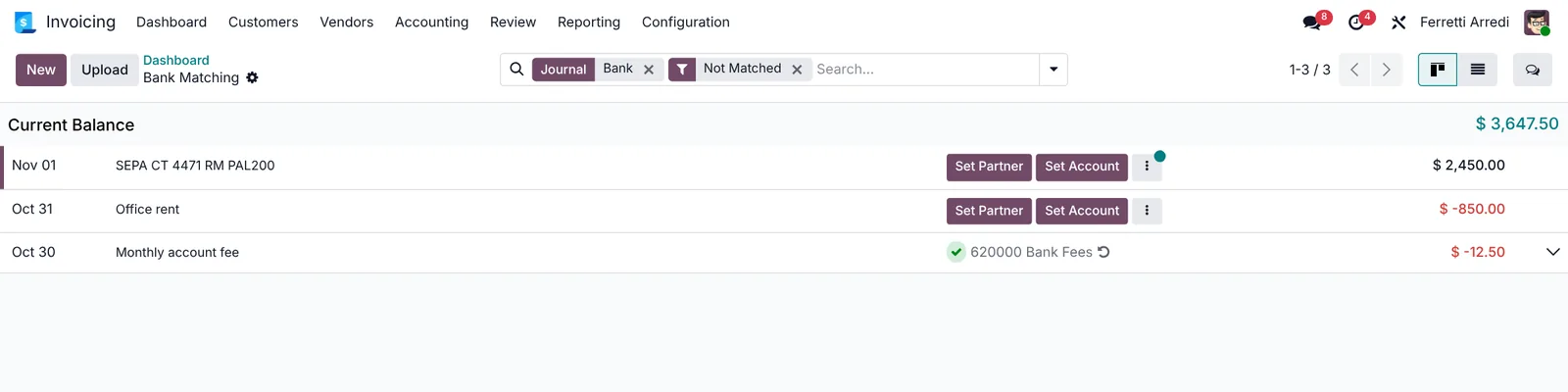 One click, no journal entry typed by hand.
When you trust a model, switch it to Automated: Odoo then applies it by itself when new transactions arrive.
Common mistakes
- Matching by amount only. Two customers can pay the same amount. Check the partner and the invoice number before you press Select.
- A label condition that is too short. fee also matches a customer who writes “fee” in a payment. Use a longer, specific text.
- Reconciling against the wrong account. Counterpart accounts decide where the money shows in your reports: use an expense account for fees, not a payable.
- Leaving unreadable transfers for later. They pile up at month end. Set the partner and match them the day they arrive.
Bank reconciliation with AI: ask your AI assistant through MCP
With the Hawklify MCP server, Claude, ChatGPT and other assistants work in your Odoo as you, with your permissions. Odoo matches a payment when the label carries the invoice number. The ones left over are the hard ones: a cryptic label, no partner, one transfer that pays two invoices. That is where the assistant helps.
At month end, on the computer. Anna asks what is still open. Depending on how your organisation set up the server, the assistant makes the change straight away or first shows you a card to approve. Here card mode is on: nothing changes in Odoo until she approves.
Five bank transactions are waiting. Four are routine: INV/2026/00010 is in the label of the Azure Interior payment, the Gemini Furniture wire has its partner set, and the account fee and the office rent are known costs.
One is a mystery: ==a transfer of $2,450.00 labelled SEPA CT 4471 RM PAL200, with no partner. But the open invoice INV/2026/00012 of Ready Mat is for exactly $2,450.00==, and RM are their initials.
Want me to match the transfer to that invoice?
Approval needed in OdooAction
Match the $2,450.00 transfer of Nov 1 (SEPA CT 4471 RM PAL200) to Ready Mat's invoice INV/2026/00012.
account.bank.statement.line · 1 record
SEPA CT 4471 RM PAL200 #12
| Field | Current | New |
|---|---|---|
| Partner | Ready Mat | |
| Matched with | INV/2026/00012 | |
| Status | Matched |
Change applied in Odoo.
Organisation administrators can turn the approval cards off on the Members page.
Done. The $2,450.00 transfer is matched to INV/2026/00012, and the invoice is now Paid.
Four transactions are left: Azure Interior, Gemini Furniture, the account fee and the office rent.
Every morning, on the phone. The same check can run as a scheduled task in the AI app, and arrive as a chat message. Here Smart mode is on: the assistant asks once, in the chat, before matching.
Hawklify
Your Odoo, from the chat you already use
Send a message, a photo or a voice note: the assistant reads and works in Odoo through Hawklify, with your permissions.
Good morning Anna. 4 new bank transactions since yesterday.
3 match their invoice by number. The fourth: Deco Addict paid $3,180.00 in one transfer. No invoice is for that amount, but two of theirs add up to it:
INV/2026/00014: $1,950.00INV/2026/00017: $1,230.00
Match all four?
Yes, all four
Done. 5 invoices are now Paid, Deco Addict's two included. Nothing is waiting in the bank.
You can also ask it to set up the routine for you:
Create a reconciliation model called Monthly account fee for labels that contain “account fee”, booked to Bank Fees.
Versions we tested
| Version | Result |
|---|---|
| Odoo 16 | The screen is called Bank Reconciliation: transactions on the left, the entries to match below. Odoo proposes the invoice when the transaction has a partner, and matches on its own when the label holds the invoice number. Press Validate to confirm. The reconciliation model form has a Type field (button, suggestion or invoice matching) instead of Manual and Automated. |
| Odoo 17 | Like 16. Click the invoice in the Match Existing Entries tab, then press Validate. |
| Odoo 18 | Like 17, with a Batch Payments tab and the Reconcile items on the dashboard. |
| Odoo 19 | The screen is Bank Matching, a list of transactions with Reconcile and model buttons, as in this guide. The screenshots come from Odoo 19 Enterprise. |
| Odoo 20 | Same screens and buttons as 19. |
Frequently asked questions
Do I need Odoo Enterprise for bank reconciliation?
For the screens in this guide, yes. The bank reconciliation view and the reconciliation models come with the Accounting app of Enterprise. In Community you register a payment on the invoice and keep the bank statement outside Odoo.
What does it mean to reconcile a bank transaction?
You tell Odoo what the transaction is: a customer paying invoice X, a bill you paid, or an expense such as a bank fee. Odoo then closes the invoice and the bank balance in your books matches the statement.
Why does a transaction have no suggested invoice?
Odoo suggests an invoice from the partner, the amount and the reference in the label. If the label is unreadable and the partner is empty, set the partner first, or search the invoices yourself.
Can Odoo reconcile automatically?
Yes. A reconciliation model set to Automated applies itself when its conditions match, for example a label that contains a fixed text. Start with Manual, and automate it once you trust it.
Questa guida è disponibile anche in italiano: Riconciliazione bancaria Odoo: abbina pagamenti e fatture
Related Odoo guides
 AccountingPayment terms in Odoo: due dates that get you paidSet payment terms in Odoo so every invoice gets the right due date, register the payment, then find overdue invoices and send a reminder. Community and Enterprise.
 AccountingAged receivables in Odoo: who owes you, and since whenRead the aged receivable report in Odoo Enterprise: who owes you, how late, the invoices behind each amount, and how to send a customer a reminder of what is overdue.
 AccountingExpenses in Odoo: from receipt to reimbursementHandle employee expenses in Odoo: record an expense with its receipt, submit it, approve it, post it to accounting and pay the employee back. Community and Enterprise.