Sales orders in Odoo: from quotation to invoice
Take a sale through Odoo from start to finish: create the quotation, confirm the order, deliver the goods and post the invoice. Community and Enterprise.
- Community and Enterprise
- 4 min read
- Odoo + AI tutorial
A sale in Odoo is one document that grows: a quotation becomes a sales order, the order makes a delivery, and the delivered goods become an invoice. Every step is linked, so you always know what is quoted, shipped and billed. This guide takes one order for Azure Interior through all four steps.
It works the same in Community and Enterprise. The versions we tested are listed at the end.
This guide is also an AI tutorial. At the end, an AI assistant connected to Odoo turns a photo of a handwritten order into a quotation, and checks stock and the customer's payments before you send a quote.See it in action ↓Before you start
- The Sales, Inventory and Invoicing apps installed.
- Products with a sales price. Here we use three demo products that are in stock.
1. Create the quotation
Open Sales and press New. Pick the Customer, here Azure Interior: Odoo fills in the address, the payment terms and the pricelist.
In Order Lines, press Add a product and add one line per product with its Quantity:
- 6 x Individual Workplace
- 8 x Office Chair Black
- 2 x Storage Box
Odoo takes the unit price from the product (or from the customer’s pricelist) and adds up the total. Press Save.
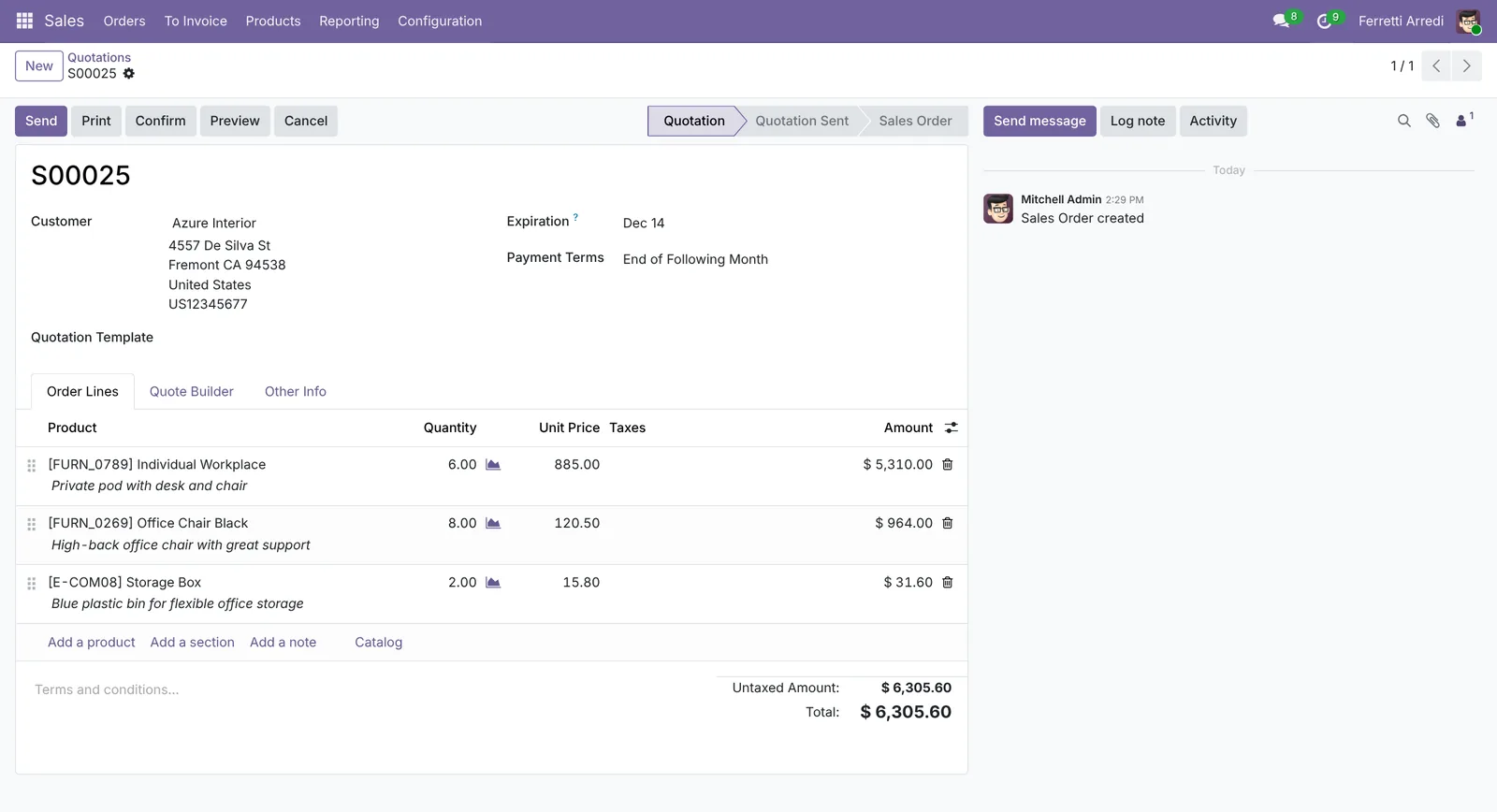 Quotation S00025: three lines, $6,305.60.
2. Confirm the order
When the customer says yes, press Confirm. The quotation becomes a sales order: the status bar moves to Sales Order, and a Delivery button appears at the top, because Odoo has already prepared the shipment.
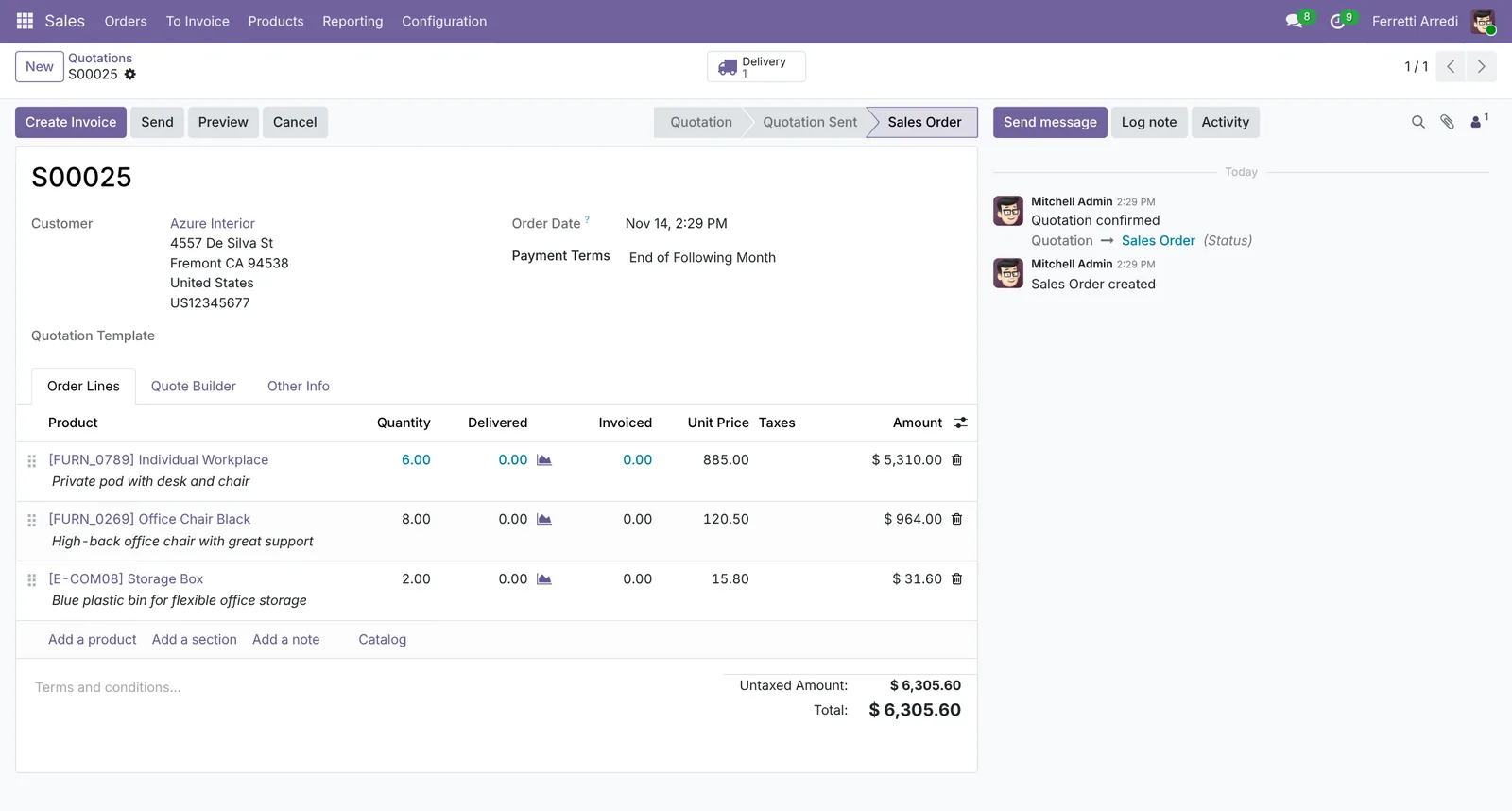 Delivered 0, invoiced 0: the order is waiting for the warehouse.
3. Deliver the goods
Press the Delivery button. The delivery lists the same products and quantities. When the goods leave, press Validate. The delivery moves to Done and the stock goes down.
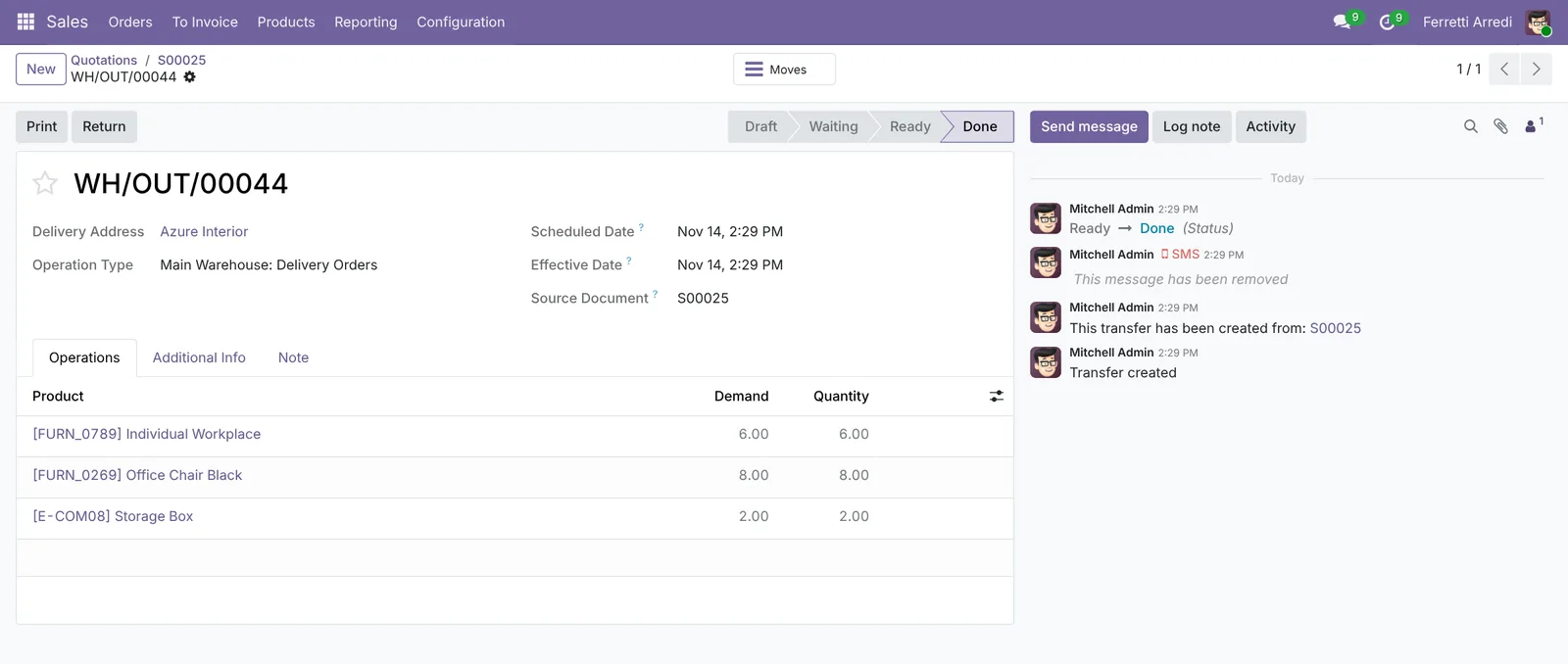 All three products shipped.
4. Invoice it
Go back to the order with the breadcrumb. Its Delivered column now shows what was shipped. Press Create Invoice, keep Regular invoice, and press Create Draft. Check the draft and press Confirm: the invoice is posted and ready to send.
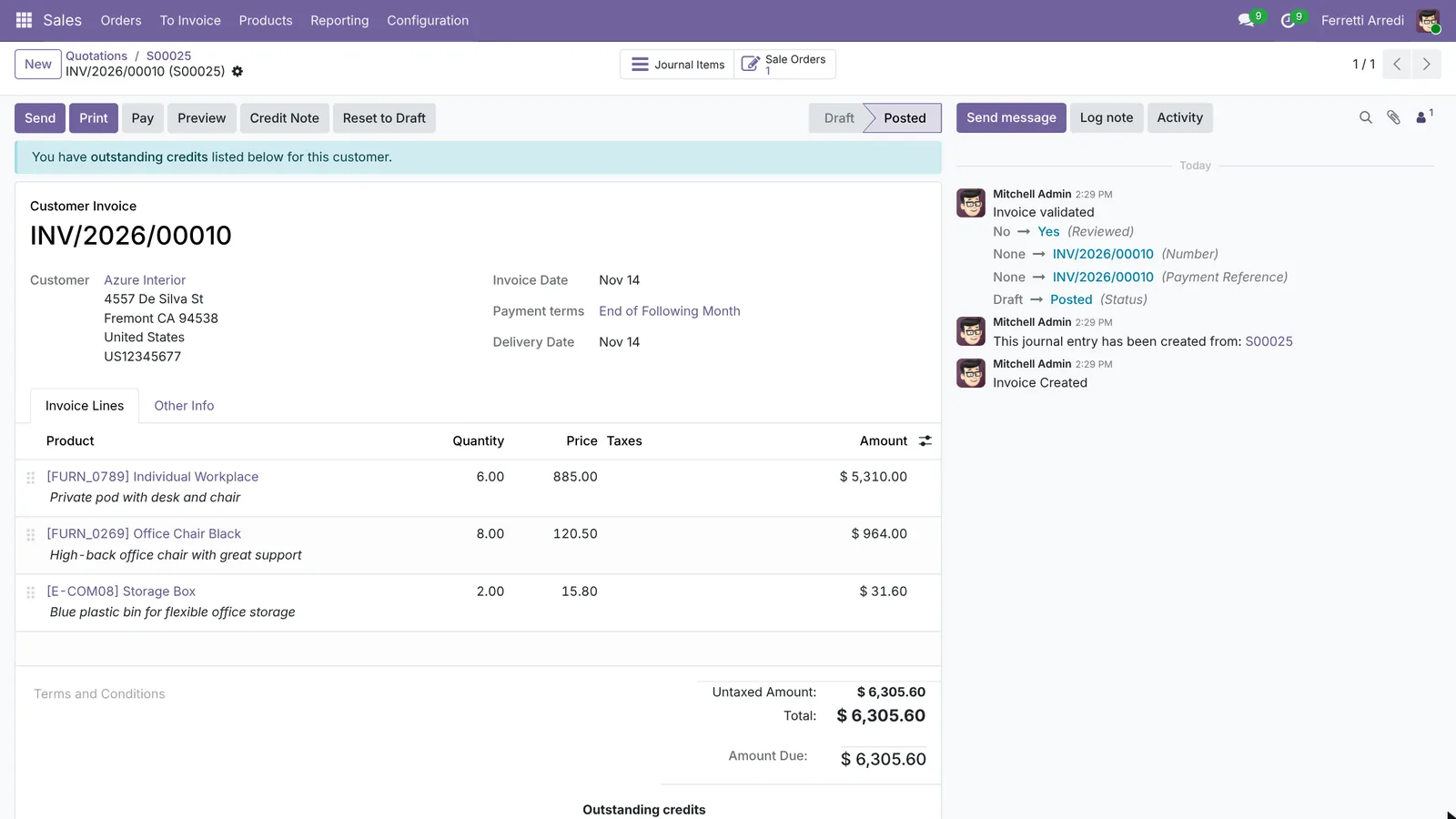 The invoice keeps a link to the order and the order to the invoice.
Back on the order, the Invoiced column is filled in too. Nothing is left to deliver or to bill.
Common mistakes
- Editing the quotation after Confirm. You can still change a confirmed order, but the delivery is already prepared. For big changes, cancel and duplicate it.
- Invoicing before the delivery, and getting nothing. Storable products are invoiced on delivered quantities. Validate the delivery first, or change the product’s Invoicing Policy.
- Forgetting the pricelist. A customer with special prices needs its pricelist on the contact, or each quote starts from the list price.
- Typing an order that the customer already wrote down. That is where the next section helps.
Sales orders with AI: ask your AI assistant through MCP
With the Hawklify MCP server, Claude, ChatGPT and other assistants work in your Odoo as you, with your permissions. They read what you would otherwise look up across several screens, and they make the change once you say yes. Two ways to use it on sales orders:
From the phone. A salesman sends Anna a photo of a handwritten order: “6 oak desks 160, 12 chairs black, the usual, 2 big cabinets”. Odoo can’t read that, and two products are called “chair black”. Her chat assistant, connected to Odoo through Hawklify, can:
Hawklify
Your Odoo, from the chat you already use
Send a message, a photo or a voice note: the assistant reads and works in Odoo through Hawklify, with your permissions.
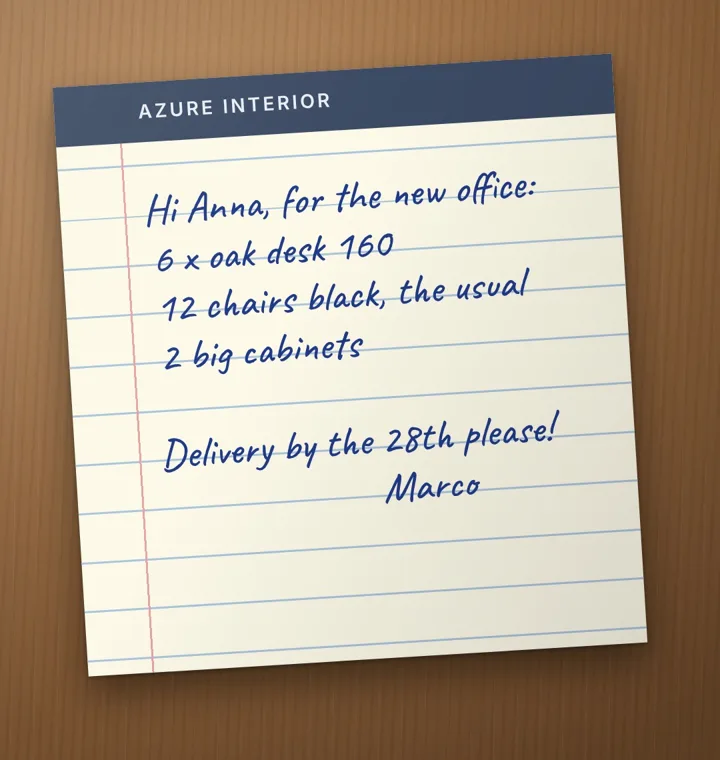
Azure sent this. Can you make the quote?
Marco's note, for Azure Interior:
- 6 Oak Desk 160: $621 each, their price last time (list $690)
- 12 Ergo Chair Black: the usual, 3 orders, always $139
- 2 Oak Cabinet Large: $520, 1 in stock, 4 arrive Nov 19
Everything can ship by the 28th. Quote at their prices, $6,434?
Yes, their prices
Done: quotation S00081 for Azure Interior, $6,434.00, delivery promised for Nov 28. Ready to send from Odoo.
It looked up Azure’s past orders for their prices and “the usual” chairs, and the stock for the cabinets. Depending on how your organisation set up the server, the assistant makes the change straight away or first shows you a card to approve. Here Smart mode is on: it asked once, then created the quotation without a line typed by hand.
Next to the quotation. In a side panel of the browser, the assistant works on the record you have open, and checks what the quotation screen doesn’t show: what arrives when, and whether the customer pays on time.
By Friday, Nov 21: not all of it.
- 6 Individual Workplace: 4 in stock, 6 more arrive from Wood Corner on Nov 24
- 8 Office Chair Black and 2 Storage Box: in stock
Payments: INV/2026/00008, $1,840.00, is 21 days overdue. Azure usually pays within 10 days.
Shall I promise delivery for Nov 25 and mention the open invoice when I send the quote?
Done. S00025 now promises delivery on Nov 25 and went to Azure Interior, with a friendly line about INV/2026/00008. It's now a Quotation Sent.
Versions we tested
| Version | Result |
|---|---|
| Odoo 16 | Same steps. When you validate the delivery without setting the quantities, Odoo first asks Immediate Transfer?: press Apply. The invoice wizard’s button is Create and View Invoice. |
| Odoo 17 | As in this guide. |
| Odoo 18 | As in this guide. |
| Odoo 19 | As in this guide. The screenshots come from Odoo 19. |
| Odoo 20 | New opens a menu of quotation templates: pick New Quotation. Lines are added with Add Line. |
Frequently asked questions
What is the difference between a quotation and a sales order?
It is the same document. Before you press Confirm it is a quotation: you can change it, send it and print it, and nothing is reserved. After Confirm it is a sales order: Odoo reserves the stock, creates the delivery and lets you invoice it.
Can I invoice before delivering?
Yes, if the product is invoiced on ordered quantities (the Invoicing Policy on the product). By default, storable products are invoiced on delivered quantities, so Create Invoice only bills what has already left the warehouse.
The customer wants only part of the order now. What do I do?
Validate the delivery with the quantities you ship. Odoo asks whether to create a backorder for the rest. Invoice what was delivered; the rest is invoiced when the backorder ships.
How do I send the quotation by email?
Press Send on the quotation. Odoo attaches the PDF and, if the customer portal is on, a link where the customer can accept and sign it online.
Questa guida è disponibile anche in italiano: Ordini di vendita Odoo: dal preventivo alla fattura
Related Odoo guides
 SalesQuotation templates in Odoo: a full quote in a minuteBuild a quotation template in Odoo with optional products and online signature, send a quote in a minute, and let the customer sign it online. Community and Enterprise.
 InventoryDeliveries and backorders in Odoo: ship what you haveShip part of an order in Odoo when the rest is not in stock: validate the partial delivery, keep a backorder, set a default per operation type. Community and Enterprise.
 AccountingPayment terms in Odoo: due dates that get you paidSet payment terms in Odoo so every invoice gets the right due date, register the payment, then find overdue invoices and send a reminder. Community and Enterprise.