Deliveries and backorders in Odoo: ship what you have
Ship part of an order in Odoo when the rest is not in stock: validate the partial delivery, keep a backorder, set a default per operation type. Community and Enterprise.
- Community and Enterprise
- 4 min read
- Odoo + AI tutorial
A customer orders five desks and only two are on the shelf. You can make them wait for all five, or ship two today and the other three when they arrive. In Odoo the second option is a backorder: you validate what you ship, and Odoo keeps the rest in a new delivery that waits for stock. This guide ships a partial order for Azure Interior, finds the backorder, and sets what Odoo does by default.
It works the same in Community and Enterprise. The versions we tested are listed at the end.
This guide is also an AI tutorial. At the end, an AI assistant connected to Odoo tells you every morning which deliveries can't ship complete and what each customer wants then, and finds the backorders that could have shipped days ago.See it in action ↓Before you start
- The Inventory and Sales apps installed.
- A confirmed sales order with more than you have in stock. Here Azure Interior ordered 5 Corner Desk Left Sit and 2 are in stock.
1. Find what can ship
Open Inventory → Operations → Deliveries. The Ready filter keeps only the deliveries Odoo has reserved stock for, fully or in part.
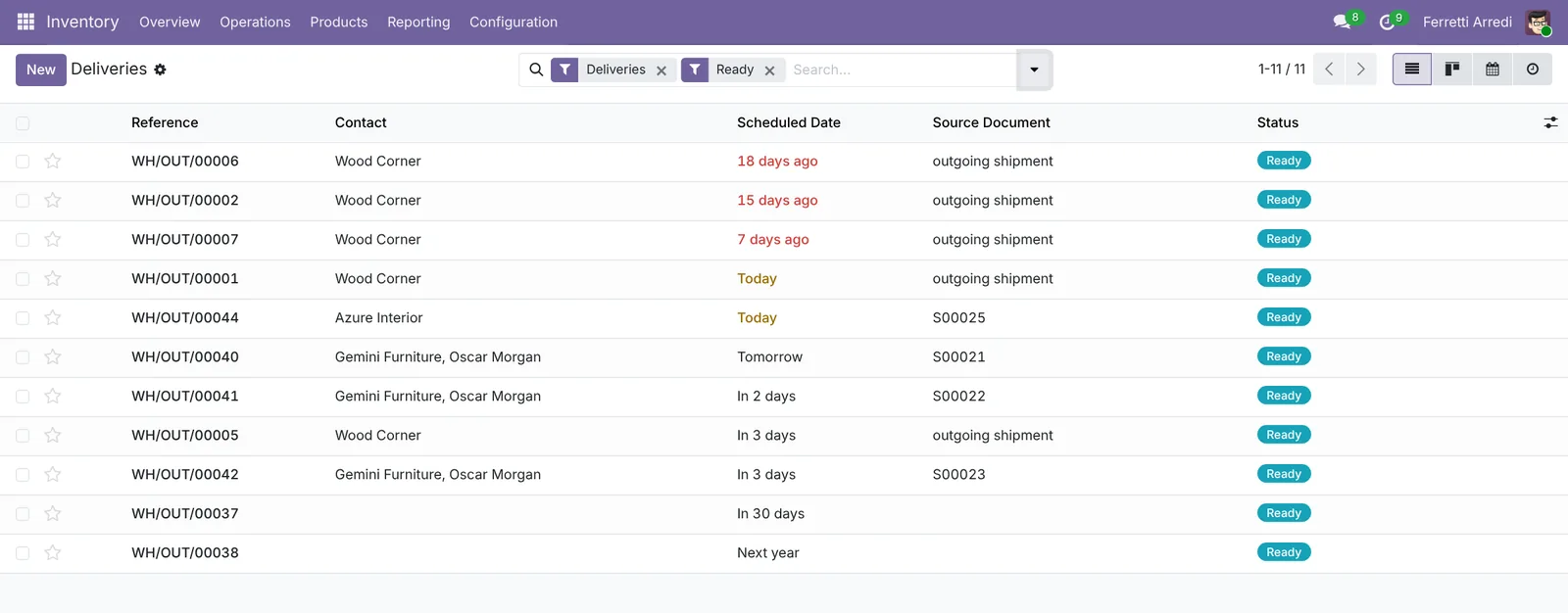 Everything that can leave the warehouse.
2. Open the delivery and validate it
Open the delivery for Azure Interior. Product Availability says Not Available: the line asks for 5 (Demand) and Odoo reserved 2 (Quantity). Leave the quantity at 2, the desks you are actually shipping, and press Validate.
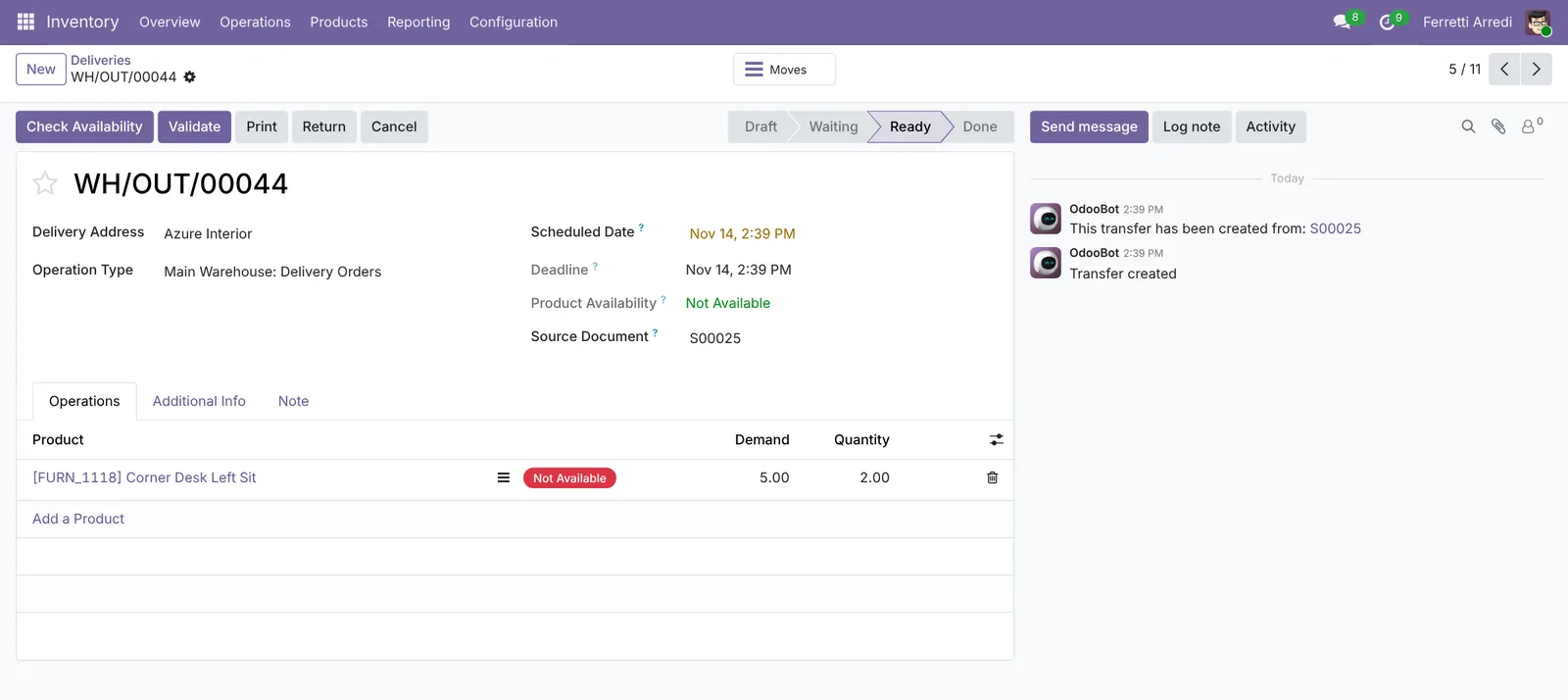 Five ordered, two on the shelf.
3. Create the backorder
Odoo sees that you shipped less than the demand and asks Create Backorder?
- Create Backorder: ship the 2 now, and keep the other 3 in a new delivery.
- No Backorder: ship the 2 and cancel the rest.
- Discard: go back without validating.
Press Create Backorder.
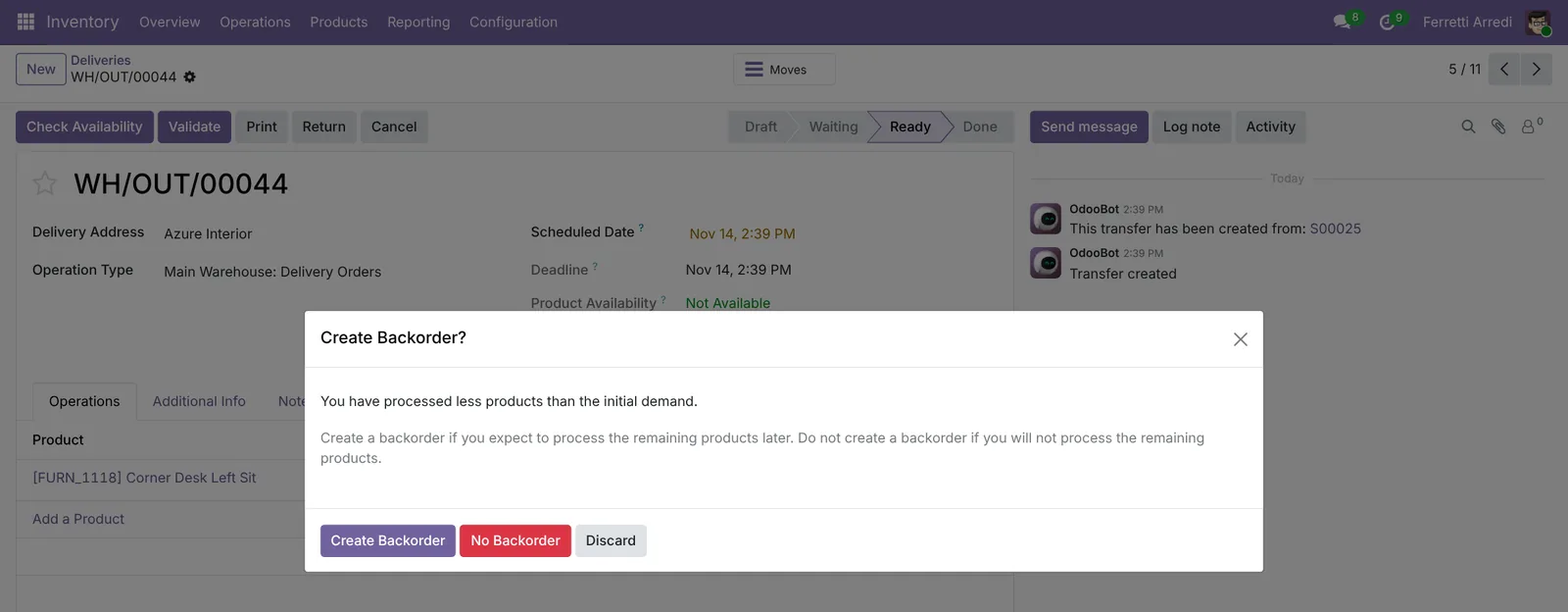 Ship now, the rest follows.
4. Find the backorder
Open Inventory → Operations → Transfers and use the Backorders filter. The new delivery has the same customer and source document, Back Order of points to the first delivery, and it is Waiting for the 3 missing desks. When they arrive, Odoo reserves them and the backorder turns Ready.
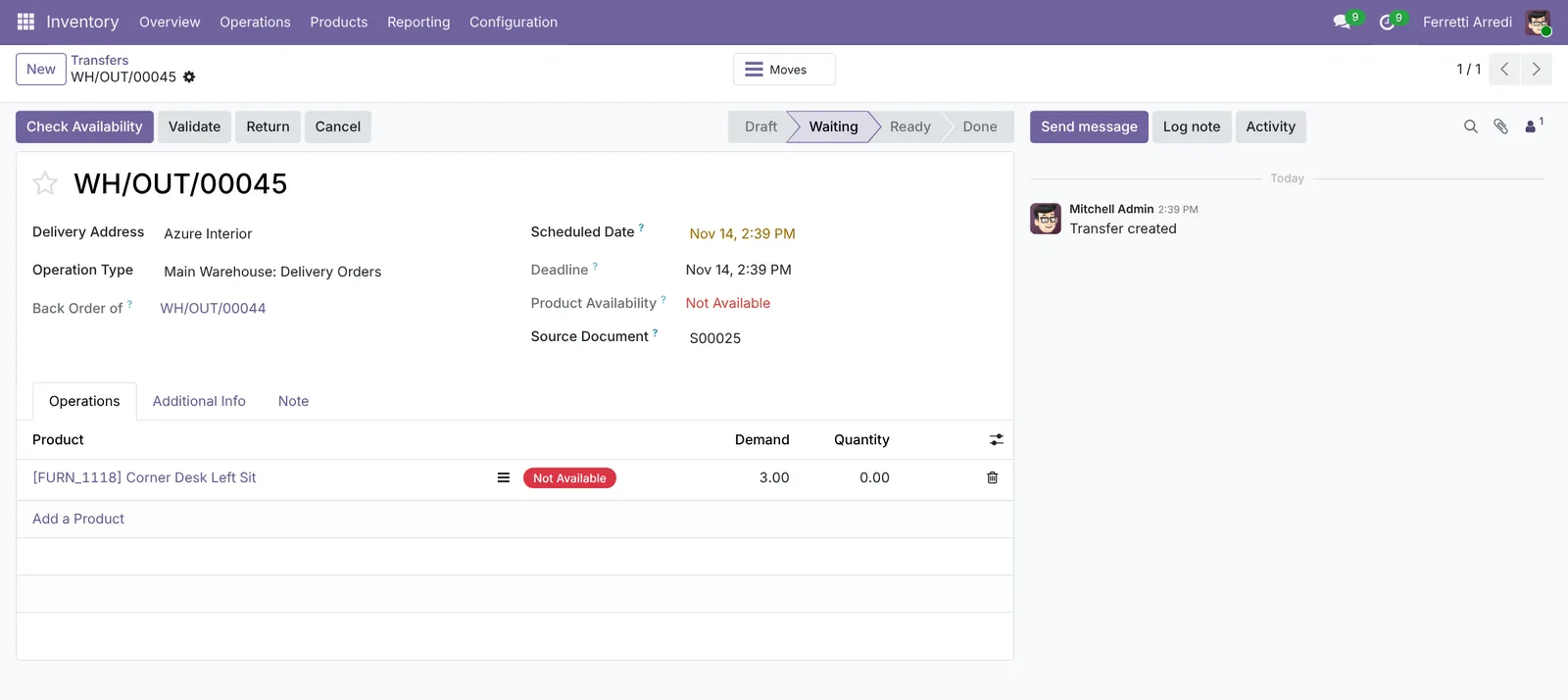 The rest of the order, waiting for stock.
5. Choose what Odoo does by default
If you always give the same answer, don’t answer every time. Open Inventory → Configuration → Operation Types, then Delivery Orders. Create Backorder can be Ask (the default), Always or Never.
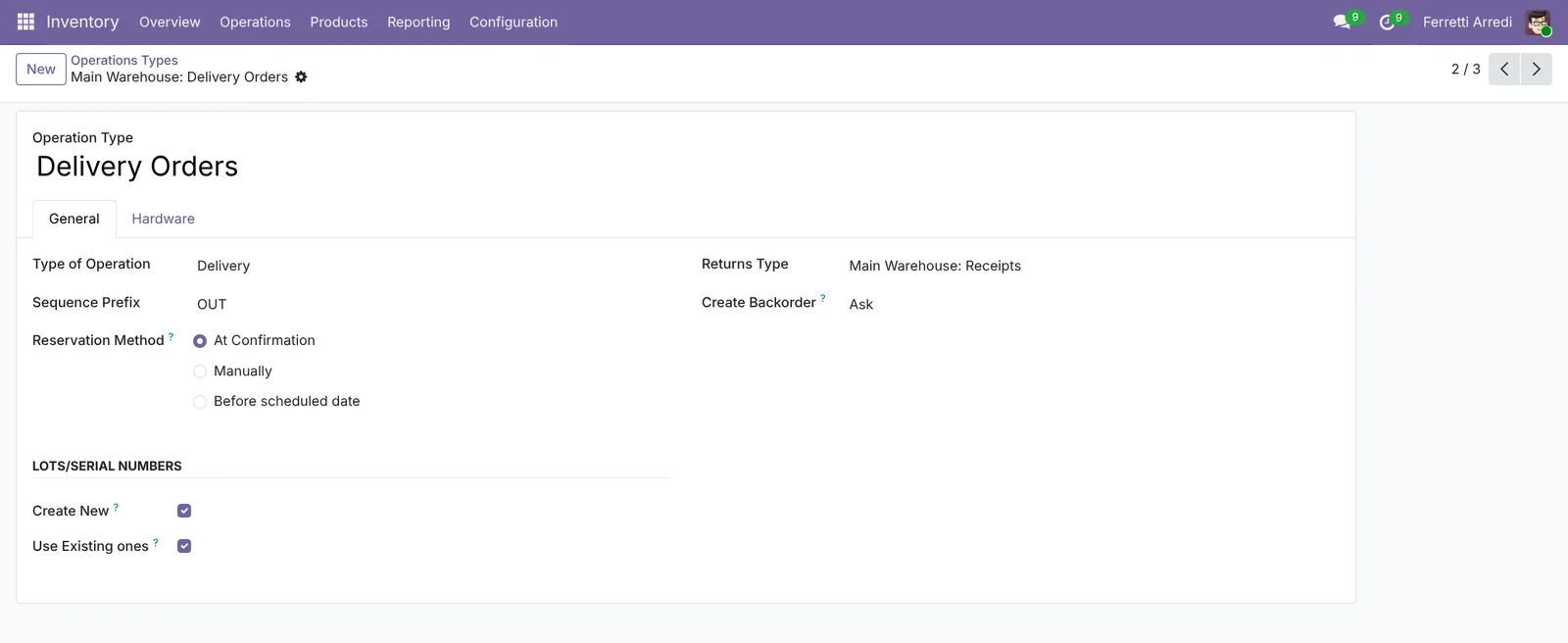 Ask, Always or Never.
Common mistakes
- Pressing No Backorder by habit. The missing goods are cancelled, and the customer never gets them. Use it only when the customer really doesn’t want the rest.
- Changing the demand instead of the quantity. Demand is what the customer ordered. Change the quantity you ship.
- Forgetting that backorders are still open. Check the Backorders filter, or the customer waits for goods that arrived last week.
- Shipping partially to a customer who wants everything together. Some customers do. Read what they asked before you split the order.
Deliveries and backorders with AI: ask your AI assistant through MCP
With the Hawklify MCP server, Claude, ChatGPT and other assistants work in your Odoo as you, with your permissions. Odoo tells you which deliveries are short. It doesn’t tell you what each customer said they want when that happens: that is in their emails.
Every morning, on the phone. A scheduled task in the AI app runs at 7:30 and the answer arrives as a chat message. Depending on how your organisation set up the server, the assistant makes the change straight away or first shows you a card to approve. Here Smart mode is on: it asks once, in the chat.
Hawklify
Your Odoo, from the chat you already use
Send a message, a photo or a voice note: the assistant reads and works in Odoo through Hawklify, with your permissions.
Good morning Anna. 8 deliveries today, 2 are blocked:
- Azure Interior, WH/OUT/00088: 4 of 6 desks in stock. Their last email: send what you have.
- Deco Addict, WH/OUT/00089: no chairs yet, 10 arrive Thursday. Their email: send the 8 together.
Ship 4 desks to Azure now, and tell Deco Addict Friday?
Yes, do both
Done. 4 desks ship today, the other 2 follow as WH/OUT/00096. Deco Addict's delivery moved to Friday, Nov 20, and they have the date by email.
On the computer, in card mode. Backorders are easy to forget once the first part has shipped. Here nothing changes in Odoo until you approve the card:
Four backorders are older than two weeks. Two can ship today, the goods arrived and nobody noticed:
WH/OUT/00071Gemini Furniture, 3 Office Chairs: in stock since Nov 9.WH/OUT/00074Ready Mat, 2 Drawer Units: in stock since Nov 12.
The other two wait for goods: WH/OUT/00069 (Lumber Inc, arrives Nov 24) and WH/OUT/00073 (Azure Interior, not ordered yet).
Validate the two that can ship?
Approval needed in OdooRun
Validate the deliveries WH/OUT/00071 (3 Office Chairs to Gemini Furniture) and WH/OUT/00074 (2 Drawer Units to Ready Mat).
stock.picking · 2 records
WH/OUT/00071 · Gemini Furniture
WH/OUT/00074 · Ready Mat
Change applied in Odoo.
Organisation administrators can turn the approval cards off on the Members page.
Both deliveries are Done. For Azure Interior, WH/OUT/00073 needs 4 Corner Desks that no purchase order covers: order them from Wood Corner (5 days) and it can ship before the end of the month.
Versions we tested
| Version | Result |
|---|---|
| Odoo 16 | There is no Deliveries menu: open the Inventory Overview and, on the Delivery Orders card, press To Process. If no quantity is set, Validate first asks Immediate Transfer?: press Apply, then comes the backorder question. |
| Odoo 17 | As in this guide. |
| Odoo 18 | As in this guide. |
| Odoo 19 | As in this guide. The screenshots come from Odoo 19. |
| Odoo 20 | Same screens and buttons as 19. |
Frequently asked questions
What is a backorder in Odoo?
A new delivery with the quantities you did not ship. It keeps the same customer and source document, shows Back Order of with the first delivery, and waits until the goods are in stock.
What happens if I choose No Backorder?
The missing quantities are cancelled. The sales order then shows less delivered than ordered, and the customer will not get the rest unless you create a new delivery.
Can Odoo create the backorder without asking?
Yes. In Inventory, Configuration, Operation Types, open Delivery Orders and set Create Backorder to Always. Never cancels the rest every time.
Can I wait and ship everything together instead?
Yes. On the sales order, Other Info, set Shipping Policy to When all products are ready. The delivery then stays waiting until everything can go at once.
Questa guida è disponibile anche in italiano: Consegne parziali e ordini residui in Odoo
Related Odoo guides
 SalesSales orders in Odoo: from quotation to invoiceTake a sale through Odoo from start to finish: create the quotation, confirm the order, deliver the goods and post the invoice. Community and Enterprise.
 InventoryWarehouse setup in Odoo: locations and multi-step routesTurn on storage locations and multi-step routes in Odoo, then receive goods in 2 steps and ship them in 3: pick, pack and deliver. Community and Enterprise.
 InventoryLots and serial numbers in Odoo: trace every productTrack products by lot or serial number in Odoo: record the lot at reception, ship it, and find every customer who got it in seconds. Community and Enterprise.