Warehouse setup in Odoo: locations and multi-step routes
Turn on storage locations and multi-step routes in Odoo, then receive goods in 2 steps and ship them in 3: pick, pack and deliver. Community and Enterprise.
- Community and Enterprise
- 6 min read
- Odoo + AI tutorial
Most companies start Odoo with one warehouse that does everything in one step: goods arrive and are in stock, goods leave and are gone. That is fine until you need to know where a product is, or you want a check between the dock and the shelf. This guide sets up storage locations, receipts in 2 steps and deliveries in 3 steps (pick, pack, deliver), then tests the whole path with a purchase and a sale.
It works the same in Community and Enterprise. The versions we tested are listed at the end.
This guide is also an AI tutorial. At the end, an AI assistant connected to Odoo finds what's holding up the warehouse and the one step that unblocks two orders, and receives a damaged delivery the right way at the dock.See it in action ↓Before you start
- The Inventory app installed, plus Purchase and Sales if you want to follow the test at the end.
- An Odoo user with the Inventory / Administrator access right: only administrators see the Configuration menu.
- A few minutes when nobody is receiving goods: the change applies to new transfers, so it is cleaner to switch with no receipts half done.
1. Turn on storage locations and multi-step routes
Open Inventory → Configuration → Settings and scroll to the Warehouse section.
- Tick Multi-Step Routes. Odoo ticks Storage Locations for you, because routes move goods between locations.
- Press Save.
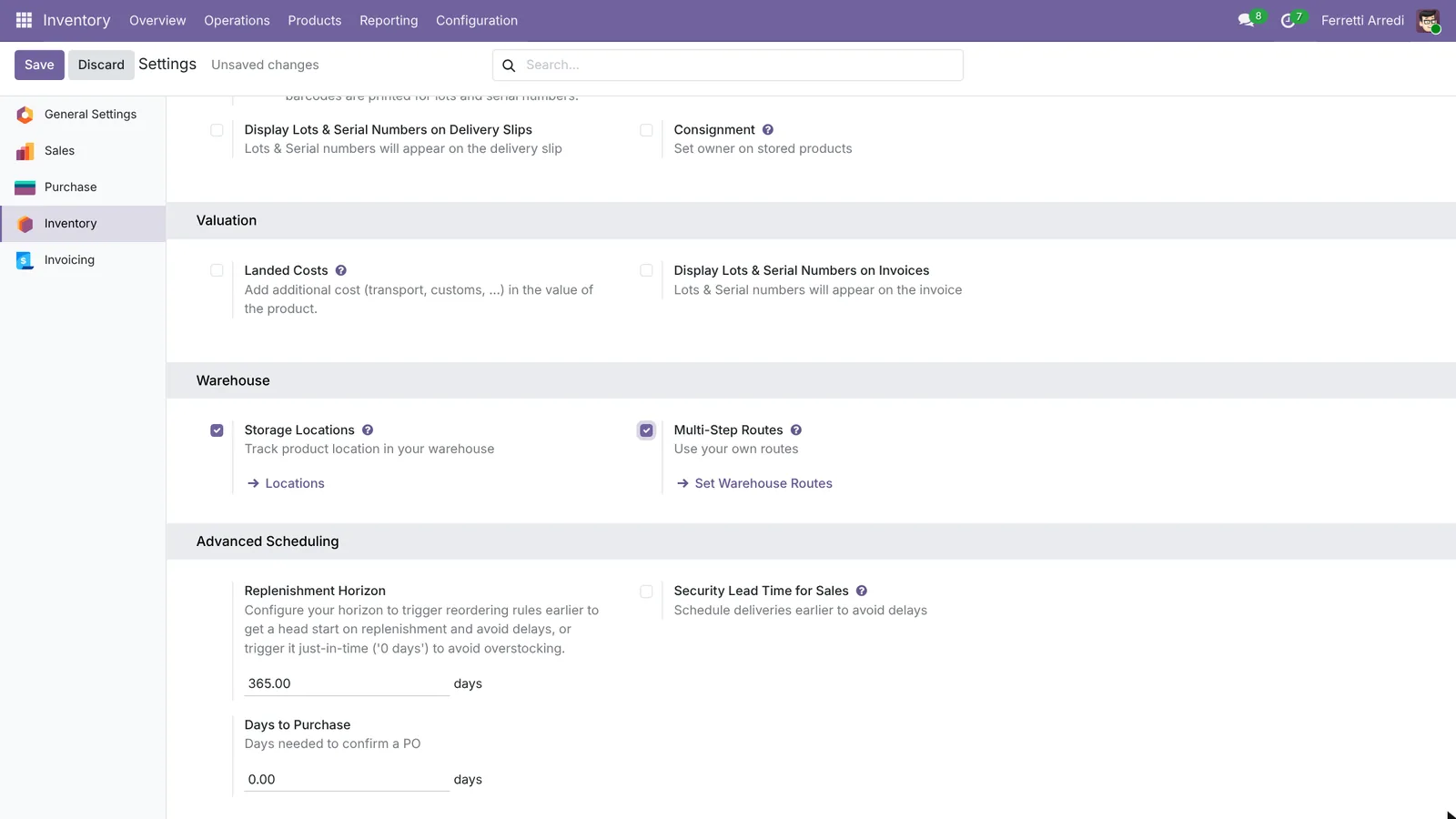 Inventory settings: Storage Locations and Multi-Step Routes are both on.
2. Choose how goods come in and go out
Go to Inventory → Configuration → Warehouses and open your warehouse. The Shipments block now offers three options each way:
| Incoming Shipments | What happens |
|---|---|
| Receive and Store (1 step) | Goods go straight into stock. |
| Receive then Store (2 steps) | Goods go to an Input area, then a second transfer puts them in stock. |
| Receive, Quality Control, then Store (3 steps) | Input, then a Quality Control area, then stock. |
| Outgoing Shipments | What happens |
|---|---|
| Deliver (1 step) | Goods leave stock and go to the customer. |
| Pick then Deliver (2 steps) | Picked from stock to an Output area, then delivered. |
| Pick, Pack, then Deliver (3 steps) | Picked to a Packing Zone, packed to Output, then delivered. |
For this guide choose Receive then Store (2 steps) and Pick, Pack, then Deliver (3 steps), then save.
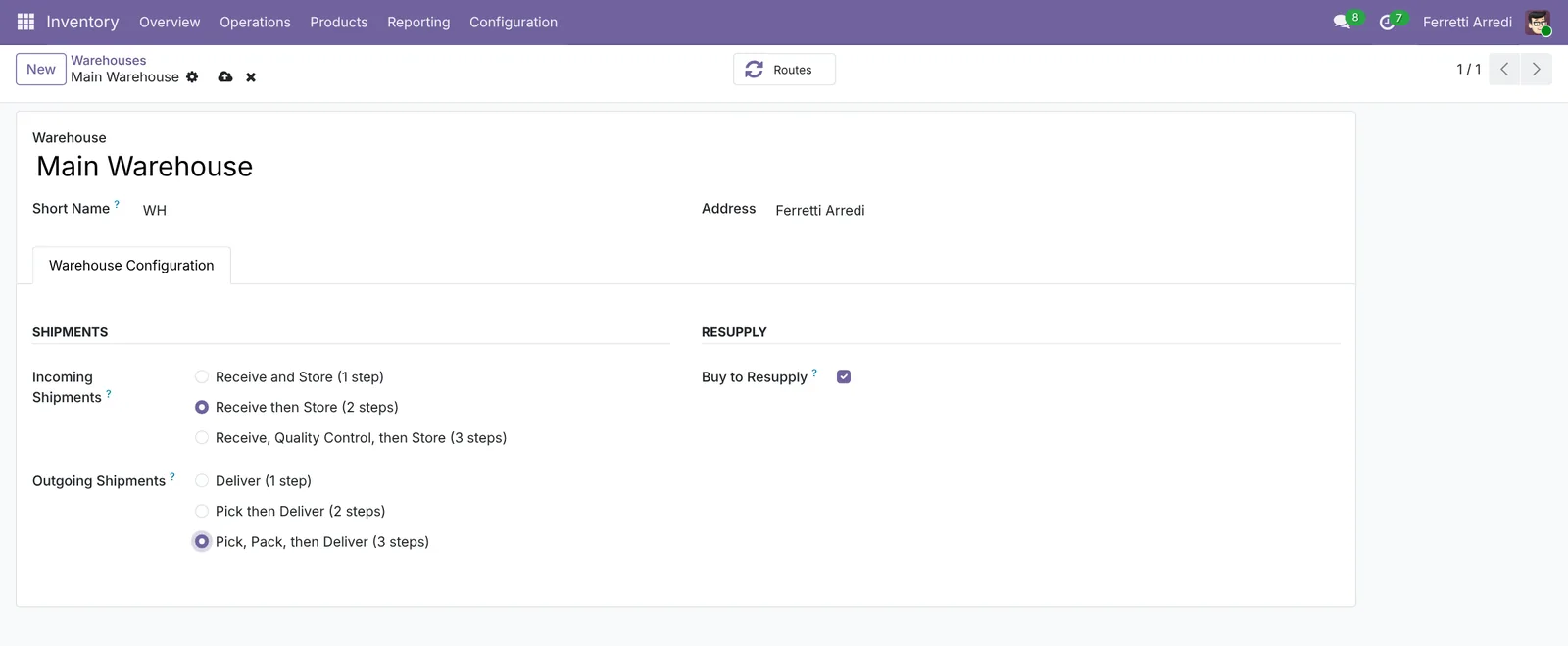 The warehouse form: 2-step receipts and 3-step deliveries.
Pick the fewest steps that match what really happens in your warehouse. Each step is one more transfer to validate, every day.
3. Check the locations Odoo created
Open Inventory → Configuration → Locations. Next to WH/Stock you now find WH/Input, WH/Packing Zone and WH/Output: Odoo created them when you saved the warehouse.
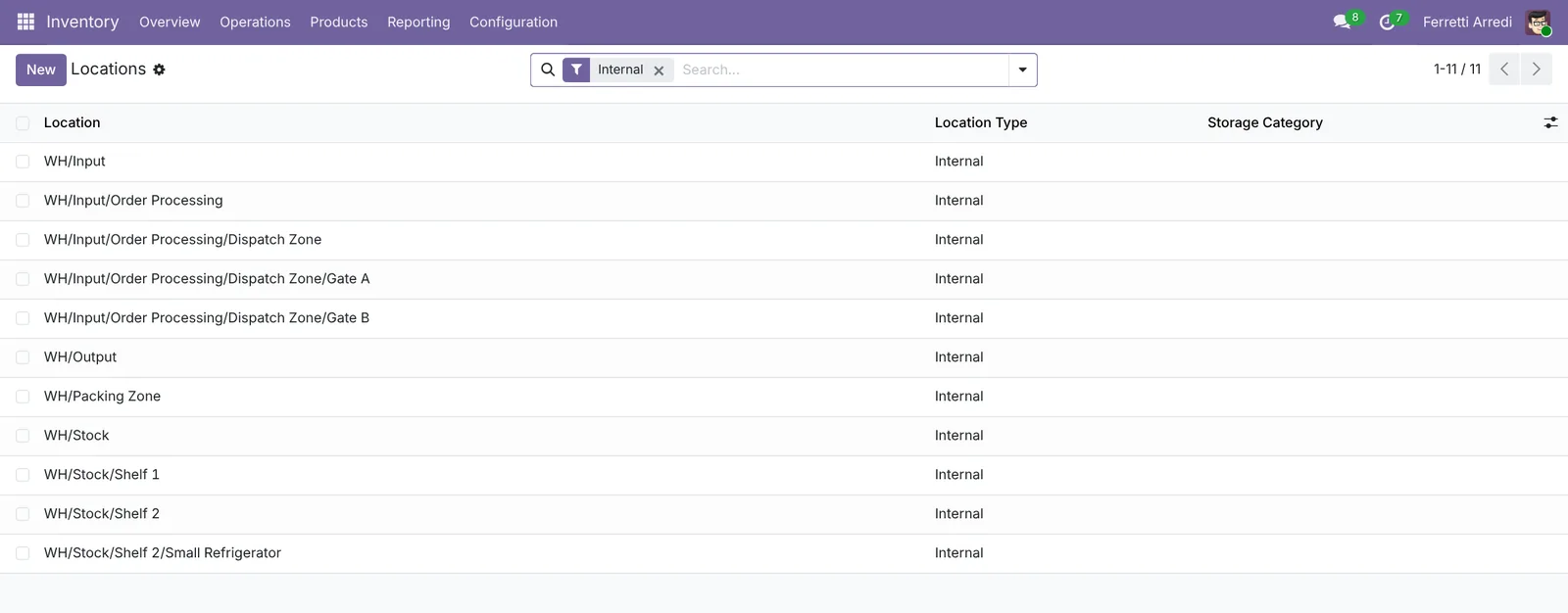 The internal locations after the change.
To track products down to the shelf, add your own locations under WH/Stock. Press New, type a Location Name (for example Shelf 3), choose WH/Stock as Parent Location and save.
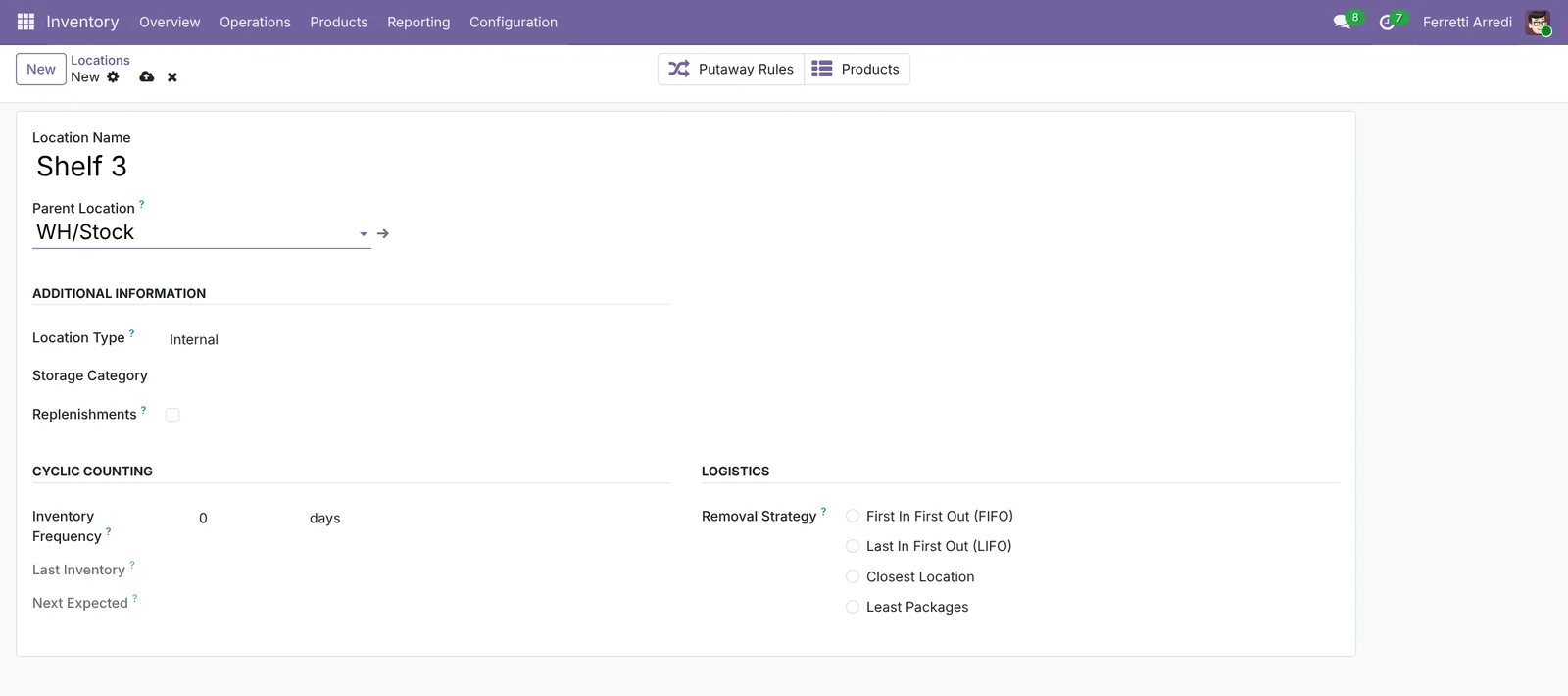 A shelf inside the stock location.
4. Look at the new operation types
Back on Inventory → Overview you see one card per type of transfer: Receipts, Storage, Pick, Pack and Delivery Orders. Each card shows how many transfers wait for that step, so whoever works at the dock, at the shelves or at the packing table opens only their own queue.
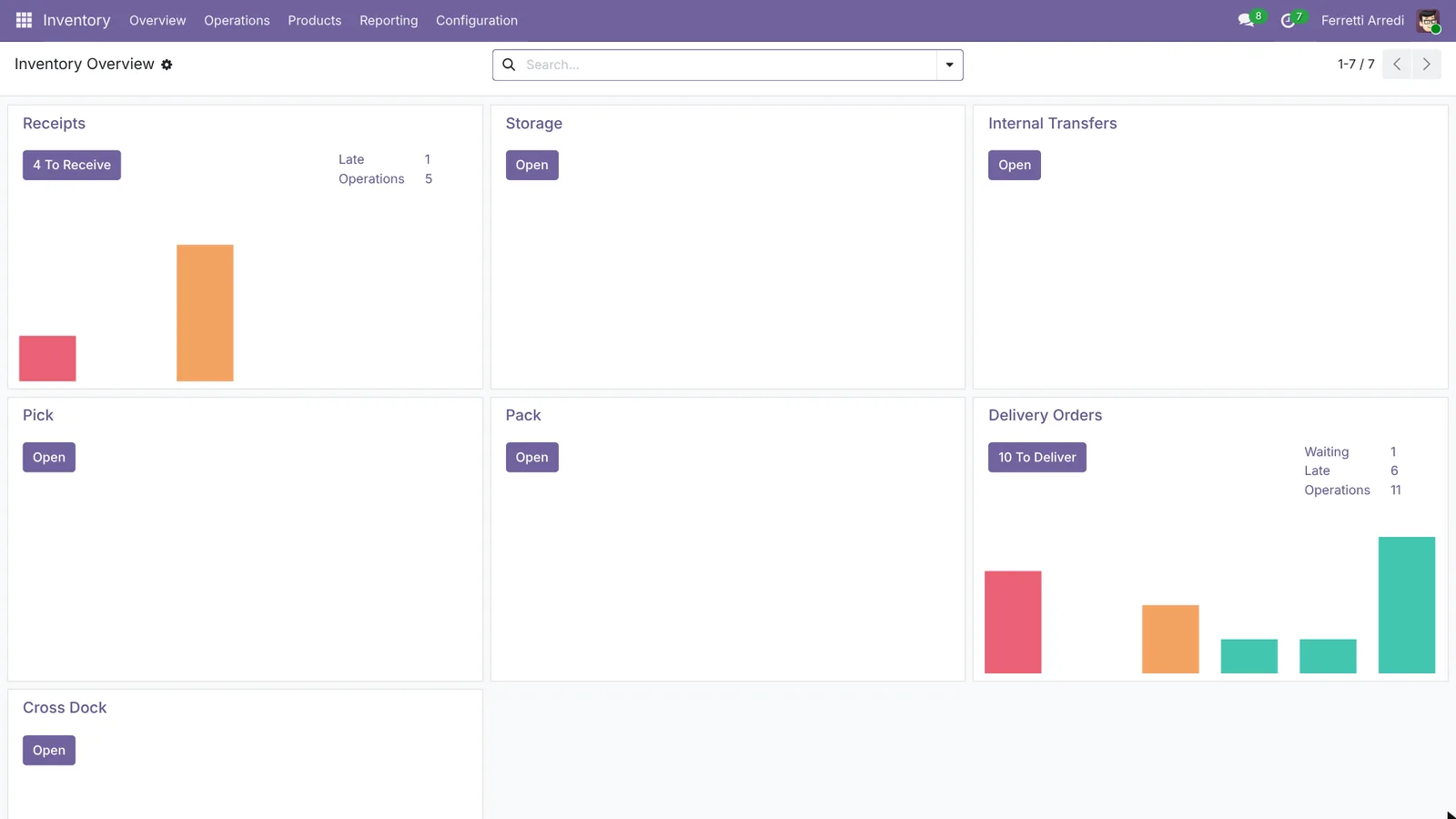 One card per step of the route.
5. Test receipts in 2 steps
Create a purchase order in Purchase, add a product and press Confirm Order.
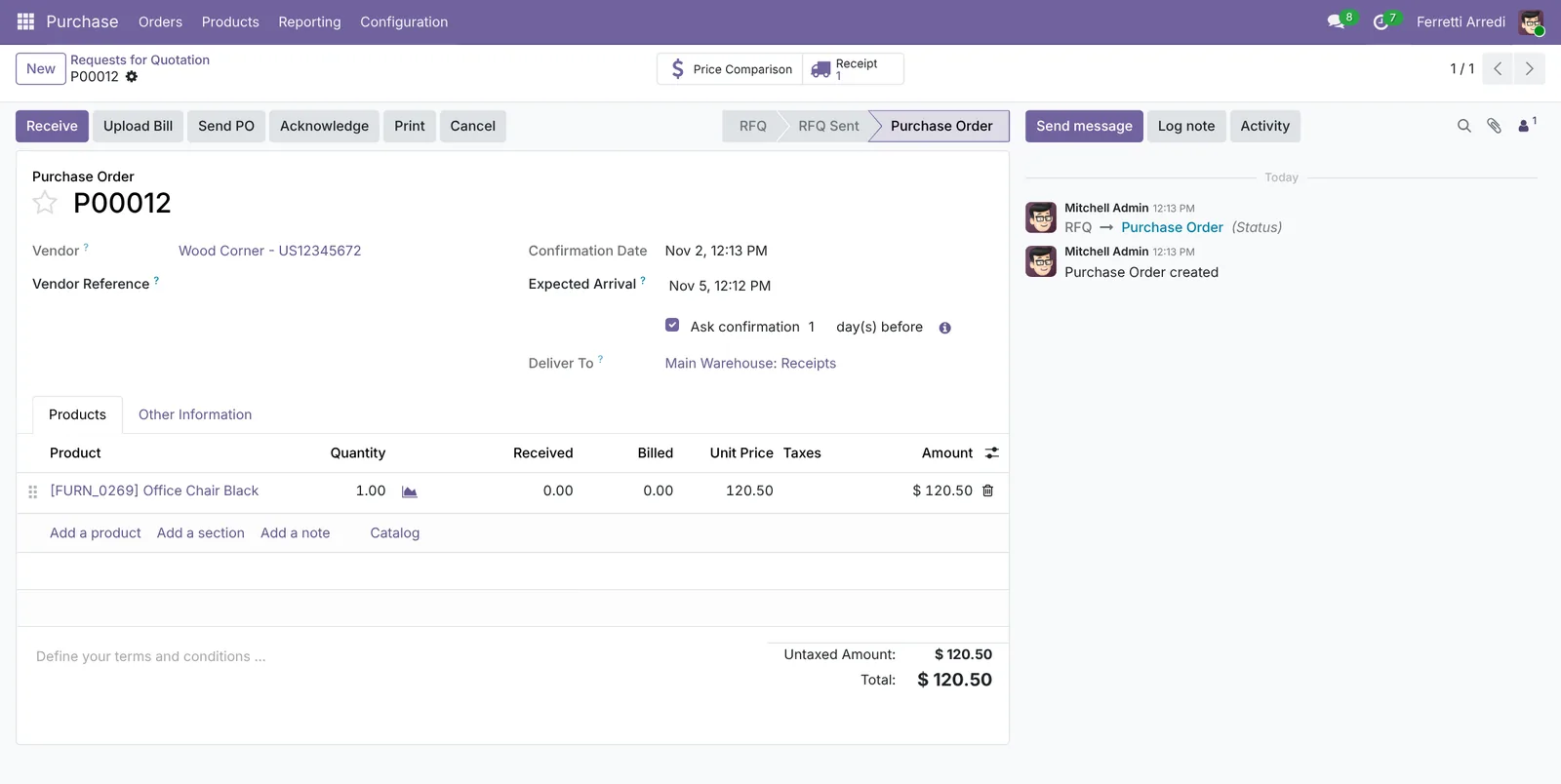 The confirmed purchase order and its receipt.
Open the receipt from the Receipt button. Its Destination Location is WH/Input, not WH/Stock: the goods are in the building but not on a shelf yet.
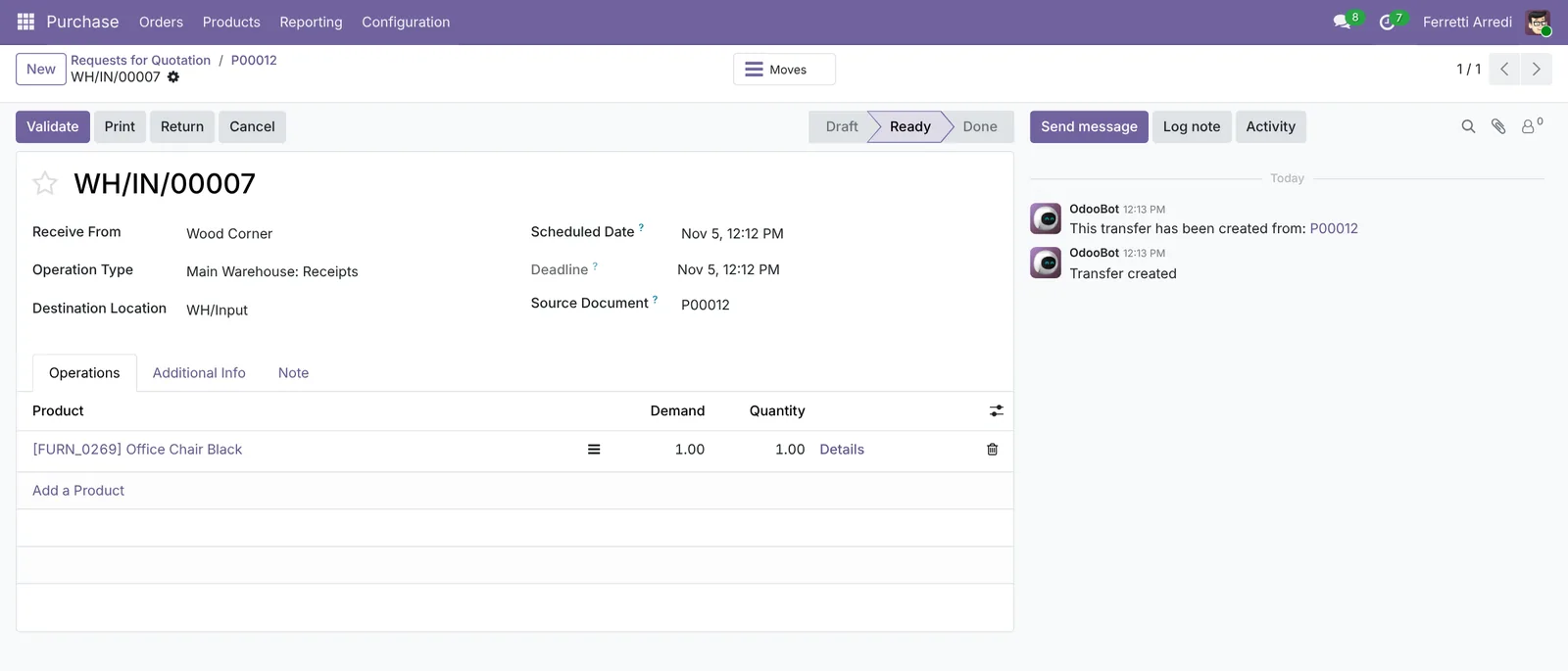 Step 1: the receipt brings goods to WH/Input.
Press Validate. Odoo creates a Storage transfer from WH/Input to WH/Stock. Open it from the Storage card on the Overview and validate it when the goods are on the shelf.
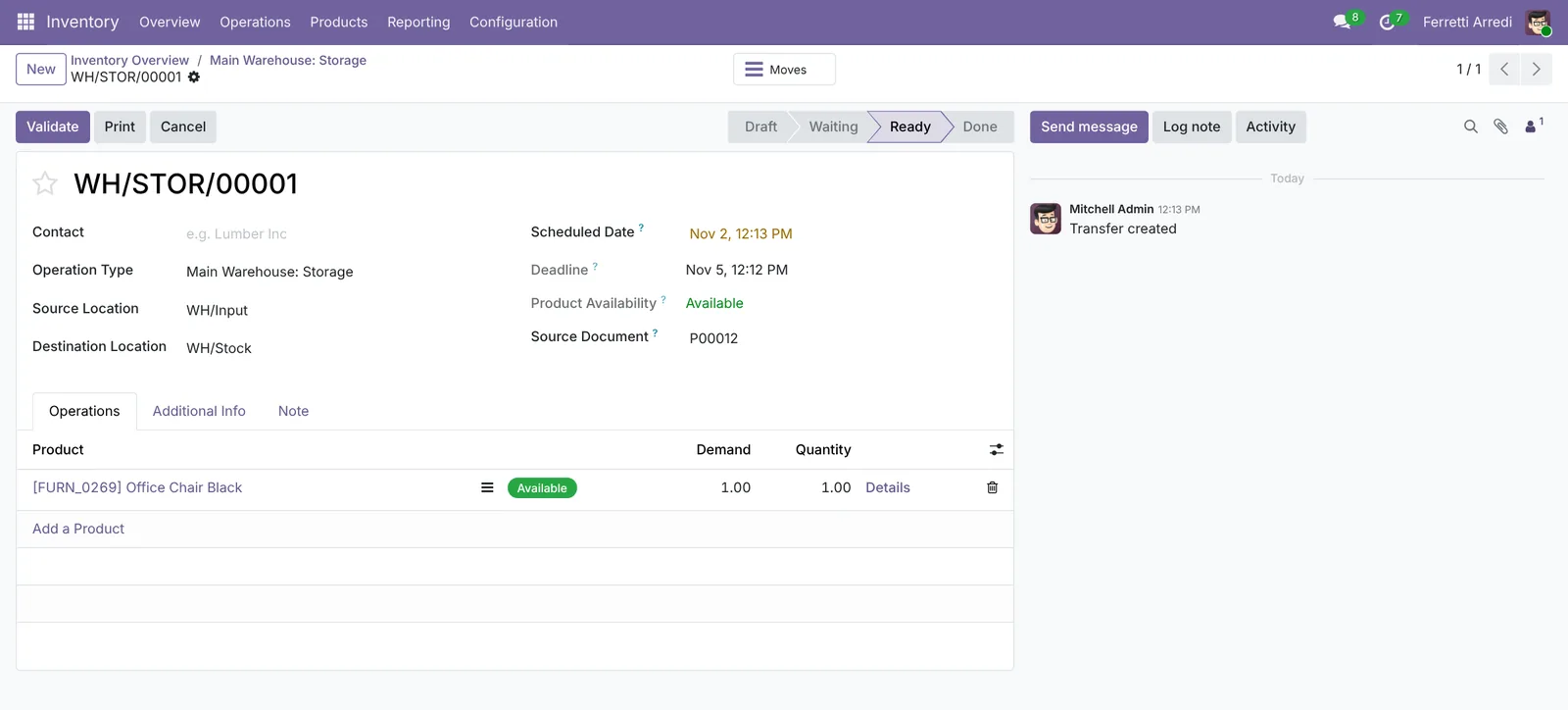 Step 2: the storage transfer puts goods in stock.
6. Test deliveries in 3 steps
Create a quotation in Sales for the same product and press Confirm. The Delivery button opens the first step, the Pick from WH/Stock to WH/Packing Zone.
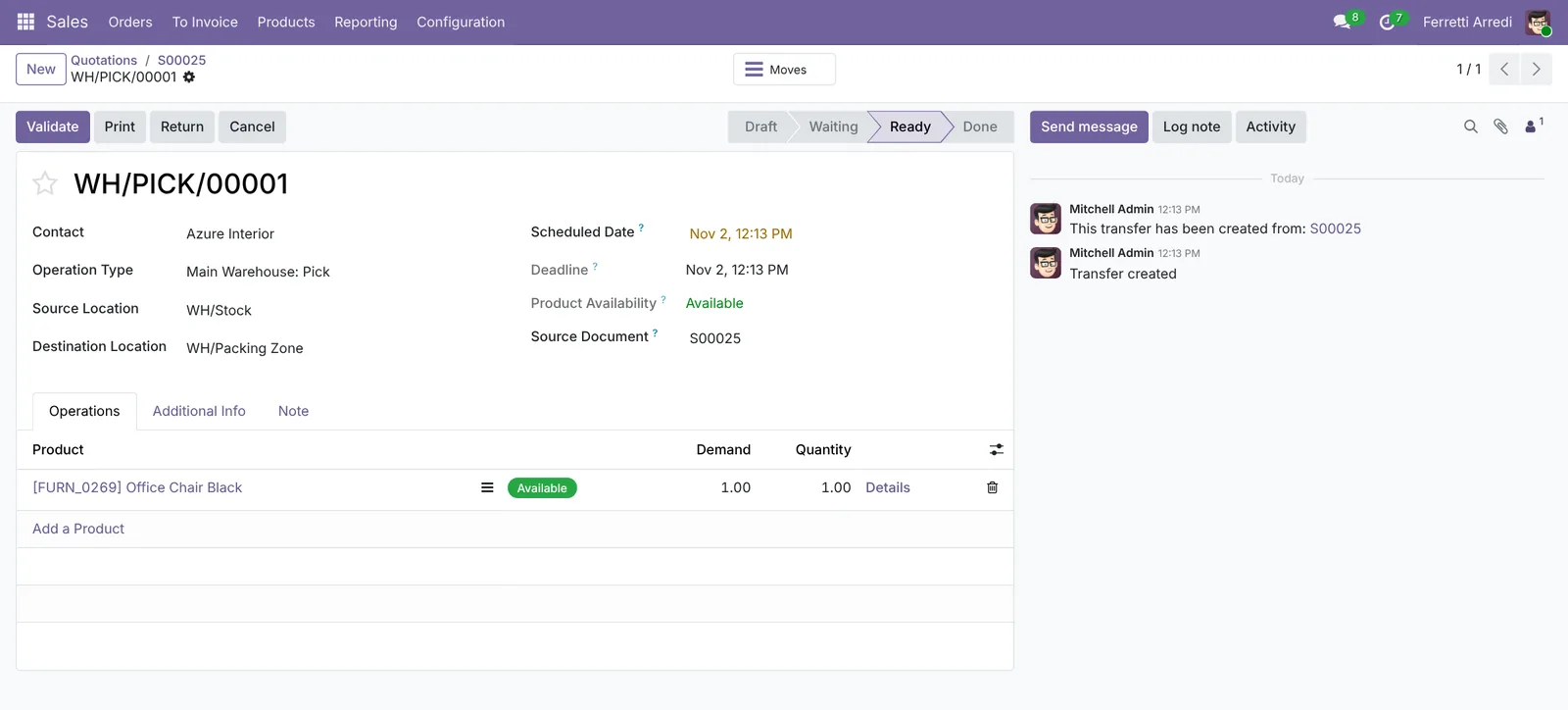 Step 1: pick from stock to the packing zone.
Validate the pick and Odoo creates the Pack, from WH/Packing Zone to WH/Output. Validate the pack and Odoo creates the Delivery, from WH/Output to the customer. The sales order’s Delivery button lists all three.
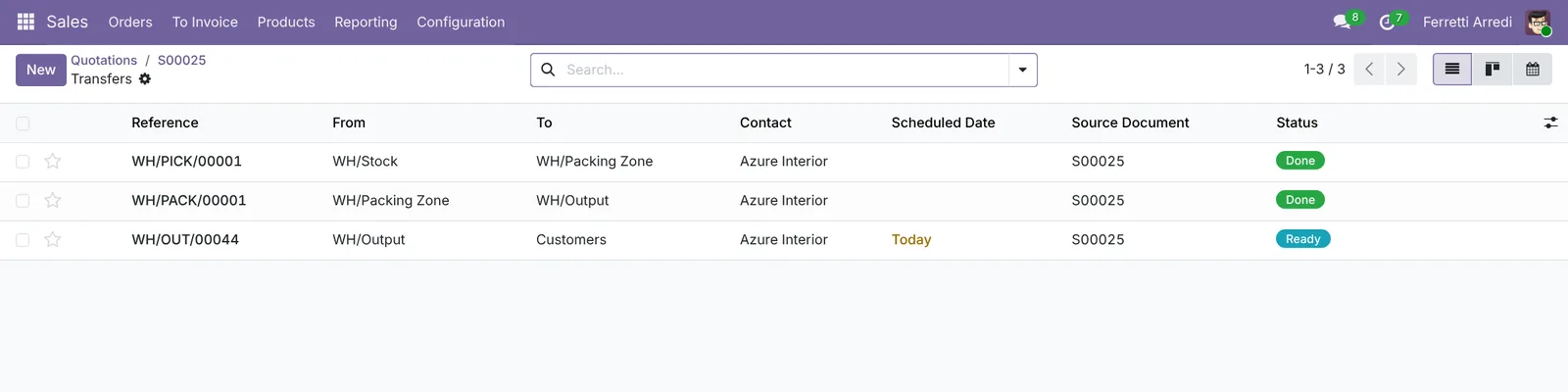 Pick and Pack are done; the delivery is ready to ship.
Common mistakes
- Turning on 3 steps “to be safe”. Every step is a transfer someone must validate. If nobody packs at a separate table, use Pick then Deliver.
- Changing steps with transfers half done. Transfers created before the change keep the old route. Validate or cancel them first.
- Looking for the Pack before the Pick is done. Odoo creates each step only when the one before it is validated.
- Forgetting the access right. Without Inventory / Administrator, Configuration → Settings and Warehouses are missing from the menu.
Warehouse setup with AI: ask your AI assistant through MCP
With the Hawklify MCP server, Claude, ChatGPT and other assistants work in your Odoo as you, with your permissions. Once your routes are on, goods move through more steps, and something stuck in one of them blocks the next. Finding it would otherwise take a walk to the warehouse.
On the computer. Depending on how your organisation set up the server, the assistant makes the change straight away or first shows you a card to approve. Here card mode is on.
Three things are holding up Main Warehouse:
- Received, never stored. 12 Office Chairs and 6 Office Lamps from Wood Corner arrived on Thursday (
WH/IN/00007), but the storageWH/STOR/00001isn't validated. They're still in WH/Input, so nobody can pick them. - Two orders waiting for them. The picks for
S00025(Azure Interior, 4 chairs) andS00026(Gemini Furniture, 6 chairs and 2 lamps) are waiting for stock. - Packed, not shipped.
WH/OUT/00044for Ready Mat has been in WH/Output since Friday.
If the goods are already on the shelf, I can validate the storage and both picks will be ready.
Approval needed in OdooRun
Validate the storage transfer WH/STOR/00001: 12 Office Chairs and 6 Office Lamps go from WH/Input to WH/Stock.
stock.picking · 1 record
WH/STOR/00001
Change applied in Odoo.
Organisation administrators can turn the approval cards off on the Members page.
All set: the chairs and lamps are in WH/Stock, and the picks for S00025 and S00026 are now Ready. The packing team can start.
One thing left: the Ready Mat delivery WH/OUT/00044 is still waiting in WH/Output.
At the dock, on the phone. The warehouse team can report what arrives to a chat assistant connected to Odoo through Hawklify. Here Smart mode is on:
Hawklify
Your Odoo, from the chat you already use
Send a message, a photo or a voice note: the assistant reads and works in Odoo through Hawklify, with your permissions.
Wood Corner pallet is here. 12 chairs but 2 are broken.
WH/IN/00009, 12 Office Chairs from Wood Corner. I'd receive 10, and create a return for the 2 broken ones.
Two orders wait for chairs: S00031 needs 6, S00034 needs 6. With 10, S00031 ships complete and S00034 gets 4 now.
Go ahead, and ask Wood Corner for 2 replacements?
Yes, go ahead
Done. 10 chairs are in stock, the 2 broken ones go back with WH/RET/00003, and Wood Corner has an email asking for 2 replacements. S00031 is Ready to pick.
Versions we tested
| Version | Result |
|---|---|
| Odoo 16 | Same settings and routes, with three differences. There is no Storage operation: the step from Input to Stock is an Internal Transfer. Confirming the sales order creates the pick, the pack and the delivery at once, the later ones waiting for the earlier. Validate may ask Immediate Transfer?: click Apply. |
| Odoo 17 | Like 16, without the Immediate Transfer? question: the step from Input to Stock is an Internal Transfer, and pick, pack and delivery are created at once. |
| Odoo 18 | Same menus, options and transfers as in this guide. |
| Odoo 19 | Same; the screenshots above come from Odoo 19 Community. |
| Odoo 20 | Same settings and transfers. On the quotation, the New button can open a menu of quotation templates, and order lines start with Add Line. |
Frequently asked questions
Do I need Odoo Enterprise for multi-step routes?
No. Storage locations and multi-step routes are part of the Inventory app in Odoo Community too. Enterprise adds apps such as Barcode and Quality on top.
Can I go back to 1-step receipts and deliveries later?
Yes. Open the warehouse again and pick the 1-step options. Odoo archives the extra operation types and locations it no longer needs. Finish or cancel the transfers already in progress first.
Why is there no Pack or Delivery transfer right after I confirm a sales order?
Odoo creates the next step when the previous one is validated: confirming the order creates the Pick, validating the Pick creates the Pack, and validating the Pack creates the Delivery.
Does this work on my Odoo version?
These settings have been in Odoo for many versions. We ran every step on the versions listed at the end of the guide, and the result was the same on each of them.
Questa guida è disponibile anche in italiano: Magazzino Odoo: ubicazioni e percorsi multi-fase
Related Odoo guides
 InventoryDeliveries and backorders in Odoo: ship what you haveShip part of an order in Odoo when the rest is not in stock: validate the partial delivery, keep a backorder, set a default per operation type. Community and Enterprise.
 InventoryLots and serial numbers in Odoo: trace every productTrack products by lot or serial number in Odoo: record the lot at reception, ship it, and find every customer who got it in seconds. Community and Enterprise.
 InventoryReordering rules in Odoo: restock before you run outSet min/max reordering rules in Odoo so it orders from your vendor before stock runs out, then use the Replenishment list to order now. Community and Enterprise.