Lots and serial numbers in Odoo: trace every product
Track products by lot or serial number in Odoo: record the lot at reception, ship it, and find every customer who got it in seconds. Community and Enterprise.
- Community and Enterprise
- 5 min read
- Odoo + AI tutorial
A vendor calls: a batch of drawers has a defect, and they need to know who has them. Without lots, someone digs through weeks of deliveries. With lots, Odoo answers in seconds. This guide turns on lot tracking, records a lot when the goods arrive, ships it to a customer, and finds every customer who got it.
It works the same in Community and Enterprise. The versions we tested are listed at the end.
This guide is also an AI tutorial. At the end, an AI assistant connected to Odoo handles a vendor recall, from every customer who got the lot to the delivery you can still stop, and swaps a faulty lot for a good one on an order.See it in action ↓Before you start
- The Inventory app installed, with Purchase and Sales if you buy and sell the product there.
- A product that is tracked in stock (Track Inventory, or Storable Product in older versions).
- An Odoo user with the Inventory / Administrator access right.
1. Turn on lots and serial numbers
Open Inventory → Configuration → Settings and scroll to Traceability. Tick Lots & Serial Numbers and save.
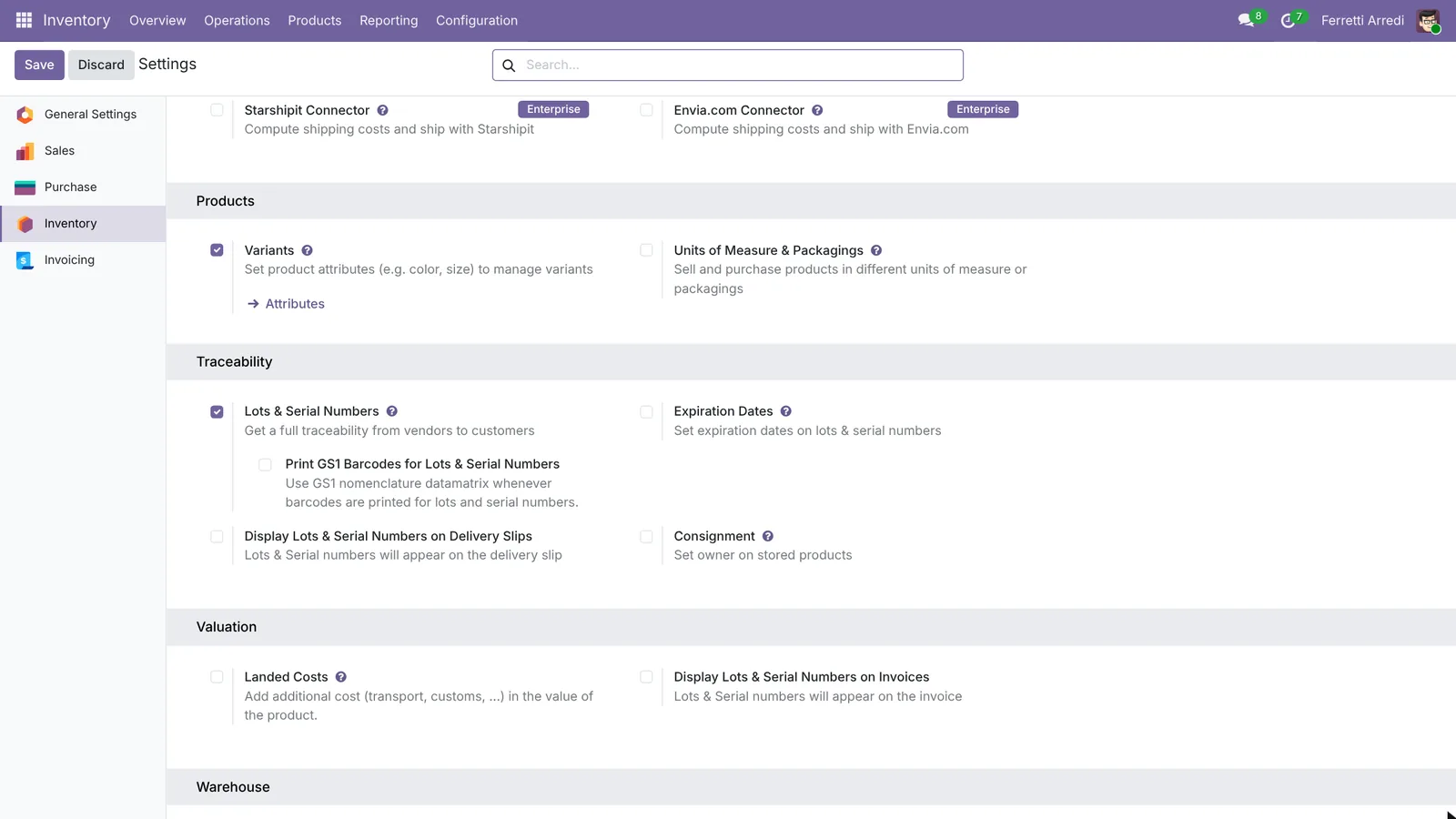 One setting turns lots and serial numbers on for the whole database.
2. Track the product by lot
Open Inventory → Products → Products and open the product, here the Drawer Black. Next to Track Inventory, choose By Lots and save.
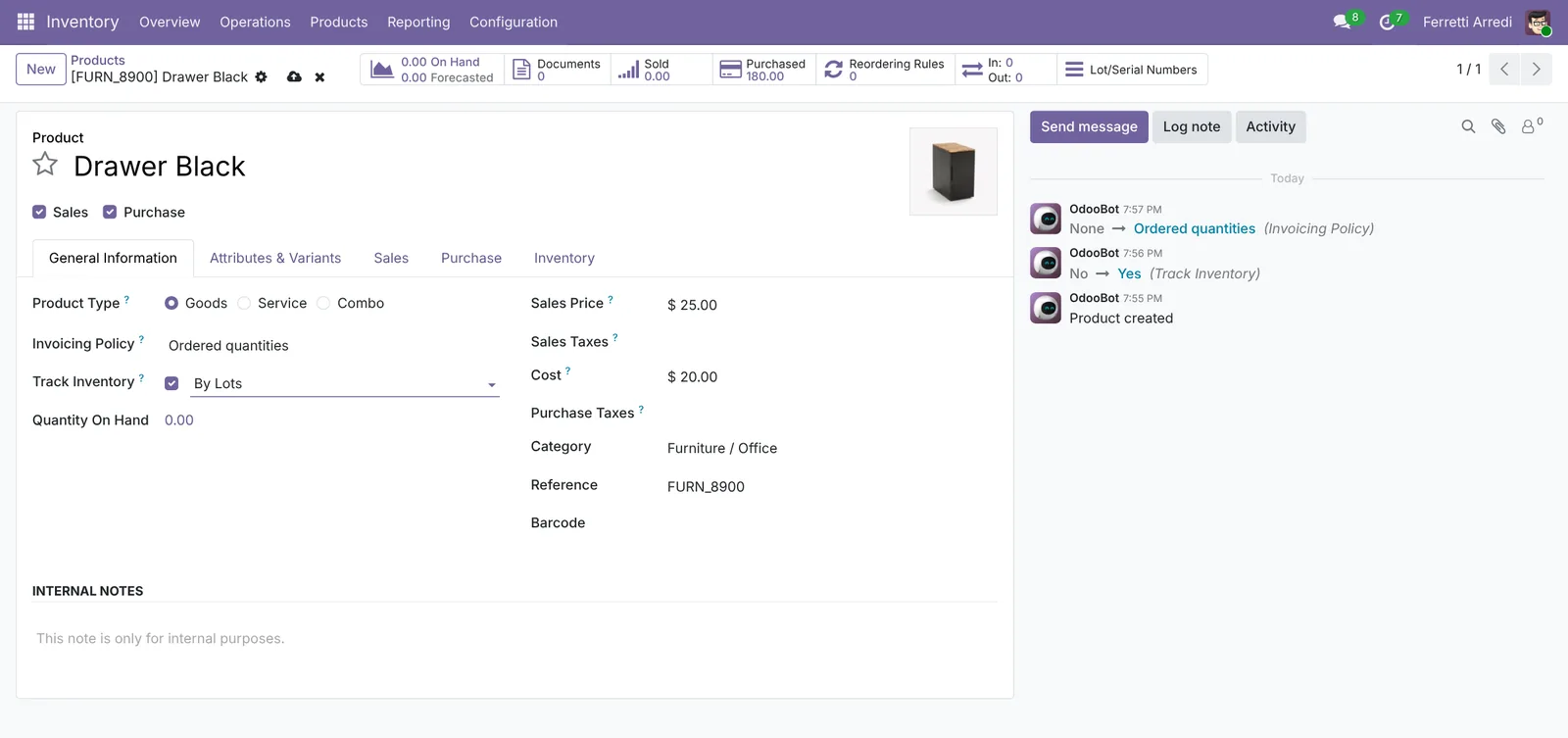 By Lots: one number for a whole batch.
Choose By Unique Serial Number instead for products where each piece has its own number. The steps below are the same, with one number per piece.
3. Record the lot when the goods arrive
Confirm a purchase order for 10 drawers, then open its Receipt. On the product line, press Details. Type the lot number printed on the vendor’s label, here DRB-2611, with the quantity, and save.
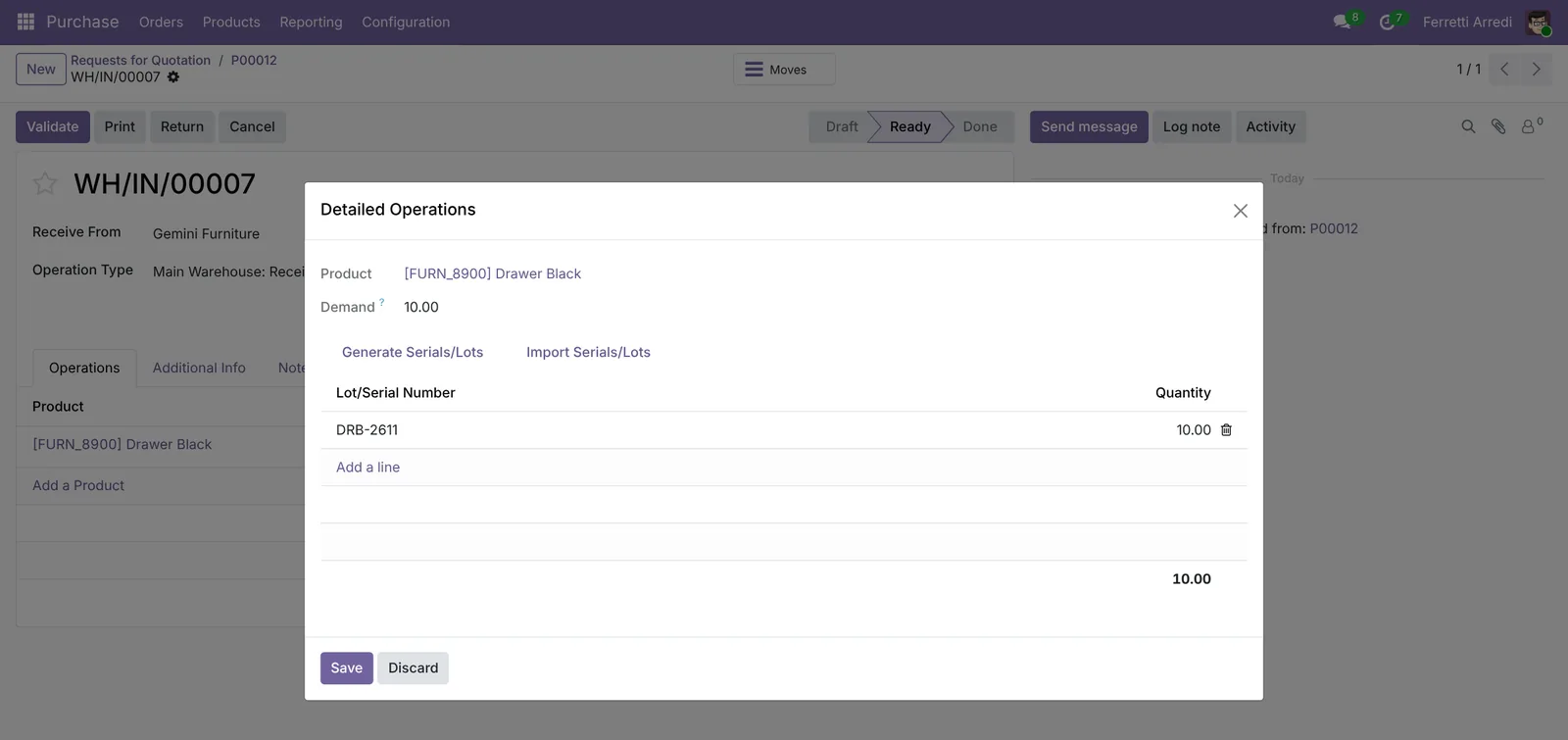 The lot from the vendor’s label, for the 10 pieces received.
Press Validate. Odoo refuses to validate a tracked product without a lot, so nothing enters the stock without one. For many pieces, Generate Serials/Lots creates the numbers for you, and Import Serials/Lots pastes a list.
4. Ship it: Odoo picks the lot
A customer orders 4 drawers. Confirm the sales order and open the Delivery. Press Details on the line: Odoo has already reserved the lot that is in stock.
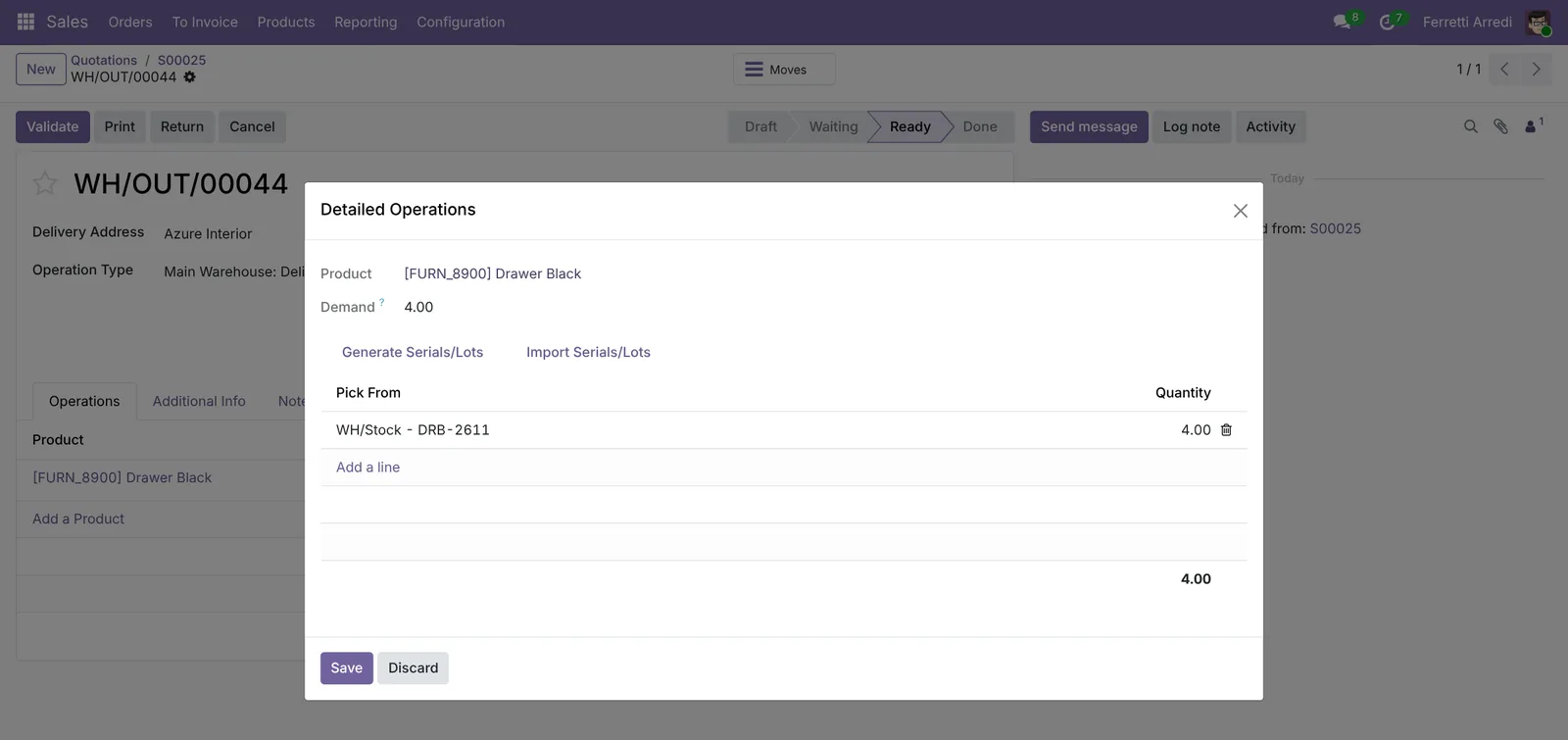 The delivery takes 4 pieces from lot DRB-2611.
Validate the delivery. The lot now knows which customer got which pieces.
5. Find every customer who got a lot
Open Inventory → Products → Lots / Serial Numbers and open the lot. It shows the product and how many pieces are still in stock. Press Traceability.
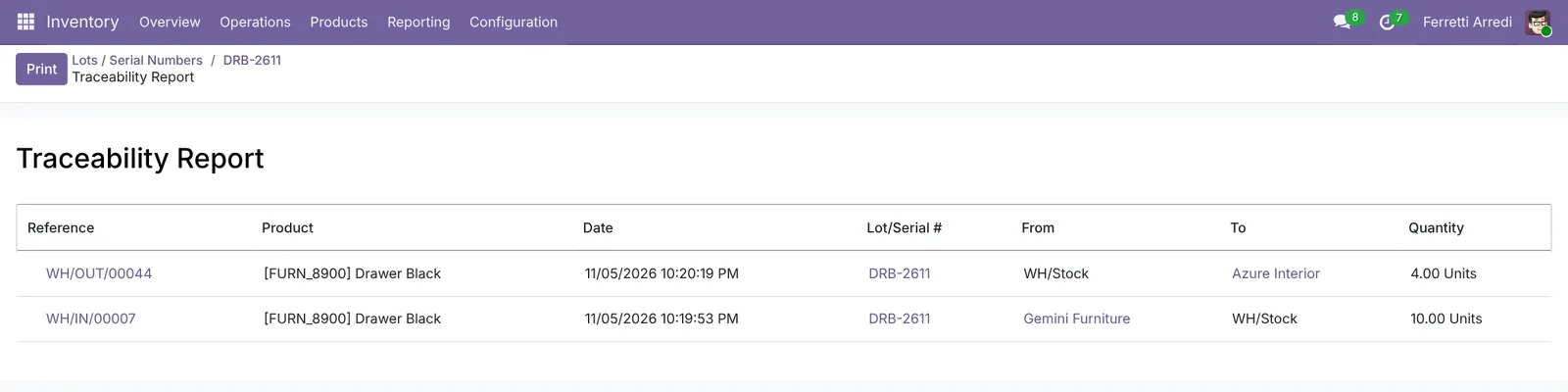 Where the lot came from, and where every piece went.
Each line is a move: the receipt from the vendor, and every delivery with its customer. Click a reference to open it. This is the list you send back when a vendor recalls a batch.
Common mistakes
- Switching tracking on a product with stock. The pieces already on the shelf have no lot. Give them one with an inventory adjustment right after the change.
- Typing a new lot number by hand on deliveries. On a delivery, pick the lot that is in stock. A new number on a delivery creates a lot that never came in.
- One lot for everything. If every receipt gets the same number, the traceability report lists every customer. Use the vendor’s batch number, or a new one per receipt.
- Lots where serial numbers are needed. For products with warranty or repairs, track each piece By Unique Serial Number.
Lots and serial numbers with AI: ask your AI assistant through MCP
With the Hawklify MCP server, Claude, ChatGPT and other assistants work in your Odoo as you, with your permissions. The traceability report follows one lot at a time. When a vendor recalls a batch, or a customer reports a defect, you need every delivery, every order and every reservation of that lot at once.
On the computer. Depending on how your organisation set up the server, the assistant makes the change straight away or first shows you a card to approve. Here Smart mode is on.
Lot CM-BOX-00001 went to three customers:
- Azure Interior: 10 pieces, shipped (
WH/OUT/00058, orderS00071). - Gemini Furniture: 15 pieces, shipped (
WH/OUT/00059, orderS00072). - Lumber Inc: 8 pieces, not shipped yet (
WH/OUT/00060, orderS00073): you can still stop it.
Deco Addict got lot CM-BOX-00002, which is not recalled.
Done. S00071, S00072 and S00073 each have an internal note: Lot CM-BOX-00001 recalled by the vendor: contact the customer. Nothing was sent to the customers.
Next to the lot. In a side panel of the browser, the assistant starts from the traceability report you have open:
The 6 left of DRB-2611 are in WH/Stock, and 3 are reserved for Lumber Inc: WH/OUT/00061 (order S00080), shipping tomorrow.
Lot DRB-2598 of the same Drawer Black has 12 free in stock.
Shall I switch Lumber's delivery to DRB-2598, and ask Gemini Furniture, the vendor, about the cracked fronts?
Done. Lumber Inc's delivery now ships 3 drawers from DRB-2598. Gemini Furniture got an email from the receipt WH/IN/00007 about 2 cracked fronts in lot DRB-2611, asking for a replacement.
Versions we tested
| Version | Result |
|---|---|
| Odoo 16 | Same steps. Tracking is in the Inventory tab of the product, as radio buttons. On the receipt, press the list icon on the line: the lot list starts empty, so press Add a line, type the lot and the Done quantity, then Confirm. |
| Odoo 17 | Like 16 for the product. On the receipt, the list icon on the line opens the lot list with a row ready to fill. |
| Odoo 18 | Track Inventory with By Lots is on the first tab of the product, as in this guide. On the receipt, use the list icon on the line. |
| Odoo 19 | As in this guide: the line has a Details button. The screenshots come from Odoo 19. |
| Odoo 20 | The product field is called Tracking, on the first tab. The receipt line opens Detailed Operations with Generate Lots and Import Lots. |
Frequently asked questions
What is the difference between a lot and a serial number?
A lot is a number shared by many pieces made or delivered together, such as a batch of 10 drawers. A serial number is unique to one piece, such as a laptop. Odoo handles both the same way: you choose By Lots or By Unique Serial Number on the product.
Can I turn on lots for a product that already has stock?
Yes, but the stock you already have has no lot. Odoo warns you when you change the tracking. Count the stock again with an inventory adjustment and give it a lot, or let it run out before you switch.
Why can't I validate my receipt?
The product is tracked, so Odoo needs a lot or serial number for every piece. Open the line's details and type the lot from the vendor's label, or generate the numbers there.
How do I find which customers got a lot?
Open Inventory, Products, Lots and Serial Numbers, open the lot and press Traceability. You see the receipt it came from and every delivery that took it, with the customer.
Questa guida è disponibile anche in italiano: Lotti e numeri di serie in Odoo: traccia ogni prodotto
Related Odoo guides
 InventoryExpiration dates in Odoo: sell what expires firstTrack expiration dates on lots in Odoo: set the dates on the product, receive a lot that gets them by itself, and pick the first to expire first with FEFO.
 InventoryWarehouse setup in Odoo: locations and multi-step routesTurn on storage locations and multi-step routes in Odoo, then receive goods in 2 steps and ship them in 3: pick, pack and deliver. Community and Enterprise.
 InventoryDeliveries and backorders in Odoo: ship what you haveShip part of an order in Odoo when the rest is not in stock: validate the partial delivery, keep a backorder, set a default per operation type. Community and Enterprise.