Expiration dates in Odoo: sell what expires first
Track expiration dates on lots in Odoo: set the dates on the product, receive a lot that gets them by itself, and pick the first to expire first with FEFO.
- Community and Enterprise
- 4 min read
- Odoo + AI tutorial
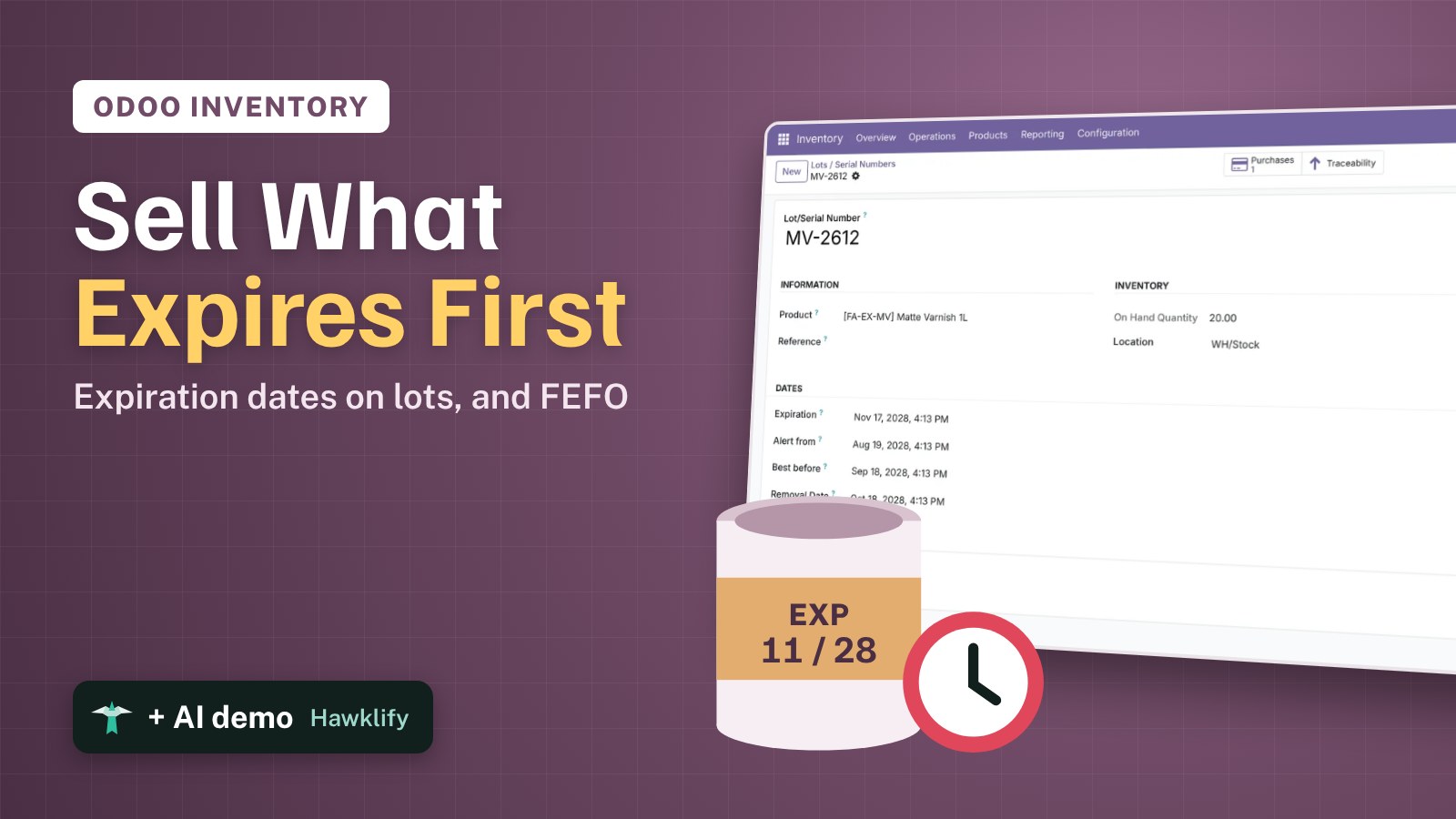
Creams, oils, glues and varnishes have a date. Without it in Odoo, the warehouse ships whatever lot is closest to hand, and the old one expires at the back of the shelf. With expiration dates, every lot gets its dates from the day it arrives, and FEFO (first expiry, first out) makes Odoo pick the lot that expires first. This guide turns the dates on, sets them on a product, receives a lot and makes the warehouse use FEFO.
It works the same in Community and Enterprise. The versions we tested are listed at the end.
This guide is also an AI tutorial. At the end, an AI assistant connected to Odoo checks every morning which lots won't sell before they expire and puts them on a clearance price, and dates a lot that was already in stock.See it in action ↓Before you start
- The Inventory app installed, and Purchase to receive from a vendor.
- A storable product, here Matte Varnish 1L, tracked By Lots.
1. Turn on expiration dates
Open Inventory → Configuration → Settings. In the Traceability section tick Lots & Serial Numbers if it is off, then Expiration Dates, and press Save.
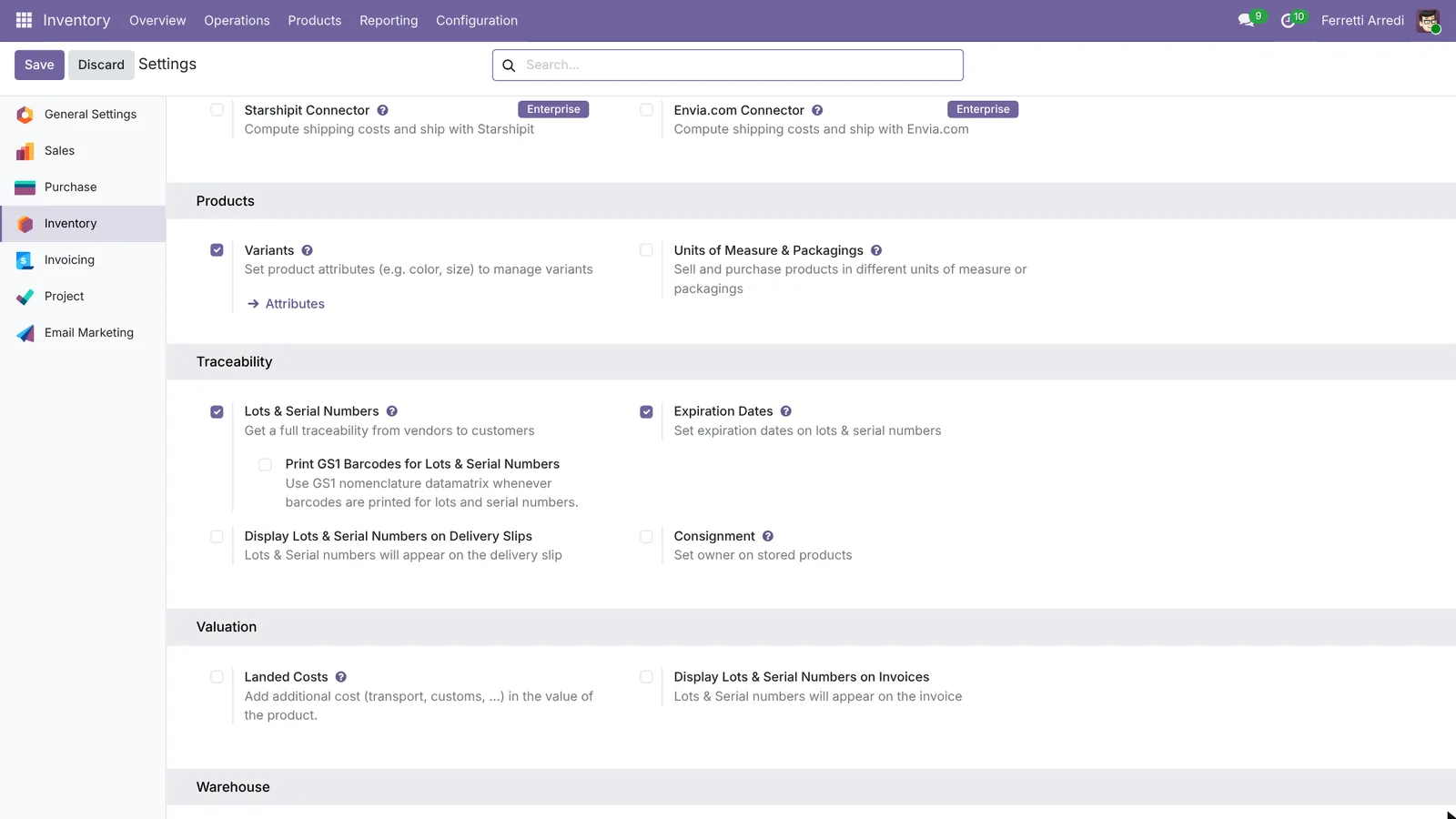 Expiration Dates, next to Lots & Serial Numbers.
2. Set the dates on the product
Open the product and its Inventory tab. Under Traceability tick Expiration Date. A Dates group appears:
- Expiration Date: 730 days after receipt, from the datasheet.
- Best Before Date: 60 days before the expiration date.
- Removal Date: 30 days before: the lot leaves the shelf.
- Alert Date: 90 days before: Odoo flags the lot.
Press Save.
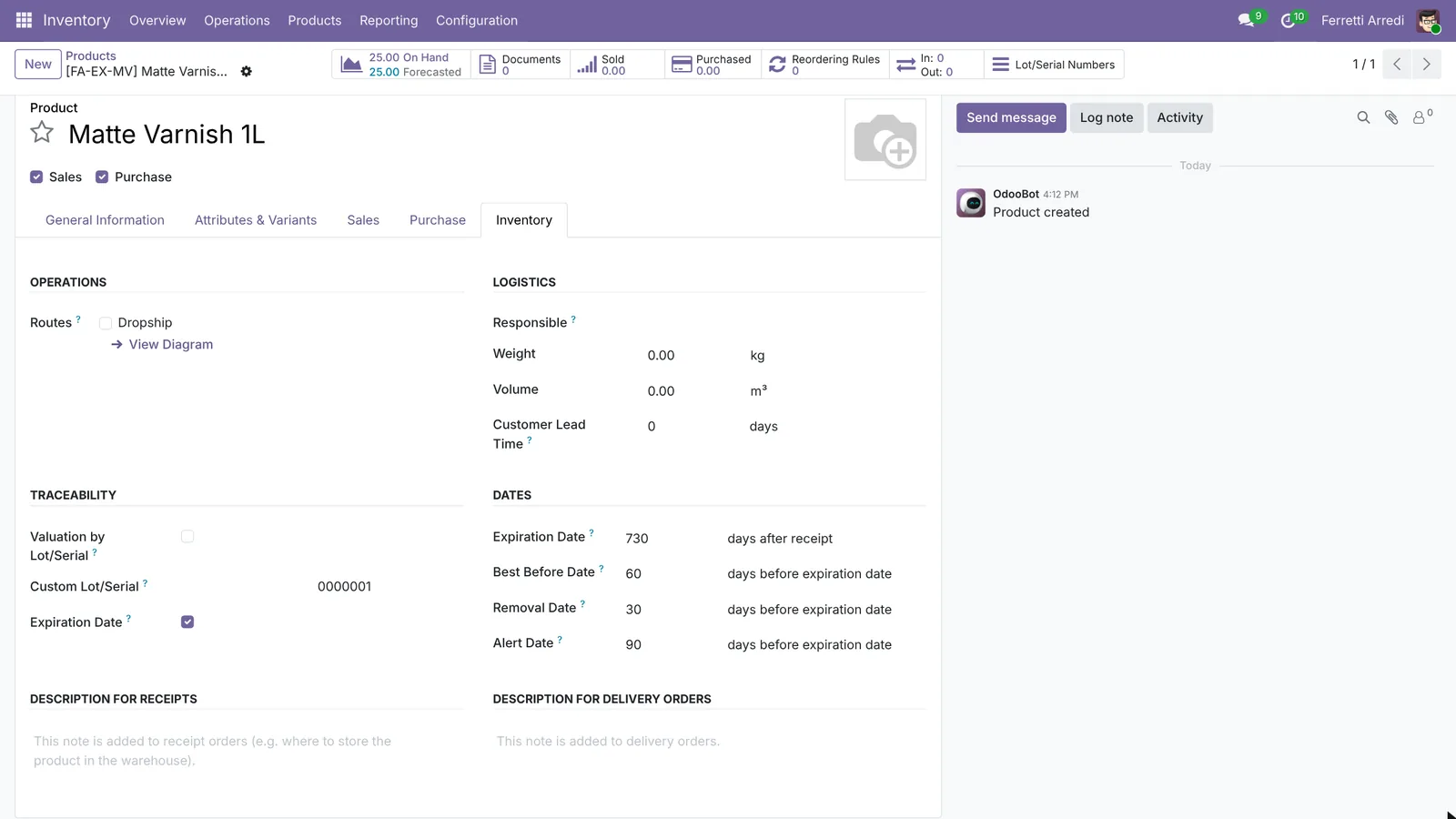 Days, not dates: Odoo turns them into dates for each lot.
3. Receive a lot
Order the product from the vendor (here 20 Matte Varnish 1L from Wood Corner), confirm and open the Receipt. Press the details icon on the line: in Detailed Operations type the Lot/Serial Number, MV-2612. Odoo fills the Expiration Date and the Removal Date from the product. Change them if the label says otherwise, press Save, then Validate.
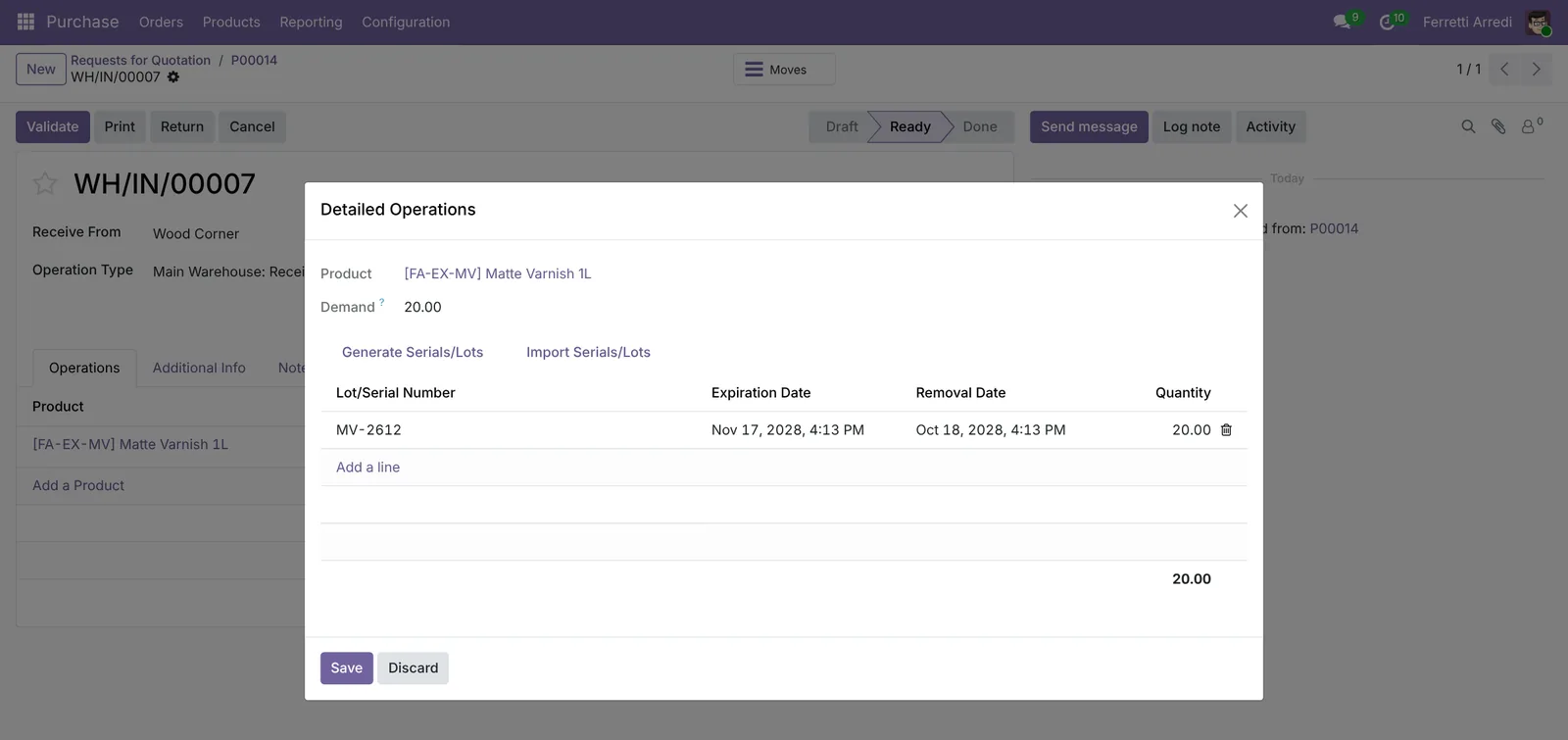 The dates come by themselves: 730 days from today.
4. Check the lot’s dates
Open Inventory → Products → Lots/Serial Numbers and the lot MV-2612. Under Dates are all four: Expiration, Alert from, Best before and Removal Date. In the lots list, the Expiration Alerts filter shows the lots past their alert date.
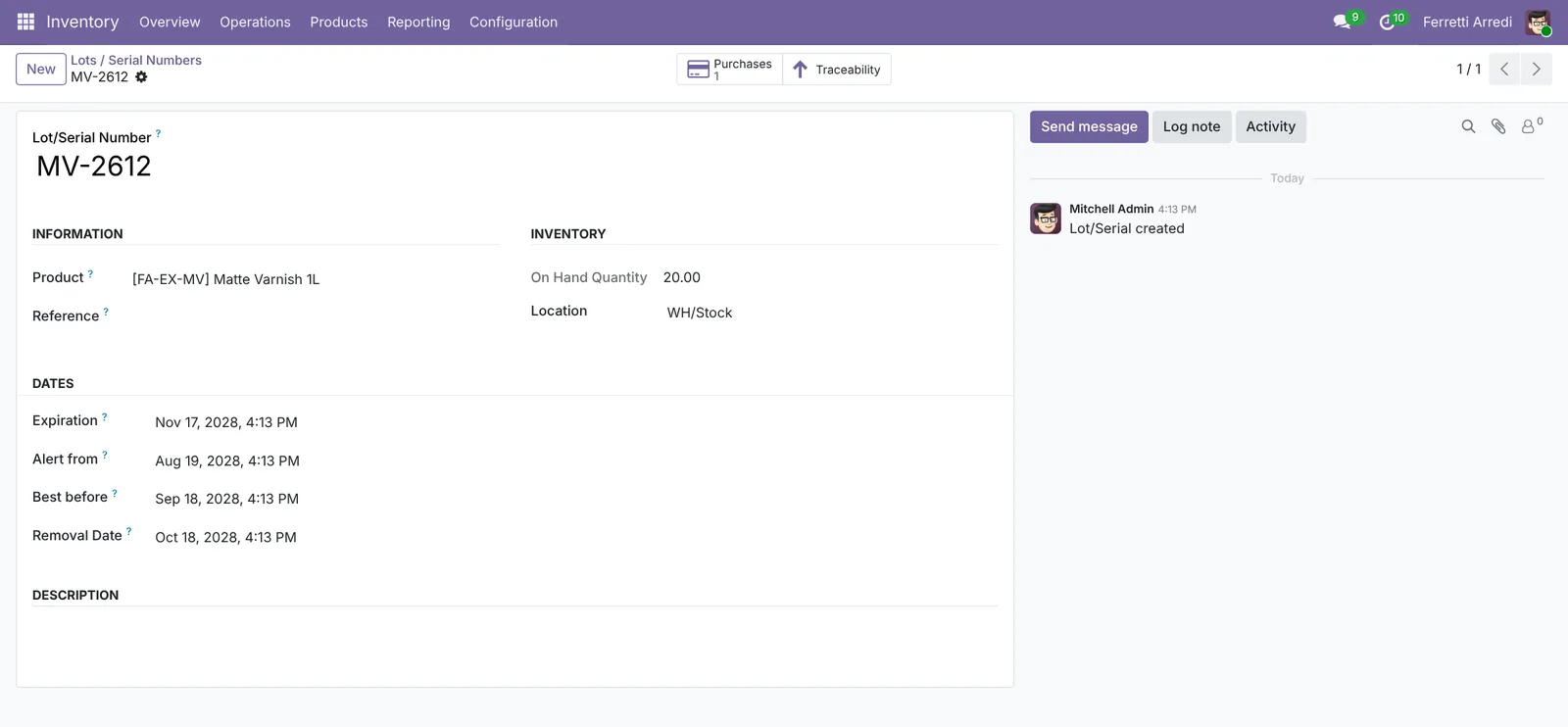 Four dates per lot, from one product setting.
5. Pick the first to expire first
Open Inventory → Configuration → Categories and the products’ category, here Care products. Set Force Removal Strategy to First Expiry First Out (FEFO) and save. From now on, deliveries reserve the lot that expires first, whatever arrived when.
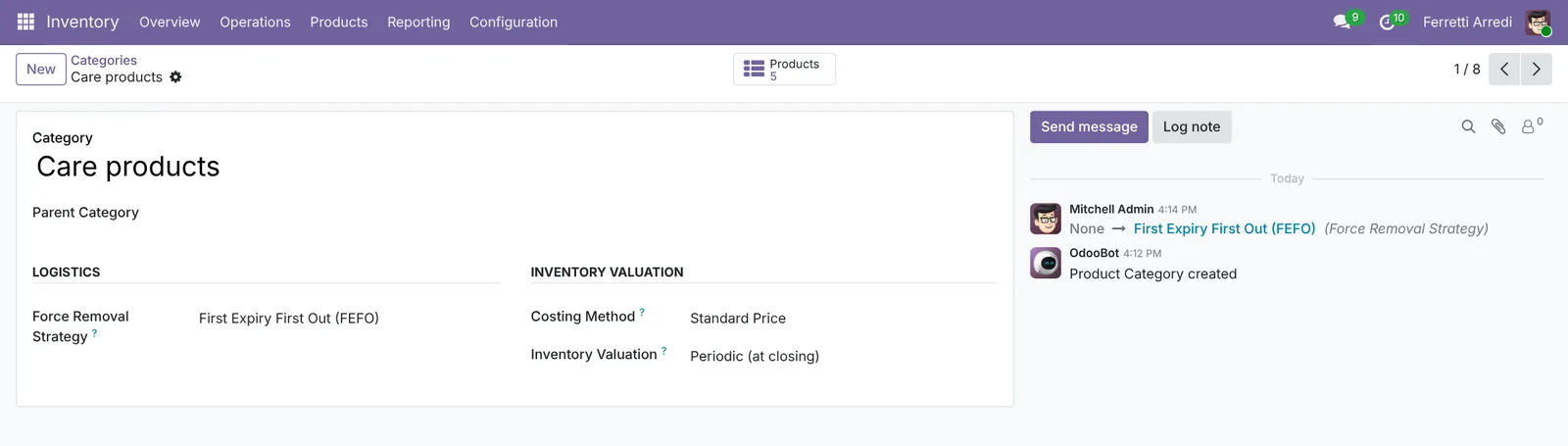 FEFO on the category: every product in it follows.
Common mistakes
- Dates on the product but not tracked by lots. Without lots there is nowhere to keep a date. Track by lots first.
- Expecting dates on lots already in stock. Odoo dates a lot only when it is received. Date the old lots by hand.
- Days counted the wrong way. Only the expiration date counts from the receipt. Best before, removal and alert count back from the expiration date.
- FEFO on the wrong category. The strategy works per category (or location). Check the category of each dated product.
Expiration dates with AI: ask your AI assistant through MCP
With the Hawklify MCP server, Claude, ChatGPT and other assistants work in your Odoo as you, with your permissions. Odoo lists lots by date, but nothing compares what is left in a lot with how fast the product sells. That is where the money goes.
Every morning, on the phone. A scheduled task asks the assistant at 7:30 and the answer arrives in a chat. Depending on how your organisation set up the server, the assistant makes the change straight away or first shows you a card to approve. Here Smart mode is on: it asks once before changing prices.
Hawklify
Your Odoo, from the chat you already use
Send a message, a photo or a voice note: the assistant reads and works in Odoo through Hawklify, with your permissions.
Good morning. 3 lots expire within 30 days. 2 won't sell in time:
- Leather Care Cream LCC-2409: 40 left, expires in 12 days. You sold 6 in 60 days: about 1 more before it expires.
- Fabric Stain Remover FSR-2408: 30 left, expires in 26 days. 9 sold in 60 days: about 4 more.
Oak Wood Oil OWO-2410 is fine: 18 left, 20 days, and it sells about 1 a day.
Put the two on a 30% clearance price?
Yes, 30% off
Done: the price list Clearance: expiring soon.
- Leather Care Cream: $24.00 → $16.80
- Fabric Stain Remover: $15.00 → $10.50
Pick it on a quotation, or give it to the customers you want to offer it to.
On the computer. Here card mode is on: nothing changes until you approve the card.
Wood Glue Pro is tracked by lot but without dates. One lot is in stock: WG-2411, 50 units, received on Sep 19.
Odoo only dates a lot when it arrives, so WG-2411 would stay without dates even after you turn them on. I'll set the product and date WG-2411 from its receipt: it expires on Sep 19, 2027.
Approval needed in OdooUpdate
Turn on expiration dates for Wood Glue Pro: 365 days after receipt, best before and alert 30 days earlier, removal 14 days earlier.
product.template · 1 record
Wood Glue Pro
| Field | Current | New |
|---|---|---|
| Expiration Date | 365 days after receipt | |
| Best Before Date | 30 days before | |
| Removal Date | 14 days before | |
| Alert Date | 30 days before |
Change applied in Odoo.
Organisation administrators can turn the approval cards off on the Members page.
Approval needed in OdooUpdate
Date the lot WG-2411 (50 units, received Sep 19) like a lot received with these settings.
stock.lot · 1 record
WG-2411
| Field | Current | New |
|---|---|---|
| Expiration | Sep 19, 2027 | |
| Best before | Aug 20, 2027 | |
| Removal Date | Sep 5, 2027 | |
| Alert from | Aug 20, 2027 |
Change applied in Odoo.
Organisation administrators can turn the approval cards off on the Members page.
Done. New glue lots get their dates on receipt, and WG-2411 has them now: from Aug 20, 2027 it shows in the expiration alerts, and with FEFO it leaves before any newer lot.
Versions we tested
| Version | Result |
|---|---|
| Odoo 16 | Same steps. On the product, the Tracking choice (By Lots) is in the Inventory tab, next to Expiration Date. On the lot the dates are in a Dates tab. The categories menu is called Product Categories. |
| Odoo 17 | Like 16. |
| Odoo 18 | As in this guide, but the lot’s dates are in a Dates tab. |
| Odoo 19 | As in this guide. The screenshots come from Odoo 19. |
| Odoo 20 | Same steps. The category’s Force Removal Strategy is in a Logistics tab. |
Frequently asked questions
Do I need lots to use expiration dates?
Yes. Dates live on the lot or serial number, so the product must be tracked by lots or by serial numbers. The Expiration Dates setting shows only once Lots & Serial Numbers is on.
Can I change the date of a lot by hand?
Yes. Open the lot from Products, Lots/Serial Numbers and edit its dates, or type the expiration date in the receipt when the label says something else.
What happens to lots already in stock when I turn dates on?
Nothing: Odoo computes the dates when a lot is received, so older lots stay without dates. Open them and type their dates, or let an AI assistant fill them in, as in the second example below.
Can Odoo stop me from selling an expired lot?
With FEFO it reserves the lot that expires first, and in the transfer's detailed operations an expired date shows in red. The removal date tells the team when to take a lot off the shelf before it expires.
Questa guida è disponibile anche in italiano: Date di scadenza in Odoo: vendi prima ciò che scade
Related Odoo guides
 InventoryLots and serial numbers in Odoo: trace every productTrack products by lot or serial number in Odoo: record the lot at reception, ship it, and find every customer who got it in seconds. Community and Enterprise.
 InventoryDeliveries and backorders in Odoo: ship what you haveShip part of an order in Odoo when the rest is not in stock: validate the partial delivery, keep a backorder, set a default per operation type. Community and Enterprise.
 InventoryInventory valuation in Odoo: what your stock is worthSet the costing method in Odoo, see where a product's cost comes from, and read the value of everything in stock, product by product. Community and Enterprise.