Reordering rules in Odoo: restock before you run out
Set min/max reordering rules in Odoo so it orders from your vendor before stock runs out, then use the Replenishment list to order now. Community and Enterprise.
- Community and Enterprise
- 6 min read
- Odoo + AI tutorial
Running out of a product is expensive: a customer waits, a sale is lost, and someone places a rushed order at a worse price. Odoo can watch the stock for you. A reordering rule says “keep at least this many, and when you go below, order up to that many”. This guide sets one up on a product, then uses the Replenishment list to order right away and checks the request for quotation that Odoo creates.
It works the same in Community and Enterprise. The versions we tested are listed at the end.
This guide is also an AI tutorial. At the end, an AI assistant connected to Odoo checks every reordering rule against last month's sales and resizes it, and warns you every Monday about what will run out before the vendor can deliver.See it in action ↓Before you start
- The Inventory and Purchase apps installed.
- A product that is tracked in stock (Track Inventory, or Storable Product in older versions).
- At least one vendor on the product, in its Purchase tab: that is who Odoo orders from.
- An Odoo user with the Inventory / Administrator access right.
1. Check the product’s vendor
Open Inventory → Products → Products and open the product. In this guide it is the Storage Box, with 18 in stock.
In the Purchase tab, the Vendor list says who Odoo orders from, at which price and with which lead time. With several vendors, Odoo uses the first one in the list for the quantity it needs: drag the rows to change the order.
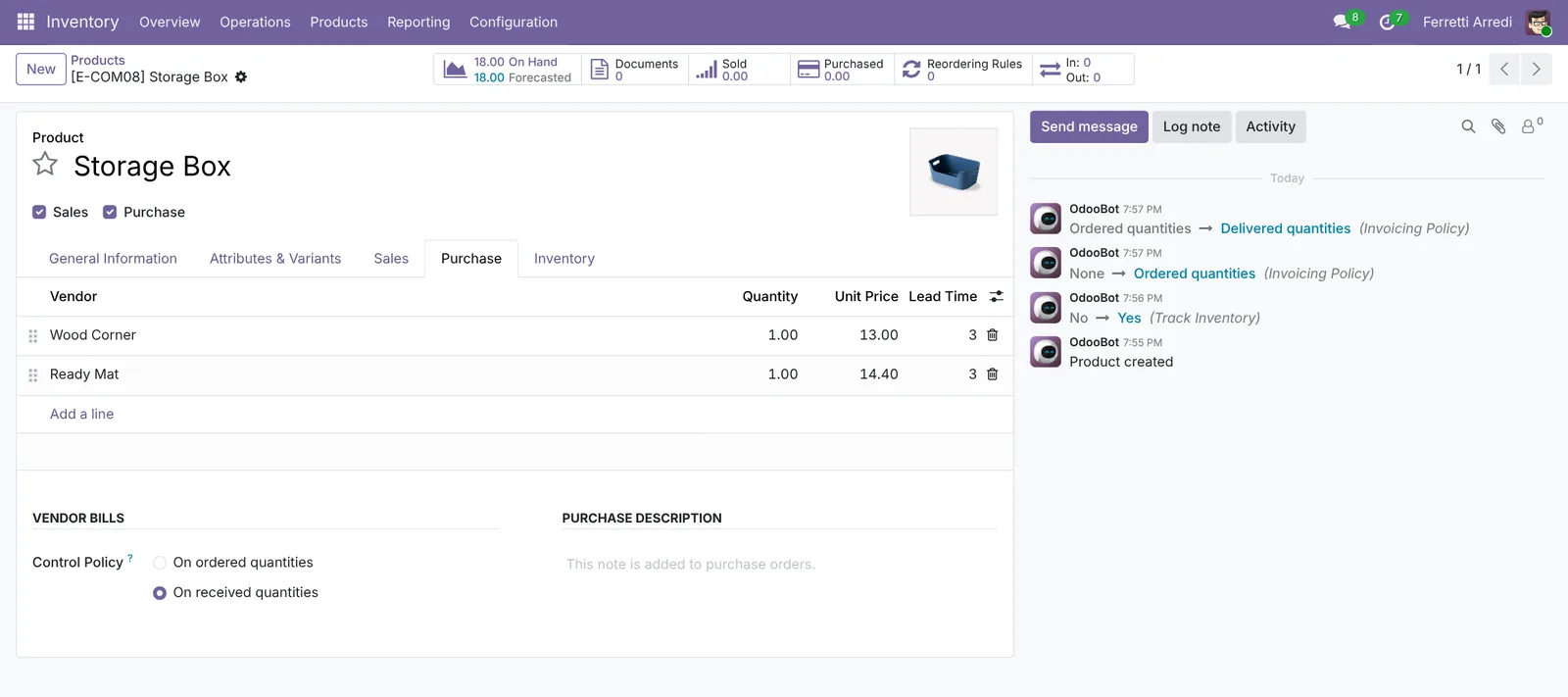 The vendors of the product: Wood Corner comes first.
In Odoo 16, 17 and 18, also open the Inventory tab and tick the Buy route. Without it, Odoo has no rule to buy the product: ordering fails with No rule has been found to replenish, and an exception activity appears on the product. From Odoo 19 on, a product with a vendor is bought without ticking it.
2. Create the reordering rule
Press the Reordering Rules button at the top of the product, then New. Once the product has a rule, older versions show the button as Min / Max with the two numbers.
- Min: 20. When the forecast goes below this number, Odoo reorders.
- Max: 50. Odoo orders enough to bring the forecast back up to this number.
- Leave the Trigger on Auto.
- Save.
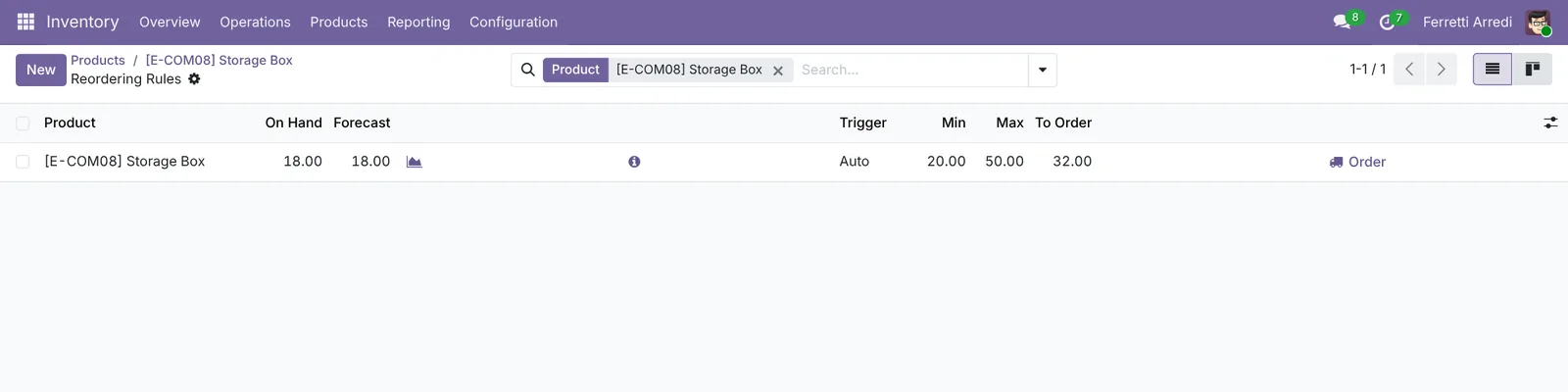 The rule is saved, and Odoo already shows 32 to order.
The Forecast column is the stock on hand plus what is coming in, minus what is promised to customers. Odoo compares that number with the minimum, not the stock on hand alone, so a product already ordered from the vendor is not ordered twice.
3. Order now from the Replenishment list
Every rule whose forecast is below its minimum shows up in Inventory → Operations → Replenishment. The list opens on the Manual rules: click All in the Trigger panel on the left to see the Auto ones too.
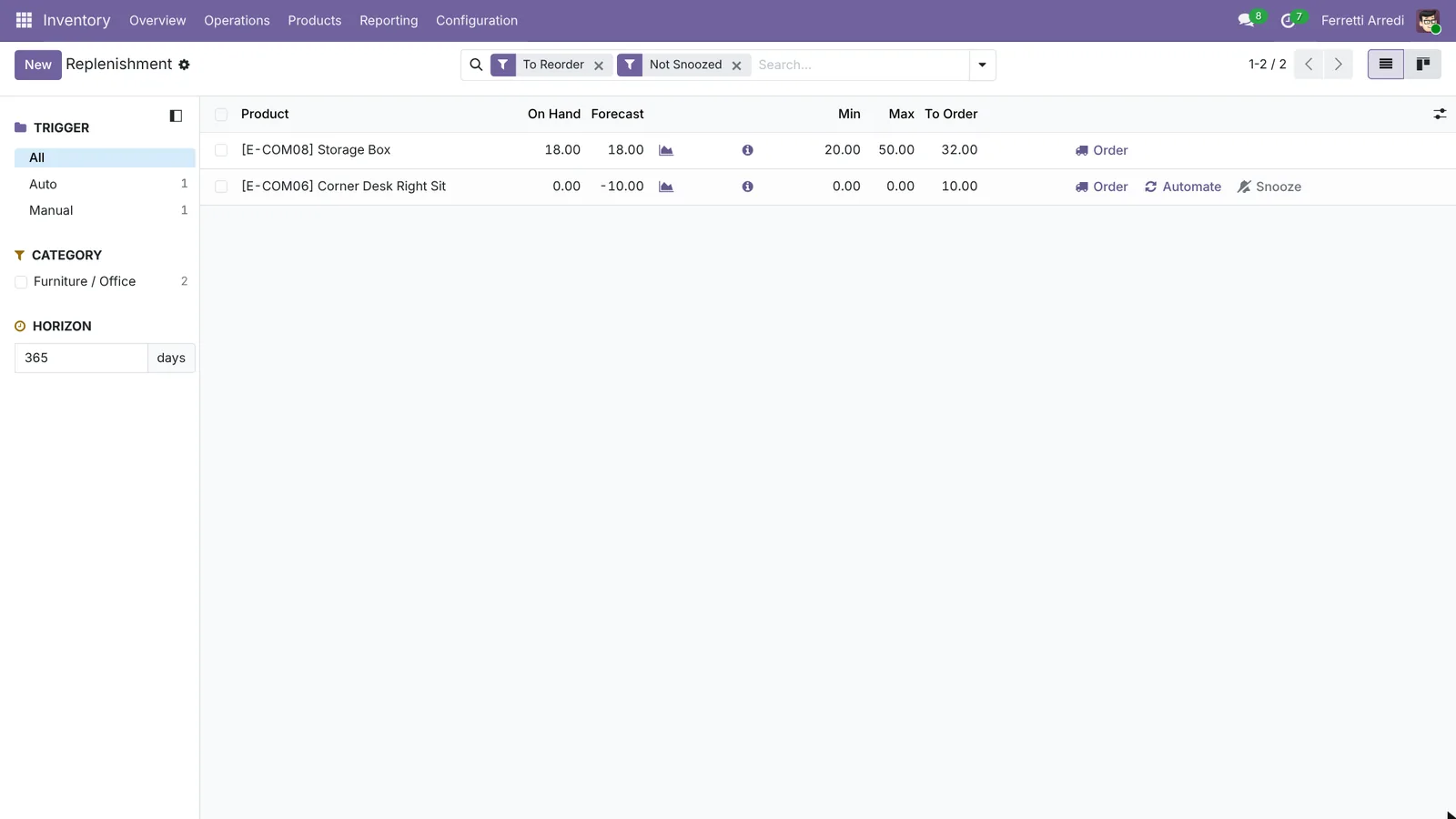 The Storage Box needs 32: the forecast of 18 is below the minimum of 20.
| Trigger | What happens |
|---|---|
| Auto | Odoo creates the request for quotation by itself, when the scheduler runs (once a day by default). |
| Manual | Nothing is ordered until someone presses Order in this list. |
Rules on Auto are ordered tonight. To order now, press Order on the row (Order Once in older versions). Odoo confirms with a message that names the new request for quotation.
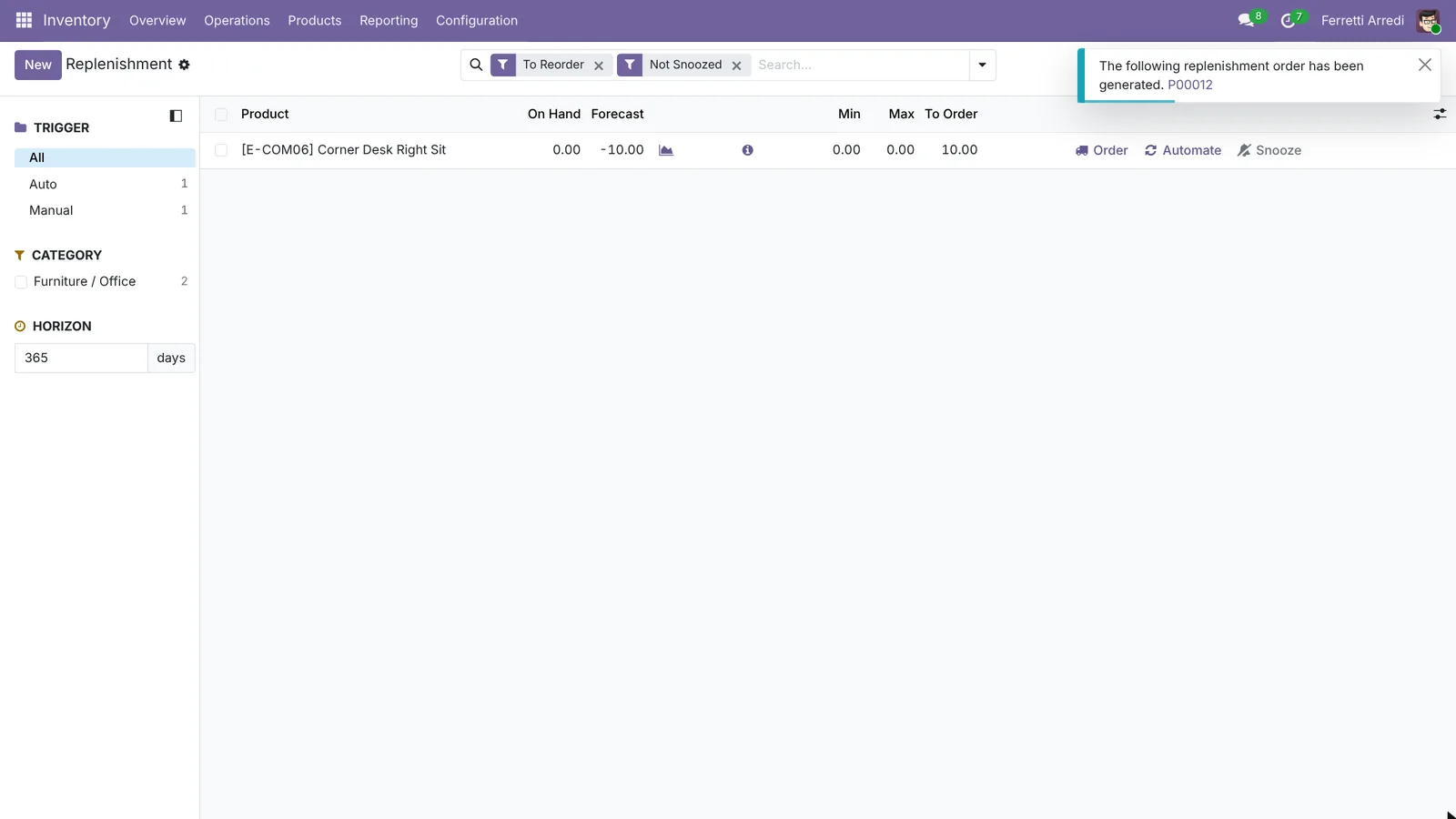 Odoo creates the request for quotation and names it.
4. Check the request for quotation
Open Purchase. The new request for quotation is for the first vendor of the product, with the quantity from the rule and the vendor’s price.
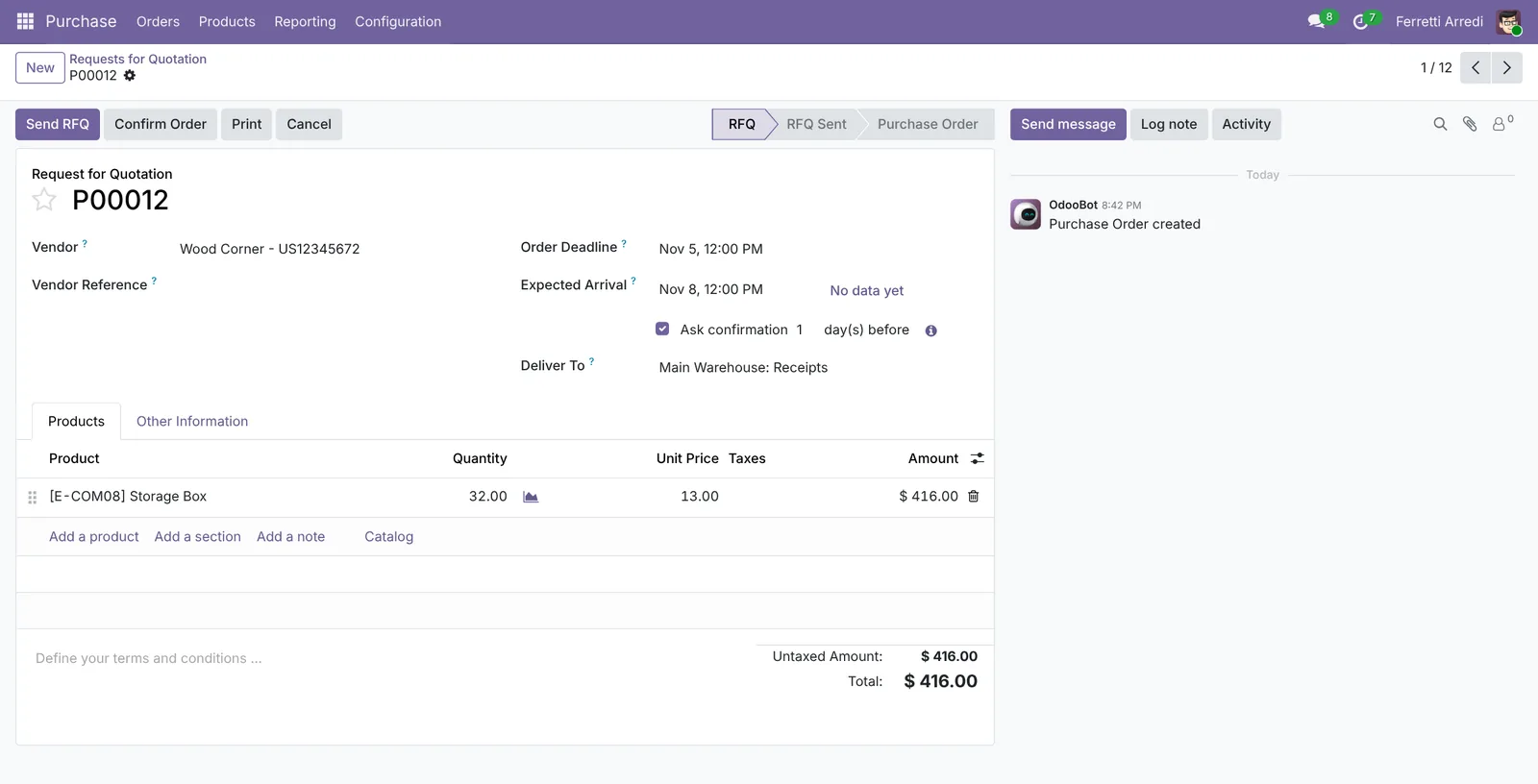 32 Storage Boxes for Wood Corner, ready to send.
Send it with Send RFQ, or confirm it with Confirm Order if you order without a quotation. When the goods arrive, the forecast goes back up and the product leaves the Replenishment list.
Make to order instead of keeping stock
Some products should not sit on a shelf: you buy them only when a customer orders them. That is the Replenish on Order (MTO) route. It is archived by default: open Inventory → Configuration → Routes, filter on Archived, open Replenish on Order (MTO) and unarchive it. Then tick it on the product, next to Buy. Each confirmed sales order now creates its own purchase for the quantity sold, and the product needs no reordering rule.
Common mistakes
- No vendor, or no Buy route. Odoo cannot create a request for quotation: it shows No rule has been found to replenish with an Edit Product button, and the scheduler leaves an exception activity on the product. Add the vendor, and on Odoo 16 to 18 tick Buy.
- A maximum equal to the minimum. Odoo then orders a few pieces at a time, often. Leave room between the two.
- Forgetting the lead time. A vendor that delivers in 10 days needs a minimum that covers 10 days of sales.
- Leaving rules on Manual and never opening the list. Manual rules order nothing on their own: someone has to look at Replenishment every day.
Reordering rules with AI: ask your AI assistant through MCP
With the Hawklify MCP server, Claude, ChatGPT and other assistants work in your Odoo as you, with your permissions. A rule is only as good as its numbers, and sales change. Checking every rule against last month’s sales and the vendor’s lead time is an afternoon in a spreadsheet; the assistant does it in one question.
On the computer. Depending on how your organisation set up the server, the assistant makes the change straight away or first shows you a card to approve. Here Smart mode is on.
In October, three rules didn't match your sales:
- Office Lamp: 90 sold, 3 a day, but the rule reorders at 5. Wood Corner needs 5 days, so you run out before the lamps arrive. Only 4 left.
- Large Desk: 18 sold, none left and 5 promised to customers, and no rule at all.
- Storage Box: only 11 sold, but the rule keeps 20 to 50: money stuck on the shelf.
Office Chair Black is fine: 62 sold, and a minimum of 15 covers its 3 days of lead time.
Want me to fix them?
Done:
- Office Lamp: minimum 18, maximum 45.
- Storage Box: minimum 5, maximum 15.
- Large Desk: a new rule, minimum 4, maximum 10.
Replenishment now shows what to order, sized on real sales.
Every Monday, on the phone. Rules react to stock, not to a sudden change in sales. A scheduled task in the AI app looks at the pace of this week:
Hawklify
Your Odoo, from the chat you already use
Send a message, a photo or a voice note: the assistant reads and works in Odoo through Hawklify, with your permissions.
Good morning Anna. At this week's pace, 2 products run out before Wood Corner can deliver:
- Office Chair Black: 19 left, selling 4.5 a day since the promotion. Out on Thursday, delivery takes 3 days.
- Monitor Stand: 7 left, 1.2 a day. Out next Monday, delivery takes 7 days.
The rules wouldn't trigger yet. Order 40 chairs and 15 stands from Wood Corner today?
Yes, order them
Done: P00021 sent to Wood Corner, 40 Office Chairs Black and 15 Monitor Stands, $5,190.00. Expected on Thursday and next Monday, before either runs out.
Versions we tested
| Version | Result |
|---|---|
| Odoo 16 | Same steps. The product needs the Buy route ticked in its Inventory tab, and the row button in Replenishment is Order Once. |
| Odoo 17 | Like 16: tick Buy in the Inventory tab of the product, and press Order Once. |
| Odoo 18 | Tick Buy in the Inventory tab of the product, as in 16 and 17. The row button is Order, and the Trigger panel can open folded: click it to choose All. |
| Odoo 19 | As in this guide: no Buy route to tick. The screenshots come from Odoo 19. |
| Odoo 20 | Same screens and buttons as 19. |
Frequently asked questions
What is the difference between the Auto and Manual trigger?
With Auto, Odoo creates the request for quotation by itself when the scheduler runs, once a day by default. With Manual, the rule only shows the product in the Replenishment list, and someone has to press Order.
Why does Odoo order more than the minimum?
Odoo orders up to the maximum, not up to the minimum. If the forecast is 18, the minimum 20 and the maximum 50, it orders 32. Set the maximum to the stock you want right after a delivery.
Why is my product not in the Replenishment list?
The list shows rules whose forecast is below the minimum. Check that the forecast is really below it: open quotations to the vendor already count as incoming. Also check the trigger filter on the left: the list opens on Manual rules.
Can Odoo order only when a customer buys, instead of keeping stock?
Yes, with the Replenish on Order (MTO) route. It is archived by default: unarchive it in Inventory, Configuration, Routes, then tick it on the product next to Buy. Each sales order then creates its own purchase.
Questa guida è disponibile anche in italiano: Regole di riordino Odoo: rifornisci prima di finire
Related Odoo guides
 PurchaseVendor bills in Odoo: pay only what you receivedOrder from a vendor in Odoo, receive part of the goods, and bill exactly what arrived, with the control policy on received quantities. Community and Enterprise.
 ManufacturingBills of materials and manufacturing orders in OdooMake products in Odoo: create a bill of materials, plan a manufacturing order, check the components, produce and see the stock moves. Community and Enterprise.
 InventoryWarehouse setup in Odoo: locations and multi-step routesTurn on storage locations and multi-step routes in Odoo, then receive goods in 2 steps and ship them in 3: pick, pack and deliver. Community and Enterprise.