Vendor bills in Odoo: pay only what you received
Order from a vendor in Odoo, receive part of the goods, and bill exactly what arrived, with the control policy on received quantities. Community and Enterprise.
- Community and Enterprise
- 5 min read
- Odoo + AI tutorial
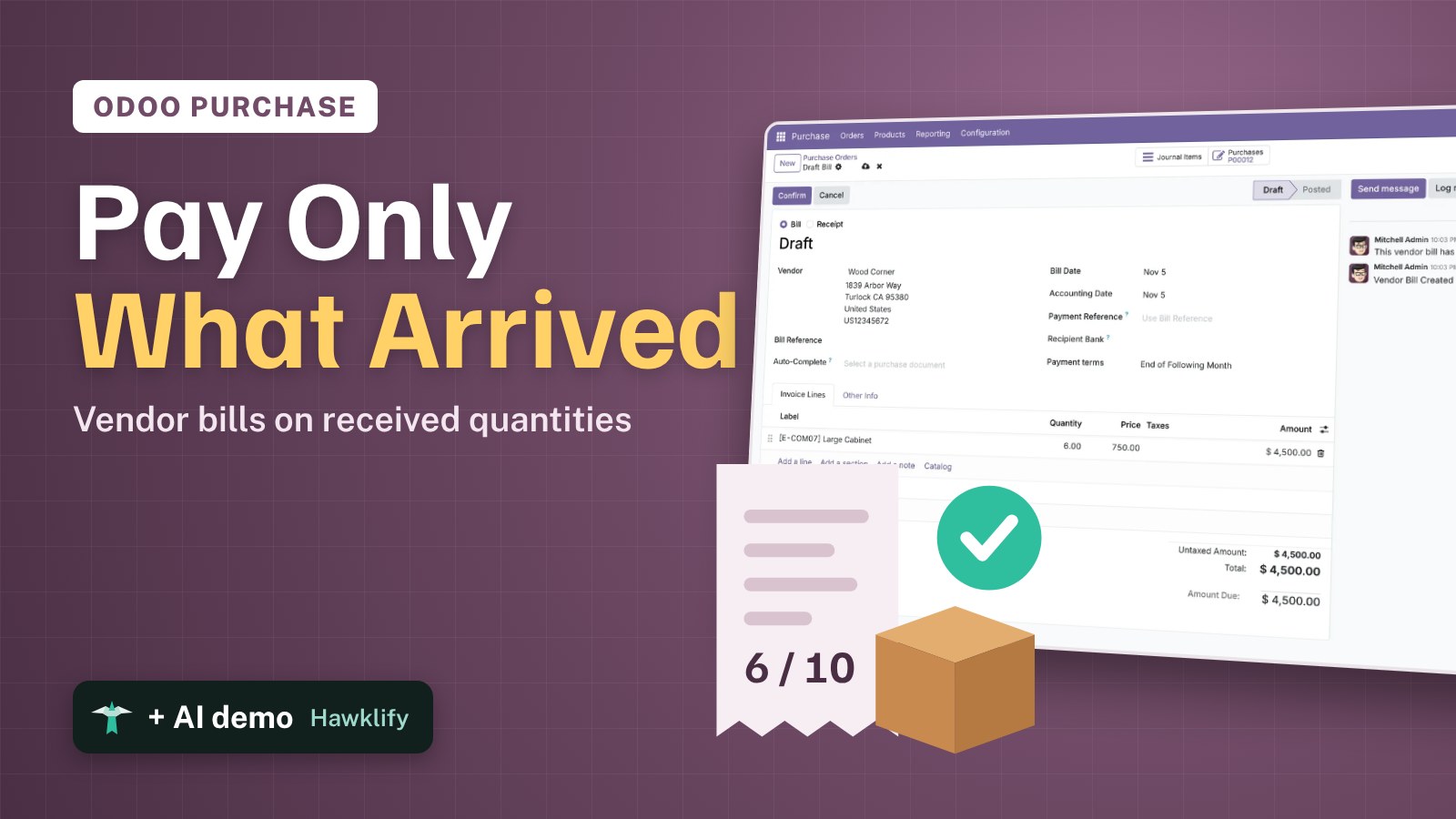
You ordered ten cabinets, six arrived, and the vendor’s bill says ten. Paying it means paying for four cabinets you don’t have. Odoo can bill only what you received. This guide checks the product’s control policy, orders from a vendor, receives part of the goods, and creates the bill for exactly what arrived.
It works the same in Community and Enterprise. The versions we tested are listed at the end.
This guide is also an AI tutorial. At the end, an AI assistant connected to Odoo reads a vendor's PDF line by line against the order and the receipt before creating the bill, and follows up a late order with the vendor.See it in action ↓Before you start
- The Purchase and Inventory apps installed, with Invoicing (or Accounting in Enterprise).
- A product tracked in stock, with a vendor in its Purchase tab.
- A user with the Purchase / Administrator access right, and the Billing right to create bills.
1. Check the control policy
Open Purchase → Products → Products and open the product, here the Large Cabinet. In the Purchase tab, the Control Policy says what Odoo bills: On received quantities bills what arrived, not what you ordered.
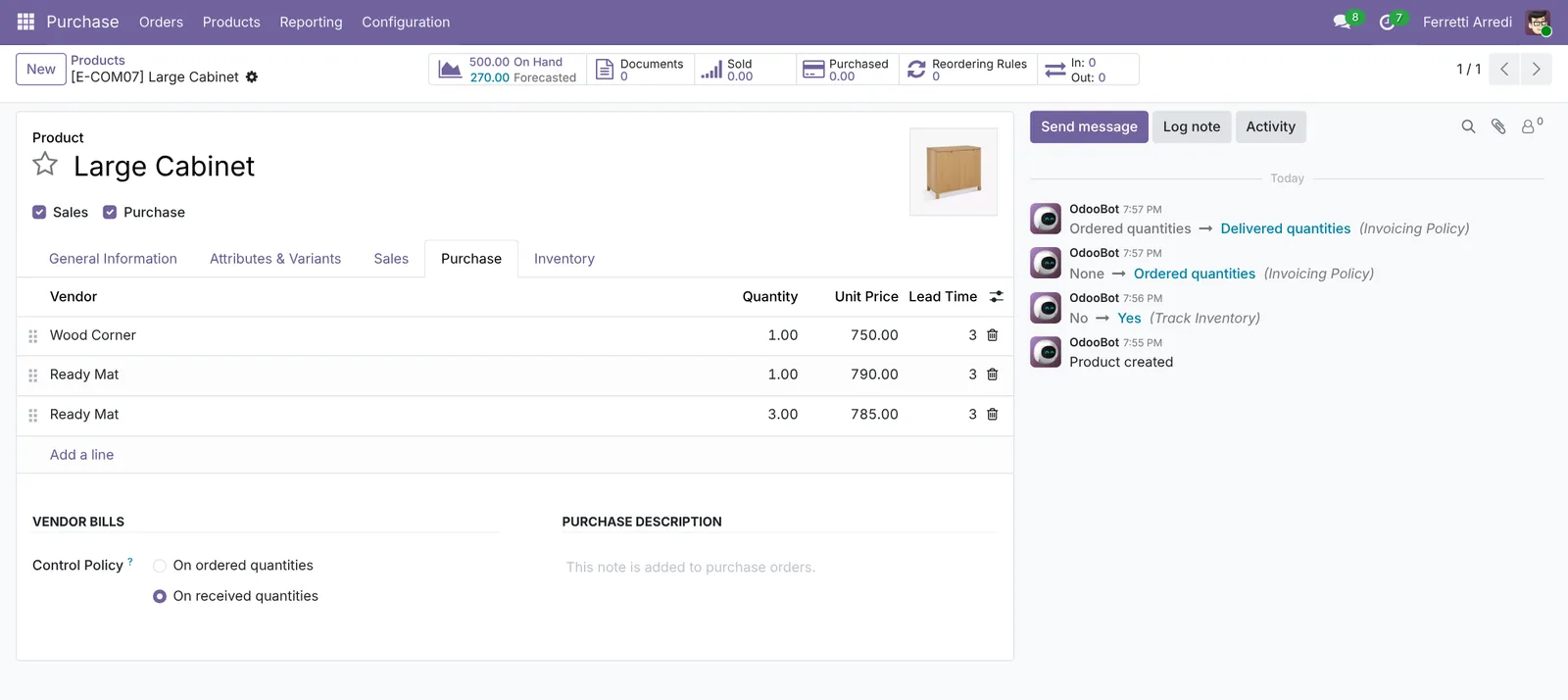 On received quantities: the bill follows the goods.
2. Order from the vendor
Open Purchase → Orders → Requests for Quotation and press New. Choose the vendor, here Wood Corner, add 10 Large Cabinets and press Confirm Order.
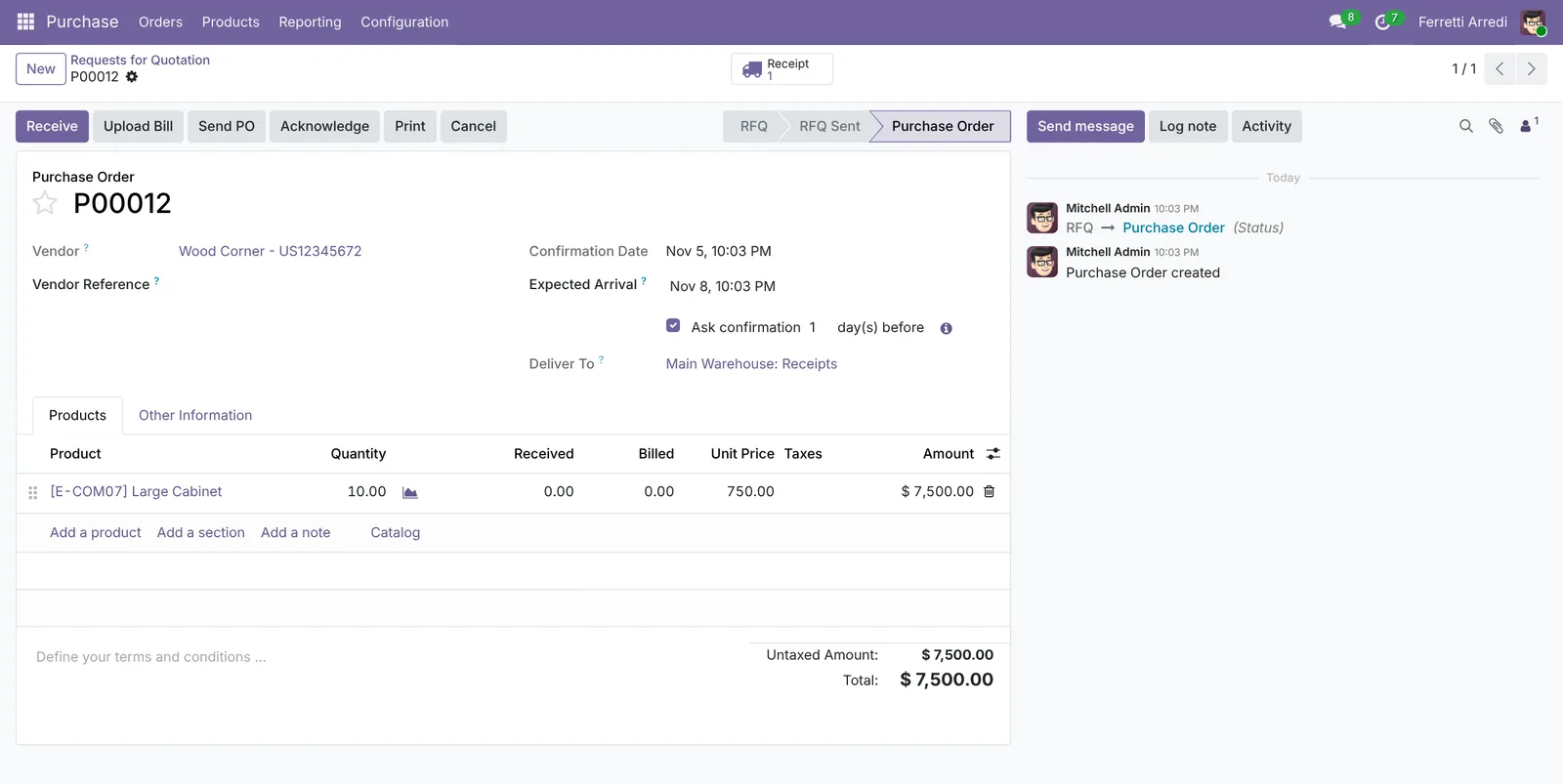 10 ordered, nothing received yet.
3. Receive part of the goods
The truck arrives with six cabinets. Press Receive on the order (or open the Receipt). Set the Quantity to 6 and press Validate.
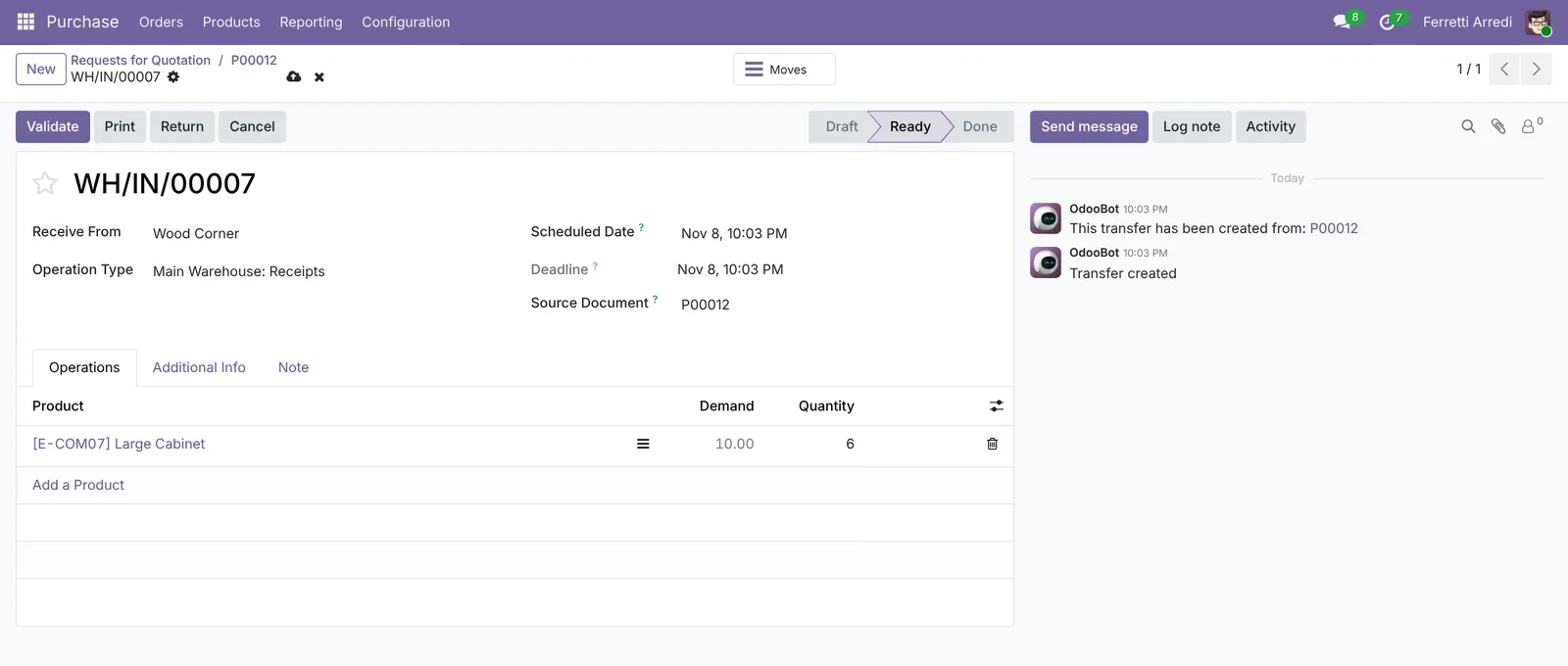 Six of ten arrived.
Odoo asks about the four missing ones. Press Create Backorder: Odoo keeps waiting for them.
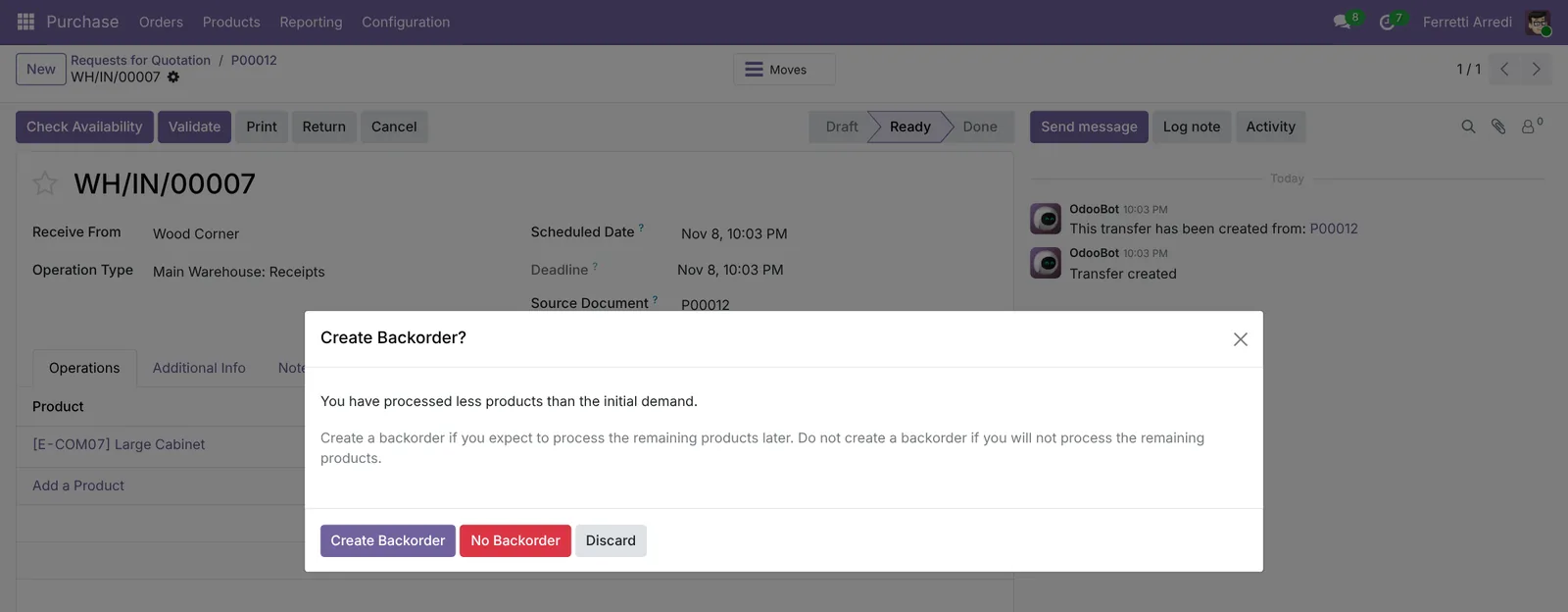 A backorder keeps the four missing cabinets expected.
Back on the order: Received 6, Billed 0.
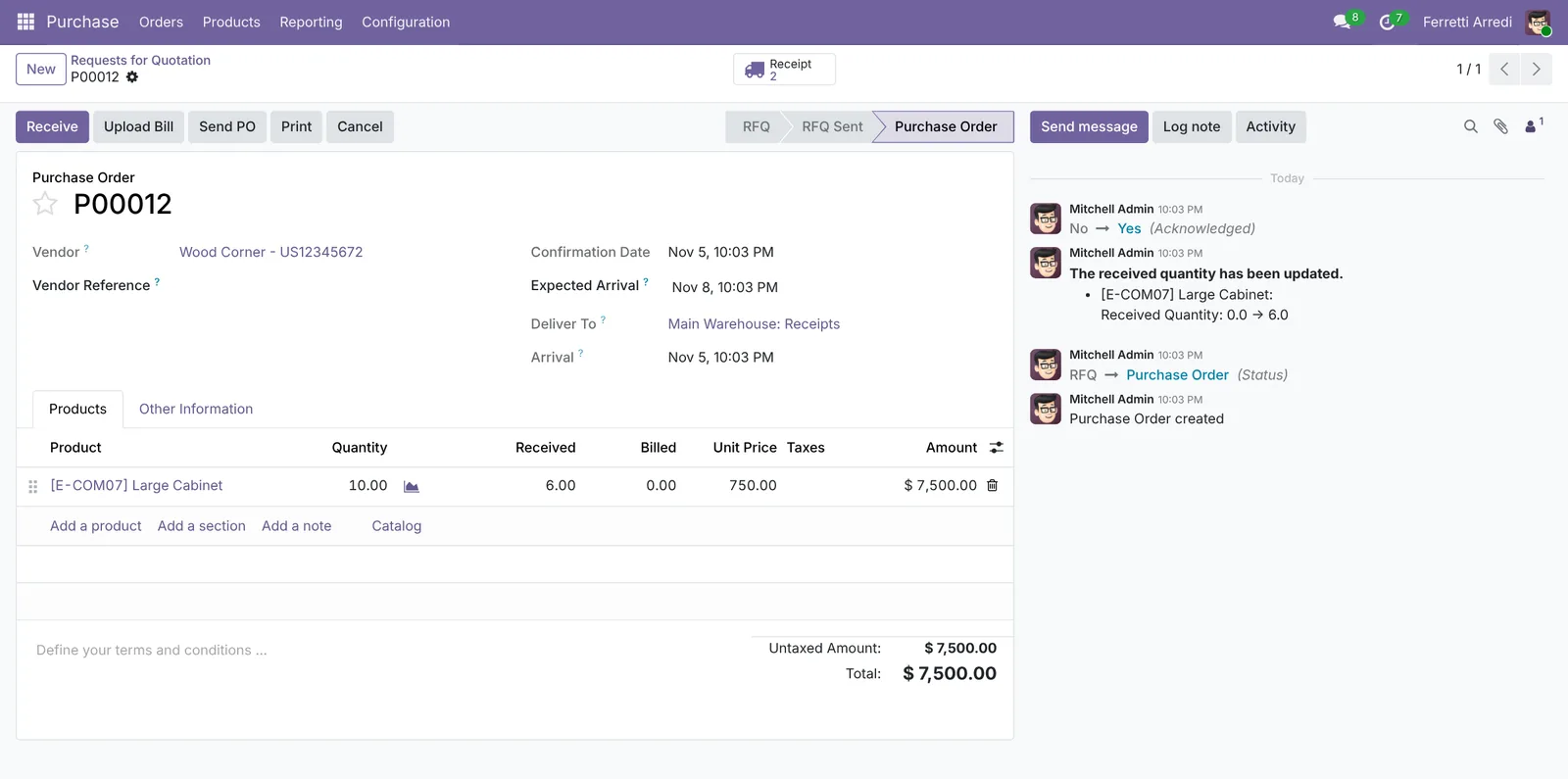 Six in stock, none billed yet.
4. Create the bill for what arrived
Open Purchase → Orders → Purchase Orders and pick the Waiting Bills filter. Tick the order and press Create Bills.
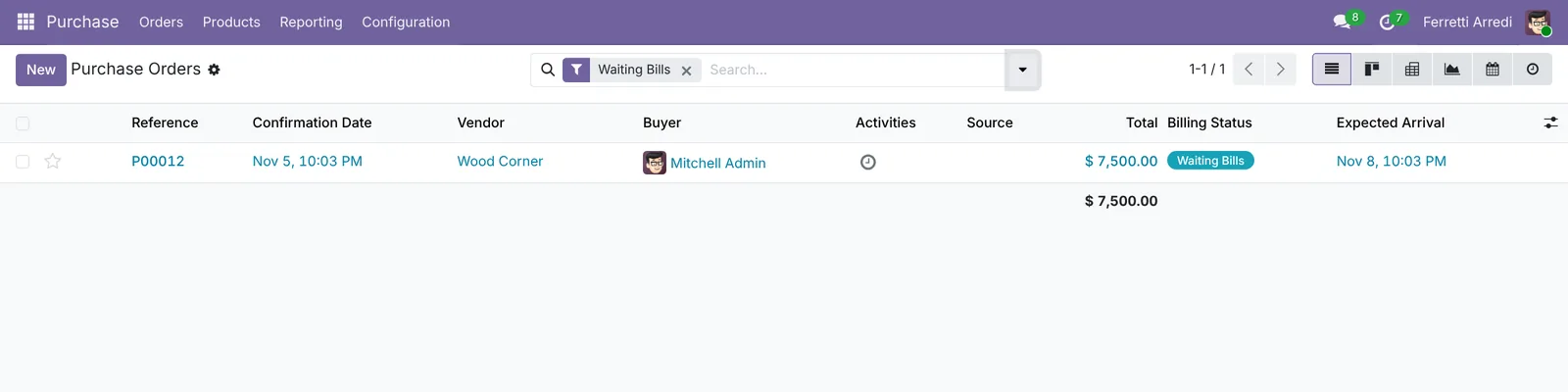 The orders that have something to bill.
The draft bill has 6 cabinets, not 10. Set the Bill Date from the vendor’s bill and press Confirm.
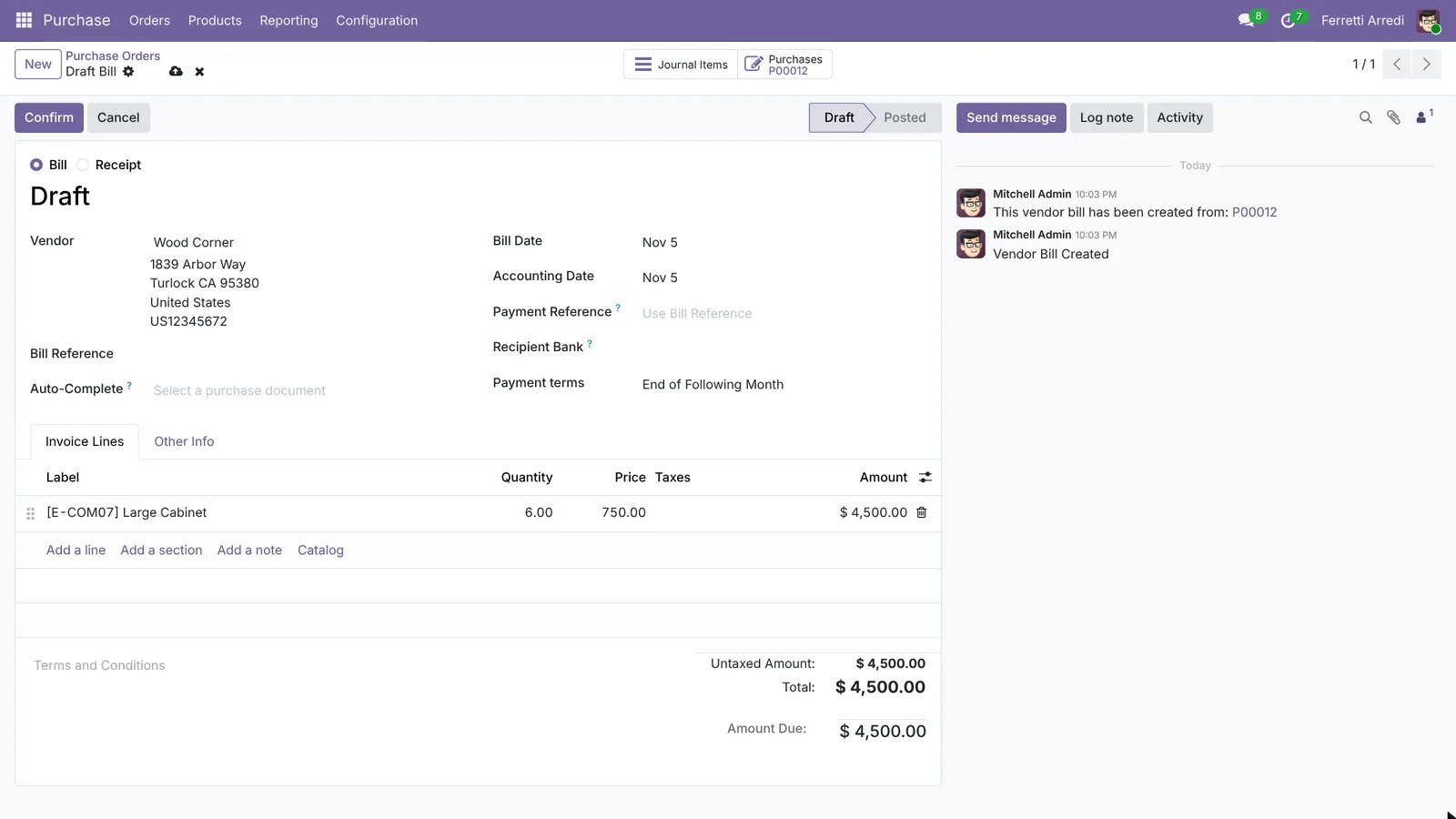 Six cabinets: what arrived, at the ordered price.
Open the order again: Received 6, Billed 6. When the other four arrive, the order waits for a bill again.
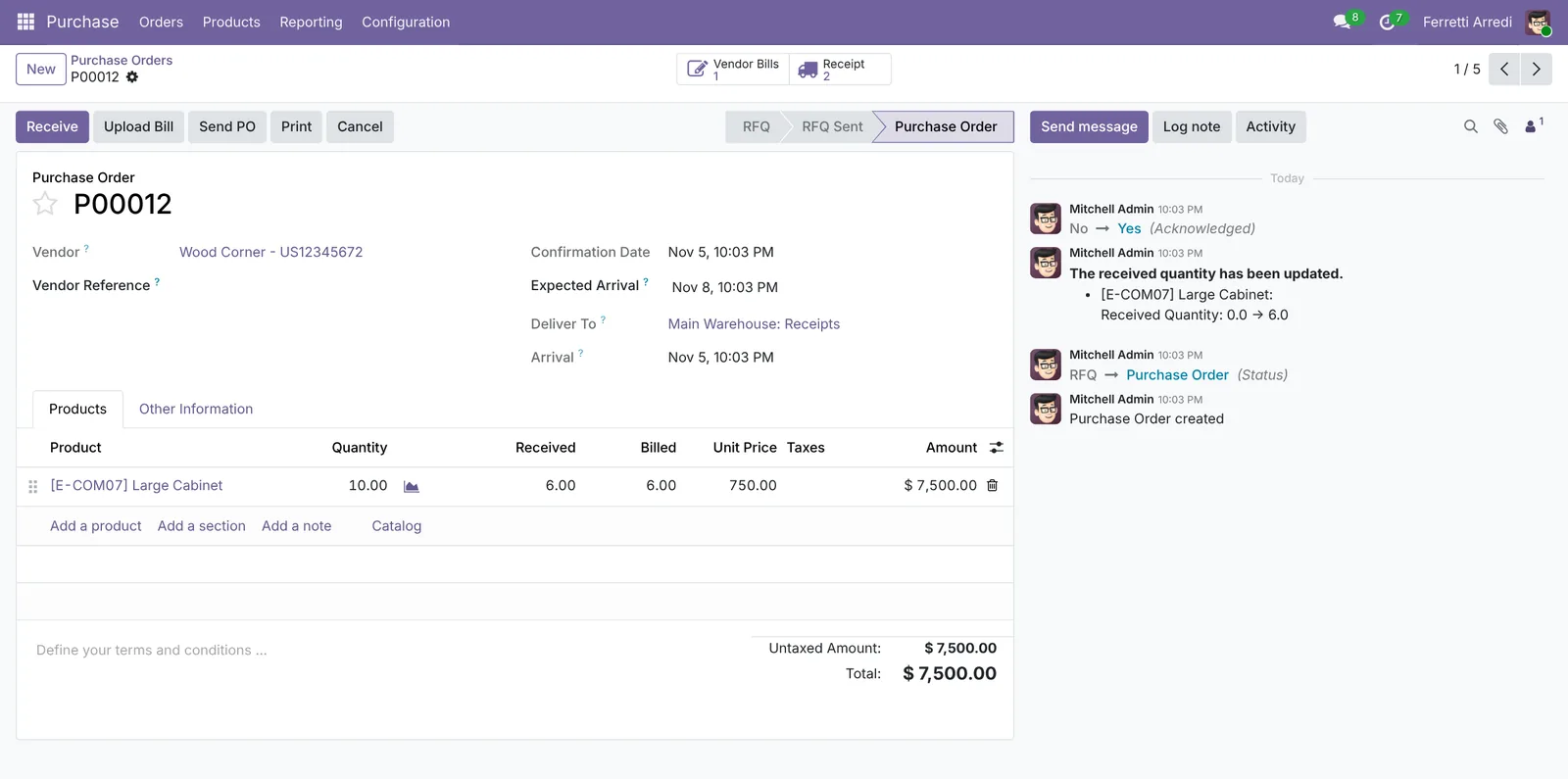 Received and billed match.
Common mistakes
- Control Policy on ordered quantities. The bill then has everything you ordered, even what never came. Use received quantities for goods; ordered quantities fit services and prepaid orders.
- Typing the bill by hand. A bill typed from scratch is not linked to the order, so Odoo cannot compare it. Create it from the order, or pick the order in Auto-Complete on the bill.
- No backorder for missing goods. With No Backorder, Odoo stops waiting for them and the order is done. Create a backorder unless the vendor cancelled the rest.
- Confirming without checking the vendor’s bill. Compare the quantities and the amount with the paper bill before you confirm.
Vendor bills with AI: ask your AI assistant through MCP
With the Hawklify MCP server, Claude, ChatGPT and other assistants work in your Odoo as you, with your permissions. Odoo bills what you received, but nobody reads the vendor’s PDF line by line against the order. The assistant does. Depending on how your organisation set up the server, it makes the change straight away or first shows you a card to approve; here card mode is on.
I read Ready Mat invoice RM-2026-0418.pdf on P00017 and checked it against the order and the receipt:
- Cabinet with Doors: billed 10 at $125.00. The order says $118.00, and only 6 arrived (4 are still on backorder).
- Drawer: billed 20 at $95.50. Matches the order and the receipt.
The bill asks $3,160.00. What arrived, at the agreed price, is $2,618.00: $542.00 too much.
Want me to create the bill from the order, for what arrived?
Approval needed in OdooCreate
Create a draft vendor bill for Ready Mat from P00017, for what arrived: 6 Cabinets with Doors at $118.00 and 20 Drawers at $95.50.
account.move · 1 record
New vendor bill
| Field | Current | New |
|---|---|---|
| Vendor | Ready Mat | |
| Source | P00017 | |
| Lines | 6 × Cabinet with Doors, 20 × Drawer | |
| Total | $2,618.00 |
Change applied in Odoo.
Organisation administrators can turn the approval cards off on the Members page.
A draft bill for Ready Mat, $2,618.00: 6 Cabinets with Doors at $118.00 and 20 Drawers at $95.50. Set the reference RM/2026/0418 and ask Ready Mat for a credit note of $542.00, or a corrected bill.
To read a PDF, the assistant needs the text Odoo stores when the file is uploaded. Install the Attachments List and Document Indexation app (attachment_indexation) if it is missing: Odoo then keeps the text of every PDF uploaded from then on.
On the order you are looking at. In a side panel of the browser, the assistant starts from the open record: here a purchase order still waiting for 4 cabinets. It reads the vendor’s emails and your customers’ orders, which the purchase order doesn’t show, and with Smart mode on it acts once you say yes.
On Nov 5 Wood Corner wrote "the remaining 4 ship on Nov 8". They are 8 days late and haven't written since.
Two customers are waiting for Large Cabinets, and only 1 is free in stock:
S00031Gemini Furniture, 3, promised for Nov 20S00034Lumber Inc, 2, promised for Dec 2
Shall I ask Wood Corner for a firm date and warn the salesperson on S00031?
Done. Wood Corner got an email from P00012 asking for a delivery date by Wednesday, and Mitchell has a to-do on S00031: Gemini's cabinets may be late, call them.
Versions we tested
| Version | Result |
|---|---|
| Odoo 16 | Same steps. The order also has a Create Bill button. On the receipt the column is Done. Purchase → Configuration → Settings has Bill Control, the default policy for new products. |
| Odoo 17 | Like 16, with the Quantity column on the receipt. The order has a Create Bill button. |
| Odoo 18 | Like 17: Create Bill on the order, Bill Control in the settings. |
| Odoo 19 | As in this guide: the order has Upload Bill but no Create Bill, so bills are created from the list. The screenshots come from Odoo 19. |
| Odoo 20 | Same screens and buttons as 19. |
Frequently asked questions
What is the control policy of a product?
It says what Odoo bills on a purchase: the ordered quantities, or the received quantities. On received quantities, a bill created from the order only has what arrived, so you never pay for goods still on the way.
Where do I set it?
On the product, in the Purchase tab: Control Policy. Odoo 16 to 18 also have a default for new products in Purchase, Configuration, Settings, Bill Control.
What if the vendor sends a bill for the full order?
Create the bill from the order: it has the received quantities only. Compare it with the vendor's bill and ask the vendor for a corrected one, or keep the difference for when the rest arrives.
What happens to the missing goods?
If you create a backorder when you validate the receipt, Odoo keeps waiting for them. When they arrive and you receive them, the order is waiting for a bill again, for that quantity.
Questa guida è disponibile anche in italiano: Fatture fornitore Odoo: paga solo ciò che arriva
Related Odoo guides
 InventoryReordering rules in Odoo: restock before you run outSet min/max reordering rules in Odoo so it orders from your vendor before stock runs out, then use the Replenishment list to order now. Community and Enterprise.
 PurchaseDropshipping in Odoo: the vendor ships to your customerSet up dropshipping in Odoo: a product with the Dropship route, a sale that creates the vendor order with the customer's address, and the vendor's delivery.
 InventoryLanded costs in Odoo: freight and duties in product costAdd freight, duties and customs to product cost in Odoo with landed costs: the setting, the costing method, the carrier's bill and the split. Community and Enterprise.