Dropshipping in Odoo: the vendor ships to your customer
Set up dropshipping in Odoo: a product with the Dropship route, a sale that creates the vendor order with the customer's address, and the vendor's delivery.
- Community and Enterprise
- 4 min read
- Odoo + AI tutorial
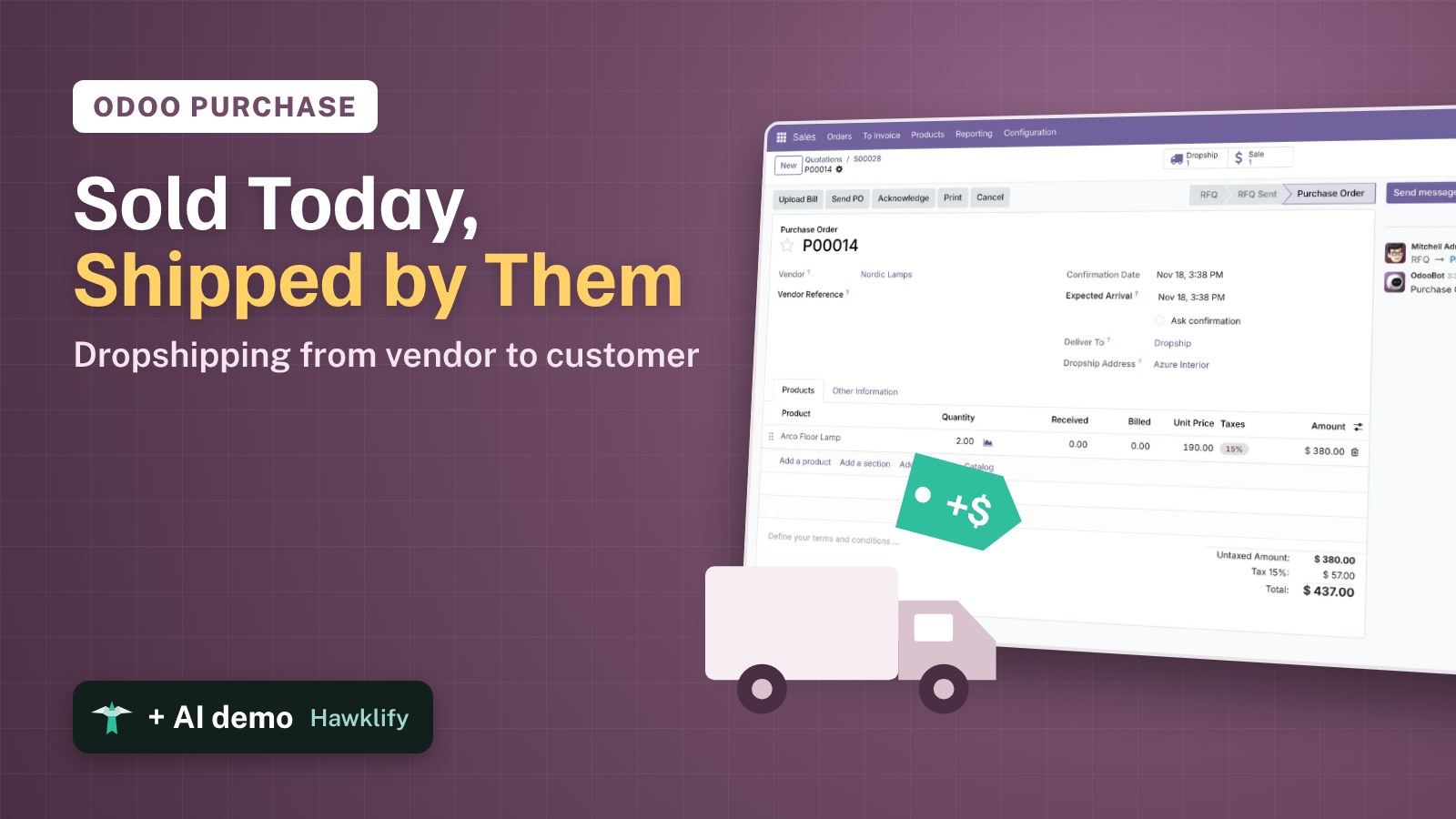
Some products are too big, too rare or too slow to keep in stock: a sofa made to order, a lamp from a small maker. With dropshipping you sell them anyway and the vendor ships them straight to your customer. Odoo creates the vendor order when you confirm the sale, with the customer’s address on it, and tracks the delivery without moving your stock. This guide turns dropshipping on, sets up a product, sells it and follows it to the customer.
It works the same in Community and Enterprise. The versions we tested are listed at the end.
This guide is also an AI tutorial. At the end, an AI assistant connected to Odoo finds the dropship orders at risk, chases the vendor and warns the customer, and finds a vendor who ships a late sofa in time.See it in action ↓Before you start
- The Sales, Purchase and Inventory apps installed.
- The vendor as a contact, here Nordic Lamps.
1. Turn on dropshipping
Open Inventory → Configuration → Settings. In the Logistics section tick Dropshipping and press Save. Odoo installs what it needs and adds the Dropship route.
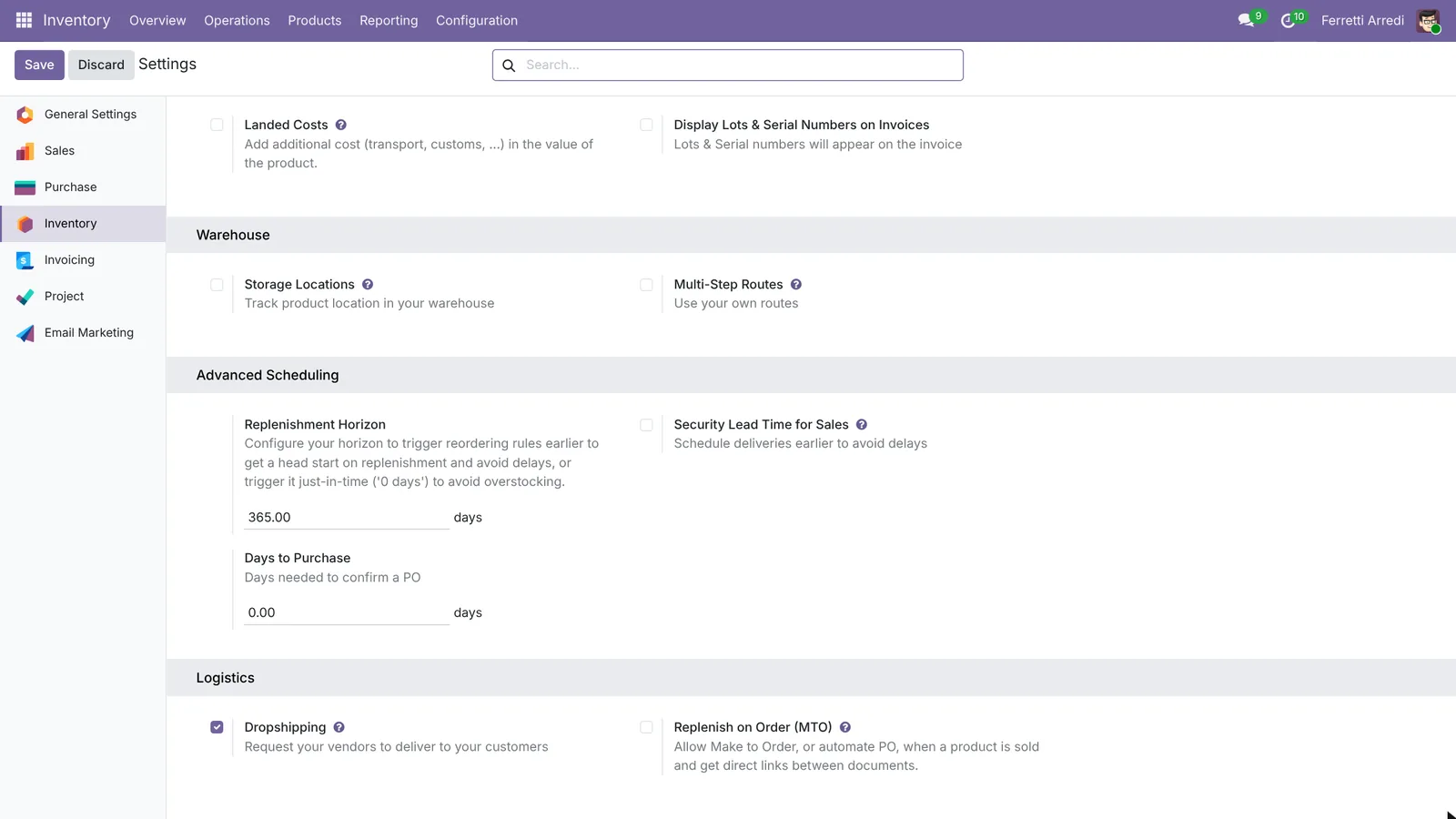 One tick: Odoo adds the Dropship route.
2. Set up a dropship product
Open Inventory → Products → Products and press New. Here the product is Arco Floor Lamp, sold at $340.
- In the Purchase tab press Add a line and pick the Vendor, Nordic Lamps, with its price, $190.
- In the Inventory tab tick the Dropship route.
Press Save.
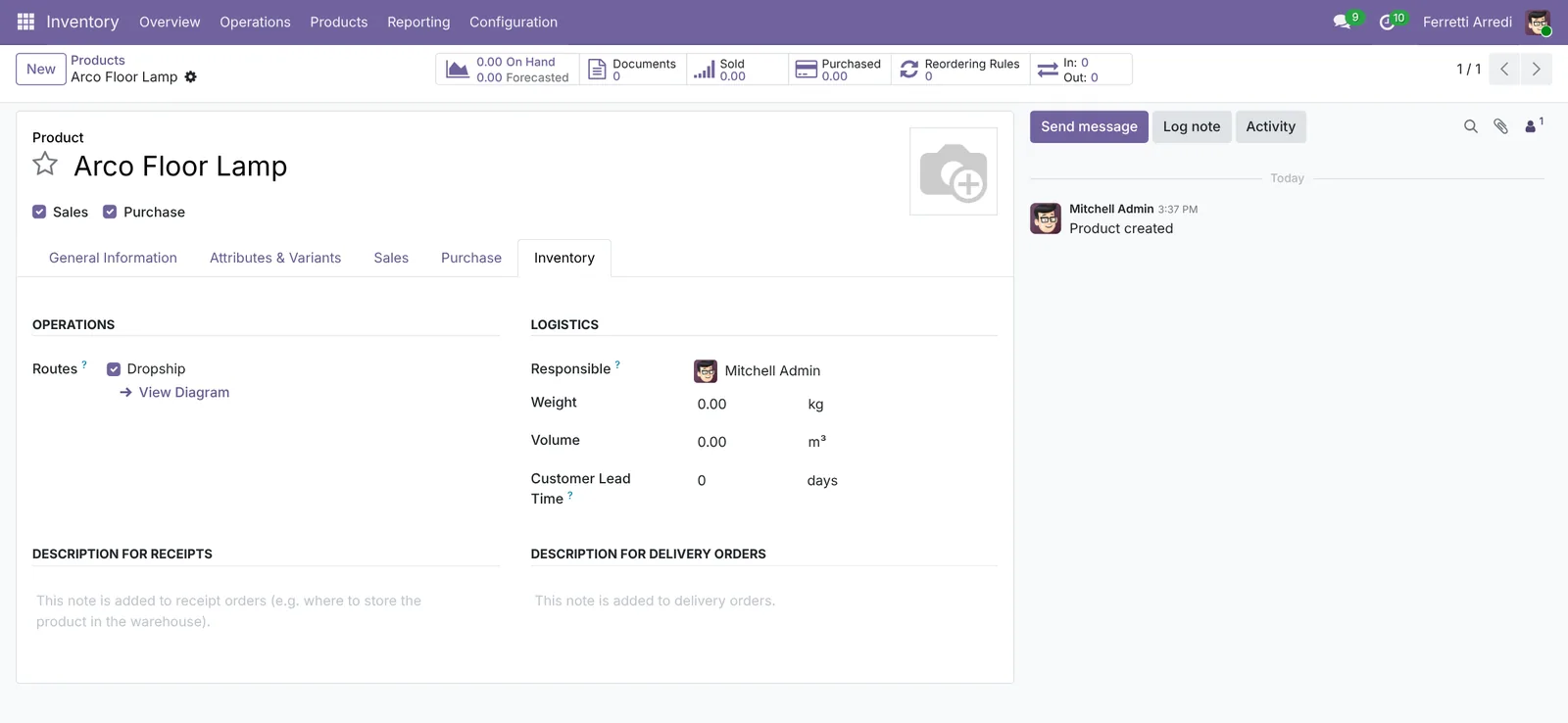 The vendor on the Purchase tab, the route on the Inventory tab.
3. Sell it
Open Sales → Orders → Quotations, press New, pick the customer (Azure Interior) and add 2 Arco Floor Lamps. Press Confirm. A Purchase button appears at the top: Odoo has written a request for quotation to Nordic Lamps.
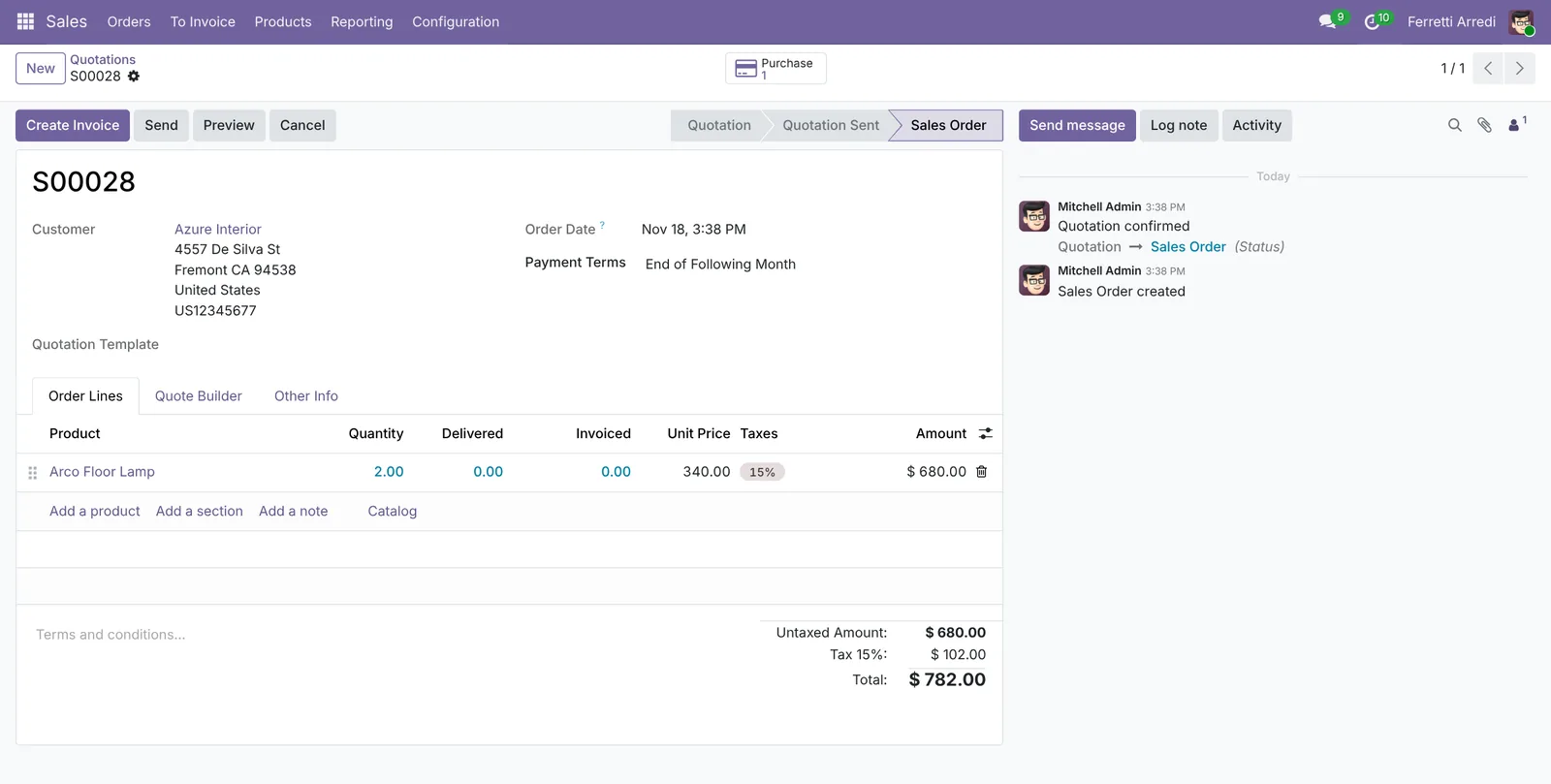 The sale is confirmed and the vendor order is already there.
4. Confirm the vendor order
Press the Purchase button. The request for quotation has the vendor, the price from the product and, under Dropship Address, your customer. Send it to the vendor if you need to, then press Confirm Order.
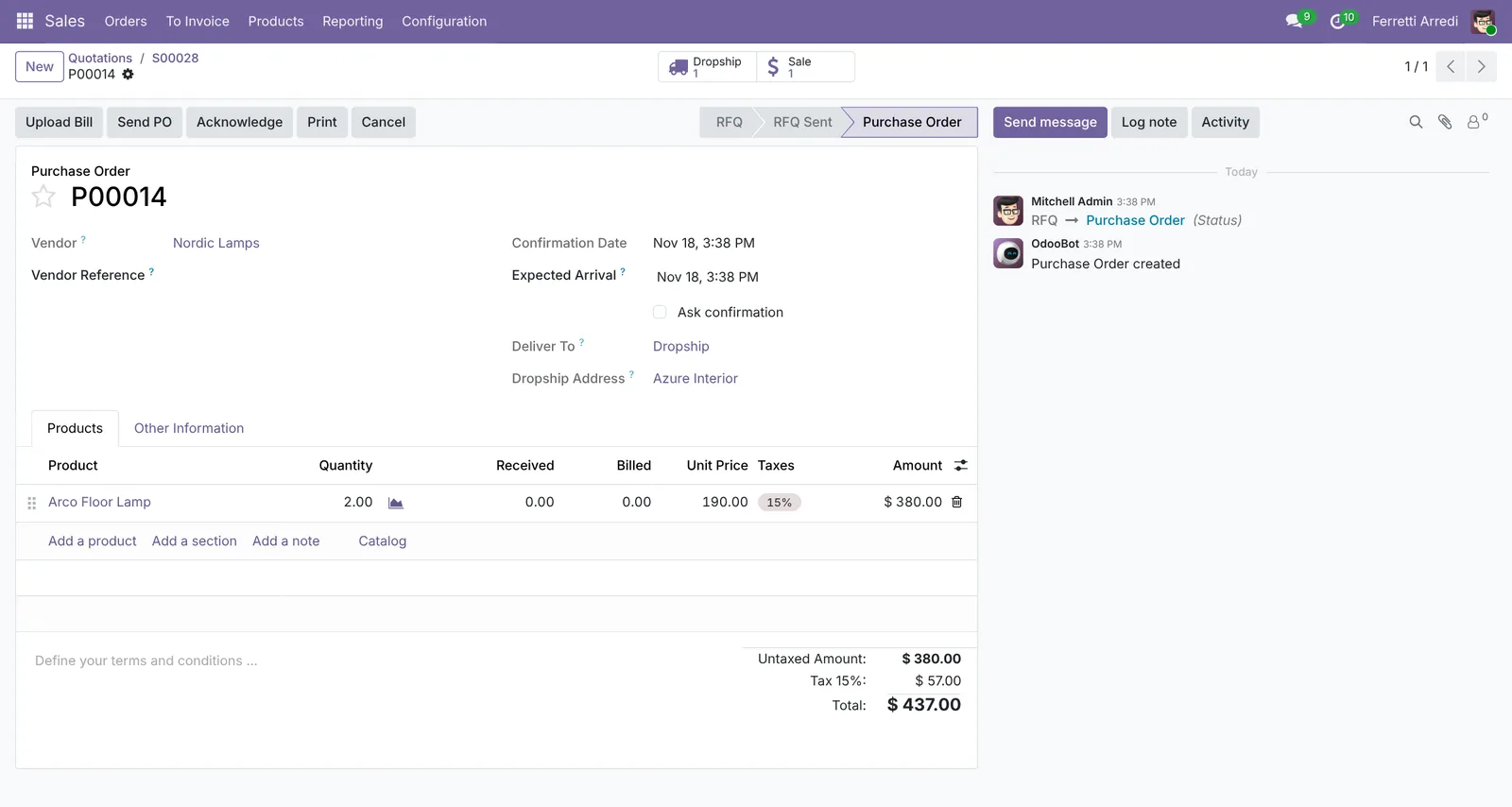 The vendor ships to the address in Dropship Address.
5. Validate the dropship
When the vendor tells you the goods have left, press the Dropship button on the purchase order and then Validate. The transfer goes from the vendor to the customer: your stock stays the same, and the sales order shows the lamps as delivered.
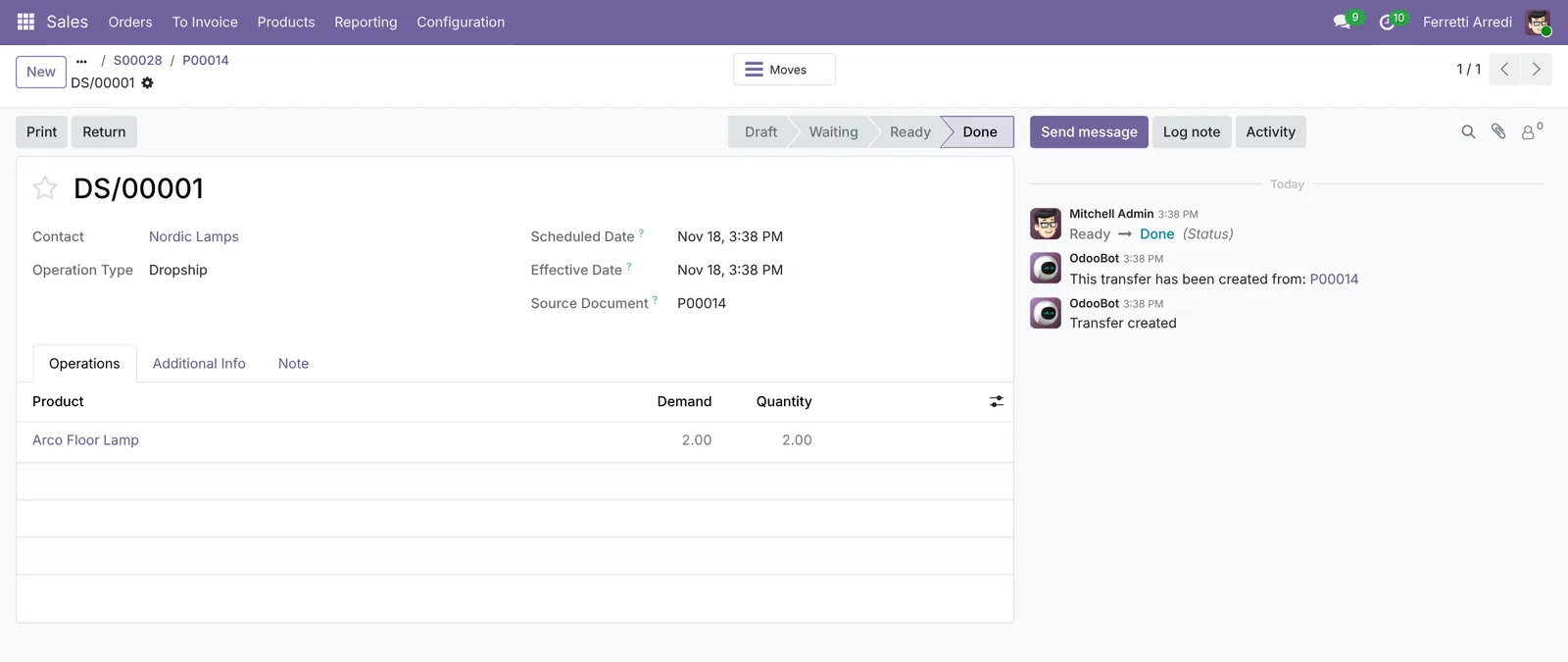 Delivered, without passing through your warehouse.
Common mistakes
- No vendor on the product. Without a vendor in the Purchase tab Odoo can’t write the purchase order, and the sale stays without it.
- Dropship ticked on a product you also stock. Every sale of it then goes to the vendor, even with units on your shelves. Tick it only on products you never stock.
- Validating before the vendor ships. The customer’s order looks delivered while the goods are still at the vendor.
- Promising the date without the vendor’s. The delivery date on the sale is yours; the vendor’s date is on the purchase order. Check they match.
Dropshipping with AI: ask your AI assistant through MCP
With the Hawklify MCP server, Claude, ChatGPT and other assistants work in your Odoo as you, with your permissions. With dropshipping the risk is in the gap between two orders: the vendor hasn’t confirmed, or confirms a later date than the one you promised, and nobody notices until the customer calls.
On the computer. Depending on how your organisation set up the server, the assistant makes the change straight away or first shows you a card to approve. Here Smart mode is on: it reads everything and asks once before it writes to anyone.
Three dropship orders are open. Two are at risk:
- Deco Addict, 2 Arco Floor Lamps from Nordic Lamps: the request went out 4 days ago and Nordic Lamps never confirmed. You promised delivery on Nov 21.
- Azure Interior, Velvet Sofa 3-Seat from Velluto Sofas: confirmed, but the vendor ships on Nov 30. You promised Nov 23: 7 days late.
Gemini Furniture's 4 Oak Side Tables are fine: Wood Corner ships on Nov 24, four days before your date.
Send Nordic Lamps a reminder, move Azure's date to Nov 30 and tell them?
Done.
- Nordic Lamps: Could you confirm the order and the ship date today? We promised Deco Addict delivery on November 21.
- Azure Interior: the delivery date is now Monday, Nov 30, and they have a message: the maker ships your sofa straight to you on November 30, a week later than we said. We are sorry for the wait.
Both messages are on the orders, so the team sees them too.
On the purchase order, in the browser. Here card mode is on: nothing changes until you approve the card.
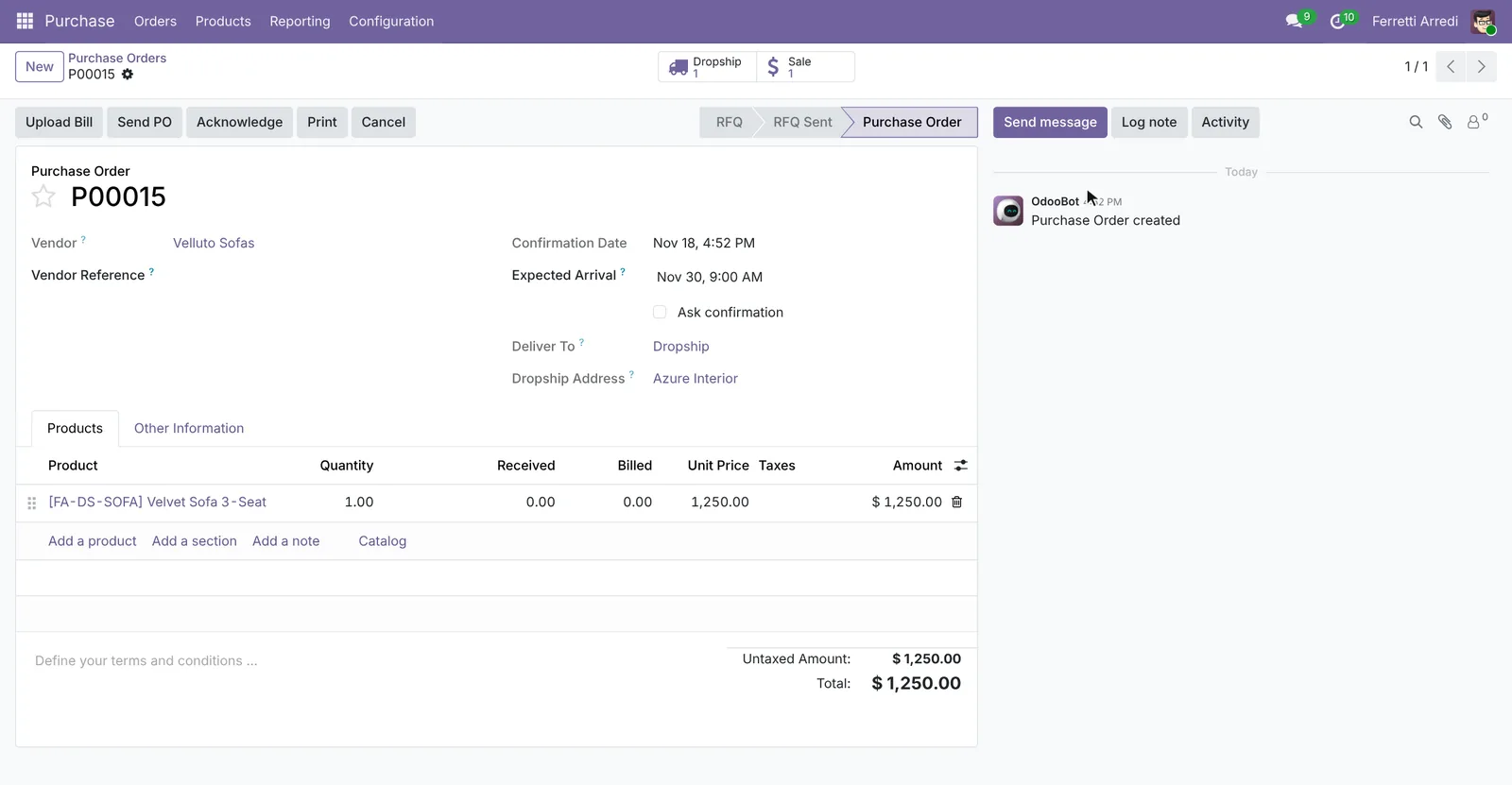
Yes. Divani Rossi sells the same sofa: $1,390, 4 days. Ordered today it ships by Nov 22, before the Nov 23 you promised Azure Interior.
It costs $140 more than Velluto ($1,250): your margin on the $2,190 sale goes from $940 to $800.
Cancel P00015 and order it from Divani Rossi, shipped to Azure Interior?
Approval needed in OdooCreate
Create a request for quotation to Divani Rossi for 1 Velvet Sofa 3-Seat at $1,390, shipped to Azure Interior for S00029.
purchase.order · 1 record
New request for quotation
| Field | Current | New |
|---|---|---|
| Vendor | Divani Rossi | |
| Dropship Address | Azure Interior | |
| Lines | 1 × Velvet Sofa 3-Seat, $1,390.00 | |
| Expected Arrival | Nov 22 |
Change applied in Odoo.
Organisation administrators can turn the approval cards off on the Members page.
Approval needed in OdooRun
Cancel P00015 to Velluto Sofas.
purchase.order · 1 record
P00015 · Velluto Sofas
Change applied in Odoo.
Organisation administrators can turn the approval cards off on the Members page.
Done. The sofa is now ordered from Divani Rossi, to arrive by Nov 22, and P00015 is cancelled. The new order is a request for quotation: send it from its Send RFQ button and confirm it when Divani Rossi replies.
Versions we tested
| Version | Result |
|---|---|
| Odoo 16 | Same steps. The Dropshipping setting is in Purchase → Configuration → Settings, not in Inventory, and the product shows the Buy route next to Dropship. |
| Odoo 17 | The setting is in Inventory, as in this guide. The product shows the Buy route next to Dropship. |
| Odoo 18 | Like 17. |
| Odoo 19 | As in this guide. The screenshots come from Odoo 19. |
| Odoo 20 | Same screens and buttons as 19. |
Frequently asked questions
Does a dropshipped product need stock in my warehouse?
No. The goods go from the vendor's warehouse to the customer, so your stock never moves. The dropship transfer goes from the Partners/Vendors location to Partners/Customers.
Can a product be in stock and dropshipped at the same time?
Yes. Leave the product without the Dropship route, turn on Multi-Step Routes in the Inventory settings, and pick Dropship in the Routes column of the sales order line when you want the vendor to ship it.
Who sends the invoice to the customer?
You do, as for any sale. The vendor bills you through the purchase order, and you invoice the customer from the sales order.
What if the vendor never confirms?
Odoo keeps the request for quotation open and nothing warns the salesperson. Check the open dropship orders every few days, or ask an AI assistant to do it, as in the example at the end.
Questa guida è disponibile anche in italiano: Dropshipping in Odoo: il fornitore spedisce al cliente
Related Odoo guides
 SalesSales orders in Odoo: from quotation to invoiceTake a sale through Odoo from start to finish: create the quotation, confirm the order, deliver the goods and post the invoice. Community and Enterprise.
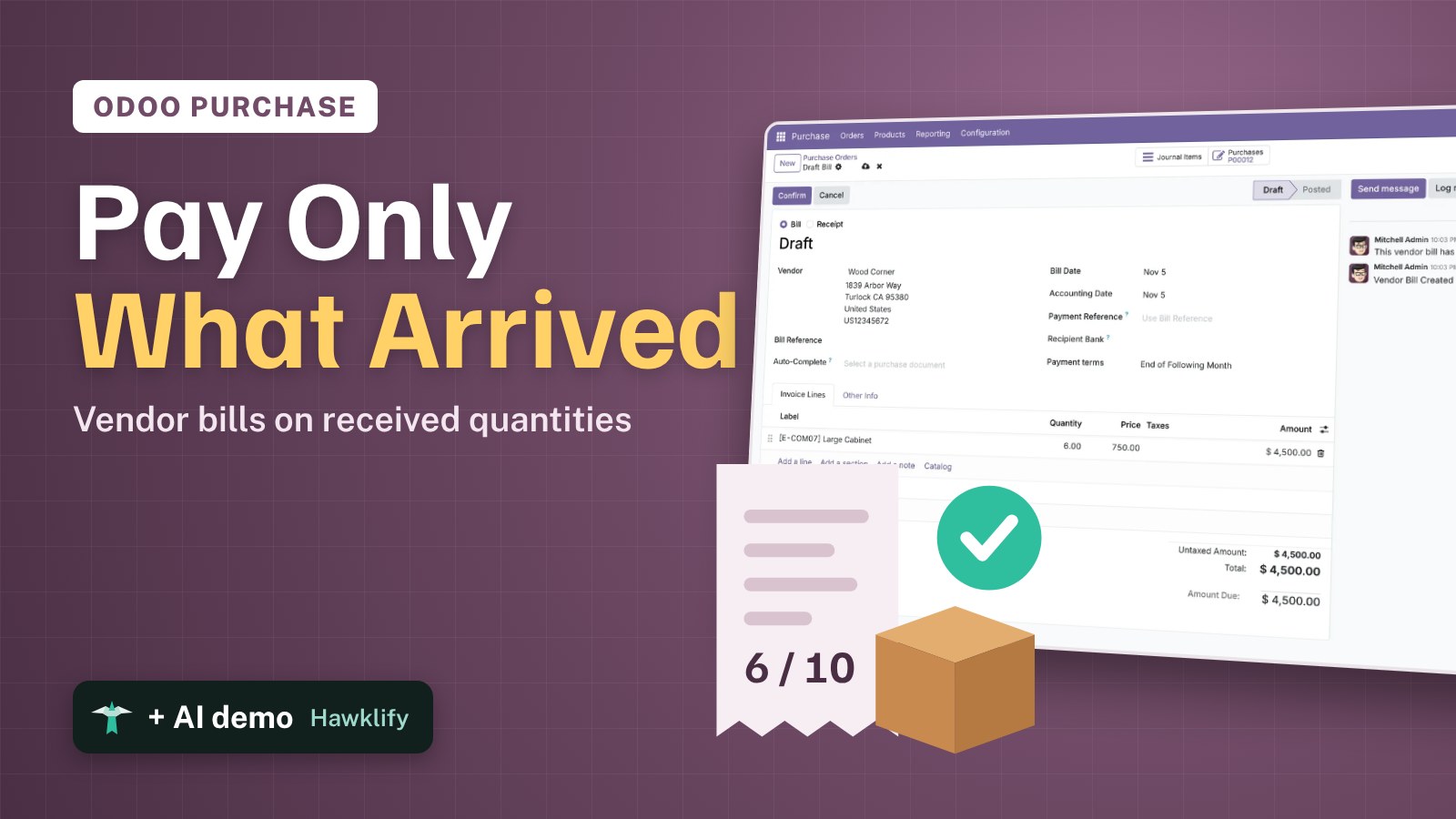 PurchaseVendor bills in Odoo: pay only what you receivedOrder from a vendor in Odoo, receive part of the goods, and bill exactly what arrived, with the control policy on received quantities. Community and Enterprise.
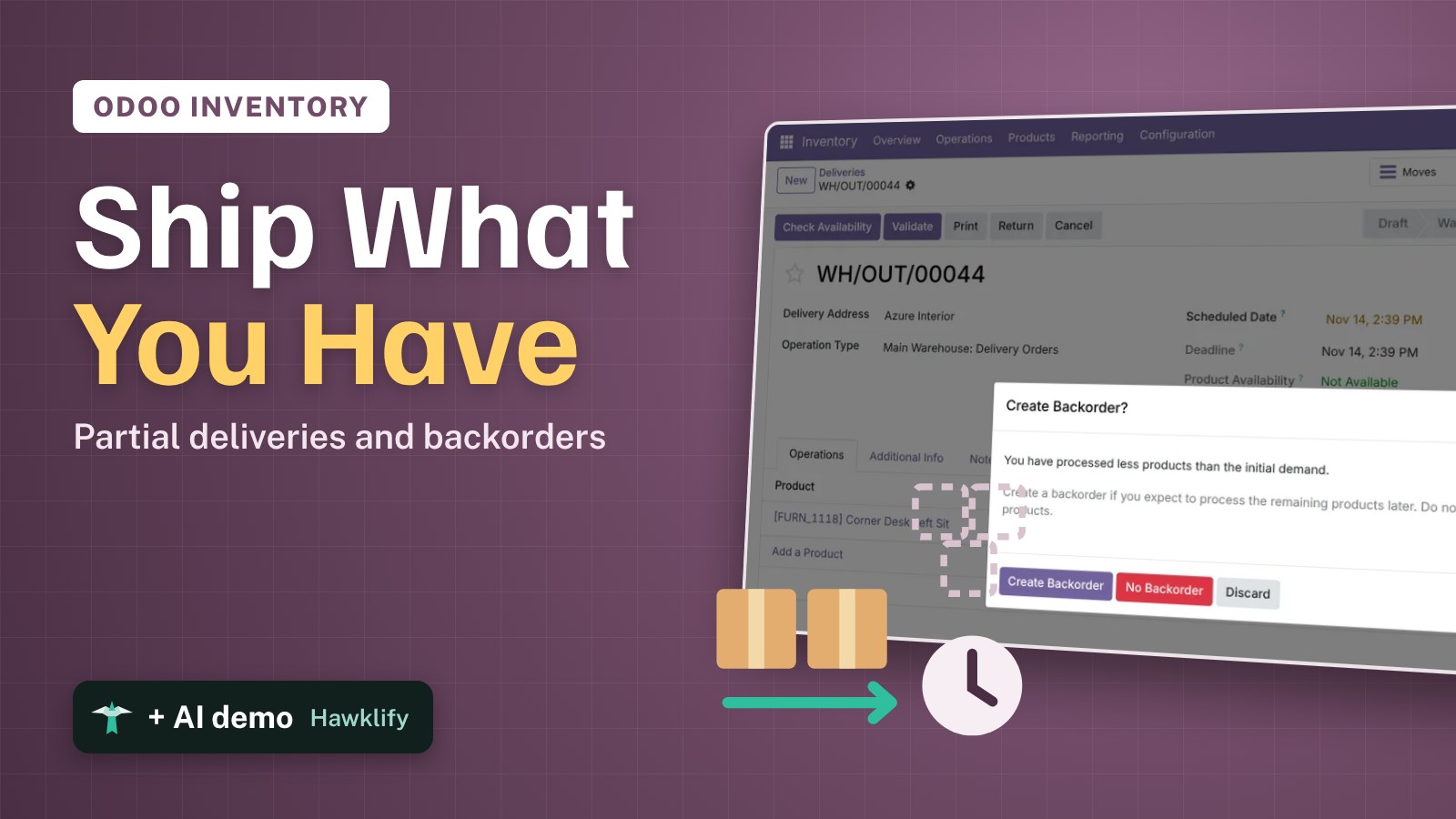 InventoryDeliveries and backorders in Odoo: ship what you haveShip part of an order in Odoo when the rest is not in stock: validate the partial delivery, keep a backorder, set a default per operation type. Community and Enterprise.