Landed costs in Odoo: freight and duties in product cost
Add freight, duties and customs to product cost in Odoo with landed costs: the setting, the costing method, the carrier's bill and the split. Community and Enterprise.
- Community and Enterprise
- 5 min read
- Odoo + AI tutorial
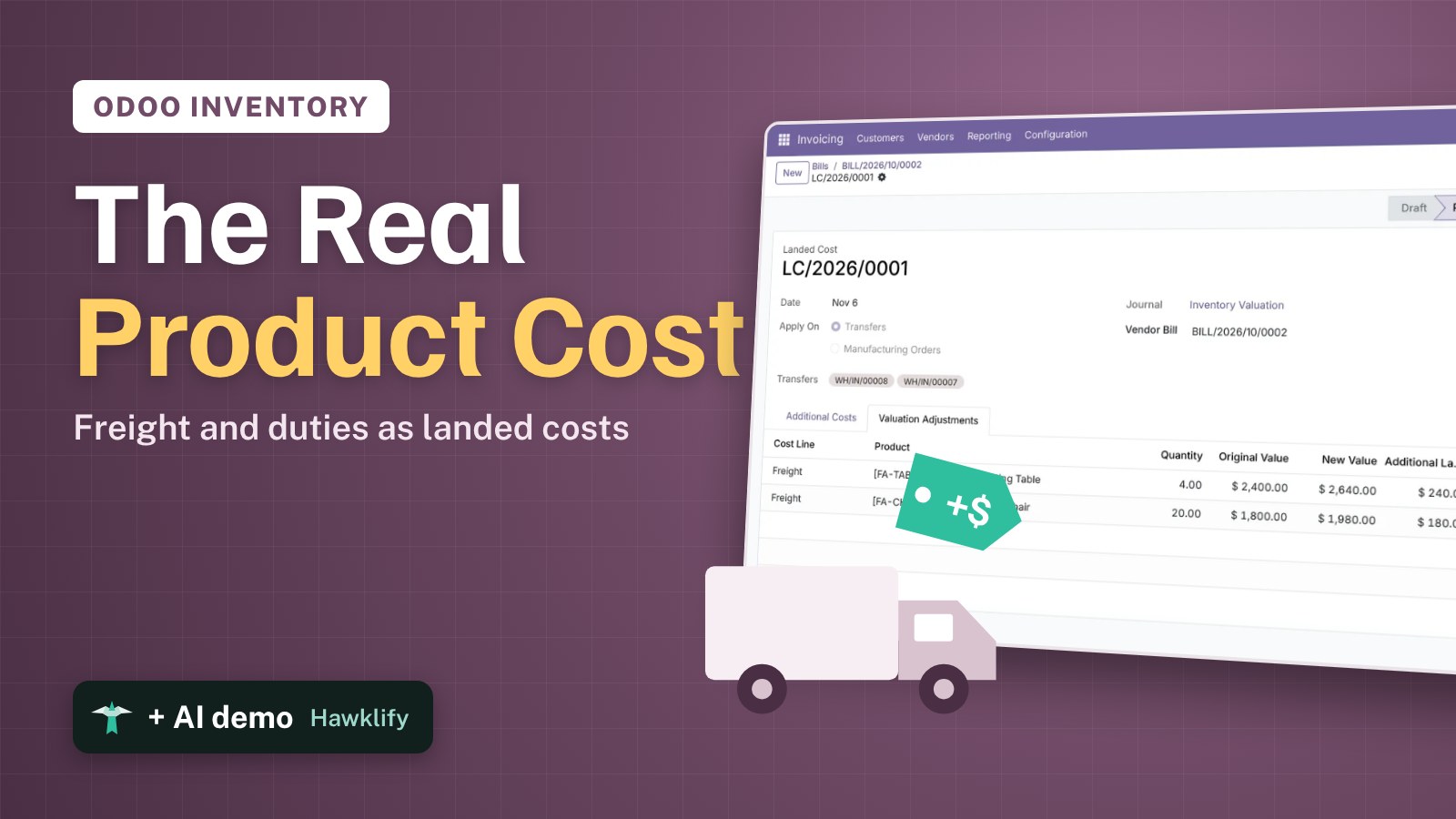
A chair bought at $90 doesn’t cost $90 once it’s in your warehouse. Someone paid the freight, maybe the duties and the customs broker. If those bills stay as plain expenses, every product looks cheaper than it is and your margins look better than they are. Landed costs add them to the value of the products they paid for. This guide turns the feature on, checks the costing method, creates the freight product, records the carrier’s bill and spreads it over the receipts.
It works the same in Community and Enterprise. The versions we tested are listed at the end.
This guide is also an AI tutorial. At the end, an AI assistant connected to Odoo spreads a carrier's bill over the receipts and products it names, and adds a customs charge sent from the phone to the right receipt.See it in action ↓Before you start
- The Inventory, Purchase and Invoicing (or Accounting) apps installed.
- Products received in stock, here 20 Oak Office Chairs at $90 and 4 Oak Meeting Tables at $600, on two receipts.
- An Odoo user with the Inventory / Administrator and Invoicing / Billing access rights.
1. Turn on landed costs
Open Inventory → Configuration → Settings and search for Landed. Tick Landed Costs if it’s off, and save. Odoo installs the module.
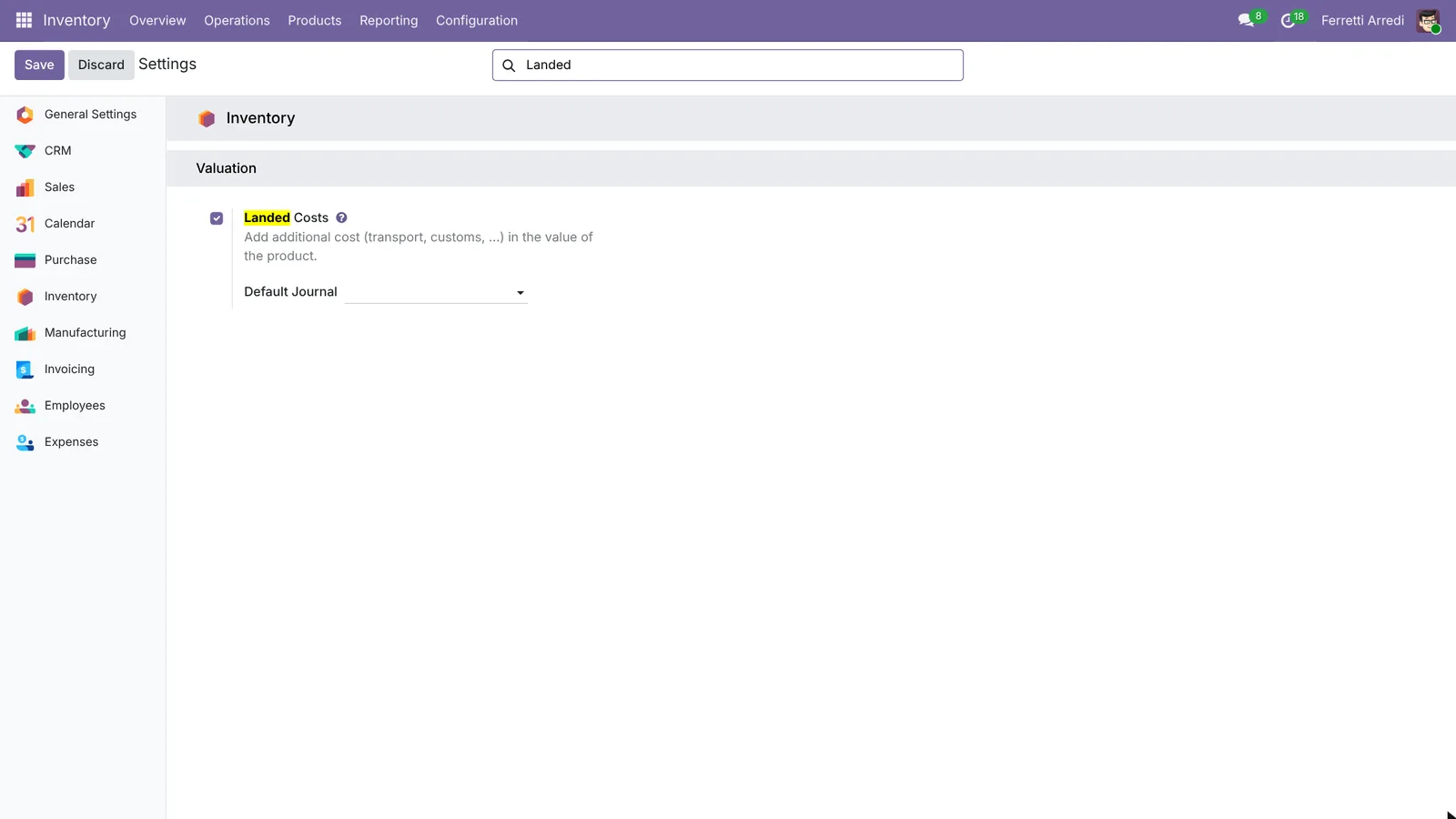 Landed Costs, in the Valuation section.
2. Check the costing method
Landed costs change the value of products valued at Average Cost (AVCO) or First In First Out (FIFO). Open Inventory → Configuration → Product Categories and open the category of your products, here Imported furniture. Its Costing Method is Average Cost (AVCO).
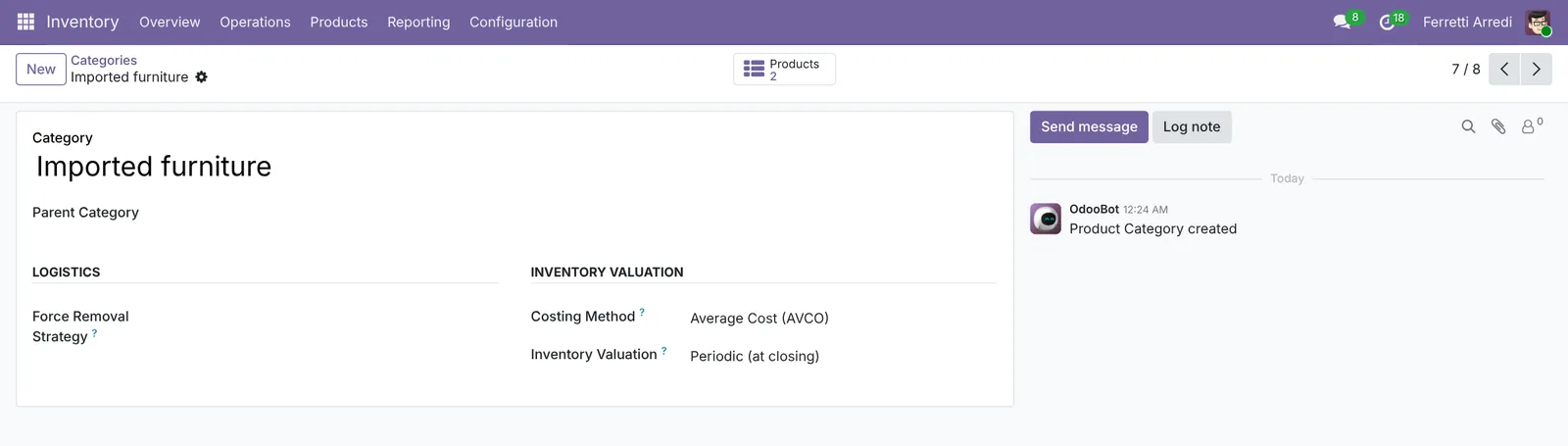 Average Cost: the landed cost goes into the product cost.
With Standard Price, the cost on the product would not move.
3. Create the freight product
Open Inventory → Products → Products and press New.
- Name: Freight. Product type: Service.
- In the Purchase tab, tick Is a Landed Cost.
- Default Split Method: By Current Cost, so the expensive products take a bigger share.
- Save.
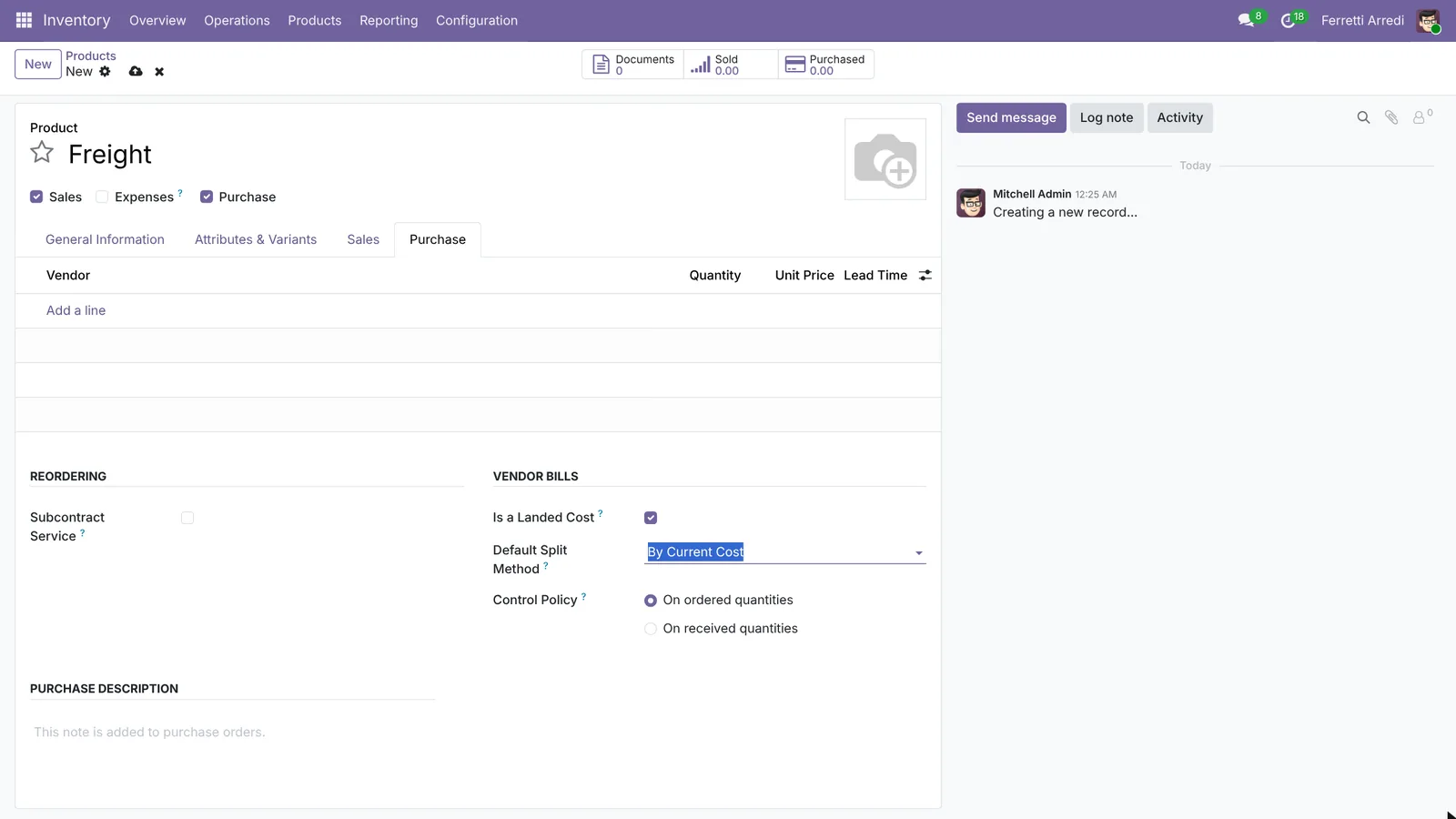 A service that Odoo knows is a landed cost.
4. Record the carrier’s bill
Open Invoicing → Vendors → Bills and press New. Vendor: the carrier, Fast Freight. Add a line with the Freight product at $420. The Landed Costs column of the line is ticked by itself (in Odoo 19 and 20, show it from the column picker at the right of the lines).
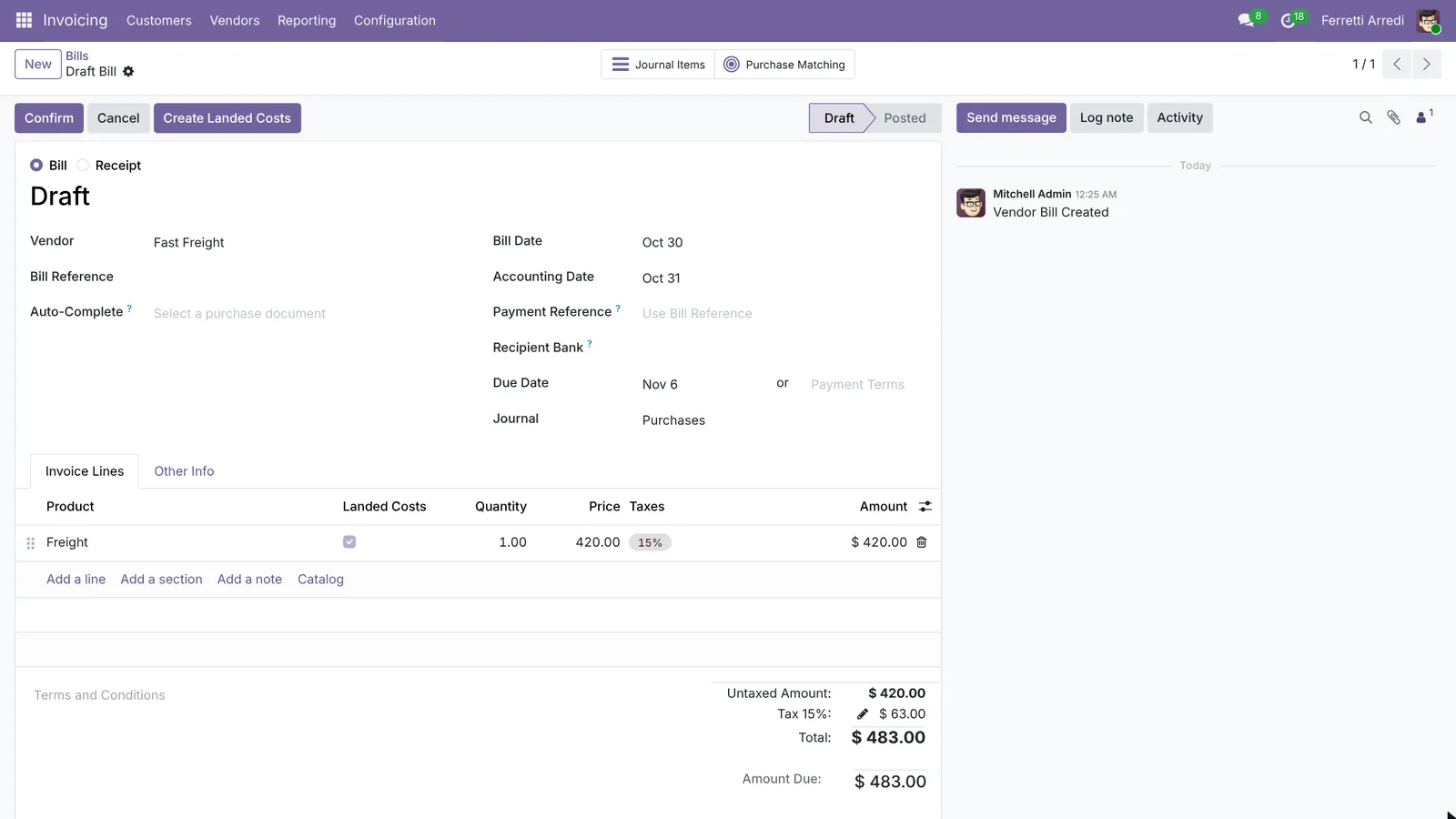 The line is a landed cost: the Create Landed Costs button appears.
Press Confirm, then Create Landed Costs.
5. Split it over the receipts
Odoo opens a new landed cost with the bill’s line.
- In Transfers, pick the receipts the freight paid for: here the two receipts of the chairs and the tables.
- Press Compute. The Valuation Adjustments tab shows each product’s share.
- Press Validate.
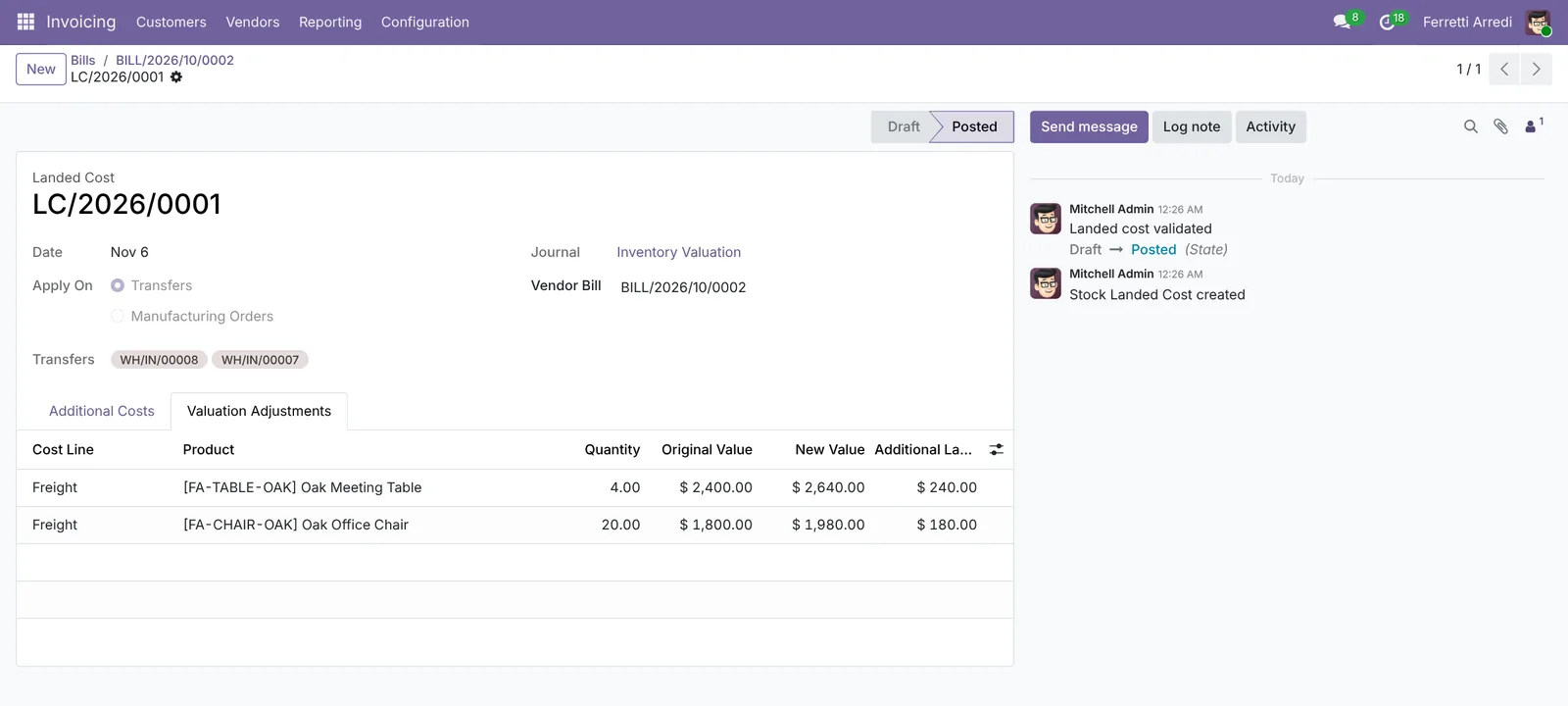 $420 split by value: $180 on the chairs, $240 on the tables.
The chairs are now worth $1,980 instead of $1,800, so each one costs $99. Each table costs $660 instead of $600.
Common mistakes
- A category on Standard Price. The landed cost changes the stock value but not the product cost. Use Average Cost or FIFO.
- Freight booked as a plain expense. Without Is a Landed Cost on the product, the bill has no Create Landed Costs button.
- The wrong receipts. Pick only the receipts the bill paid for, or the cost lands on the wrong products.
- Waiting too long. What was already sold doesn’t get the cost back in stock value: add landed costs when the bill arrives.
Landed costs with AI: ask your AI assistant through MCP
With the Hawklify MCP server, Claude, ChatGPT and other assistants work in your Odoo as you, with your permissions. A carrier’s bill often arrives weeks after the goods, and its line just says Freight October 28, Wood Corner orders P00012 and P00013. Finding those orders, their receipts, and checking that no landed cost uses the bill yet is detective work.
On the computer. Depending on how your organisation set up the server, the assistant makes the change straight away or first shows you a card to approve. Here Smart mode is on, and the assistant still asks once before validating, because that changes your stock value.
Bill FF-2026-1043 from Fast Freight, $420.00, says: Freight October 28, Wood Corner orders P00012 and P00013.
P00012: 20 Oak Office Chairs at $90.00, received inWH/IN/00007.P00013: 4 Oak Meeting Tables at $600.00, received inWH/IN/00008.
No landed cost uses this bill yet. I created LC/2026/0001 on both receipts. Computing and validating it changes the value of your stock. Shall I go on?
Validated. The $420.00 is split by value:
- Oak Office Chair: +$180.00, cost $90.00 → $99.00.
- Oak Meeting Table: +$240.00, cost $600.00 → $660.00.
On the phone. A customs charge can be sent from wherever it arrives, to a chat assistant connected to Odoo through Hawklify:
Hawklify
Your Odoo, from the chat you already use
Send a message, a photo or a voice note: the assistant reads and works in Odoo through Hawklify, with your permissions.
Customs for the Wood Corner tables just came in: $310, invoice DOG-5521. Put it in the cost.
DOG-5521, $310.00, mentions the container of October 28. That's WH/IN/00008, the 4 Oak Meeting Tables, already carrying $240.00 of freight.
Add it as a landed cost on that receipt? Each table goes from $660.00 to $737.50.
Yes, add it
Done: LC/2026/0002, $310.00 on WH/IN/00008. The Oak Meeting Table now costs $737.50: price, freight and customs.
Versions we tested
| Version | Result |
|---|---|
| Odoo 16 | Same steps. The product type is a dropdown (Service), and the Landed Costs column shows on the bill lines. The product cost changes with Average Cost; with FIFO only the stock value does. |
| Odoo 17 | Like 16. |
| Odoo 18 | Same steps. The product type is a choice of buttons. |
| Odoo 19 | As in this guide: show the Product and Landed Costs columns of the bill lines from the column picker. The screenshots come from Odoo 19. |
| Odoo 20 | Like 19. The Costing Method of the category is in an Accounting tab that only accounting users see; the landed cost works the same. |
Frequently asked questions
Why doesn't the product cost change after I validate the landed cost?
The product's category must use Average Cost (AVCO) or First In First Out (FIFO). With Standard Price, the landed cost changes the stock value but the cost on the product stays as you typed it.
Which split method should I choose?
By Current Cost gives the expensive products a bigger share, which fits freight and insurance. By Quantity splits per unit, Equal splits per line, and By Weight or By Volume need the weight or volume on the products.
Can I add a landed cost after the products are sold?
Yes, but only the part still in stock changes value. The share of what was already sold goes to the cost of goods sold. Add landed costs as soon as the bill arrives.
Can one landed cost cover several receipts?
Yes. Pick every receipt the bill paid for in the Transfers field: the cost is split over all their products.
Questa guida è disponibile anche in italiano: Costi sbarcati Odoo: trasporto e dazi nel costo prodotto
Related Odoo guides
 PurchaseVendor bills in Odoo: pay only what you receivedOrder from a vendor in Odoo, receive part of the goods, and bill exactly what arrived, with the control policy on received quantities. Community and Enterprise.
 InventoryReordering rules in Odoo: restock before you run outSet min/max reordering rules in Odoo so it orders from your vendor before stock runs out, then use the Replenishment list to order now. Community and Enterprise.
 InventoryWarehouse setup in Odoo: locations and multi-step routesTurn on storage locations and multi-step routes in Odoo, then receive goods in 2 steps and ship them in 3: pick, pack and deliver. Community and Enterprise.