Bills of materials and manufacturing orders in Odoo
Make products in Odoo: create a bill of materials, plan a manufacturing order, check the components, produce and see the stock moves. Community and Enterprise.
- Community and Enterprise
- 4 min read
- Odoo + AI tutorial
A desk is a top, four legs and eight bolts. Odoo needs to know that before it can build one. That recipe is the bill of materials. A manufacturing order then says “make 5 of them”: it reserves the components, and when you produce, it takes them out of stock and puts the finished desks in. This guide creates the bill of materials, plans a manufacturing order, checks the components, produces, and looks at the stock moves it made.
It works the same in Community and Enterprise. The versions we tested are listed at the end.
This guide is also an AI tutorial. At the end, an AI assistant connected to Odoo finds the orders that can't start and plans them on the arrivals, and shows what a price rise on one component does to a product's margin.See it in action ↓Before you start
- The Manufacturing app installed (it installs Inventory too).
- The finished product (Oak Desk) and its components (Oak Desk Top, Steel Desk Leg, M8 Bolt), tracked in stock, with the components on hand.
- An Odoo user with the Manufacturing / Administrator access right.
1. Create the bill of materials
Open Manufacturing → Products → Bills of Materials and press New.
- Product: Oak Desk. Quantity stays 1: the lines below are for one desk.
- BoM Type: Manufacture this product.
- In the Components tab, Add a line for each part: Oak Desk Top 1, Steel Desk Leg 4, M8 Bolt 8.
- Save.
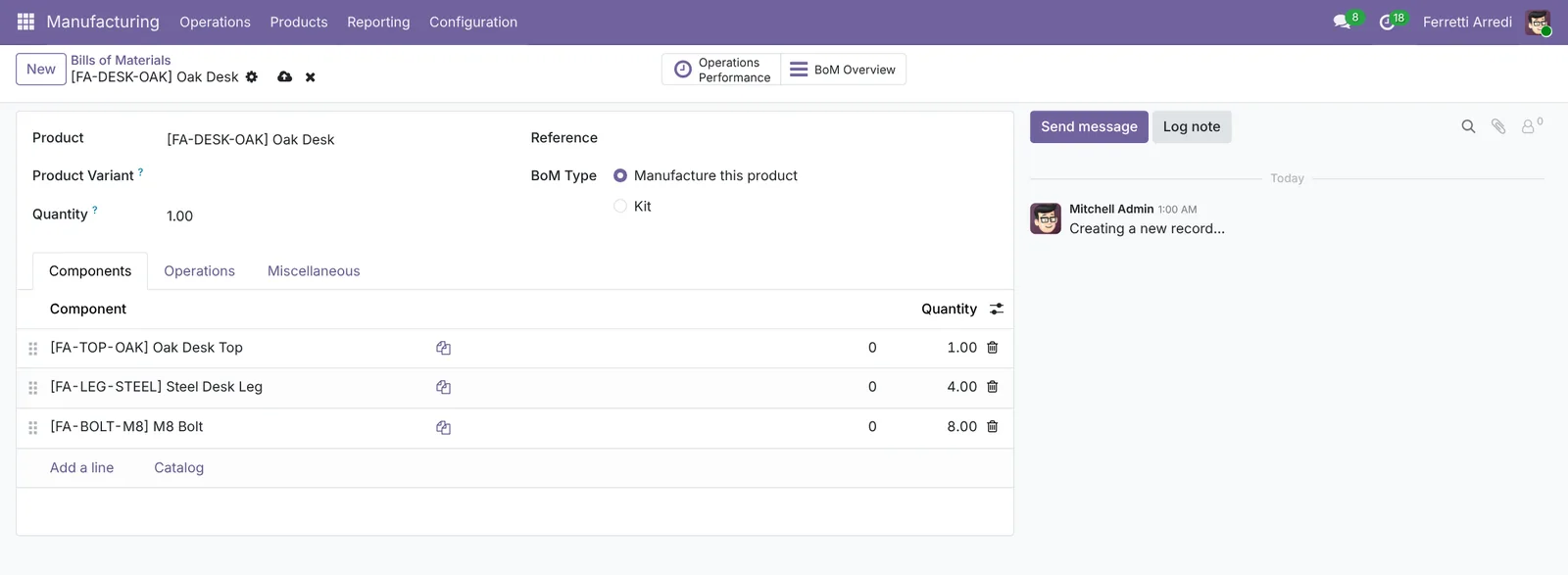 One desk: one top, four legs, eight bolts.
2. Plan a manufacturing order
Open Manufacturing → Operations → Manufacturing Orders and press New. Choose the Product: Odoo fills in the bill of materials. Set the Quantity to 5. The Components tab now lists what 5 desks need: 5 tops, 20 legs, 40 bolts.
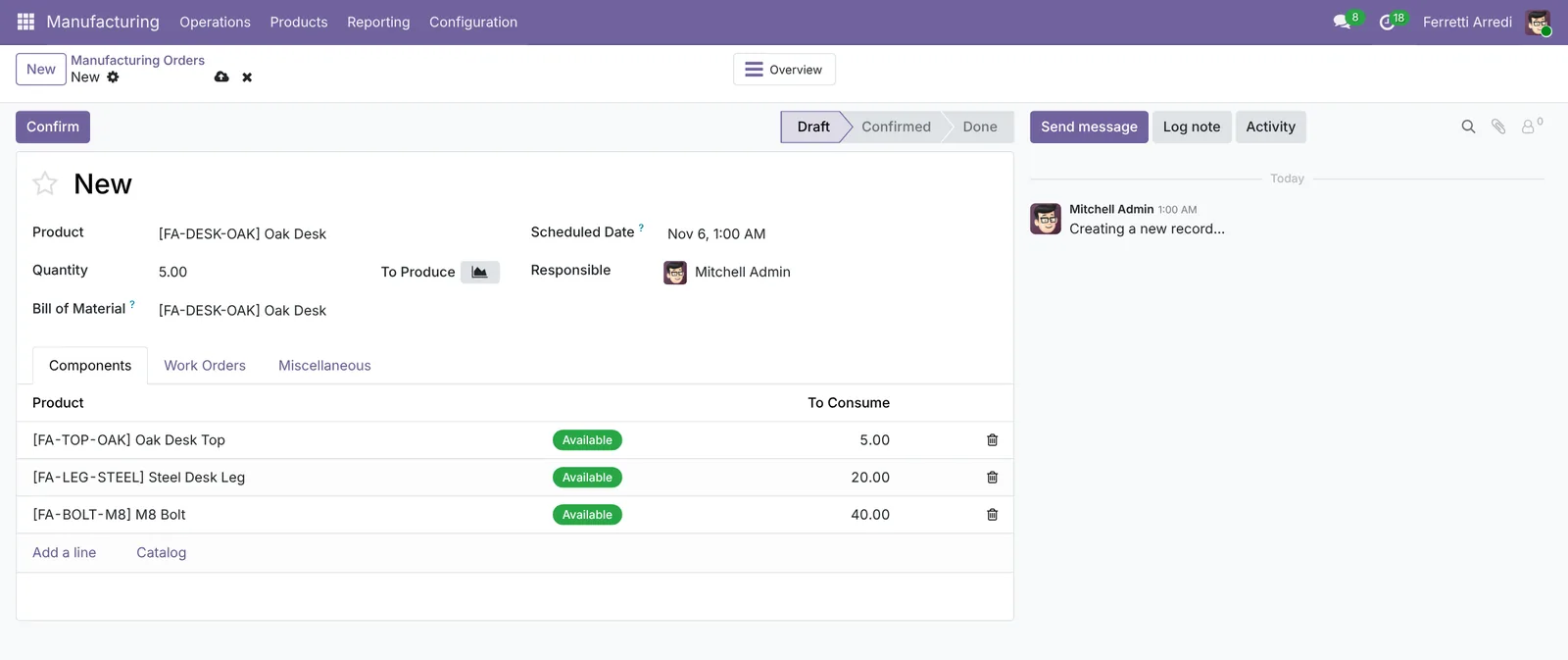 The quantities follow the bill of materials.
Press Confirm. The order moves to Confirmed, and Odoo reserves the components.
3. Check the components
The Component Status field says whether everything is there: Available in green, Not Available in red, or the date the missing part is expected. Each line in Components has its own status.
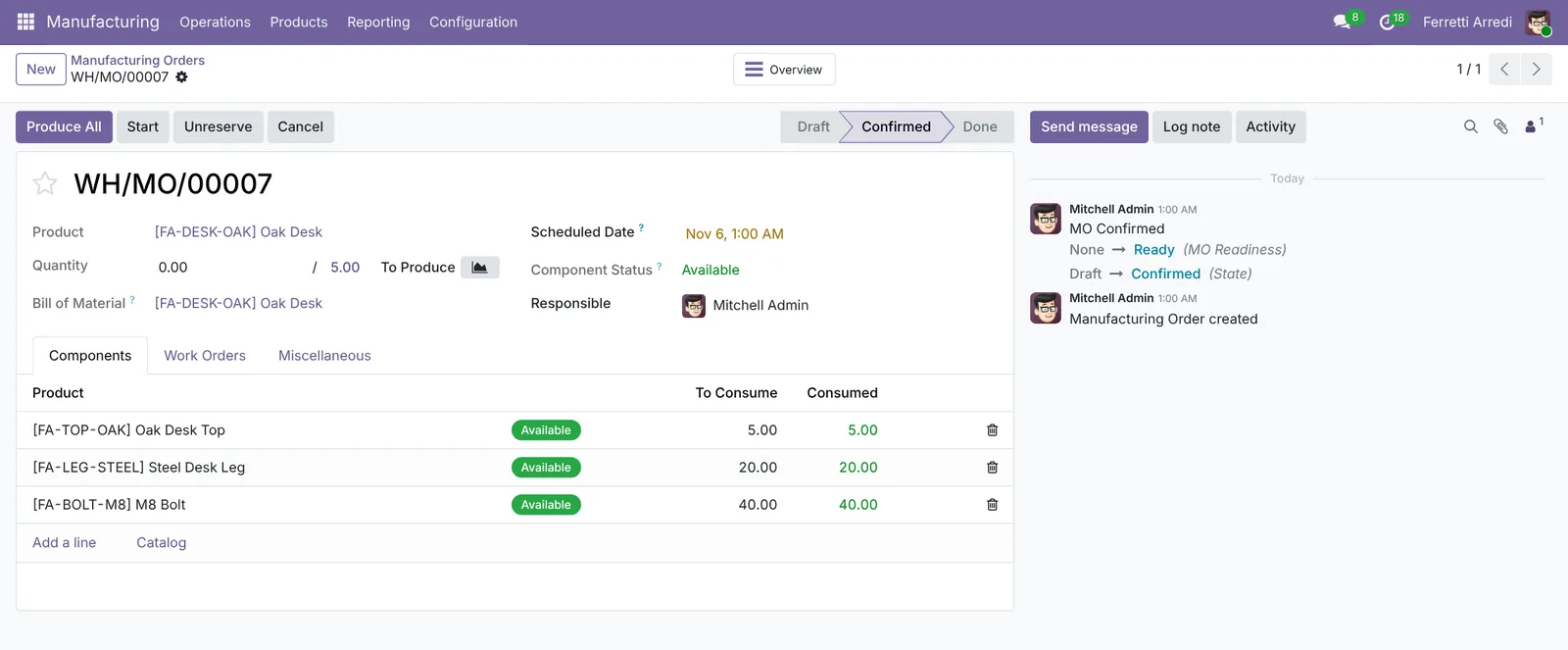 All three components are available: the order can start.
If a component arrives later, press Check availability to reserve it once it is in stock.
4. Produce
When the desks are built, press Produce All. Odoo consumes the components and puts 5 desks in stock, and the order moves to Done.
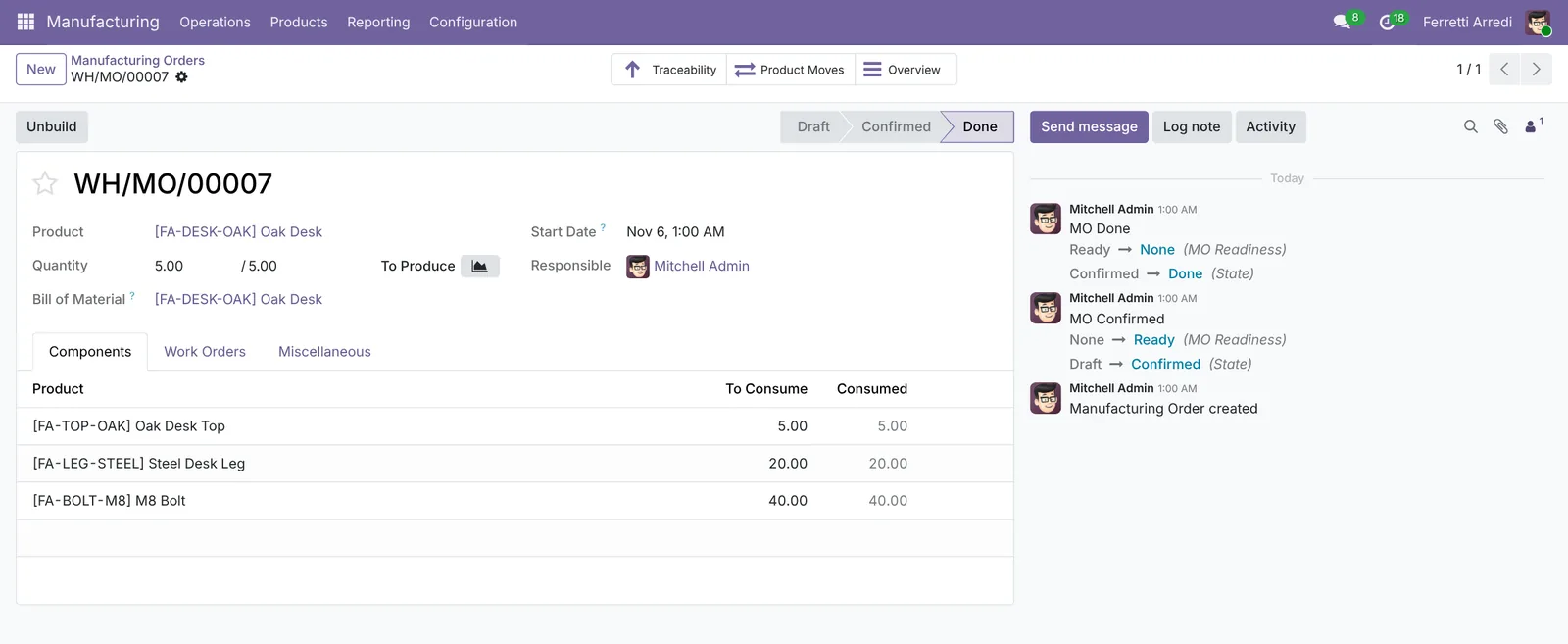 Done: the components are consumed and the desks are in stock.
5. See the stock moves
Press Product Moves at the top of the order. Every move is listed: the desks from Production into WH/Stock, and the components from WH/Stock into Production.
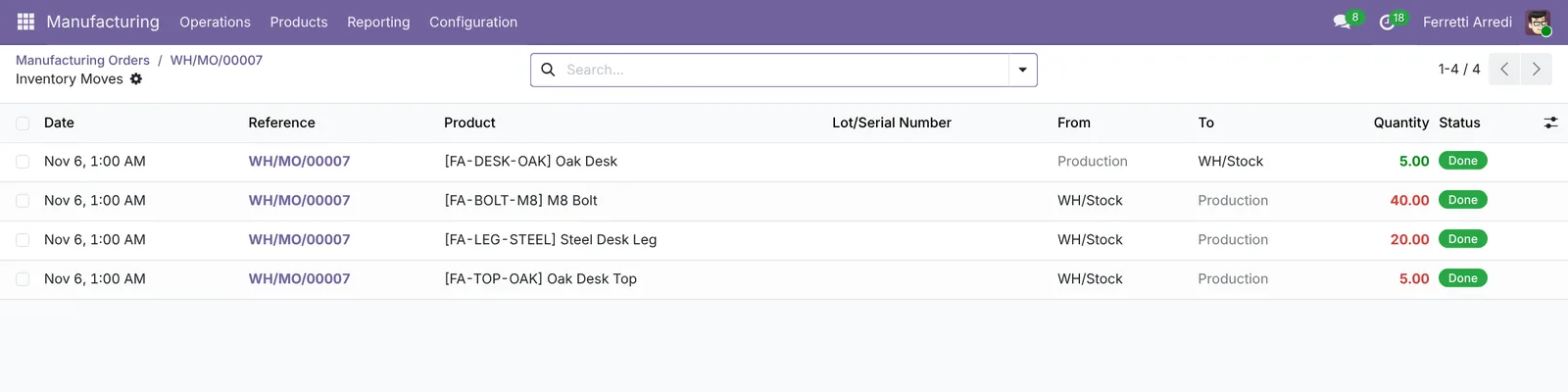 One move in for the product, one out for each component.
Common mistakes
- A bill of materials for the wrong quantity. If the BoM Quantity is 10, the component lines are for 10 desks. Keep it at 1 unless you always make batches.
- Components not tracked in stock. Odoo can’t reserve a product it doesn’t count. Make the components storable.
- Confirming without looking at the Component Status. A red status means the order can’t start: buy or receive the part first.
- Kit instead of Manufacture this product. A kit is never manufactured, so no manufacturing order is created.
Bills of materials and manufacturing orders with AI: ask your AI assistant through MCP
With the Hawklify MCP server, Claude, ChatGPT and other assistants work in your Odoo as you, with your permissions. The Component Status says which orders are blocked. Working out what each one misses, whether it is already ordered, and when the plan can really start means opening every order and every purchase.
On the computer. Depending on how your organisation set up the server, the assistant makes the change straight away or first shows you a card to approve. Here card mode is on: the card shows the old and the new start date of each order.
Three orders can't start:
- WH/MO/00007, 10 Oak Desks, starts November 9: 28 steel legs missing.
- WH/MO/00008, 4 Walnut Bookcases, starts November 10: 12 shelf panels missing, and nothing is ordered.
- WH/MO/00009, 6 Oak Desks, starts November 11: 24 steel legs missing.
On the way: P00012 from Lumber Inc, 60 steel legs, arriving November 12. That covers both desk orders, but only after their start dates.
Want me to move the two desk orders to November 13?
Approval needed in OdooUpdate
Move the start of WH/MO/00007 and WH/MO/00009 (Oak Desk) to November 13, the day after the 60 steel legs of P00012 arrive.
mrp.production · 2 records
WH/MO/00007
| Field | Current | New |
|---|---|---|
| Start | Nov 13, 7:00 |
WH/MO/00009
| Field | Current | New |
|---|---|---|
| Start | Nov 13, 7:00 |
Change applied in Odoo.
Organisation administrators can turn the approval cards off on the Members page.
Yes: WH/MO/00007 and WH/MO/00009 now start on November 13, the day after the legs arrive. WH/MO/00008 still needs 12 Walnut Shelf Panels: order them and it can start too.
Next to the bill of materials. In a side panel of the browser, the assistant starts from the bill of materials you have open, and adds what it doesn’t show: costs, prices and who buys at which price.
Cost of one Oak Desk today: top $142.00, 4 legs at $21.50, 8 bolts at $0.40: $231.20. With legs +12%: $241.52.
You sell it at $345.00: margin from 33.0% to 30.0%. But Azure Interior and Gemini Furniture buy it at $310.00 with their pricelist: their margin drops to 22.1%, under your 25% floor.
Raise the Oak Desk to $359.00 from December 1, so the list price is back near 33%?
Done: the Oak Desk sells at $359.00 from December 1. The dealers' pricelist is a fixed $310.00, so it doesn't move: raise it to $323.00 to keep them at 25%. Want me to?
Versions we tested
| Version | Result |
|---|---|
| Odoo 16 | Same steps. To produce, press Mark as Done, then Apply in the Immediate Production dialog. The components tab also shows a Reserved column. |
| Odoo 17 | As in this guide: Produce All finishes the order. |
| Odoo 18 | Like 17. |
| Odoo 19 | As in this guide. The screenshots come from Odoo 19. |
| Odoo 20 | The button is Produce instead of Produce All, and the Manufacture route is no longer picked on the product. |
Frequently asked questions
What is the difference between Manufacture this product and Kit?
Manufacture this product makes a real product in stock through a manufacturing order. A Kit is never produced: when you sell or deliver it, Odoo takes the components out of stock instead.
Why is the Component Status Not Available?
There is not enough of at least one component in stock for the quantity to produce. Open the Components tab to see which one, receive or buy it, then check availability again.
Can I produce only part of the quantity?
Yes. Set the quantity you made in the Quantity field before producing, then confirm: Odoo asks whether to create a backorder for the rest.
Do I need work orders?
No. Work orders come from the Operations tab of the bill of materials and need the Work Orders setting. Without them, a manufacturing order just consumes the components and makes the product.
Questa guida è disponibile anche in italiano: Distinta base e ordini di produzione in Odoo
Related Odoo guides
 InventoryReordering rules in Odoo: restock before you run outSet min/max reordering rules in Odoo so it orders from your vendor before stock runs out, then use the Replenishment list to order now. Community and Enterprise.
 InventoryLots and serial numbers in Odoo: trace every productTrack products by lot or serial number in Odoo: record the lot at reception, ship it, and find every customer who got it in seconds. Community and Enterprise.
 ManufacturingMaintenance in Odoo: equipment, requests, preventive plansSet up maintenance in Odoo: register a machine, handle a breakdown from request to repair, and plan preventive checks that repeat by themselves. Community and Enterprise.