Email marketing in Odoo: newsletters that get read
Send newsletters with Odoo Email Marketing: a mailing list, contacts pasted in one go, a mailing from a layout, a test email, and who opened and clicked.
- Community and Enterprise
- 4 min read
- Odoo + AI tutorial
A newsletter only works if it reaches the right people and you can see what they did with it. Odoo Email Marketing keeps the mailing lists, writes the mailing from a ready layout, and shows who opened and clicked. This guide makes a list of showroom customers, pastes their addresses in one go, writes a mailing, sends a test and reads the results of the last newsletter.
It works the same in Community and Enterprise. The versions we tested are listed at the end.
This guide is also an AI tutorial. At the end, an AI assistant connected to Odoo finds the customers who buy the same thing every winter but haven't ordered yet, puts them on a list with a draft mailing, and plans calls for the people who clicked but never ordered.See it in action ↓Before you start
- The Email Marketing app installed.
- An outgoing mail server. Odoo Online has one; on your own server set it in Settings → Technical → Email → Outgoing Mail Servers (with developer mode on).
1. Create a list and import the contacts
Open Email Marketing → Mailing Lists, press New, name the list Showroom customers and save. On the list press Import Contacts and paste the addresses in Contact List, one per line, like "Deco Addict" <[email protected]>. Press Import.
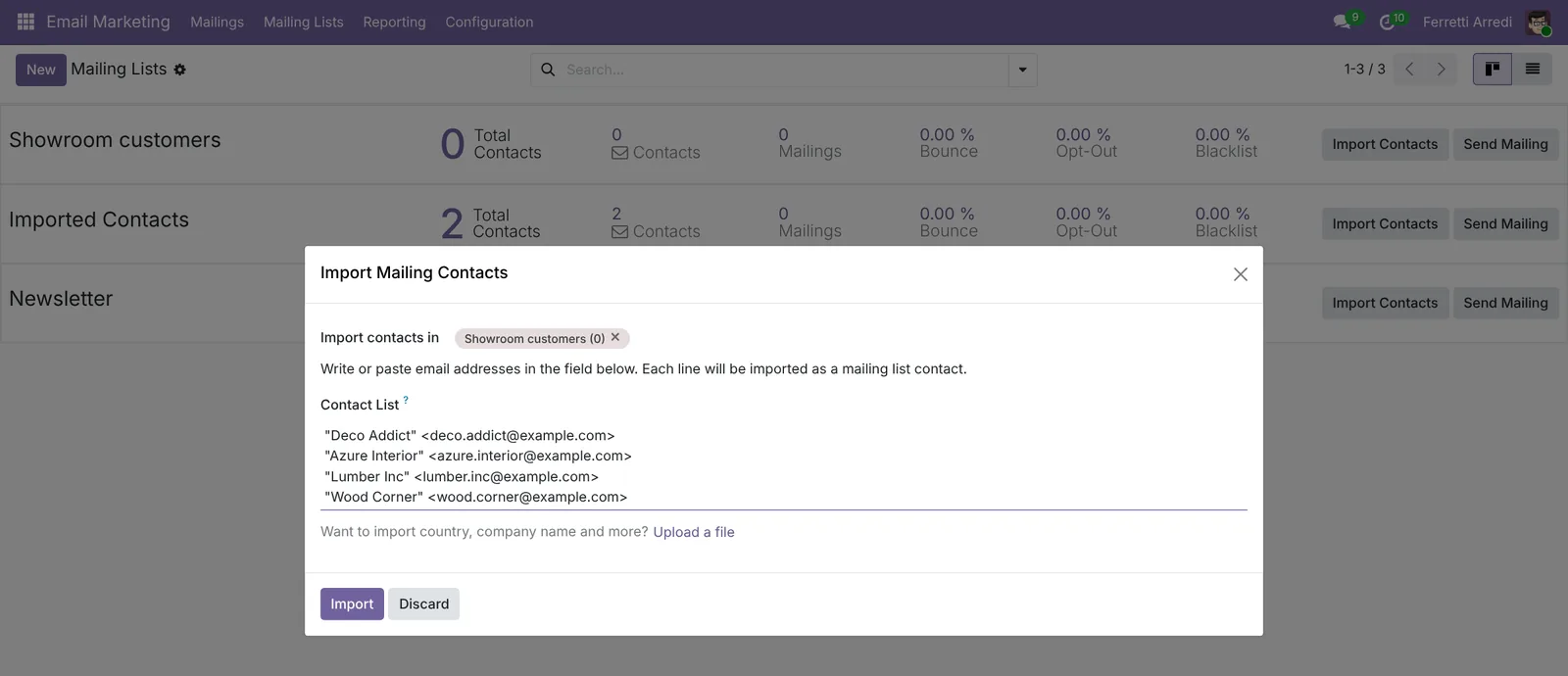 Paste from a spreadsheet or an email: one line per contact.
2. Check the list
Back in Mailing Lists, each list shows its contacts, the mailings sent to it and its bounce, opt-out and blacklist rates. Showroom customers has its 4 contacts.
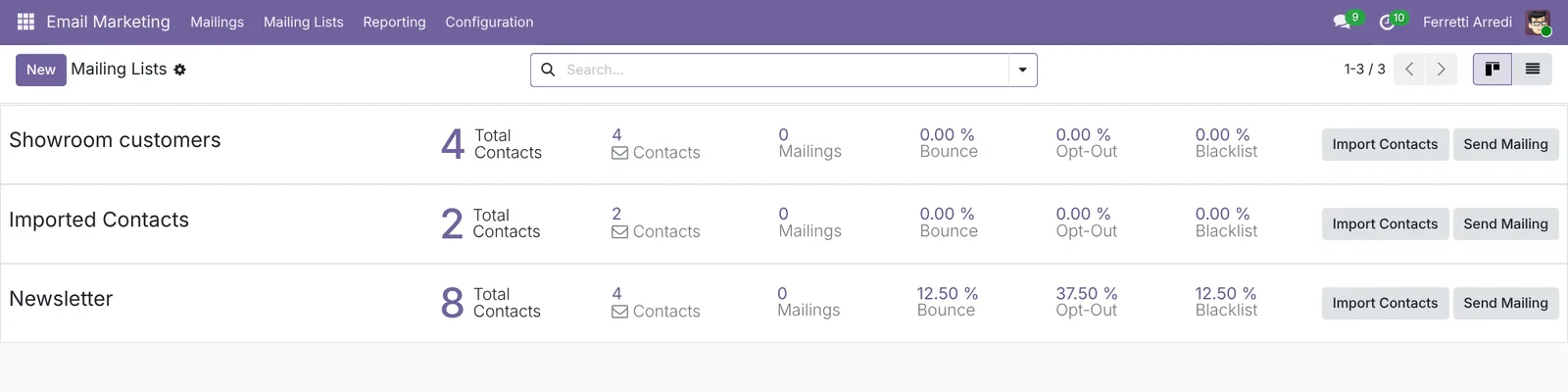 Every list with its health at a glance.
3. Write the mailing
Open Email Marketing → Mailings and press New.
- Write the Subject: The new oak collection is in the showroom.
- In Recipients keep Mailing List and pick Showroom customers.
- Pick a layout, here Newsletter, then click any text or picture to change it. The panel on the right adds blocks: titles, images, buttons, columns.
Press Save. The mailing stays a draft until you send it.
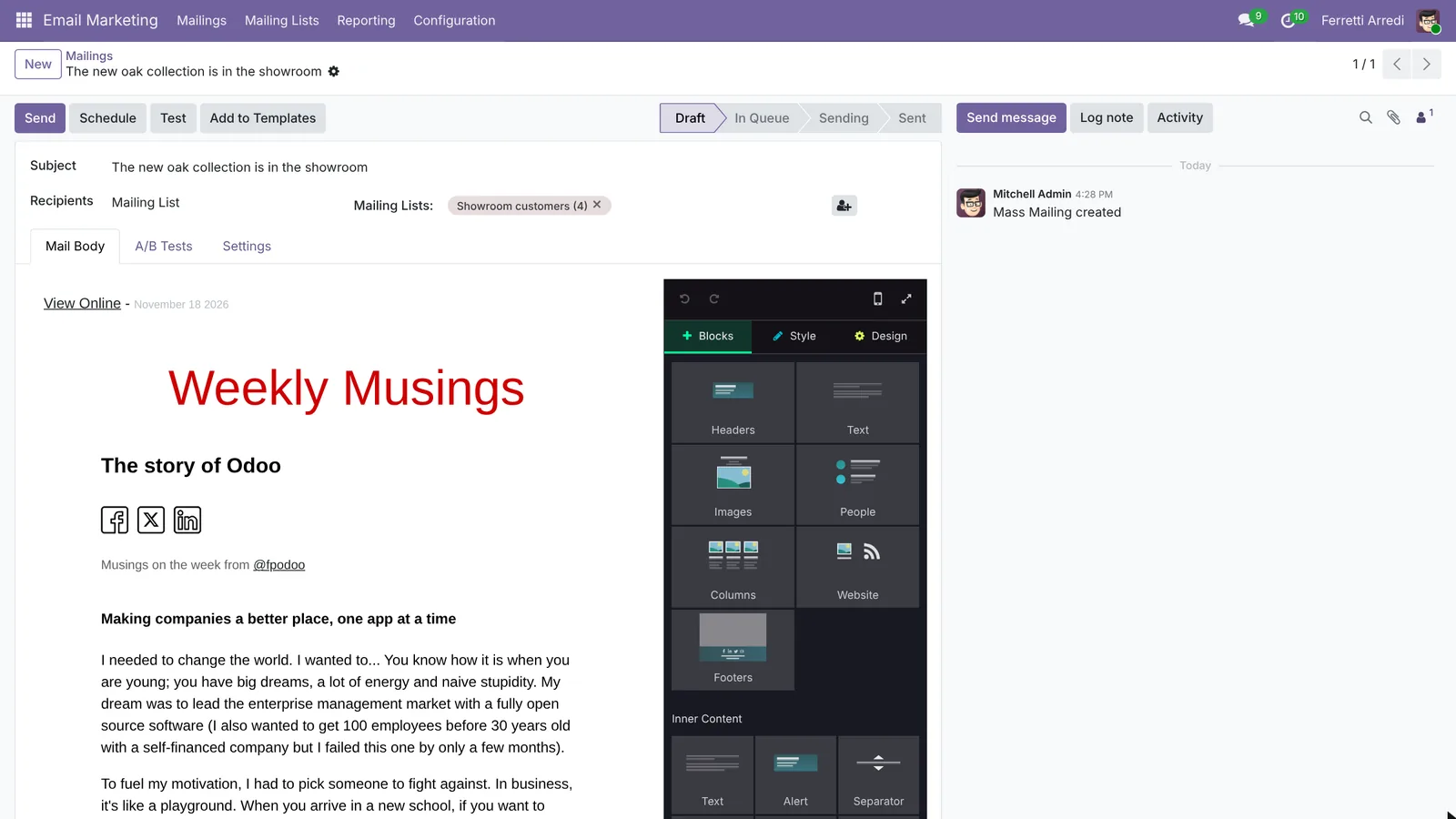 Start from a layout and replace the text and pictures with yours.
4. Send yourself a test
Press Test, type your address in Recipients and press Send test. Check it on your phone too: most newsletters are opened there. When it looks right, press Send, or Schedule to pick the day and time.
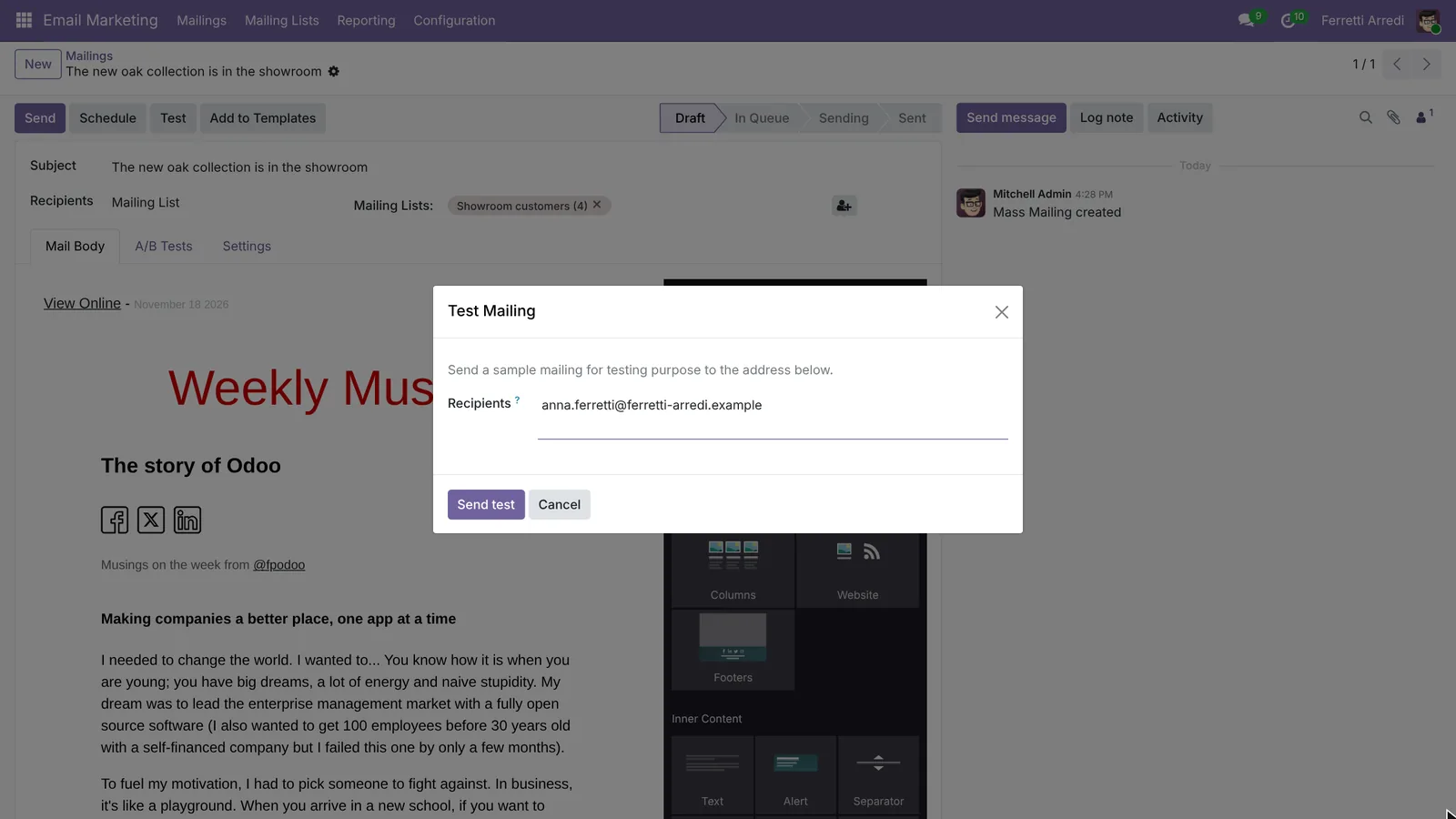 A test costs nothing; a typo sent to everyone does.
5. Read the results
Open a mailing you sent, here the October newsletter. At the top: Received, Opened, Clicked and Replied, plus the Quotations and Invoiced it brought. Click a number to see who is behind it.
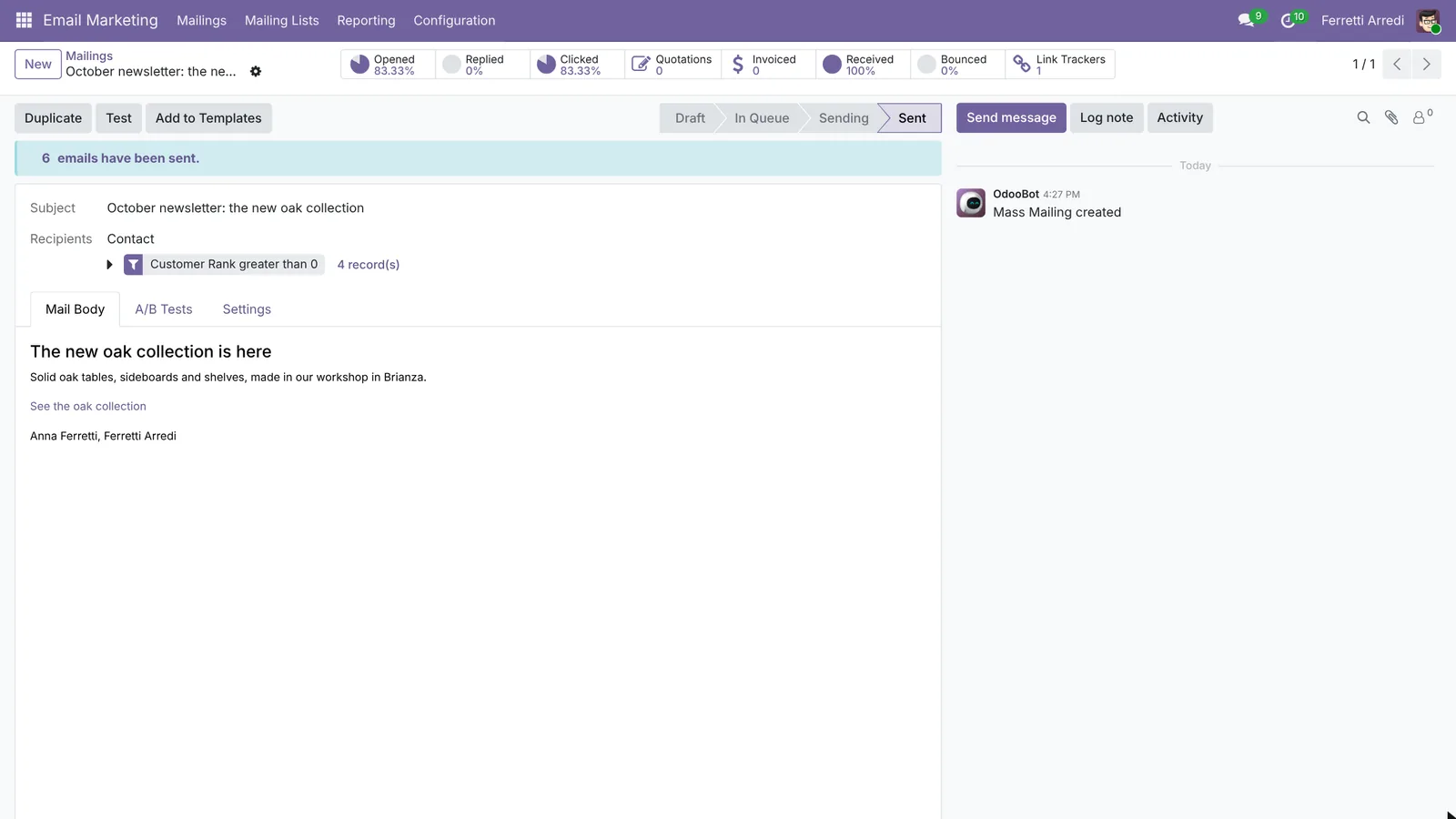 Five of six opened it and clicked through.
Common mistakes
- Sending without a test. Broken links and placeholder text are only found in a real inbox.
- Importing people who never signed up. They mark it as spam, and your next mailings land there too.
- Too many pictures, too little text. Many inboxes block images at first: the mailing must make sense without them.
- Reading only the open rate. Clicks and the quotations that follow say more. And somebody should call the people who clicked, as in the second example below.
Email marketing with AI: ask your AI assistant through MCP
With the Hawklify MCP server, Claude, ChatGPT and other assistants work in your Odoo as you, with your permissions. The best list is in your sales history, not in a spreadsheet: who buys the same thing every year, who clicked but didn’t order. Building it by hand means reading orders year by year.
On the computer. Depending on how your organisation set up the server, the assistant makes the change straight away or first shows you a card to approve. Here Smart mode is on. The mailing stays a draft: you press Send.
6 customers bought it in both of the last two Novembers. 2 already ordered this year: Gemini Furniture and Ready Mat. Acme Offices bought it only once, last year, so I left it out.
4 haven't ordered yet:
- Azure Interior
- Deco Addict
- Lumber Inc
- The Jackson Group
I'll put them on a new list and draft the mailing.
Done: the list Wool throw: not yet this year with 4 contacts, and a draft mailing Your wool throws for this winter are in.
It says the new season is in stock, now also in forest green, at $89 each, and that orders placed before December 5 arrive before the holidays.
It is still a draft: open it in Email Marketing, send yourself a test, then press Send.
On the phone. Here Smart mode is on too: it asks once before planning the calls.
Hawklify
Your Odoo, from the chat you already use
Send a message, a photo or a voice note: the assistant reads and works in Odoo through Hawklify, with your permissions.
Who clicked the October newsletter and still hasn't ordered?
The October newsletter went to 6 customers on Oct 19. 5 clicked See the oak collection.
3 have ordered since: Gemini Furniture, Ready Mat and Lumber Inc. 2 haven't:
- Deco Addict: no phone number in Odoo
- Azure Interior: (870)-931-0505
Neither has a salesperson. Give you a To-Do for each, for tomorrow?
Yes, plan them
Done, both for tomorrow, Nov 19:
- Azure Interior: Call: clicked the oak collection, (870)-931-0505
- Deco Addict: Email: clicked the oak collection, since there is no phone number
They are in your activities in Odoo.
Versions we tested
| Version | Result |
|---|---|
| Odoo 16 | Same steps. The layouts open inside the editor, and the Newsletter layout is not there: we used Blogging. |
| Odoo 17 | As in this guide. |
| Odoo 18 | As in this guide. |
| Odoo 19 | As in this guide. The screenshots come from Odoo 19. |
| Odoo 20 | Same steps. New on Mailing Lists opens a small window, and the mailing editor opens full screen with its own Save. The mailing list card has no Send Mailing button. |
Frequently asked questions
Can I send a mailing to customers without a mailing list?
Yes. In Recipients pick Contact instead of Mailing List and add a filter, for example customers in one country. The list is better for people who signed up, because they can unsubscribe from it.
How do people unsubscribe?
Every mailing has an unsubscribe link at the bottom. Odoo marks the contact as opted out of that list, or blacklists the address, and stops sending to it.
Does Odoo count opens and clicks by itself?
Yes. Odoo adds a tracking pixel and turns every link into a tracked link. The mailing shows Opened, Clicked and Replied, and the Link Trackers button shows the clicks per link.
Is there a limit on how many emails I can send?
On Odoo Online there is a daily limit for mass mailings, which grows with your subscription. On your own server it depends on your outgoing mail server.
Questa guida è disponibile anche in italiano: Email marketing in Odoo: newsletter che vengono lette
Related Odoo guides
 CRMCRM pipeline in Odoo: stages, activities, lost reasonsSet up the Odoo CRM pipeline: add and order stages, create opportunities, plan the next activity and mark lost deals with a reason. Community and Enterprise.
 CRMDuplicate contacts in Odoo: merge them, keep the historyFind duplicate customers in Odoo, merge them into one contact with every quotation, invoice and message, and let Odoo hunt for the rest. Community and Enterprise.
 SalesSales analysis in Odoo: a report that answers questionsTurn Odoo's sales analysis into a pivot table of customers by month, open the orders behind any number and save the report as a favorite. Community and Enterprise.