Sales analysis in Odoo: a report that answers questions
Turn Odoo's sales analysis into a pivot table of customers by month, open the orders behind any number and save the report as a favorite. Community and Enterprise.
- Community and Enterprise
- 4 min read
- Odoo + AI tutorial
The sales analysis in Odoo opens on a chart of quantities by month. It looks nice, and it answers no question. Which customers buy, how much, and when? Who used to order every month and went quiet? In two minutes, the same report becomes a table of customers by month, in money, that you can open down to the single order. This guide builds it, checks the orders behind a number, and saves it as a favorite.
It works the same in Community and Enterprise. The versions we tested are listed at the end.
This guide is also an AI tutorial. At the end, an AI assistant connected to Odoo finds the customers who stopped ordering, each against their own rhythm, plans the calls after your approval, and prepares a salesperson for a visit.See it in action ↓Before you start
- The Sales app installed, and some confirmed sales orders.
- An Odoo user with at least the Sales / User: Own Documents Only access right. A user with own documents only sees their own orders in the report.
1. Open the sales analysis
Open Sales → Reporting → Sales. Odoo shows a chart of the quantities ordered, month by month.
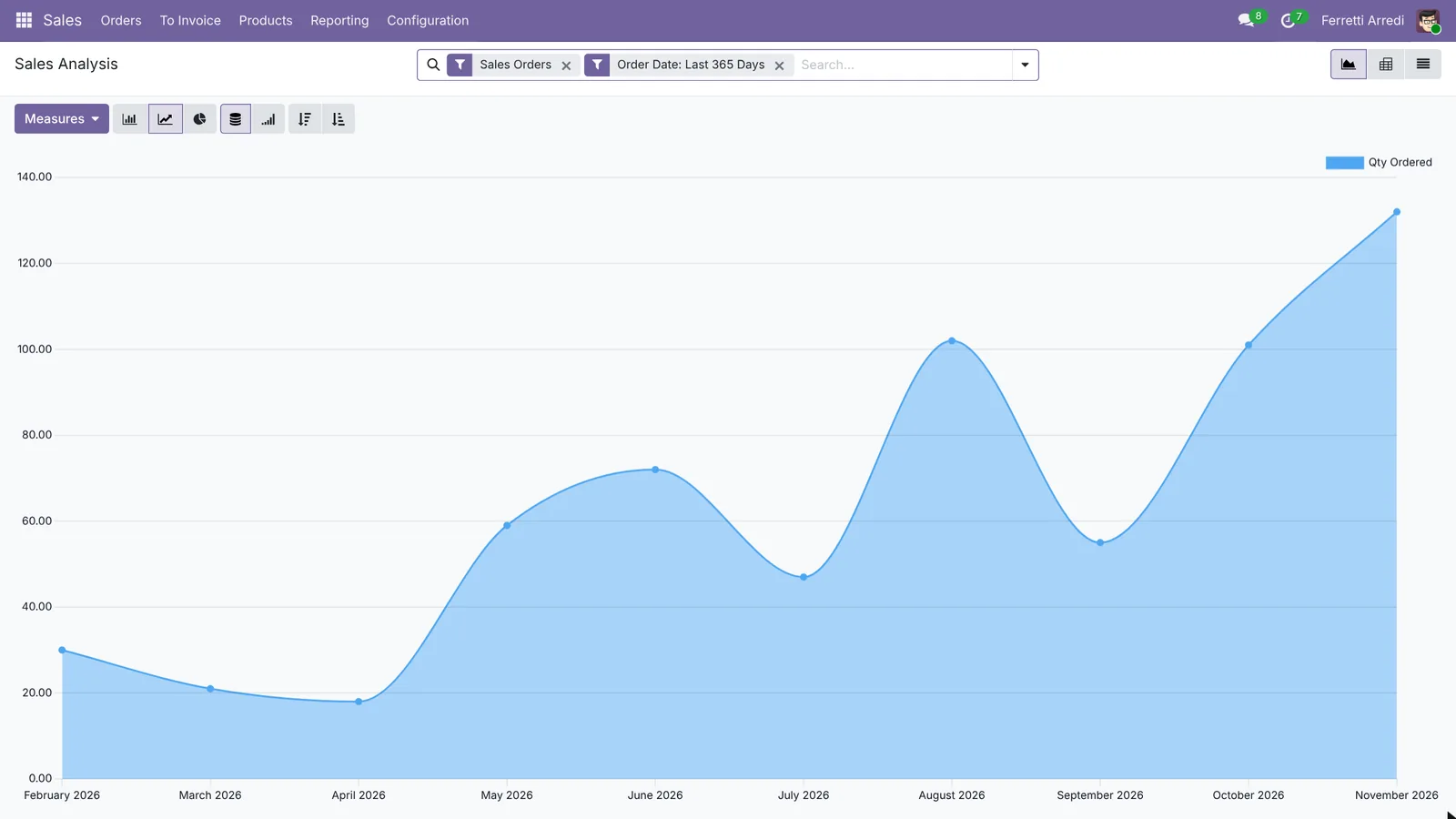 Quantities by month: pretty, but who bought them?
Switch to the pivot view with the table icon at the top right.
2. Customers by month
- Open Measures, tick Untaxed Total and untick Qty Ordered.
- Click the Total header of the rows and pick Customer.
- Click the Total header of the columns, pick Order Date, then Month.
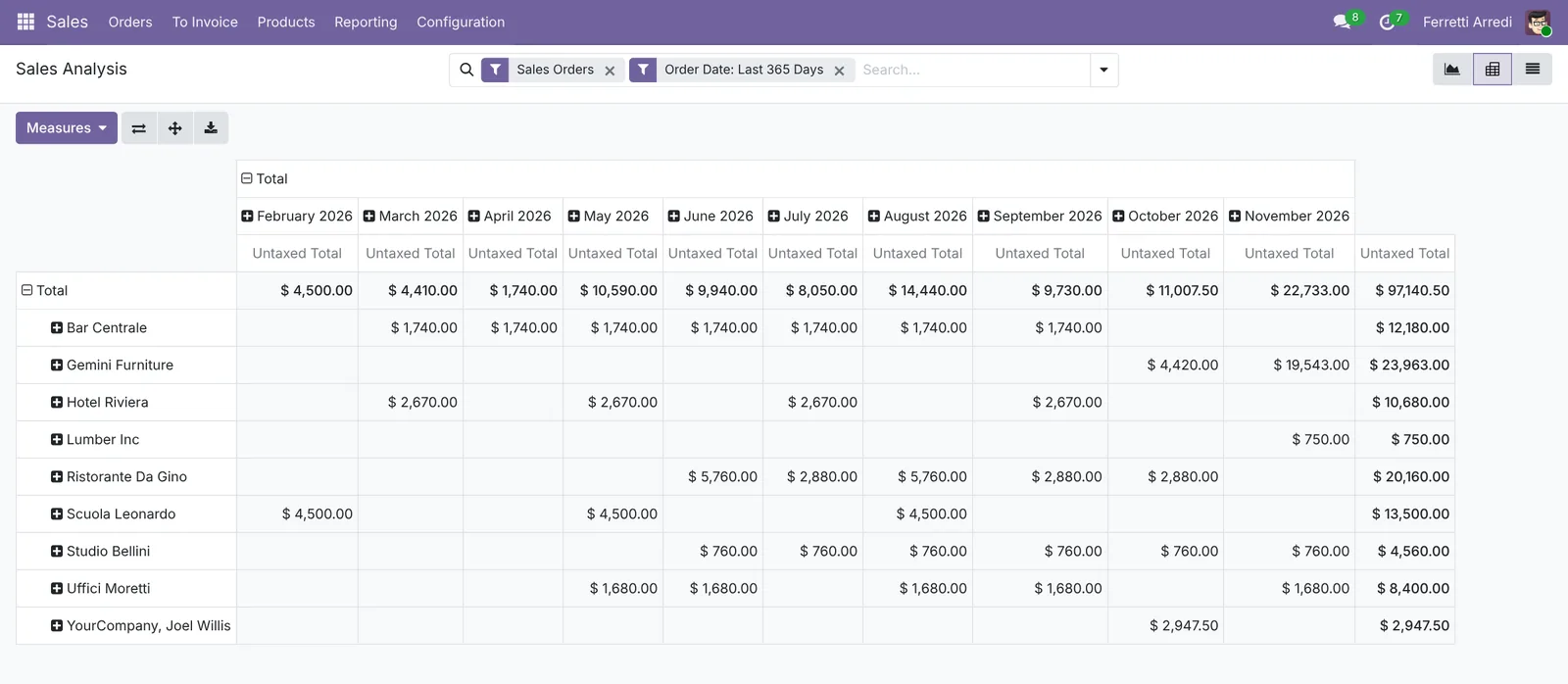 Every row is one customer’s buying rhythm.
Now the table reads like a calendar. Bar Centrale ordered every month, then stopped in September. Gemini Furniture only started in October.
3. The orders behind a number
Click any amount, here Bar Centrale in March. Odoo opens the order lines behind it: order, products, quantities and prices.
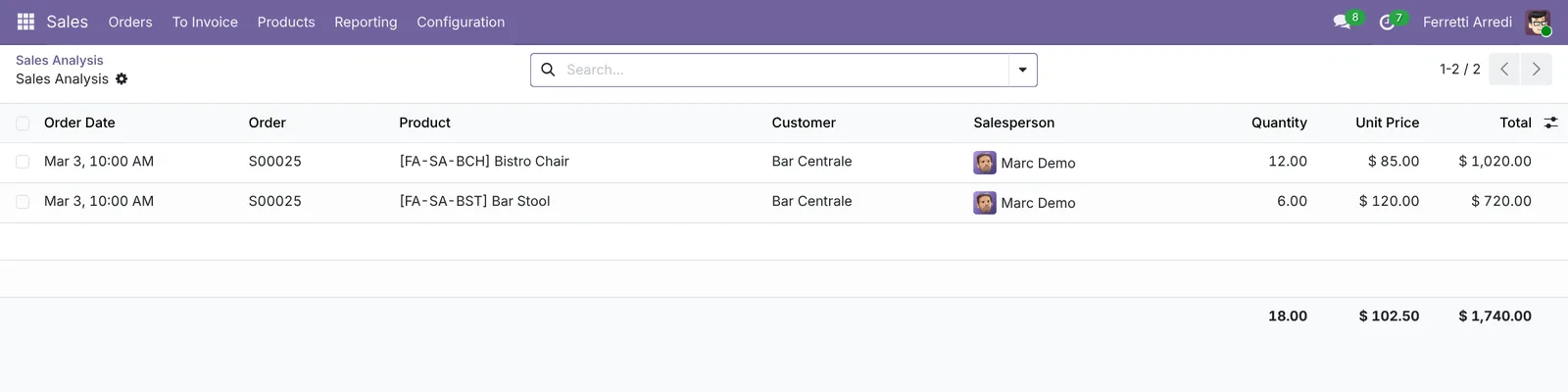 $1,740: twelve chairs and six stools.
Go back to the table with the breadcrumb at the top left.
4. Save it as a favorite
Open the search options with the arrow at the right of the search bar. Under Favorites, press Save current search, type Customers by month and press Save.
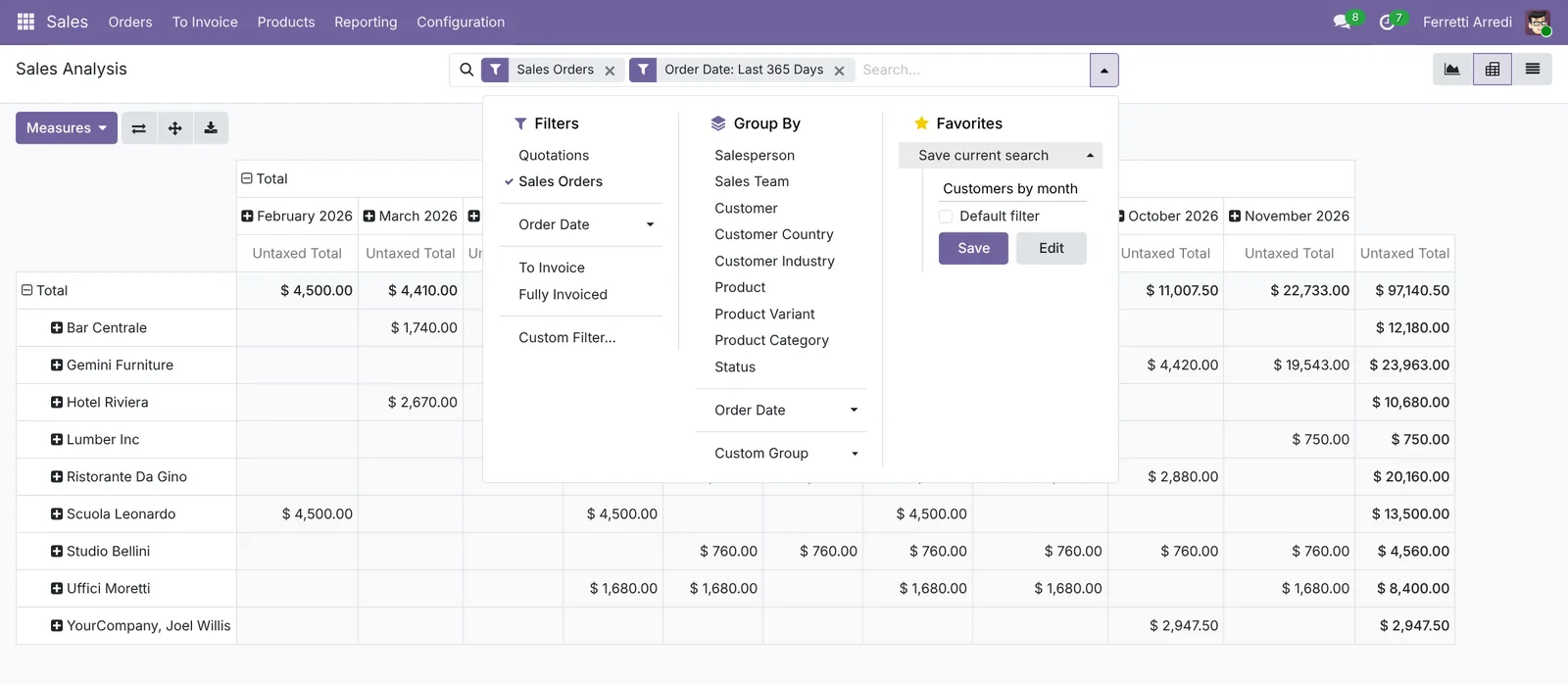 The favorite keeps the filters, rows, columns and measures.
Next time, open Sales → Reporting → Sales and pick the favorite: the table comes back as you left it.
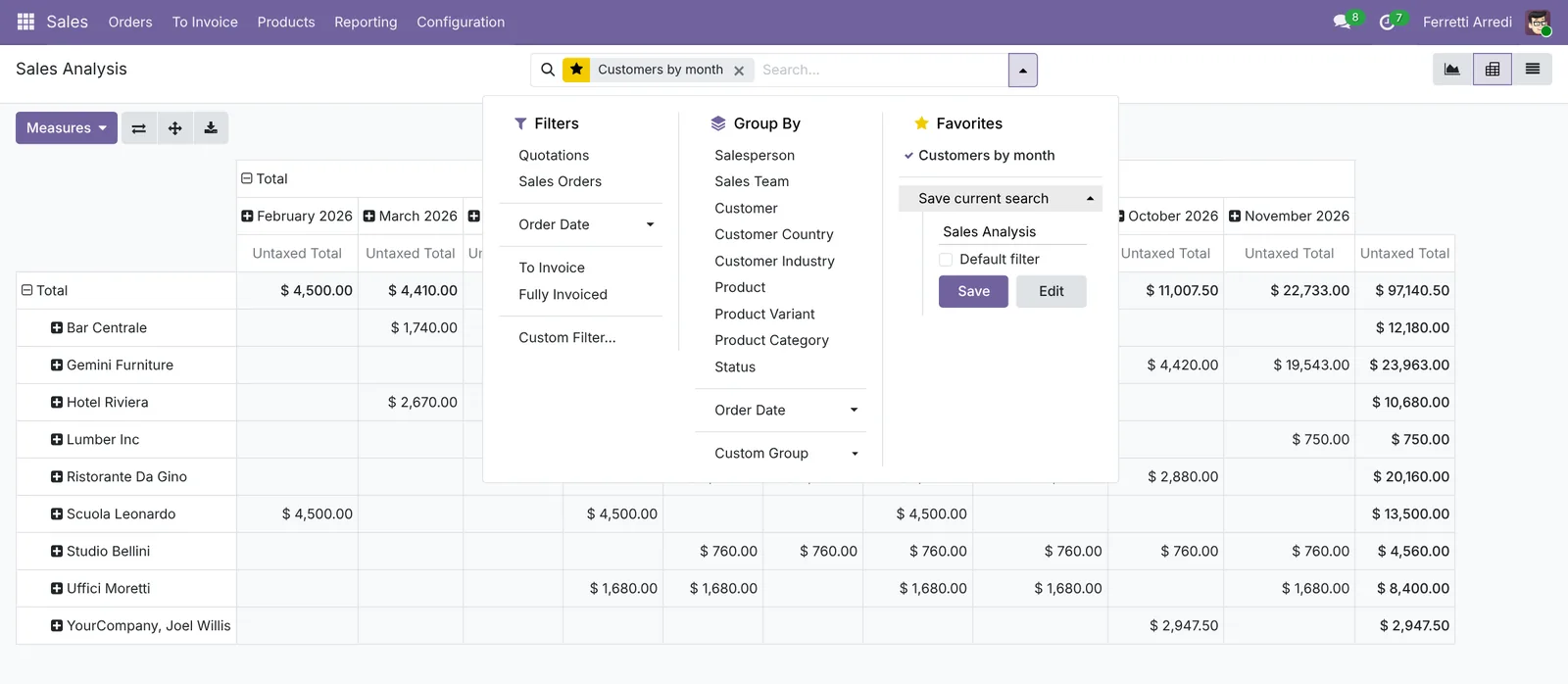 One click away.
Common mistakes
- Reading quantities as money. The report opens on Qty Ordered: ten chairs and ten tables count the same. Switch to Untaxed Total.
- Removing the Sales Orders filter. Without it, quotations that never got signed count as sales.
- The date filter. The report shows the last 365 days. To compare with last year, change Order Date in the filters.
- Saving a messy view. The favorite saves everything you see: collapse what you opened before you save it.
Sales analysis with AI: ask your AI assistant through MCP
With the Hawklify MCP server, Claude, ChatGPT and other assistants work in your Odoo as you, with your permissions. The table shows who went quiet, if you look at every row. But a customer who orders every quarter looks quiet for two months and is on time. Each customer has their own rhythm, and no filter knows it. The assistant measures it, and plans the calls in a card you approve: card mode is on here.
Two customers are late against their own habit:
Bar Centrale: ordered every 31 days, about $1,740 each time. Silent for 72 days, since September 3. Salesperson: Marc Demo.Ristorante Da Gino: ordered every 21 days, about $2,880 each time. Silent for 40 days, since October 5. Salesperson: Mitchell Admin.
Scuola Leonardo (82 days) and Hotel Riviera (61 days) look quiet, but they order every quarter and every two months: on time.
Approval needed in OdooCreate
Plan a call on Monday for each customer who stopped ordering: Bar Centrale for Marc Demo, Ristorante Da Gino for Mitchell Admin.
mail.activity · 2 records
New activity: Bar Centrale
| Field | Current | New |
|---|---|---|
| Activity Type | Call | |
| Assigned to | Marc Demo | |
| Due Date | 11/16/2026 | |
| Summary | No order for 72 days, usually every 31 |
New activity: Ristorante Da Gino
| Field | Current | New |
|---|---|---|
| Activity Type | Call | |
| Assigned to | Mitchell Admin | |
| Due Date | 11/16/2026 | |
| Summary | No order for 40 days, usually every 21 |
Change applied in Odoo.
Organisation administrators can turn the approval cards off on the Members page.
Two calls planned for Monday, November 16, each with what the customer usually buys: 12 Bistro Chairs and 6 Bar Stools for Bar Centrale, 4 Outdoor Tables and 16 Outdoor Chairs for Da Gino.
Before a visit. From the phone, a salesperson asks about a customer they see tomorrow: the assistant sums up the history and prepares the usual order as a draft quotation.
Hawklify
Your Odoo, from the chat you already use
Send a message, a photo or a voice note: the assistant reads and works in Odoo through Hawklify, with your permissions.
I'm seeing Bar Centrale tomorrow morning. What should I know?
Bar Centrale, a customer since February:
- Ordered every month until September 3, then nothing: 72 days.
- Always the same: 12 Bistro Chairs and 6 Bar Stools, about $1,740.
- No open invoices, nothing late.
Shall I prepare their usual order as a quotation, so you can show it tomorrow?
Yes, prepare it
Ready: quotation S00041 for Bar Centrale, 12 Bistro Chairs and 6 Bar Stools, $1,740.00. It's a draft: change the quantities with them tomorrow, then send it.
Versions we tested
| Version | Result |
|---|---|
| Odoo 16 | Same steps. Reporting opens the report directly, on Untaxed Total. To share the favorite, tick Share with all users. |
| Odoo 17 | Same steps. The favorite has a Shared option. |
| Odoo 18 | Like 17. |
| Odoo 19 | As in this guide. To share the favorite, press Edit and fill in Shared with. The screenshots come from Odoo 19. |
| Odoo 20 | Like 19. |
Frequently asked questions
Why don't my quotations show up in the report?
The report opens with the Sales Orders filter, so it counts confirmed orders only. Remove the filter to add quotations, or keep it to see what was really sold.
How do I share the report with my team?
In Odoo 17 and 18, tick Shared when you save the favorite (Share with all users in 16). From Odoo 19, press Edit instead of Save: Shared with left empty means all users.
Can I export the table to Excel?
Yes. The download button above the pivot table exports exactly what you see, with the same rows and columns.
Untaxed Total or Total?
Untaxed Total, for sales. Taxes change from one customer to another and are not your revenue.
Questa guida è disponibile anche in italiano: Analisi vendite Odoo: un report che risponde alle domande
Related Odoo guides
 SalesSales orders in Odoo: from quotation to invoiceTake a sale through Odoo from start to finish: create the quotation, confirm the order, deliver the goods and post the invoice. Community and Enterprise.
 CRMCRM pipeline in Odoo: stages, activities, lost reasonsSet up the Odoo CRM pipeline: add and order stages, create opportunities, plan the next activity and mark lost deals with a reason. Community and Enterprise.
 AccountingAged receivables in Odoo: who owes you, and since whenRead the aged receivable report in Odoo Enterprise: who owes you, how late, the invoices behind each amount, and how to send a customer a reminder of what is overdue.