Automation rules in Odoo: follow-ups that never slip
Create an automation rule in Odoo: when a sales order over $5,000 is confirmed, the sales manager gets a To-Do to call the customer. No code.
- Community and Enterprise
- 4 min read
- Odoo + AI tutorial
A big order deserves a call from the sales manager, and a quotation sent last week deserves a follow-up. Both depend on someone remembering. An automation rule watches the records for you: when something happens, here a sales order over $5,000 is confirmed, it does the action you choose, here a To-Do for the sales manager. This guide builds that rule without code and tests it on an order.
It works the same in Community and Enterprise. The versions we tested are listed at the end.
This guide is also an AI tutorial. At the end, an AI assistant connected to Odoo builds this rule from one sentence and shows which orders it would have caught, then finds the old rule that never sent a single reminder.See it in action ↓Before you start
- The Sales app installed. Automation rules come with the Automation Rules module (base_automation): install it from Apps if the menu is missing.
- Developer mode on: Settings → Developer Tools → Activate the developer mode. The rules are in Settings → Technical → Automation → Automation Rules.
1. Create the rule and its condition
In Automation Rules press New.
- Give the rule a name: Big order: warn the sales manager.
- Model: Sales Order.
- Trigger: State is set to, and next to it Sales Order. The rule runs once, when the order is confirmed.
- In Apply on press Edit Domain and add the conditions Status is equal to Sales Order and Total greater than 5,000. Press Confirm.
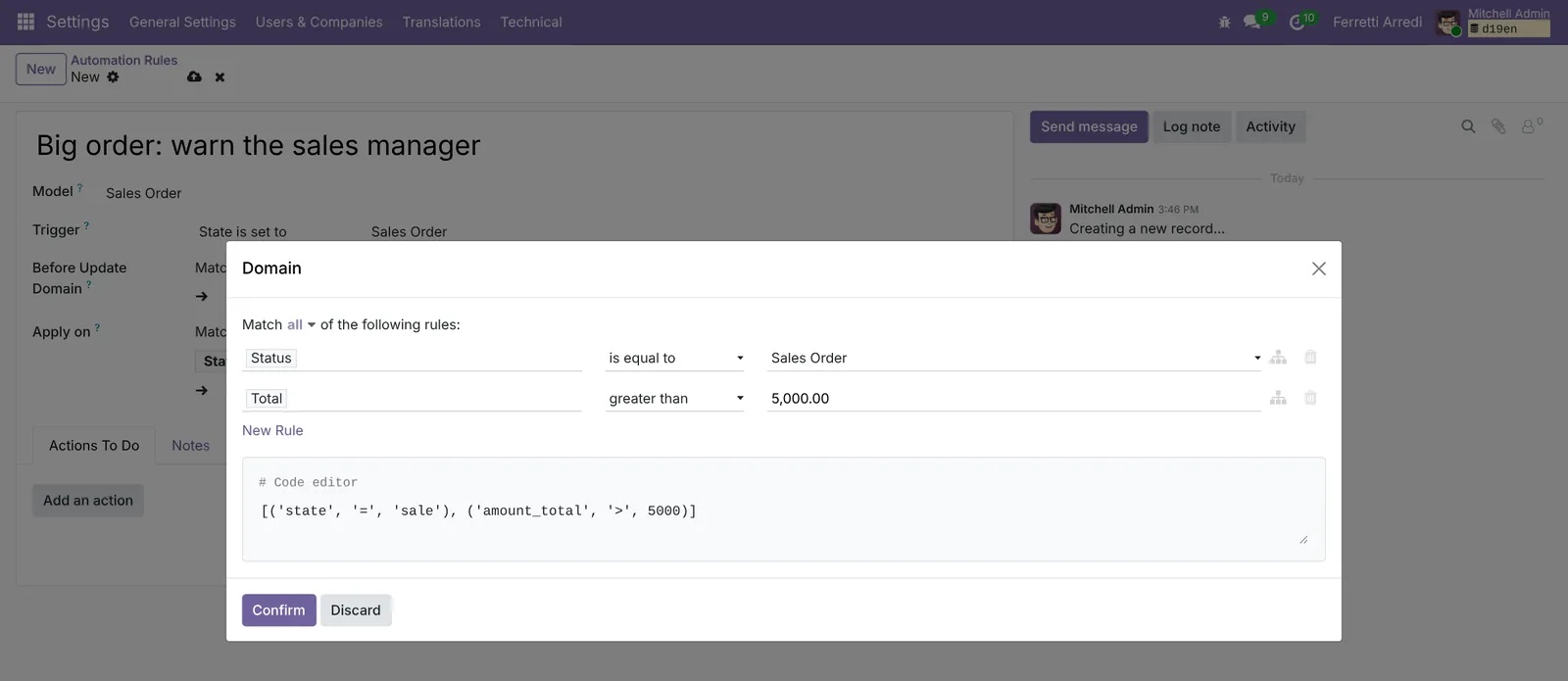 Only confirmed orders over $5,000.
2. Add the action
Under Actions To Do press Add an action.
- As Type pick Create Activity.
- Activity Type: To-Do. Title: Big order: call the customer.
- Due Date In: 1 Days.
- User Type: Specific User, and as Responsible the sales manager, here Mitchell Admin.
Press Save & Close.
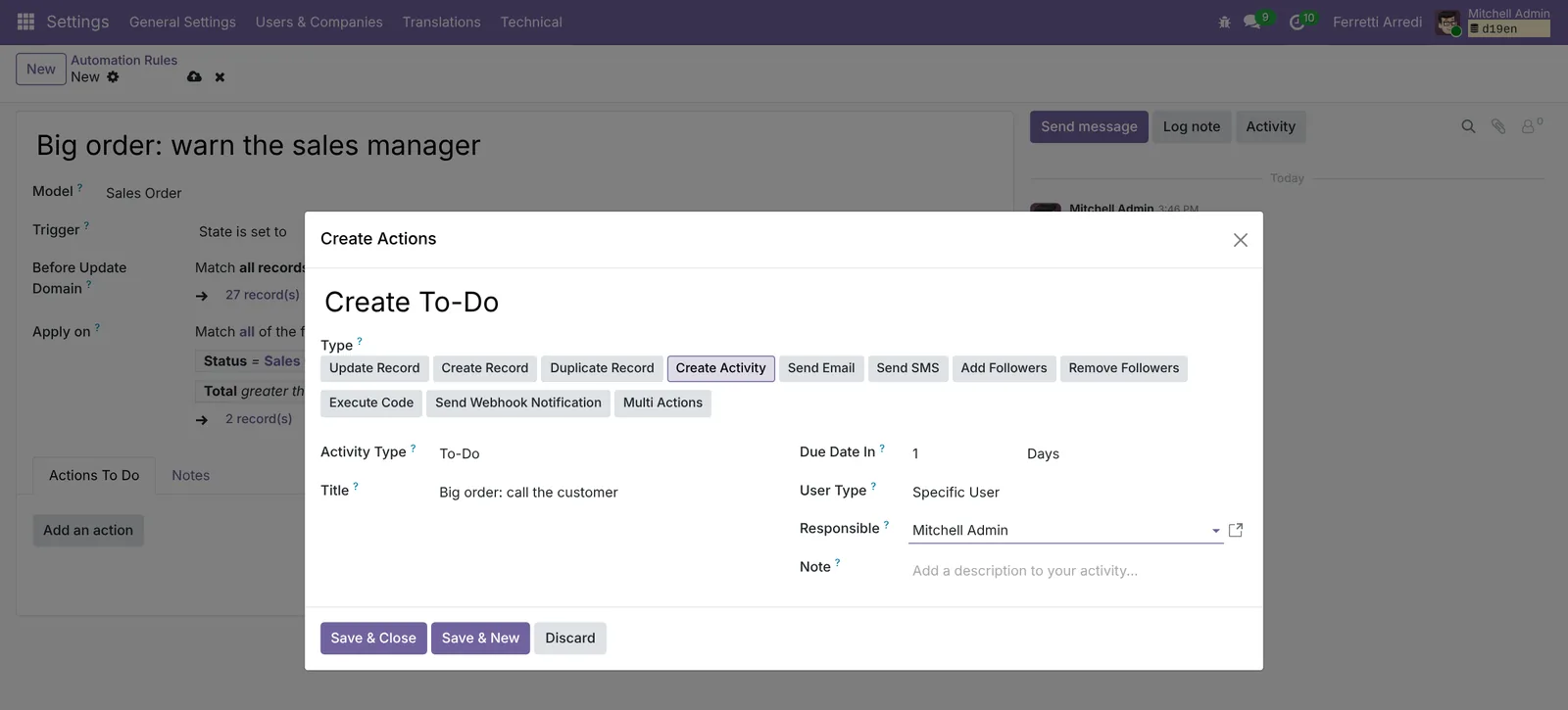 The action: a To-Do for the sales manager, due tomorrow.
3. Save the rule
Press Save. The rule shows the model, the trigger, the condition and its action. Next to the condition, Odoo counts the records that match it today.
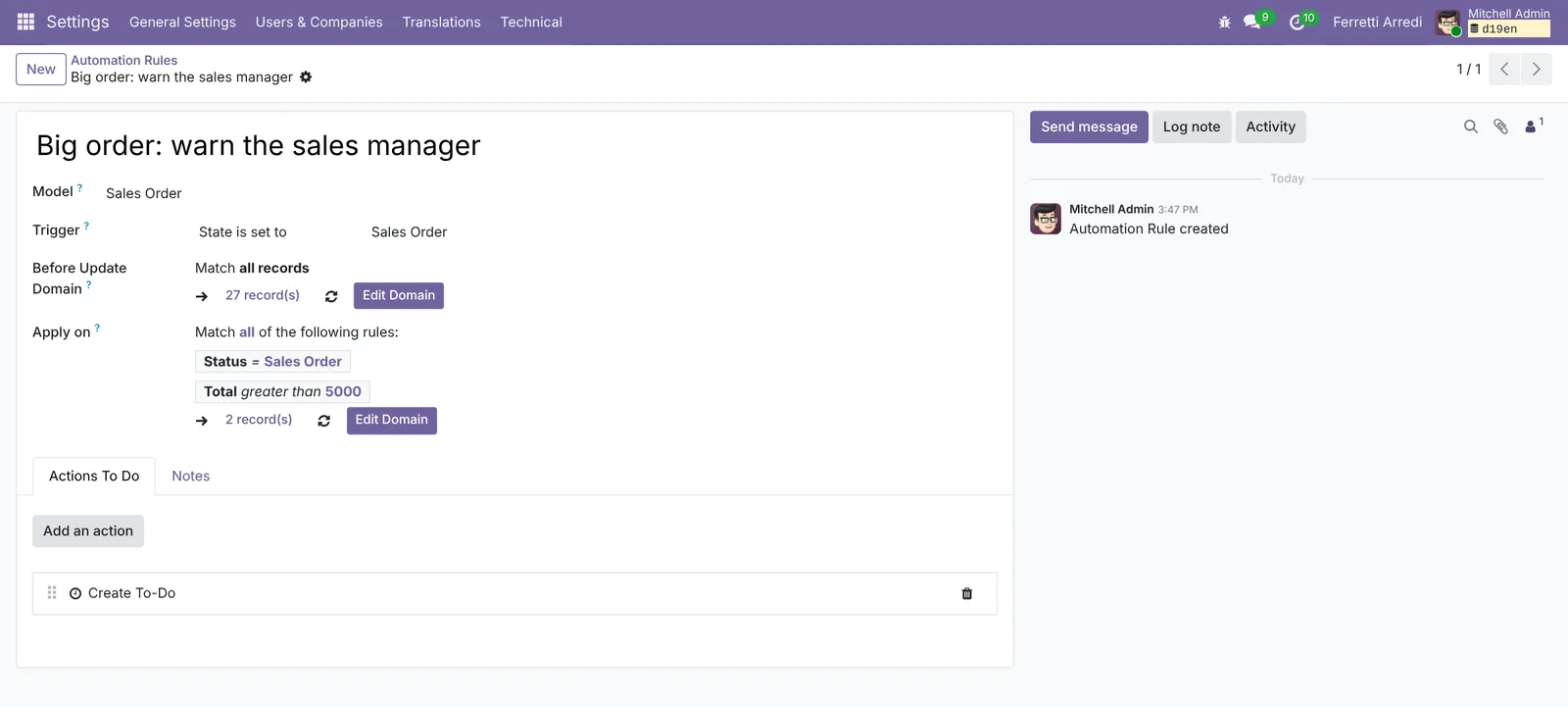 One rule: when, on what, and what to do.
4. Test it on an order
Create a quotation for Azure Interior with 5 Executive Desk Walnut, $6,150, and press Confirm. In the chatter, under Planned Activities, the To-Do Big order: call the customer is there for tomorrow, for the sales manager. Confirm a small order too: it gets nothing.
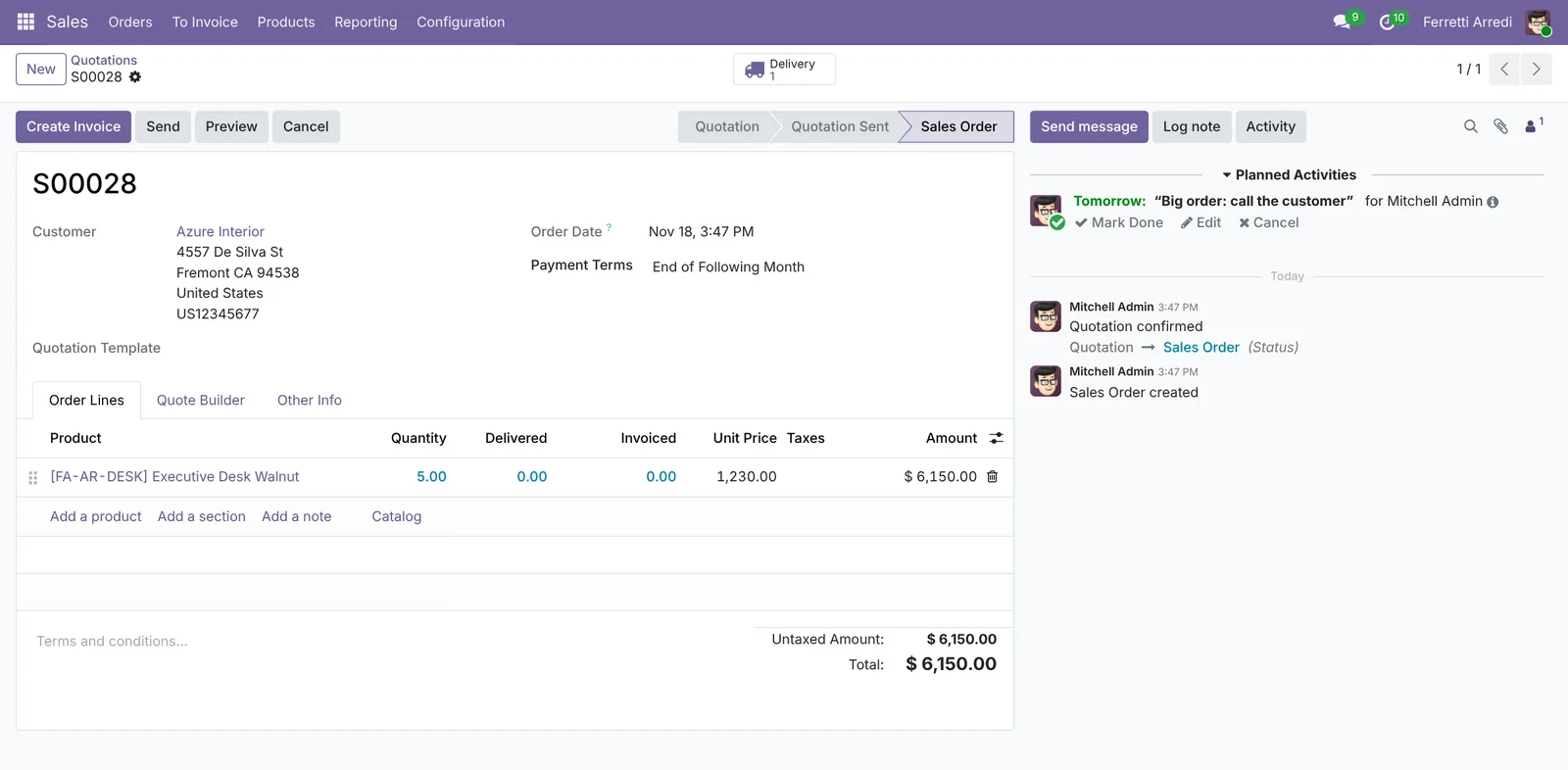 The rule worked: the call is planned.
Common mistakes
- Trigger On create and edit for a one-time event. A rule that runs on every save creates a new To-Do each time someone edits the order. For “when it is confirmed”, use State is set to.
- The condition without the state. Without Status is Sales Order, quotations over $5,000 match too.
- Testing on an old order. Rules don’t look back: test on a new order.
- Nobody checks the rules. The list only shows names. Open old rules once a year and read their conditions, as in the second example below.
Automation rules with AI: ask your AI assistant through MCP
With the Hawklify MCP server, Claude, ChatGPT and other assistants work in your Odoo as you, with your permissions. A rule is easy to say in words and fiddly to click together: model, trigger, domain, action. And an old rule with a wrong condition fails silently for years.
In the browser, on the Automation Rules page. Depending on how your organisation set up the server, the assistant makes the change straight away or first shows you a card to approve. Here Smart mode is on. Rules are technical records: an administrator allows them for the assistant on the members page of Hawklify.
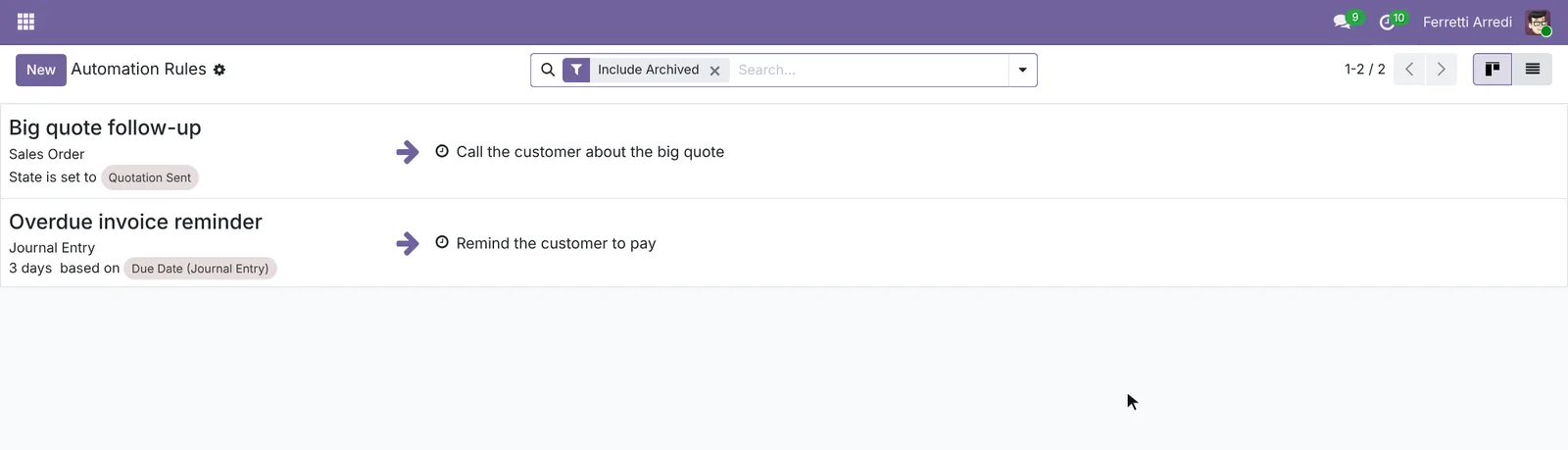
Here is the rule:
- Big order: warn the sales manager, on Sales Order
- Runs when the state is set to Sales Order, only if Total > 5,000
- Creates a To-Do Big order: call the customer for Mitchell Admin, due the next day
Create it?
Done: the rule is active and runs only when the state changes, so editing an order later adds no new To-Do.
In the last 30 days it would have caught 3 orders:
- Deco Addict, $12,300, Nov 15
- Gemini Furniture, $7,342, Nov 10
- Azure Interior, $5,814, Nov 6
The other 7 confirmed orders were under $5,000.
On the computer. Here card mode is on: nothing changes until you approve the card.
Found it. Overdue invoice reminder runs 3 days after the due date, but its condition says ==move_type = out_refund==: that is credit notes, not invoices.
So it never looks at an invoice. It only watches your 4 unpaid credit notes (RINV/2026/00001 to 00004), where you owe the customer.
Meanwhile INV/2026/00004, Acme Corporation, $31,750, was due on Nov 3: 15 days overdue, no reminder.
Change the condition to customer invoices?
Approval needed in OdooUpdate
Make Overdue invoice reminder watch customer invoices instead of credit notes.
base.automation · 1 record
Overdue invoice reminder
| Field | Current | New |
|---|---|---|
| Apply on | Type = Customer Invoice, unpaid |
Change applied in Odoo.
Organisation administrators can turn the approval cards off on the Members page.
The rule now catches every invoice that becomes overdue from today. It doesn't go back in time, so Acme's invoice won't get one. I can add the reminder to it now, for its salesperson Marc Demo.
Approval needed in OdooCreate
Add the To-Do Remind the customer to pay on INV/2026/00004 (Acme Corporation, $31,750), for Marc Demo, due today.
mail.activity · 1 record
INV/2026/00004 · Acme Corporation
Change applied in Odoo.
Organisation administrators can turn the approval cards off on the Members page.
Done. Marc has the reminder on the Acme invoice today, and the rule takes care of the next ones.
Versions we tested
| Version | Result |
|---|---|
| Odoo 16 | The menu is called Automated Actions and the action is on the rule itself. Trigger On Update, with Status is not Sales Order as Before Update Domain and the condition in Apply on. As Action To Do pick Create Next Activity. The activity type is called To Do. |
| Odoo 17 | As in this guide. The trigger and its value are drop-down lists. |
| Odoo 18 | As in this guide. |
| Odoo 19 | As in this guide. The screenshots come from Odoo 19. |
| Odoo 20 | Same steps. In the action, the activity types are buttons, with To-Do already chosen. |
Frequently asked questions
Do I need developer mode?
Yes, to reach the menu: Automation Rules is under Settings, Technical, which shows in developer mode. Once the rule exists, it runs for everyone, with or without developer mode.
Can a rule send an email instead of an activity?
Yes. Pick Send Email as the action and choose an email template. Activities are often better for internal follow-ups, because they stay on the record until someone marks them done.
Does the rule run on orders that were already confirmed?
No. A rule with the trigger State is set to runs when the state changes. Orders confirmed before you saved the rule are left alone.
How do I stop a rule for a while?
Archive it from the gear menu on the rule. It stops running and stays in the list with the Archived filter, ready to be restored.
Questa guida è disponibile anche in italiano: Regole di automazione in Odoo: solleciti che non sfuggono
Related Odoo guides
 CRMCRM pipeline in Odoo: stages, activities, lost reasonsSet up the Odoo CRM pipeline: add and order stages, create opportunities, plan the next activity and mark lost deals with a reason. Community and Enterprise.
 AccountingAged receivables in Odoo: who owes you, and since whenRead the aged receivable report in Odoo Enterprise: who owes you, how late, the invoices behind each amount, and how to send a customer a reminder of what is overdue.
 SalesSales orders in Odoo: from quotation to invoiceTake a sale through Odoo from start to finish: create the quotation, confirm the order, deliver the goods and post the invoice. Community and Enterprise.