Multi-company in Odoo: two companies in one database
Run two companies in one Odoo: create the company, give users access, use the switcher, share customers and see what each company keeps. Community and Enterprise.
- Community and Enterprise
- 4 min read
- Odoo + AI tutorial
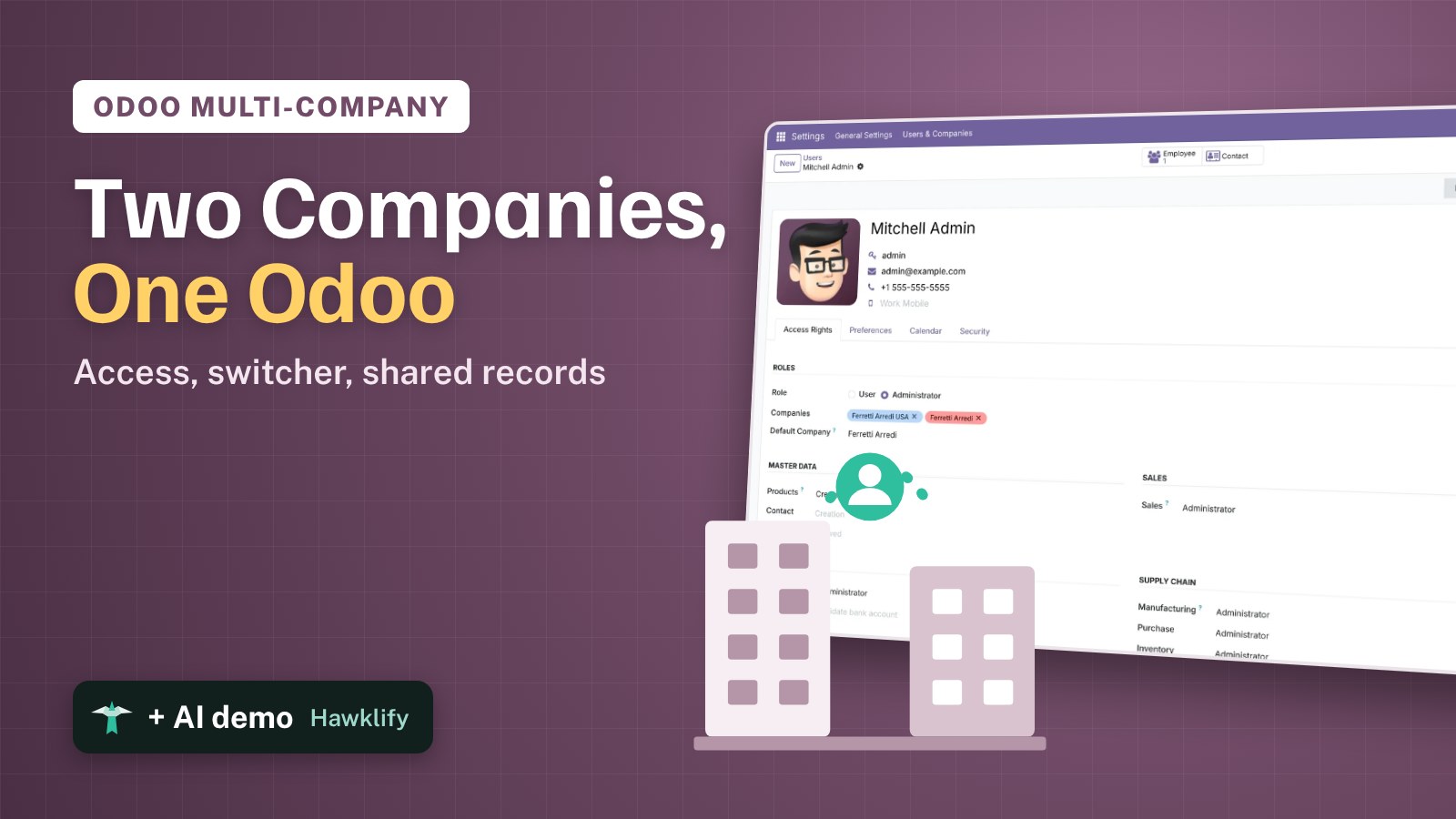
Two companies, one Odoo: a sister company abroad, a new brand with its own books, a branch with its own tax number. Odoo runs them in the same database, with one login. Each company has its own invoices, journals and taxes, while customers and products can be shared. This guide creates the second company, gives a user access, uses the company switcher, and shows what is shared and what each company keeps for itself, with payment terms as the example.
It works the same in Community and Enterprise. The versions we tested are listed at the end.
This guide is also an AI tutorial. At the end, an AI assistant connected to Odoo compares two companies customer by customer and aligns them, and tells you on Friday evening what shipped this week in both companies and was never invoiced.See it in action ↓Before you start
- Any Odoo app; the examples use Contacts and Invoicing.
- An Odoo user with the Administration / Settings access right.
1. Create the second company
Open Settings → Users & Companies → Companies and press New. Name the company, here Ferretti Arredi USA, and check its Currency. Add the address and tax ID if you have them, and save.
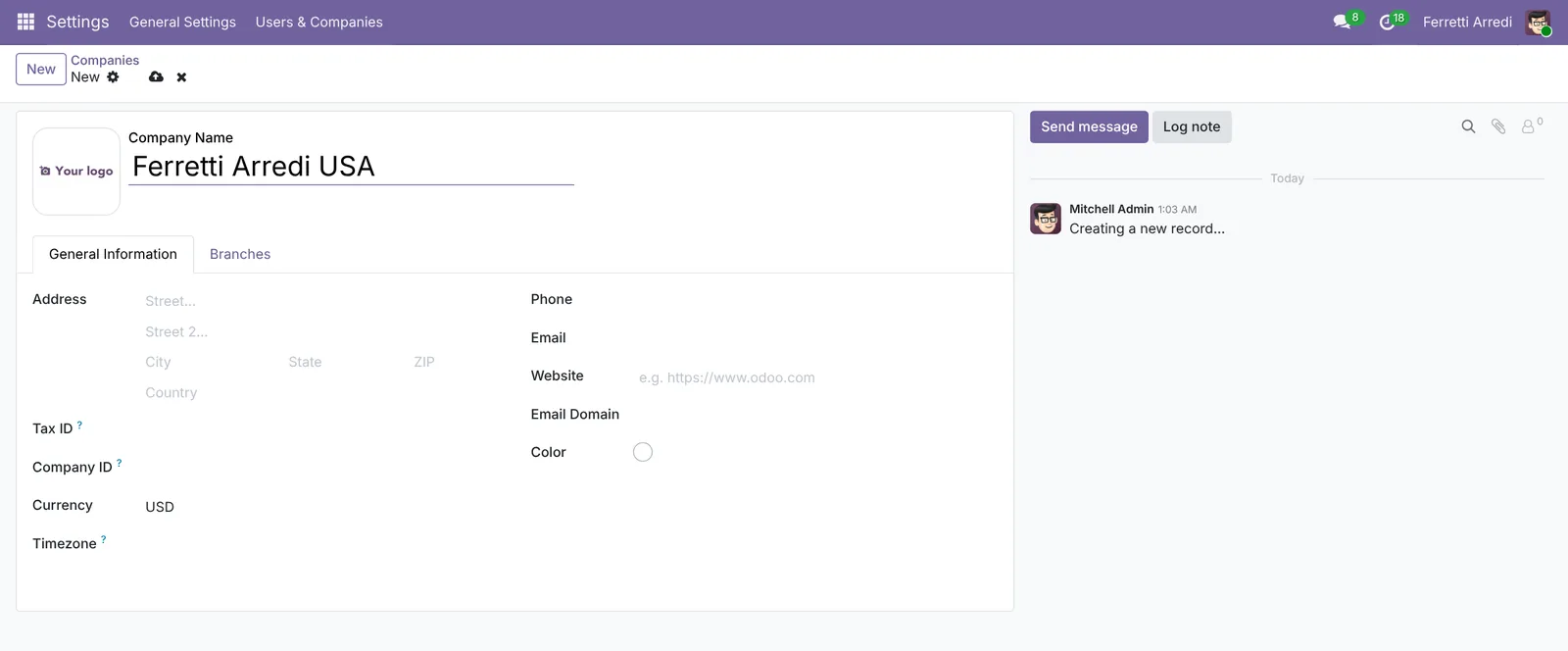 The new company: a name and a currency are enough to start.
2. Give users access
Open Settings → Users & Companies → Users and open the user. The Companies field (Allowed Companies in older versions) lists the companies the user can work in. Add the new company if it’s missing: Odoo adds it by itself to the user who created it. Default Company is the one the user lands in.
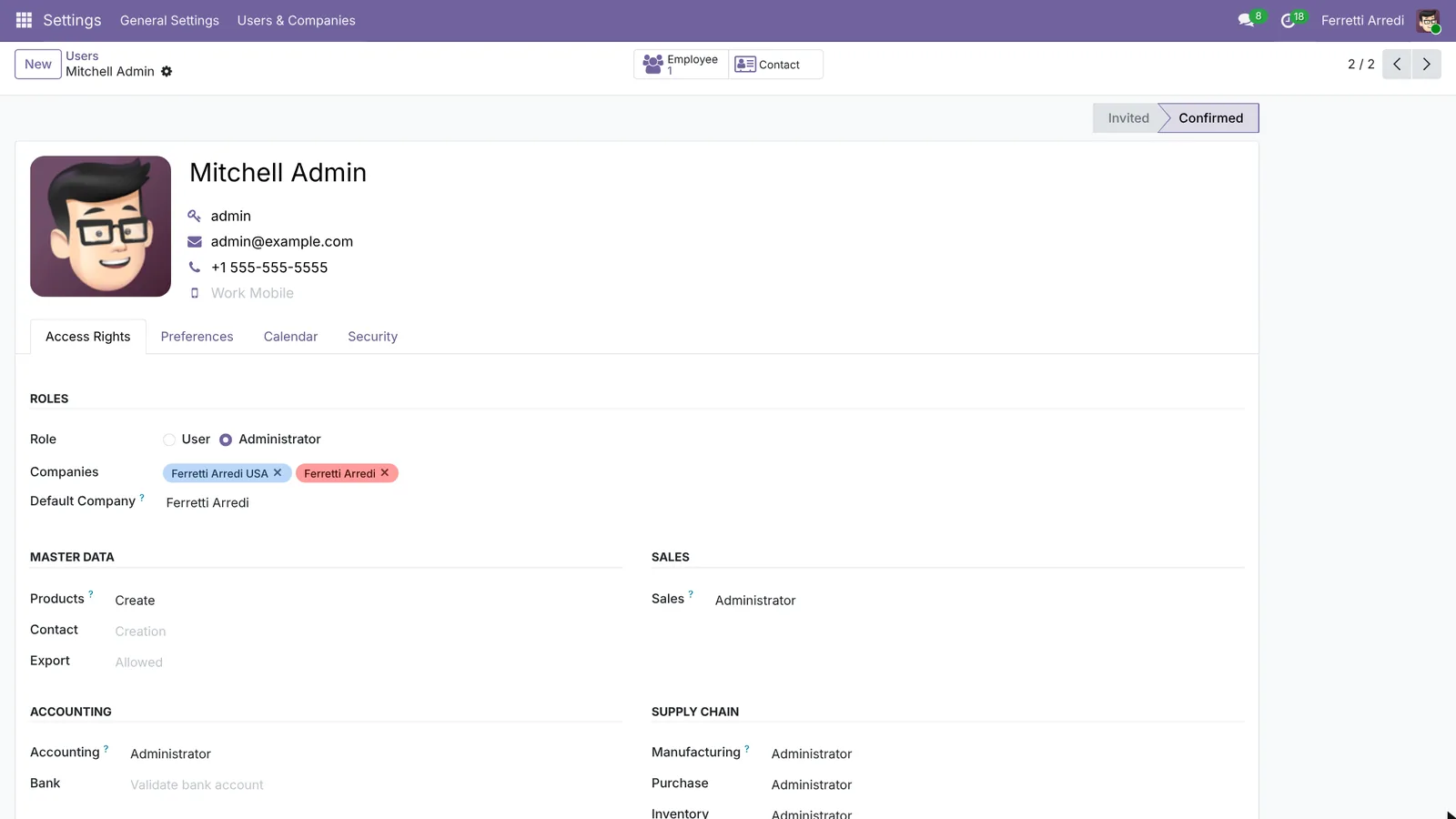 Two companies on the user: the switcher appears.
Save, and reload the page: the company switcher appears in the top bar, next to your name.
3. Switch between companies
Open the switcher. Each company has a checkbox and a name.
- Tick several companies to see their records together, in the lists and the reports.
- Click a company’s name to work in that company only.
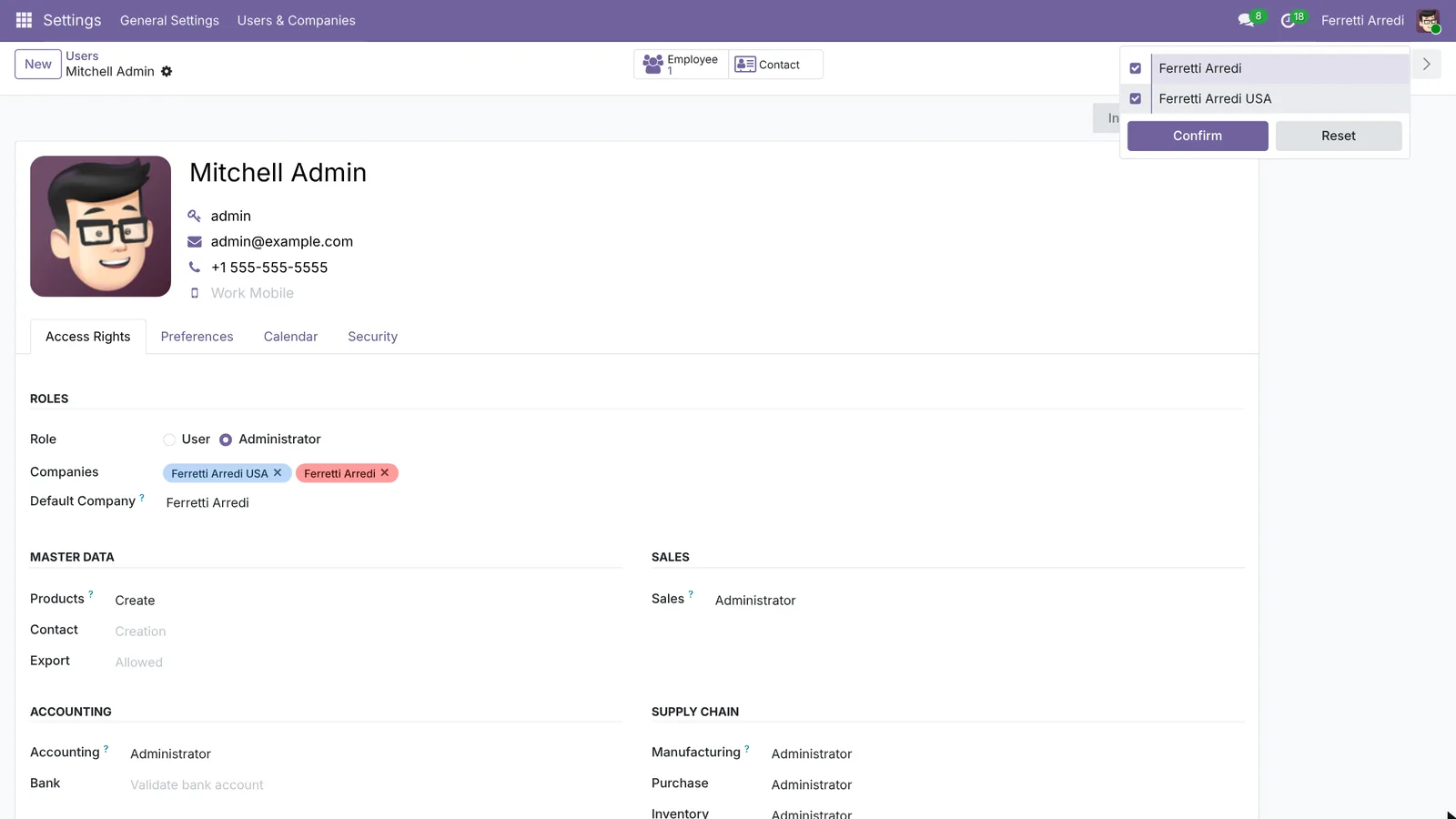 Both ticked: the records of both companies, together.
The first company in the list is the one new records belong to. In Odoo 18 and later, confirm the choice with Confirm.
4. Shared customers and products
Customers and products are shared by default. Open a customer, here Gemini Furniture, and its Sales & Purchase tab: the Company field is empty, which means every company sees it. Set a company there to keep a record in that company only.
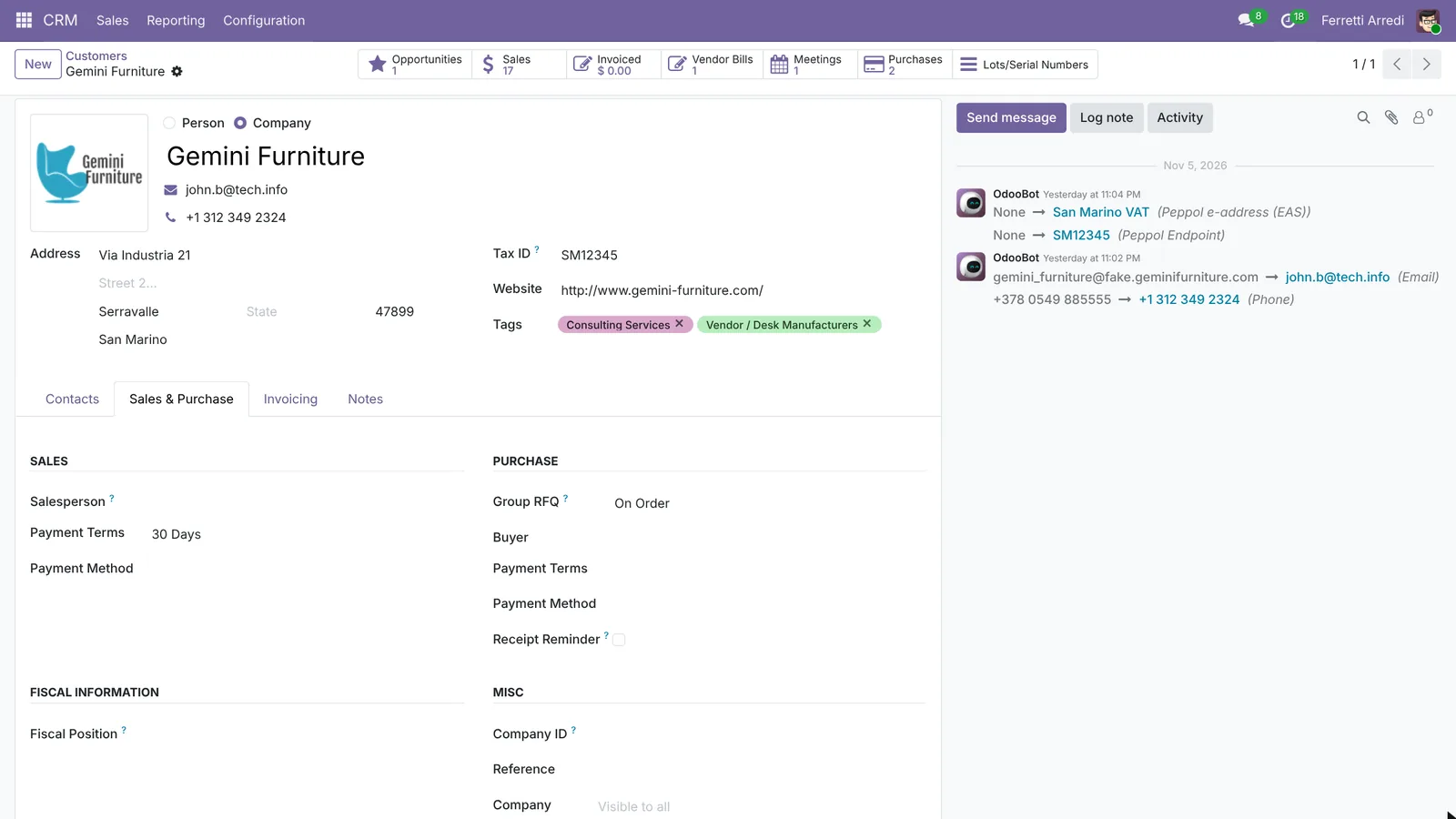 An empty Company field: shared by every company.
5. Settings each company keeps
Some fields on a shared record belong to each company. The Payment Terms of Gemini Furniture, 30 days, are the terms of the company you are in.
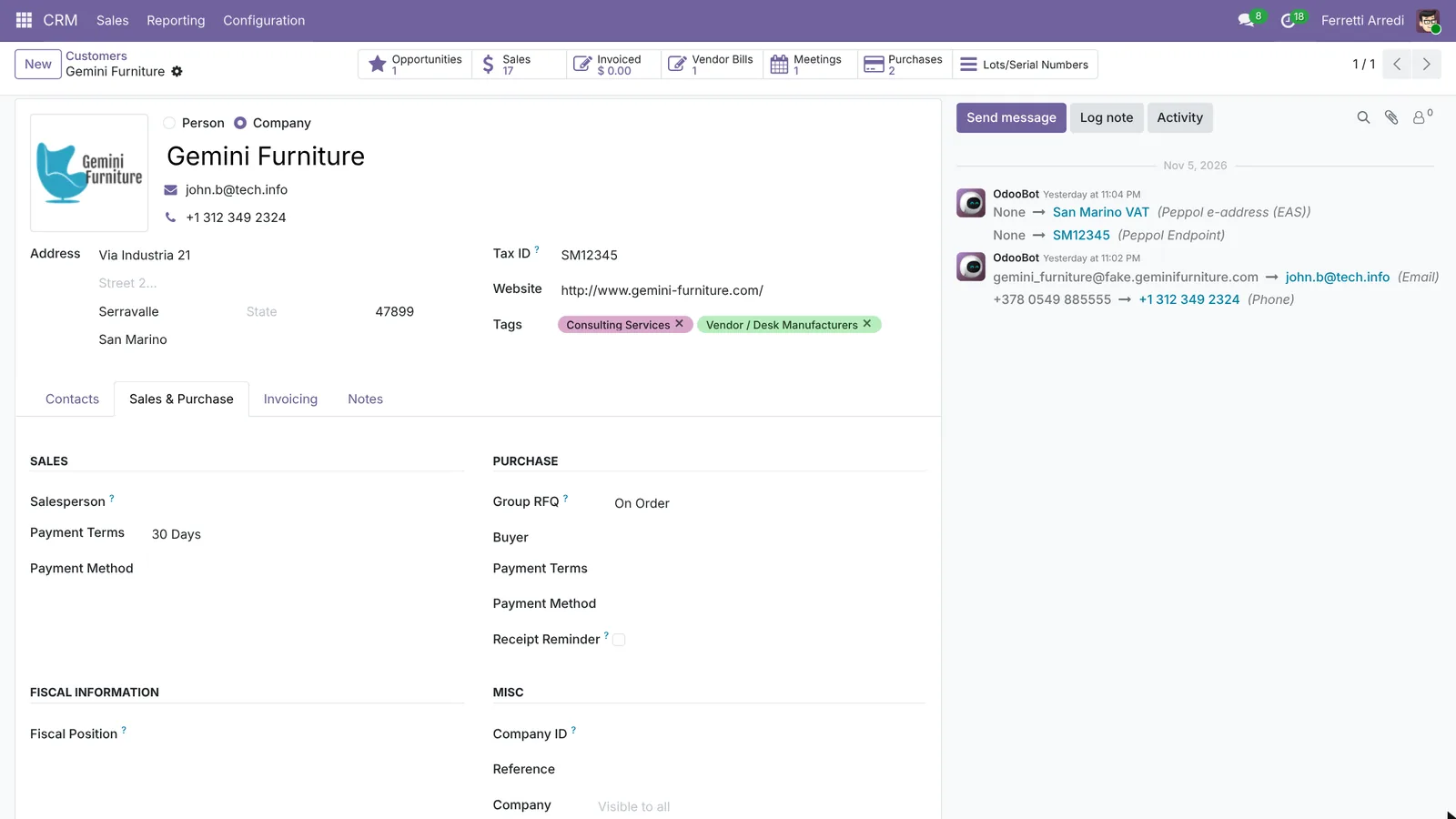 30 days in Ferretti Arredi.
Switch to the other company: the same customer has no terms there. Give it 15 days and save. Both companies keep their own, and invoices use the terms of the company that sends them. The same goes for the customer’s accounts and fiscal position, and for a product’s cost and accounts.
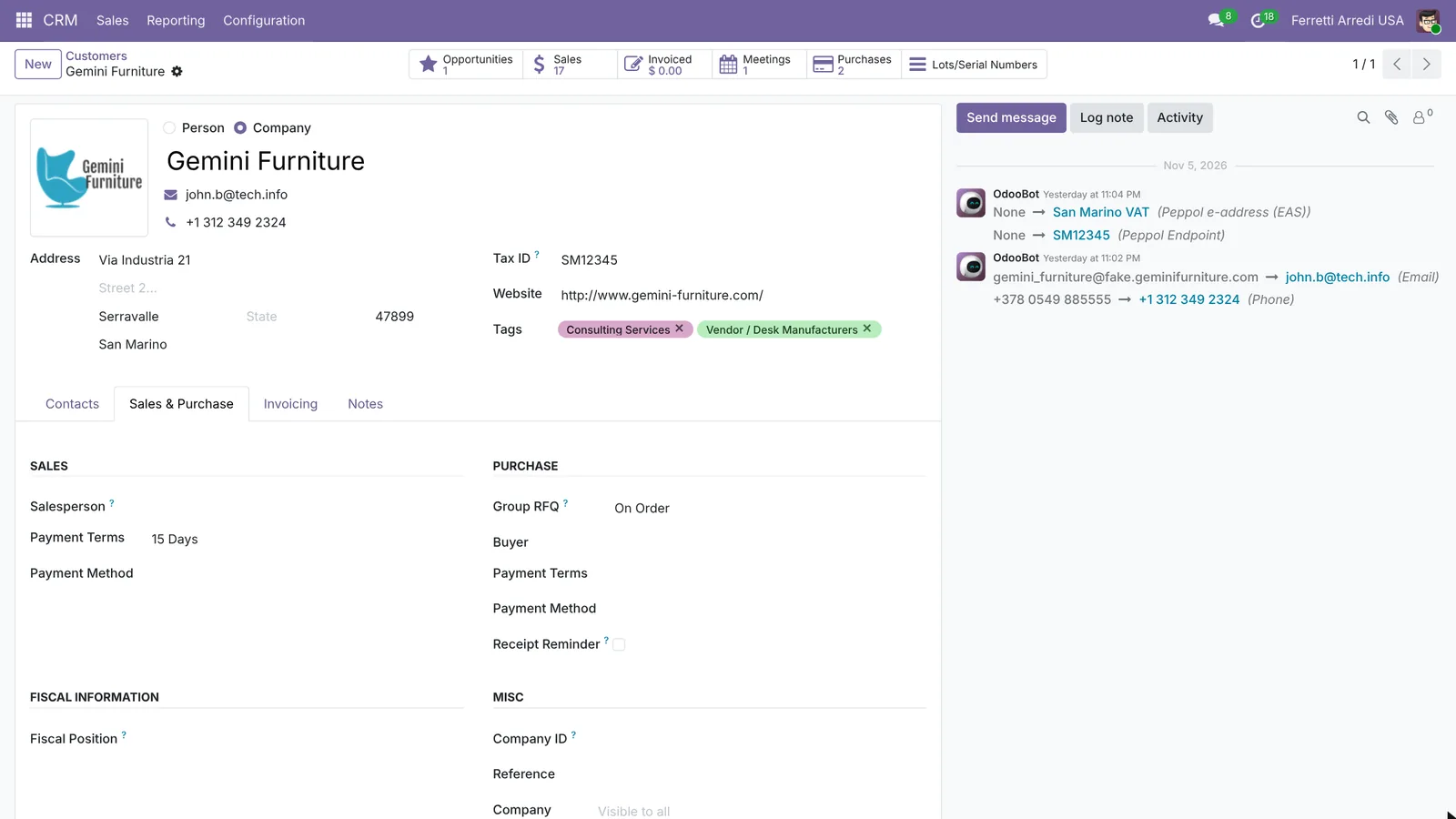 15 days in Ferretti Arredi USA, for the same customer.
Common mistakes
- Working in the wrong company. A new invoice belongs to the company that comes first in the switcher. Check the top bar before you create it.
- Setting terms in one company only. The same customer then pays differently depending on who invoices. Check both companies.
- Giving a record a company by mistake. The other company no longer sees it. Leave the Company field empty for shared data.
- Forgetting the reload. The switcher appears only after the page reloads.
Multi-company with AI: ask your AI assistant through MCP
With the Hawklify MCP server, Claude, ChatGPT and other assistants work in your Odoo as you, with your permissions. Odoo shows one company at a time, so comparing every customer across two companies means switching back and forth, customer by customer. The assistant reads both at once.
On the computer. Depending on how your organisation set up the server, the assistant makes the change straight away or first shows you a card to approve. Here Smart mode is on, and it reads both companies again to check.
Six customers have terms. Four differ:
- Acme Corporation: 30 Days here, none in the USA company.
- Azure Interior: 30 Days here, none in the USA company.
- Gemini Furniture: 30 Days here, 15 Days in the USA company.
- Ready Mat: End of Following Month here, Immediate Payment in the USA company.
Lumber Inc (45 Days) and The Jackson Group (30 Days) match.
Done, and checked: in Ferretti Arredi USA, Acme Corporation, Azure Interior and Gemini Furniture now pay in 30 Days, Ready Mat at End of Following Month. All six customers now match in both companies.
On the phone, on Friday evening. The same works for a quick check across both companies, from a chat assistant connected to Odoo through Hawklify:
Hawklify
Your Odoo, from the chat you already use
Send a message, a photo or a voice note: the assistant reads and works in Odoo through Hawklify, with your permissions.
Did both companies invoice everything we shipped this week?
Ferretti Arredi: all 9 deliveries are invoiced.
Ferretti Arredi USA: 2 shipped, not invoiced:
S00044Acme Corporation, delivered Tuesday: $3,920.00S00047Lumber Inc, delivered Thursday: $1,180.00
Create both invoices as drafts in the USA company?
Yes, create them
Done: two draft invoices in Ferretti Arredi USA, $5,100.00 in total, with their 30 Days terms. Check them and post on Monday.
Versions we tested
| Version | Result |
|---|---|
| Odoo 16 | Same steps. The field on the user is Allowed Companies, under Multi Companies in the Access Rights tab, and the switcher applies each tick at once, with no Confirm button. |
| Odoo 17 | Like 16. |
| Odoo 18 | The field on the user is still Allowed Companies; the switcher has a Confirm button, as in this guide. |
| Odoo 19 | As in this guide: the field is Companies, under Roles. The screenshots come from Odoo 19. |
| Odoo 20 | Like 19. The switcher is the company name in the top bar. |
Frequently asked questions
Does a second company cost more?
Odoo charges per user and per app, not per company, on most plans. Check your own subscription, as hosting and plan rules can differ.
Why can't I see the company switcher?
It appears only when your user has access to more than one company. Add the company to your user's companies, save, and reload the page.
How do I keep a customer or product in one company only?
Set its Company field. An empty Company field means every company sees it.
Do I need inter-company rules?
Only if the companies sell to each other. Then Odoo can create the matching purchase in one company when the other confirms a sale. Without such sales, you don't need them.
Questa guida è disponibile anche in italiano: Multi-azienda Odoo: due aziende in un solo database
Related Odoo guides
 AccountingBank reconciliation in Odoo: match payments to invoicesReconcile bank transactions in Odoo Enterprise: match payments to invoices, handle a payment with no reference, and book bank fees with a model.
 AccountingPayment terms in Odoo: due dates that get you paidSet payment terms in Odoo so every invoice gets the right due date, register the payment, then find overdue invoices and send a reminder. Community and Enterprise.
 InventoryWarehouse setup in Odoo: locations and multi-step routesTurn on storage locations and multi-step routes in Odoo, then receive goods in 2 steps and ship them in 3: pick, pack and deliver. Community and Enterprise.