Abandoned carts in Odoo: win sales back by e-mail
Win back abandoned carts in Odoo eCommerce: turn on the automatic recovery e-mail, find the carts left on your shop, and send one by hand. Community and Enterprise.
- Community and Enterprise
- 4 min read
- Odoo + AI tutorial
Every day someone fills a cart on your shop, gets to the checkout, and leaves. Most never come back by themselves, but many do with a nudge. Odoo eCommerce keeps each of these abandoned carts: it can e-mail the customer a few hours later, with the products and a button back to the cart, and lets you send the same recovery e-mail by hand to the carts that matter. This guide turns on the automatic e-mail, opens the list of abandoned carts, and sends one by hand.
It works the same in Community and Enterprise. The versions we tested are listed at the end.
This guide is also an AI tutorial. At the end, an AI assistant connected to Odoo picks every Monday the abandoned carts worth a personal e-mail, skips the customer who already ordered by phone, and takes that cart off the list after one approval.See it in action ↓Before you start
- The eCommerce app installed (it installs Website and Sales).
- Outgoing e-mail working, so the e-mails reach the customers.
1. Turn on the automatic e-mail
Open Website → Configuration → Settings and scroll to the shop’s options.
- Tick Follow up abandoned carts.
- In Send after, choose how many hours to wait: here 2.
Press Save. From now on, every cart left for two hours by a customer with an e-mail gets the recovery e-mail.
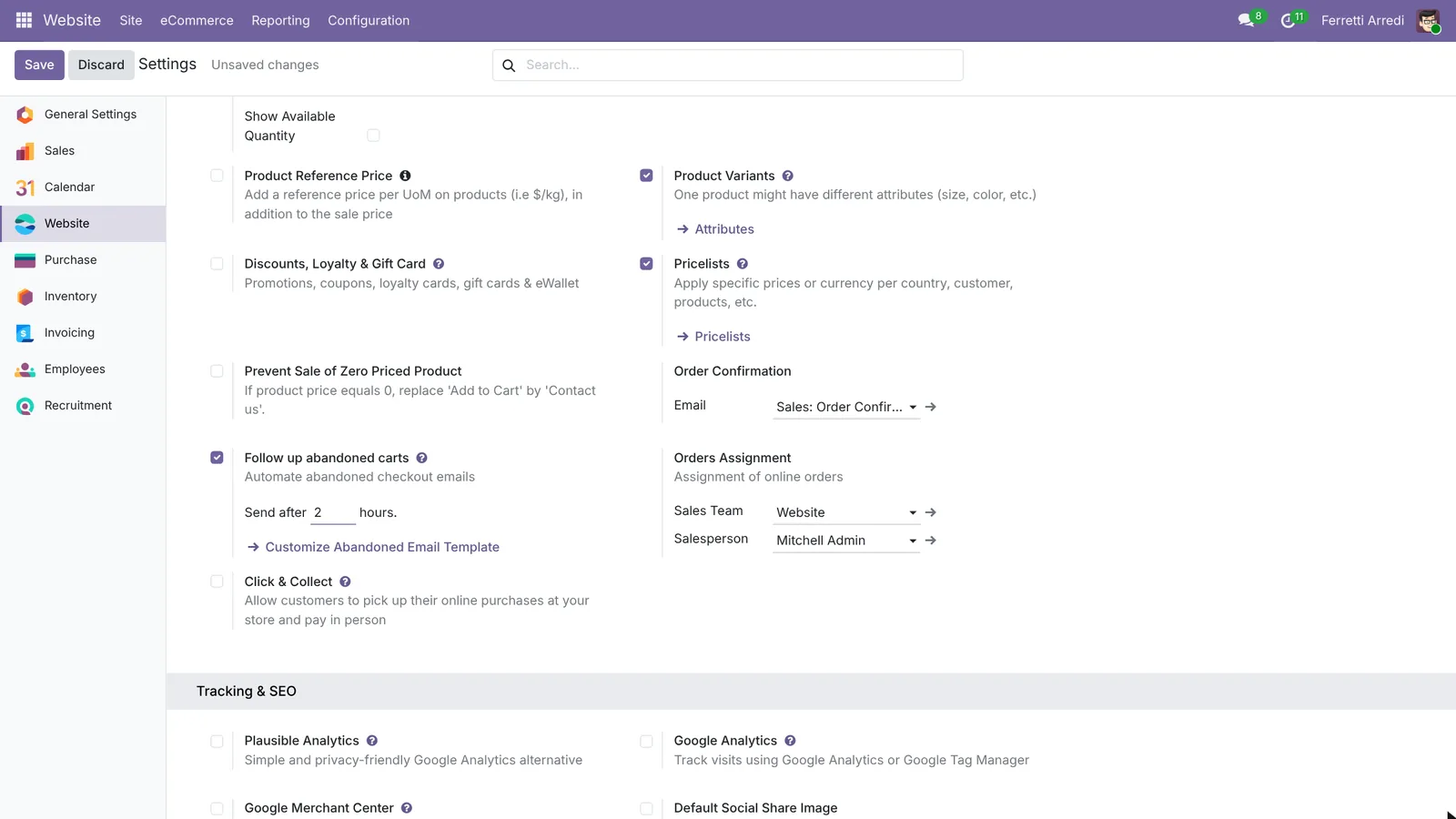 One box, and the hours to wait.
2. Open the abandoned carts
Open Website → eCommerce → Abandoned Carts. The Recovery Email to Send filter shows the carts still waiting for an e-mail, with the customer, the date and the total.
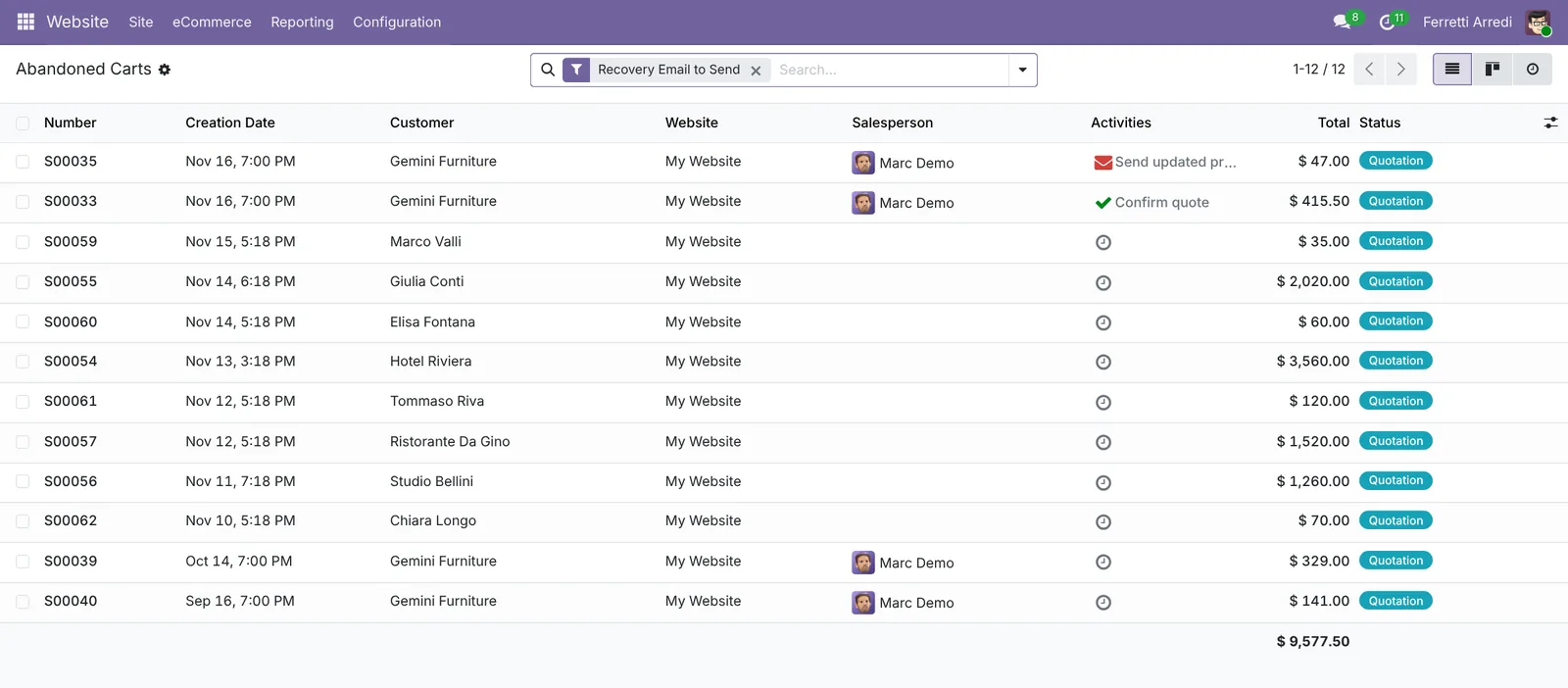 Every cart left on the shop, with who left it and how much.
3. Open a cart
Open one to see what the customer wanted, here Hotel Riviera, four Lounge Sofas for $3,560.
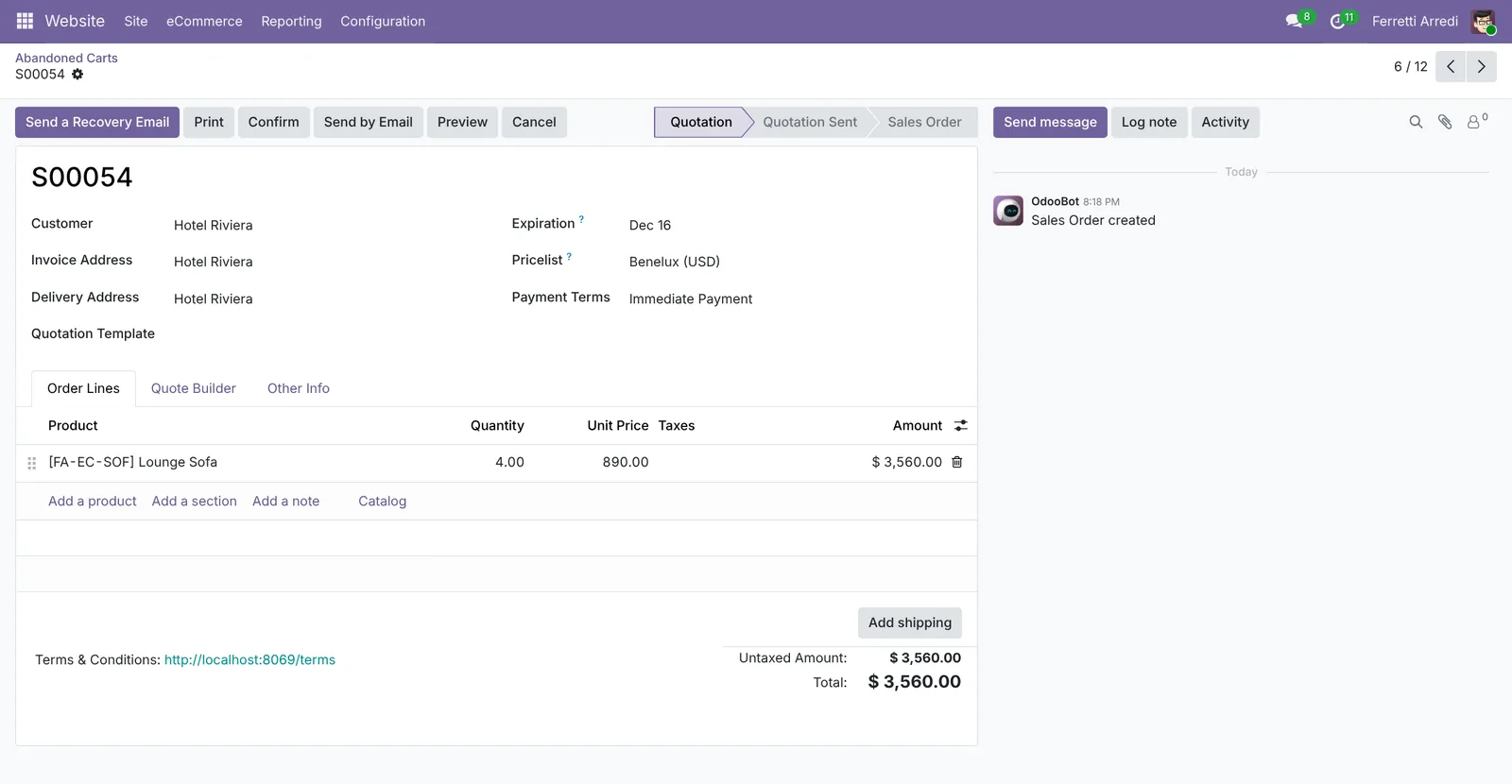 What they wanted, and how much.
4. Send a recovery e-mail by hand
Press Send a Recovery Email. Odoo prepares the e-mail from the template, with the products and a Resume order button that takes the customer back to the cart. Change the text if you like, then press Send. The e-mail stays in the cart’s chatter.
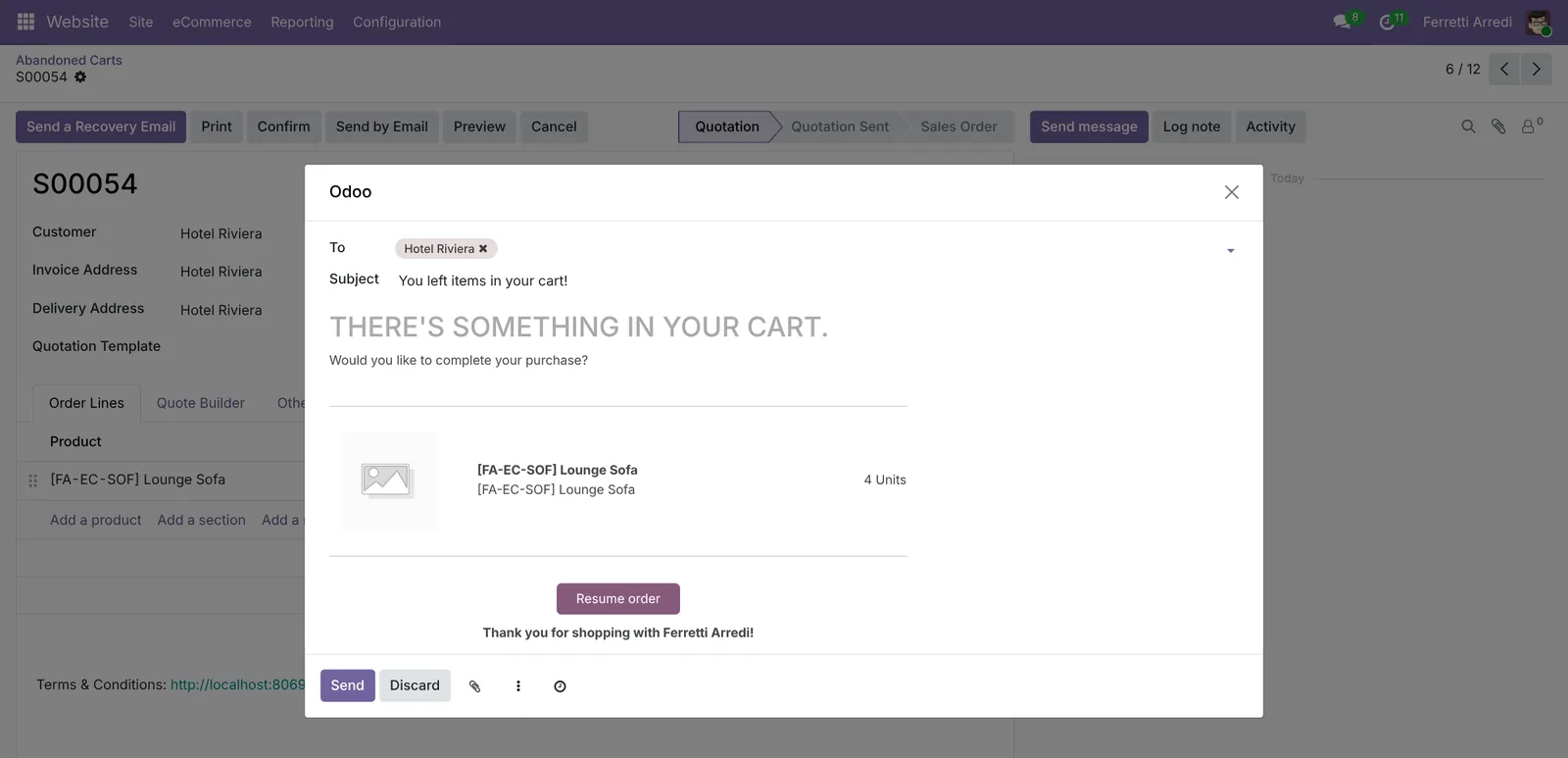 The products, and one button back to the cart.
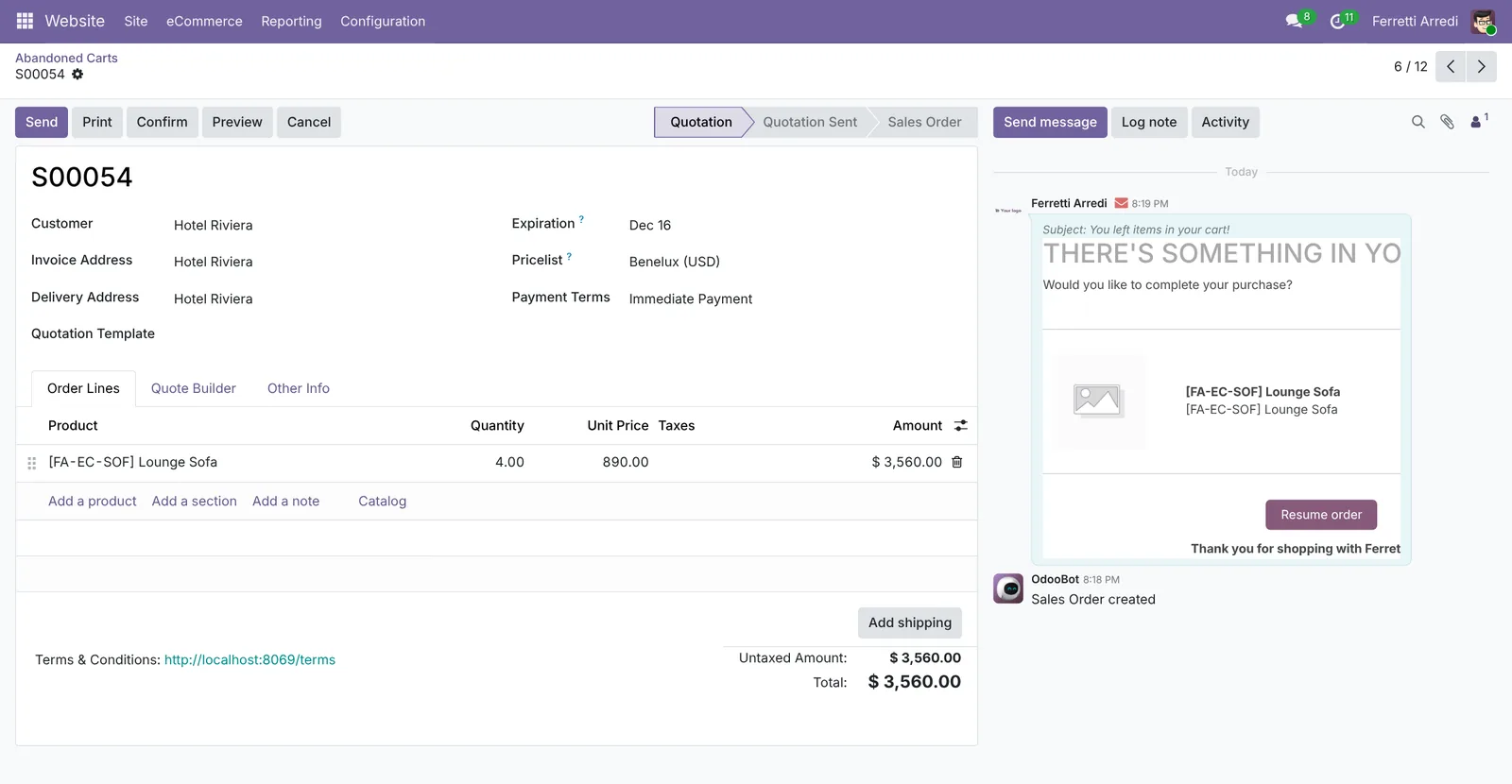 Sent, and kept on the cart.
Common mistakes
- Waiting too long. A day later the customer bought elsewhere. Two or three hours is enough.
- The same e-mail for everyone. A regular customer with a big cart deserves a personal line, not the template.
- Reminding people who already bought. An order taken by phone doesn’t stop the automatic e-mail: check the big carts first.
- No e-mail on the cart. Visitors who never gave an e-mail can’t be reminded: ask for it early in the checkout.
Abandoned carts with AI: ask your AI assistant through MCP
With the Hawklify MCP server, Claude, ChatGPT and other assistants work in your Odoo as you, with your permissions. The automatic e-mail is the same for every cart: it doesn’t know who is a regular, who is new, or who already ordered by phone.
Every Monday, on the phone. A chat assistant connected to Odoo checks last week’s carts by itself. Depending on how your organisation set up the server, it makes the change straight away or first shows you a card to approve. Here Smart mode is on: it asks once, in the chat.
Hawklify
Your Odoo, from the chat you already use
Send a message, a photo or a voice note: the assistant reads and works in Odoo through Hawklify, with your permissions.
8 carts left on the shop last week, $8,645. Worth a personal e-mail:
- Hotel Riviera $3,560: 4 Lounge Sofas. A regular, buys sofas every two months.
- Giulia Conti $2,020: a dining table and 6 chairs. New customer, first visit.
- Studio Bellini $1,260: 6 Office Chairs Ergo. A regular, first time on this chair.
Skip Ristorante Da Gino ($1,520): they ordered the same 16 chairs by phone the next day.
The 4 small carts get Odoo's automatic e-mail. Send the 3 personal ones?
Yes, send them
Done: 3 e-mails sent from the carts S00054, S00055 and S00056, each saved in its chatter. Riviera and Bellini: we can add it to their next delivery. Giulia: any question on sizes, finishes or delivery, just reply.
In the browser, in card mode. On the list of abandoned carts, the assistant finds the ones that were already bought another way. Nothing changes until the card is approved:
One: Ristorante Da Gino, cart S00057, 16 Outdoor Chairs, $1,520, left on Nov 12. The next day Marc took the same 16 chairs by phone, a confirmed order of Nov 13.
Odoo's automatic e-mail still goes out, because it only looks at orders made on the website. Cancel the cart, so it leaves the list and they get no reminder?
Approval needed in OdooRun
Cancel the cart S00057 of Ristorante Da Gino: the same chairs were ordered by phone the next day.
sale.order · 1 record
S00057 · Ristorante Da Gino
| Field | Current | New |
|---|---|---|
| Status | Cancelled |
Change applied in Odoo.
Organisation administrators can turn the approval cards off on the Members page.
Done: S00057 is cancelled and off the list. Da Gino won't get a reminder for chairs they already have. The other carts are all still open.
Versions we tested
| Version | Result |
|---|---|
| Odoo 16 | Same steps. The setting is Automatically send abandoned checkout emails, under Email & Marketing. |
| Odoo 17 | Same steps. The setting is Automatically send abandoned checkout emails. |
| Odoo 18 | Same steps. The setting is Automatically send abandoned checkout emails. |
| Odoo 19 | As in this guide. The screenshots come from Odoo 19. |
| Odoo 20 | Same steps. Abandoned Carts shows in the eCommerce menu only in developer mode. |
Frequently asked questions
Which carts get the automatic e-mail?
Carts with products, left by a customer Odoo knows the e-mail of (signed in, or past the address step), older than the hours you set. A visitor who never gave an e-mail gets nothing.
Does a customer get the e-mail twice?
No. Each cart gets one recovery e-mail, automatic or by hand. Once sent, the cart leaves the Recovery Email to Send filter.
Can I change what the e-mail says?
Yes. Under the setting, Customize Abandoned Email Template opens the template: change the text, the subject or the layout, and every recovery e-mail uses it.
Why did a customer who already bought get the e-mail?
Odoo skips a cart only when the same customer confirmed a later order on the same website. An order taken by phone or by a salesperson doesn't count, so the e-mail still goes out.
Questa guida è disponibile anche in italiano: Carrelli abbandonati in Odoo: recupera le vendite
Related Odoo guides
 SalesSales orders in Odoo: from quotation to invoiceTake a sale through Odoo from start to finish: create the quotation, confirm the order, deliver the goods and post the invoice. Community and Enterprise.
 CRMCRM pipeline in Odoo: stages, activities, lost reasonsSet up the Odoo CRM pipeline: add and order stages, create opportunities, plan the next activity and mark lost deals with a reason. Community and Enterprise.
 SalesSales analysis in Odoo: a report that answers questionsTurn Odoo's sales analysis into a pivot table of customers by month, open the orders behind any number and save the report as a favorite. Community and Enterprise.