Surveys in Odoo: ask customers how it went
Build a customer feedback survey in Odoo: two questions, a share link for every delivery, and the results page with the chart and every free-text answer.
- Community and Enterprise
- 3 min read
- Odoo + AI tutorial
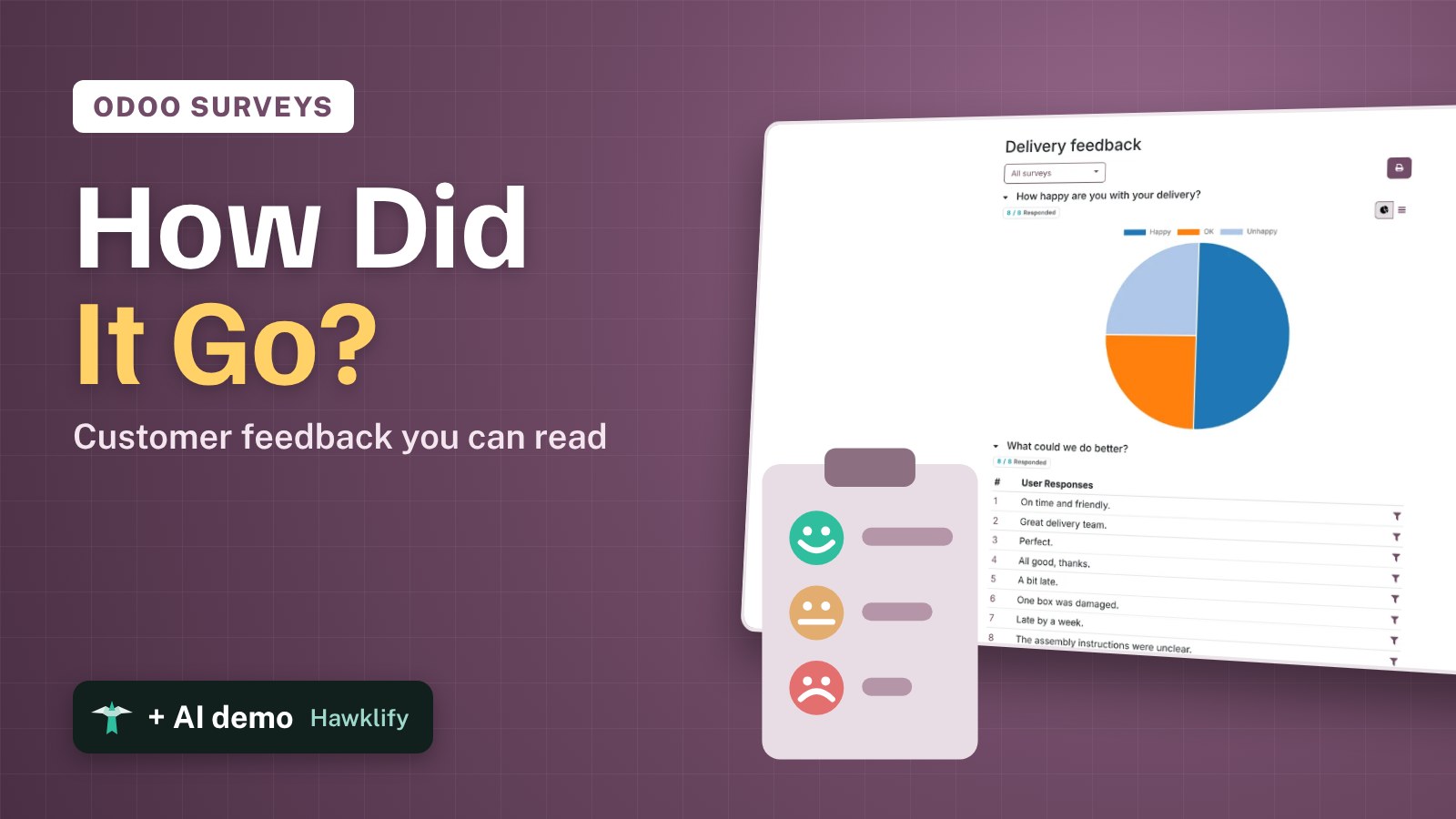
“How was your delivery?” is easy to ask and hard to read: a dozen e-mails, three phone calls and a comment on the invoice, none of it in one place. Odoo Surveys gives every customer the same two questions and puts the answers on one page: a chart for the happy, OK and unhappy, and the free text right under it. This guide builds a delivery feedback survey, shares it and reads the results.
It works the same in Community and Enterprise. The versions we tested are listed at the end.
This guide is also an AI tutorial. At the end, an AI assistant connected to Odoo reads every free-text answer of a feedback survey, groups the complaints, and gives each unhappy customer's salesperson a call to make, then turns the complaints into a sharper question for next month.See it in action ↓Before you start
- The Surveys app installed.
- Customers who received a delivery and an e-mail address to reach them.
1. Create the survey and the first question
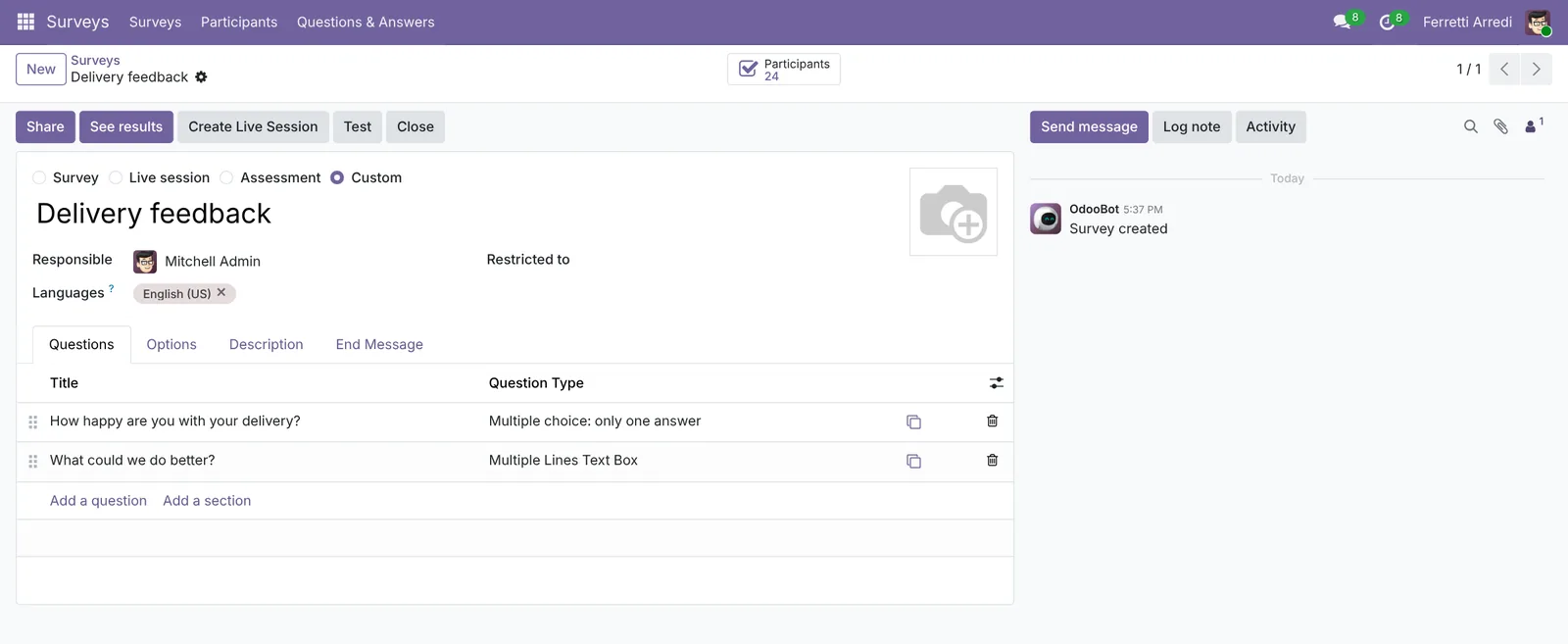
Open Surveys, press New and call it Delivery feedback. In the Questions tab press Add a question: write How happy are you with your delivery?, choose Multiple choice: only one answer and add three choices, Happy, OK and Unhappy. Press Save & New.
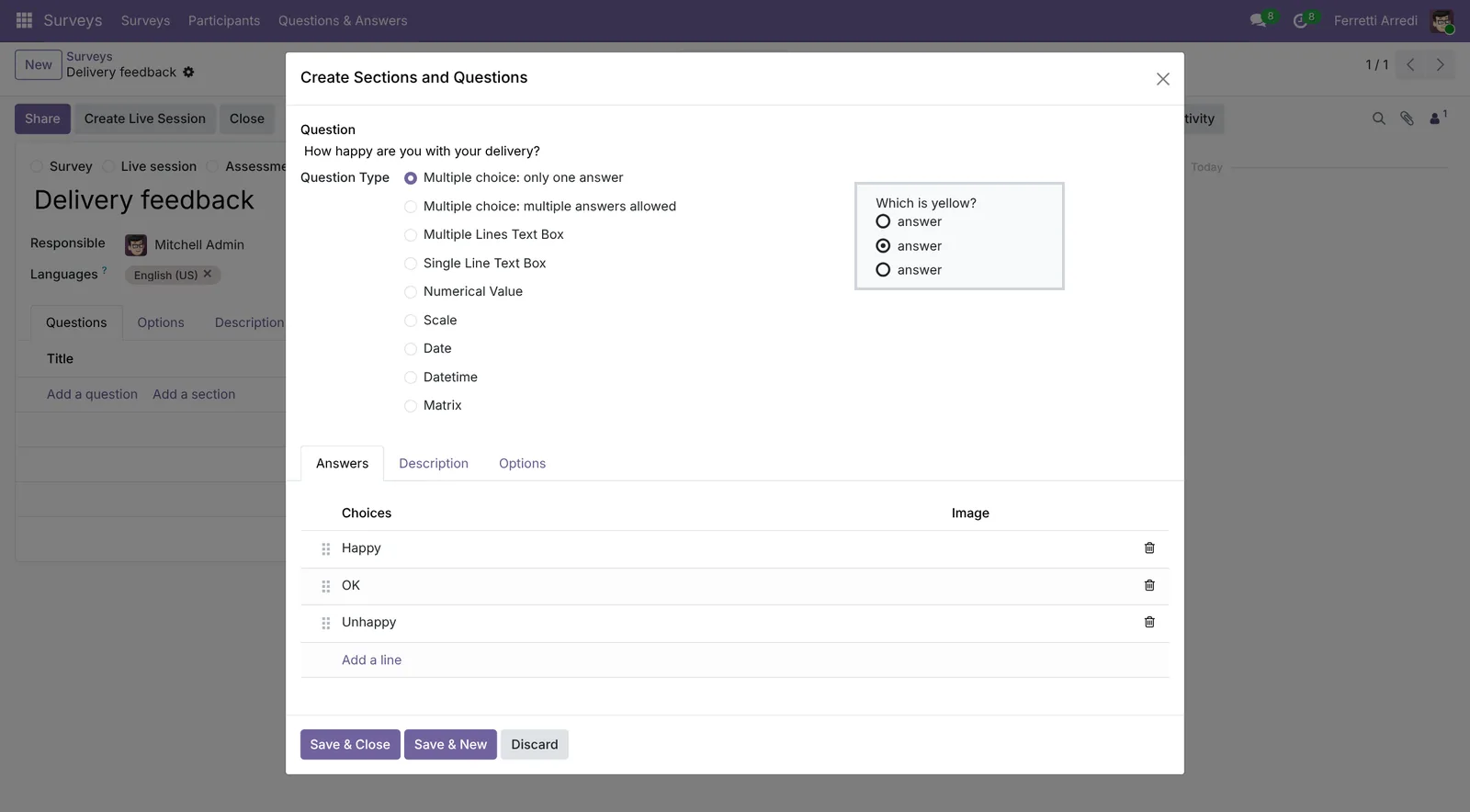 Three answers you can count.
2. Add an open question
Write What could we do better?, choose Multiple Lines Text Box and press Save & Close. The survey now has two questions: one to count, one to read.
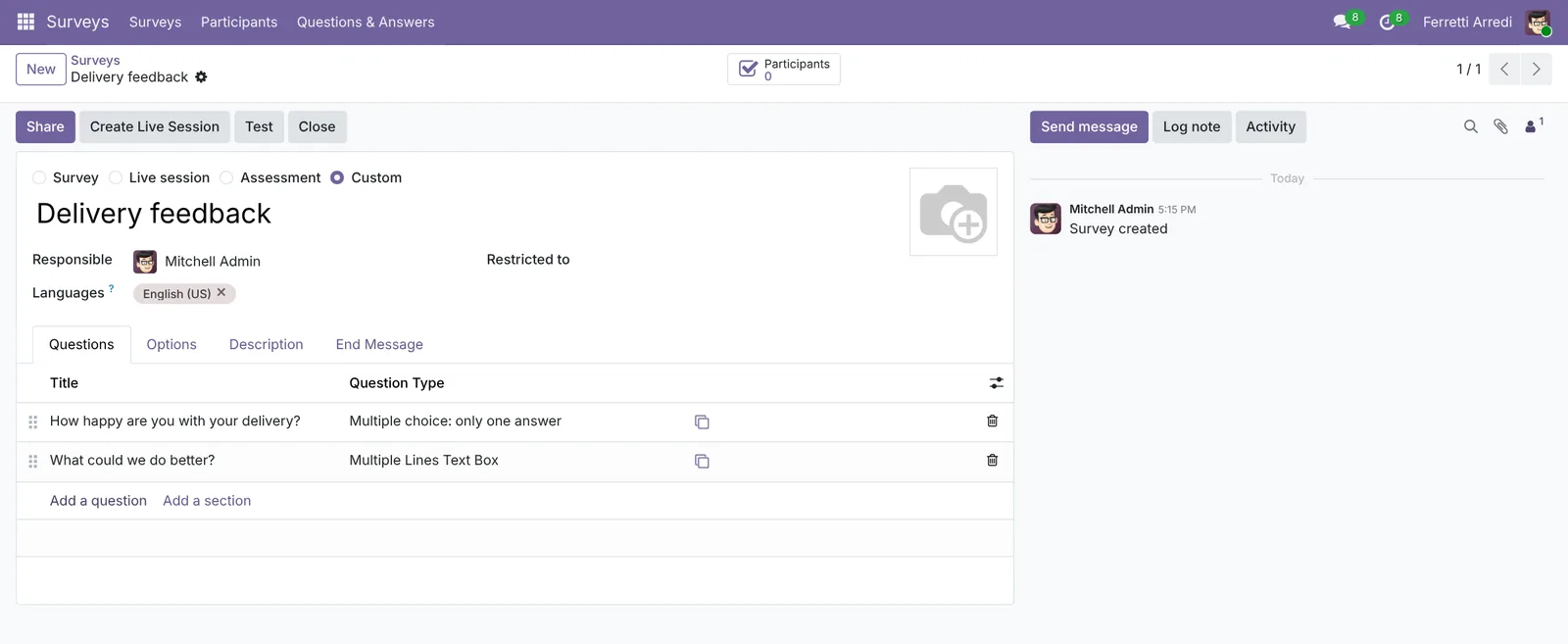 Short surveys get answered.
3. Share it
Press Share. Copy the Survey Link into your delivery e-mail, or turn on Send by Email to invite customers from Odoo.
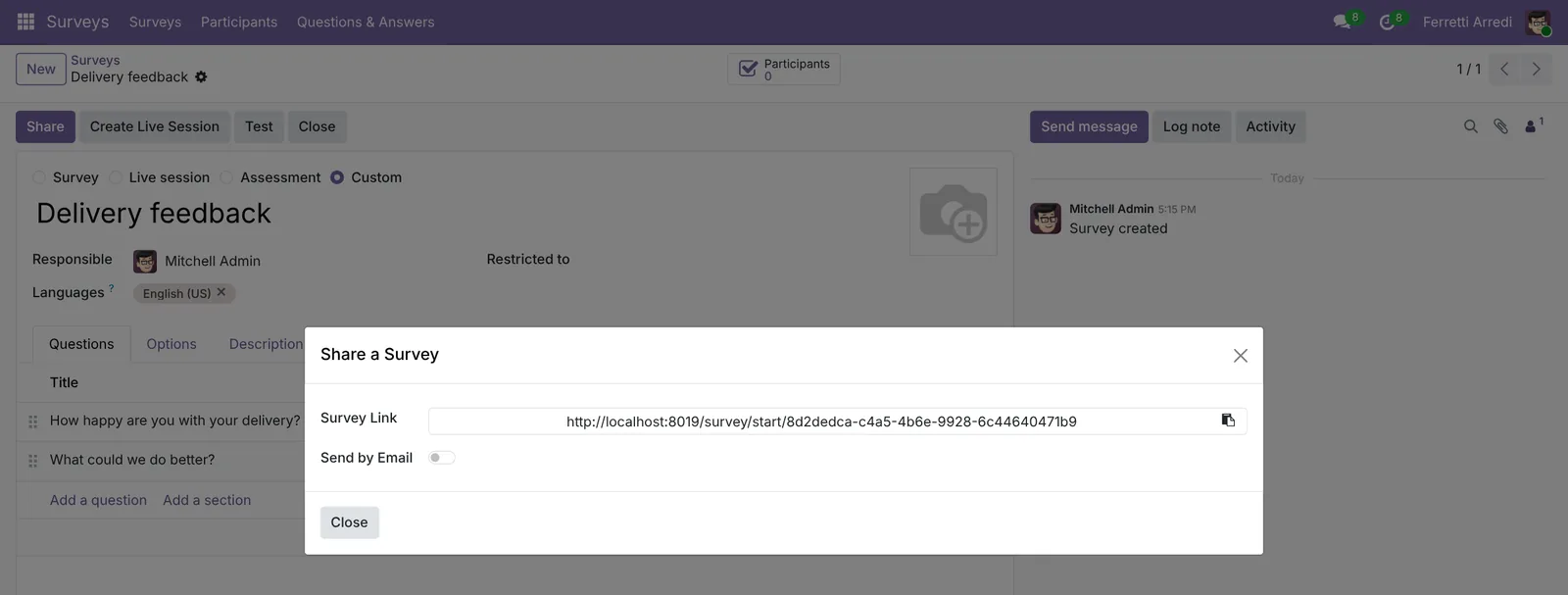 One link for every delivery.
4. Read the results
When answers come in, press See results on the survey. The first question becomes a chart of Happy, OK and Unhappy; under the second, every answer is listed, with a filter to show only the people who gave a certain answer.
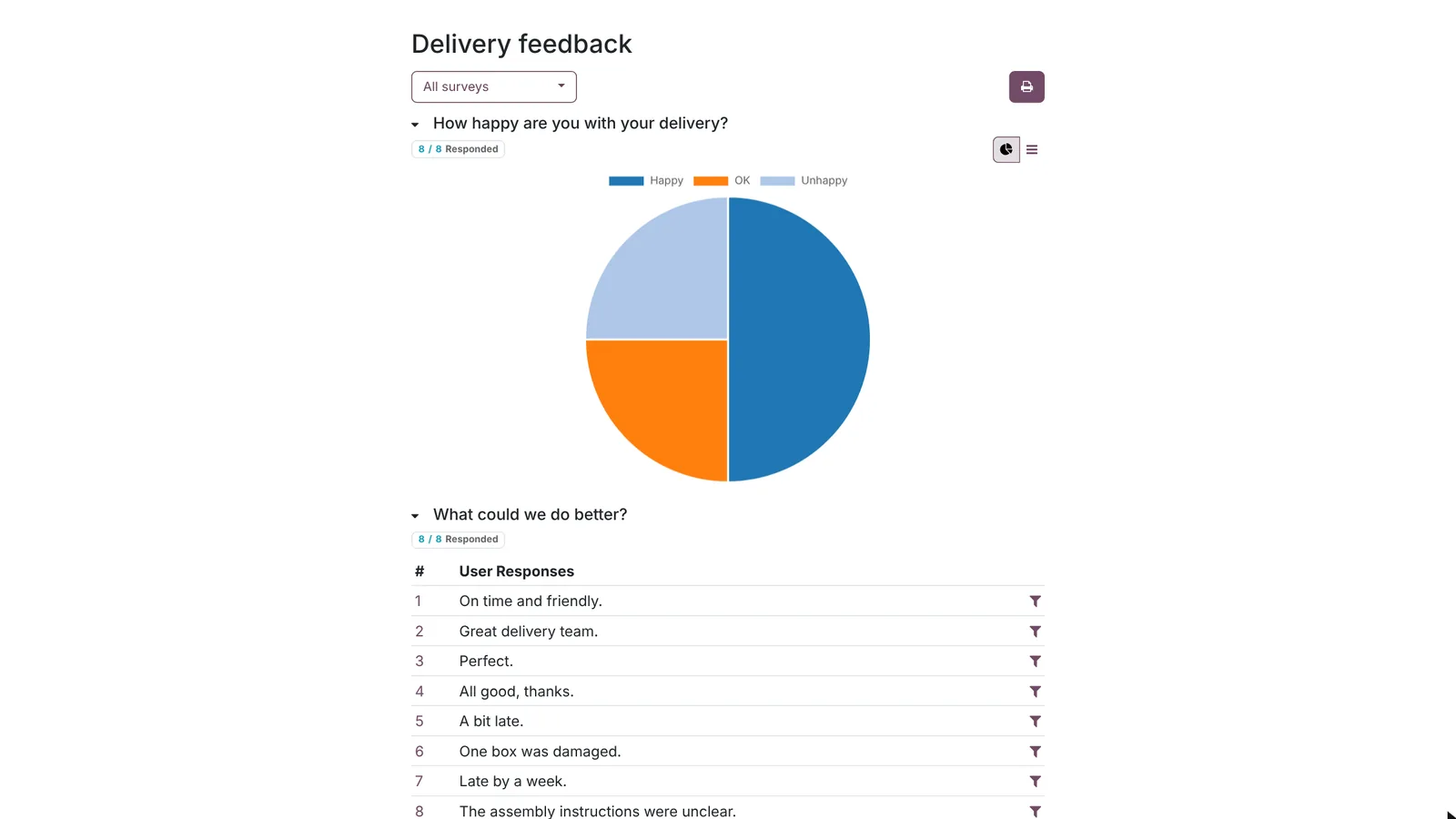 The chart for the trend, the text for the reasons.
Common mistakes
- Ten questions where two will do. Customers answer a short survey; a long one gets closed half way.
- Only free text. Without a choice question there is nothing to count or compare month to month.
- Scoring on. A feedback survey is not a test: leave Assessment and scoring off, or customers see a score.
- Reading the chart and not the text. “Unhappy” tells you something is wrong, the text tells you what. The unhappy ones need a call, not a chart.
Surveys with AI: ask your AI assistant through MCP
With the Hawklify MCP server, Claude, ChatGPT and other assistants work in your Odoo as you, with your permissions. The results page counts the choices but not the free text: someone still has to read every answer, group the complaints and find out who the unhappy customers are and who sells to them. An assistant does that in seconds.
On the survey, in the browser. Smart mode is on: the assistant reads, explains, and asks once before it changes anything.
Of the 24 answers, the free text says:
- Late delivery: 7
- Damaged packaging: 5
- Unclear assembly instructions: 4
- Praise for the delivery team: 6
Five customers answered Unhappy:
- Gemini Furniture, Ready Mat, Wood Corner: salesperson Marc Demo
- Lumber Inc, Bright Homes: salesperson Mitchell Admin
Give each salesperson a call to make tomorrow for their customers?
Done: 5 To-Dos "Call about the delivery feedback" due tomorrow, 3 for Marc Demo and 2 for Mitchell Admin, each on the customer with what they answered.
At the computer. Here card mode is on: nothing changes until you approve the card.
This month's complaints fall in three groups: late delivery (7), damaged packaging (5) and assembly instructions (4). A choice question with those three, plus "Something else", turns them into a chart.
Approval needed in OdooCreate
New question in Delivery feedback, after the first one: what went wrong, with four choices and more than one allowed.
survey.question · 1 record
What went wrong with your delivery?
| Field | Current | New |
|---|---|---|
| Question Type | Multiple choice: multiple answers allowed | |
| Choices | Late · Damaged packaging · Unclear assembly instructions · Something else | |
| Survey | Delivery feedback |
Change applied in Odoo.
Organisation administrators can turn the approval cards off on the Members page.
Added: from the next answer, the results page shows a chart of the problems next to the one of how happy customers are. The text box stays for everything else.
Versions we tested
| Version | Result |
|---|---|
| Odoo 16 | Same steps; the title is a Survey Title field and the buttons are in capitals. Adding a question saves the survey. |
| Odoo 17 | Same steps and screens as 19. |
| Odoo 18 | Same steps and screens as 19. |
| Odoo 19 | As in this guide. The screenshots come from Odoo 19. |
| Odoo 20 | Same steps; the question type is a bar of buttons: Single-Select for the first question, Long Text for the second. |
Frequently asked questions
Can the survey be anonymous?
Yes. In the Options tab choose who may answer (anyone with the link, or only invited people) and leave the login off. With Send by Email each answer is tied to the contact it was sent to.
How do I send it after every delivery?
Share the link in the delivery e-mail template, or create an automation rule that sends the survey invitation when a delivery is validated. The results page gathers all answers either way.
Can I export the answers?
Yes. The Participants menu of Surveys lists every answer; group, filter and export it like any Odoo list.
Is a survey the same as an Odoo quiz?
It is the same app. A quiz scores the answers (Assessment), a feedback survey just collects them: keep scoring off for customer feedback.
Questa guida è disponibile anche in italiano: Sondaggi in Odoo: chiedi ai clienti com'è andata
Related Odoo guides
 MarketingEmail marketing in Odoo: newsletters that get readSend newsletters with Odoo Email Marketing: a mailing list, contacts pasted in one go, a mailing from a layout, a test email, and who opened and clicked.
 CRMCRM pipeline in Odoo: stages, activities, lost reasonsSet up the Odoo CRM pipeline: add and order stages, create opportunities, plan the next activity and mark lost deals with a reason. Community and Enterprise.
 Automation & CustomizationAutomation rules in Odoo: follow-ups that never slipCreate an automation rule in Odoo: when a sales order over $5,000 is confirmed, the sales manager gets a To-Do to call the customer. No code.