Sales Margins in Odoo: cost, margin per line and report
Track sales margins in Odoo: set the product cost, see the margin of every quotation line, catch a line sold under cost and compare salespeople in the report.
- Community and Enterprise
- 3 min read
- Odoo + AI tutorial
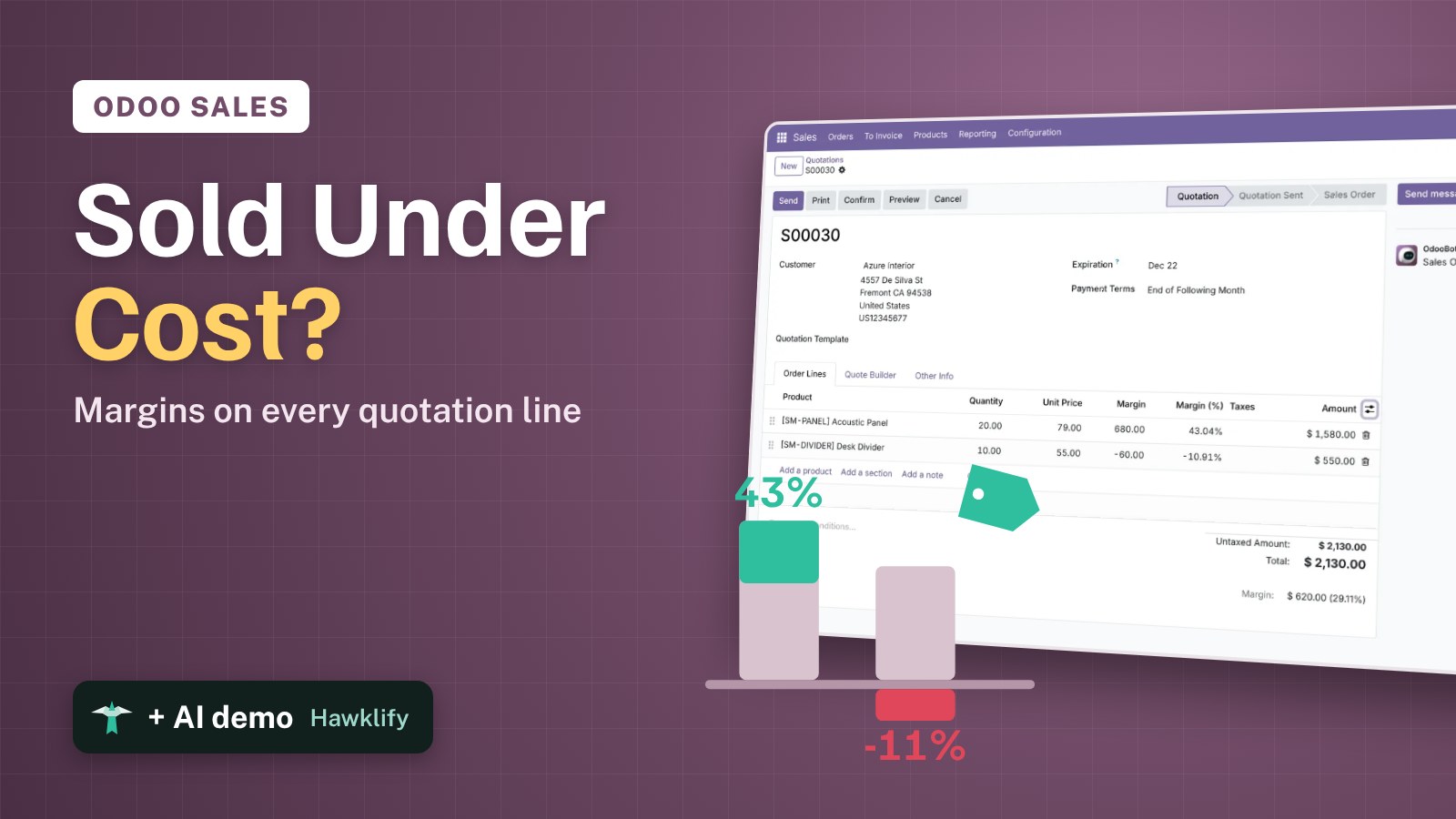
The sales team is busy, revenue is up, and the bank account doesn’t agree. A discount here, an old contract price there, and some lines are sold for less than they cost. Odoo knows the cost of each product and can show the margin on every quotation line and in the sales report, but it’s off until you turn it on. This guide sets a product’s cost, reads the margin of a quotation with one line under cost, and compares salespeople in the report.
It works the same in Community and Enterprise. The versions we tested are listed at the end.
This guide is also an AI tutorial. At the end, an AI assistant connected to Odoo finds from a phone chat the lines sold under cost last month and the old contract price behind them, fixes the price after one yes, and sends a monthly margin report that shows the best-selling product earns the least.See it in action ↓Before you start
- The Sales app, with Margins ticked in Sales → Configuration → Settings (Show margins on orders).
- Products with a cost. Here an Acoustic Panel sold at $79 and a Desk Divider sold at $95, with costs of $45 and $61.
1. Set the cost
Open the product: Sales → Products → Products, then Acoustic Panel. Sales Price is $79, Cost is $45: every panel sold at list price earns $34.
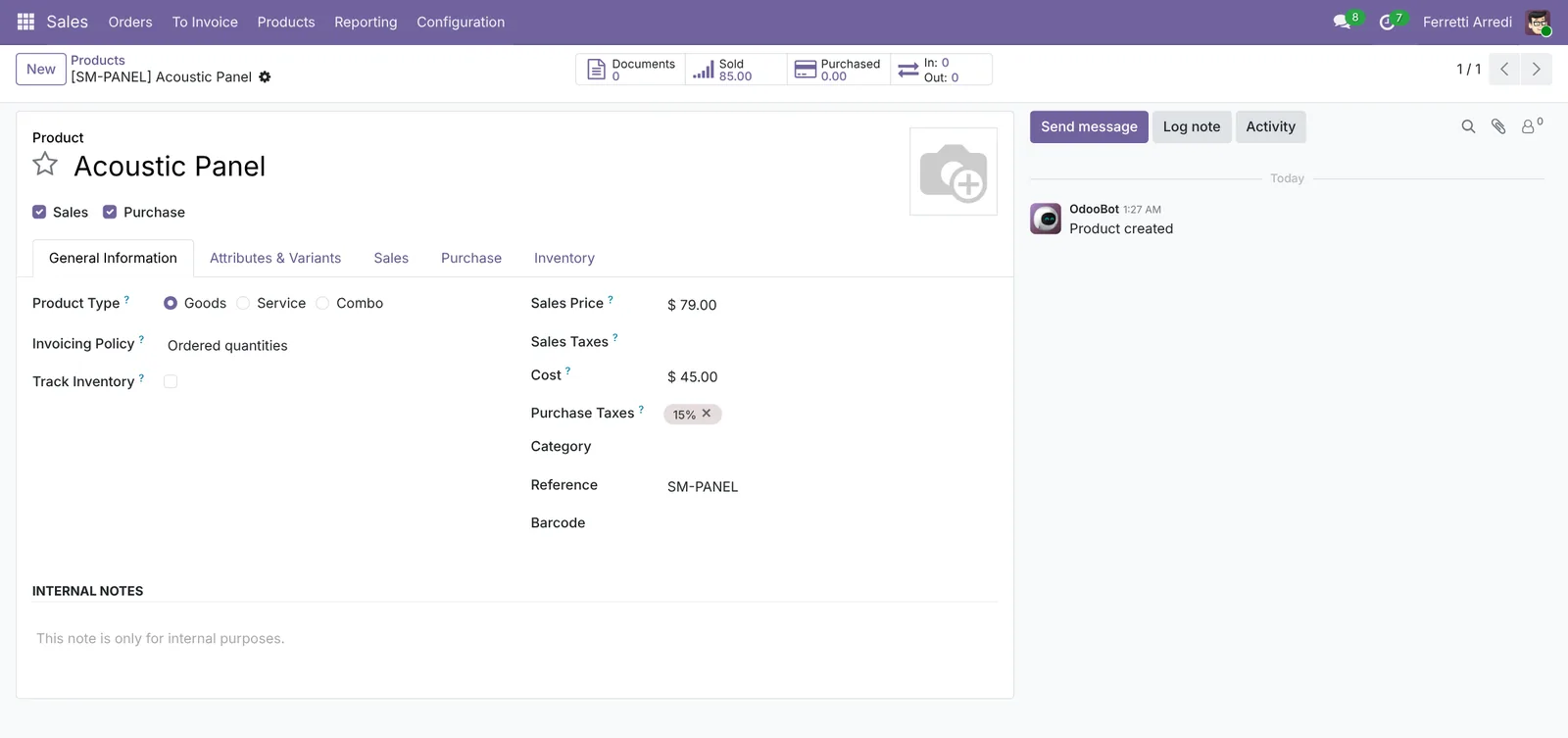 With average or FIFO costing, the cost comes from your purchases and you don’t type it.
2. Read the margin on a quotation
Open a quotation, here S00030 for Azure Interior: 20 Acoustic Panels at $79 and 10 Desk Dividers at $55. In the lines, click the column toggle at the end of the header and tick Margin and Margin (%). The panels earn $680, 43.04%. The dividers are at $55 with a $61 cost: -$60, -10.91%. Under the total, the quotation’s margin is $620 (29.11%).
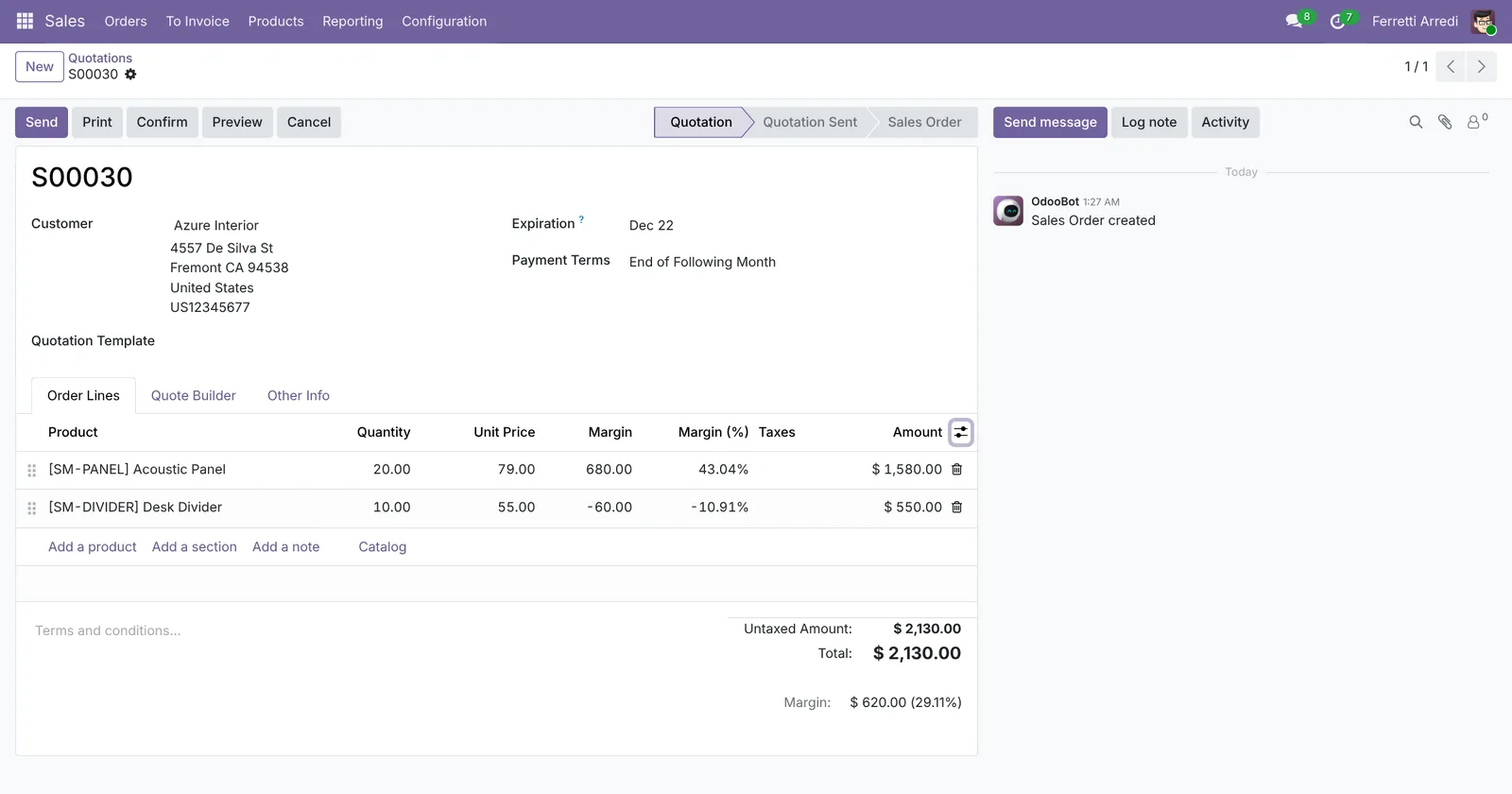 A red flag before sending: one line pulls a good quotation down.
3. Compare in the report
Go to Sales → Reporting → Sales and switch to the pivot. In Measures, tick Margin; group the rows by Salesperson. On last month’s orders Marc Demo made $1,355 of margin and Mitchell Admin only $108, on similar sales.
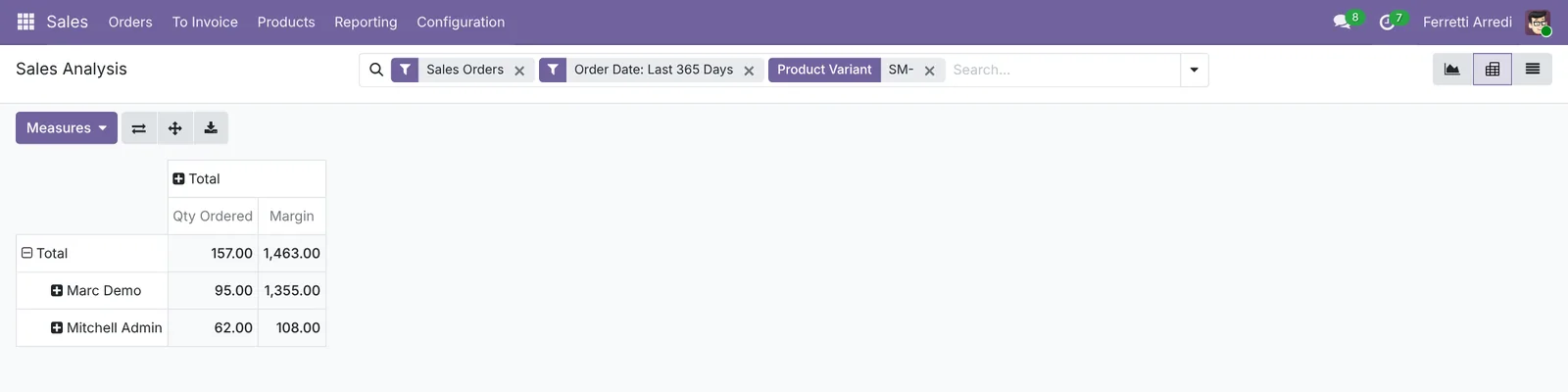 Click a salesperson’s + and group by Product or Customer to see where the margin went.
Common mistakes
- Products without a cost. A cost of $0 shows a 100% margin that isn’t real. Fill in the cost before you trust the report.
- Looking only at revenue. The salesperson with the most sales isn’t always the one making money. Put Margin next to the revenue.
- Old contract prices. A price list set up years ago can sell under today’s cost. Check the lines with a negative margin each month.
- Expecting overheads in the margin. Odoo’s margin is price minus product cost. Shipping, commissions and payment fees are not in it.
Sales margins with AI: ask your AI assistant through MCP
With the Hawklify MCP server, Claude, ChatGPT and other assistants work in your Odoo as you, with your permissions. The report shows a margin per salesperson, but finding why a line went under cost means opening each order and its price list. An assistant reads the lines, the orders and the price lists together, and fixes the cause.
From your phone. Smart mode is on: the assistant asks once before changing anything.
Hawklify
Your Odoo, from the chat you already use
Send a message, a photo or a voice note: the assistant reads and works in Odoo through Hawklify, with your permissions.
Did we sell anything under cost last month?
Yes, three lines, -$375 in total:
- Gemini Furniture, 40 Acoustic Panels at $39, cost $45: -$240. The price comes from the Gemini Contract price list, which still has $39.
- Lumber Inc, 25 Acoustic Panels at $42, typed by Marc Demo: -$75.
- Deco Addict, 10 Desk Dividers at $55, cost $61, Mitchell Admin: -$60.
Shall I leave a note on the three orders for the salespeople and raise the contract price to $52 (cost + 15%)?
Yes, do both
Done. Each order has a note with the line, the price and the cost, so the salesperson sees it.
Gemini Contract now sells the Acoustic Panel at $52: the next Gemini order earns $7 a panel instead of losing $6.
In a desktop AI app, every month. A scheduled task sends the margin by product on the first of the month.
Last month: $7,080 sold, $1,463 margin (20.7%).
- Cable Tray: $1,200 sold, $750 margin (62.5%)
- Desk Divider: $1,690 sold, $348 margin (20.6%)
- Acoustic Panel: $4,190 sold, only $365 margin (8.7%)
The Acoustic Panel is your best seller and earns the least: 65 of its 85 units went out under list price, 40 of them through the Gemini Contract price list.
By salesperson: Marc Demo $1,355 on $3,830 (35.4%), Mitchell Admin $108 on $3,250 (3.3%). I'll send the same report on December 1.
Versions we tested
| Version | Result |
|---|---|
| Odoo 16 | Same steps. The report opens with Untaxed Total next to Margin: Marc Demo $1,355 on $3,830, Mitchell Admin $108 on $3,250. |
| Odoo 17 | Same as 16. |
| Odoo 18 | As in this guide. |
| Odoo 19 | As in this guide. The screenshots come from Odoo 19. |
| Odoo 20 | Same steps. The quotation shows the margin under each unit price (M: and M%:) and the total as Margin (29%). |
Frequently asked questions
Where does Odoo take the cost from?
From the Cost field of the product, at the moment the line is added. If you buy with average or FIFO costing, the cost follows your purchases; otherwise it is the figure you typed.
Does the margin change when the cost changes later?
No. Each order line keeps the cost it had when it was added, so last month's margins stay as they were. New quotations use the new cost.
Does the margin include shipping or overheads?
No. It is the sales price minus the product's cost, line by line. Delivery lines count only if the delivery product has a cost.
Can salespeople see the margin?
Anyone with access to the quotation sees the Margin columns once they are shown. If you'd rather keep them hidden, leave the optional columns off.
Questa guida è disponibile anche in italiano: Margini di vendita in Odoo: costo, margine e report
Related Odoo guides
 SalesSales analysis in Odoo: a report that answers questionsTurn Odoo's sales analysis into a pivot table of customers by month, open the orders behind any number and save the report as a favorite. Community and Enterprise.
 InventoryInventory valuation in Odoo: what your stock is worthSet the costing method in Odoo, see where a product's cost comes from, and read the value of everything in stock, product by product. Community and Enterprise.
 SalesLoyalty Programs in Odoo: points, rewards and promotionsSet up a loyalty program and a promotion in Odoo: points per dollar spent, a $50 reward, 10% off big orders, and the reward applied on a quotation.