Putaway Rules in Odoo: every product to its shelf
Set up putaway rules in Odoo: turn on locations, create a Fabric Shelf, send the Fabrics category there and receive 50 m of linen straight onto it.
- Community and Enterprise
- 4 min read
- Odoo + AI tutorial
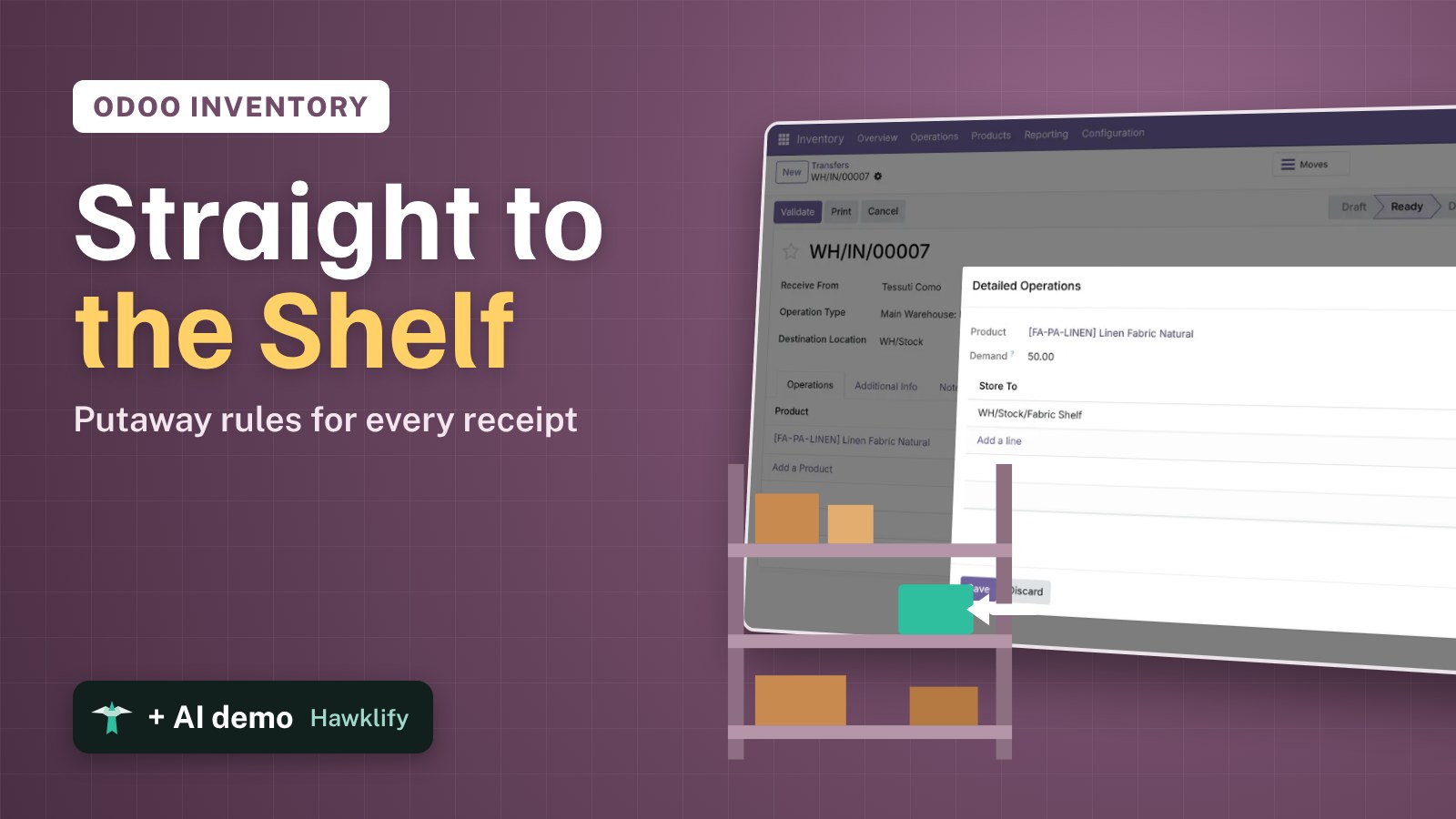
The linen arrives, goes into WH/Stock, and a week later nobody can find it: the screen says 50 m in stock, the warehouse says “somewhere”. When every receipt lands in the same big location, the shelves exist only in people’s heads. Putaway rules tell Odoo where each product goes when it arrives: fabrics to the fabric shelf, furniture to the pallet rack, hardware to its drawers. This guide turns locations on, creates a shelf, writes the rule and follows a receipt of linen straight onto it.
It works the same in Community and Enterprise. The versions we tested are listed at the end.
This guide is also an AI tutorial. At the end, an AI assistant connected to Odoo finds last month's receipts that stayed in the main stock, writes the putaway rules that were missing, and builds the warehouse team a page that shows where each product goes and moves it in Odoo with one tap.See it in action ↓Before you start
- The Inventory app installed.
- Products in categories that match your shelves, here Linen Fabric Natural in the category Fabrics, and a receipt from Tessuti Como for 50 m of it.
1. Turn on storage locations
Open Inventory → Configuration → Settings. In the Warehouse section tick Storage Locations and press Save. The menu gets Locations and Putaway Rules.
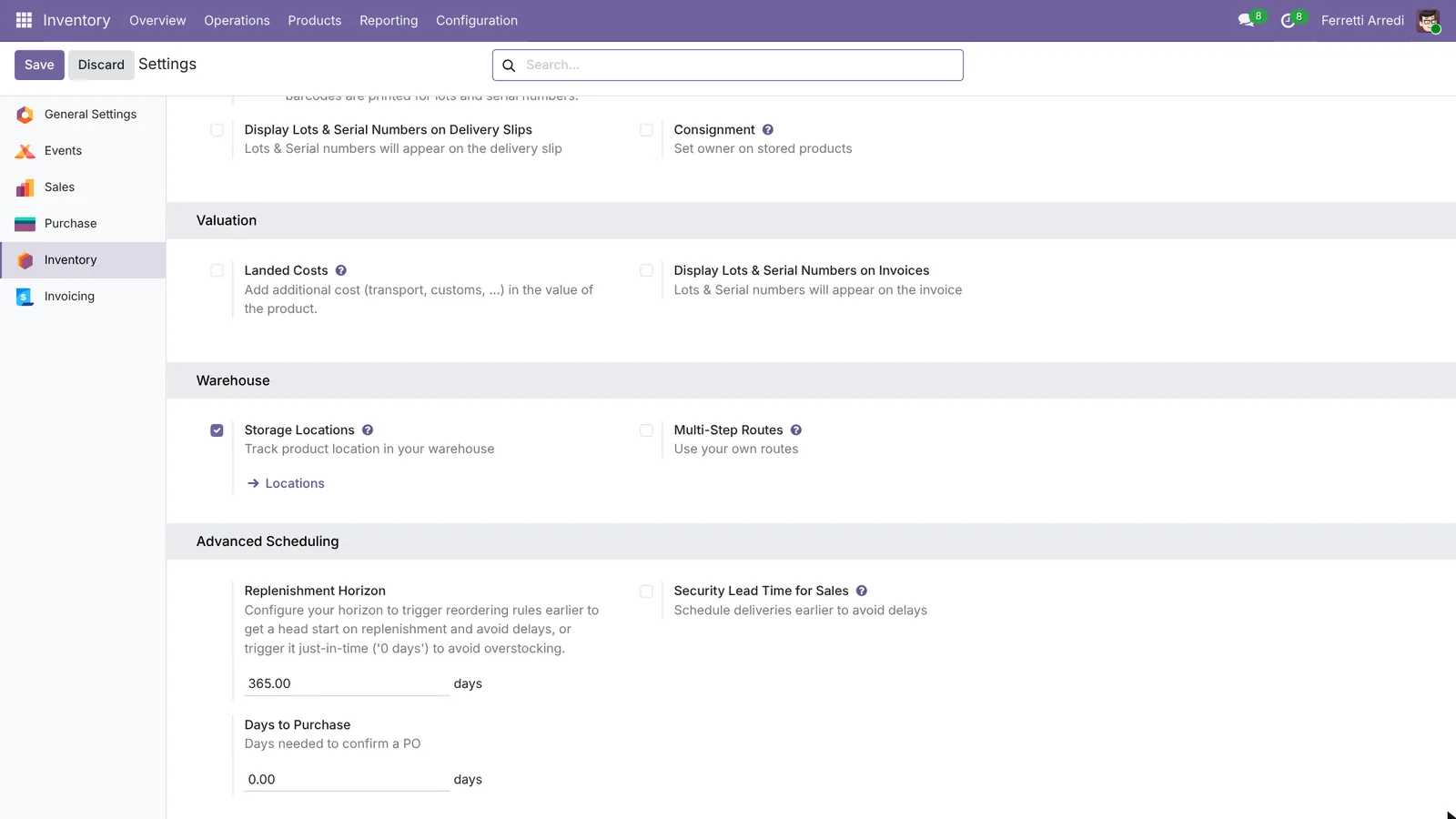 Locations inside the warehouse, not only the warehouse.
2. Create the shelf
Open Inventory → Configuration → Locations and press New. Name it Fabric Shelf, set the Parent Location to WH/Stock and save: its full name is WH/Stock/Fabric Shelf.
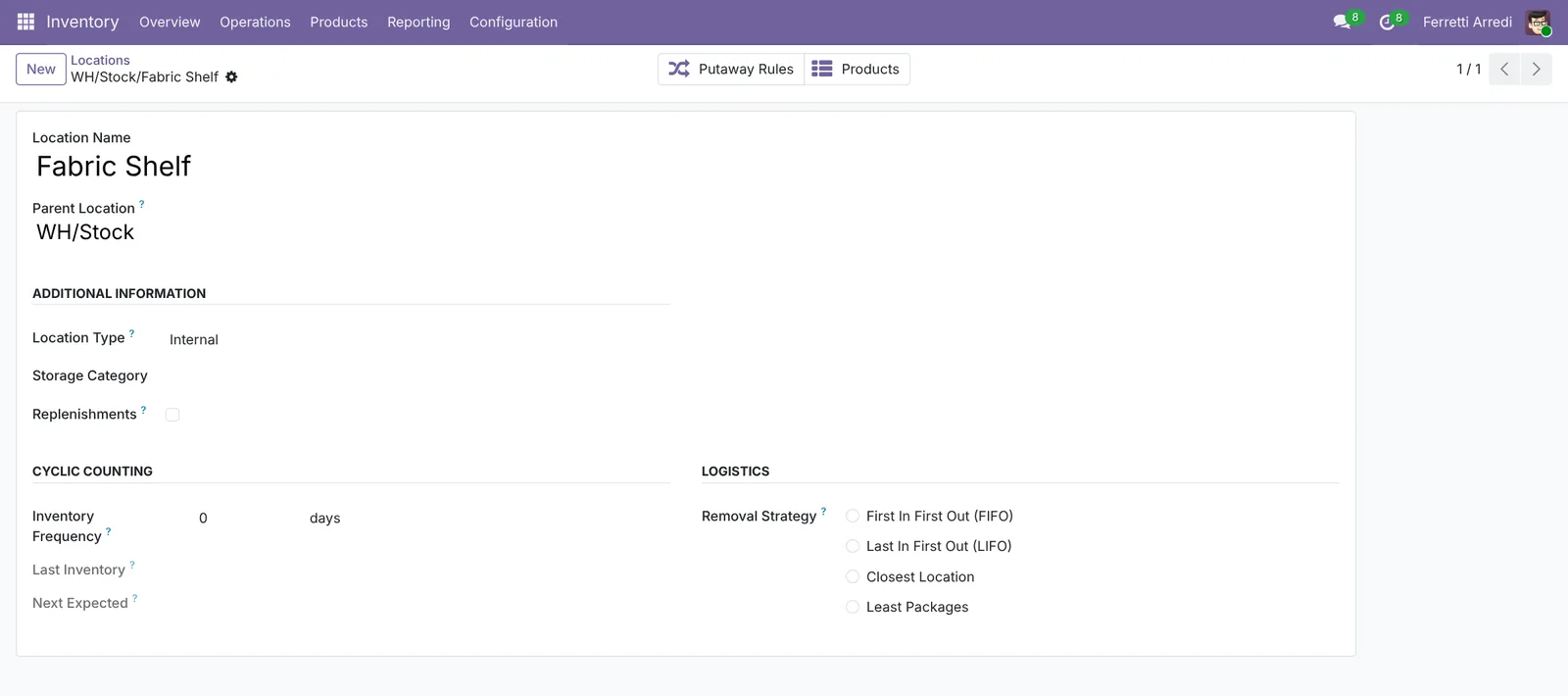 One location per shelf, rack or zone you want to find again.
3. Write the putaway rule
Open Inventory → Configuration → Putaway Rules and press New. When product arrives in WH/Stock, Product Category Fabrics, Store to WH/Stock/Fabric Shelf. Save.
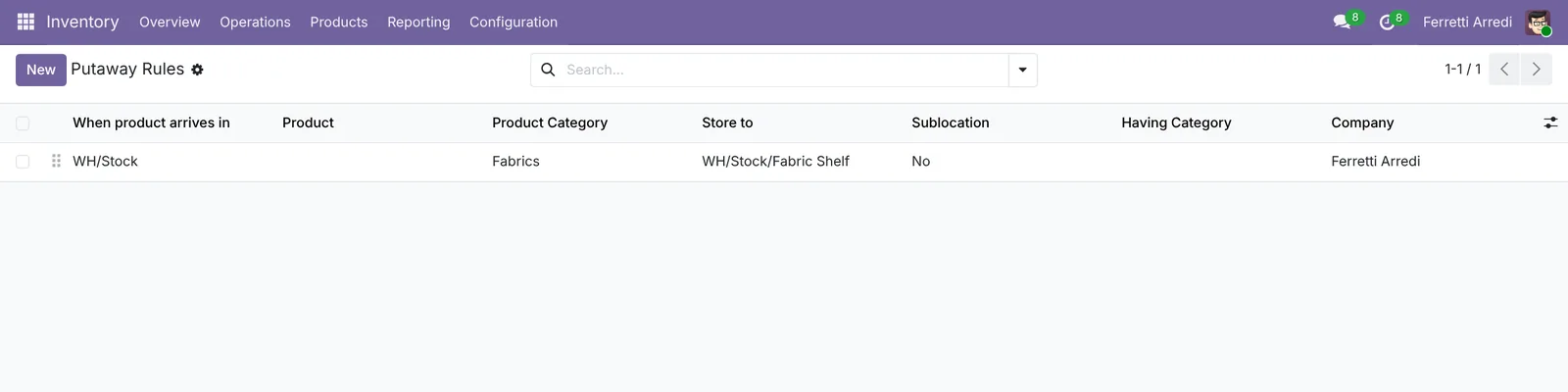 One line: this category, this shelf.
4. Receive the linen
Open the receipt from Tessuti Como (Inventory → Operations → Receipts). If it is a draft, press Mark as To Do: Odoo now decides where each line goes. Open the Details of the linen line: Store To is WH/Stock/Fabric Shelf for the 50 m.
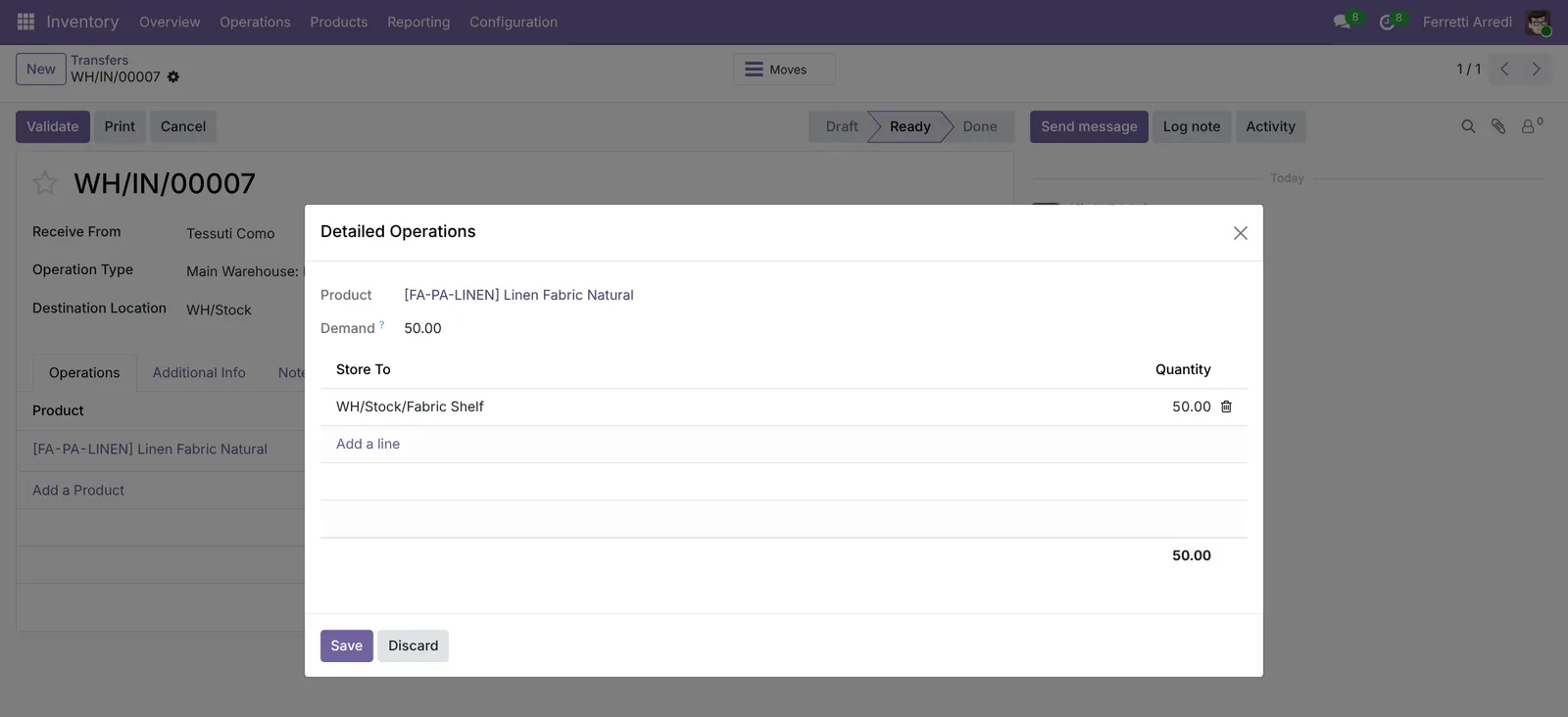 The rule fills the shelf; the worker only checks the quantity.
5. Validate and check where it went
Press Validate. Open Inventory → Reporting → Moves History and filter on the linen: 50 m went from Vendors to WH/Stock/Fabric Shelf.
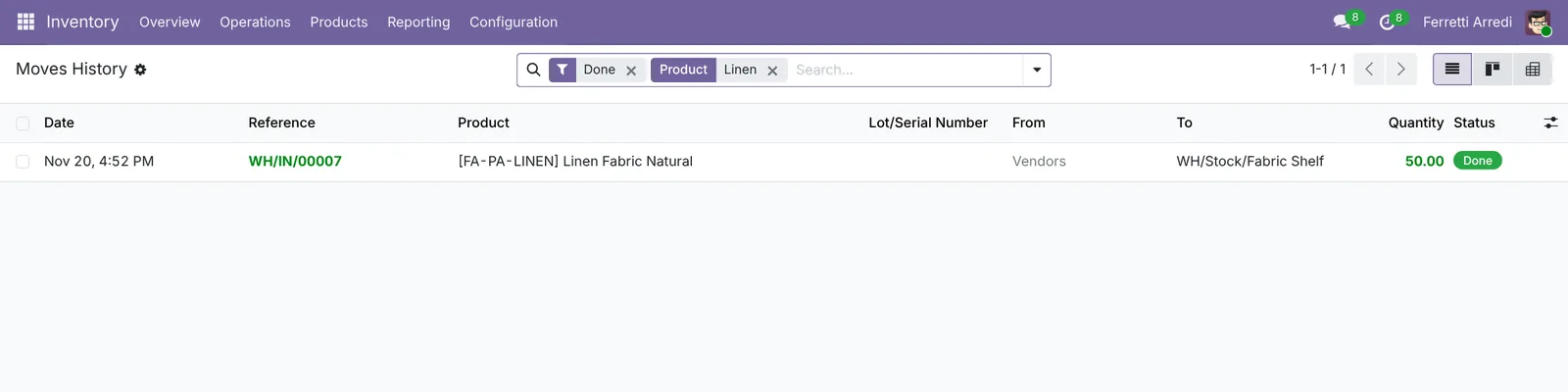 Received and shelved in one step.
Common mistakes
- Writing the rule after the receipt is ready. A receipt that is already reserved keeps WH/Stock. Write the rules first, or set the destination by hand on that receipt.
- Products without a category. A rule on Fabrics does nothing for linen left in All. Put each product in the category of its shelf.
- Rules on the wrong location. When product arrives in must be the destination of the receipt (WH/Stock), or of the step that stores goods if you receive in two or three steps.
- Forgetting the old stock. Rules only steer new receipts: move what is already in WH/Stock once with an internal transfer.
Putaway Rules with AI: ask your AI assistant through MCP
With the Hawklify MCP server, Claude, ChatGPT and other assistants work in your Odoo as you, with your permissions. The hard part is not the rule, it is knowing which rules are missing: which products landed in the main stock last month, and what is still lying there. An assistant reads the receipts and the stock and writes the rules for you.
At the computer. Here card mode is on: nothing changes until you approve the card.
Five products stayed in WH/Stock:
- Fabrics: Cotton Canvas 60 m, Linen Fabric Natural 50 m, Velvet Fabric Green 30 m. Linen and velvet are already on the Fabric Shelf.
- Large Furniture: Oak Wardrobe 4, Corner Sofa 3. A wardrobe is already on the Pallet Rack.
The Brass Hinges went to the Hardware Shelf: that category has a rule. The other two don't.
Approval needed in OdooCreate
Two putaway rules for WH/Stock: Fabrics to the Fabric Shelf, Large Furniture to the Pallet Rack.
stock.putaway.rule · 2 records
Fabrics
| Field | Current | New |
|---|---|---|
| When product arrives in | WH/Stock | |
| Store to | WH/Stock/Fabric Shelf |
Large Furniture
| Field | Current | New |
|---|---|---|
| When product arrives in | WH/Stock | |
| Store to | WH/Stock/Pallet Rack |
Change applied in Odoo.
Organisation administrators can turn the approval cards off on the Members page.
Done: from the next receipt, fabrics go to the Fabric Shelf and large furniture to the Pallet Rack, like the hinges to their shelf.
What already arrived is still in WH/Stock: want me to prepare the transfer to the shelves?
A page for the warehouse team. The assistant builds a small app (an artifact) on Odoo’s live data: the people who carry the goods see where each product goes, and one tap moves it in Odoo.
Done. Five products are lying in WH/Stock: 140 m of fabric for the Fabric Shelf and 7 pieces for the Pallet Rack, by the rules we just added.
When someone presses On the shelf, the page moves that stock in Odoo with an internal transfer, already validated. No transfer form to fill in.
Put it away
WH/Stock · goods that belong on a shelf
Activity
Each button creates and validates an internal transfer from WH/Stock to the product's shelf.
Versions we tested
| Version | Result |
|---|---|
| Odoo 16 | Same steps. A new rule’s Store to is already filled with WH/Stock: replace it. The receipt line has no Details button and its detailed operations stay empty until quantities are set; after Validate the Moves History shows the shelf. |
| Odoo 17 | Same steps. The receipt line has no Details button: the shelf shows in the receipt’s detailed operations and in the Moves History. |
| Odoo 18 | Like 17. |
| Odoo 19 | As in this guide. The screenshots come from Odoo 19. |
| Odoo 20 | Same steps and screens as 19. |
Frequently asked questions
Can a rule be for one product instead of a category?
Yes. Fill Product instead of Product Category. A rule for the product wins over a rule for its category.
What if the shelf is full?
Give the shelf a Storage Category with a maximum weight or quantity (setting Storage Categories) and pick it in Having Category on the rule: Odoo then chooses a sublocation with room left.
Do putaway rules move the stock I already have?
No. They decide where new receipts go. Move what is already in WH/Stock with an internal transfer, or ask the assistant below to prepare it.
Can the warehouse worker still put it elsewhere?
Yes. The rule fills the destination of each line; whoever validates the receipt can change it, and the move history keeps the real shelf.
Questa guida è disponibile anche in italiano: Regole di stoccaggio in Odoo: ogni prodotto al suo posto
Related Odoo guides
 InventoryWarehouse setup in Odoo: locations and multi-step routesTurn on storage locations and multi-step routes in Odoo, then receive goods in 2 steps and ship them in 3: pick, pack and deliver. Community and Enterprise.
 InventoryBatch Transfers in Odoo: pick several orders in one tripGroup deliveries into batch transfers in Odoo: turn the setting on, add the ready orders to a batch, give it to a picker and validate them all at once.
 InventoryLots and serial numbers in Odoo: trace every productTrack products by lot or serial number in Odoo: record the lot at reception, ship it, and find every customer who got it in seconds. Community and Enterprise.