Batch Transfers in Odoo: pick several orders in one trip
Group deliveries into batch transfers in Odoo: turn the setting on, add the ready orders to a batch, give it to a picker and validate them all at once.
- Community and Enterprise
- 4 min read
- Odoo + AI tutorial
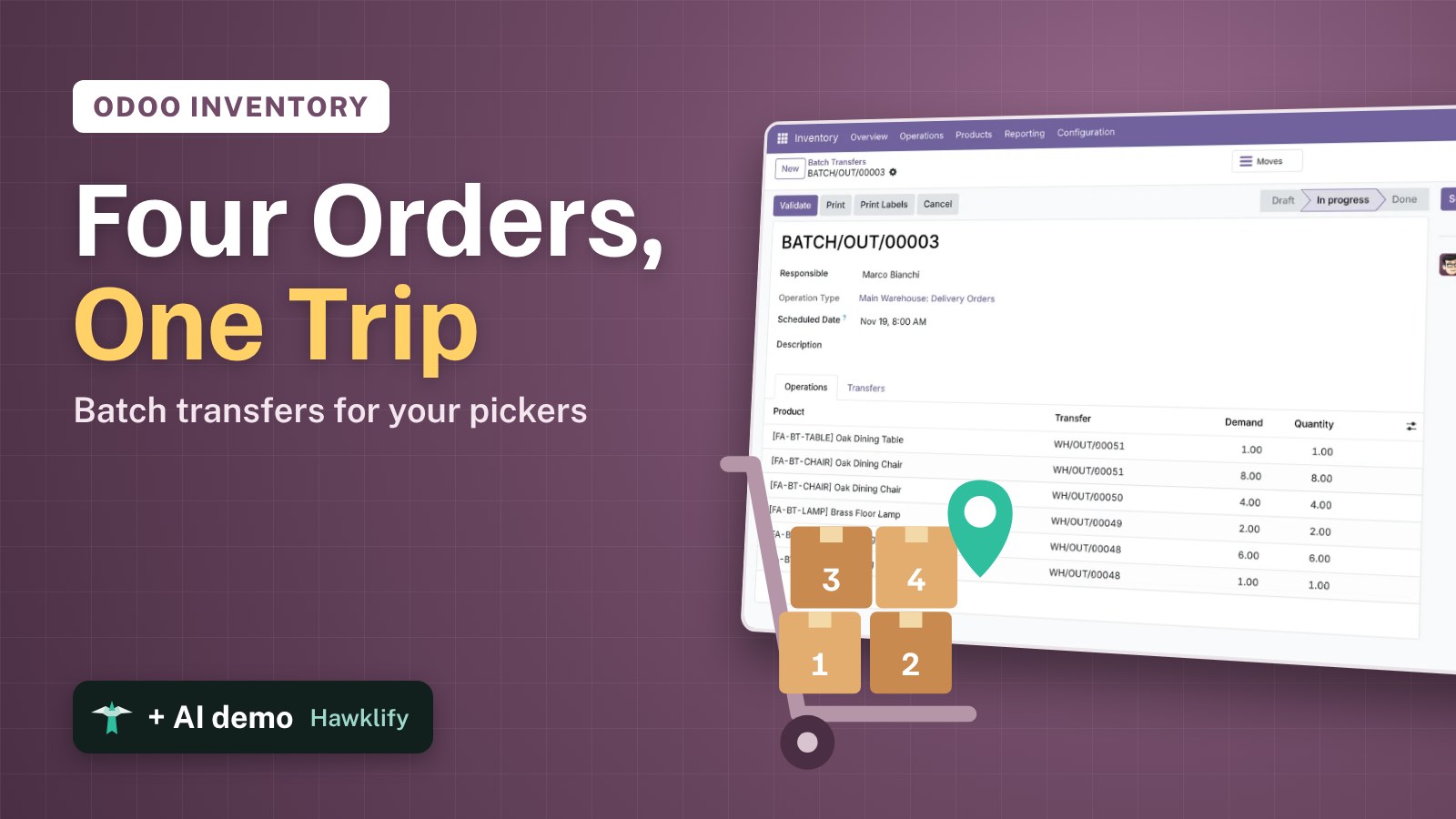
Ten orders to deliver today and three people in the warehouse. Walking the shelves ten times wastes the morning; walking them three times, each with the orders of one area, doesn’t. Batch transfers group several deliveries into one job for one picker: one list to collect, one Validate for all of them. This guide turns batches on, groups the ready deliveries of one area, gives the batch to a picker and closes it.
It works the same in Community and Enterprise. The versions we tested are listed at the end.
This guide is also an AI tutorial. At the end, an AI assistant connected to Odoo groups each morning's deliveries into one batch per area and picker, and takes out of a batch the order a customer asked to move.See it in action ↓Before you start
- The Inventory app installed, with a few deliveries ready to ship. Here: ten orders of Ferretti Arredi scheduled for today.
- The pickers as users of Odoo, here Marco Bianchi, Luca Moretti and Sara Conti.
1. Turn on batch transfers
Open Inventory → Configuration → Settings. In the Operations section tick Batch, Wave & Cluster Transfers and press Save.
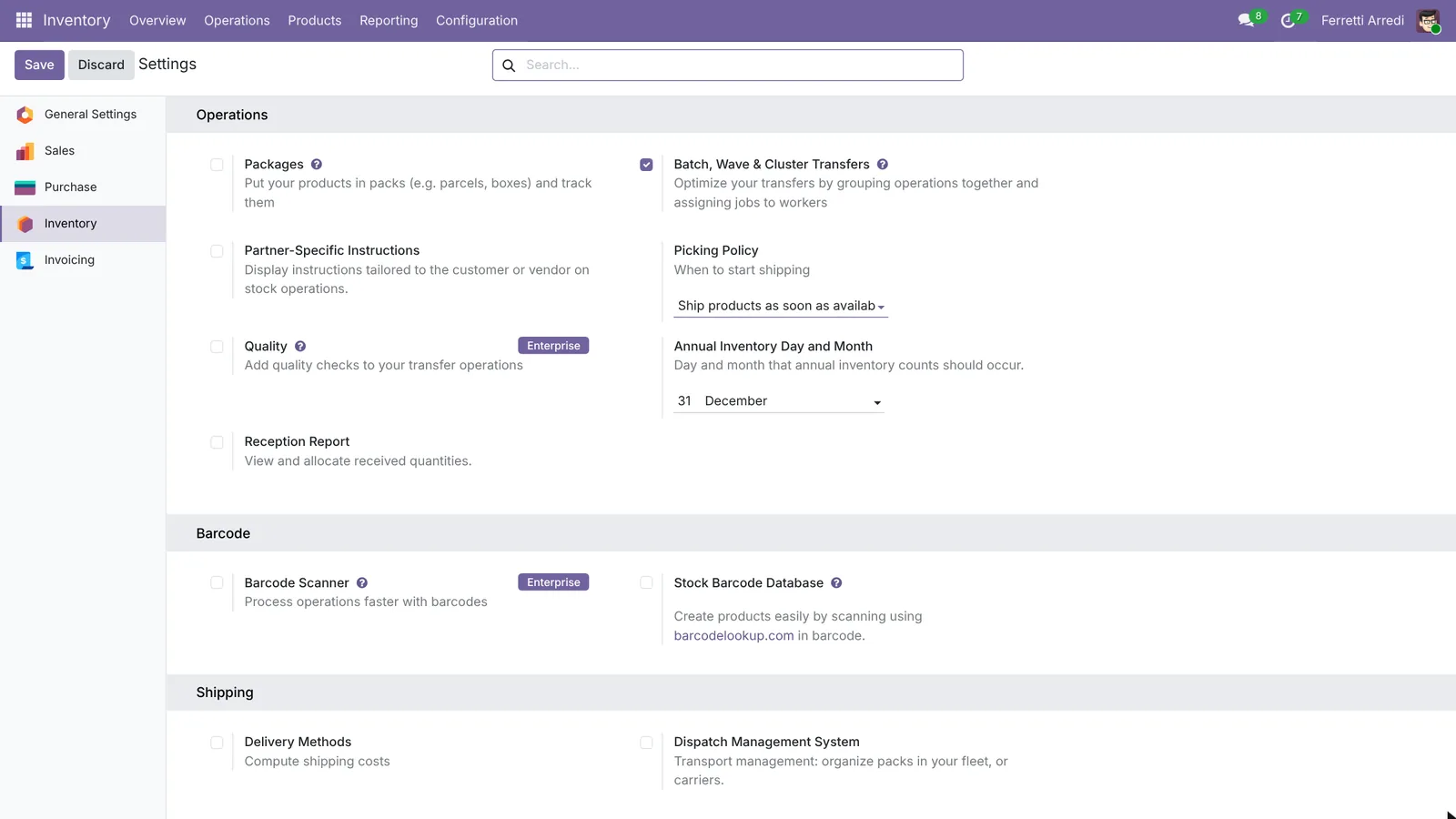 One tick: the batch actions appear on every list of transfers.
2. Select the deliveries of one trip
Open Inventory → Operations → Deliveries and keep the Ready filter: only deliveries with all their products in stock. Tick the ones that go on the same trip, here the four customers around Milan (Deco Addict, Ready Mat, Azure Interior, Gemini Furniture). Then open Actions.
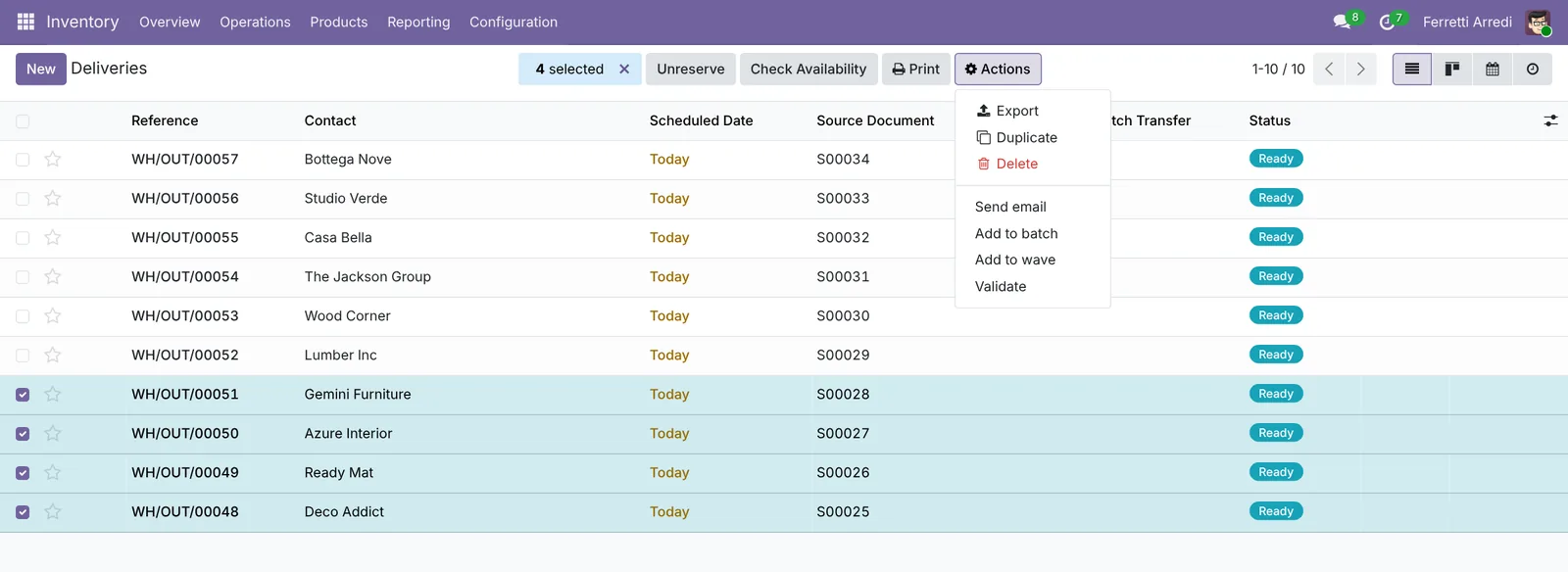 Four orders of the same area, ready to go together.
3. Add them to a batch
Choose Add to batch. In the window keep a new batch transfer, pick the Responsible, Marco Bianchi, and press Confirm.
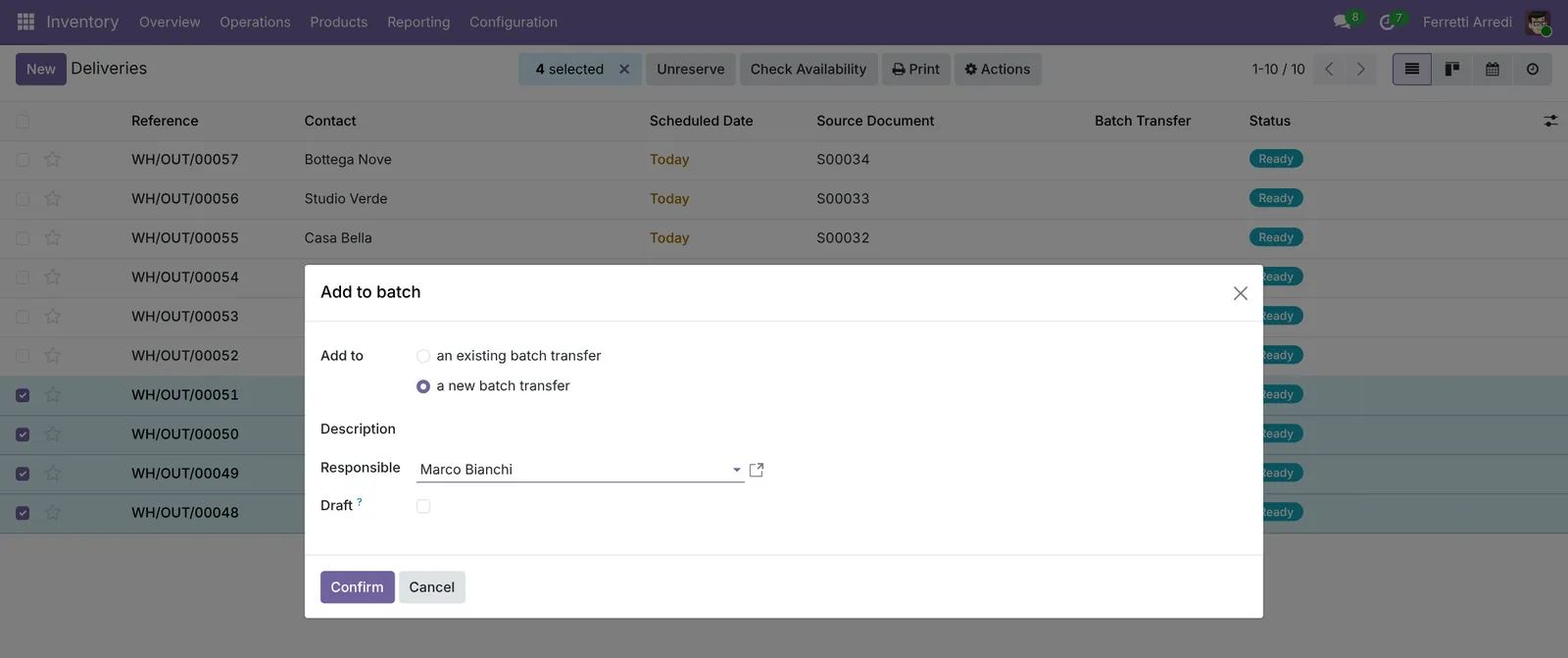 A new batch with its picker. “An existing batch transfer” adds the orders to an open one.
4. Pick from one list
Odoo opens the batch, here BATCH/OUT/00003, already In progress. The Operations tab lists every product of the four orders with its delivery: Marco walks the shelves once and fills each order. The Transfers tab shows the four deliveries. Print gives him the list on paper.
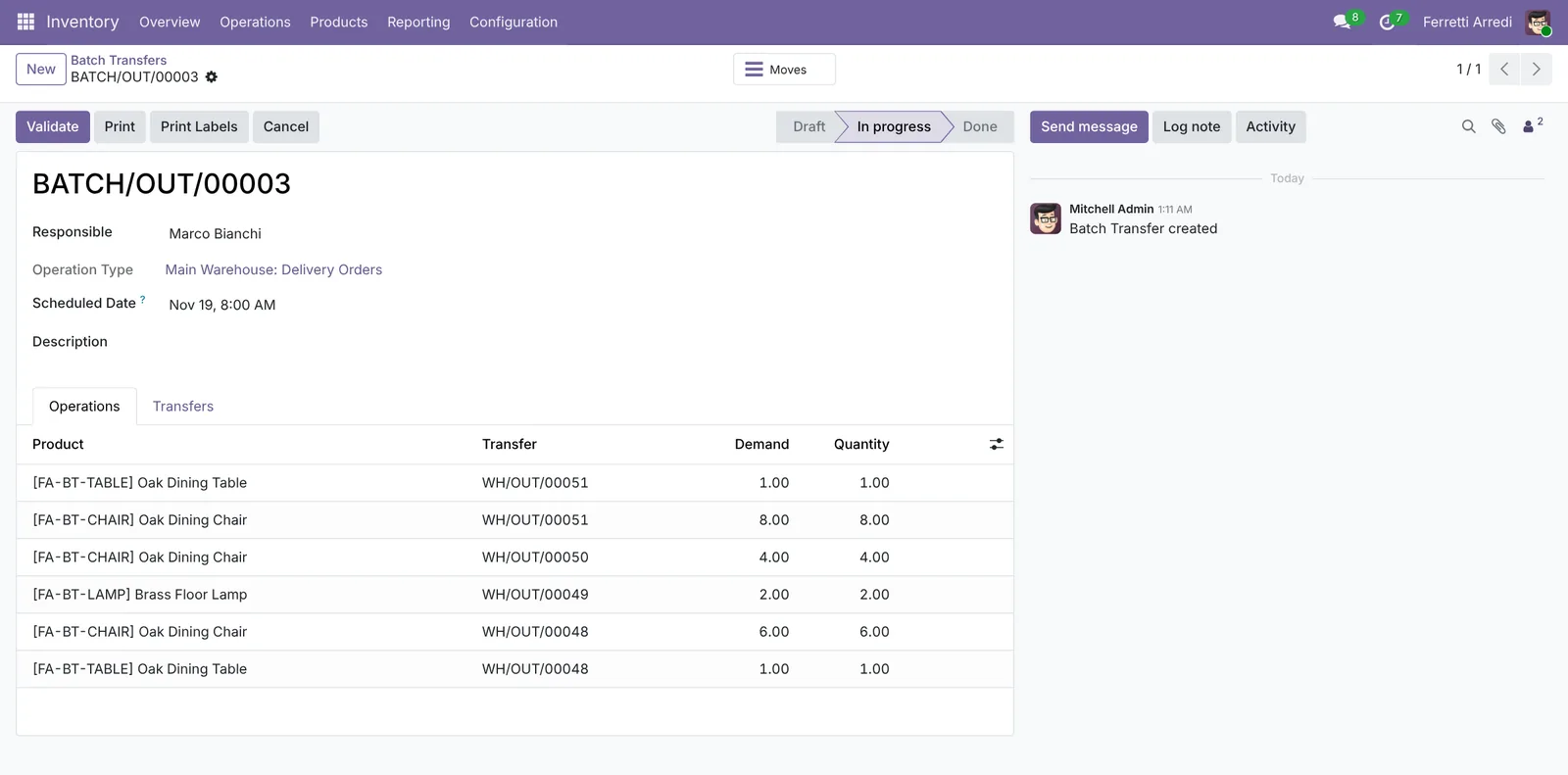 One list for one trip: six lines from four deliveries.
5. Validate them all at once
When everything is picked, press Validate on the batch. Odoo validates the four deliveries together and the batch goes to Done.
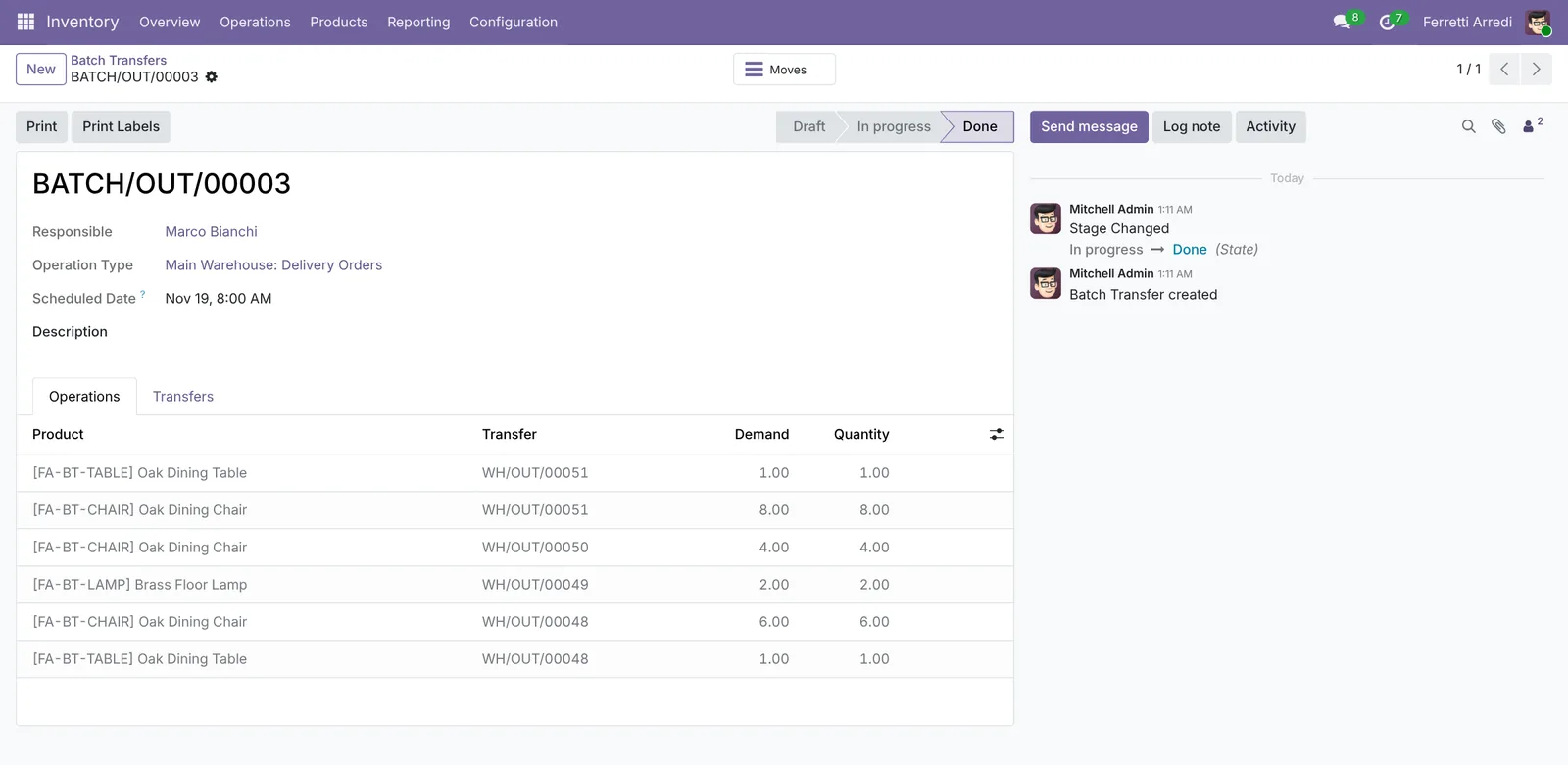 Four deliveries closed with one button.
Common mistakes
- Batching orders that aren’t ready. The batch then stops on the missing products. Filter on Ready first.
- Forgetting the responsible. A batch without a picker sits in the list and nobody feels it is theirs.
- Batching by habit, not by trip. A batch only saves time if its orders are picked and loaded together: group by area, by carrier or by shelf zone.
- Changing an order after it’s in a batch. If a customer moves the date, take the delivery out of the batch, or it leaves with the others.
Batch Transfers with AI: ask your AI assistant through MCP
With the Hawklify MCP server, Claude, ChatGPT and other assistants work in your Odoo as you, with your permissions. Odoo can group transfers by customer or by country, but not by “the customers around Milan”, and it doesn’t read what customers wrote on their orders. An assistant does both.
Every morning, on the phone. A scheduled task asks the assistant at 7:00 and the answer arrives in a chat. Depending on how your organisation set up the server, the assistant makes the change straight away or first shows you a card to approve. Here Smart mode is on: it asks once before creating the batches.
Hawklify
Your Odoo, from the chat you already use
Send a message, a photo or a voice note: the assistant reads and works in Odoo through Hawklify, with your permissions.
Good morning. 10 deliveries today, 9 ready. Bottega Nove waits: 6 Walnut Sideboards, none in stock.
- Marco, Milan area (4): Deco Addict and Ready Mat (Milano), Azure Interior (Monza), Gemini Furniture (Bergamo).
- Luca, Turin (3): Lumber Inc and Wood Corner (Torino), The Jackson Group (Novara).
- Sara, Emilia (2): Casa Bella (Bologna), Studio Verde (Modena).
Create the three batches?
Yes, create them
Done, all In progress:
- BATCH/OUT/00003 Marco Bianchi: 4 deliveries
- BATCH/OUT/00004 Luca Moretti: 3 deliveries
- BATCH/OUT/00005 Sara Conti: 2 deliveries
Bottega Nove stays out until the sideboards arrive.
On the batch, in the browser. Here card mode is on: nothing changes until you approve the card.
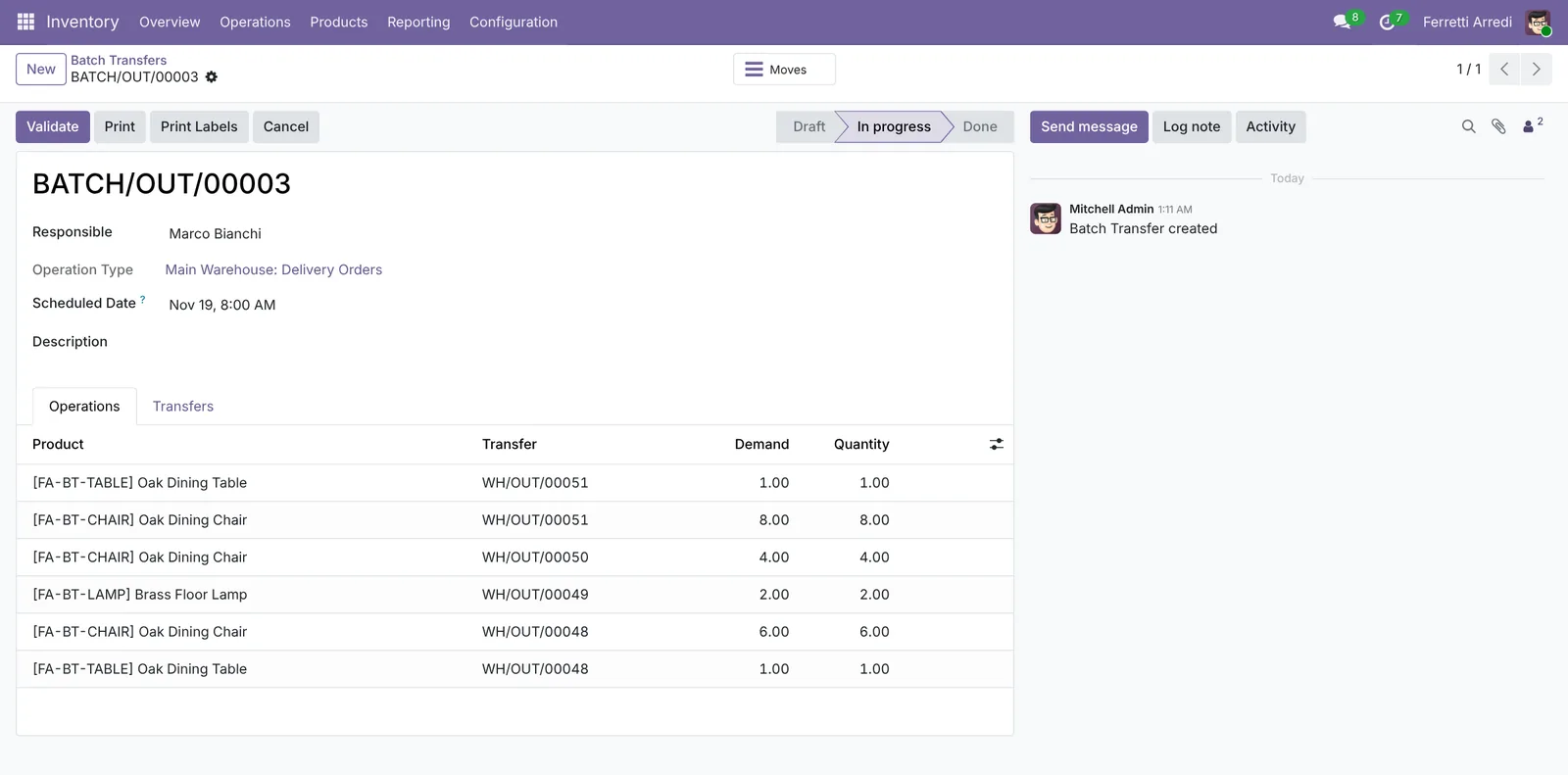
One did. Gemini Furniture wrote on WH/OUT/00051: the Bergamo warehouse is closed until Monday, please deliver on Monday morning. That's 1 Oak Dining Table and 8 Oak Dining Chairs.
Deco Addict, Ready Mat and Azure Interior wrote nothing. I'll take WH/OUT/00051 out of the batch and move it to Monday at 8:00.
Approval needed in OdooUpdate
Take the Gemini Furniture delivery out of Marco's batch and schedule it for Monday, Nov 23 at 8:00.
stock.picking · 1 record
WH/OUT/00051 Gemini Furniture
| Field | Current | New |
|---|---|---|
| Batch Transfer | ||
| Scheduled Date | Nov 23, 8:00 |
Change applied in Odoo.
Organisation administrators can turn the approval cards off on the Members page.
Done. Marco's batch has 3 deliveries now: 10 chairs, 1 table and 2 lamps. Gemini's order stays reserved and shows up in Monday's deliveries.
Versions we tested
| Version | Result |
|---|---|
| Odoo 16 | Same steps. The settings are Batch Transfers and, apart, Wave Transfers. There is no Deliveries menu: open Operations → Transfers with the Ready filter. Validating the batch asks Immediate Transfer?: press Apply. Batches are named BATCH/00003. |
| Odoo 17 | The settings are Batch Transfers and Wave Transfers, the Deliveries menu is there. Operation types get Automatic Batches. Batches are named BATCH/00003. |
| Odoo 18 | The setting is Batch, Wave & Cluster Transfers, as in this guide. Batches are named BATCH/00003. |
| Odoo 19 | As in this guide. The screenshots come from Odoo 19. |
| Odoo 20 | Same steps. Batches are part of Inventory (no extra module), and the list of batches is grouped by operation type. |
Frequently asked questions
What is the difference between a batch and a wave transfer?
A batch groups whole transfers: every line of each order goes into the batch. A wave groups single lines, possibly from several transfers, for example all the chairs of the day. Use batches when a picker prepares complete orders, waves when pickers work by product or by zone.
Can Odoo create the batches by itself?
From Odoo 17, yes: on the operation type (Inventory, Configuration, Operation Types) tick Automatic Batches and choose how to group, for example by customer or by destination country. Odoo can't group by an area of your own, such as the customers around Milan.
What happens to an order that isn't ready?
It can join the batch, but validating the batch then asks what to do with the missing products, as for a single delivery: a backorder or nothing. Keep only ready transfers in a batch.
Can I take a transfer out of a batch?
Yes. Open the batch, go to the Transfers tab and remove the line, or open the transfer and empty its Batch Transfer field. The transfer stays as it was, ready for another batch.
Questa guida è disponibile anche in italiano: Trasferimenti raggruppati in Odoo: più ordini in un giro
Related Odoo guides
 InventoryDeliveries and backorders in Odoo: ship what you haveShip part of an order in Odoo when the rest is not in stock: validate the partial delivery, keep a backorder, set a default per operation type. Community and Enterprise.
 InventoryWarehouse setup in Odoo: locations and multi-step routesTurn on storage locations and multi-step routes in Odoo, then receive goods in 2 steps and ship them in 3: pick, pack and deliver. Community and Enterprise.
 SalesSales orders in Odoo: from quotation to invoiceTake a sale through Odoo from start to finish: create the quotation, confirm the order, deliver the goods and post the invoice. Community and Enterprise.