Project management in Odoo: deadlines your team keeps
Run projects in Odoo: a project with its stages, tasks with assignees and deadlines, a task blocked by another, and the late tasks in red on the board.
- Community and Enterprise
- 4 min read
- Odoo + AI tutorial
A project lives or dies on two things: who does what by when, and what is waiting for what. Odoo Project puts every task on a board with its stages, gives it assignees and a deadline, and with task dependencies shows which task blocks which. Late tasks turn red by themselves. This guide creates a project for a trade fair stand, adds two tasks, makes one wait for the other and reads a board with late work.
It works the same in Community and Enterprise. The versions we tested are listed at the end.
This guide is also an AI tutorial. At the end, an AI assistant connected to Odoo reads every project at once, finds who is late, who is stuck and who has time, and moves the work, then splits a big task into subtasks.See it in action ↓Before you start
- The Project app installed.
- The people who do the work as users, here Marco Bianchi and Luca Moretti.
1. Create the project and its stages
Open Project → Projects and press New (from Odoo 19, if you have project templates, New opens a menu: pick New Project). Name it Trade fair stand 2027 and press Create. The board is empty: add the columns To Do, In Progress and Done, typing each name and pressing Enter.
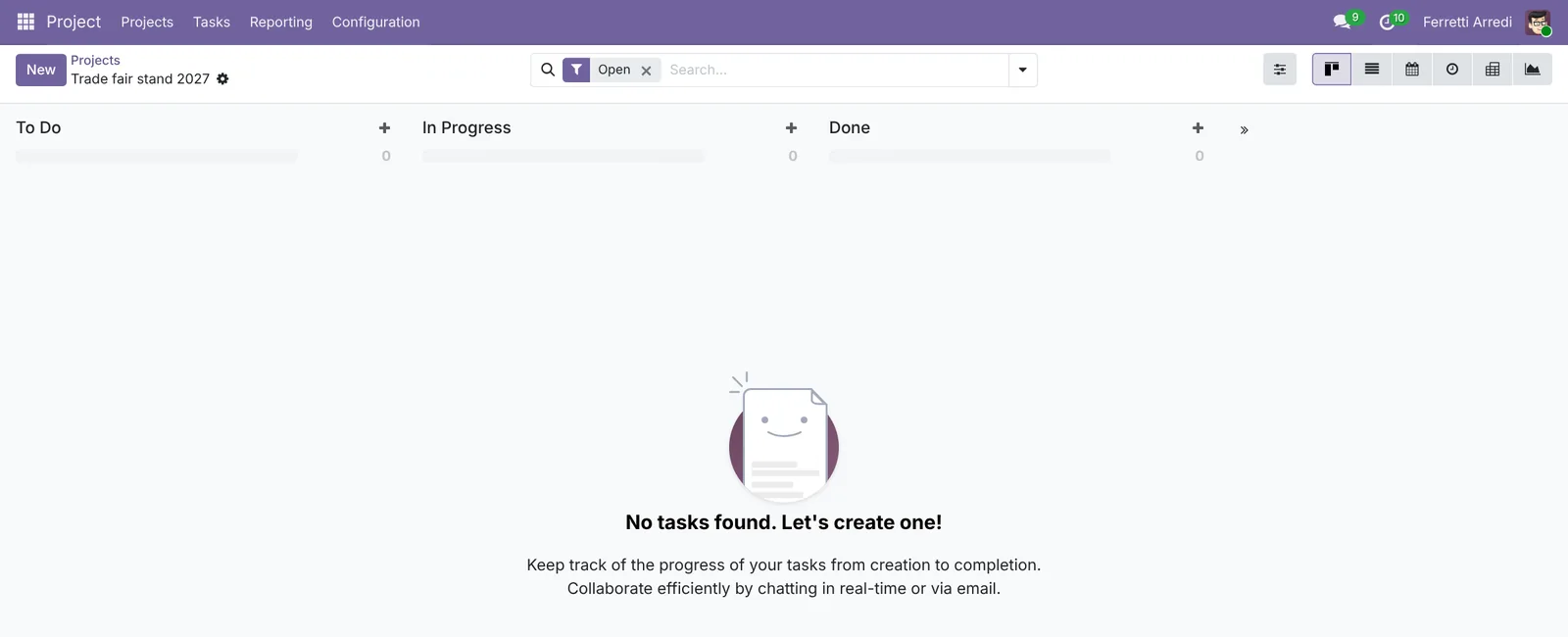 Stages are the columns: the work moves left to right.
2. Turn on task dependencies
Back in Projects, open the menu on the project’s card and pick Settings. In the Settings tab tick Task Dependencies. Now a task can be blocked by another.
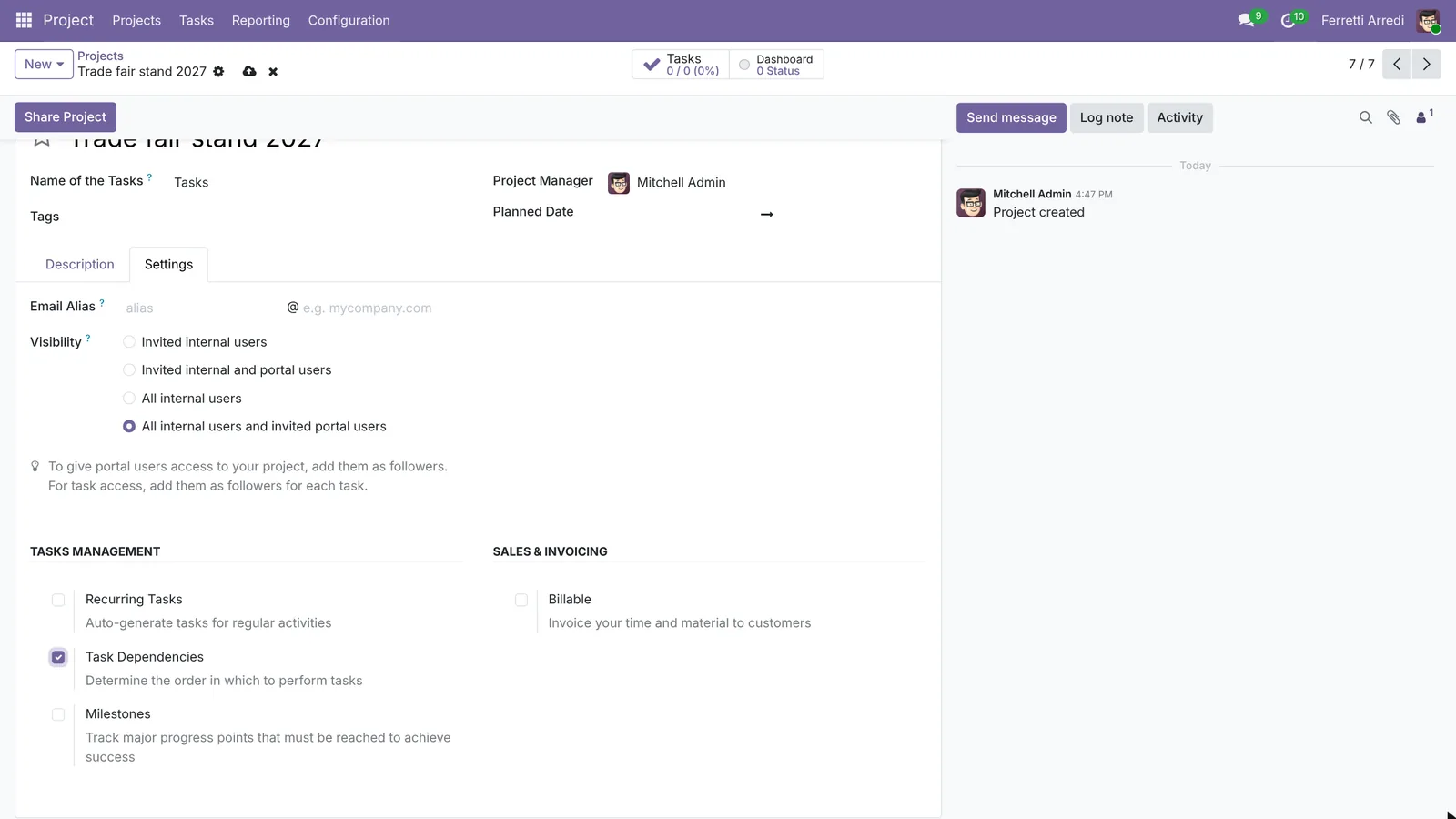 One tick per project: tasks can now wait for each other.
3. Add a task with an assignee and a deadline
Open the project and press + on To Do. Type Book the stand space and open it. Set the Assignees, Marco Bianchi, and the Deadline, Nov 23. Save.
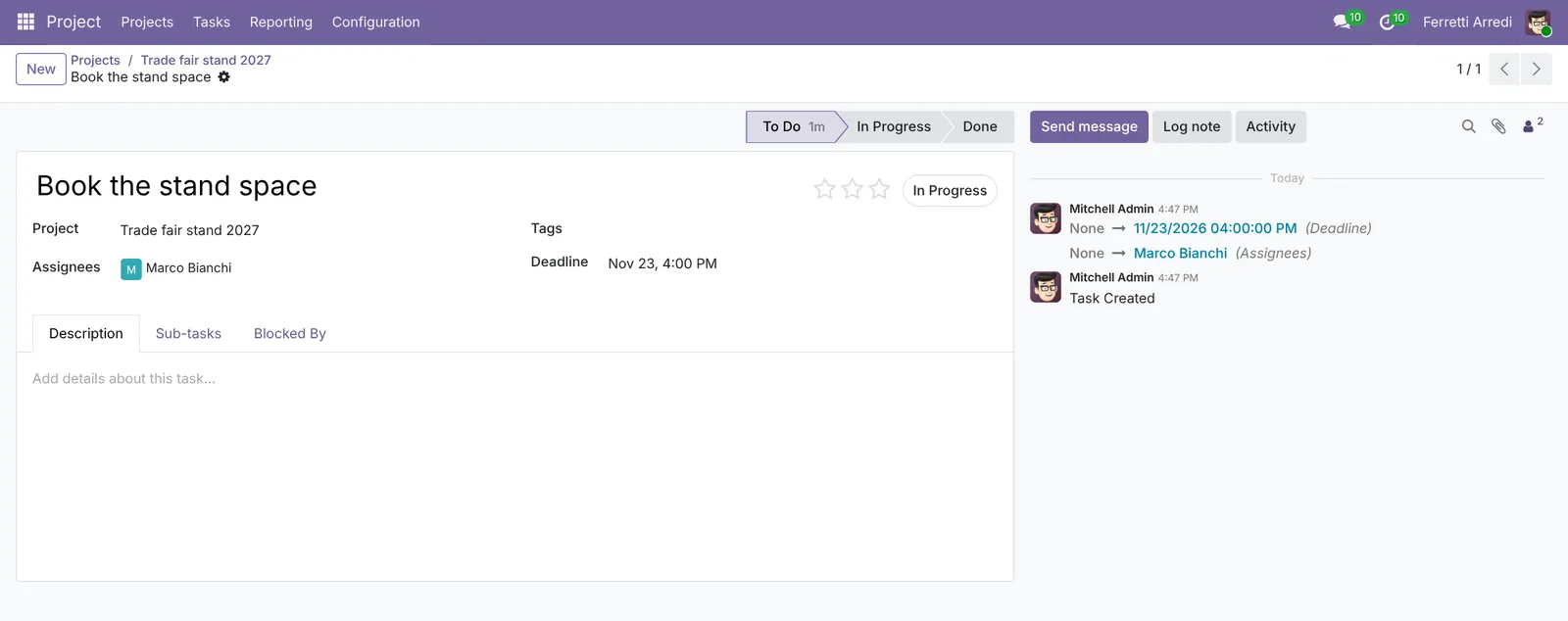 One owner and one date: nobody wonders whose it is.
4. Make a task wait for another
Add a second task, Build the stand, for Luca Moretti, deadline Nov 30. In the Blocked By tab press Add a line and pick Book the stand space. Save. The task shows Waiting until the stand space is booked.
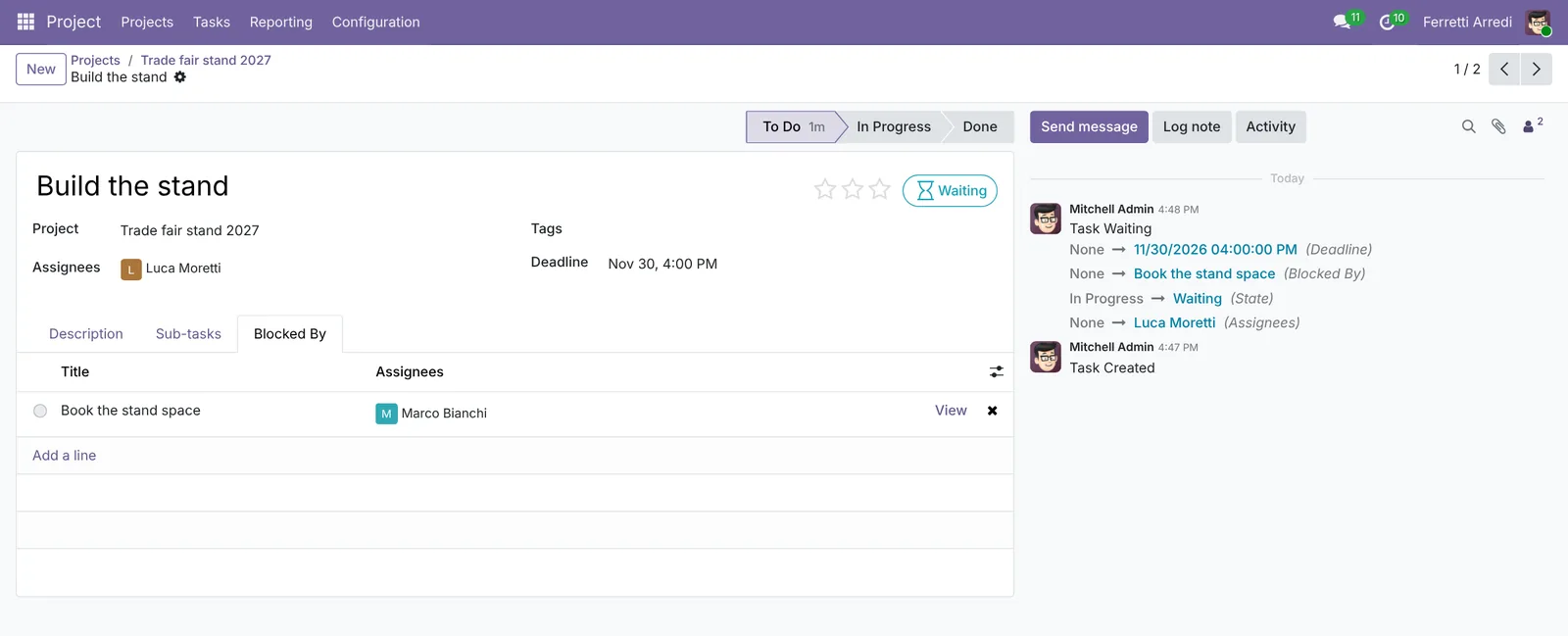 Luca sees why he can’t start, and on what.
5. Spot the late work
Open a project that is already running, here Showroom Milan refit. On the board, a deadline in the past is in red: Order lighting for the showroom was due 3 days ago, Paint the back wall yesterday. Install display shelves waits on the lighting.
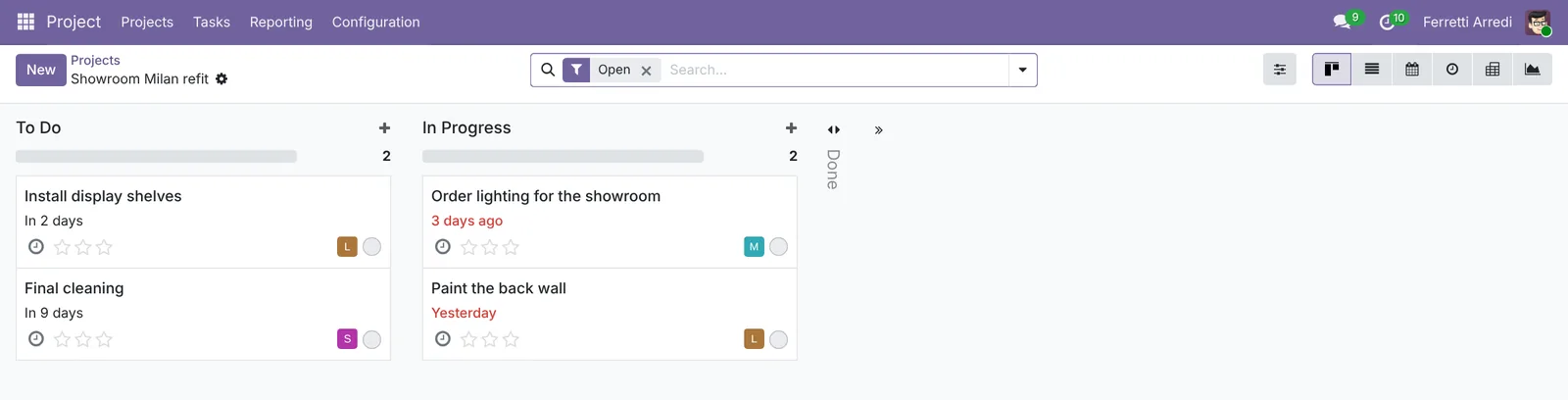 Red dates on the board: late at a glance.
Common mistakes
- Tasks without an assignee. A task that belongs to everyone gets done by no one.
- Deadlines on nothing, or on everything the same day. Put a date where something really depends on it.
- Dependencies in the description. Writing “after the booking” in the text blocks nothing. Use Blocked By: it shows Waiting and moves on by itself.
- Reading one project at a time. Each board shows its own late tasks. Nobody sees that the same person is late on two projects and has 22 hours of work this week, as in the first example below.
Project management with AI: ask your AI assistant through MCP
With the Hawklify MCP server, Claude, ChatGPT and other assistants work in your Odoo as you, with your permissions. Odoo shows late tasks per project and hours per task, but nobody adds up who is overloaded this week and who has time to help.
On the phone. Depending on how your organisation set up the server, the assistant makes the change straight away or first shows you a card to approve. Here Smart mode is on: it asks once before moving the work.
Hawklify
Your Odoo, from the chat you already use
Send a message, a photo or a voice note: the assistant reads and works in Odoo through Hawklify, with your permissions.
What's late or stuck across our projects this week, and who has time to help?
2 tasks are late:
- Order lighting for the showroom, Marco, 3 days late
- Paint the back wall, Luca, 1 day late
Stuck: Install display shelves (Luca, due Nov 20) waits for the lighting.
Hours this week: Marco 22 h, Luca 12 h, Sara 3 h.
Give Sara the lighting order, due tomorrow, and the 2027 price list? Then I move the shelves to Nov 22 and the back wall to tomorrow.
Yes, do it
Done:
- Order lighting: Sara, due tomorrow, Nov 19
- Update the 2027 price list: Sara, still Nov 21
- Install display shelves: Nov 22
- Paint the back wall: Nov 19
This week now: Marco 8 h, Luca 12 h, Sara 17 h.
In the browser, on the task. Here card mode is on: nothing changes until you approve the card.
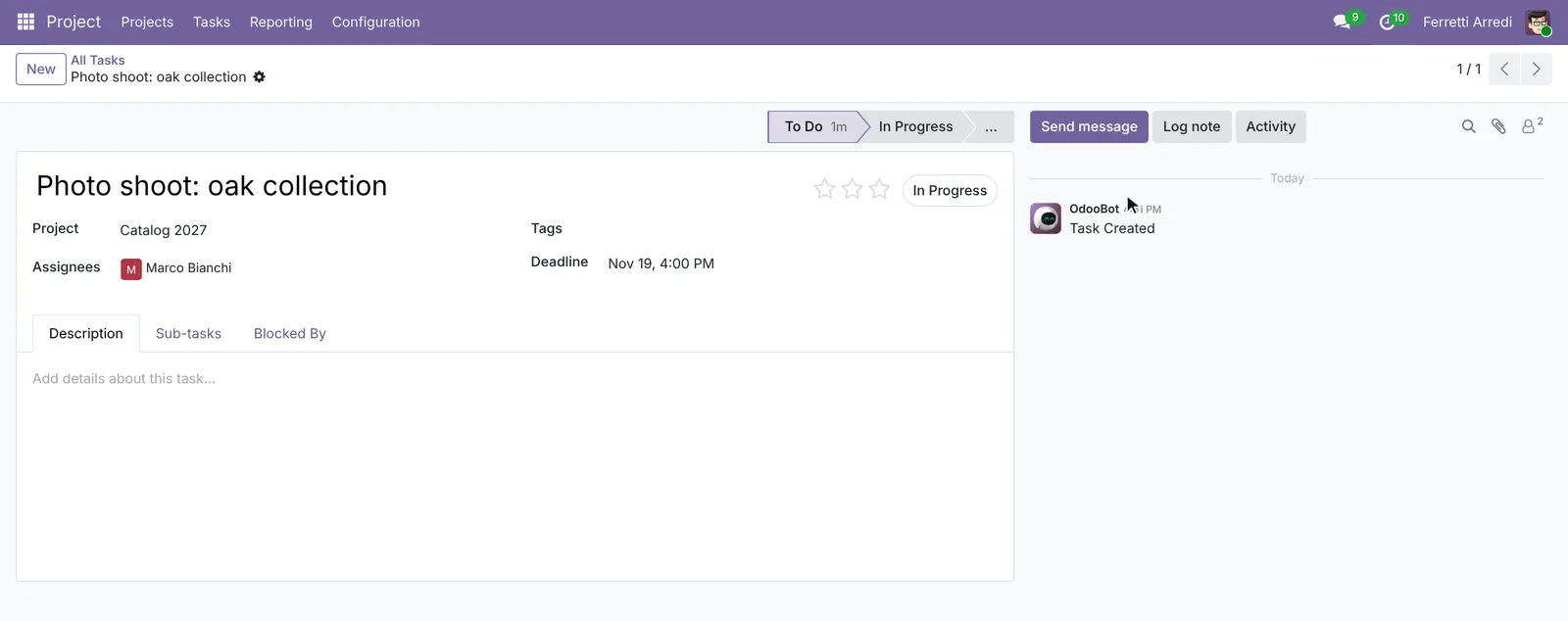
Photo shoot: oak collection has 8 h for Marco and is due tomorrow at 4 PM. Four steps that add up to 8 h and end on time:
- Pick the products and props, 1 h, today
- Set up the oak room, 2 h, tomorrow by 11 AM
- Shoot, 4 h, by 3 PM
- Pick and retouch the best shots, 1 h, by 4 PM
Approval needed in OdooCreate
Create 4 subtasks of Photo shoot: oak collection for Marco Bianchi, 8 hours in all.
project.task · 4 records
Pick the products and props
| Field | Current | New |
|---|---|---|
| Allocated Time | 01:00 | |
| Deadline | Nov 18, 6:00 PM |
Set up the oak room
| Field | Current | New |
|---|---|---|
| Allocated Time | 02:00 | |
| Deadline | Nov 19, 11:00 AM |
Shoot
| Field | Current | New |
|---|---|---|
| Allocated Time | 04:00 | |
| Deadline | Nov 19, 3:00 PM |
Pick and retouch the best shots
| Field | Current | New |
|---|---|---|
| Allocated Time | 01:00 | |
| Deadline | Nov 19, 4:00 PM |
Change applied in Odoo.
Organisation administrators can turn the approval cards off on the Members page.
Done: 4 subtasks under the photo shoot, 8 h in all. Marco finds them in the Sub-tasks tab and ticks them off one by one.
Versions we tested
| Version | Result |
|---|---|
| Odoo 16 | Same steps. New opens the project dialog directly, and Task Dependencies is also a setting in Project → Configuration → Settings. The deadline is a date, without a time, and a blocked task shows no Waiting state. There is no All Tasks menu, only My Tasks. |
| Odoo 17 | Like 16, but the deadline has a time, a blocked task shows Waiting, and Tasks → All Tasks is there. |
| Odoo 18 | Like 17. |
| Odoo 19 | As in this guide. Task Dependencies is only in the project’s settings. The screenshots come from Odoo 19. |
| Odoo 20 | As in this guide. |
Frequently asked questions
Can I see how many hours a task needs?
Yes, with the Timesheets app: each task gets an Allocated Time, and the hours logged on it count against it. Without Timesheets a task has a deadline but no hours.
What does Waiting mean on a task?
The task is blocked by another task that is not done yet. When that task is marked done, the waiting task goes back to In Progress.
Can a customer follow the project?
Yes. In the project's Settings tab set Visibility to include portal users and add the customer as a follower. They see the tasks in their portal.
How do I see everybody's tasks in one place?
Open Project, Tasks, All Tasks and group by Assignees (in Odoo 16 open My Tasks and remove its filter). It lists the tasks, but it does not add up who is free this week: an AI assistant can, as in the first example below.
Questa guida è disponibile anche in italiano: Gestione progetti in Odoo: scadenze che il team rispetta
Related Odoo guides
 Automation & CustomizationAutomation rules in Odoo: follow-ups that never slipCreate an automation rule in Odoo: when a sales order over $5,000 is confirmed, the sales manager gets a To-Do to call the customer. No code.
 CRMCRM pipeline in Odoo: stages, activities, lost reasonsSet up the Odoo CRM pipeline: add and order stages, create opportunities, plan the next activity and mark lost deals with a reason. Community and Enterprise.
 AccountingExpenses in Odoo: from receipt to reimbursementHandle employee expenses in Odoo: record an expense with its receipt, submit it, approve it, post it to accounting and pay the employee back. Community and Enterprise.