Product Variants in Odoo: one product, many versions
Set up product variants in Odoo: attributes and values, a product with nine variants, an extra price for one finish, and the variant list.
- Community and Enterprise
- 4 min read
- Odoo + AI tutorial
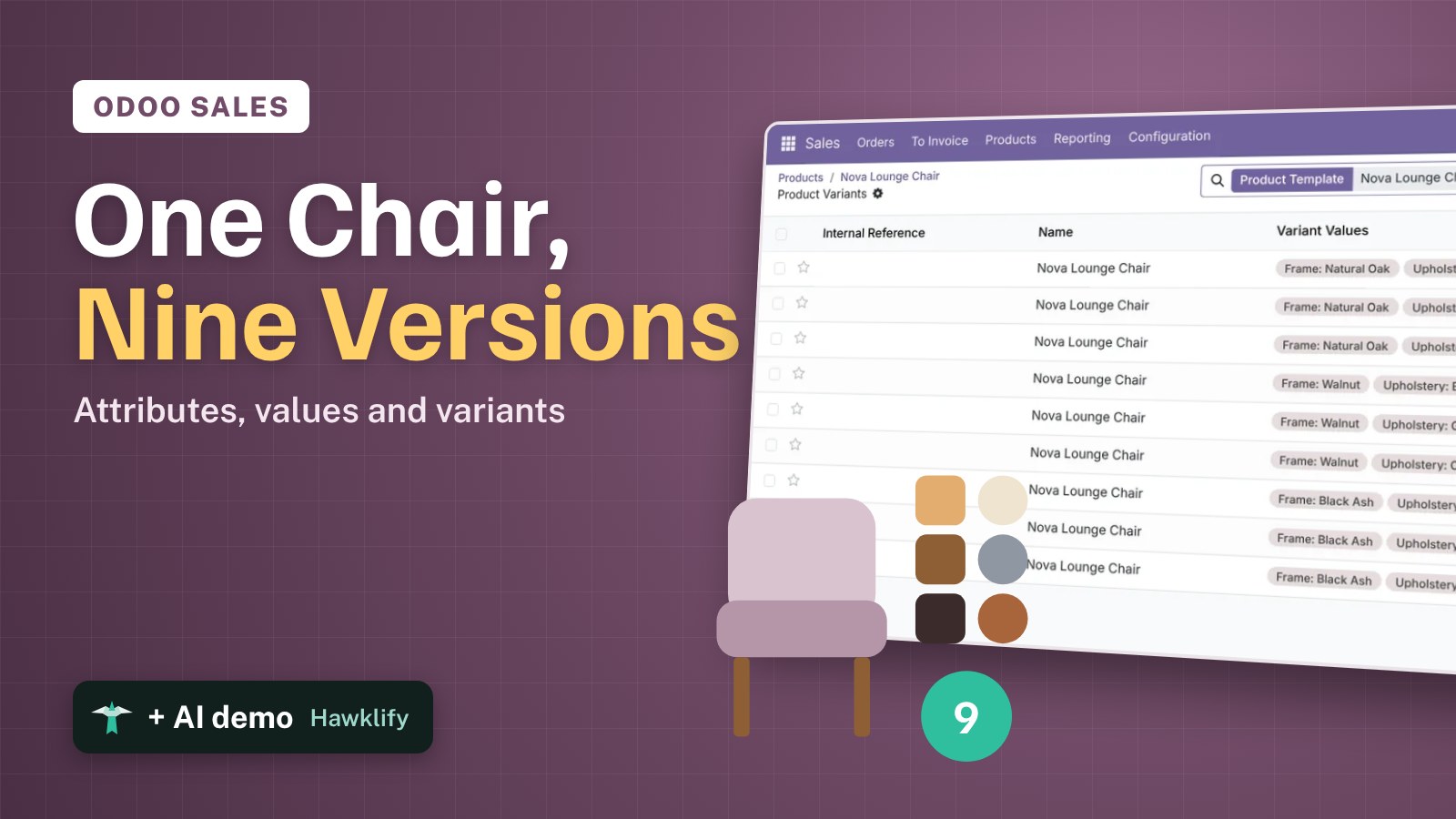
One lounge chair, three wood frames, three fabrics: nine products to sell, count and reorder. Creating nine separate products means nine names, nine prices and nine places to fix a description. With product variants you create the chair once, list the attributes (frame, upholstery) and their values, and Odoo makes every combination, each with its own stock and an extra price where it costs more. This guide turns variants on, builds the attributes, creates the chair and prices the walnut frame.
It works the same in Community and Enterprise. The versions we tested are listed at the end.
This guide is also an AI tutorial. At the end, an AI assistant connected to Odoo finds the variants that never sold and archives them, and adds the colour customers keep asking for.See it in action ↓Before you start
- The Sales app installed. Inventory and Purchase use the same variants.
- The list of options you sell, here the Nova Lounge Chair of Ferretti Arredi at $420 in three frames and three fabrics.
1. Turn on variants
Open Sales → Configuration → Settings. In the Product Catalog section tick Variants and press Save. The Attributes link appears under the setting.
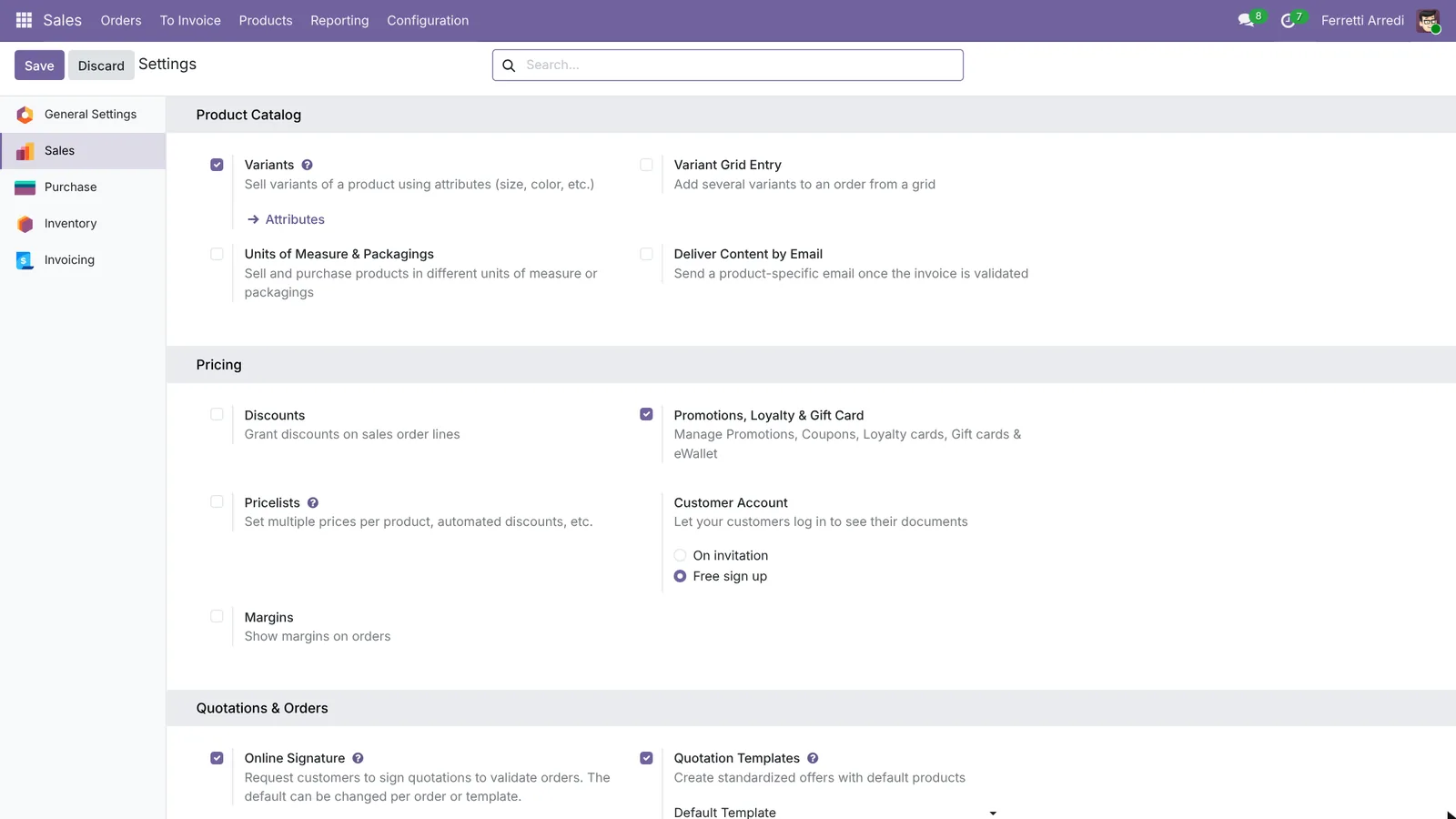 One tick: products get an Attributes & Variants tab.
2. Create the attributes
Open Sales → Configuration → Attributes and press New. Name it Frame, keep Display Type on Radio and Variant Creation on Instantly. In Attribute Values add Natural Oak, Walnut and Black Ash. Save, then create Upholstery the same way with Beige Linen, Grey Velvet and Cognac Leather.
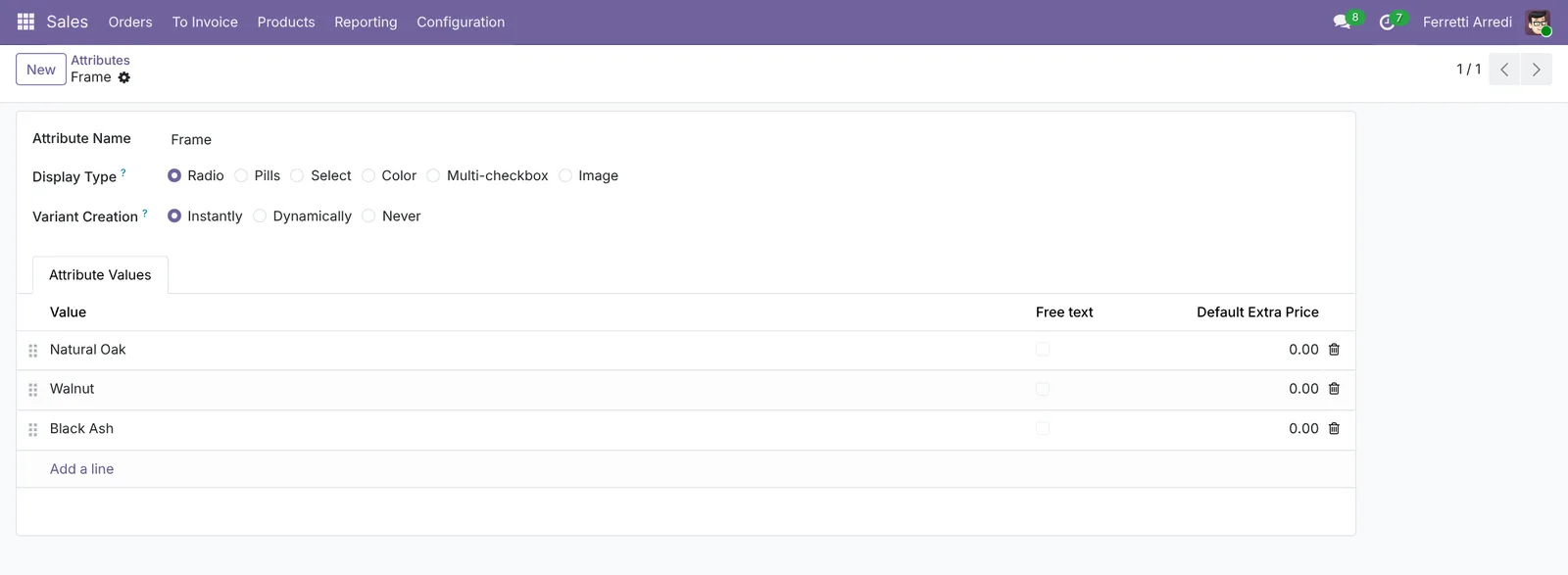 An attribute is a list of choices you can reuse on any product.
3. Add them to the product
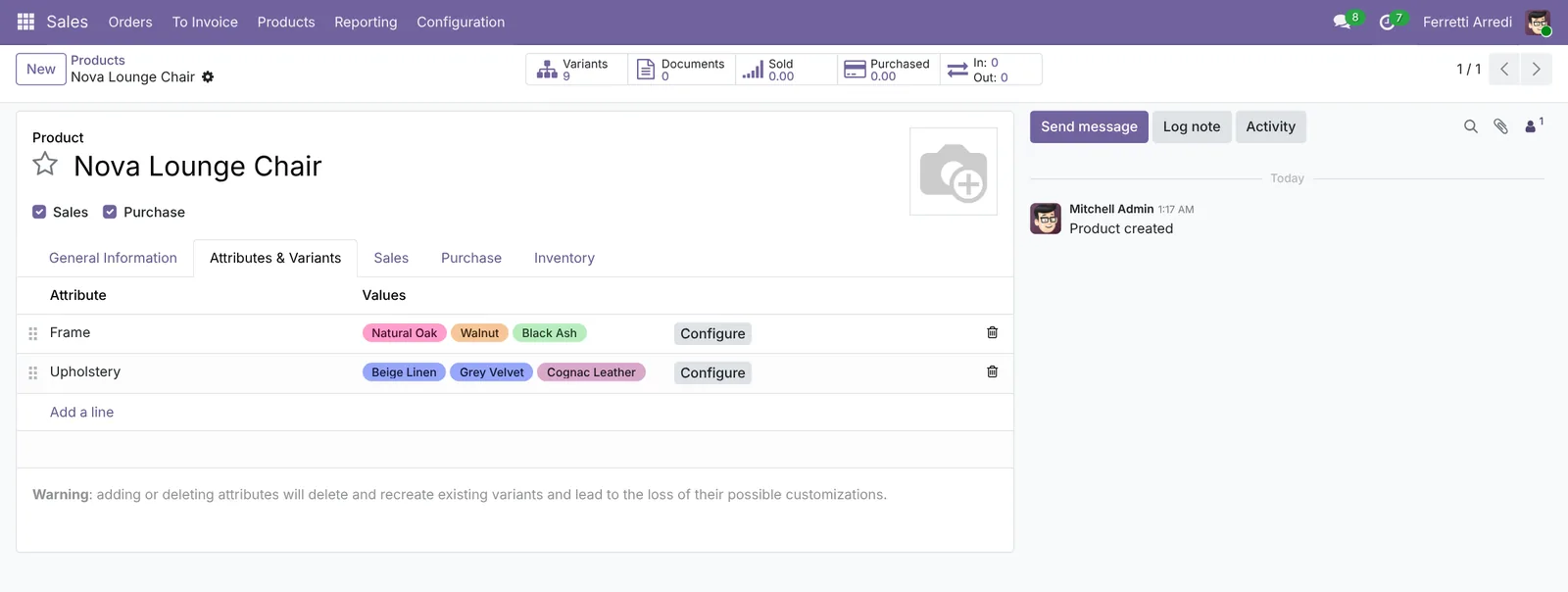
Open Sales → Products → Products and press New: Nova Lounge Chair, Sales Price $420. In the Attributes & Variants tab press Add a line, pick Frame and its three values, then Upholstery and its three values. Press Save: the Variants button at the top counts 9.
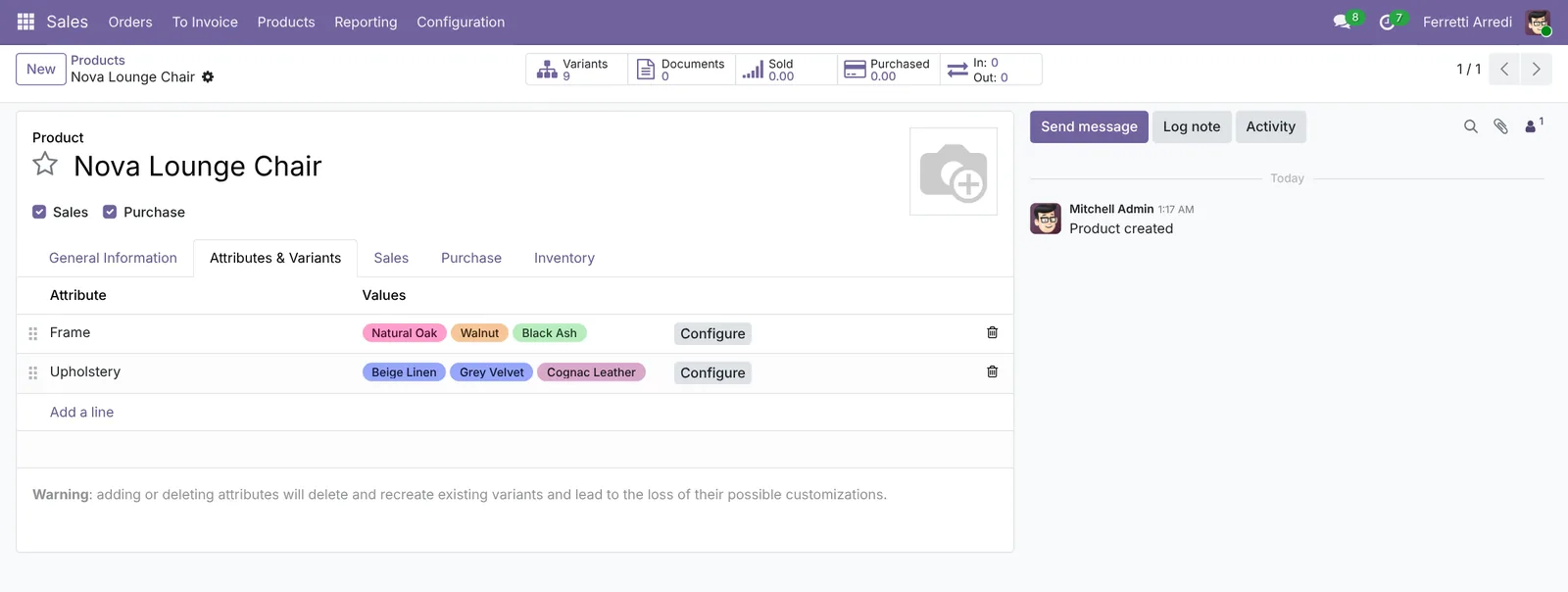 Two attributes with three values each: nine variants.
4. Price the walnut frame
Walnut costs more. On the Frame line press Configure, open Walnut and set its Extra Price to $40. Go back to the product. Every walnut variant now sells at $460.
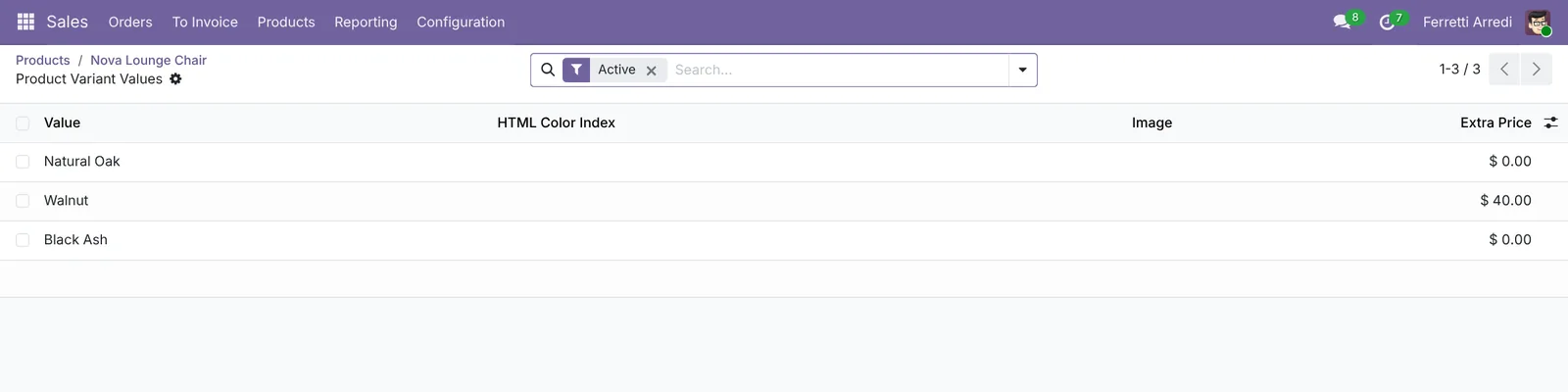 The extra price belongs to this product: another product can price walnut differently.
5. Check the variants
Press the Variants button. Each line is one combination with its own price, reference and stock: Odoo counts and reorders Walnut / Grey Velvet apart from Walnut / Beige Linen. Open a variant to give it a reference or a barcode.
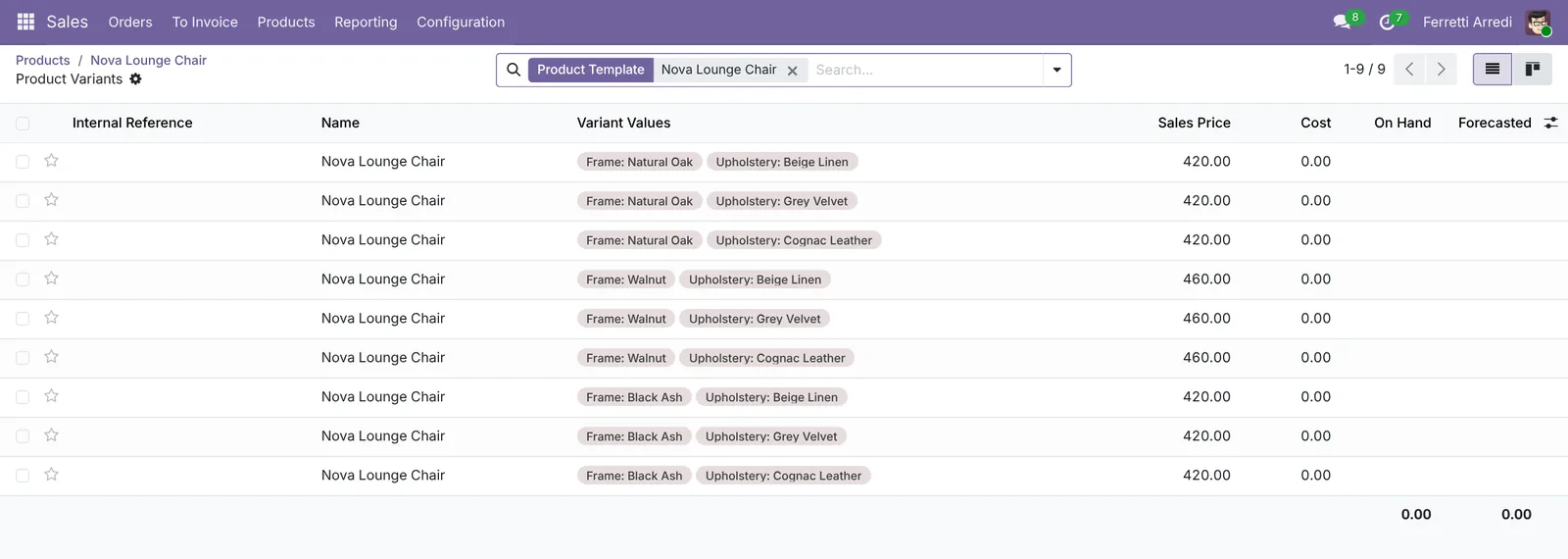 Nine variants, one product to maintain.
Common mistakes
- Making every option an attribute. A note such as “gift wrap” is not a variant: it would double the variants for nothing. Use an optional product or a line note.
- Adding attributes after the first sales. Odoo rebuilds the variants: the old ones are archived, with their stock. Settle the attributes before you sell.
- Too many combinations. Five attributes with five values make 3,125 variants. Exclude the combinations you don’t make, or use Variant Creation Dynamically.
- Forgetting the dead variants. Combinations that never sell stay in every list, report and reordering screen. Archive them now and then.
Product Variants with AI: ask your AI assistant through MCP
With the Hawklify MCP server, Claude, ChatGPT and other assistants work in your Odoo as you, with your permissions. Variants multiply fast, and Odoo has no screen that says which ones never sold or which colour customers keep asking for. An assistant reads the sales, the stock and the customers’ messages together.
On the computer. Depending on how your organisation set up the server, the assistant makes the change straight away or first shows you a card to approve. Here Smart mode is on: it reads everything and asks once before archiving.
In a year you sold 41 Nova chairs in 6 of the 9 variants; the best is Natural Oak / Beige Linen, 14 chairs. 3 never sold:
- Natural Oak / Cognac Leather: no stock, no open quotation.
- Black Ash / Beige Linen: no stock, no open quotation.
- Walnut / Grey Velvet: 2 in stock.
Archive the first two and keep Walnut / Grey Velvet until those 2 are sold?
Done. The Nova Lounge Chair has 7 variants now. The two archived ones stay in past documents, and the Archived filter of the Variants list brings them back if you need them.
On the product, in the browser. Here card mode is on: nothing changes until you approve the card.
Yes, one: sage green velvet. Three customers asked for it, each on a quotation still in draft:
- Deco Addict, 35 days ago
- Azure Interior, 18 days ago
- Lumber Inc, 6 days ago
Nobody asked for anything else. I'll add Sage Green Velvet to Upholstery: Odoo makes one new variant per frame.
Approval needed in OdooUpdate
Add Sage Green Velvet to the Upholstery of the Nova Lounge Chair: 3 new variants, $420 and $460 in Walnut.
product.template · 1 record
Nova Lounge Chair
| Field | Current | New |
|---|---|---|
| Upholstery | + Sage Green Velvet |
Change applied in Odoo.
Organisation administrators can turn the approval cards off on the Members page.
Done: Natural Oak, Walnut and Black Ash in Sage Green Velvet are on sale. The three quotations can switch to them now; tell me if you want a note to each customer.
Versions we tested
| Version | Result |
|---|---|
| Odoo 16 | Same steps. The attribute field is called Variants Creation Mode, attribute values have no default extra price, and Configure lists the values with a Value Price Extra column. |
| Odoo 17 | Like 16, but attribute values get a Default Extra Price. |
| Odoo 18 | As in this guide. |
| Odoo 19 | As in this guide. The screenshots come from Odoo 19. |
| Odoo 20 | Same steps. Attributes is no longer in the Sales Configuration menu: open it from the Attributes link under Variants in the settings. After Configure, type the extra price straight in the list of values. |
Frequently asked questions
What is the difference between a product and a variant?
The product (the template) holds what all versions share: name, description, category. Each variant is one combination of attribute values, such as Walnut frame with Grey Velvet, with its own stock, reference, barcode and, if you want, extra price.
How do I stop Odoo from creating combinations I don't sell?
Open the attribute line with Configure and set Exclude For on a value, or archive the single variant from the Variants list. With Variant Creation set to Dynamically, Odoo creates a variant only when someone sells it.
Can a variant have its own price?
The price is the product's price plus the extra price of each value. For a price that doesn't follow the values, use a pricelist rule on that variant.
What happens to the variants if I remove a value?
Odoo archives the variants that used it, or deletes them if nothing refers to them. Sales and stock moves of archived variants stay in the history.
Questa guida è disponibile anche in italiano: Varianti prodotto in Odoo: un prodotto, tante versioni
Related Odoo guides
 SalesSales orders in Odoo: from quotation to invoiceTake a sale through Odoo from start to finish: create the quotation, confirm the order, deliver the goods and post the invoice. Community and Enterprise.
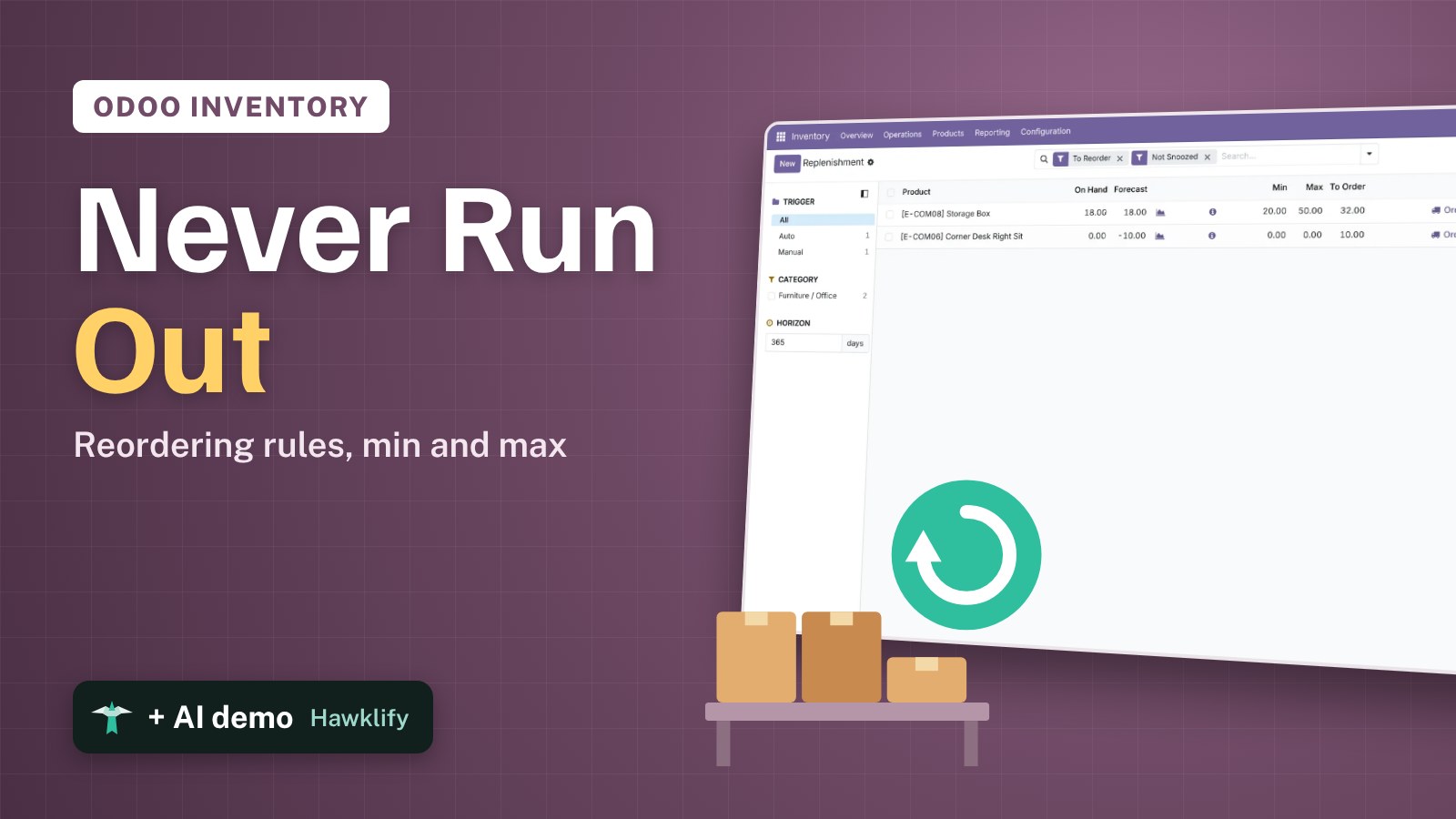 InventoryReordering rules in Odoo: restock before you run outSet min/max reordering rules in Odoo so it orders from your vendor before stock runs out, then use the Replenishment list to order now. Community and Enterprise.
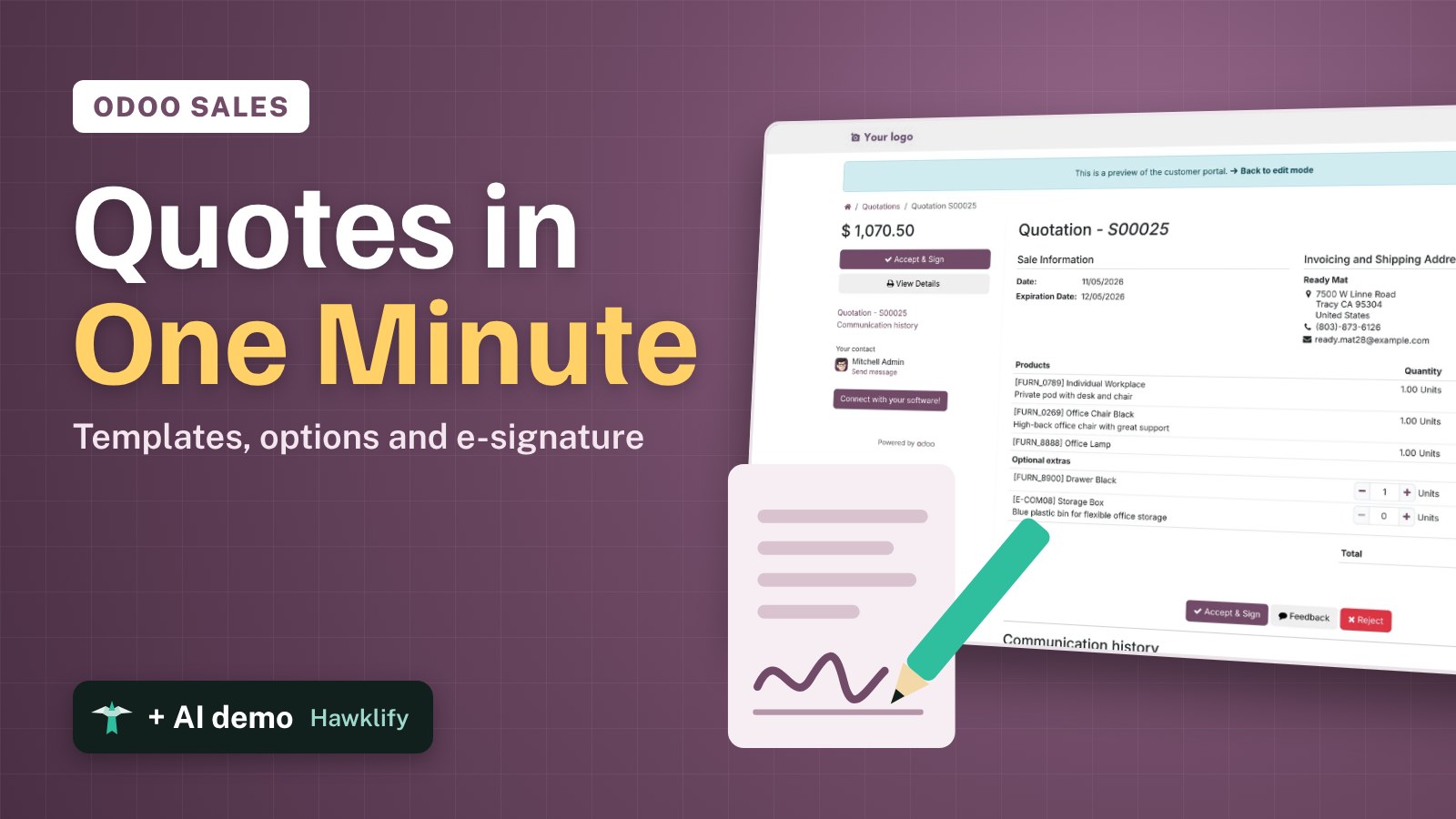 SalesQuotation templates in Odoo: a full quote in a minuteBuild a quotation template in Odoo with optional products and online signature, send a quote in a minute, and let the customer sign it online. Community and Enterprise.