Point of Sale in Odoo: open, sell and close the register
A day at the register with Odoo Point of Sale: open it with the cash in the drawer, sell, take a cash payment, and close with the cash count. Community and Enterprise.
- Community and Enterprise
- 4 min read
- Odoo + AI tutorial
A shop’s day has three moments: you open the register with the cash in the drawer, you sell, and in the evening you count the cash and close. Odoo Point of Sale follows the same three steps, and when you close, every sale lands in your stock and your accounting. This guide runs one day at the demo Furniture Shop.
It works the same in Community and Enterprise. The versions we tested are listed at the end.
This guide is also an AI tutorial. At the end, an AI assistant connected to Odoo compares every shop with its usual day each evening and sends the restock, and explains a cash difference on a closed session.See it in action ↓Before you start
- The Point of Sale app installed, with at least one register (Odoo calls it a point of sale) and its products.
- A Cash payment method on that register, so that Odoo counts the cash at opening and closing.
1. Open the register
Open Point of Sale. Each card on the dashboard is a register. On the Furniture Shop, press Open Register.
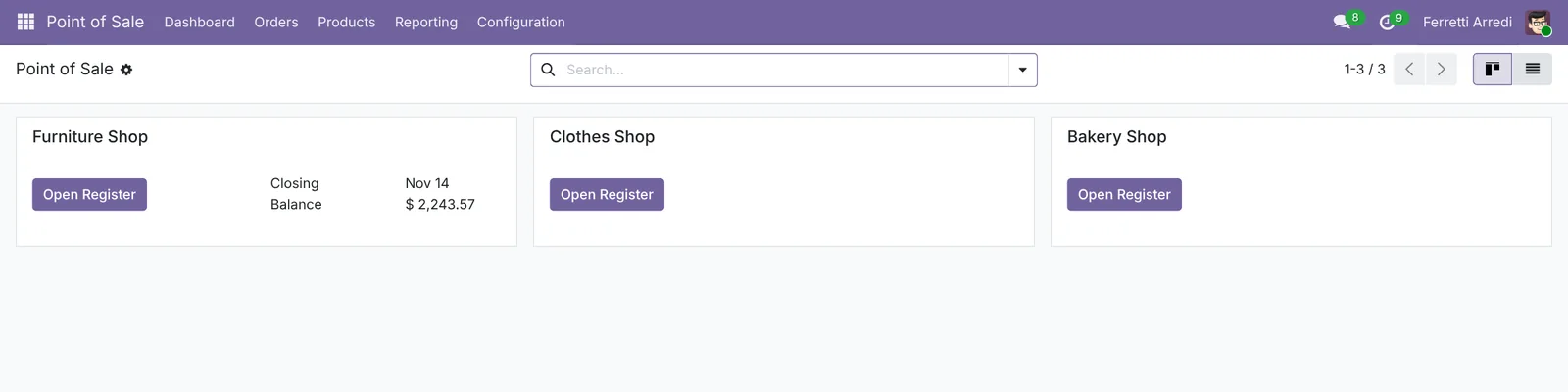 One card per register.
The register opens in the same tab and asks for the Opening cash: count what is in the drawer, type it (here 100), and press Open Register.
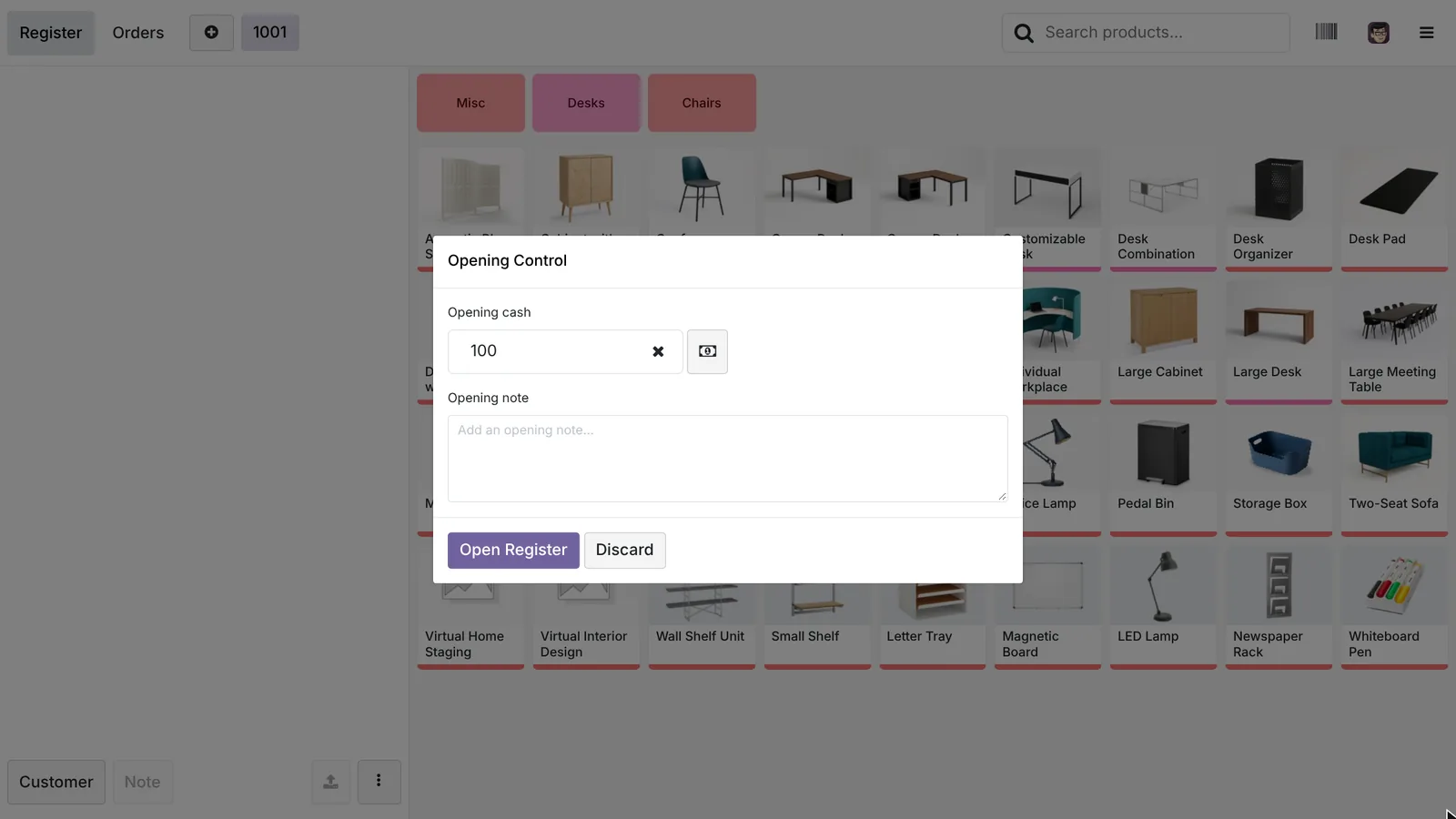 The day starts from the cash you really have.
2. Sell
Tap a product to add it to the order. Tap it again for one more, or use Qty on the keypad. To find a product fast, type its name in Search products…. Here the customer takes a Desk Organizer, two Whiteboard Pens and a Letter Tray: $13.38 with tax.
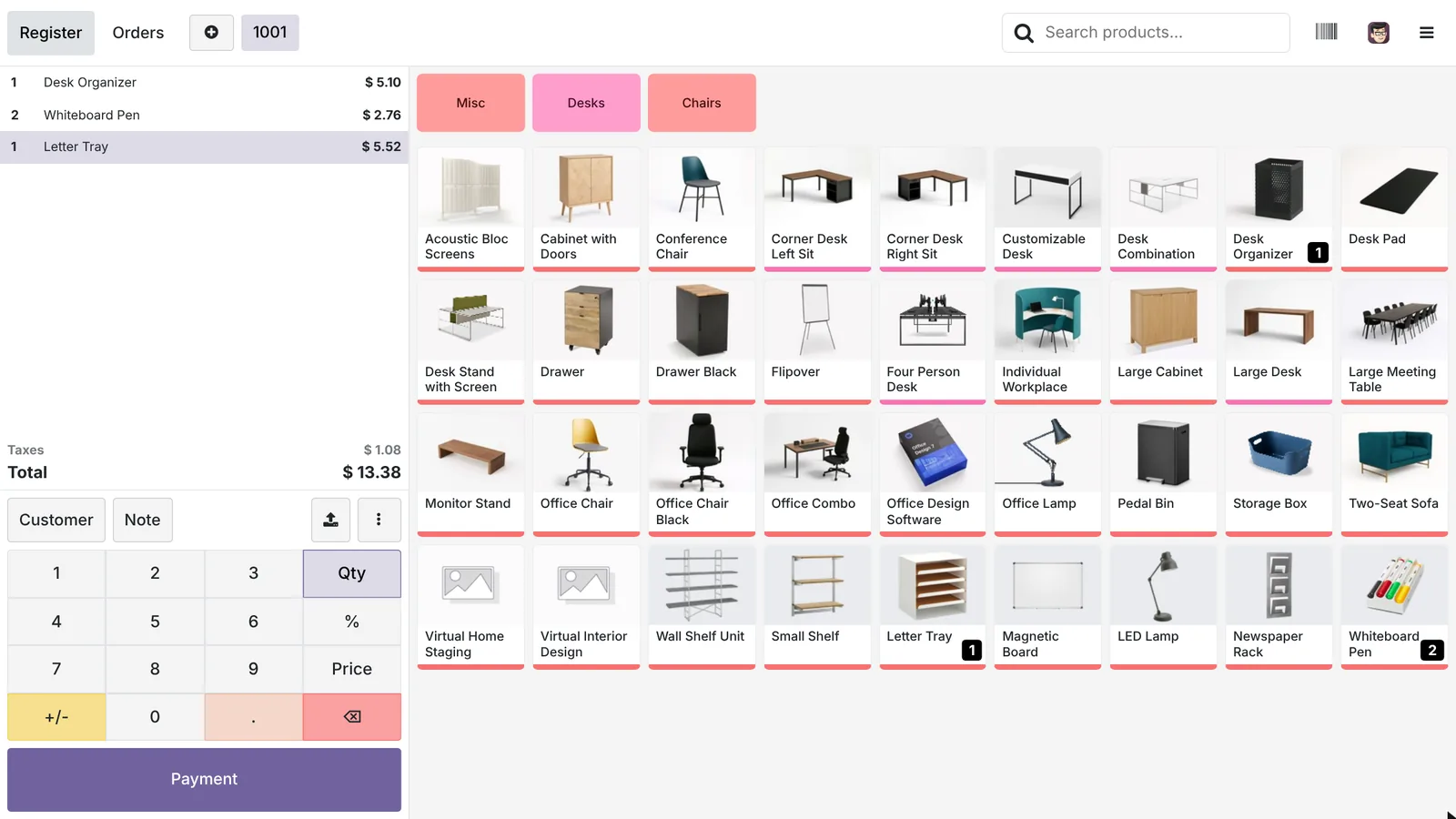 The order on the left, the products on the right.
3. Take the payment
Press Payment, choose Cash, type what the customer hands you if you need the change, and press Validate. The receipt is ready to print or email. Press New Order for the next customer.
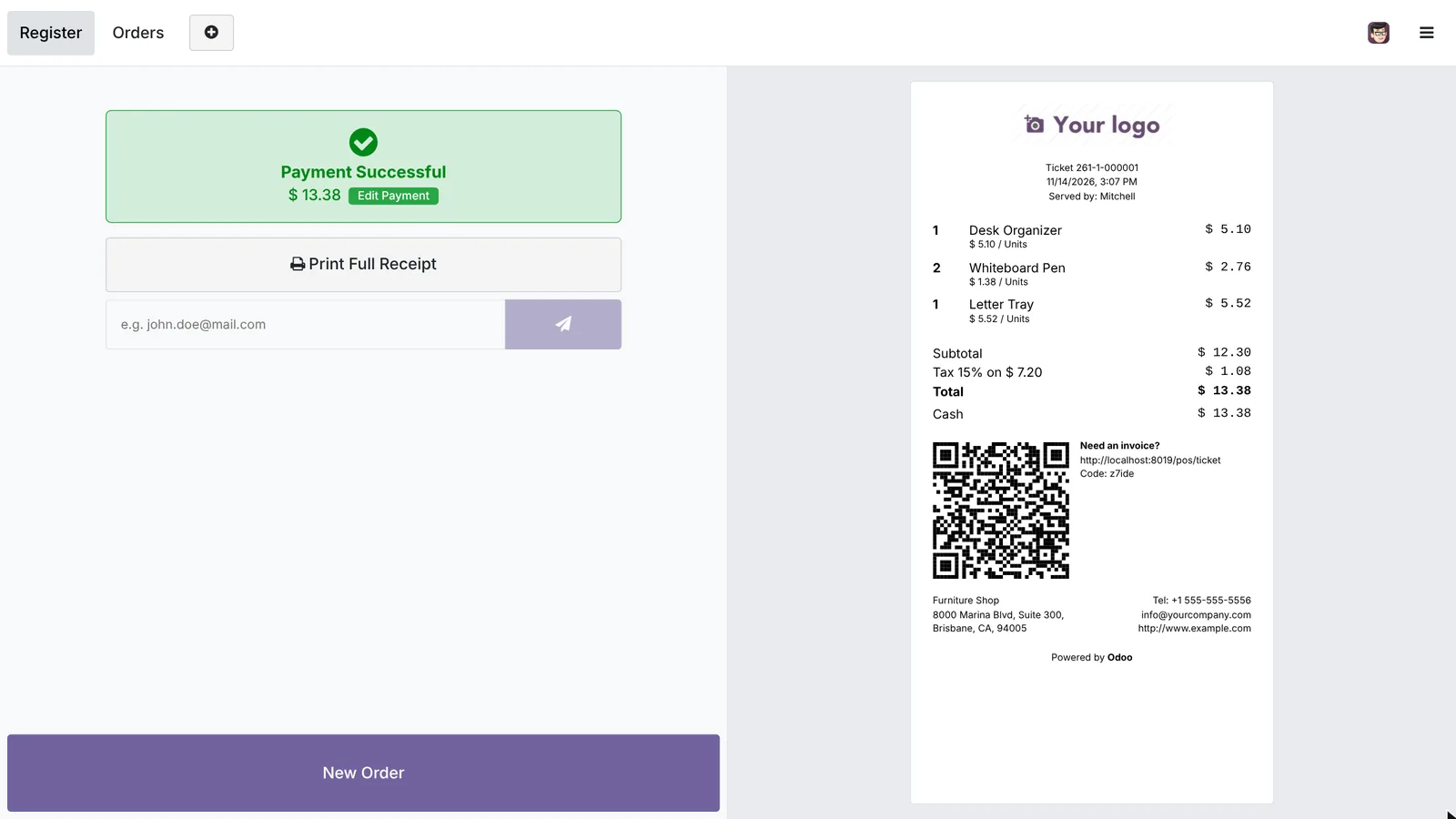 Paid in cash, receipt ready.
4. Close the register
In the evening, open the menu at the top right (the three lines) and press Close Register. Odoo shows what it expects in each payment method: for cash, the opening amount plus the cash payments. Count the drawer and type the total in Cash Count. If it doesn’t match, Odoo shows the Difference. Press Close Register.
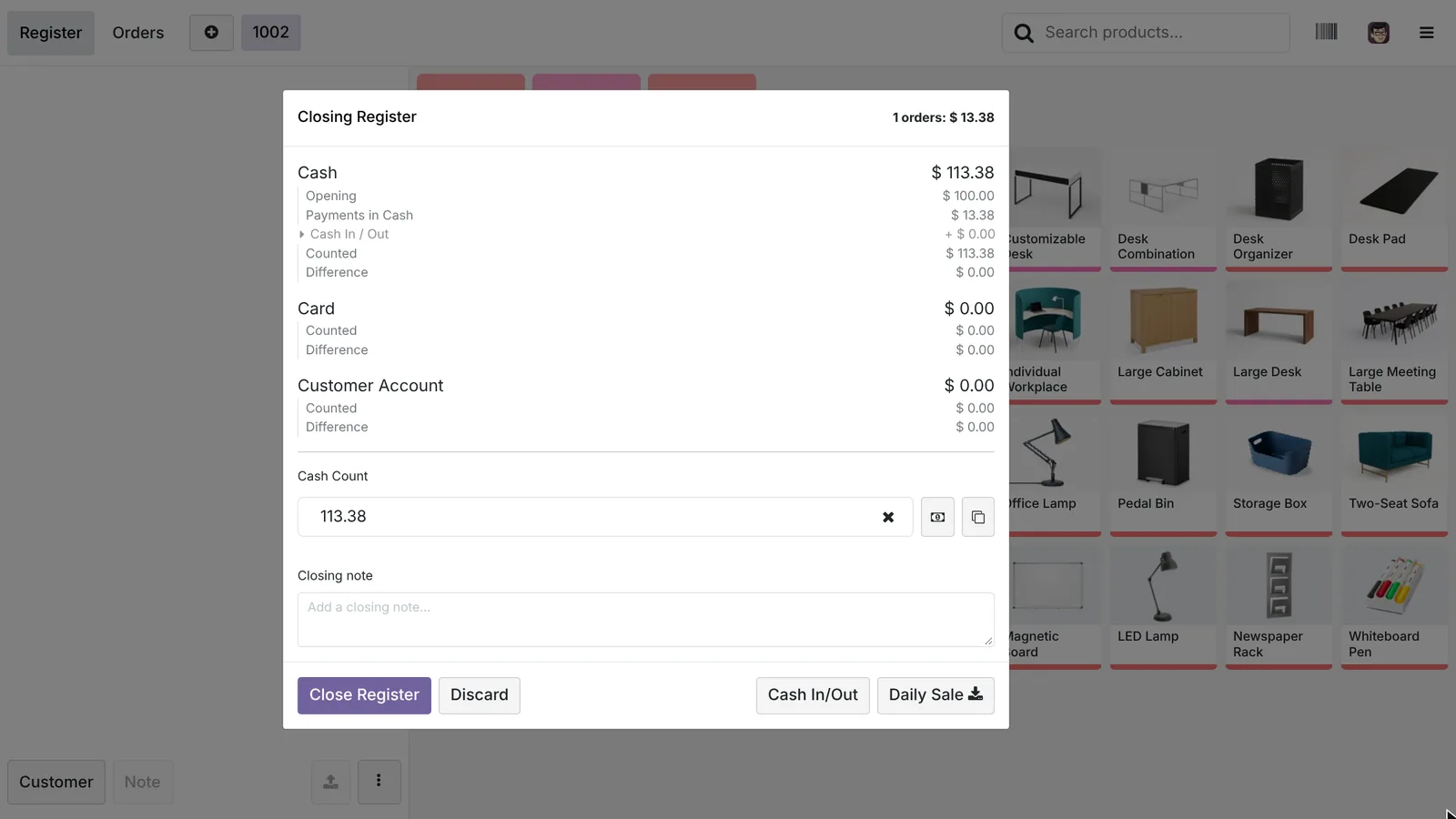 100 at opening, 13.38 sold, 113.38 in the drawer.
5. Check the session
Every day is a session. In Point of Sale → Orders → Sessions, open it: opening and closing dates, starting and ending balance, and buttons for its orders and payments. A closed session is Closed & Posted: its sales are in accounting.
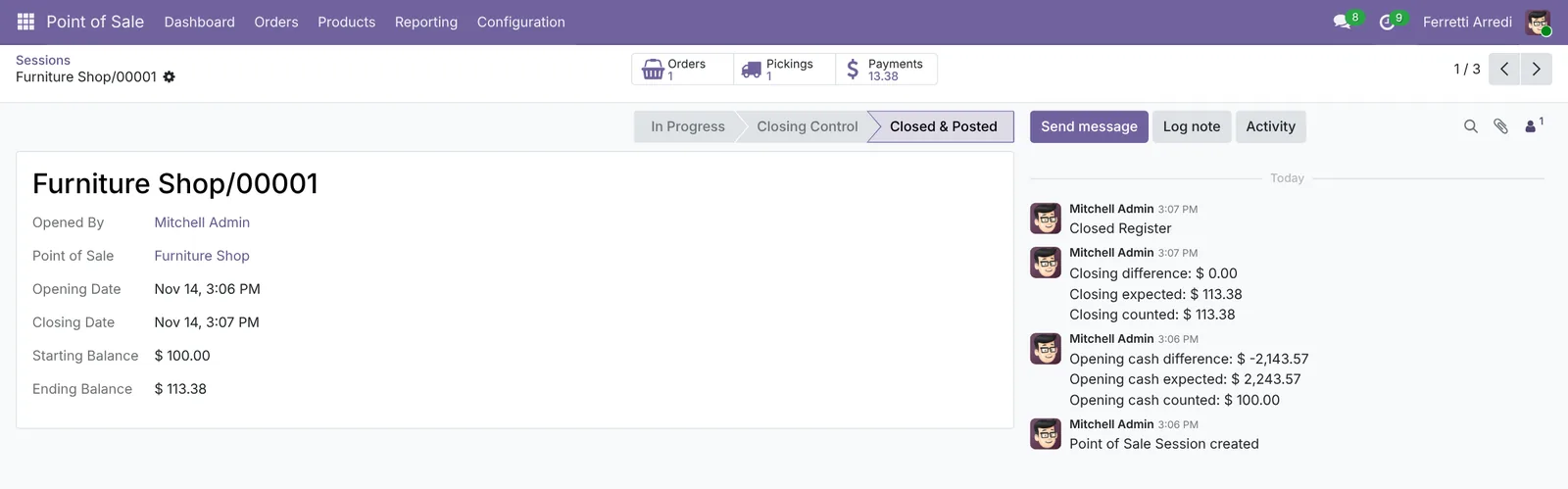 The day, closed and posted.
Common mistakes
- Skipping the opening count. Then the closing difference mixes yesterday’s mistakes with today’s.
- Leaving the register open for days. One session per day keeps the cash count and the accounting simple.
- Taking cash out without saying so. Use Cash In/Out in the menu, with a reason, so the count still matches.
- Closing the browser tab while offline. Unsent orders live in the browser until the connection is back.
Point of Sale with AI: ask your AI assistant through MCP
With the Hawklify MCP server, Claude, ChatGPT and other assistants work in your Odoo as you, with your permissions. Odoo’s reports show today’s sales. Telling whether a shop had a good or a bad day means comparing it with the same weekday of the past weeks, and spotting the products about to run out means checking each shop’s stock.
Every evening, on the phone. A scheduled task in the AI app runs at 7:30 pm and the answer arrives as a chat message. Depending on how your organisation set up the server, the assistant makes the change straight away or first shows you a card to approve. Here Smart mode is on: it asks once, in the chat.
Hawklify
Your Odoo, from the chat you already use
Send a message, a photo or a voice note: the assistant reads and works in Odoo through Hawklify, with your permissions.
Today against the last four Saturdays:
- Turin Store $3,648: 62% above its average ($2,253)
- Milan Store $1,922: 36% below ($3,022)
Turin's best sellers today are almost out there:
- Linen Cushion: 27 sold, 3 left
- Desk Lamp Brass: 15 sold, 2 left
- Oak Bookshelf: 3 sold, 1 left
The main warehouse has plenty. Send Turin today's quantities for tomorrow?
Yes, send them
Done: transfer WH/INT/00007 to Turin Store: 27 cushions, 15 lamps, 3 bookshelves, ready to pick in the morning.
Next to the session. In a side panel of the browser, the assistant starts from the closed session you have open, chatter included:
The closing is clean: $113.38 expected and counted.
The opening isn't. Odoo expected $2,243.57 in the drawer from earlier sales, and $100.00 was counted: a $2,143.57 difference, accepted with no note. No cash-out to the bank is recorded for that money.
If it went to the bank, it needs a cash-out entry; if not, it's missing. Shall I note it on the session and ask the shop manager to explain it?
Done. The session has a note on the $2,143.57 opening difference, and Mitchell has a to-do for Friday: Explain the opening cash of Furniture Shop/00001, attach the bank deposit slip if there is one.
Versions we tested
| Version | Result |
|---|---|
| Odoo 16 | The demo register is called Shop and the button is New Session. The shop opens on a product category: go back to all products first. Close with Close at the top right. |
| Odoo 17 | The register opens on a category too. Close from the menu with Close Session. |
| Odoo 18 | As in this guide. |
| Odoo 19 | As in this guide. The screenshots come from Odoo 19. |
| Odoo 20 | The menu at the top right opens a grid of buttons: press Close Register there. After the payment, the button for the next customer is Continue. |
Frequently asked questions
What if the cash count doesn't match?
Odoo shows the difference in the closing dialog and asks you to confirm it. The difference is booked to a cash difference account, and the session keeps the expected and counted amounts, so you can check it later.
Can I close the register from the back office?
Yes. In Point of Sale, Orders, Sessions, open the session and press Close Session & Post Entries. Use it when the register was left open, for example on a tablet that was switched off.
Does the register work without internet?
It keeps selling for a while: orders are kept in the browser and sent to Odoo when the connection comes back. Don't close the browser tab while it is offline.
Where do the sales go in accounting?
When you close the session, Odoo posts one journal entry for the day's sales and one per payment method. Each order also moves the stock out of the shop's location.
Questa guida è disponibile anche in italiano: Punto vendita Odoo: apri, vendi e chiudi la cassa
Related Odoo guides
 SalesSales orders in Odoo: from quotation to invoiceTake a sale through Odoo from start to finish: create the quotation, confirm the order, deliver the goods and post the invoice. Community and Enterprise.
 InventoryReordering rules in Odoo: restock before you run outSet min/max reordering rules in Odoo so it orders from your vendor before stock runs out, then use the Replenishment list to order now. Community and Enterprise.
 AccountingBank reconciliation in Odoo: match payments to invoicesReconcile bank transactions in Odoo Enterprise: match payments to invoices, handle a payment with no reference, and book bank fees with a model.