Multi-Currency in Odoo: invoice in euros, book in dollars
Invoice in euros from a dollar company in Odoo: activate the currency, enter the rate, and see the $480 exchange loss when the customer pays at a lower rate.
- Community and Enterprise
- 4 min read
- Odoo + AI tutorial
Deco Addict buys €12,000 of furniture and pays in euros. Your books are in dollars. On the day of the invoice the euro is worth $1.08; on the day they pay, $1.04. The customer paid exactly what the invoice said, yet you received $480 less. With multi-currency Odoo writes the invoice in euros, books it in dollars at the day’s rate, and when the payment arrives at another rate it posts the difference by itself. This guide activates the euro, enters its rate, invoices in euros and follows the payment to the exchange entry.
It works the same in Community and Enterprise. The versions we tested are listed at the end.
This guide is also an AI tutorial. At the end, an AI assistant connected to Odoo works out how much the open invoices in euros and pounds have lost at today's rate and chases the biggest one, and on an invoice it shows what a partial payment does to your dollars before it registers it.See it in action ↓Before you start
- The Invoicing (or Accounting) app installed, with the company in dollars.
- A customer who pays in euros, here Deco Addict.
- To see the journal items as in the screenshots, tick Show Full Accounting Features in the Invoicing settings (Enterprise Accounting has them already).
1. Activate the euro
Open Invoicing → Configuration → Accounting → Currencies. Remove the Active filter from the search, search EUR and switch on its Active toggle.
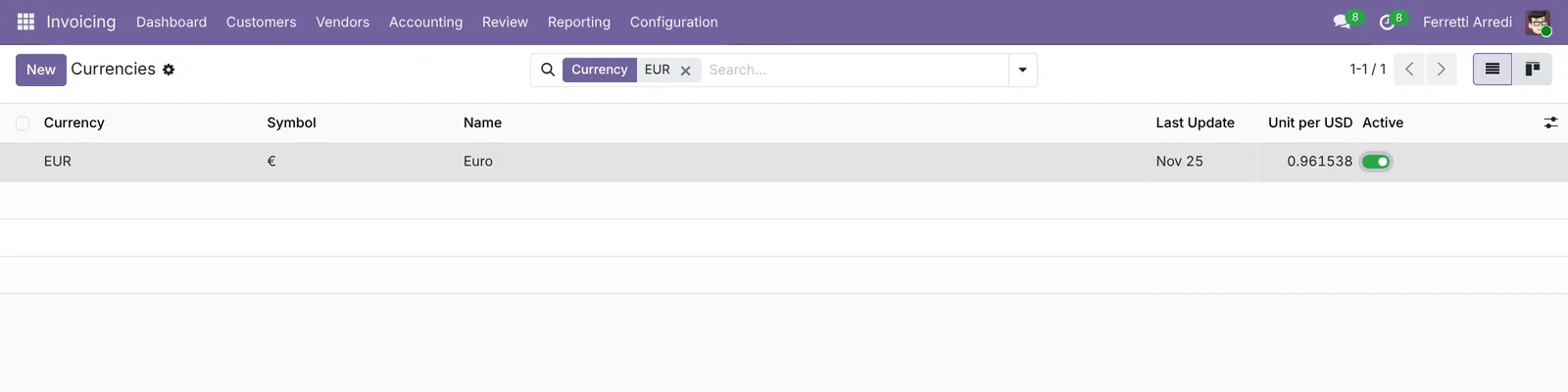 Every currency is there, switched off.
2. Enter the rate
Open EUR. In the Rates tab press Add a line: the date is today, and in USD per Unit write 1.08. Odoo shows the other way round too, 0.925926 euros per dollar. Save. Here there is also the rate of November 25, 1.04, which the payment uses later.
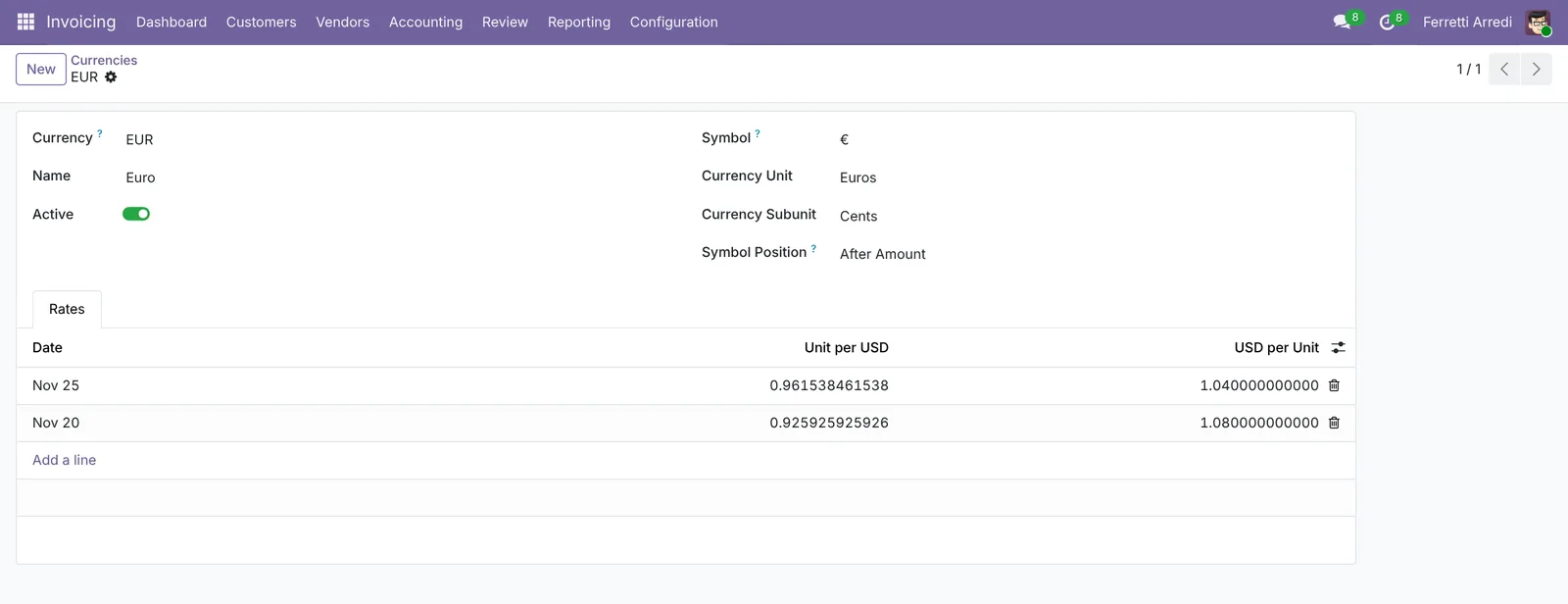 One line per day you need a rate.
3. Invoice in euros
Open Invoicing → Customers → Invoices and press New. Pick Deco Addict, set the Currency to EUR and add 8 Oak Dining Tables at €1,500. Press Confirm: the invoice is €12,000, and the header shows the rate used, 1 USD = 0.925926 EUR.
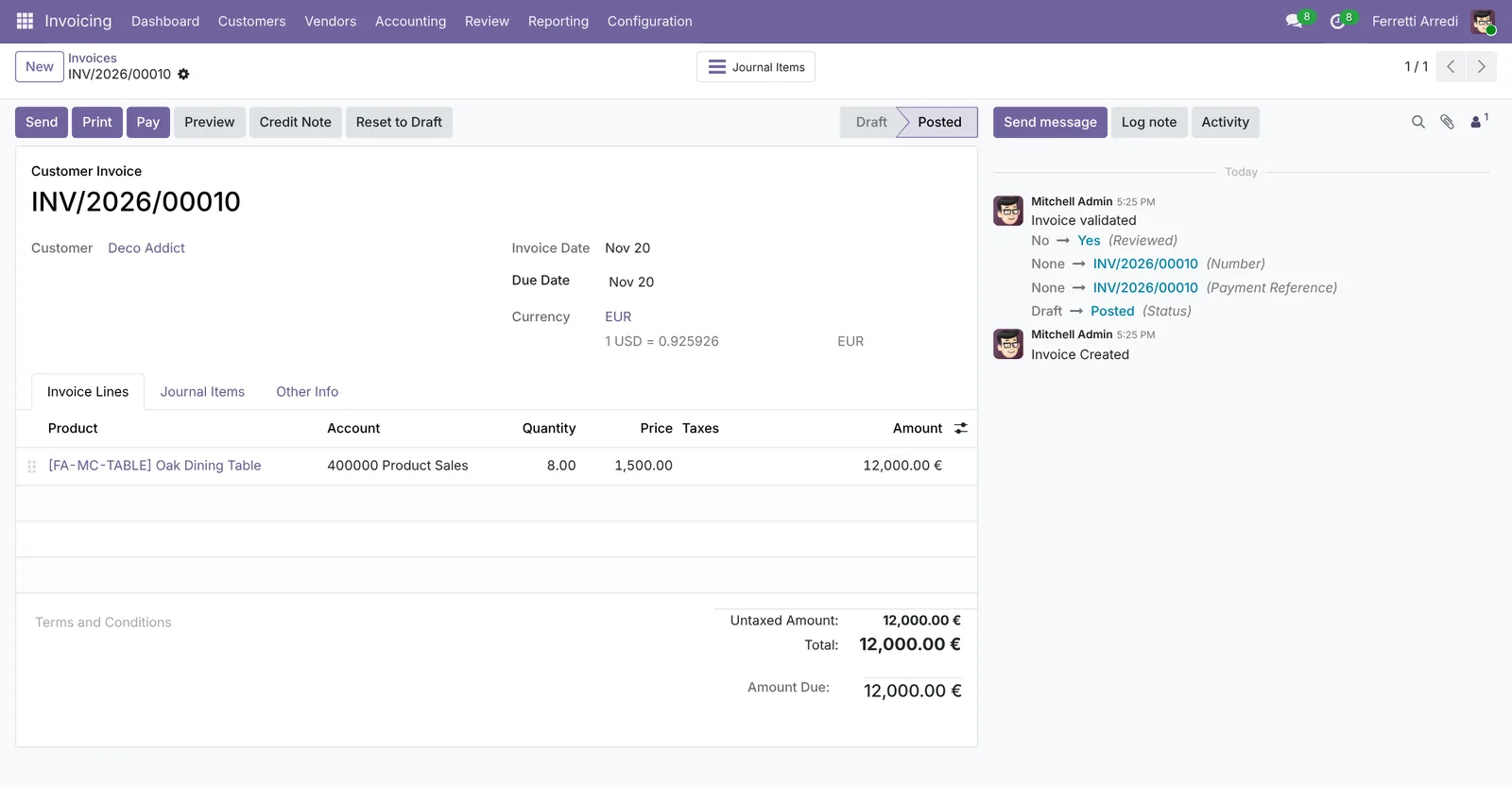 The customer sees euros.
4. See the dollars
Open the Journal Items tab. The receivable and the sale are booked at $12,960: €12,000 at 1.08.
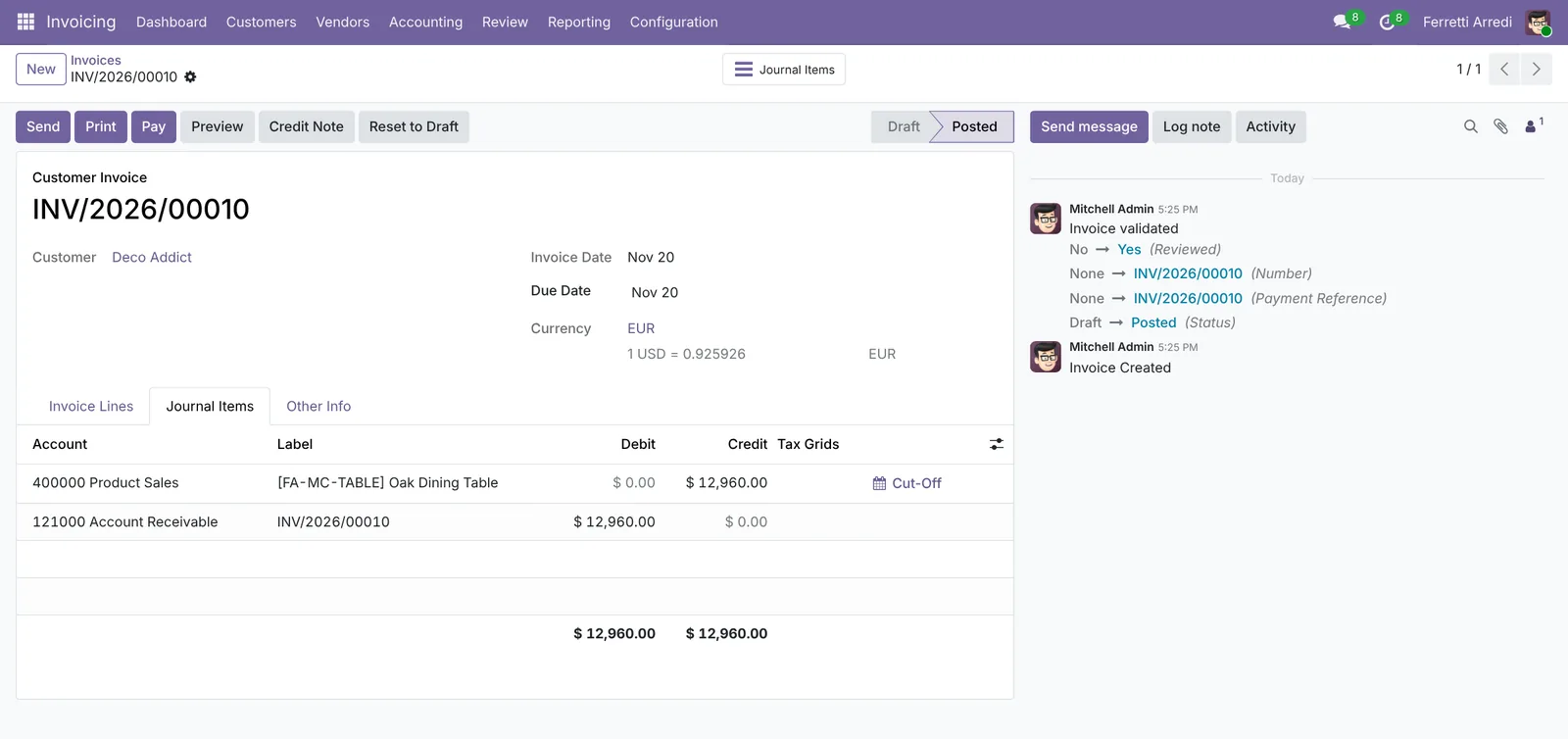 Your books see dollars.
5. Register the payment at the new rate
Deco Addict pays the €12,000 on November 25. Press Pay, set the Payment Date to that day and press Create Payment. At 1.04 the same euros are $12,480.
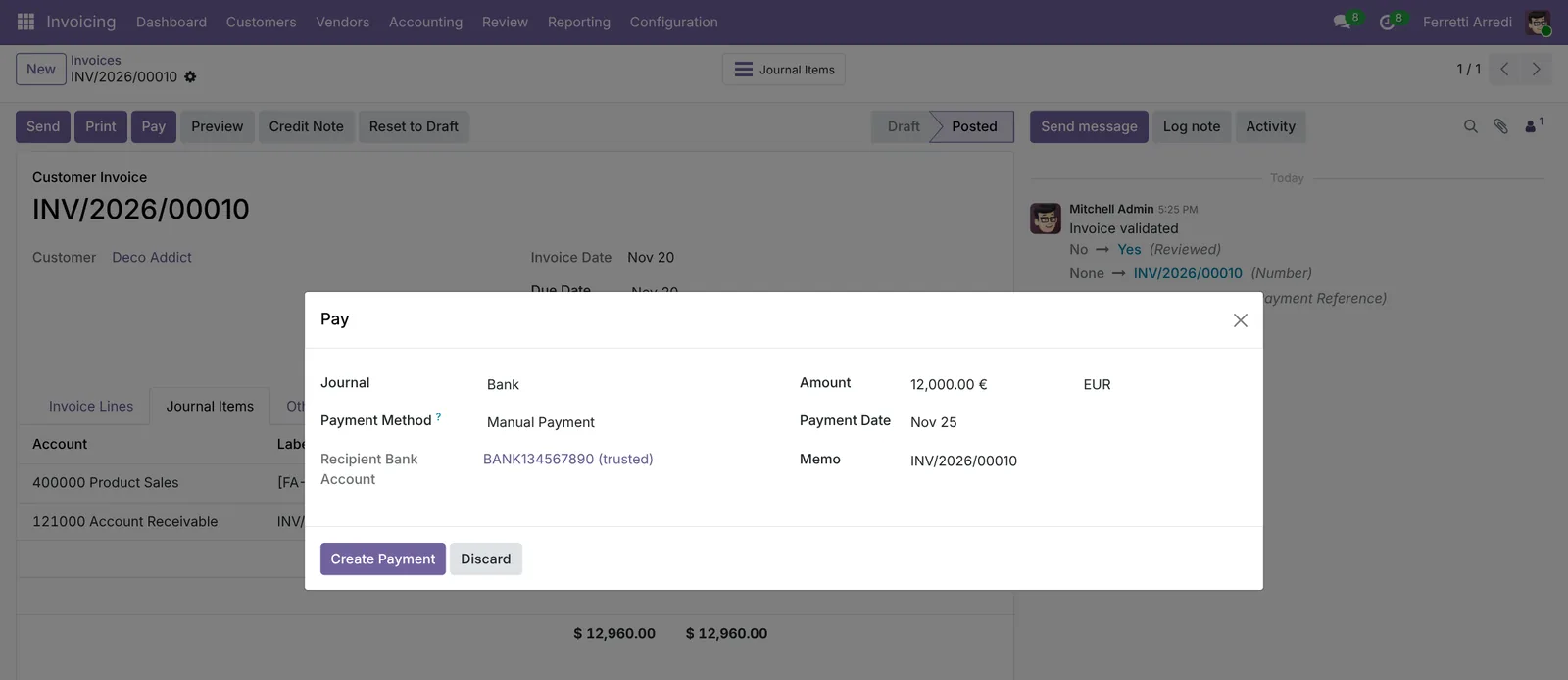 Same euros, another day, another rate.
6. The exchange difference
Odoo closes the invoice and posts the difference in the Exchange Difference journal: open Accounting → Journal Entries and search EXCH. The entry moves $480 from the receivable to Foreign Exchange Loss.
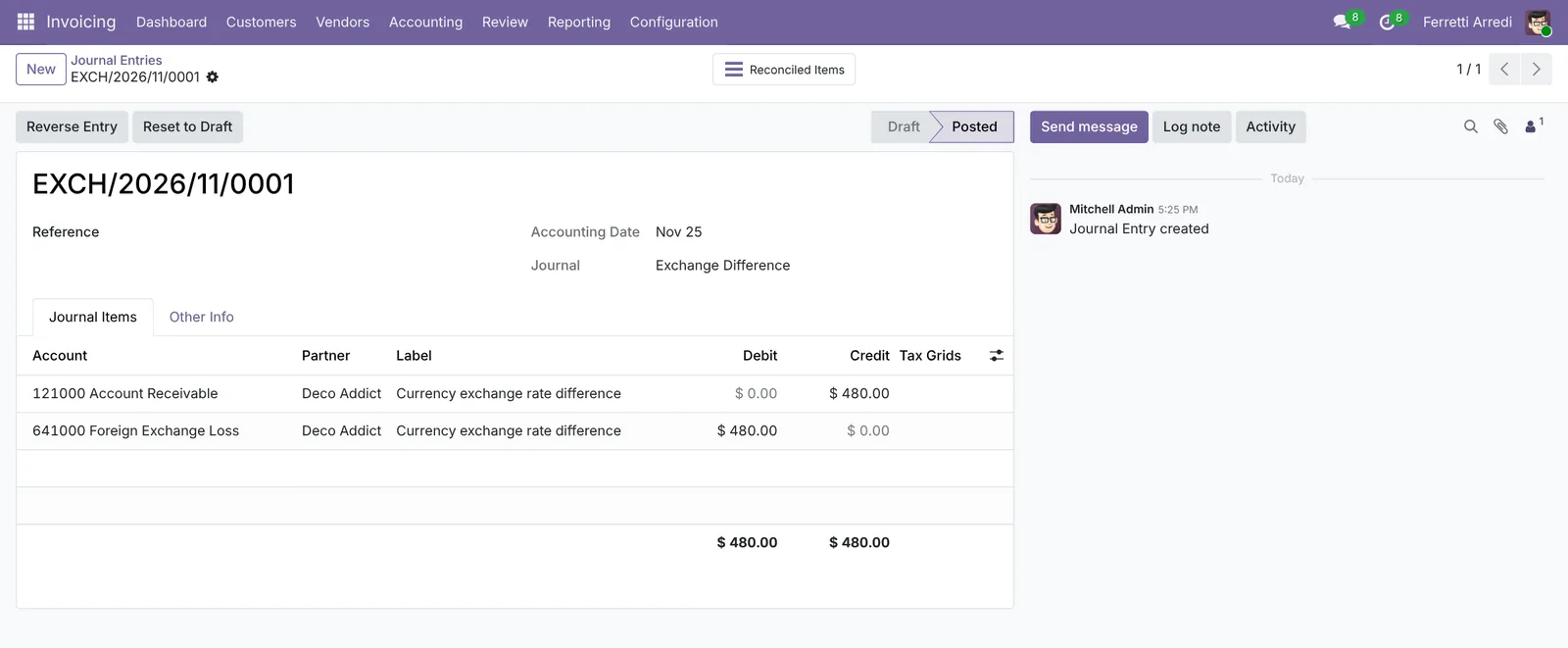 $12,960 invoiced, $12,480 received: $480 lost on the rate.
Common mistakes
- Invoicing in dollars and writing the euros in the notes. The customer pays euros, your bank receives euros, and nothing in Odoo matches. Set the currency on the invoice.
- No rate for the day. Odoo uses the latest rate it has. A rate from last month makes every invoice and every exchange difference wrong.
- Typing the rate the wrong way round. 1.08 dollars per euro is 0.925926 euros per dollar: write it in the column that matches what your bank says.
- Fixing the difference by hand. A manual entry for the $480 sits next to the one Odoo makes and doubles it. Let the payment reconcile the invoice.
Multi-Currency with AI: ask your AI assistant through MCP
With the Hawklify MCP server, Claude, ChatGPT and other assistants work in your Odoo as you, with your permissions. Odoo books the difference when the money arrives; before that, nobody sees how much the open invoices in euros and pounds have already lost. An assistant reads them at today’s rate and tells you which customer to chase first.
At the computer. Here card mode is on: nothing changes until you approve the card.
Three open invoices, $760 less at today's rates:
- Deco Addict, INV/2026/00010, €12,000: booked $12,960 at 1.08, today $12,480 at 1.04: -$480. Due November 10, 10 days late.
- Azure Interior, INV/2026/00012, €3,000: $3,270 at 1.09, today $3,120: -$150.
- Lumber Inc, INV/2026/00011, £6,500: $8,255 at 1.27, today $8,125 at 1.25: -$130.
Deco Addict is the biggest and already late: every day the euro stays low it costs you. I'd remind them first.
Approval needed in OdooMessage
Reminder to Deco Addict on INV/2026/00010, EUR 12,000.00, due on November 10.
account.move · 1 record
INV/2026/00010 · Deco Addict
| Field | Current | New |
|---|---|---|
| To | Deco Addict | |
| Message | Hello, a quick reminder about invoice INV/2026/00010 of EUR 12,000.00, due on 2026-11-10. Could you let us know when the payment is planned? Thank you, Anna Ferretti |
Change applied in Odoo.
Organisation administrators can turn the approval cards off on the Members page.
Sent: the reminder is on the invoice. The $480 is not lost yet, it becomes final at the rate of the day they pay.
On the invoice, in the browser. Smart mode is on: the assistant reads, explains, and asks once before it changes anything.
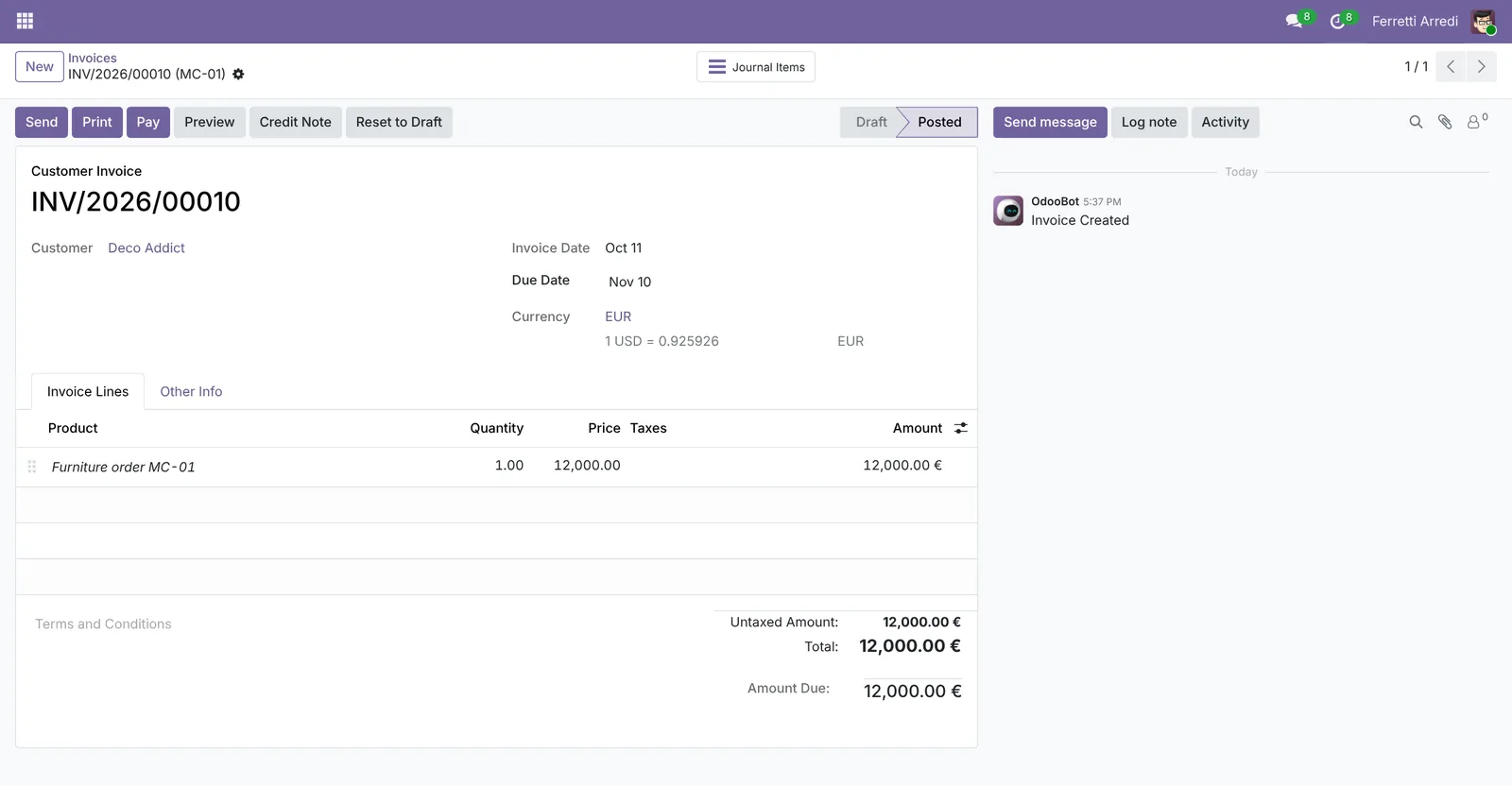
This invoice is booked at 1.08: half of it is $6,480 in your books.
At today's 1.04, €6,000 is $6,240: $240 exchange loss on this half. The other €6,000 stays open and is settled at the rate of the day it arrives.
Register the €6,000 payment dated today?
Done: the invoice is partially paid, €6,000 still due. Odoo posted the $240 difference in the Exchange Difference journal.
Versions we tested
| Version | Result |
|---|---|
| Odoo 16 | Same steps. The currency is picked next to the journal (Customer Invoices in EUR), the payment button is Register Payment and the buttons are in capitals. |
| Odoo 17 | Same steps; the currency is picked next to the journal and the payment button is Register Payment. |
| Odoo 18 | Same steps and screens as 19. |
| Odoo 19 | As in this guide. The screenshots come from Odoo 19. |
| Odoo 20 | Same steps and screens, but a rate counts only for documents dated after it: the rate of November 25 applies from November 26. To use a rate on a given day, date it the day before. |
Frequently asked questions
Does Odoo update the rates by itself?
In Enterprise, yes: Automatic Currency Rates in the Accounting settings fetches them every day from a bank you choose. In Community enter them by hand on the currency, or import them.
What if the euro goes up instead of down?
Then the payment is worth more dollars than the invoice and Odoo books an exchange gain, on the Foreign Exchange Gain account, in the same Exchange Difference journal.
Can the customer pay part of the invoice?
Yes. Each payment is converted at the rate of its own date, and each one gets its exchange difference for its part of the invoice.
Which rate does the invoice use?
The rate of the invoice date (from Odoo 20, the last rate dated before it). The header shows it, for example 1 USD = 0.925926 EUR, and the journal items show the dollars.
Questa guida è disponibile anche in italiano: Multivaluta in Odoo: fattura in euro, conti in dollari
Related Odoo guides
 AccountingBank reconciliation in Odoo: match payments to invoicesReconcile bank transactions in Odoo Enterprise: match payments to invoices, handle a payment with no reference, and book bank fees with a model.
 AccountingAged receivables in Odoo: who owes you, and since whenRead the aged receivable report in Odoo Enterprise: who owes you, how late, the invoices behind each amount, and how to send a customer a reminder of what is overdue.
 AccountingFiscal positions in Odoo: the right tax for every customerSet up a fiscal position in Odoo so EU business customers get reverse charge by themselves, by country and VAT number. Tax mapping and invoice. Community and Enterprise.