Fiscal positions in Odoo: the right tax for every customer
Set up a fiscal position in Odoo so EU business customers get reverse charge by themselves, by country and VAT number. Tax mapping and invoice. Community and Enterprise.
- Community and Enterprise
- 4 min read
- Odoo + AI tutorial
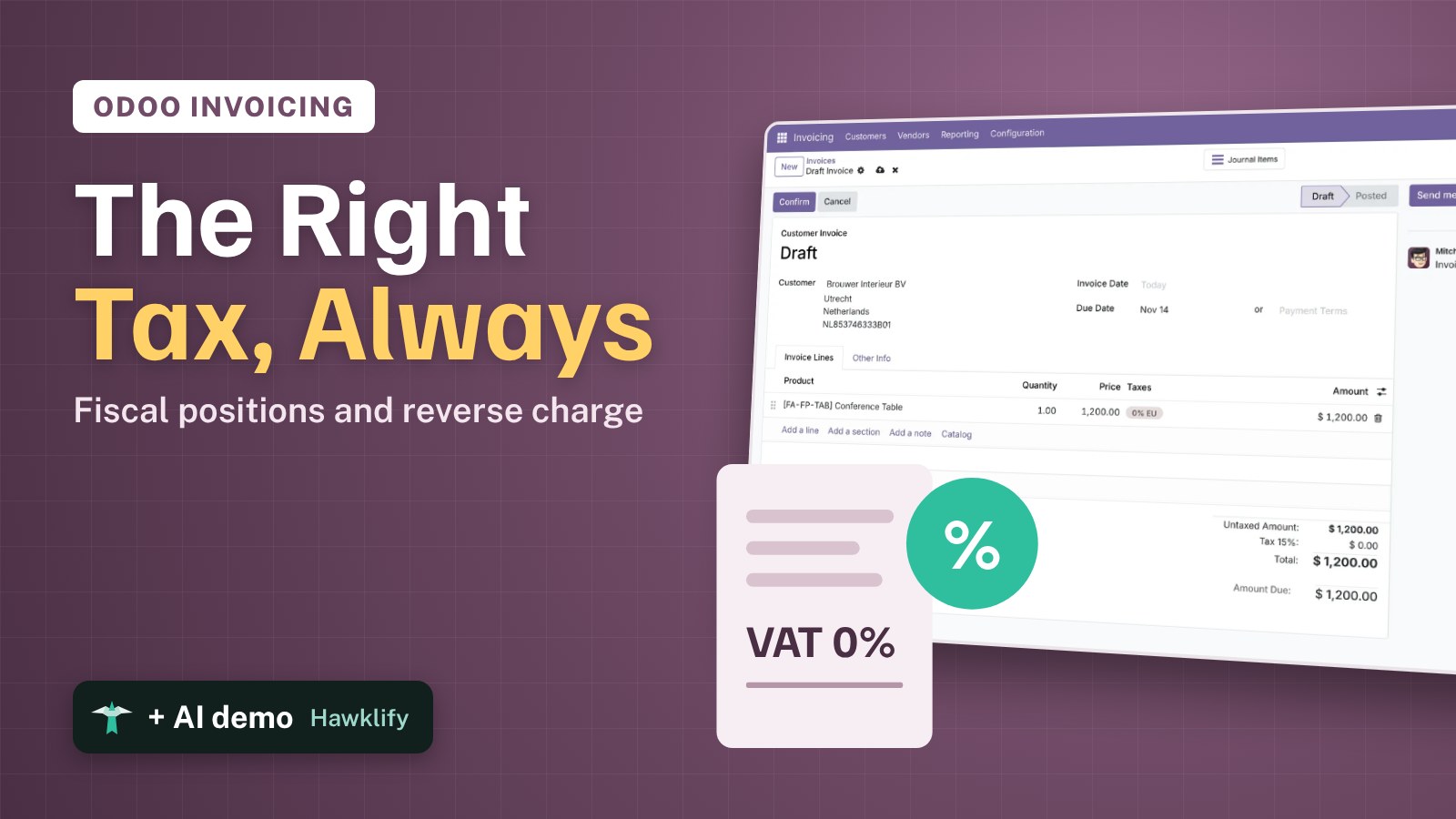
A company in the Netherlands with a valid VAT number buys from your Italian company. The invoice must not charge Italian VAT: it goes out with reverse charge at 0%, and the customer accounts for the VAT. A private customer in the same country pays your 22%. Picking the tax by hand on every invoice is how mistakes happen. A fiscal position tells Odoo which customers get which taxes, and Odoo applies it by itself. This guide creates one for EU business customers, maps the taxes, and checks it on an invoice.
It works the same in Community and Enterprise. The versions we tested are listed at the end.
This guide is also an AI tutorial. At the end, an AI assistant connected to Odoo checks a month of invoices for the wrong VAT, fixes the drafts and lists the credit notes, and every Monday asks a new customer for a missing VAT number.See it in action ↓Before you start
- The Invoicing (or Accounting) app installed, and your company’s tax package loaded (the Italian one in this guide).
- Two sales taxes: your normal VAT (here 22%) and the reverse charge tax (here 0% EU).
- A country group with the other EU countries (Contacts → Configuration → Localization → Country Group), here EU without Italy.
- An Odoo user with the Invoicing / Administrator access right.
1. Create the fiscal position
Open Invoicing → Configuration → Fiscal Positions and press New.
- Name it EU business (reverse charge).
- Tick Detect Automatically and VAT required: Odoo applies the position only to customers with a VAT number.
- Choose the Country Group: EU without Italy.
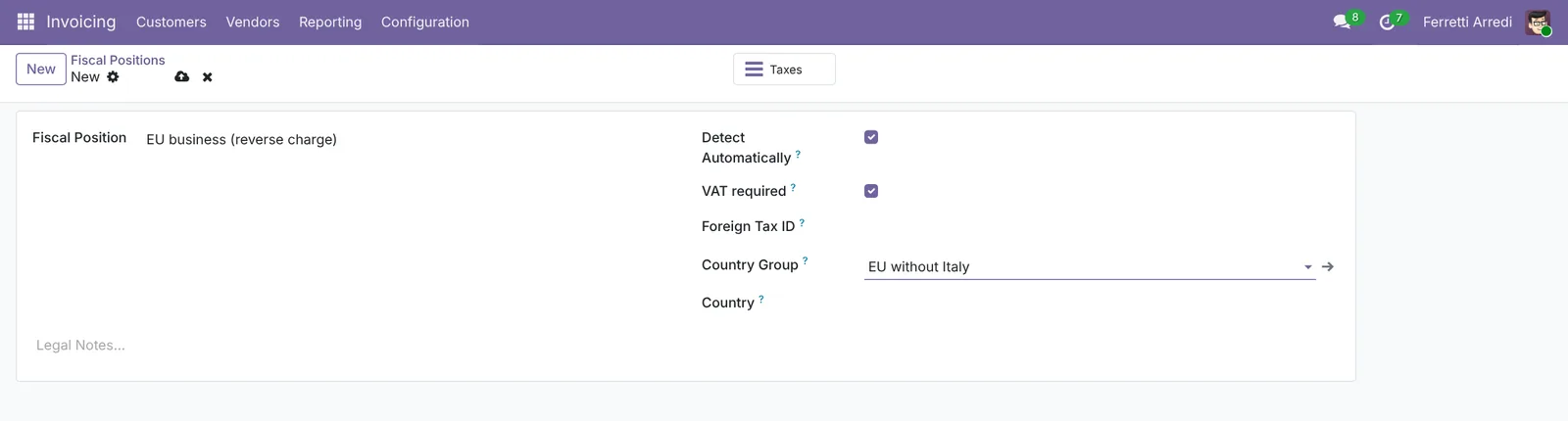 EU customers with a VAT number, detected by Odoo.
2. Map the taxes
The position says which tax replaces which. Here, 0% EU replaces 22%.
Save the position, then press the Taxes button at the top. Open 0% EU, add EU business (reverse charge) in Fiscal Positions, and pick 22% in Replaces. Save.
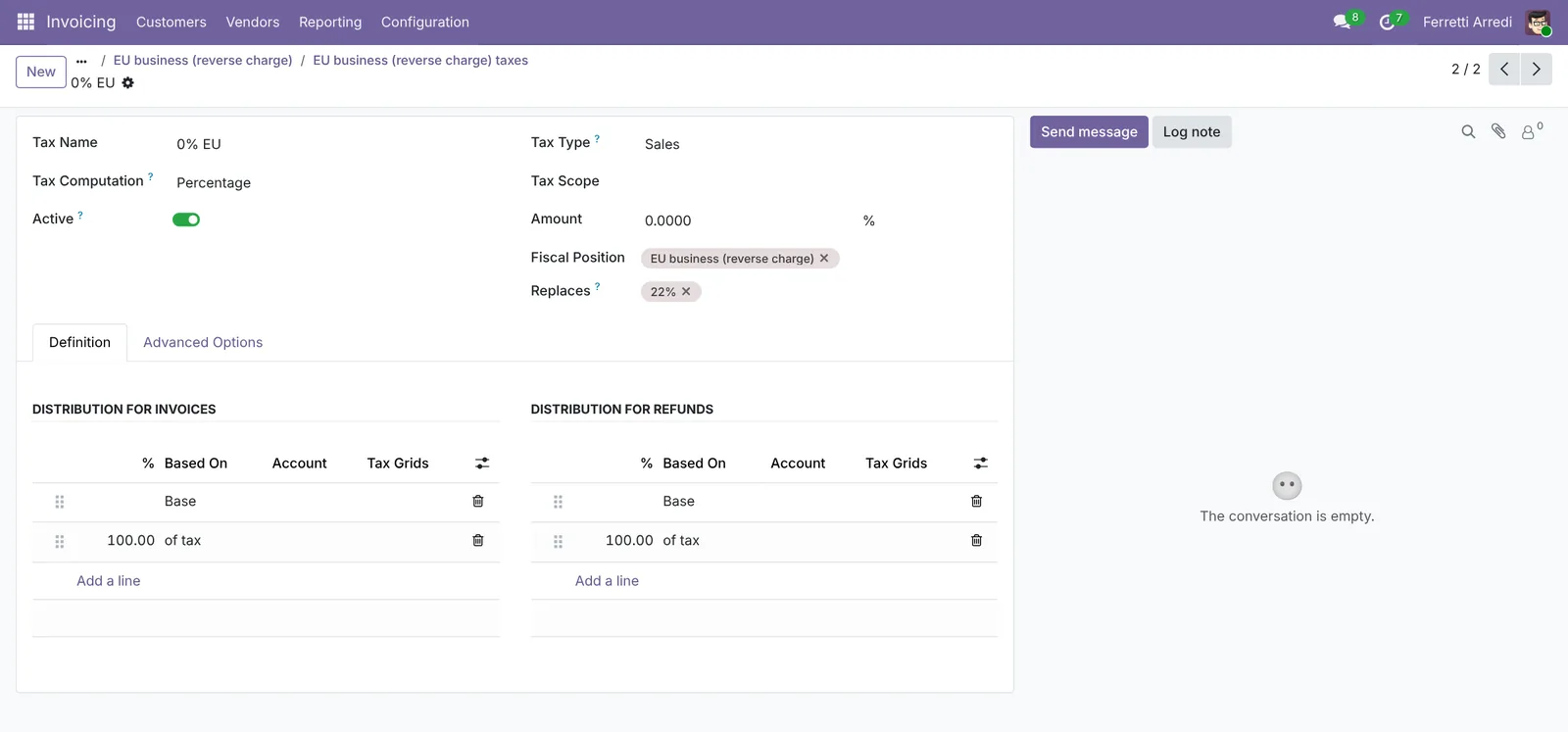 From Odoo 19, the mapping lives on the tax.
In Odoo 16 to 18, open the position’s Tax Mapping tab instead and add a line: Tax on Product 22%, Tax to Apply 0% EU.
3. Invoice an EU company
Open Invoicing → Customers → Invoices and press New. Customer: Brouwer Interieur BV, a Dutch company with a VAT number. In the Other Info tab, the Fiscal Position is already EU business (reverse charge).
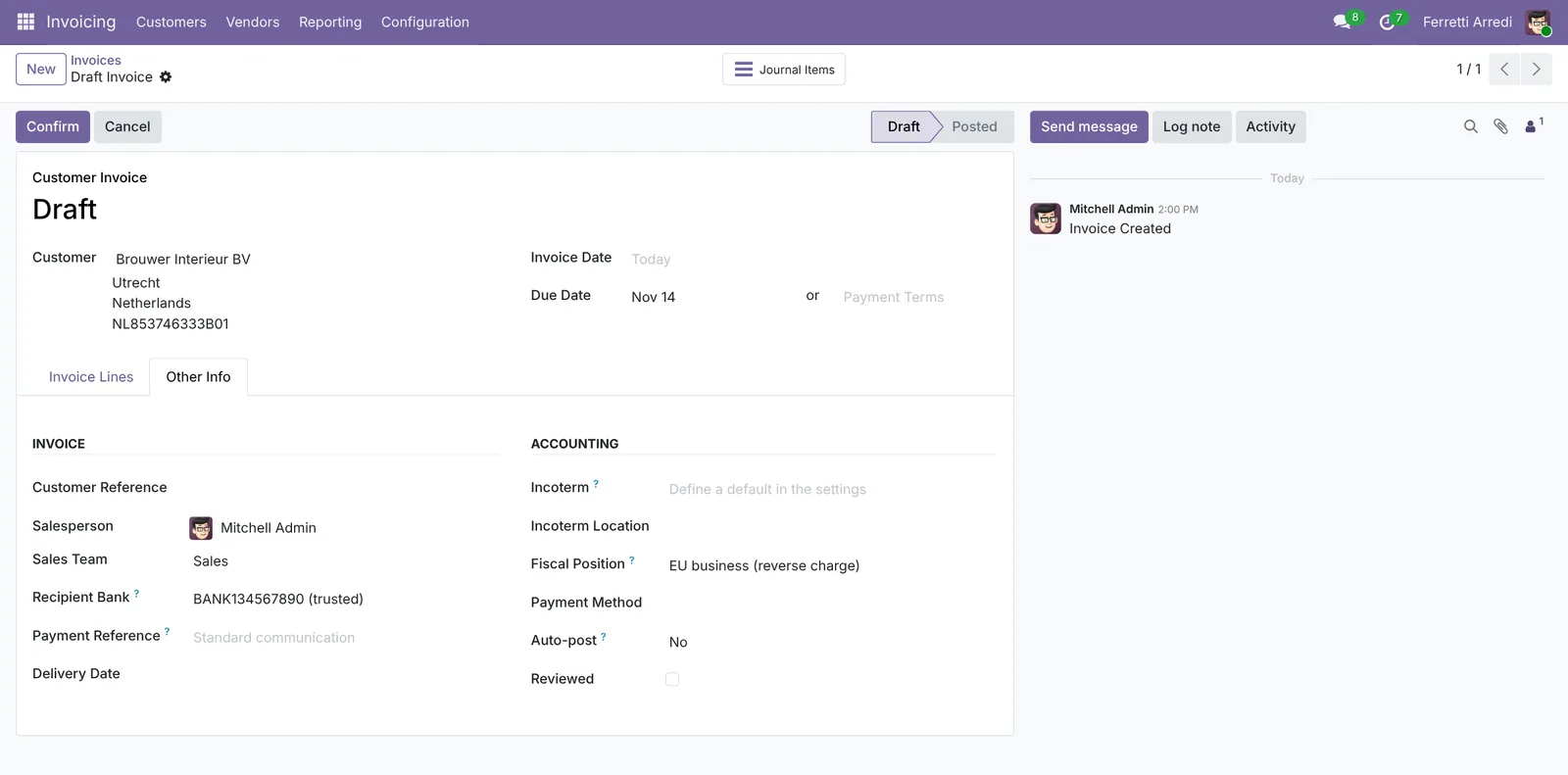 Odoo picked the position from the country and the VAT number.
Back in Invoice Lines, add the Conference Table. The product has 22%, but the line gets 0% EU.
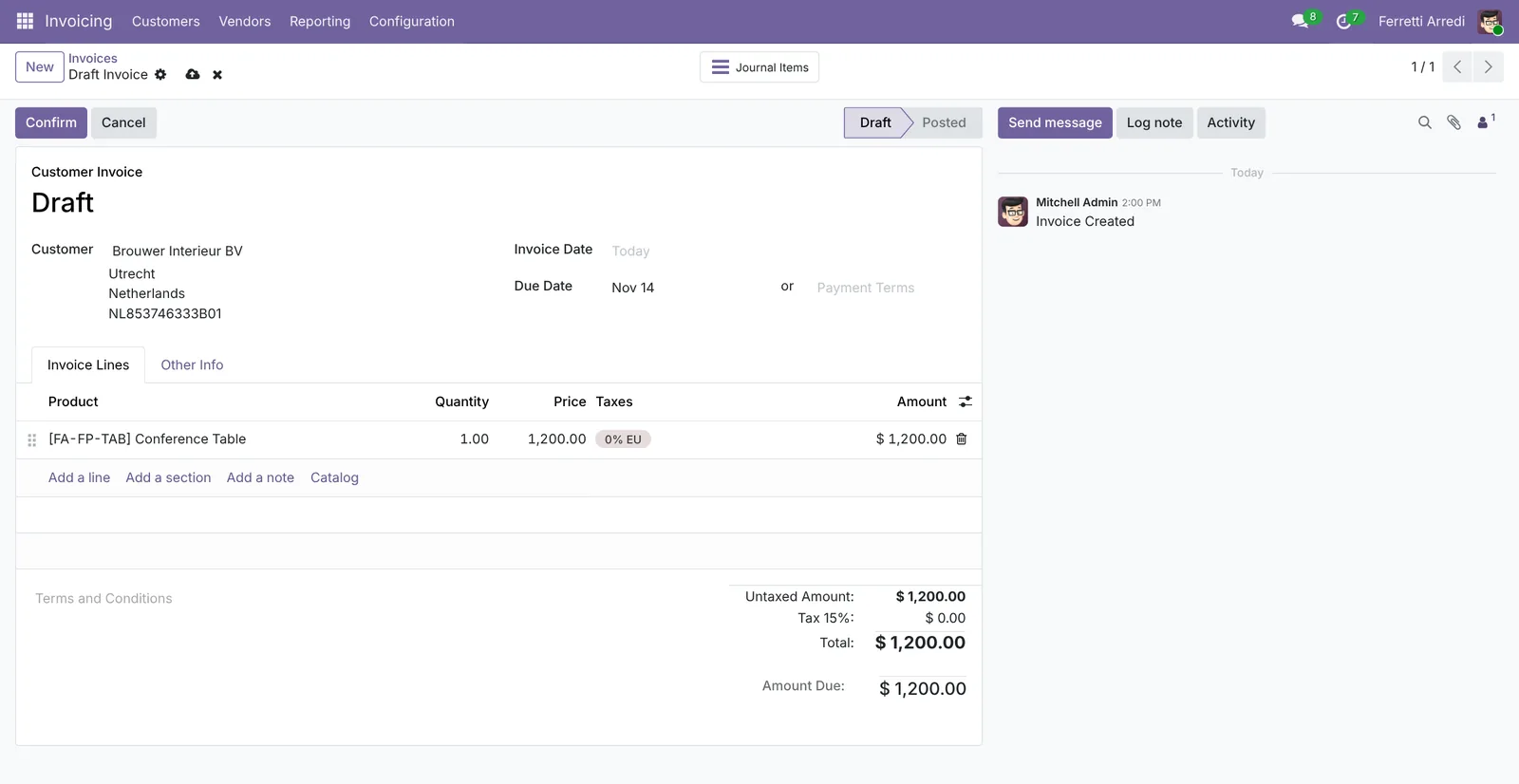 No Italian VAT on the total.
A customer in Italy, or a private customer in Germany without a VAT number, still gets 22%.
Common mistakes
- The VAT number added after the invoice. Detection runs when the invoice is created. On a draft, set the position by hand, then press Update Taxes and Accounts (it appears under the customer).
- A position forced on the contact. A fiscal position set on the customer’s contact wins over detection, even when it’s wrong, for example on a private customer.
- No VAT required. Without it, every customer in the country group gets reverse charge, private customers too.
- Fixing posted invoices. A posted invoice keeps its taxes: issue a credit note and a new invoice.
Fiscal positions with AI: ask your AI assistant through MCP
With the Hawklify MCP server, Claude, ChatGPT and other assistants work in your Odoo as you, with your permissions. A wrong VAT on an invoice is easy to miss: checking a month of invoices means opening each one and comparing its taxes with the customer’s country, VAT number and contact settings. The assistant does it in one question, fixes the drafts, and lists the posted invoices that need a credit note. Smart mode is on here.
4 of 7 invoices are wrong:
Brouwer Interieur BVandAtelier Lumiere: EU companies with a VAT number, 22% on two drafts. They need reverse charge.Klaus Becker: a private customer in Germany, invoiced at 0%. The contact forces the EU position, but has no VAT number.Weber Moebel GmbH: a German company with a VAT number, charged 22% on a posted invoice.
Galli Uffici, Hotel Bianchi and Maison Dubois are right.
The two drafts and Klaus Becker's contact I can fix now. The posted ones need a credit note.
Fixed:
Brouwer Interieur BV: $2,781.60 → $2,280.00, 0% EU.Atelier Lumiere: $2,318.00 → $1,900.00, 0% EU.- Klaus Becker: the next invoices get 22%.
These are posted and need a credit note:
INV/2026/00013Klaus Becker: $950.00 at 0%, $209.00 of VAT missing.INV/2026/00014Weber Moebel GmbH: $475.20 of VAT charged by mistake.
Before the invoices go out. A scheduled check reads every draft on Monday morning. A new customer has no VAT number, so Odoo can’t apply reverse charge: the assistant asks the customer for it, and holds the draft.
Hawklify
Your Odoo, from the chat you already use
Send a message, a photo or a voice note: the assistant reads and works in Odoo through Hawklify, with your permissions.
Good morning Anna. 5 draft invoices are ready to go out. 4 are fine.
Muebles Ortega SL, a new customer in Spain, has no VAT number, so its draft gets 22%. A Spanish company with a VAT number would get reverse charge.
Shall I email them for their VAT number and keep the draft on hold?
Yes, ask them
Done. Muebles Ortega got an email asking for their VAT number, and you have a to-do on the draft for Wednesday. When they answer, I'll set the number, and the invoice gets 0% EU.
Versions we tested
| Version | Result |
|---|---|
| Odoo 16 | Same steps. The taxes are mapped in the position’s Tax Mapping tab. A draft’s taxes don’t follow a position changed by hand: change the line taxes too. |
| Odoo 17 | Like 16, and a draft gets Update Taxes and Accounts when its position changes. |
| Odoo 18 | Like 17. |
| Odoo 19 | As in this guide: the mapping is on the tax (Fiscal Positions, Replaces). The screenshots come from Odoo 19. |
| Odoo 20 | Like 19. Odoo checks the VAT numbers you type. |
Frequently asked questions
Why didn't Odoo apply the fiscal position to an invoice?
Detect Automatically only looks at the customer when the invoice is created. Check the customer's country and VAT number, then set the fiscal position on the draft by hand and update the taxes. A position set on the customer's contact (Accounting or Sales & Purchase tab) always wins over detection.
Does changing the fiscal position change a posted invoice?
No. A posted invoice keeps its taxes. To fix it, issue a credit note and a new invoice.
Do I need one fiscal position per country?
No. One position for the EU countries with a country group is enough for reverse charge. Add others for exports outside the EU or for special regimes.
Is the fiscal position also used on vendor bills and sales orders?
Yes. Quotations, sales orders, purchase orders and vendor bills use the same position and the same tax mapping.
Questa guida è disponibile anche in italiano: Posizioni fiscali Odoo: l'IVA giusta per ogni cliente
Related Odoo guides
 AccountingPayment terms in Odoo: due dates that get you paidSet payment terms in Odoo so every invoice gets the right due date, register the payment, then find overdue invoices and send a reminder. Community and Enterprise.
 AccountingAged receivables in Odoo: who owes you, and since whenRead the aged receivable report in Odoo Enterprise: who owes you, how late, the invoices behind each amount, and how to send a customer a reminder of what is overdue.
 Settings & ProductivityMulti-company in Odoo: two companies in one databaseRun two companies in one Odoo: create the company, give users access, use the switcher, share customers and see what each company keeps. Community and Enterprise.