Events in Odoo: sell tickets, track attendance
Run a paid workshop in Odoo Events: turn on tickets, create the event with a seat limit, sell a $90 ticket on a quotation and mark who attended on the day.
- Community and Enterprise
- 4 min read
- Odoo + AI tutorial
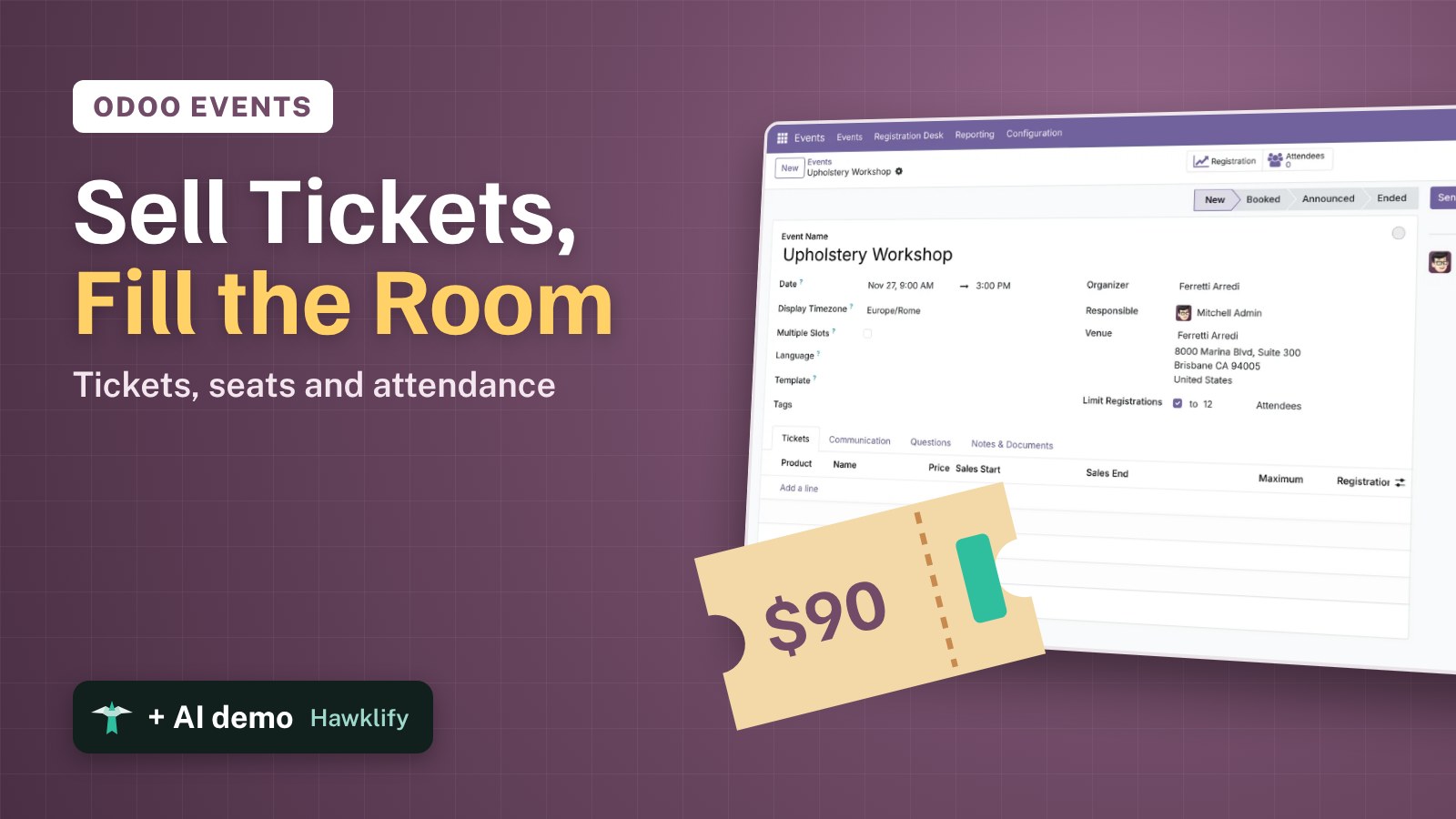
Twelve seats, a $90 ticket, and a list of names in a spreadsheet that never matches the payments. Who paid, who only said yes on the phone, who actually came? Odoo Events keeps all of it on the event: the ticket is a product you sell on a quotation, the seat is taken when the order is confirmed, and on the day you tick who is in the room. This guide turns tickets on, creates a workshop with 12 seats, sells a ticket and marks the attendee.
It works the same in Community and Enterprise. The versions we tested are listed at the end.
This guide is also an AI tutorial. At the end, an AI assistant connected to Odoo finds the seats of a full workshop that are only unpaid quotations and reminds those customers, thanks who came the morning after and offers the no-shows the next date, and builds a check-in page for the door that marks attendance in Odoo with one tap.See it in action ↓Before you start
- The Events and Sales apps installed.
- A customer, here Deco Addict, who wants a seat at the Upholstery Workshop.
1. Sell tickets with sales orders
Open Events → Configuration → Settings. Under Registration tick Tickets with Sale and press Save. Events now have tickets with a price, and the ticket product Event Registration appears in Sales.
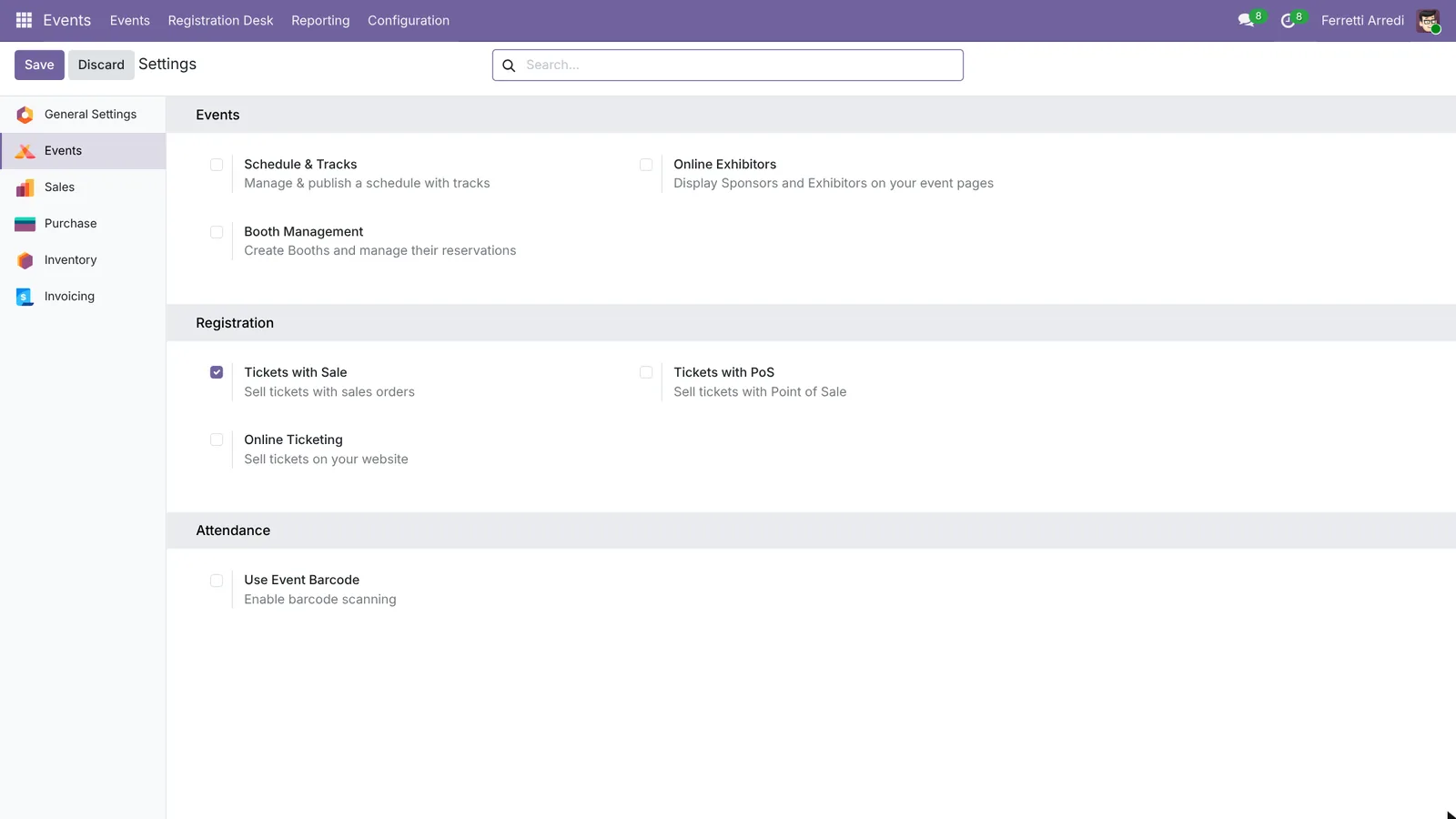 Tickets you sell on quotations and invoices.
2. Create the event
Open Events → Events and press New. Name it Upholstery Workshop, set the Date from 9:00 to 15:00 next week, tick Limit Registrations and write 12 Attendees.
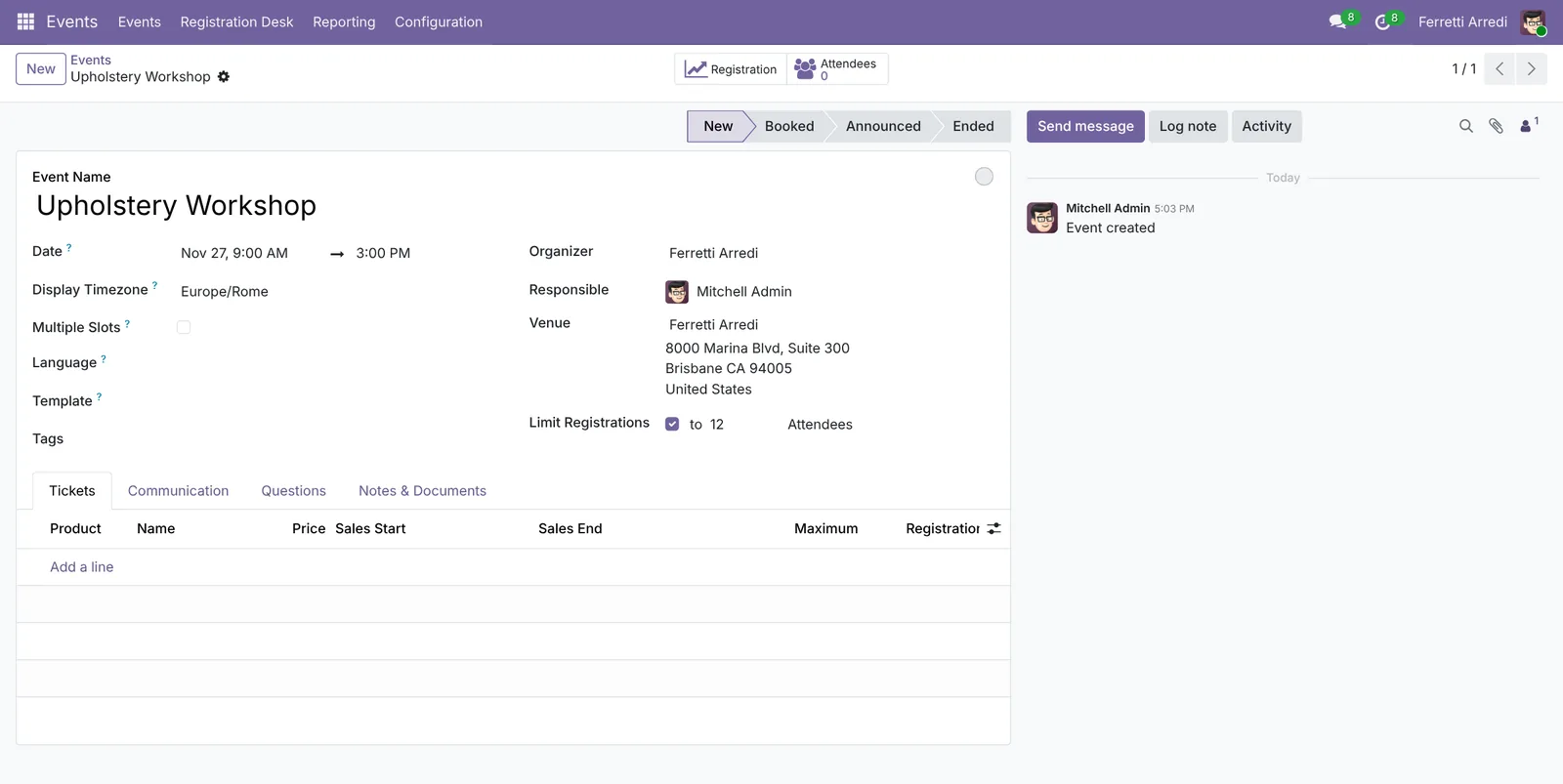 Date, venue and the seat limit.
3. Add the ticket
In the Tickets tab press Add a line: the Product is Event Registration, the Name Standard and the Price $90. Save.
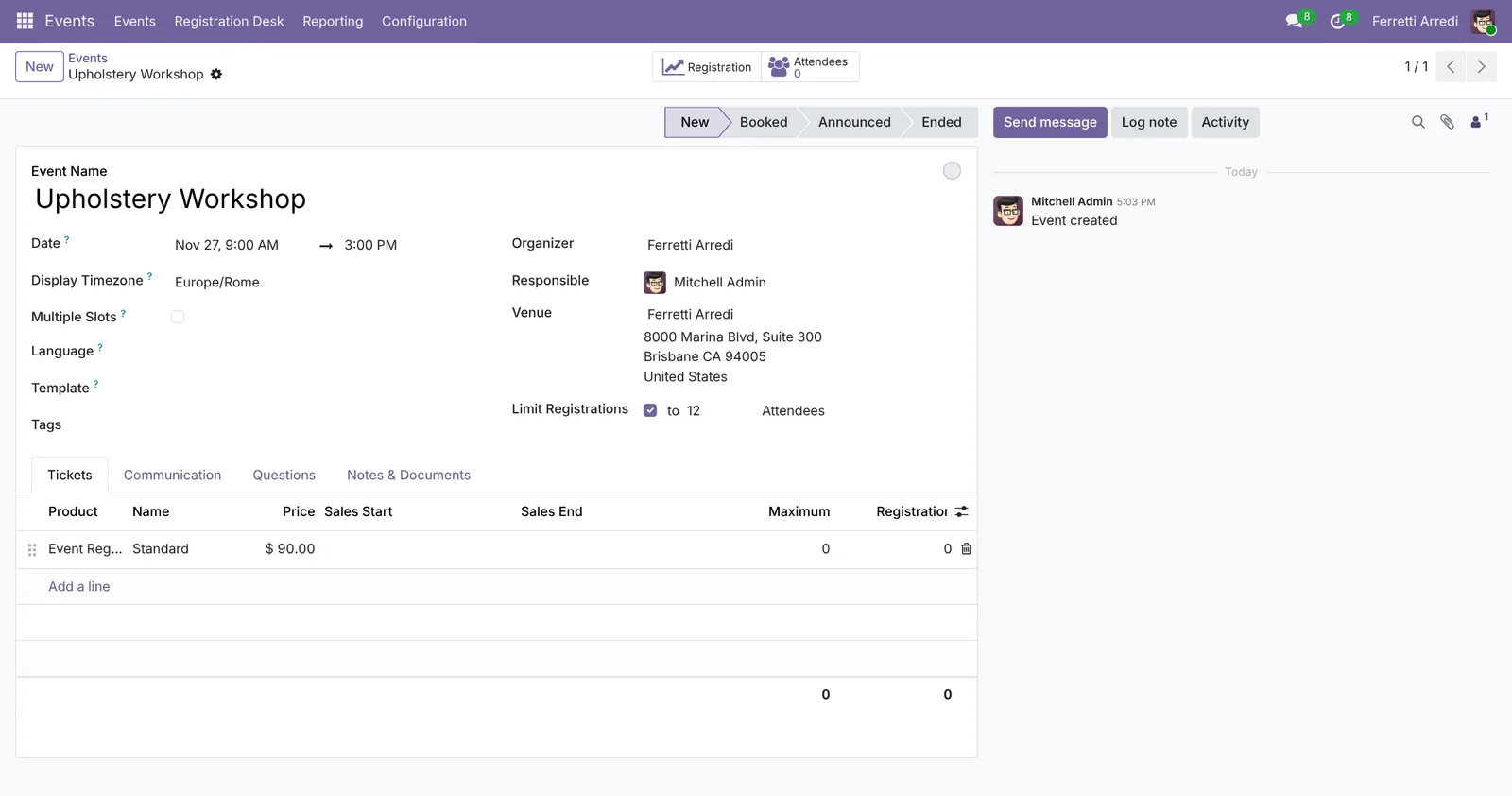 One ticket type; add more lines for other prices.
4. Sell a seat on a quotation
Open Sales → Orders → Quotations, press New and pick Deco Addict. Add the product Event Registration: Odoo asks which event and which ticket. Pick Upholstery Workshop (it shows the seats remaining) and Standard, press Add, then Confirm the order. The line is $90, and the seat is taken.
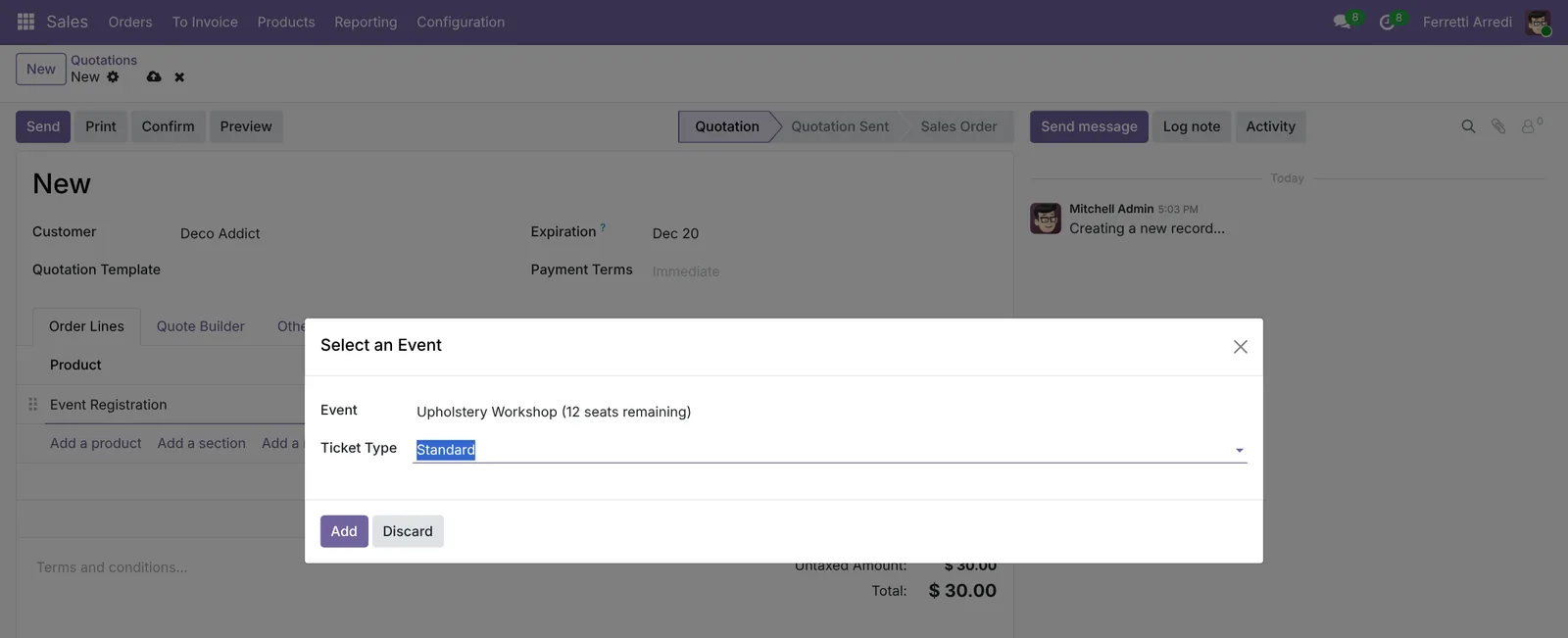 The event and the ticket, picked on the order line.
5. Mark who came
On the day, open the event and press the Attendees button. Deco Addict is there with the ticket Standard and the order Sold. When they arrive press Mark as Attending on their line: the status becomes Attended.
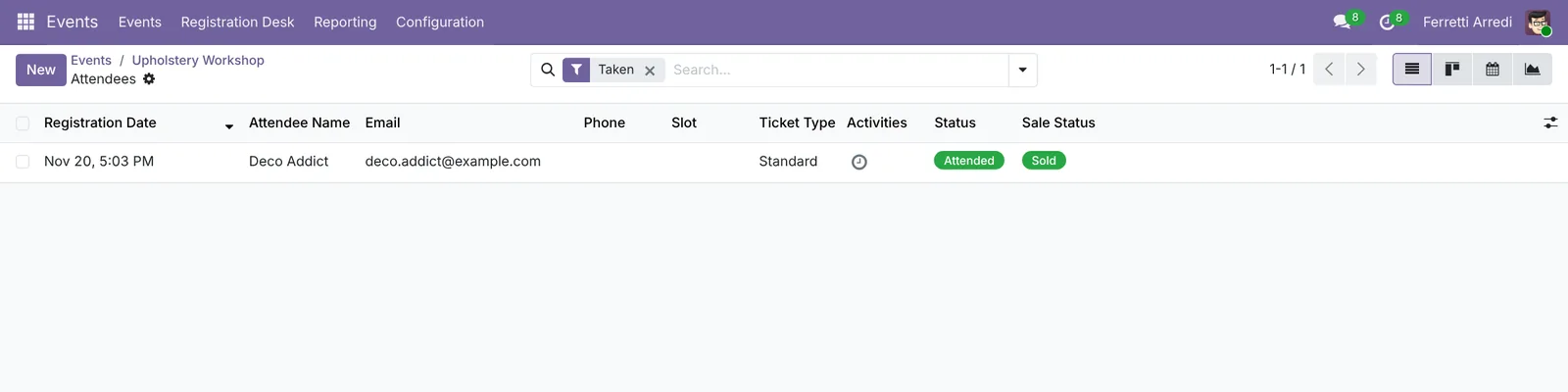 Sold, registered, in the room.
Common mistakes
- Selling the product Event Registration without picking an event. The line has a price but no seat: always choose the event and the ticket in the window.
- Counting quotations as registrations. A seat is taken only when the order is confirmed. Unconfirmed quotations look like a full room but are not.
- Forgetting the seat limit. Without Limit Registrations Odoo sells a 13th ticket for a room of 12.
- Marking attendance at the end of the month. Tick people when they arrive: the no-shows are the ones to call while they still remember why they booked.
Events with AI: ask your AI assistant through MCP
With the Hawklify MCP server, Claude, ChatGPT and other assistants work in your Odoo as you, with your permissions. The event screen shows seats; it does not tell you which of them are only quotations that nobody confirmed, or which customers paid and never came. An assistant reads registrations, orders and attendance together and writes to the right people.
At the computer. Smart mode is on: the assistant reads, explains, and asks once before it writes to customers.
On paper it's full: 12 of 12 seats. But only 9 are paid.
Three customers have a quotation sent 6 days ago and never confirmed, $90 each, $270 in all:
- Gemini Furniture, S00042
- Ready Mat, S00043
- Wood Corner, S00044
The workshop is on November 27. Send each of them a reminder to confirm by Friday?
Done: the three reminders are on the quotations, with the ticket price and the Friday deadline.
If a seat is still unpaid on Friday, tell me and I'll offer it to the next customer who asks.
The morning after the event, in the chat app on your phone. Smart mode again: one yes and the messages go.
Hawklify
Your Odoo, from the chat you already use
Send a message, a photo or a voice note: the assistant reads and works in Odoo through Hawklify, with your permissions.
Wood Finishing Masterclass, yesterday: 8 of 10 came.
Lumber Inc and Azure Interior paid $120 each and didn't show up.
Send the 8 attendees a thank-you, and offer the two no-shows a seat at the next masterclass with the ticket they already paid?
Yes, send them
Sent: 8 thank-yous and 2 offers for the next date. I'll tell you when Lumber Inc or Azure Interior answers.
On the day, a page the assistant builds for the door. The assistant makes a small app (an artifact) on Odoo’s live data: whoever stands at the door taps a name, and the attendance is in Odoo.
Here's your check-in desk. 9 paid, 3 still on a quotation.
For those three the button confirms the order before checking them in, so nobody walks in unpaid by mistake. Every tap is saved in Odoo as you go.
Upholstery Workshop · check-in
November 27, 9:00 · 12 registrations
Activity
Each button calls Odoo through Hawklify: attendance on the registration, confirmation on the order.
Versions we tested
| Version | Result |
|---|---|
| Odoo 16 | The setting is Tickets. When you confirm the order a window asks for the attendee’s name and e-mail. A sold ticket stays Unconfirmed until the invoice is paid: confirm the registration by hand to take the seat now. The date is two separate fields. |
| Odoo 17 | The setting is Tickets, and the window for the attendee’s name and e-mail opens when you confirm the order. The date is one range field. |
| Odoo 18 | Like 19, with the date as one range field. |
| Odoo 19 | As in this guide. The screenshots come from Odoo 19. |
| Odoo 20 | Same steps and screens as 19. New on the quotations opens a list of quotation templates: pick the first one for an empty quotation. |
Frequently asked questions
Can customers buy tickets on the website?
Yes, with Online Ticketing in the Events settings (it needs the Website and eCommerce apps). The tickets and the seat limit are the same as in this guide.
What happens when the event is full?
Odoo stops new registrations when Limit Registrations is reached: the event shows 0 seats remaining and a quotation can no longer pick it.
Does a quotation already take a seat?
No. A seat is taken when the order is confirmed. A quotation that waits for days holds nothing, which is why the unpaid ones are worth a reminder.
Can I have several ticket prices?
Yes. Add a line per ticket in the Tickets tab, for example Standard at $90 and Early Bird at $70 with an end date, each with its own maximum if you want.
Questa guida è disponibile anche in italiano: Eventi in Odoo: vendi biglietti, segui le presenze
Related Odoo guides
 MarketingEmail marketing in Odoo: newsletters that get readSend newsletters with Odoo Email Marketing: a mailing list, contacts pasted in one go, a mailing from a layout, a test email, and who opened and clicked.
 SalesSales orders in Odoo: from quotation to invoiceTake a sale through Odoo from start to finish: create the quotation, confirm the order, deliver the goods and post the invoice. Community and Enterprise.
 MarketingSurveys in Odoo: ask customers how it wentBuild a customer feedback survey in Odoo: two questions, a share link for every delivery, and the results page with the chart and every free-text answer.