Employee onboarding in Odoo: plans and activities
Onboard new employees with Odoo: set up the onboarding plan once, launch it on the new hire, and every first-week task becomes an activity. Community and Enterprise.
- Community and Enterprise
- 4 min read
- Odoo + AI tutorial
A new hire’s first week has a dozen small tasks: a laptop, a badge, the safety shoes, the training. When they live in someone’s head, the new person waits on day one for things nobody prepared. Odoo keeps them in an onboarding plan: a list of steps, each with who does it and when. You launch the plan on the new employee, and every step becomes an activity on the right person’s list, with its due date. This guide adds a step to the plan and launches it on a warehouse operator who starts on Monday.
It works the same in Community and Enterprise. The versions we tested are listed at the end.
This guide is also an AI tutorial. At the end, an AI assistant connected to Odoo reads the interview notes of a new hire and turns the standard plan into his own, with an expired forklift licence and a missing safety course in it, then checks what is still open at the end of his first week.See it in action ↓Before you start
- The Employees app installed. It comes with an Onboarding and an Offboarding plan.
- The new employee created, with a Manager. Steps for the employee himself need him linked to an Odoo user.
1. Add a step to the onboarding plan
Open Employees → Configuration → Onboarding / Offboarding and open Onboarding. Its steps are listed under Activities To Create. Press Add a line.
- In Summary, say what has to be done, here Hand over safety shoes and gloves.
- In Assignment, choose who does it: Manager, the new employee’s manager.
Press Save & Close, then save the plan.
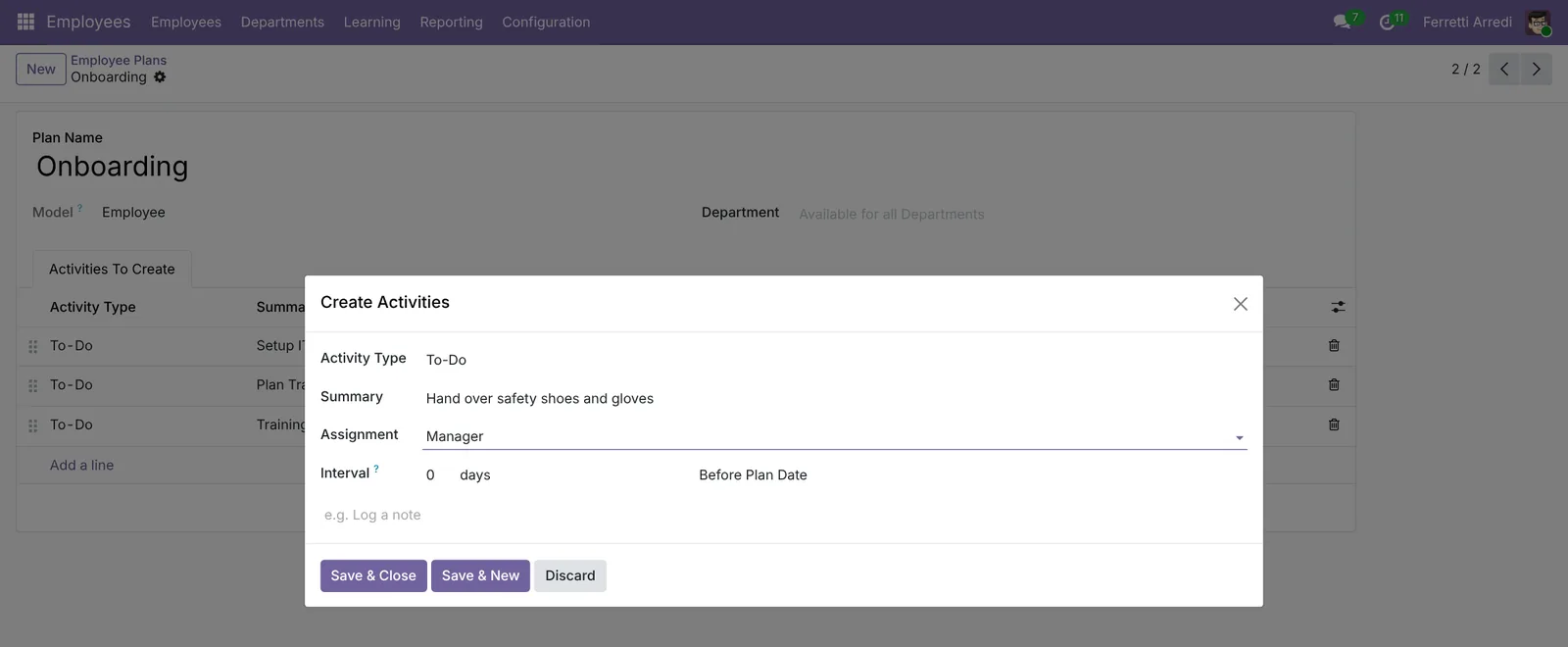 A step, and who does it.
2. Open the new employee
Open Employees and the new hire, here Paolo Rinaldi, Warehouse Operator. His manager is set, and the notes from the interview are in the chatter.
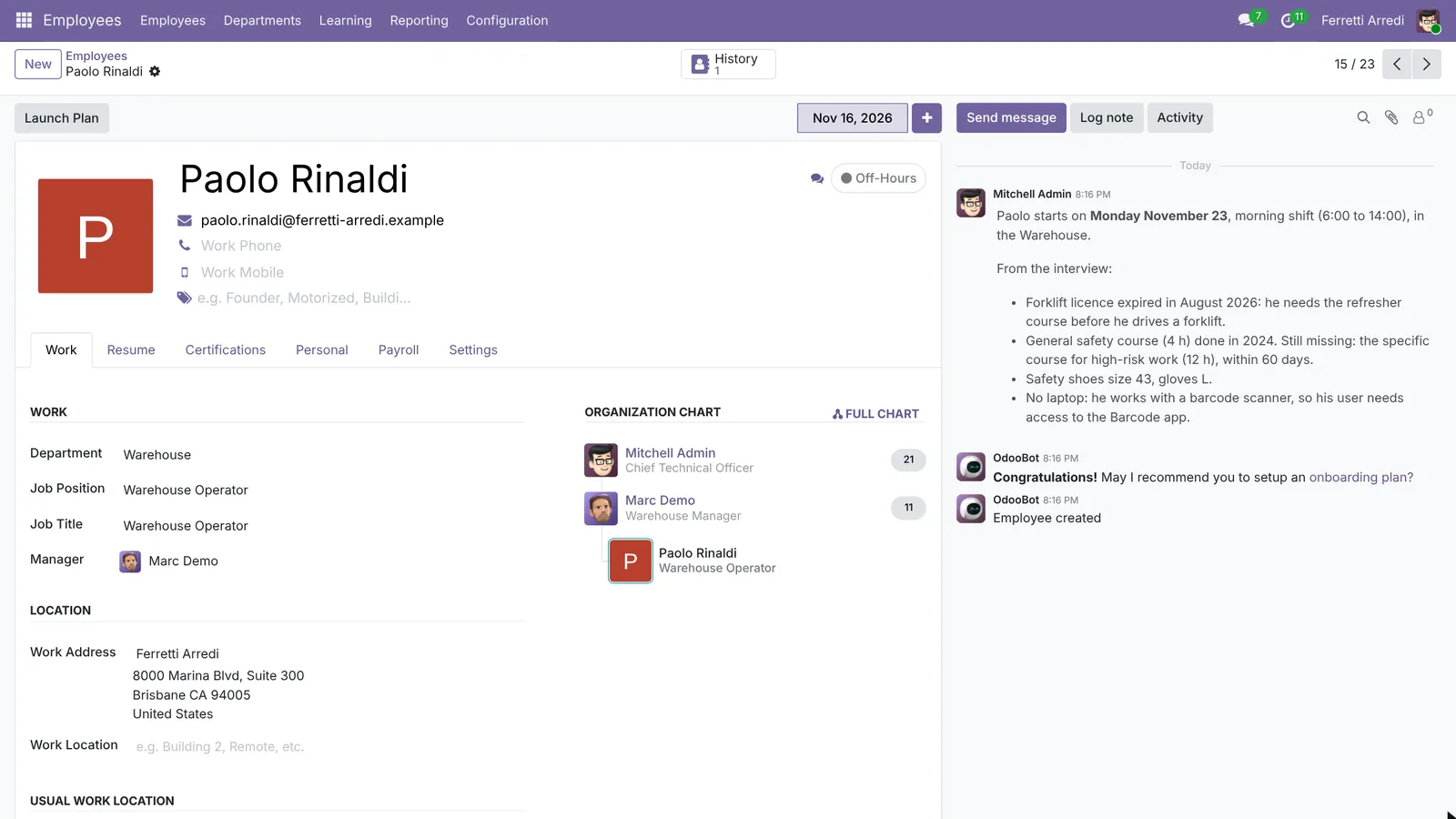 Department, manager, and what came out of the interview.
3. Launch the plan
Press Launch Plan and pick Onboarding. The Plan Summary lists every step, who gets it and when. Press Schedule: each step becomes an activity, on the right person’s list.
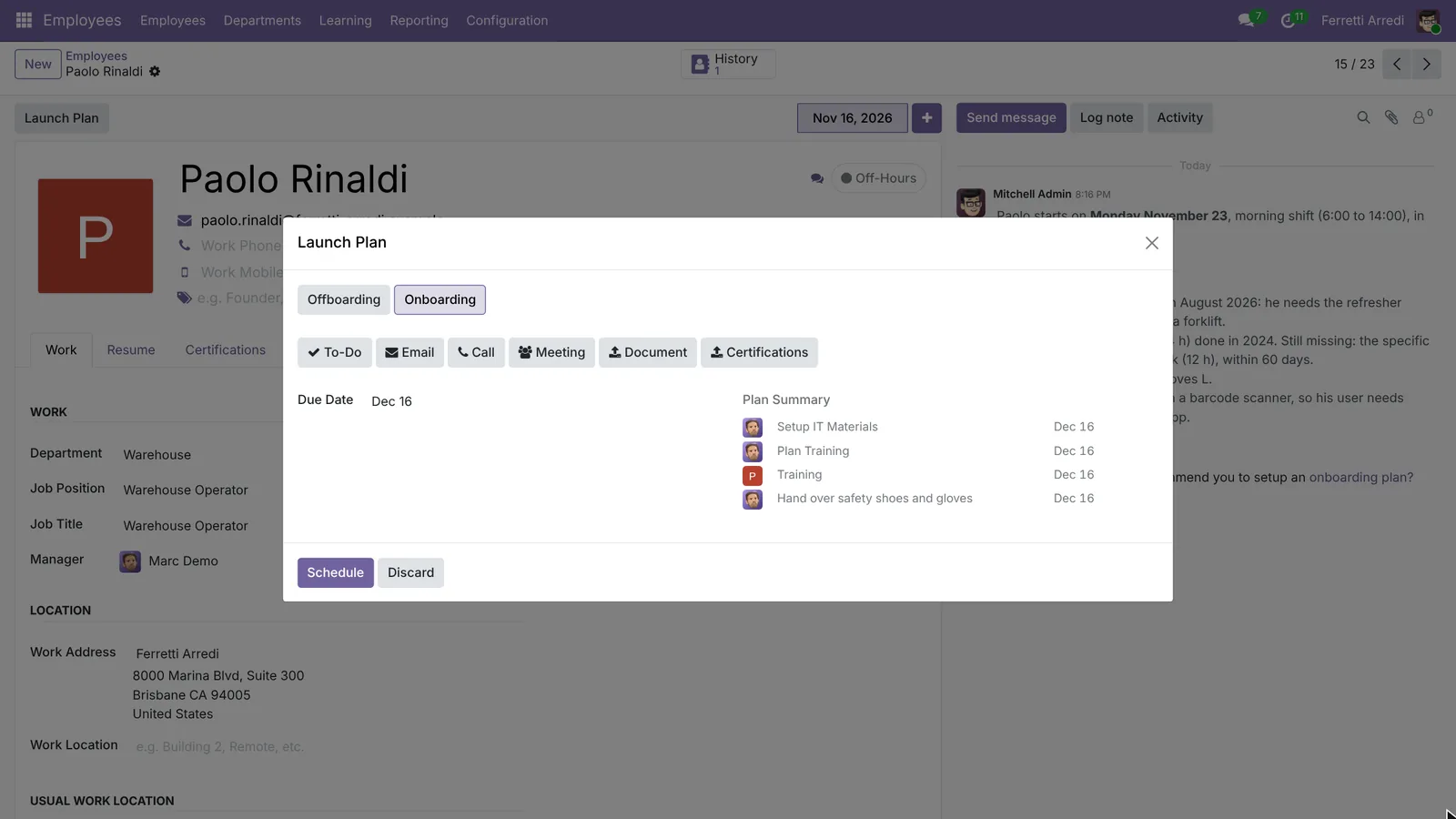 Every step, with its person and date, before you launch.
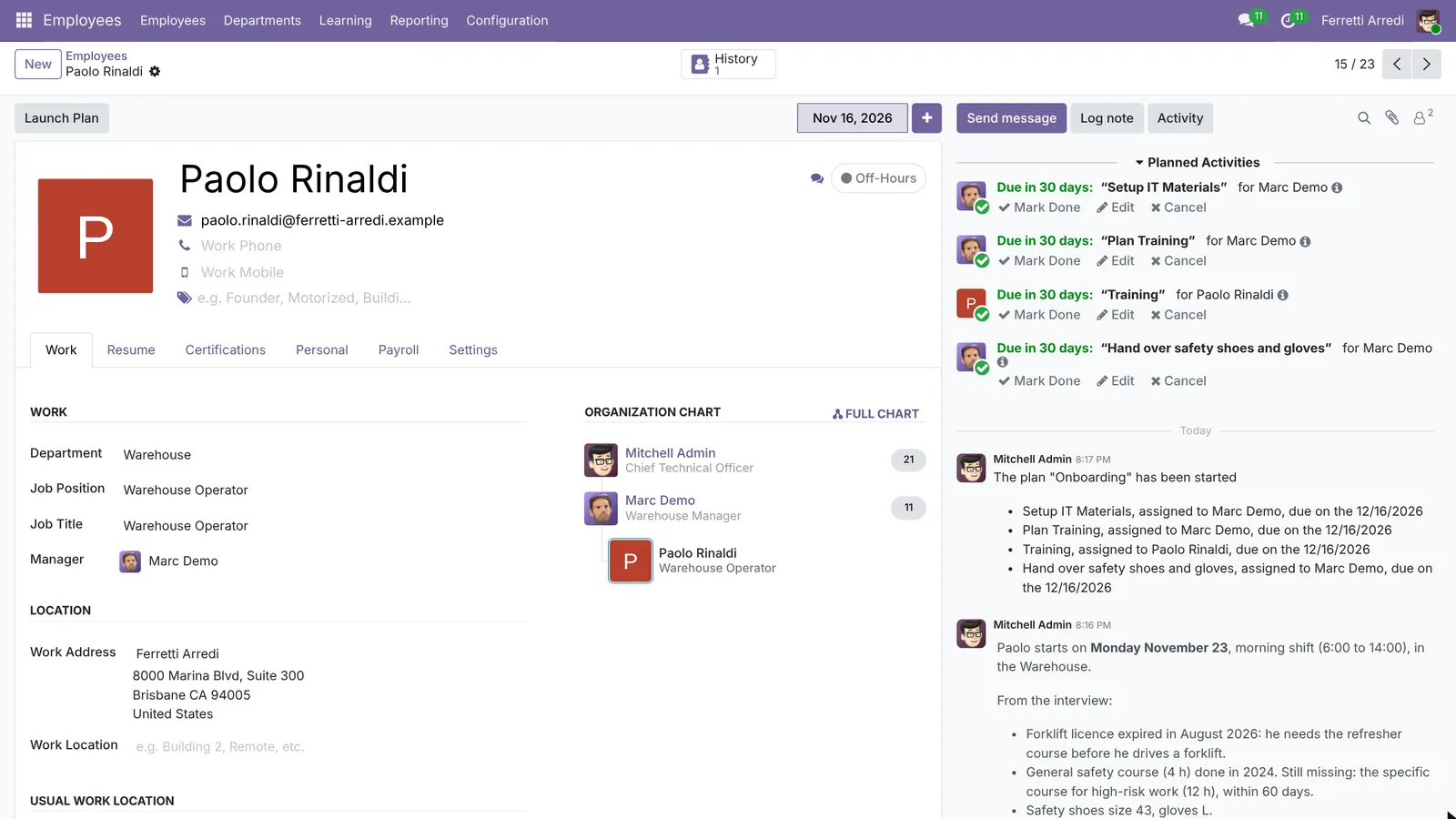 Four activities, each on the right desk.
Common mistakes
- A plan that never changes. If every new hire needs the same extra step, add it to the plan once instead of by hand each time.
- Steps for “someone”. A step with no clear owner is a step nobody does. Give each one a role.
- Launching on the first day. Launch the plan when the contract is signed, so the laptop and the badge are ready on day one.
- Employees without a user. Steps for the employee need a user: create it before you launch.
Onboarding with AI: ask your AI assistant through MCP
With the Hawklify MCP server, Claude, ChatGPT and other assistants work in your Odoo as you, with your permissions. The plan is the same for everyone, but the interview notes are not: an expired forklift licence or a missing safety course are exactly what the standard plan doesn’t know.
On the computer, in Smart mode. The assistant reads the new hire’s record, the interview notes and the plan, and adapts the steps. Depending on how your organisation set up the server, it makes the change straight away or first shows you a card to approve. Here Smart mode is on: it asks once, in the chat.
The Onboarding plan has 3 steps: Setup IT Materials, Plan Training, Training. The interview notes need more:
- Forklift licence expired in August: book the refresher, and no forklift until then.
- High-risk safety course (12 h) missing: within 60 days.
- Safety shoes 43, gloves L.
- No laptop: a barcode scanner, and access to the Barcode app.
Plan for Paolo Rinaldi, starting Monday Nov 23:
- Book the forklift refresher: Mitchell Admin (HR), Nov 19
- Scanner and Barcode app, instead of a laptop: Marc Demo, Nov 20
- Safety kit, shoes 43, gloves L: Marc Demo, Nov 20
- Welcome tour and the morning shift: Marc Demo, Nov 23
- First week with Giorgio on picking and receipts: Giorgio Bassi, Nov 27
- High-risk safety course (12 h): Mitchell Admin, Dec 7
Shall I plan these 6 activities on Paolo's record?
Done: 6 activities on Paolo Rinaldi, for Mitchell Admin (2), Marc Demo (3) and Giorgio Bassi (1). The first is due Nov 19: the forklift refresher.
In the browser, at the end of the first week. On the employee’s page, the assistant checks what is still open, and moves what is late:
4 of 6 are done: the scanner, the safety kit, the welcome tour and the week with Giorgio.
Still open:
- Book the forklift refresher, Mitchell Admin: overdue since Nov 19. Giorgio wrote on Wednesday that he drives the forklift for Paolo's receipts.
- High-risk safety course, Mitchell Admin: due Dec 7, on time.
Move the refresher to Monday Nov 30 and remind Mitchell?
Done: the refresher is due Monday Nov 30, and Mitchell has a note on Paolo's record: until then, no forklift for Paolo.
Versions we tested
| Version | Result |
|---|---|
| Odoo 16 | Same steps. The menu is Configuration → On/Offboarding Plans; a step’s Responsible can also be the Coach. Launch Plan needs the employee linked to a user. |
| Odoo 17 | Same steps, in Configuration → Activity Planning → On/Offboarding Plans. Launch Plan needs the employee linked to a user. |
| Odoo 18 | Same steps, in Configuration → Activity Plan. |
| Odoo 19 | As in this guide. The screenshots come from Odoo 19. |
| Odoo 20 | Same plan. There is no Launch Plan button: press Activity in the chatter, pick the Onboarding chip, then Schedule. A step has no Coach option. |
Frequently asked questions
Who gets each step of the plan?
The step's assignment decides: the employee's manager, the employee, a specific user, or someone you pick at launch. Odoo 16 to 19 also offer the employee's coach.
Can I have different plans for different departments?
Yes. A plan can be limited to one department, so the warehouse and the office each get their own onboarding, and an offboarding plan for people who leave.
Why does Odoo refuse to launch the plan?
A step assigned to the employee, or to the manager or coach, needs that person to be an Odoo user. Link the employee to a user, or fill in the manager, and launch again.
Where do I see what is still open?
In the employee's chatter, under Planned Activities, or in each person's activities menu at the top of Odoo.
Questa guida è disponibile anche in italiano: Inserimento dei dipendenti in Odoo: piani e attività
Related Odoo guides
 Human ResourcesRecruitment in Odoo: job positions, applicants, interviewsHire with Odoo Recruitment: open a job position, follow each applicant from new to interview, and refuse the others with a kind e-mail. Community and Enterprise.
 AccountingExpenses in Odoo: from receipt to reimbursementHandle employee expenses in Odoo: record an expense with its receipt, submit it, approve it, post it to accounting and pay the employee back. Community and Enterprise.
 Human ResourcesFleet in Odoo: vehicles, odometer and servicesManage company vehicles in Odoo Fleet: add a vehicle and its driver, log the odometer, record a service with its cost, see what each one costs. Community and Enterprise.