Import Data in Odoo: products from a CSV or Excel file
Import products into Odoo from a CSV or Excel file: open the import, match the columns to fields, test the file for errors and create the records.
- Community and Enterprise
- 4 min read
- Odoo + AI tutorial
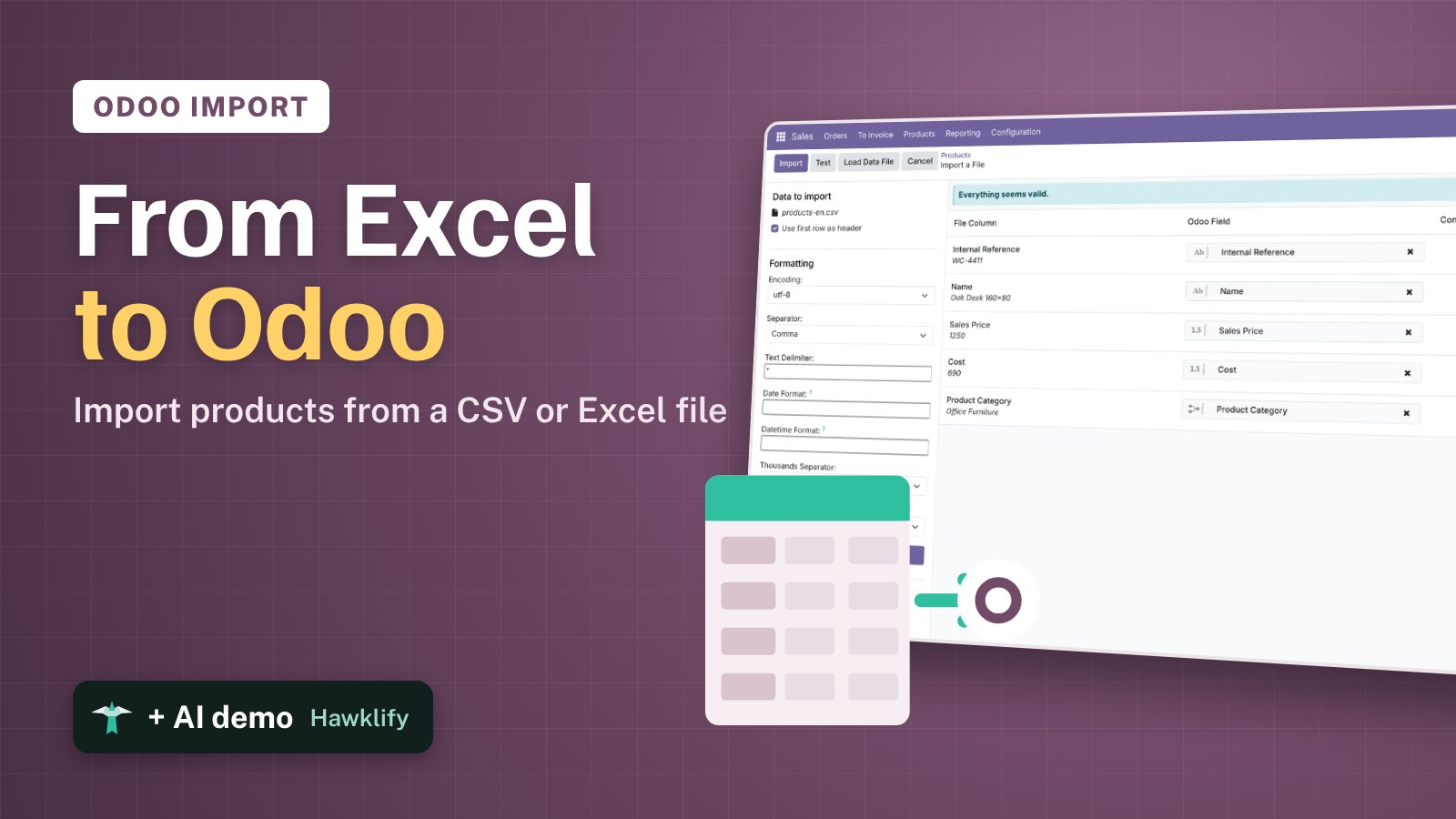
A vendor sends the new catalogue as a spreadsheet: forty products with codes, prices and costs. Typing them in one by one takes an afternoon and gets a price wrong. Every list in Odoo has an import: load the file, check that each column lands in the right field, test it and create all the records at once. This guide imports four new Wood Corner products from a CSV file into Sales.
It works the same in Community and Enterprise. The versions we tested are listed at the end.
This guide is also an AI tutorial. At the end, an AI assistant connected to Odoo reads a vendor's messy Italian price list, updates the product you already sell and creates the four new ones with their vendor price, and builds a page that checks a trade fair contact list against Odoo before anything is imported.See it in action ↓Before you start
- Sales (or Inventory) installed.
- A file with a header row. Here four products, with the column names Odoo uses:
Internal Reference,Name,Sales Price,Cost,Product Category
WC-4411,Oak Desk 160x80,1250,690,Office Furniture
WC-4412,3-Drawer Pedestal,289,148,Office Furniture
WC-4413,Acoustic Divider Panel,189.50,96.40,Office Furniture
WC-4414,LED Desk Lamp,79.90,38,Office Furniture
1. Open the import
Go to Sales → Products → Products and switch to the list. Click the gear next to Products and choose Import records.
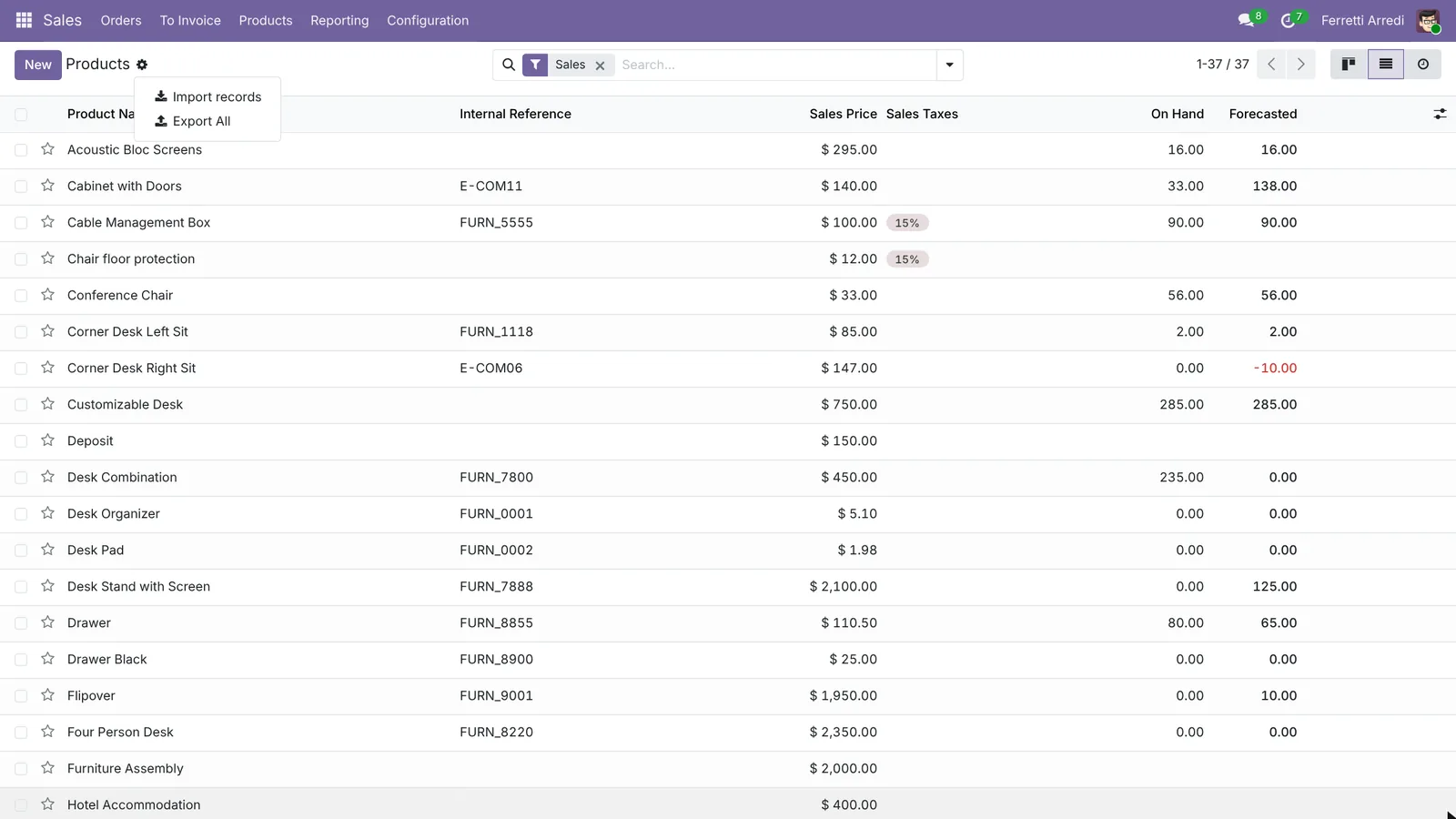 The same menu is on almost every list: contacts, vendor bills, employees.
2. Load the file and check the columns
Press Load Data File and pick the CSV. Odoo reads the header and matches each File Column to an Odoo Field: Internal Reference, Name, Sales Price, Cost and Product Category. A column it can’t match stays empty: pick the field by hand, or leave it empty to skip that column. On the left, check the separators: here a comma between columns and a dot for decimals.
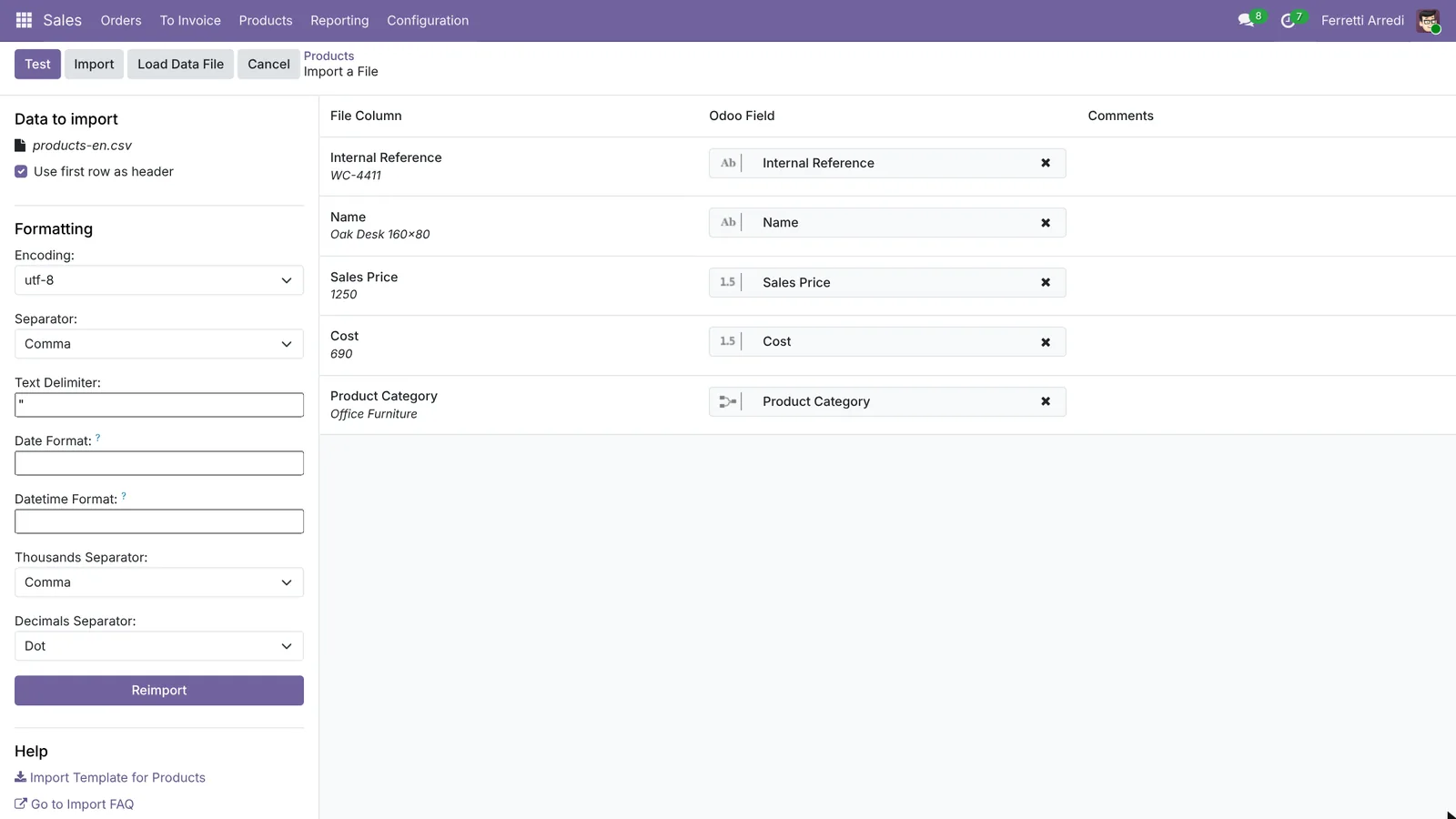 Under each column name you see the first value of the file, so a wrong match shows at once.
3. Test before you import
Press Test. Odoo checks every row without saving anything and answers Everything seems valid. A problem, such as a category that doesn’t exist or a price with letters, shows up here with its row, and you fix the file and press Reimport.
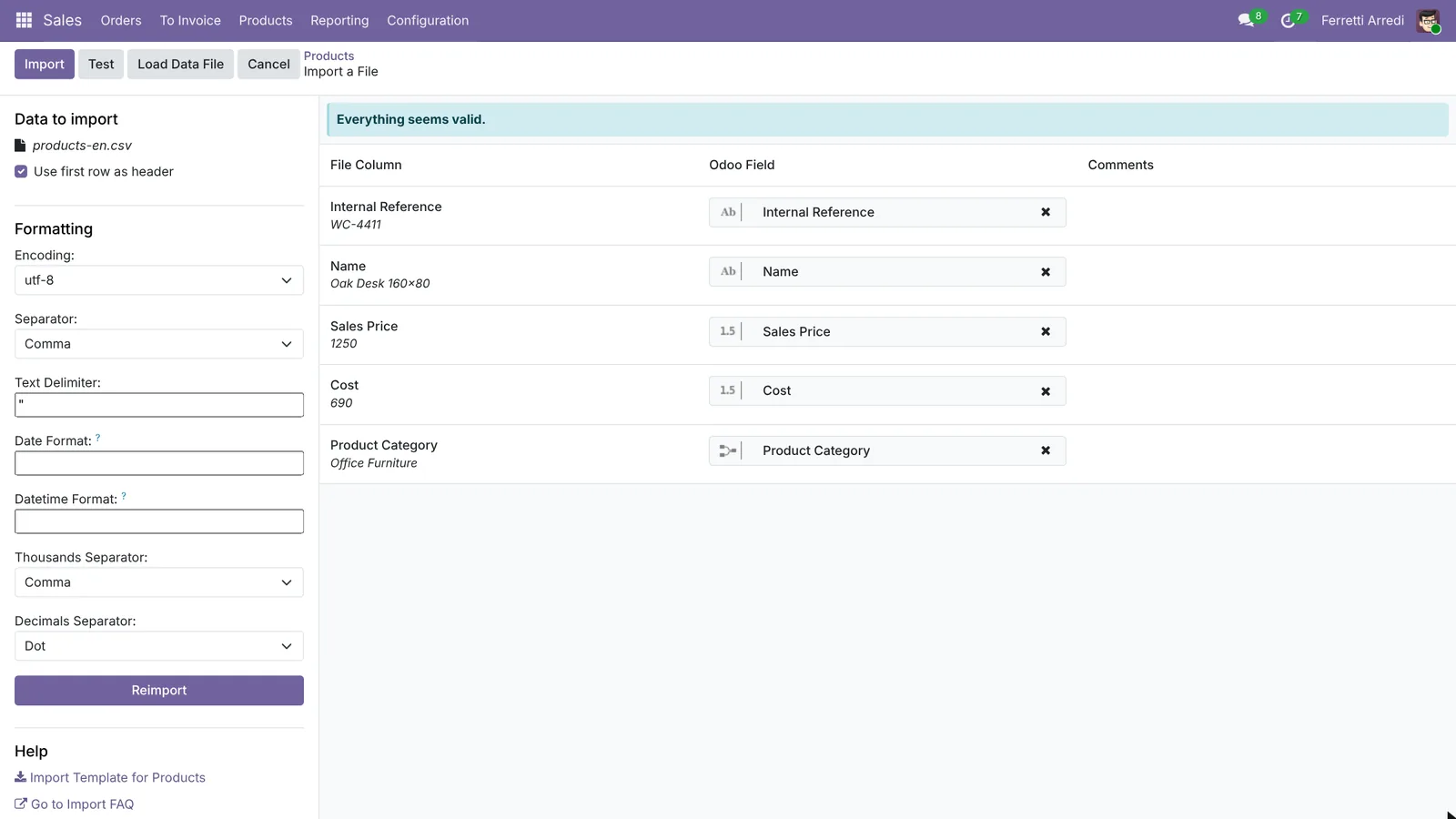 Testing is free: nothing is created until you press Import.
4. Import
Press Import. Odoo creates the four products and shows them: Oak Desk 160x80, 3-Drawer Pedestal, Acoustic Divider Panel and LED Desk Lamp, with their codes and prices.
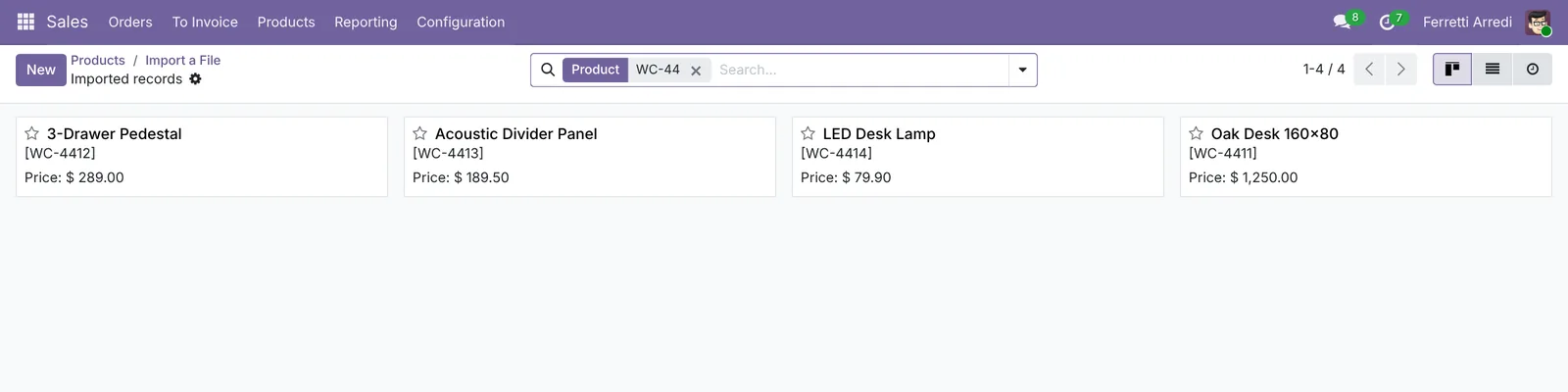 Open one to check the cost and the category came in too.
Common mistakes
- Importing the same file twice. Without an ID column every row is created again. To change existing records, export them with their ID first.
- Decimal commas. A price written 189,50 in a file with a dot as decimal separator doesn’t come in as 189.50. Set Decimals Separator to match the file.
- Category names that don’t match. Odoo looks for the exact name. On Odoo 16 to 18 a category is found by its full path, such as All / Saleable / Office Furniture.
- Skipping the test. A test takes a second and shows every wrong row at once.
Data import with AI: ask your AI assistant through MCP
With the Hawklify MCP server, Claude, ChatGPT and other assistants work in your Odoo as you, with your permissions. Odoo’s import wants clean columns, but vendors send what they have: Italian headers, decimal commas, products you already sell. An assistant reads the file as it is, checks it against Odoo and creates or updates each product.
In a desktop AI app. Smart mode is on: the assistant asks once before changing anything.
One of the five is already in Odoo:
- WC-4410 Oak Bookcase: sales price $310 → $329, cost and Wood Corner's price $160 → $172
Four are new. I'd create them in Office Furniture with English names, Wood Corner as vendor and their lead time:
- WC-4411 Oak Desk 160x80, $1,250, cost $690, 15 days
- WC-4412 3-Drawer Pedestal, $289, cost $148, 10 days
- WC-4413 Acoustic Divider Panel, $189.50, cost $96.40, 12 days
- WC-4414 LED Desk Lamp, $79.90, cost $38, 7 days
Shall I go ahead?
Done: WC-4410 has the new prices and WC-4411 to WC-4414 are in Odoo, each with Wood Corner's price, so the next purchase order fills them in.
The Oak Bookcase's margin goes from 48.4% to 47.7%: the new sales price almost covers the higher cost.
An import checker. Before a list of trade fair contacts goes in, the assistant builds a page that finds the ones already in Odoo.
Two of the six are already in Odoo under another spelling: Azure Interior srl is Azure Interior (same email domain) and Gemini Furniture Ltd is Gemini Furniture (same VAT).
Adding them again would make duplicates, so for those the button updates the contact that's there.
Trade fair contacts
6 rows from the fair · checked against Odoo
Activity
Update adds the phone and the fair tag to the existing contact; Create makes a new company with its contact person.
Versions we tested
| Version | Result |
|---|---|
| Odoo 16 | Same steps. Import records is in the Favorites menu of the search bar, the button is Load File. The category needs its full path, All / Saleable / Office Furniture. |
| Odoo 17 | Same steps, with the gear menu. Full category path, as on 16. |
| Odoo 18 | As in this guide, with the full category path. |
| Odoo 19 | As in this guide. The screenshots come from Odoo 19. |
| Odoo 20 | Same steps; the menu entry is Import. |
Frequently asked questions
CSV or Excel?
Both work: Odoo reads .csv, .xls and .xlsx files, and .ods too. A CSV is the easiest to check by eye before you load it.
How do I update products that already exist?
Export them first with an ID column (Odoo's External ID), change the file and import it back: rows with an ID update their record, rows without one create new records.
How do I fill a field that points to another record, like the category?
Write its name as Odoo shows it, for example Office Furniture. If no record has that name, the test tells you which row is wrong before anything is imported.
Where do I find the right column names?
In the import screen, under Help, download the import template of the model. Its columns are the fields Odoo expects.
Questa guida è disponibile anche in italiano: Importare dati in Odoo: prodotti da un file CSV o Excel
Related Odoo guides
 SalesProduct Variants in Odoo: one product, many versionsSet up product variants in Odoo: attributes and values, a product with nine variants, an extra price for one finish, and the variant list.
 CRMDuplicate contacts in Odoo: merge them, keep the historyFind duplicate customers in Odoo, merge them into one contact with every quotation, invoice and message, and let Odoo hunt for the rest. Community and Enterprise.
 PurchaseVendor Prices in Odoo: price lists and lead timesKeep vendor prices in Odoo: add vendor lines with quantity breaks and lead times, find them all in Vendor Pricelists and see Odoo use them on a request for quotation.