Credit Limits in Odoo: warn before you sell
Set customer credit limits in Odoo: turn on Sales Credit Limit, give a customer a limit, see the warning on the quotation and watch it go when the invoice is paid.
- Community and Enterprise
- 4 min read
- Odoo + AI tutorial
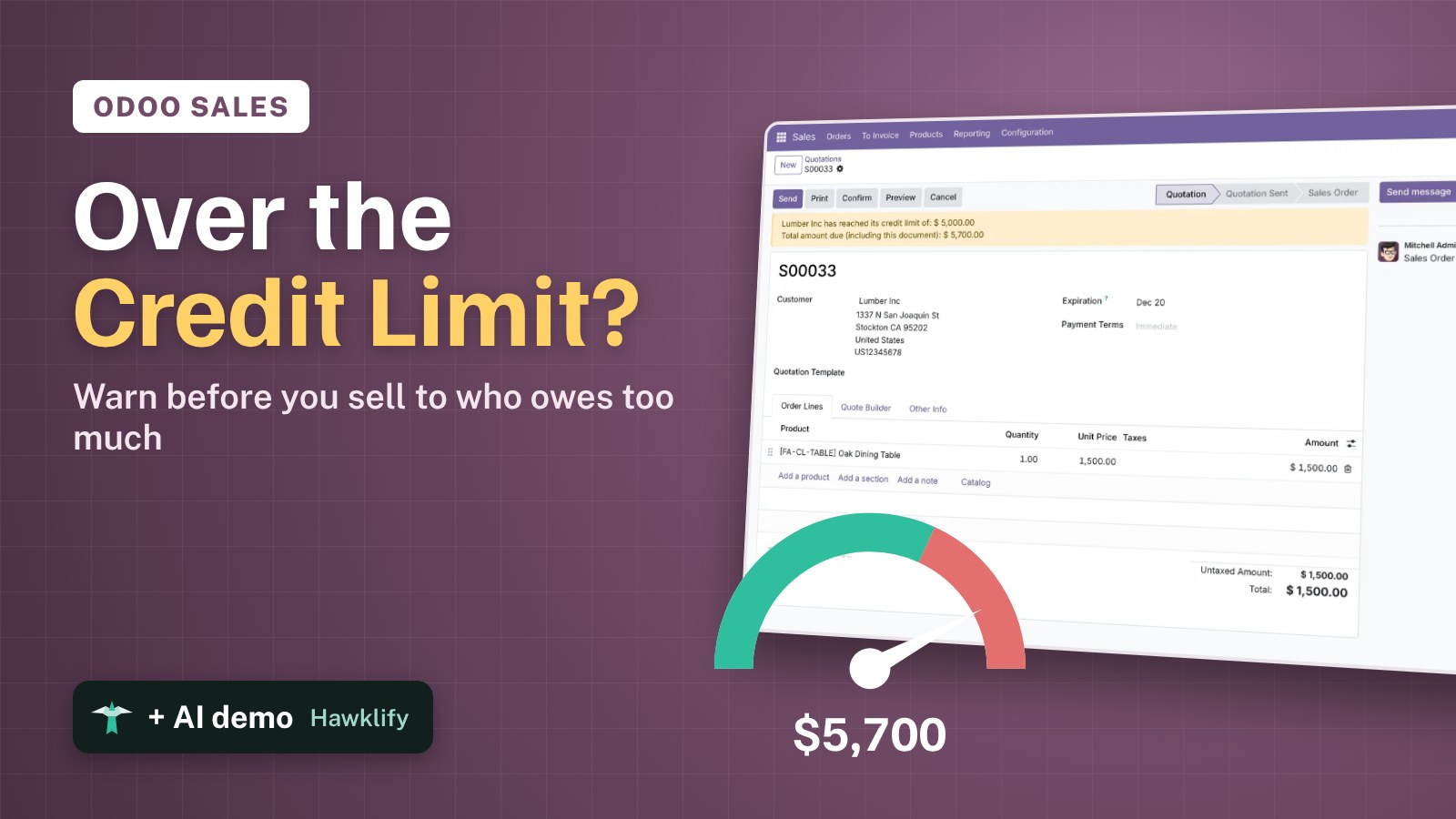
Lumber Inc owes you $4,200 and the invoice is 45 days late. A salesperson writes them a new quotation for $1,500, confirms it, and the truck leaves. Nobody looked at the unpaid invoice, because it lives in Accounting and the quotation in Sales. A credit limit puts the two together: give each customer the most they may owe you, and Odoo warns on the quotation as soon as a new order goes over it. This guide turns the setting on, gives a customer a limit, follows a quotation that goes over it and shows the warning go away when the invoice is paid.
It works the same in Community and Enterprise. The versions we tested are listed at the end.
This guide is also an AI tutorial. At the end, an AI assistant connected to Odoo checks every open quotation against the customer's credit limit each morning and writes to the customers who must pay first, and builds the sales team a credit page where one button asks for the payment or confirms the order.See it in action ↓Before you start
- The Invoicing (or Accounting) and Sales apps installed.
- A customer with an unpaid invoice, here Lumber Inc with $4,200 open.
1. Turn on credit limits
Open Invoicing → Configuration → Settings and find Sales Credit Limit (typing “credit” in the search bar takes you there). Tick it and press Save. Default Credit Limit stays at 0 here, so only the customers you give a limit are checked.
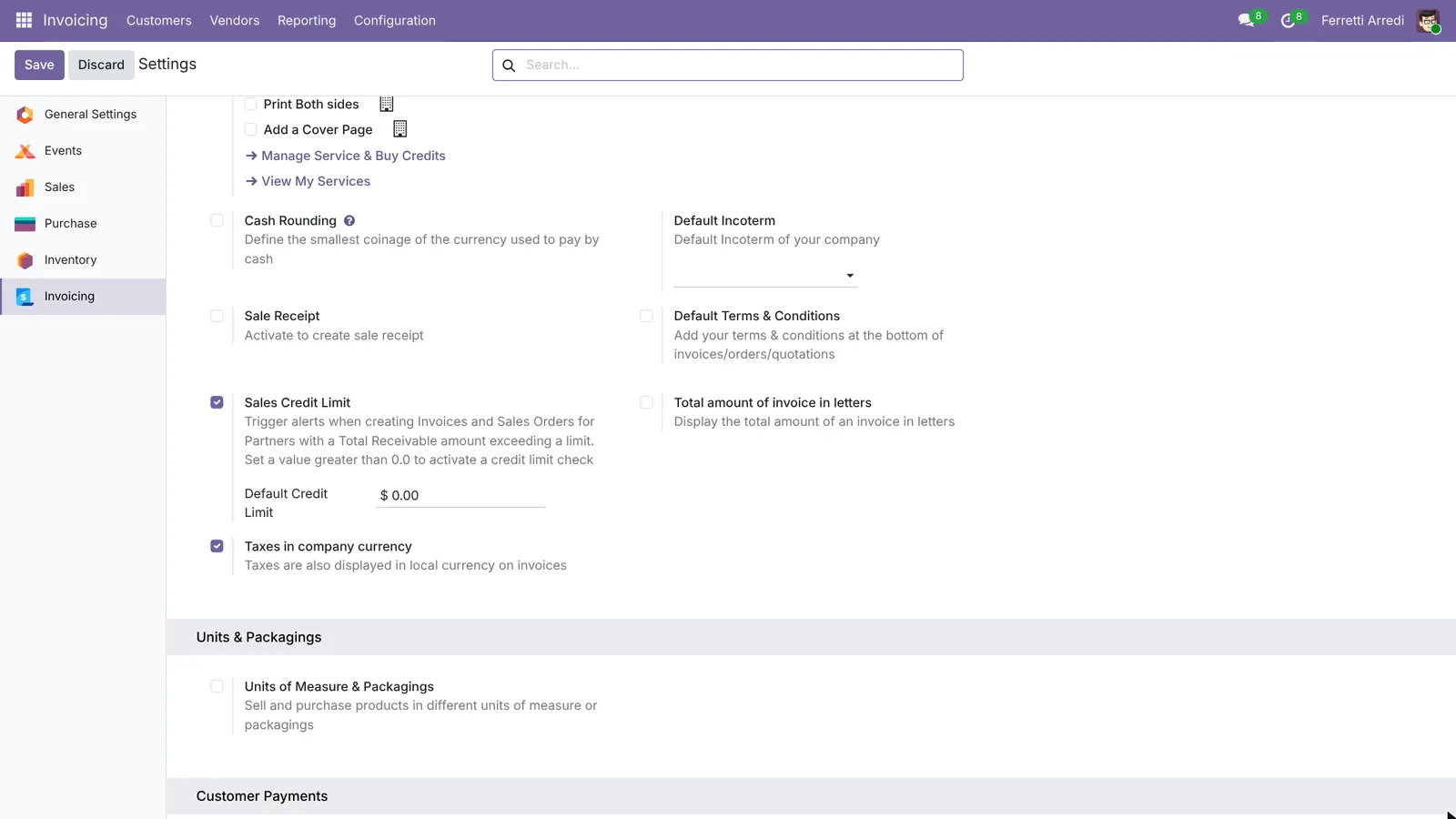 One tick, and a default you can leave at 0.
2. Give the customer a limit
Open Invoicing → Customers → Customers and Lumber Inc. In the Invoicing tab, under Credit Limits, Odoo shows the Total Receivable, $4,200. Tick Partner Limit, write 5,000 and save.
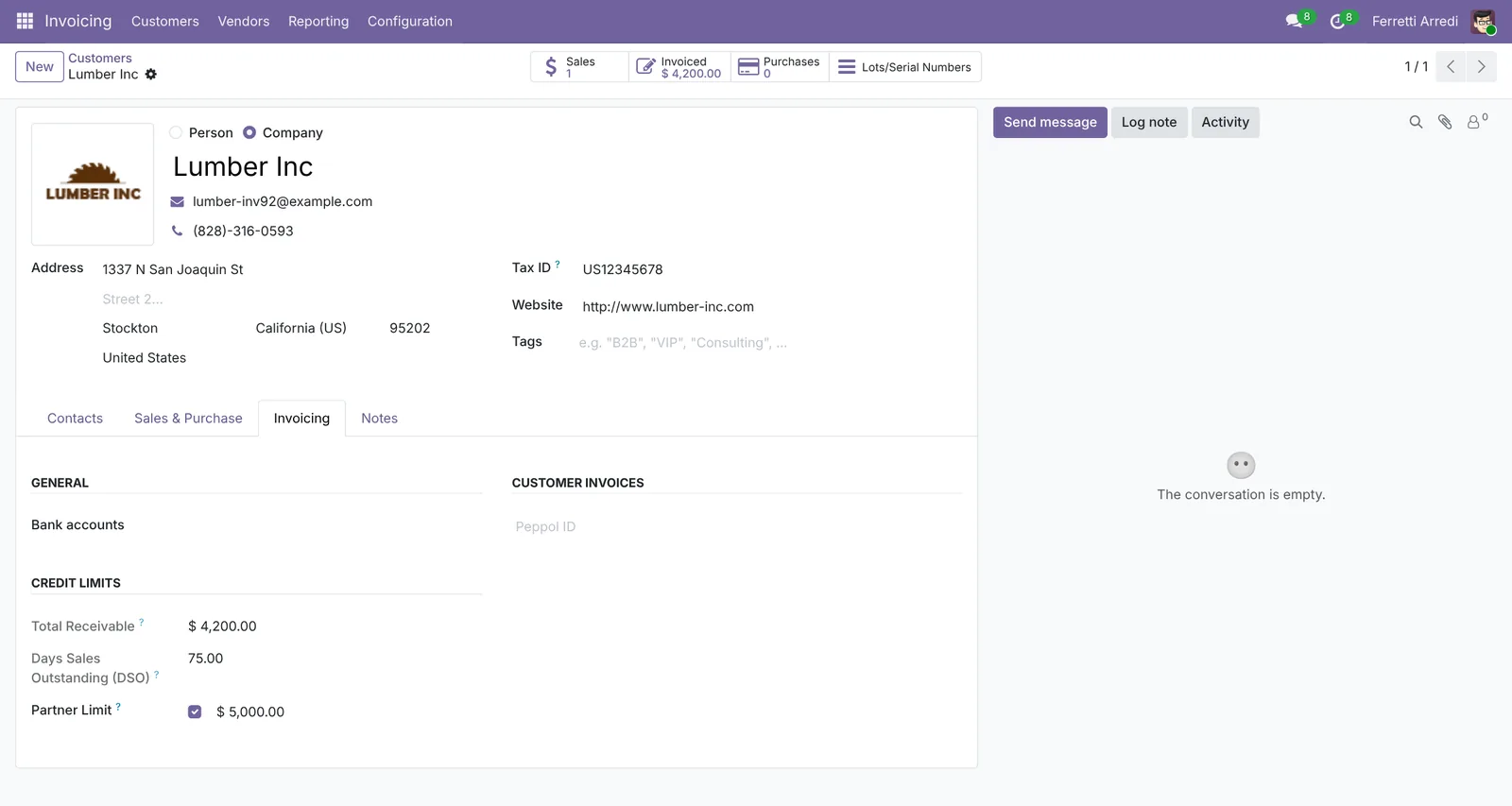 What they owe, and the most they may owe.
3. Write a quotation that goes over
Open Sales → Orders → Quotations, press New, pick Lumber Inc and add an Oak Dining Table at $1,500. A yellow banner appears on top: Lumber Inc has reached its credit limit of $5,000.00. Total amount due (including this document): $5,700.00.
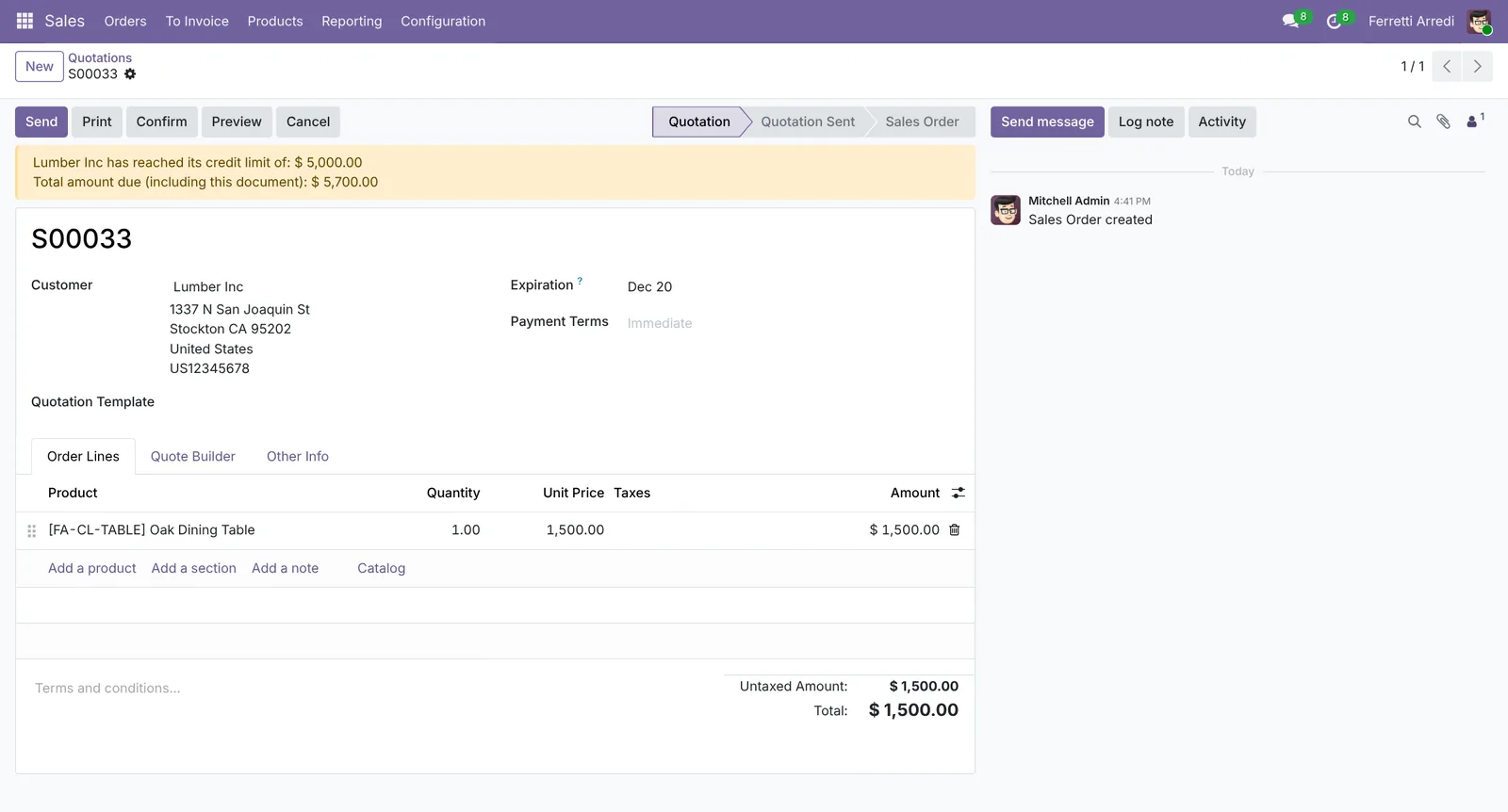 $4,200 owed plus $1,500 new: $700 over the limit.
The banner is a warning, not a lock: you can still press Confirm. Ask for the overdue payment or a down payment first, and confirm when it arrives.
4. The invoice is paid, the warning goes
When Lumber Inc pays, open their invoice and press Pay (Register Payment on 16 and 17), then Create Payment. Open the quotation again: the total due is now only this $1,500 and the banner is gone.
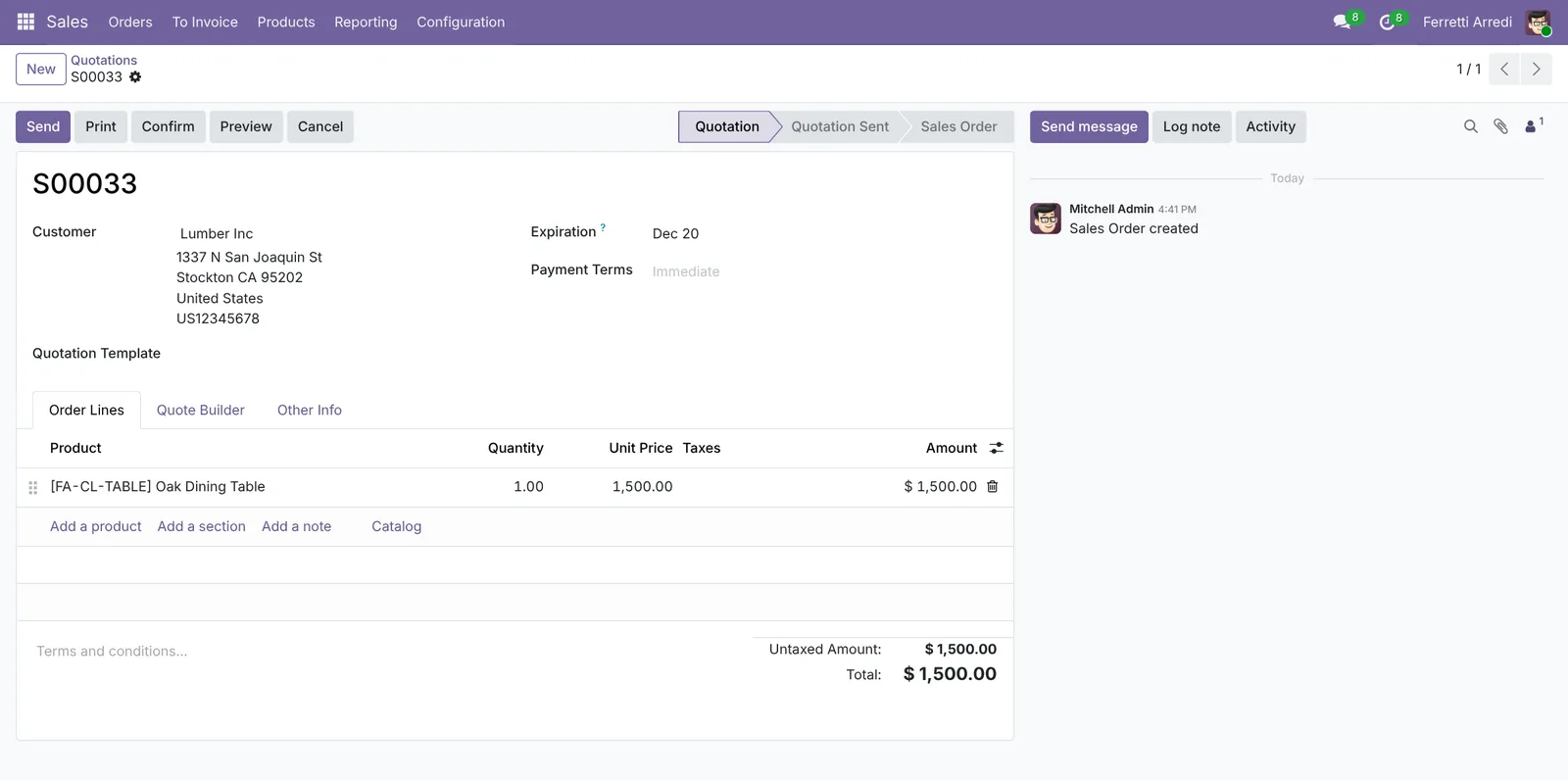 Paid invoice, clean quotation: confirm it.
Common mistakes
- Ticking the setting and nothing else. With Default Credit Limit at 0 and no Partner Limit, no customer is checked.
- Putting the limit on a contact person. Odoo adds up the company’s invoices and orders: set the limit on the company, Lumber Inc, not on its buyer.
- Taking the banner for a block. Odoo lets anyone confirm. If only some people may sell over the limit, agree it in the team, or ask the assistant below to check every morning.
- Forgetting to register payments. A customer who paid by bank transfer still shows as over the limit until the payment is on the invoice.
Credit Limits with AI: ask your AI assistant through MCP
With the Hawklify MCP server, Claude, ChatGPT and other assistants work in your Odoo as you, with your permissions. The banner only shows to whoever opens the quotation, and it says nothing about how late the customer is or what to ask for. An assistant checks every open quotation against every limit, and writes the customer the right request.
Every morning, in the chat app on your phone. Smart mode is on: the assistant reads, explains, and asks once before it writes to anyone.
Hawklify
Your Odoo, from the chat you already use
Send a message, a photo or a voice note: the assistant reads and works in Odoo through Hawklify, with your permissions.
Two quotations go over the customer's limit:
- Lumber Inc, S00033, $1,500: with the invoice of $4,200, 45 days late, they would owe $5,700 on a limit of $5,000.
- Deco Addict, S00035, two Velvet Sofas $4,400: invoice $3,100 (due in 10 days) and order S00034 of $2,000 = $9,500 on a limit of $8,000.
Also Gemini Furniture owes $5,800 of $6,000, 20 days late: no quotation yet, but the next one goes over.
Write to Lumber Inc for the late invoice and ask Deco Addict for a down payment of $1,500?
Yes, write to both
Sent:
- Lumber Inc: settle the $4,200 due for 45 days, then we confirm the table.
- Deco Addict: a down payment of $1,500, then we confirm the sofas right away.
The messages are on the quotations, so whoever opens them sees why they wait.
A credit page for the whole sales team. The assistant builds a small app (an artifact) on Odoo’s live data, so salespeople see the limit before they quote, and act from there.
Here it is, live from Odoo. Two customers go over their limit with the quotation they're waiting for, and Gemini Furniture is at 97% with a late invoice.
The bar counts what Odoo counts: unpaid invoices, orders not invoiced yet and the open quotation. Each button writes in Odoo under the name of whoever presses it.
Customer credit
4 customers with a limit · updated when you open it
Activity
Ask and remind post a message on the invoice or quotation; Confirm confirms the order in Odoo.
Versions we tested
| Version | Result |
|---|---|
| Odoo 16 | Same steps and screens. The total counts the unpaid invoices and this document but not the confirmed orders that are not invoiced yet, so a customer can be over the limit without a warning. The invoice button is Register Payment. |
| Odoo 17 | Same steps; confirmed orders not invoiced count too. The invoice button is Register Payment. |
| Odoo 18 | Same steps and screens as 19. |
| Odoo 19 | As in this guide. The screenshots come from Odoo 19. |
| Odoo 20 | Same steps and screens as 19. New on the quotations opens a list of quotation templates: pick the first one for an empty quotation. |
Frequently asked questions
Does Odoo block the order when the limit is reached?
No. Odoo shows a warning on the quotation and the invoice, and you can still confirm. Who may sell anyway is a decision for your team: the warning makes sure nobody does it without seeing it.
What counts against the limit?
The customer's unpaid invoices (Total Receivable), the confirmed orders not invoiced yet, and the document you are writing. From Odoo 17; on Odoo 16 the confirmed orders are not counted.
Can every customer get the same limit?
Yes. Write it in Default Credit Limit under the setting. A limit on the customer replaces it, and a customer with 0 has no limit.
The customer paid but the warning is still there. Why?
The payment is not registered on the invoice yet. Register it, or reconcile the bank line with the invoice: Total Receivable goes down and the warning goes.
Questa guida è disponibile anche in italiano: Limite di credito in Odoo: l'avviso prima di vendere
Related Odoo guides
 AccountingAged receivables in Odoo: who owes you, and since whenRead the aged receivable report in Odoo Enterprise: who owes you, how late, the invoices behind each amount, and how to send a customer a reminder of what is overdue.
 AccountingPayment terms in Odoo: due dates that get you paidSet payment terms in Odoo so every invoice gets the right due date, register the payment, then find overdue invoices and send a reminder. Community and Enterprise.
 SalesSales orders in Odoo: from quotation to invoiceTake a sale through Odoo from start to finish: create the quotation, confirm the order, deliver the goods and post the invoice. Community and Enterprise.