Attendances in Odoo: check in, check out, extra hours
Track working hours with Odoo Attendances: let employees check in from the top bar, read the day's list, fix a forgotten check-out and see where extra hours come from.
- Community and Enterprise
- 5 min read
- Odoo + AI tutorial
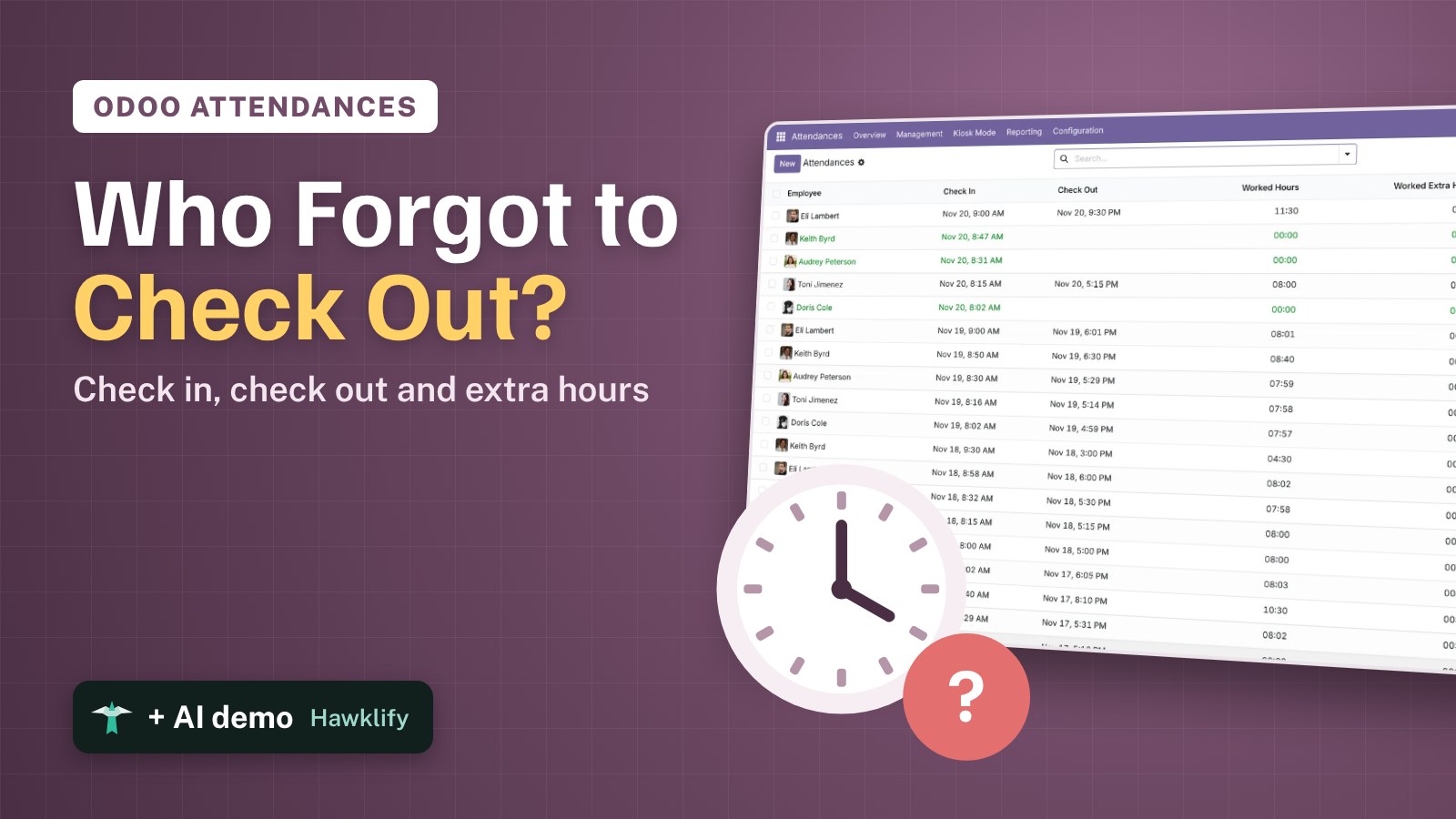
Doris checked in at 8:02 and never checked out. Audrey neither. Keith’s day ended at some point, nobody knows when. Eli stayed until 21:30 and nobody noticed. At the end of the month someone opens a spreadsheet and guesses. Odoo Attendances records when each person starts and stops, adds up the worked hours and shows the extra hours against their working schedule. This guide sets the app up, checks in from the top bar, reads the day’s list and fixes a forgotten check-out.
It works the same in Community and Enterprise. The versions we tested are listed at the end.
This guide is also an AI tutorial. At the end, an AI assistant connected to Odoo finds every forgotten check-out each morning, fills the obvious ones from each person's habits and asks the others, and checks the month's extra hours against each contract before payroll.See it in action ↓Before you start
- The Attendances app installed (it installs Employees).
- Each employee linked to a user, if they’ll check in from their own Odoo, and a Working Hours schedule in the employee’s Work Information tab.
1. Choose how people check in
Open Attendances → Configuration → Settings. Under Modes:
- Attendances from Backend puts a check-in button in the top bar of every user’s Odoo.
- Kiosk Mode turns a tablet at the door into a check-in station (badge, PIN or picking your name).
- Automatic Check-Out closes the days people forget, after their schedule plus a tolerance.
Tick what fits and press Save. Lower on the page, Extra Hours decides from when and how extra time is counted.
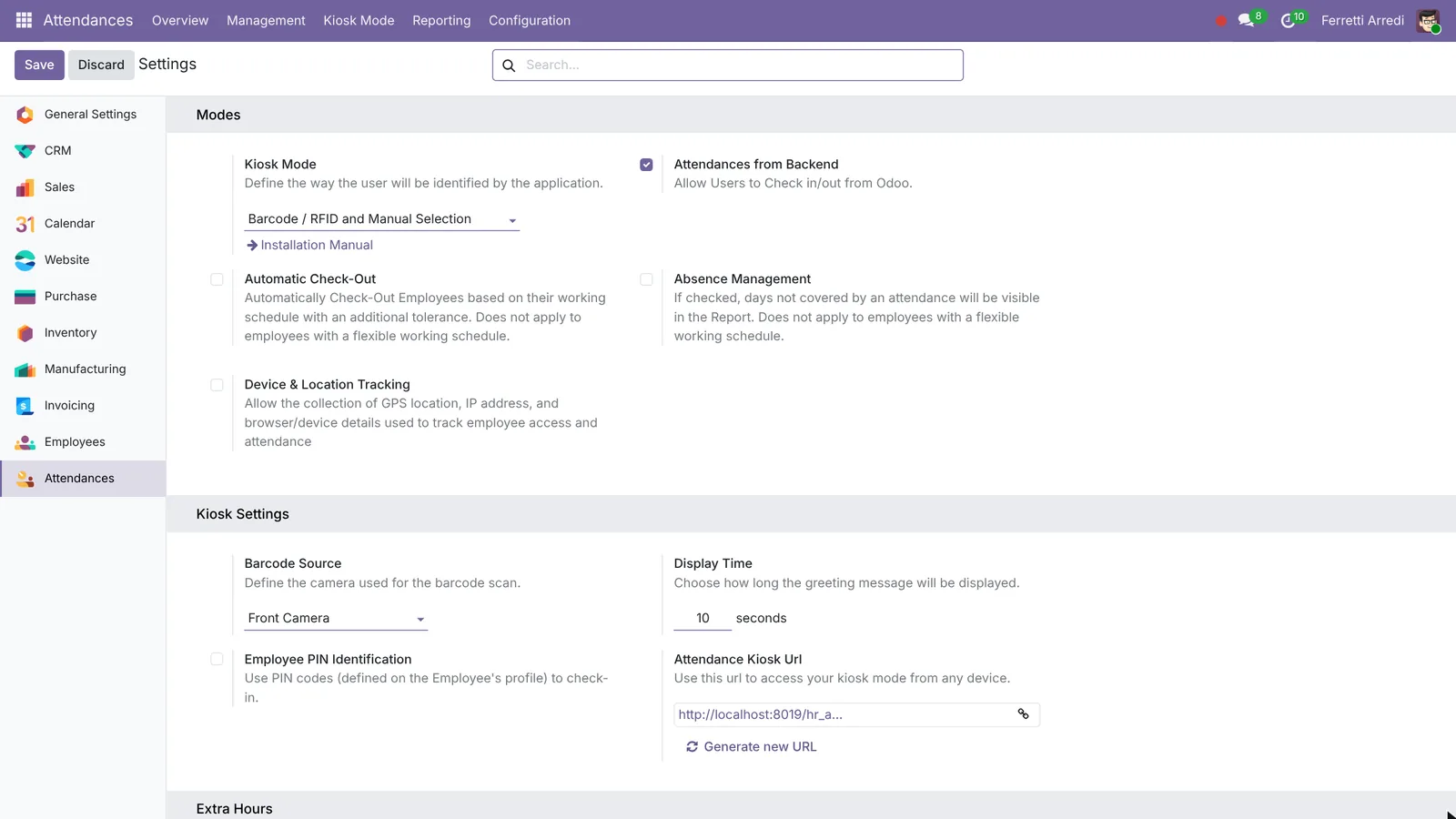 How people check in: from their screen, at a kiosk, or both.
2. Check in
Press the clock in the top bar: a small panel opens with a green Check in button. Press it in the morning; the same button turns red, Check out, for the evening.
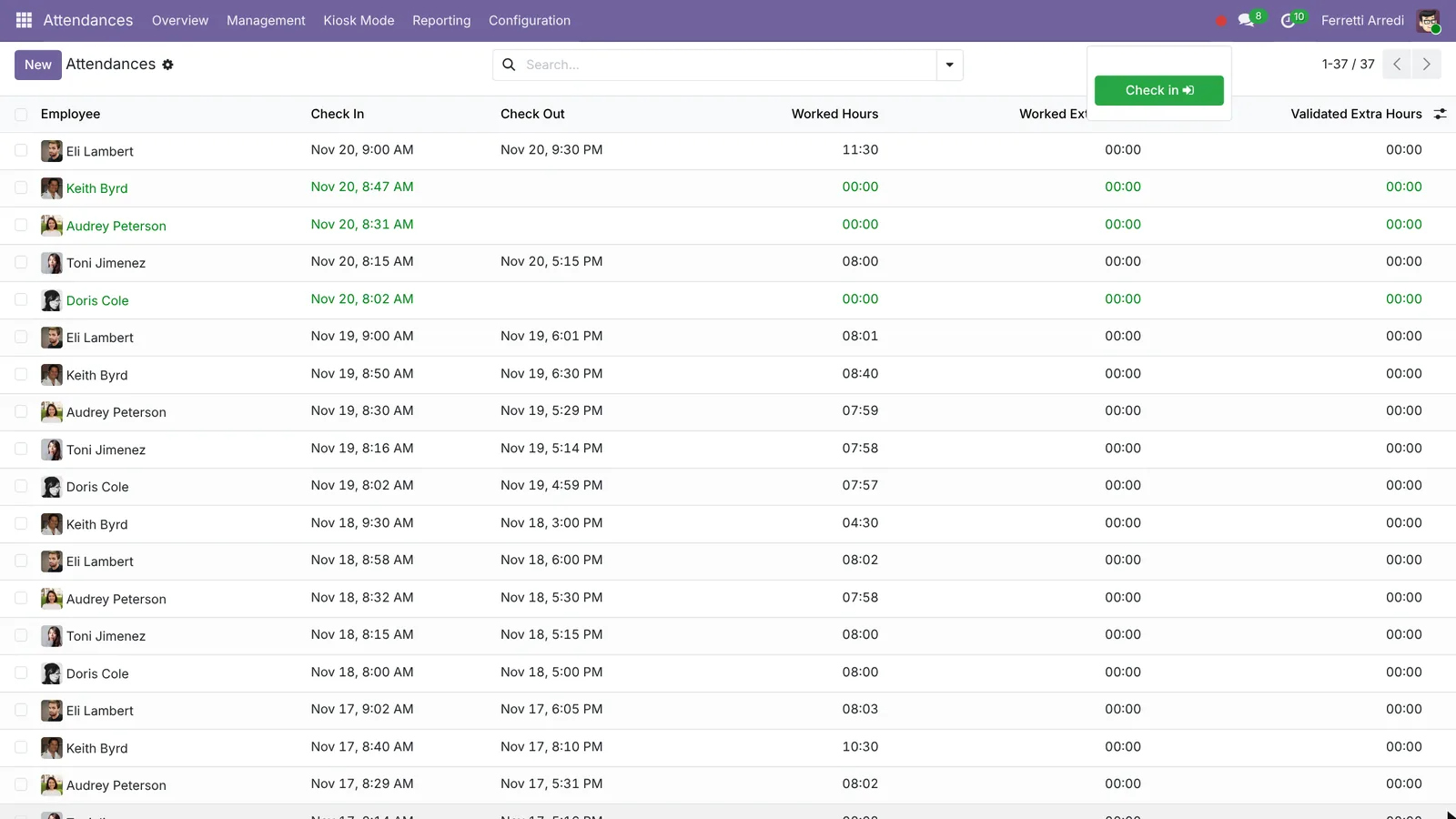 One button, in and out.
3. Read the day
Open Attendances → Management → Attendances. Each line is one stretch of work: employee, Check In, Check Out and Worked Hours. The lines with a check-in but no check-out are the people still working, or the ones who forgot.
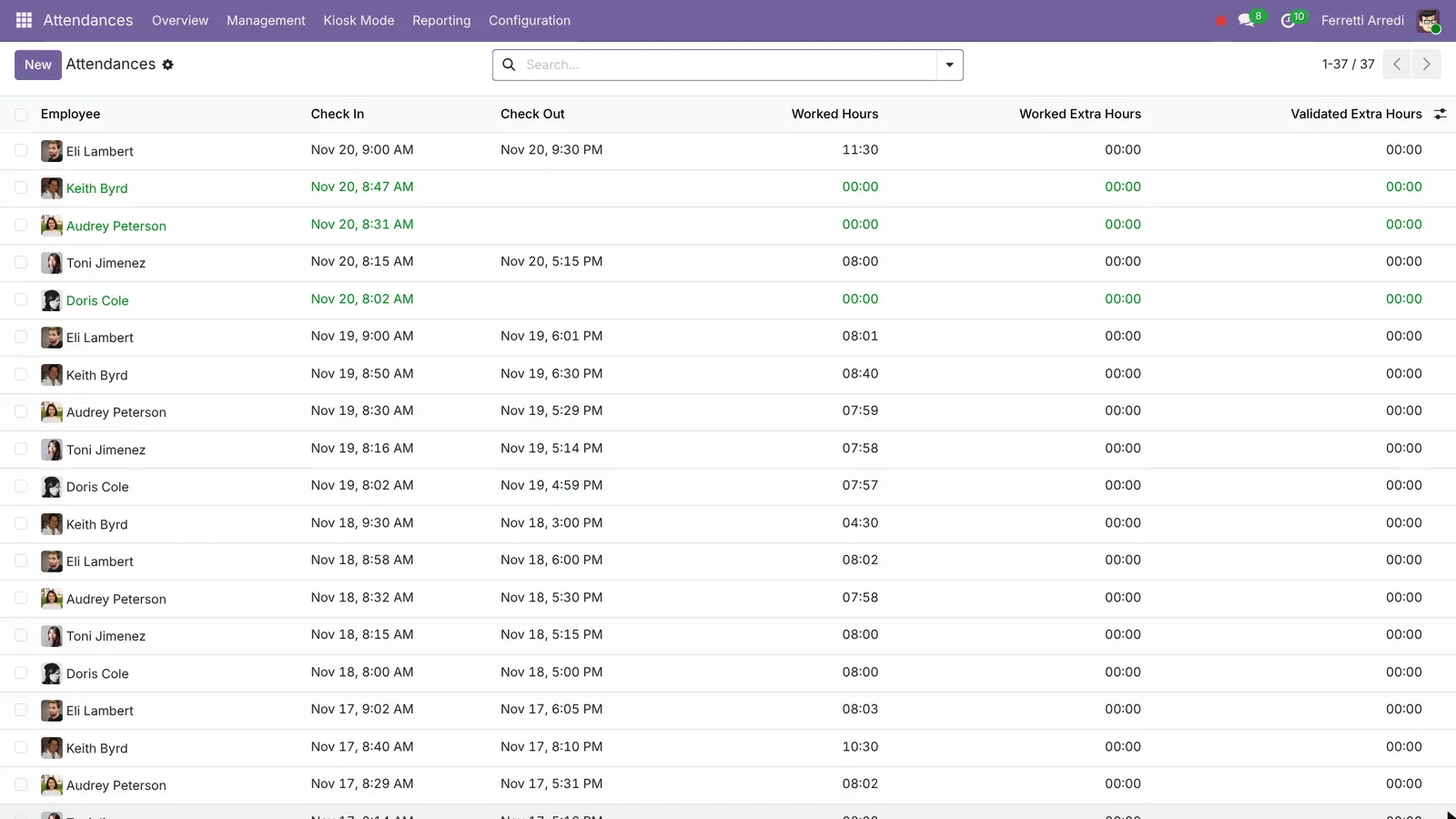 Three open days on Friday, and one very long one.
Here Doris (8:02), Audrey (8:31) and Keith (8:47) never checked out on Friday, so their worked hours are 0. Eli worked from 9:00 to 21:30.
4. Fix a forgotten check-out
Open Audrey’s line, write the Check Out (17:30, the time she always leaves) and save. Worked Time fills in: 7:59 here, because Odoo takes the lunch break of her schedule out.
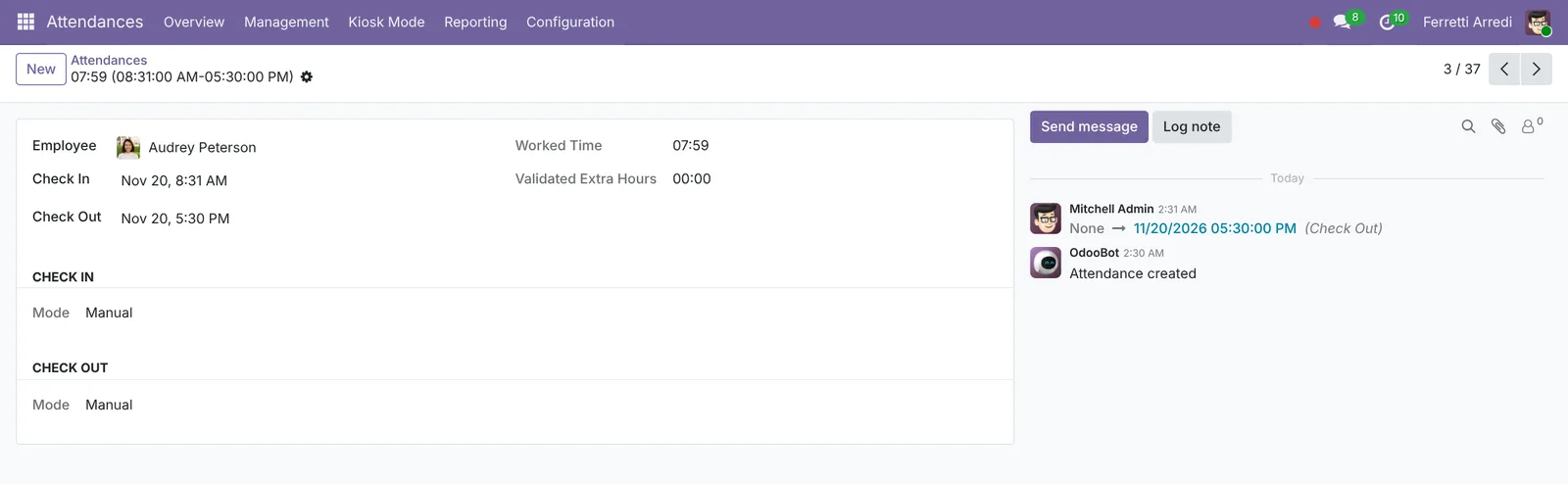 A forgotten check-out, fixed: the chatter keeps who changed it.
Ask before you guess: when someone’s days end at different times, write to them instead.
5. Extra hours
Odoo compares each day with the employee’s Working Hours and records the difference as extra hours, which a manager can validate. When they’re counted changes with the version: see the table at the end. Use Attendances → Reporting to see worked and extra hours per employee and week.
Common mistakes
- No working schedule on the employee. Without one, Odoo can’t tell a normal day from overtime.
- Leaving forgotten check-outs open. The day counts 0 hours, so the month looks short. Fix them every morning, or turn on Automatic Check-Out (Odoo 18 and later).
- Guessing the check-out of people with irregular days. Their hours become payroll: ask them.
- Expecting extra hours without the rule. On 16 and 17 the extra hours setting needs a start date; on 19 and 20 they come from rules: a 12-hour day can show 0 extra hours.
Attendances with AI: ask your AI assistant through MCP
With the Hawklify MCP server, Claude, ChatGPT and other assistants work in your Odoo as you, with your permissions. Odoo shows the open days, but someone still has to notice them, know who always leaves at 17:00 and who doesn’t, and compare each month with each contract. An assistant does that every morning.
Every morning, in the chat app on your phone. Smart mode is on: the assistant reads the open days and each person’s habits, and asks once before it writes anything.
Hawklify
Your Odoo, from the chat you already use
Send a message, a photo or a voice note: the assistant reads and works in Odoo through Hawklify, with your permissions.
Three people never checked out on Friday:
- Doris Cole, in at 8:02: she left at 17:00 on each of the last four days.
- Audrey Peterson, in at 8:31: always out at 17:30.
- Keith Byrd, in at 8:47: his days end anywhere between 15:00 and 20:10, so I can't guess.
Also Eli Lambert worked from 9:00 to 21:30 on Friday, 11.5 hours.
Fill in Doris and Audrey, and ask Keith when he left?
Yes, go ahead
Done: Doris now has 7.97 hours on Friday and Audrey 7.98, lunch included.
Keith got a message asking what time he left; his day stays open until he answers. Want me to tell Eli's manager about the 11.5-hour day?
Before payroll, in the desktop app. The assistant checks the month’s hours against each contract and tells you which figures you can’t trust yet.
Two people went over their contract:
- Eli Lambert, 40 hours a week: +9.5 hours, all from three days over 10 hours (the longest 9:00 to 21:30).
- Toni Jimenez, part-time 30 hours a week: worked 38 hours in week 46, so +8 hours.
Odoo shows 0 extra hours for both: on this version extra hours count only for employees with an overtime rule, and neither has one.
And Keith Byrd has three days with no check-out this month, so his total isn't reliable yet.
Shall I put the totals on Eli's and Toni's records and ask Mitchell to approve them before Friday?
Done:
- Notes with the daily detail on Eli (+9.5 h) and Toni (+8 h).
- A to-do for Mitchell Admin, due Thursday: approve 17.5 extra hours.
- Keith has a message listing his three open days.
To make Odoo count these by itself, add an overtime rule to their schedules: I can show you where.
Versions we tested
| Version | Result |
|---|---|
| Odoo 16 | No top-bar button: employees use Attendances → Check In / Check Out. Extra hours need Count Extra Hours and a start date in the settings. The list is edited in place. The worked hours include the lunch break. |
| Odoo 17 | Same as 19, without Automatic Check-Out. Extra hours need Count Extra Hours and a start date. |
| Odoo 18 | Same as 19. Extra hours are always counted (Eli’s day shows 3.5 extra hours). |
| Odoo 19 | As in this guide. The screenshots come from Odoo 19. Extra hours count only for employees with overtime rules (Configuration → Overtime Rulesets); the demo employees have none, so 0. |
| Odoo 20 | The attendance form has a single Check In/Out range field and a Break Duration; worked hours don’t take lunch out (Eli: 12.5 hours). Extra hours come from Configuration rules. |
Frequently asked questions
Where do employees check in?
From the clock button in Odoo's top bar, from the Kiosk Mode on a shared tablet, or from the Attendances app. On Odoo 16 the top-bar button doesn't exist: they use Attendances, Check In / Check Out.
What happens when someone forgets to check out?
The attendance stays open with 0 worked hours until somebody writes the check-out. From Odoo 18, Automatic Check-Out closes it after the working schedule plus a tolerance.
Why does Odoo show 0 extra hours for a 12-hour day?
Extra hours are counted only when the company or the employee's rules say so: a setting with a start date on 16 and 17, rules on the schedule from 19. On 18 they're always counted.
Does the lunch break count?
On Odoo 17, 18 and 19 the lunch break of the working schedule is taken out of worked hours. On 16 and 20 the time between check-in and check-out is counted in full (20 has a Break Duration field).
Questa guida è disponibile anche in italiano: Presenze in Odoo: entrata, uscita e straordinari
Related Odoo guides
 Human ResourcesEmployee onboarding in Odoo: plans and activitiesOnboard new employees with Odoo: set up the onboarding plan once, launch it on the new hire, and every first-week task becomes an activity. Community and Enterprise.
 AccountingExpenses in Odoo: from receipt to reimbursementHandle employee expenses in Odoo: record an expense with its receipt, submit it, approve it, post it to accounting and pay the employee back. Community and Enterprise.
 Human ResourcesRecruitment in Odoo: job positions, applicants, interviewsHire with Odoo Recruitment: open a job position, follow each applicant from new to interview, and refuse the others with a kind e-mail. Community and Enterprise.