Access Rights in Odoo: users, groups and who sees what
Set access rights in Odoo: read each user's level per app, take admin rights away from people who don't need them and check who is in a group.
- Community and Enterprise
- 4 min read
- Odoo + AI tutorial
A salesperson who can change the chart of accounts. A warehouse clerk who can register payments. Nobody gave those rights on purpose: they were ticked when the user was created, copied from another user, or never taken back. In Odoo, each user has a level for each app, and each level is a group of permissions. This guide reads the users, finds a salesperson with accounting administrator rights, lowers them and checks who is left in the group.
It works the same in Community and Enterprise. The versions we tested are listed at the end.
This guide is also an AI tutorial. At the end, an AI assistant connected to Odoo reads every user against the accounting groups, finds the salesperson and the warehouse clerk who can pay bills and takes those rights away after one yes, and builds an access review page where one button archives a user nobody uses.See it in action ↓Before you start
- You are an Odoo administrator (Settings role).
- A few users. Here four new ones besides Mitchell Admin and Marc Demo: Anna Keller (accountant), Sophie Lambert (sales), Tom Becker (warehouse) and Luca Romano (sales manager).
1. See who has access
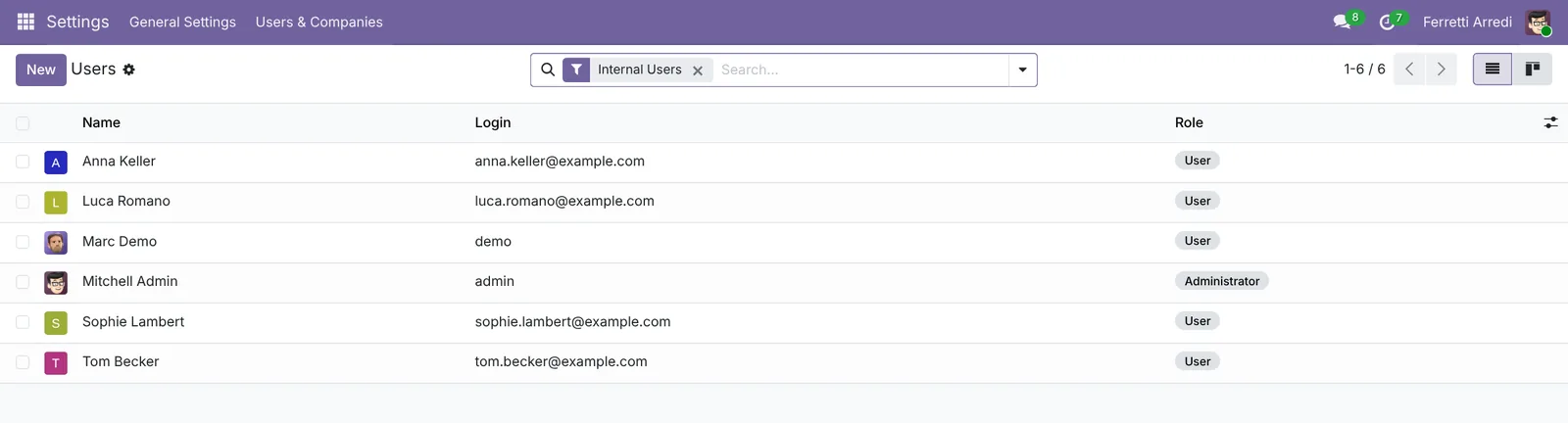
Open Settings → Users & Companies → Users. The list shows every internal user with their login and, on 19 and 20, their Role: Mitchell Admin is the only Administrator.
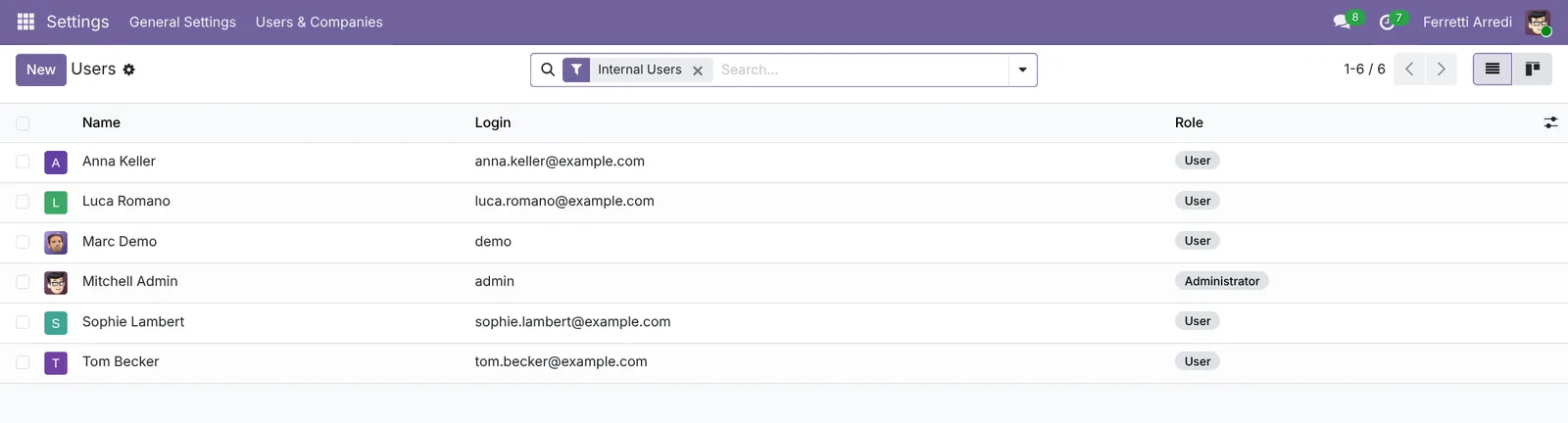 The Internal Users filter hides portal users: customers who only see their own documents.
2. Read a user’s access rights
Open Sophie Lambert and the Access Rights tab. On top, the Role and the companies she works in; below, one line per app. Sales is User: Own Documents Only, which fits a salesperson. Accounting is Administrator: she can change taxes, journals and lock dates, and pay any bill.
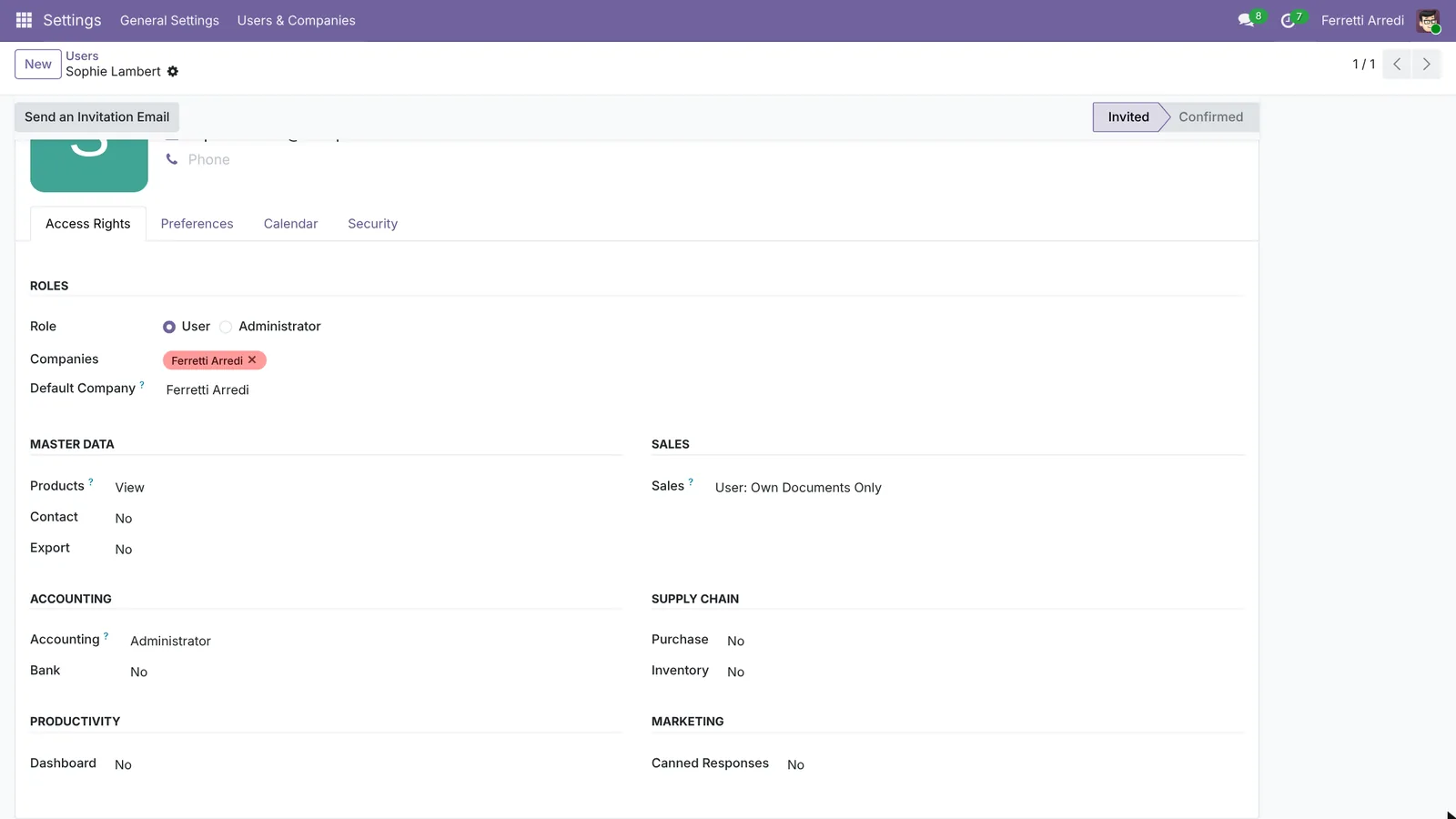 Each line is a level: No, then from the least to the most rights.
3. Lower the level
Click the Accounting level and choose Invoicing: she can still create and send invoices, but not touch the accounting setup. Choose No if she shouldn’t see invoices at all. Save.
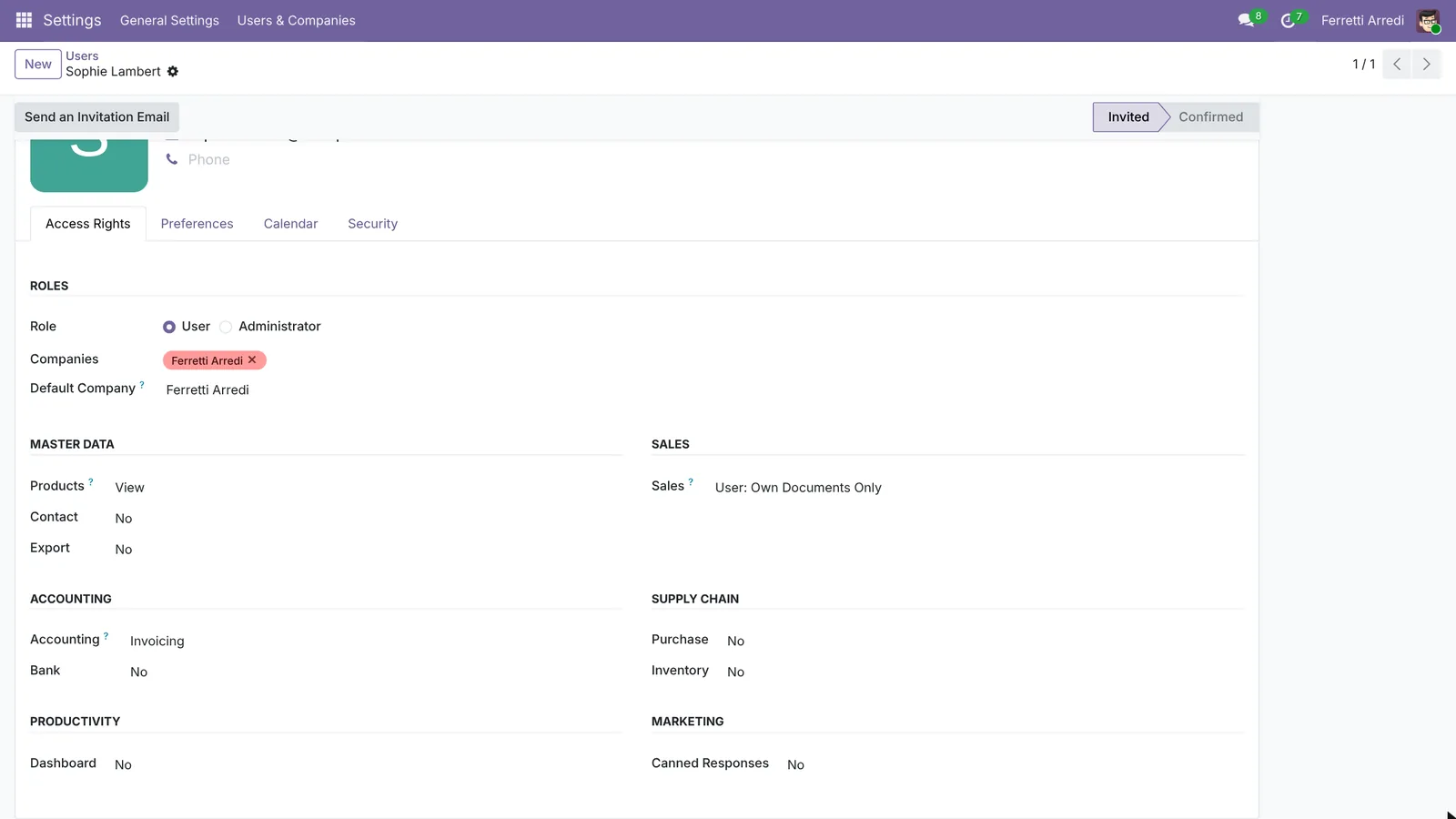 Give the lowest level that lets someone do their job, and raise it when they ask.
4. Check the group
To see everybody with a level at once, turn on developer mode (Settings → Activate the developer mode) and open Settings → Users & Companies → Groups. Search Administrator and open Accounting / Administrator. The Users tab now lists Anna Keller and Mitchell Admin. The other tabs show what the group gives: menus, views, the models it can read or write and its record rules.
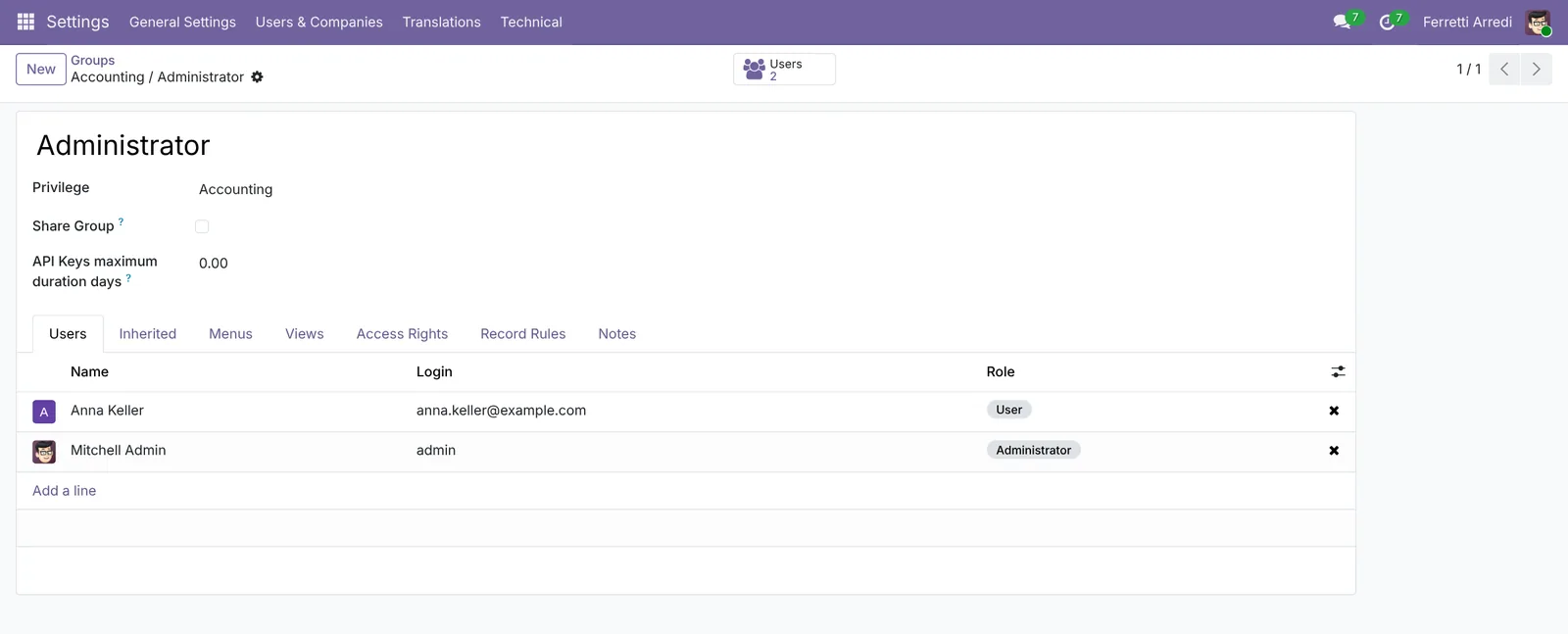 From the group you can also remove a user: the × at the end of the line.
Common mistakes
- Making everyone an administrator to save time. An administrator can change settings, users and other people’s rights. Keep it to one or two people.
- Copying a user to create a new one. The copy gets all the rights of the original, including the ones you forgot. Start from a new user and set each app.
- Deleting a user who leaves. Their documents point to them. Archive the user instead.
- Forgetting multi-company. A level counts in every company the user is allowed in. Check the Companies field too.
Access rights with AI: ask your AI assistant through MCP
With the Hawklify MCP server, Claude, ChatGPT and other assistants work in your Odoo as you, with your permissions. Odoo shows rights user by user, but “who can pay vendors?” means reading every user against every group. An assistant reads them together and tells you who has more than their job needs. Changing users is off in Hawklify by default: an organisation admin turns on Changes to Odoo’s system models on the members page first.
Next to the users, in the browser. Smart mode is on: the assistant asks once before changing anything.
Five people can create and pay bills:
- Anna Keller, accountant, Administrator
- Mitchell Admin, Administrator
- Luca Romano, sales manager, Invoicing for his customers
- Sophie Lambert, sales, but Accounting Administrator: she can change taxes and journals
- Tom Becker, warehouse, has Invoicing
Sophie and Tom don't need it for their work. Take Accounting away from both?
Done. Sophie keeps Sales only and Tom Inventory only.
Now three people can pay bills: Anna Keller, Luca Romano and Mitchell Admin, and only Anna and Mitchell can change the accounting settings.
An access review page. The assistant builds a small page next to the chat with every user, their levels and their last login.
Here it is, live from Odoo. The levels match the jobs now, but Marc Demo hasn't logged in for 97 days and still has Sales rights.
Archiving keeps his documents and history; he just can't log in.
Access review
6 internal users · live from Odoo
Activity
Archive sets the user inactive in Odoo: documents and history stay.
Versions we tested
| Version | Result |
|---|---|
| Odoo 16 | Same steps. The tab has no Role: the accounting line is Invoicing, with Billing and Billing Administrator. The group is Invoicing / Billing Administrator. In the demo data Marc Demo is a Billing Administrator too. |
| Odoo 17 | Same as 16. |
| Odoo 18 | Same steps. The line is Invoicing, with Invoicing and Administrator; the group is Invoicing / Administrator. |
| Odoo 19 | As in this guide: Role on top and the Accounting line. The screenshots come from Odoo 19. |
| Odoo 20 | As 19. The Role adds Light (the demo user Monica Light) and the user list a Status column. |
Frequently asked questions
What is the difference between a role and a group?
A group is a set of permissions: menus, models it can read or write, record rules. The levels on the Access Rights tab (Sales: User, Accounting: Administrator) are groups. The Role on top (User or Administrator, plus Light on 20) decides whether the user can change Odoo's settings.
Can a user see only their own sales orders?
Yes: Sales set to User: Own Documents Only shows them their own quotations and orders. All Documents shows the whole team's, Administrator adds the settings.
Can I give the same level to several users at once?
Yes: open the group in developer mode and press Add a line on its Users tab. Each user you add gets that level, and the levels it includes.
What happens when someone leaves?
Archive the user. They can no longer log in, and their documents, messages and history stay in Odoo. Don't delete users who already worked in Odoo.
Questa guida è disponibile anche in italiano: Permessi in Odoo: utenti, gruppi e chi vede cosa
Related Odoo guides
 Settings & ProductivityMulti-company in Odoo: two companies in one databaseRun two companies in one Odoo: create the company, give users access, use the switcher, share customers and see what each company keeps. Community and Enterprise.
 Automation & CustomizationAutomation rules in Odoo: follow-ups that never slipCreate an automation rule in Odoo: when a sales order over $5,000 is confirmed, the sales manager gets a To-Do to call the customer. No code.
 AccountingExpenses in Odoo: from receipt to reimbursementHandle employee expenses in Odoo: record an expense with its receipt, submit it, approve it, post it to accounting and pay the employee back. Community and Enterprise.