Vendor Payments in Odoo: pay bills and take discounts
Pay vendor bills in Odoo: find what's due, see the early payment discount on 2/7 Net 30 terms, pay three bills at once and check what's left to pay.
- Community and Enterprise
- 4 min read
- Odoo + AI tutorial
Every week the same question: which bills do we pay? Some are overdue, some are due in two days, one vendor gives 2% off if you pay early, and the bank can’t cover everything. Paying bills one by one from each bill hides the picture. In Odoo you can see all open bills with their due dates, pay several at once, and let the payment terms work out the early discount for you. This guide looks at the bills, opens the one with a discount, pays three of them in one go and checks what’s left.
It works the same in Community and Enterprise. The versions we tested are listed at the end.
This guide is also an AI tutorial. At the end, an AI assistant connected to Odoo puts the bank balance, the due dates and an early payment discount side by side and pays the three bills worth paying now, and answers from a phone chat when a vendor asks to be paid today.See it in action ↓Before you start
- Invoicing or Accounting installed, with a bank journal.
- Posted vendor bills. Here four: Lumber Inc $3,100 (overdue), Ready Mat $6,850 (due in 2 days), Gemini Furniture $9,400 (due in 5 days) and Wood Corner $4,200 on 2/7 Net 30 terms.
1. See what’s due
Open Invoicing → Vendors → Bills (Accounting in Enterprise). The list shows each bill’s Due Date: 6 days ago in red for Lumber Inc, In 2 days, In 5 days and In 26 days for Wood Corner. Together it’s $23,550.
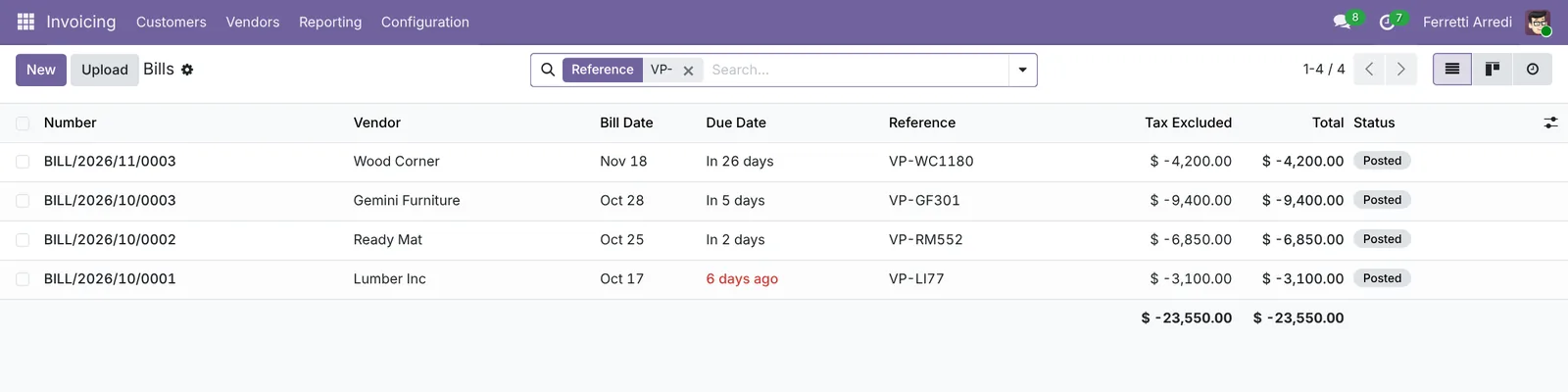 Sort or filter by due date to see the week’s payments at a glance.
2. Spot the early payment discount
Open the Wood Corner bill. Its Payment terms are 2/7 Net 30: 2% off if you pay within 7 days of the bill date. The bill is 4 days old, so paying this week saves $84, though it’s only due in 26 days.
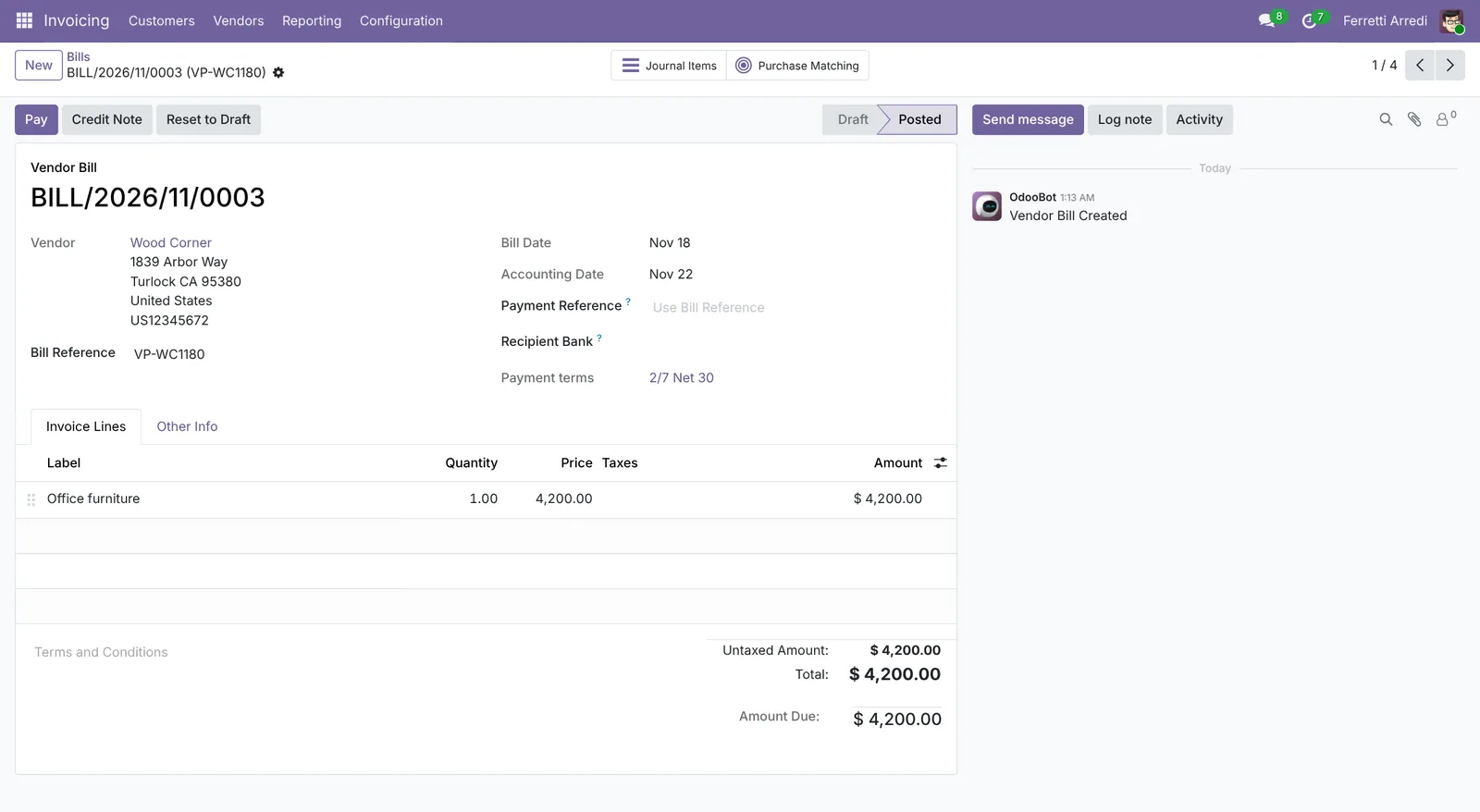 An early discount is worth taking when the cash is there: 2% for paying three weeks early.
3. Pay several bills at once
Back in the list, tick Lumber Inc, Ready Mat and Wood Corner and press Pay (Register Payment on 16 and 17). Odoo makes one payment per vendor. The window says Early Payment Discount of $84.00 has been applied and the amount is $14,066, not $14,150. Check the Journal (Bank) and the Payment Date, then press Create Payments.
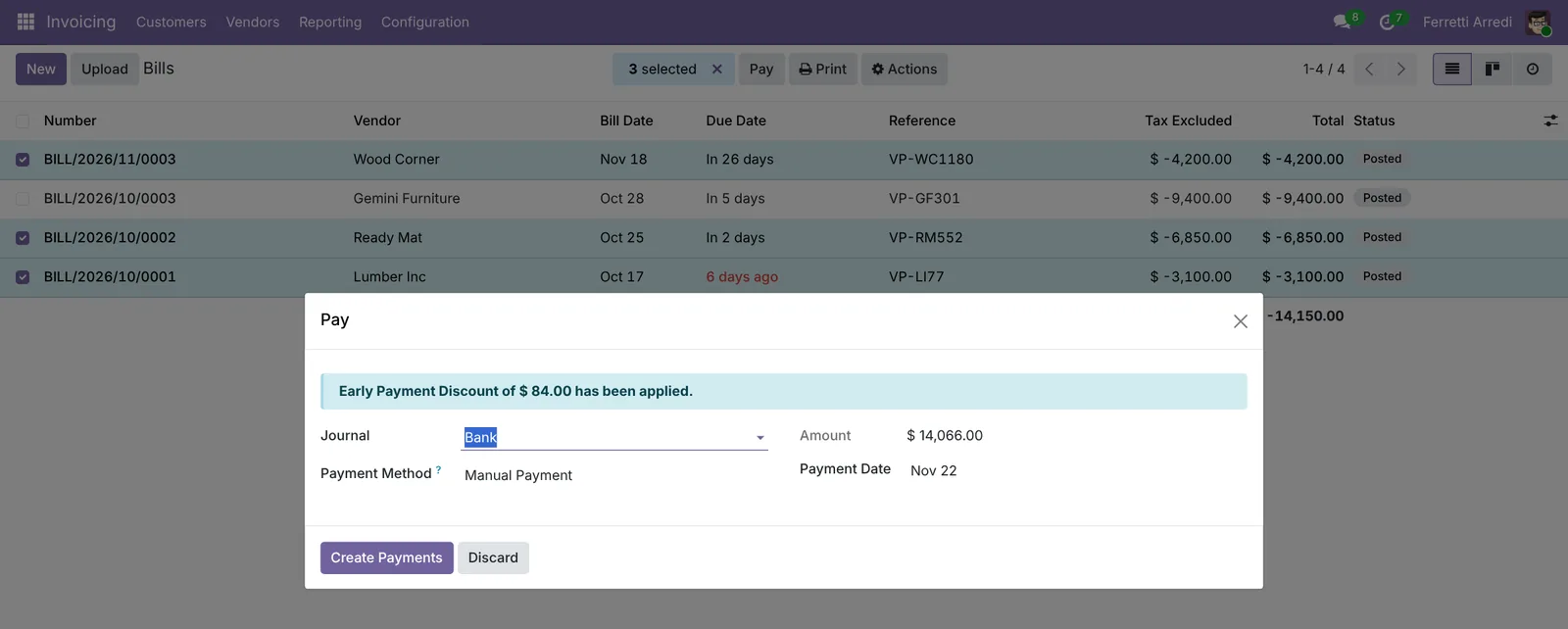 Gemini Furniture waits: its bill is due in 5 days, and the bank has $15,000.
4. Check what’s left
The list now shows the three bills as Paid (or In Payment until the bank statement is matched). Gemini Furniture’s $9,400 is the only bill still open.
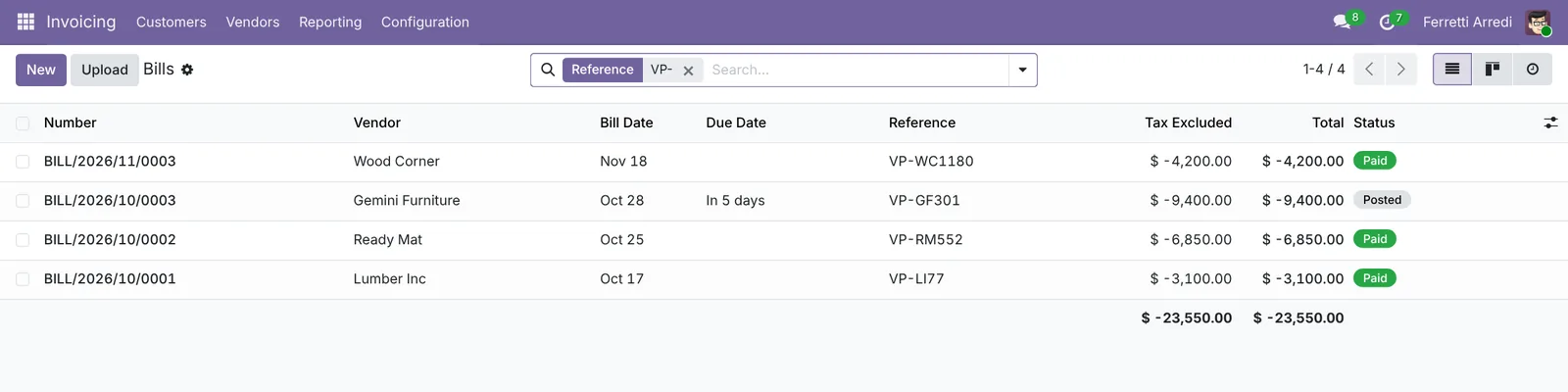 When the bank statement arrives, reconcile it with these payments and the bills are closed.
Common mistakes
- Paying from the bank and forgetting Odoo. The bill stays open and someone pays it again. Register the payment in Odoo the same day.
- Missing the discount date. The 2% is gone on day 8. Look at bills with early discount terms first, not only at due dates.
- Grouping bills of different vendors. Odoo makes one payment per vendor anyway; Group Payments only joins bills of the same vendor.
- Paying the wrong amount by hand. Let the payment window compute it: it knows the discount, partial payments and credit notes.
Vendor payments with AI: ask your AI assistant through MCP
With the Hawklify MCP server, Claude, ChatGPT and other assistants work in your Odoo as you, with your permissions. Odoo shows due dates and discounts, but deciding what to pay this week means putting the bank balance, the due dates and the discounts side by side. An assistant reads them together and pays what’s worth paying now.
In a desktop AI app. Card mode is on: Odoo changes nothing until you approve the card.
The bank has $15,000. Due within a week: $19,350, more than you have:
- Lumber Inc $3,100, 6 days overdue
- Ready Mat $6,850, due in 2 days
- Gemini Furniture $9,400, due in 5 days
Wood Corner's $4,200 isn't due for 26 days, but its terms are 2/7 Net 30: pay within 3 days and you save $84.
I'd pay Lumber Inc, Ready Mat and Wood Corner now, $14,066, and Gemini when it's due. Shall I?
Approval needed in OdooAction
Register 3 payments from the Bank journal: Lumber Inc $3,100, Ready Mat $6,850 and Wood Corner $4,116 after the 2% early payment discount.
account.payment.register · 3 records
BILL/2026/10/0001 · Lumber Inc
| Field | Current | New |
|---|---|---|
| Payment | $3,100.00 | |
| Status | Paid |
BILL/2026/10/0002 · Ready Mat
| Field | Current | New |
|---|---|---|
| Payment | $6,850.00 | |
| Status | Paid |
BILL/2026/11/0003 · Wood Corner
| Field | Current | New |
|---|---|---|
| Payment | $4,116.00 (−$84.00 discount) | |
| Status | Paid |
Change applied in Odoo.
Organisation administrators can turn the approval cards off on the Members page.
Done: payments PBNK1/2026/00001 to 00003, $14,066 in total, and the three bills are Paid.
The bank is left with $934. Gemini Furniture's $9,400 is due in 5 days: I'll remind you the day before.
From your phone. A vendor calls asking to be paid today. The assistant knows what’s in the bank and what’s coming in.
Hawklify
Your Odoo, from the chat you already use
Send a message, a photo or a voice note: the assistant reads and works in Odoo through Hawklify, with your permissions.
Gemini Furniture called, they want their $9,400 today. Can we?
Not today: after this week's three payments the bank has $934.
Two customers owe you $10,000 this week: Deco Addict $5,200 due tomorrow and Azure Interior $4,800 due in 2 days. Gemini's bill (BILL/2026/10/0003) is due in 5 days anyway.
Shall I tell Gemini they'll be paid in 2 days, before the due date?
Yes, write to them
Sent from Odoo, on the bill: "Your invoice of $9,400 will be paid in two days, before its due date."
I'll check the two customer payments and tell you as soon as you can pay Gemini.
Versions we tested
| Version | Result |
|---|---|
| Odoo 16 | Same steps. The list button is Register Payment and the list shows a Payment status column. With bills of several vendors the window has no amount: Odoo still applies the discount on each payment. |
| Odoo 17 | Same as 16: Register Payment, no discount line in the window, the discount is applied. |
| Odoo 18 | As in this guide: Pay, the discount line and the amount in the window. |
| Odoo 19 | As in this guide. The screenshots come from Odoo 19. |
| Odoo 20 | Same steps; the list adds an Amount Due column, which drops to $0.00 once a bill is paid. |
Frequently asked questions
Does Odoo send the money to the vendor?
No. Odoo records the payment; the transfer leaves from your bank, by hand or with a payment file (SEPA in Enterprise). When the bank statement comes in, you reconcile it with the payment.
Why is the bill In Payment and not Paid?
On some setups a payment goes to an outstanding payments account first. The bill becomes Paid when the payment is matched with the bank statement line.
How does the early payment discount work?
The 2/7 Net 30 terms give 2% off if you pay within 7 days of the bill date, otherwise the full amount in 30 days. Pay before the discount date and Odoo takes the 2% off by itself.
Can I pay one vendor for several bills with one transfer?
Yes: tick Group Payments in the payment window when the bills are from the same vendor. Odoo makes one payment for all of them.
Questa guida è disponibile anche in italiano: Pagare i fornitori in Odoo: scadenze, sconti, pagamenti
Related Odoo guides
 PurchaseVendor bills in Odoo: pay only what you receivedOrder from a vendor in Odoo, receive part of the goods, and bill exactly what arrived, with the control policy on received quantities. Community and Enterprise.
 AccountingBank reconciliation in Odoo: match payments to invoicesReconcile bank transactions in Odoo Enterprise: match payments to invoices, handle a payment with no reference, and book bank fees with a model.
 AccountingPayment terms in Odoo: due dates that get you paidSet payment terms in Odoo so every invoice gets the right due date, register the payment, then find overdue invoices and send a reminder. Community and Enterprise.