Subcontracting in Odoo: a partner builds with your parts
Set up subcontracted manufacturing in Odoo: a Subcontracting bill of materials, the purchase order, the parts sent to the subcontractor and the finished chairs received.
- Community and Enterprise
- 5 min read
- Odoo + AI tutorial
Wood Corner makes your Lounge Chairs. You buy the frames, cushions and fabric covers, send them over, and a few days later the chairs come back. Between the two, a spreadsheet tracks what they hold, a colleague emails them the quantities, and the chair’s cost is a guess. Subcontracting in Odoo puts it all on one purchase order: the bill of materials says what goes into the chair and who builds it, Odoo sends the parts and receives the chairs, and the parts used are deducted at the subcontractor. This guide turns it on, writes the bill of materials, orders 20 chairs and follows the parts there and the chairs back.
It works the same in Community and Enterprise. The versions we tested are listed at the end.
This guide is also an AI tutorial. At the end, an AI assistant connected to Odoo counts the parts your subcontractor holds against every open order and prepares the resupply of only what's missing, and every Monday chases the chairs that are late.See it in action ↓Before you start
- The Manufacturing, Purchase and Inventory apps installed.
- The subcontractor as a contact (here Wood Corner), the finished product (Lounge Chair) and its parts in stock.
1. Turn on subcontracting
Open Manufacturing → Configuration → Settings, tick Subcontracting under Operations and press Save.
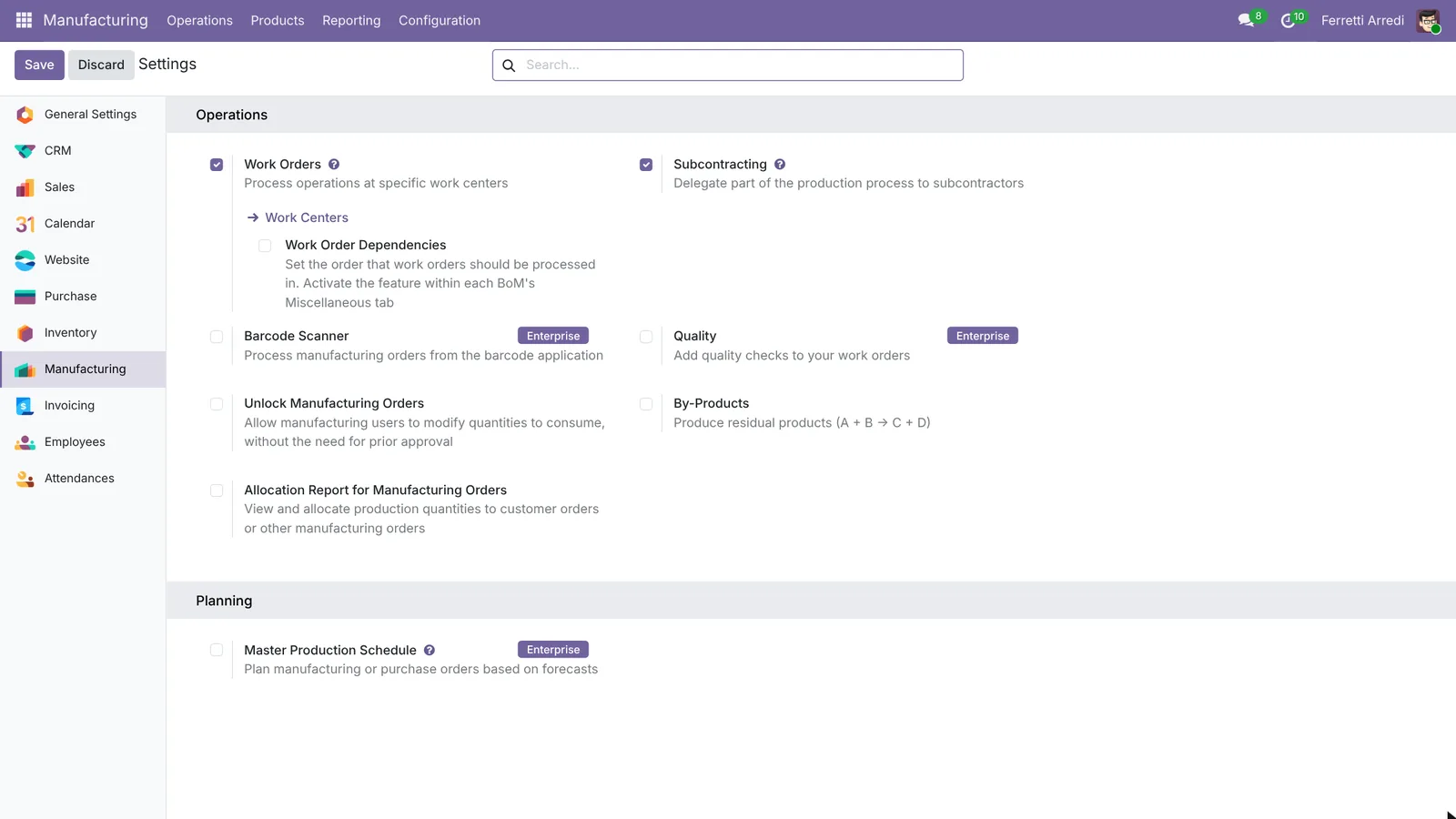 One setting adds the subcontracting type of bill of materials and the resupply operations.
2. Write the subcontracting bill of materials
Open Manufacturing → Products → Bills of Materials and press New. Pick the Product, Lounge Chair, and set BoM Type to Subcontracting. A Subcontractors field appears: add Wood Corner. In Components add the parts for one chair: a Lounge Chair Frame, a Seat Cushion and a Fabric Cover. Save.
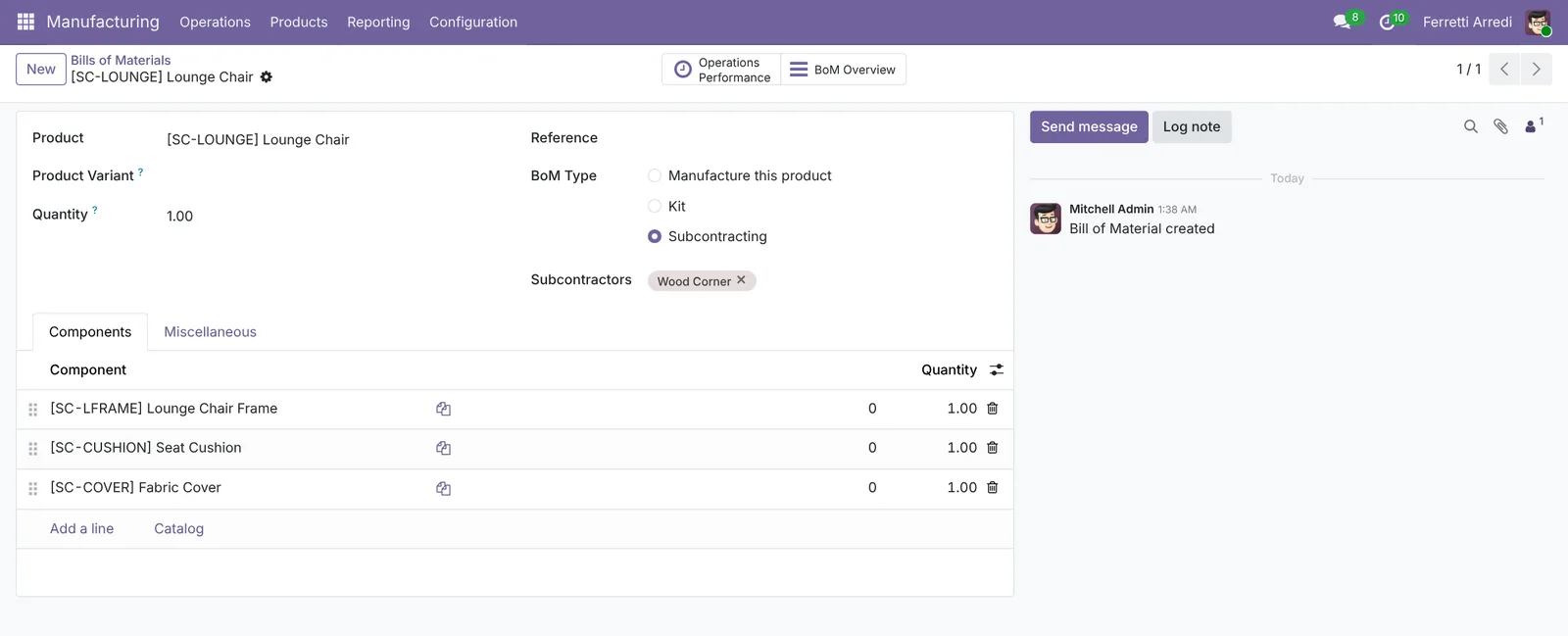 What goes into one chair, and who builds it.
On the chair’s Purchase tab, give Wood Corner a vendor line with the price of the work, $45. That price, not the parts, goes on the purchase orders.
3. Tell Odoo to send the parts
On Odoo 19 and 20 there’s nothing to do: the warehouse resupplies subcontractors by itself. On Odoo 16, 17 and 18 open each part (Inventory → Products), go to its Inventory tab and tick the route Resupply Subcontractor on Order. Without it, the parts stay in your warehouse.
4. Order the chairs
Open Purchase → Orders → Requests for Quotation, press New, pick Wood Corner and add 20 Lounge Chairs: Odoo fills $45, the fee. Press Confirm Order. Two smart buttons appear: Resupply, the parts to send, and Receipt, the chairs to receive.
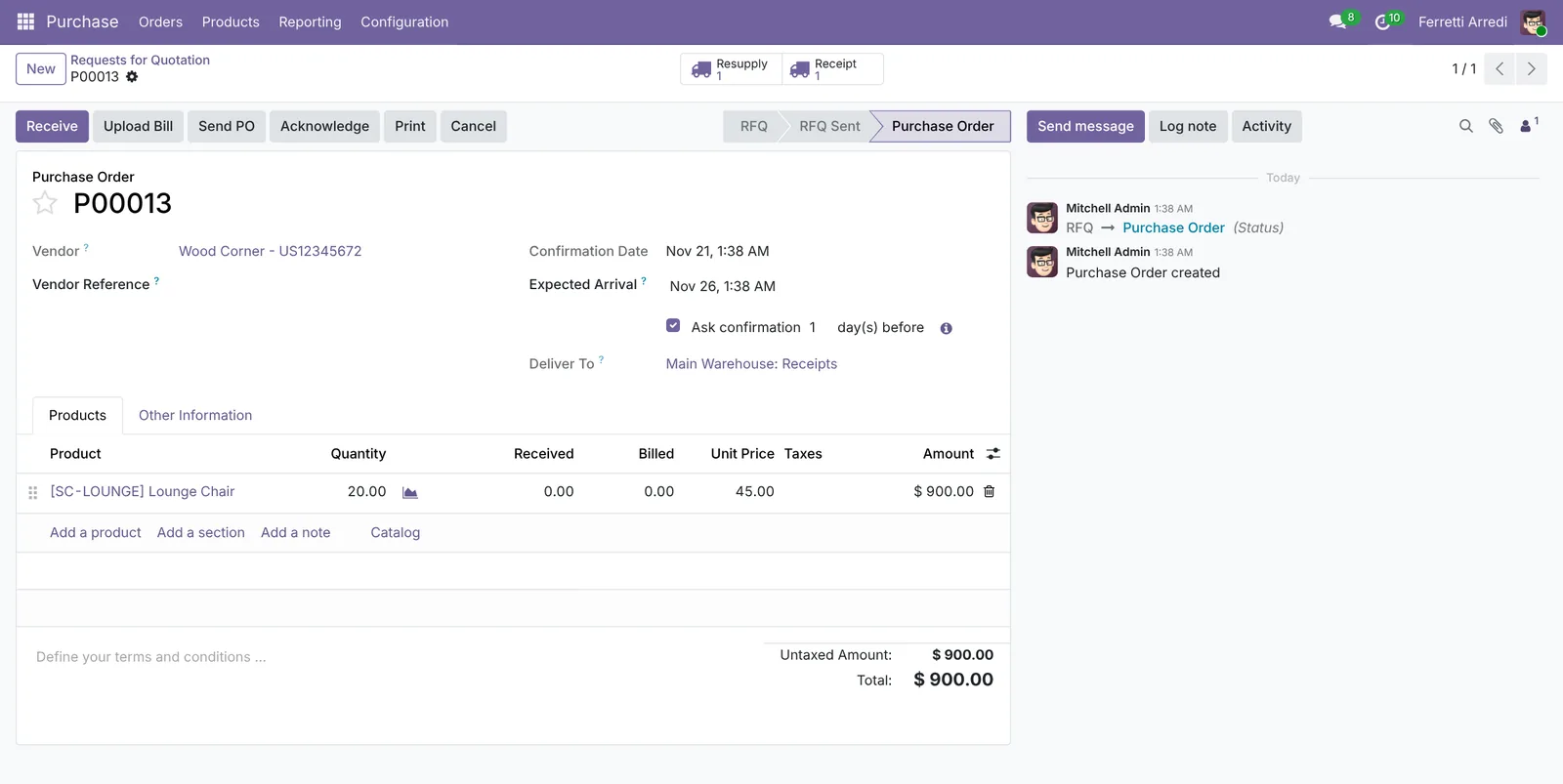 One order, two movements: parts out, chairs in.
5. Send the parts
Press Resupply. The transfer WH/RES/… lists 20 frames, 20 cushions and 20 covers, taken from your stock and sent to Wood Corner. When the truck leaves, press Validate.
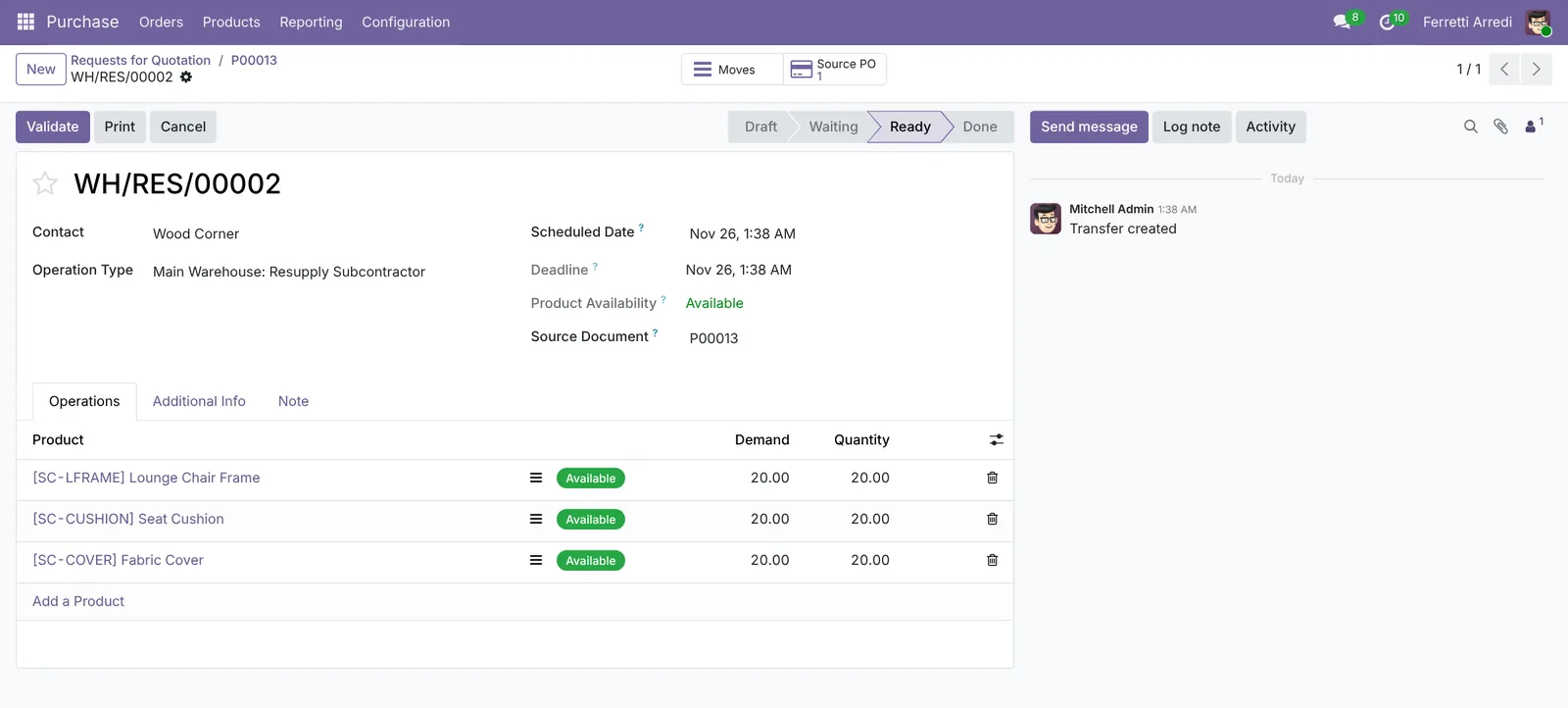 The parts leave your warehouse but stay yours, in Wood Corner’s location.
6. Receive the chairs
Back on the purchase order, press Receipt. When the chairs arrive, press Validate. Odoo records a subcontracting manufacturing order behind the scenes: the parts at Wood Corner are consumed, the 20 chairs enter your stock, and their cost is the parts plus the $45 fee.
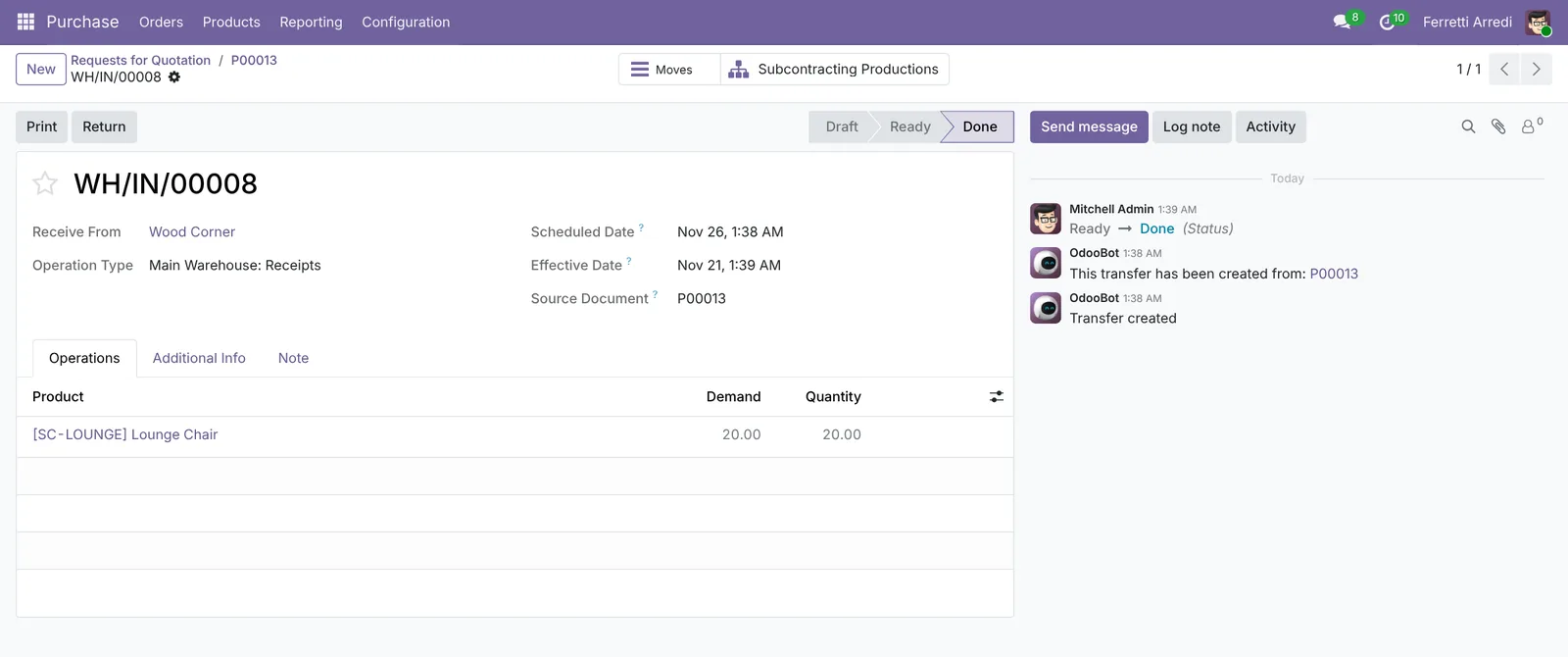 Done: chairs in stock, parts deducted at the subcontractor.
Then bill the $900 from the purchase order as usual.
Common mistakes
- Putting the parts’ price on the purchase order. The order pays the work only; the parts already cost you when you bought them.
- Forgetting the resupply route on 16 to 18. The purchase order shows no Resupply button and Wood Corner waits for parts nobody sent.
- Not counting what the subcontractor already has. On 19 and 20 Odoo sends the full quantity for each order, even when last month’s leftover parts are still there. Check their location first.
- A normal bill of materials. With BoM Type Manufacture this product, buying the chair from Wood Corner is a plain purchase and no parts move.
Subcontracting with AI: ask your AI assistant through MCP
With the Hawklify MCP server, Claude, ChatGPT and other assistants work in your Odoo as you, with your permissions. Odoo moves the parts order by order, but nobody adds up what the subcontractor holds against all the open orders together, or notices that the chairs are late. An assistant does both.
In the desktop app, before the next order. Card mode is on: the assistant counts the parts, and the transfer it proposes waits on an approval card.
Three orders are open at Wood Corner: 20 + 15 Lounge Chairs (due in 5 and 12 days) and 30 Dining Chairs (in 8 days). Against the parts they hold:
- Lounge Chair Frame: need 35, they have 40. Fine.
- Seat Cushion: need 35, they have 22. 13 short.
- Fabric Cover: need 35, they have exactly 35.
- Dining Chair Frame: need 30, they have 30.
- Seat Pad: need 30, they have 18. 12 short.
Nothing is on the way. You have 50 cushions and 40 pads in WH/Stock, so one resupply covers both. Here it is:
Approval needed in OdooCreate
A resupply transfer to Wood Corner with the 13 Seat Cushions and 12 Seat Pads the open orders are missing.
stock.picking · 1 record
Resupply to Wood Corner
| Field | Current | New |
|---|---|---|
| Operation type | Resupply Subcontractor | |
| Seat Cushion | 13 | |
| Seat Pad | 12 | |
| Source document | Parts for WH/IN/00020, 00021, 00022 |
Change applied in Odoo.
Organisation administrators can turn the approval cards off on the Members page.
Done: WH/RES/00006 is ready in the warehouse, both parts reserved. Once it's shipped, Wood Corner has every part for all three orders.
The Fabric Covers are exactly enough: one damaged cover stops a chair. Want a buffer of 5 on the next resupply?
Every Monday, in the chat app on your phone. The assistant looks for late subcontracted chairs, checks the parts left on time, and asks once before writing to the subcontractor.
Hawklify
Your Odoo, from the chat you already use
Send a message, a photo or a voice note: the assistant reads and works in Odoo through Hawklify, with your permissions.
One subcontracted order is late: WH/IN/00020, 20 Lounge Chairs from Wood Corner, due last Thursday and not received.
It isn't on our side: the parts they were missing left on WH/RES/00006 eight days ago and were delivered.
Ask Wood Corner for a new date?
Yes, ask them
Sent to Wood Corner on the receipt: 20 Lounge Chairs 4 days late, parts delivered on WH/RES/00006, please confirm the new date.
The answer lands on the receipt, so the warehouse sees it too.
Versions we tested
| Version | Result |
|---|---|
| Odoo 16 | Same steps. Each part needs the Resupply Subcontractor on Order route. Validating the receipt can ask to record the components used: confirm the quantities. |
| Odoo 17 | Same as 16. |
| Odoo 18 | Same steps; the parts still need the resupply route. |
| Odoo 19 | As in this guide. The screenshots come from Odoo 19. The warehouse resupplies subcontractors by itself: no route on the parts. |
| Odoo 20 | Same steps and screens as 19. |
Frequently asked questions
What is the price on the subcontracting purchase order?
Only the subcontractor's fee for the work, here $45 a chair. The parts you send are yours: their cost is added to the chair's cost when it's received.
How does Odoo know which parts to send?
From the Subcontracting bill of materials. Confirming the purchase order creates a Resupply transfer with the parts for the quantity ordered.
Can I see what parts the subcontractor still has?
Yes. Odoo keeps them in a subcontracting location under your company. Inventory, Reporting, Stock filtered on that location shows them, part by part.
What if the subcontractor buys the parts themselves?
Then don't list them in the bill of materials, or leave the resupply route off for them: Odoo sends only the parts you list and route.
Questa guida è disponibile anche in italiano: Conto lavoro in Odoo: il terzista produce con i tuoi pezzi
Related Odoo guides
 ManufacturingBills of materials and manufacturing orders in OdooMake products in Odoo: create a bill of materials, plan a manufacturing order, check the components, produce and see the stock moves. Community and Enterprise.
 PurchaseVendor bills in Odoo: pay only what you receivedOrder from a vendor in Odoo, receive part of the goods, and bill exactly what arrived, with the control policy on received quantities. Community and Enterprise.
 InventoryReordering rules in Odoo: restock before you run outSet min/max reordering rules in Odoo so it orders from your vendor before stock runs out, then use the Replenishment list to order now. Community and Enterprise.