Analytic Accounting in Odoo: see costs by sales channel
Set up analytic accounting in Odoo: a plan with one account per sales channel, a vendor bill split by channel, a distribution model and the totals.
- Community and Enterprise
- 4 min read
- Odoo + AI tutorial
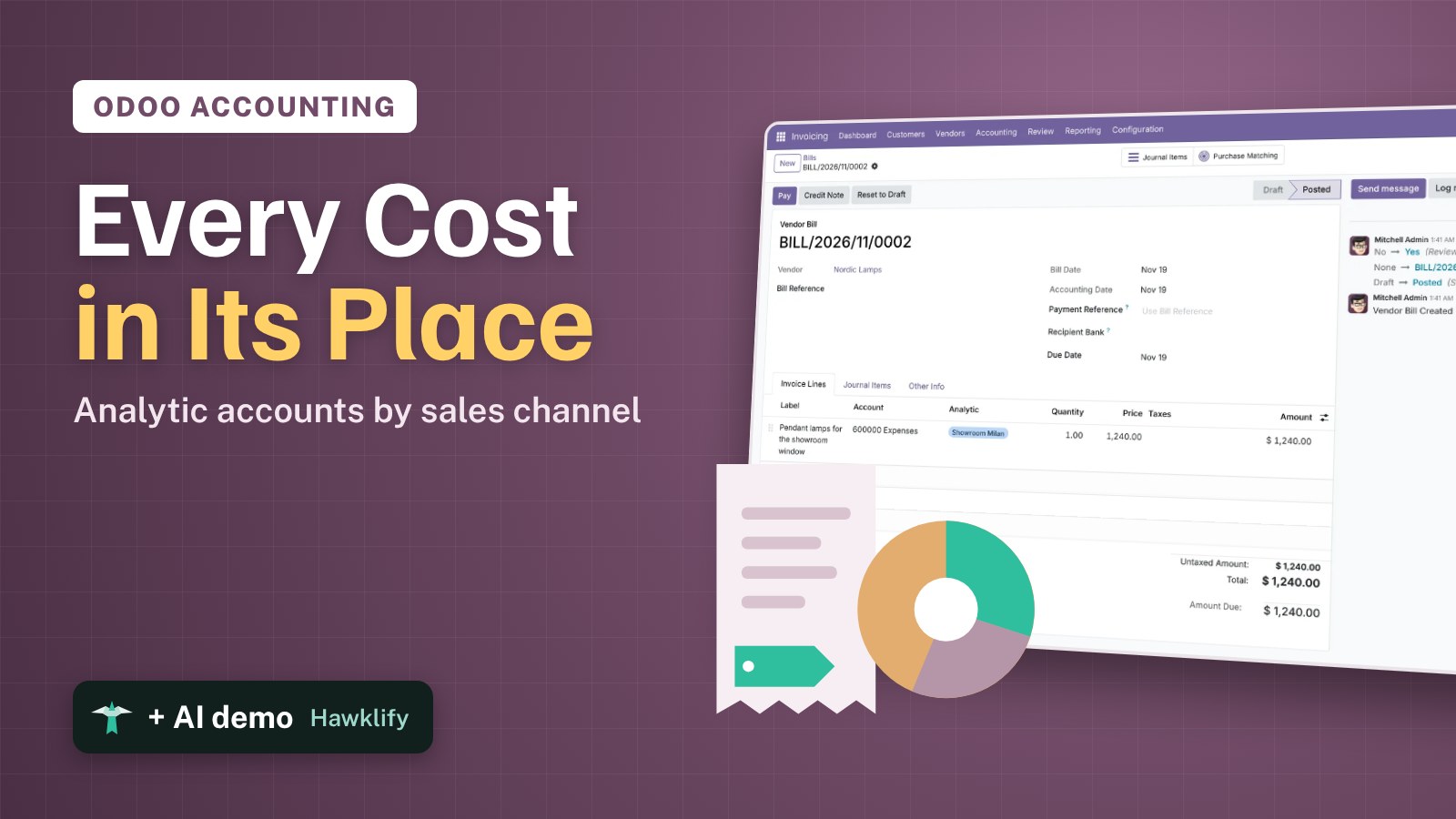
Your profit and loss says what you spent on advertising and rent, not whether the Milan showroom pays for itself or the online shop does. Analytic accounting adds a second label to every cost and revenue line: here the sales channel. The chart of accounts stays as it is for the accountant, and you get the totals by channel. This guide turns it on, creates a plan with three channels, tags a vendor bill, makes Odoo tag the next ones by itself and reads the result.
It works in Community and Enterprise. The versions we tested are listed at the end.
This guide is also an AI tutorial. At the end, an AI assistant connected to Odoo tags last month's vendor bills from how each vendor was tagged before, and splits a vendor's costs between two channels.See it in action ↓Before you start
- The Invoicing or Accounting app installed.
- In Community only: open Settings → Users & Companies → Users in developer mode, open your user and tick Show Full Accounting Features. Without it the setting below stays hidden.
- The vendor of the example, Nordic Lamps, as a contact.
1. Turn on analytic accounting
Open Invoicing → Configuration → Settings. In the Analytics section tick Analytic Accounting and press Save. The Analytic column appears on invoice and bill lines.
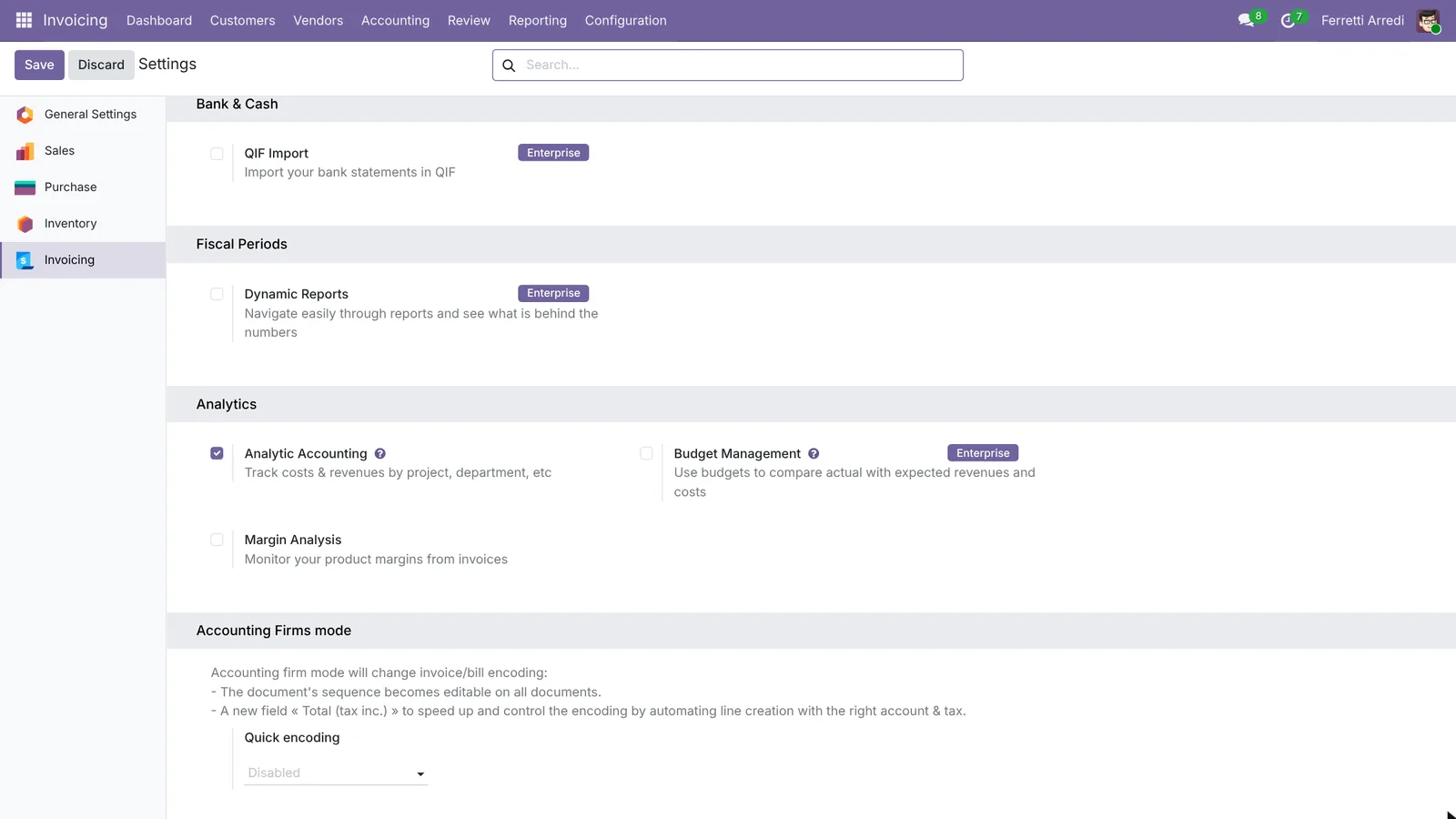 One tick: every line can now carry an analytic account.
2. Create a plan
Open Invoicing → Configuration → Analytic Plans and press New. Name it Sales Channels and keep Default Applicability on Optional. Save.
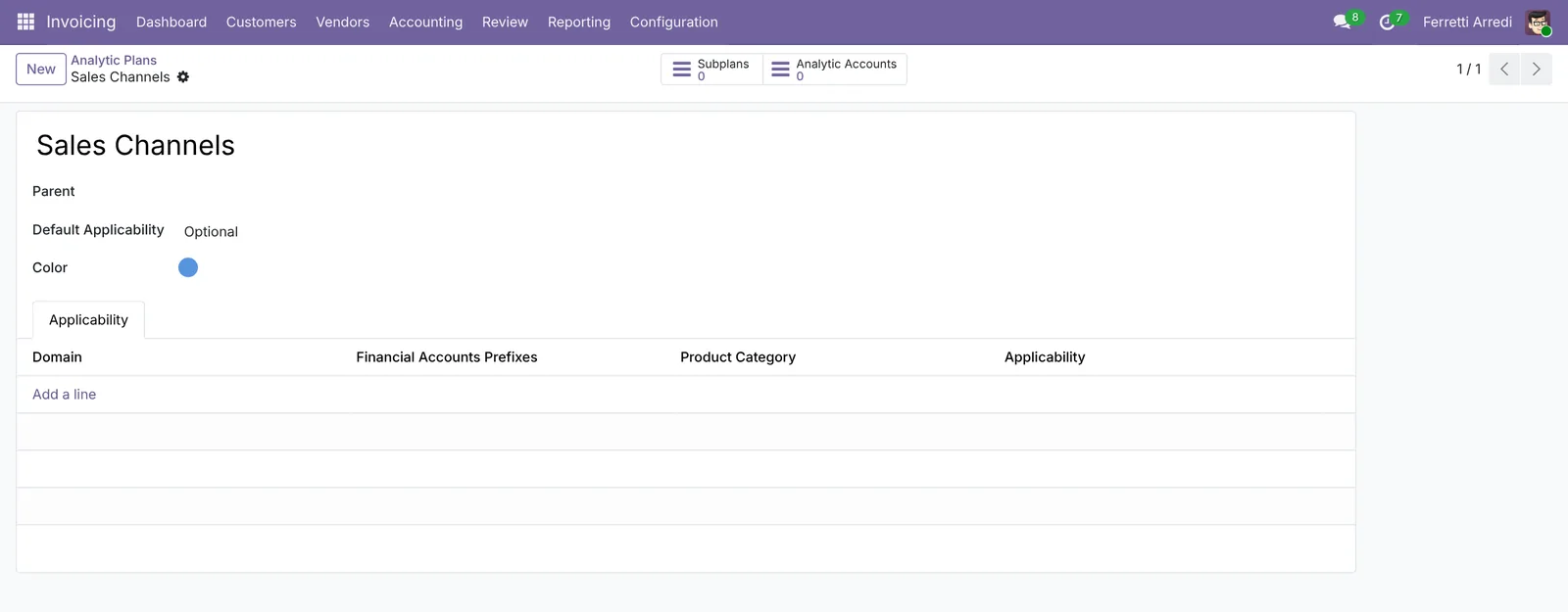 A plan is one way of reading costs; Odoo’s demo already has Projects and Departments.
3. Create one account per channel
Open Invoicing → Configuration → Analytic Accounts and press New: Showroom Milan, Plan Sales Channels. Save, and create Online Shop and Trade Fairs the same way.
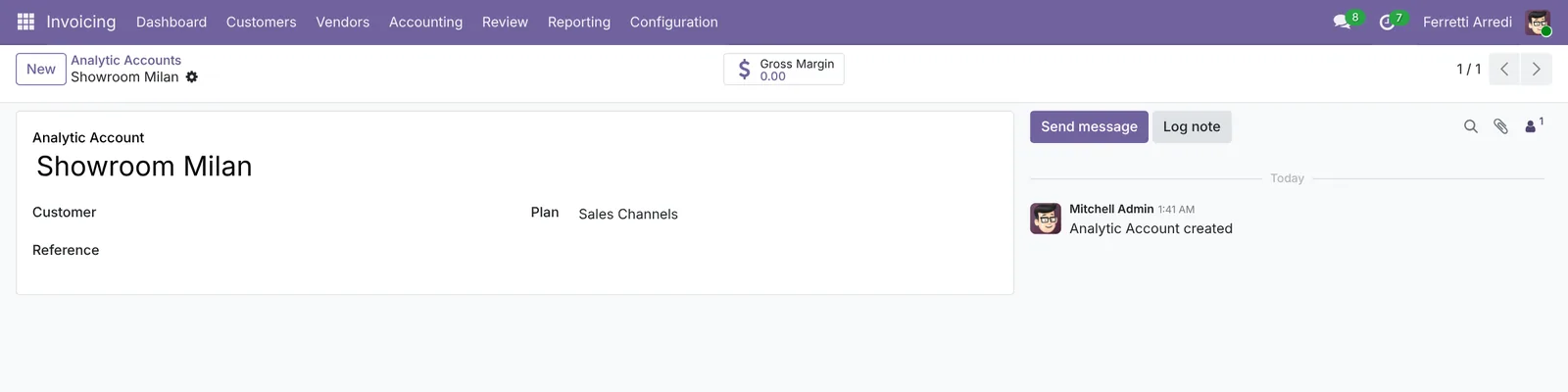 One account per channel you want to measure.
4. Tag a vendor bill
Open Vendors → Bills and press New: vendor Nordic Lamps, a line Pendant lamps for the showroom window at $1,240. Click the Analytic cell of the line and, under Sales Channels, pick Showroom Milan at 100%. Close the box and press Confirm.
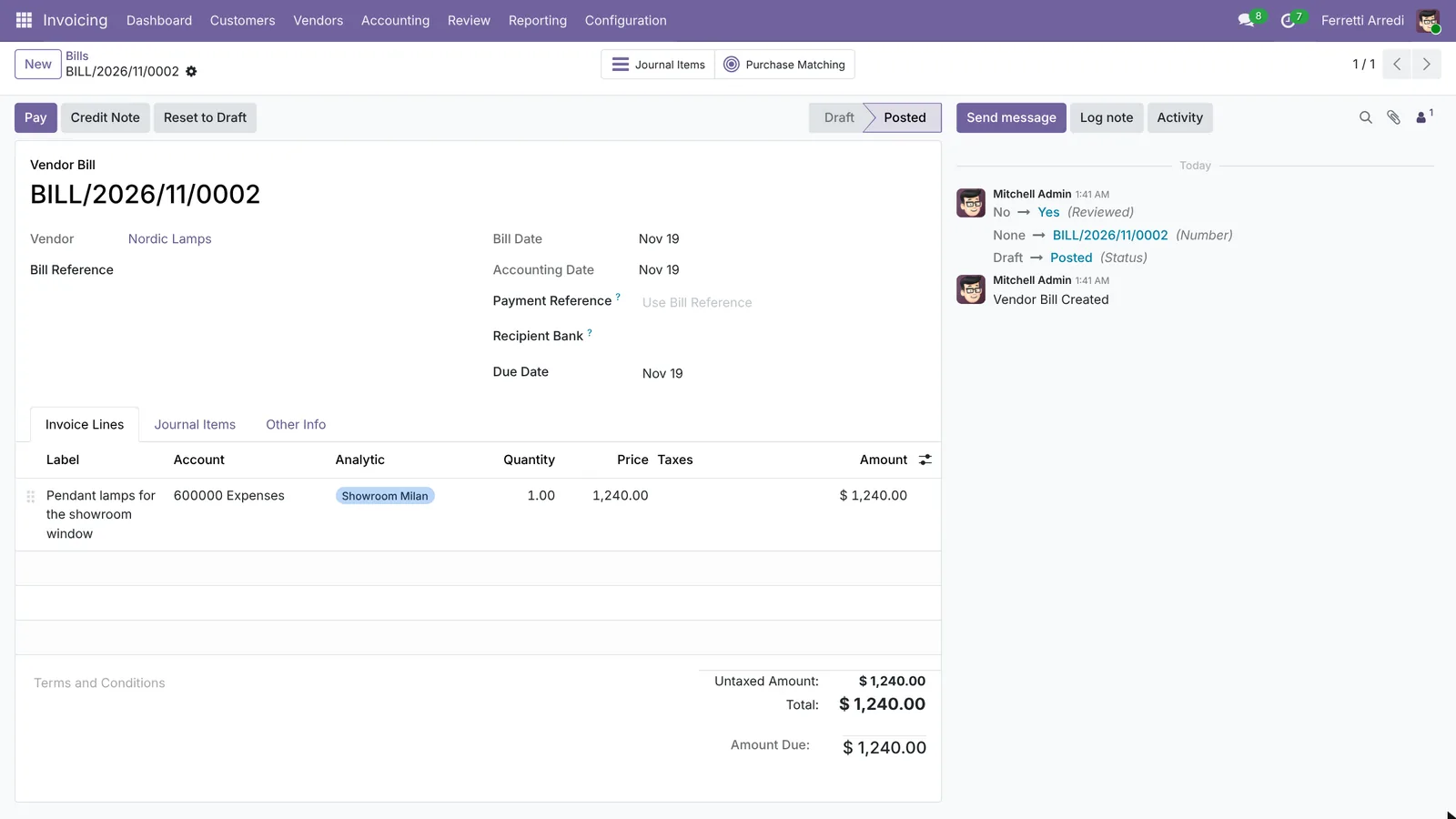 The expense account says what it is, the tag says which channel pays for it.
5. Let Odoo tag the next bills
The lamps of Nordic Lamps always go to the showroom. Open Invoicing → Configuration → Analytic Distribution Models, press New, set Partner Nordic Lamps and the Analytic Distribution Showroom Milan 100%. Save. From now on every bill line of Nordic Lamps arrives already tagged.
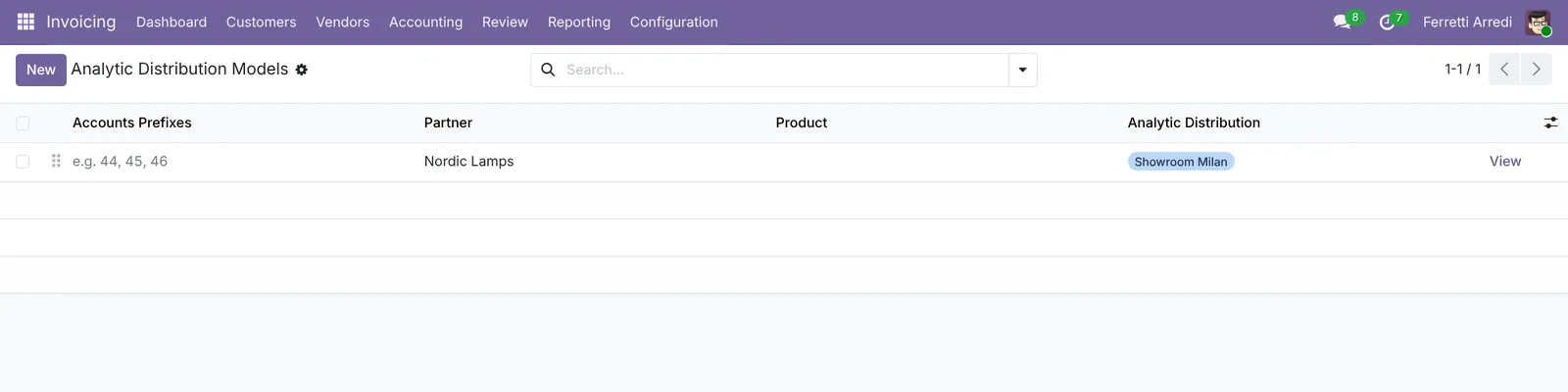 A rule per vendor, product or account prefix: fewer lines to tag by hand.
6. Read the totals
Open Invoicing → Configuration → Analytic Accounts again: each account shows its Debit, Credit and Balance. Search Showroom to see what the showroom cost so far. With Enterprise Accounting, Accounting → Reporting → Analytic gives the same numbers by period.
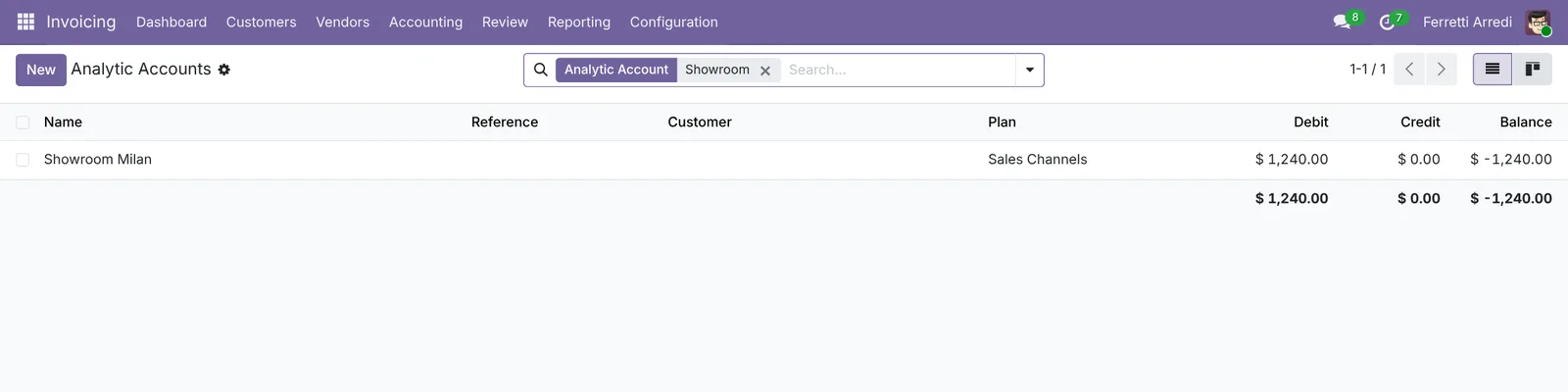 Costs are negative, revenues positive: the balance is what the channel earns.
Common mistakes
- Starting in the middle of the year. Lines from before the setup have no tag, so the first months look cheap. Tag last month’s bills too, or compare only from the start date.
- Tagging the costs and not the revenues. A channel with only costs always loses. Tag the customer invoices as well, or use models on the sales side.
- One plan for everything. Channels, projects and departments in one plan force a choice on every line. Make one plan each.
- Leaving lines empty. An untagged line disappears from every channel. Set the plan to Mandatory on bills once the habit is there.
Analytic Accounting with AI: ask your AI assistant through MCP
With the Hawklify MCP server, Claude, ChatGPT and other assistants work in your Odoo as you, with your permissions. Tagging is the boring part, and models only help for the rules you already wrote. An assistant reads how each vendor was tagged in the past and fills in the rest.
On the computer. Depending on how your organisation set up the server, the assistant makes the change straight away or first shows you a card to approve. Here card mode is on: nothing changes until you approve the card.
6 October lines have no tag. For 5 the history is clear:
- Nordic Lamps $1,240 and Clean&Co $420: always Showroom Milan (4 bills each)
- PackPoint $380 and AdWave $2,500: always Online Shop (4 each)
- Print Studio Rho $860, catalogs for the Verona fair: Trade Fairs (2)
Office Hub, $1,150 for office chairs, is a new vendor with no history: which channel, or none?
Approval needed in OdooUpdate
Tag five October bill lines with the sales channel their vendor always had, 100% each.
account.move.line · 5 records
BILL/2026/10/0002 Nordic Lamps
| Field | Current | New |
|---|---|---|
| Analytic | Showroom Milan 100% |
BILL/2026/10/0003 PackPoint
| Field | Current | New |
|---|---|---|
| Analytic | Online Shop 100% |
BILL/2026/10/0004 AdWave
| Field | Current | New |
|---|---|---|
| Analytic | Online Shop 100% |
BILL/2026/10/0005 Print Studio Rho
| Field | Current | New |
|---|---|---|
| Analytic | Trade Fairs 100% |
BILL/2026/10/0006 Clean&Co
| Field | Current | New |
|---|---|---|
| Analytic | Showroom Milan 100% |
Change applied in Odoo.
Organisation administrators can turn the approval cards off on the Members page.
Done: October now shows $1,660 on Showroom Milan, $2,880 on Online Shop and $860 on Trade Fairs. Office Hub stays untagged until you tell me.
On the phone. Your company’s assistant in a chat. Smart mode is on: it asks once before writing.
Hawklify
Your Odoo, from the chat you already use
Send a message, a photo or a voice note: the assistant reads and works in Odoo through Hawklify, with your permissions.
Nordic Lamps now supplies the online shop too. From now on split their bills 70% showroom, 30% online.
Nordic Lamps billed $5,680 since June, all on Showroom Milan. I'll set their model to 70% Showroom Milan, 30% Online Shop, so the next bills arrive split.
October's bill, $1,240, was for the showroom window: leave it, or split it too?
Leave October
Done. A $1,000 bill from Nordic Lamps will now put $700 on Showroom Milan and $300 on Online Shop. October stays on the showroom.
Versions we tested
| Version | Result |
|---|---|
| Odoo 16 | Same steps. The Analytic box lists the plans one under the other: type the account in the field of Sales Channels. |
| Odoo 17 | The Analytic box is one table with a column per plan, as in this guide. |
| Odoo 18 | As in this guide. |
| Odoo 19 | As in this guide. The screenshots come from Odoo 19. |
| Odoo 20 | Same screens and buttons as 19. |
Frequently asked questions
What is the difference between an analytic account and an account of the chart?
The chart of accounts says what a cost is (rent, advertising, goods) and feeds the legal statements. An analytic account says what it is for (a showroom, a project, a department) and only feeds your own reports. One line has both.
Can one bill line go to two channels?
Yes. In the Analytic column give each account a percentage, such as 70% Showroom Milan and 30% Online Shop. Odoo splits the amount in the analytic reports.
What are analytic plans for?
A plan is one way of looking at costs: Sales Channels, Projects, Departments. Each line can carry one account per plan, so the same cost shows up by channel and by department.
Do I need the full Accounting app?
No. Invoicing in Community has analytic accounting too. The setting only shows after you give your user Show Full Accounting Features, a technical option of the user form (developer mode).
Questa guida è disponibile anche in italiano: Contabilità analitica in Odoo: i costi per canale
Related Odoo guides
 PurchaseVendor bills in Odoo: pay only what you receivedOrder from a vendor in Odoo, receive part of the goods, and bill exactly what arrived, with the control policy on received quantities. Community and Enterprise.
 AccountingBank reconciliation in Odoo: match payments to invoicesReconcile bank transactions in Odoo Enterprise: match payments to invoices, handle a payment with no reference, and book bank fees with a model.
 AccountingExpenses in Odoo: from receipt to reimbursementHandle employee expenses in Odoo: record an expense with its receipt, submit it, approve it, post it to accounting and pay the employee back. Community and Enterprise.