HawklifyConnect your Odoo

MCP server for Odoo 16–20

Your AI assistant, inside Odoo. With your permissions.

Each person connects as their own Odoo user. The assistant sees only what they see, and your admins decide what it may change for each colleague.

ClaudeChatGPTClaude CodeCursorVS Code

Video

See Hawklify at work

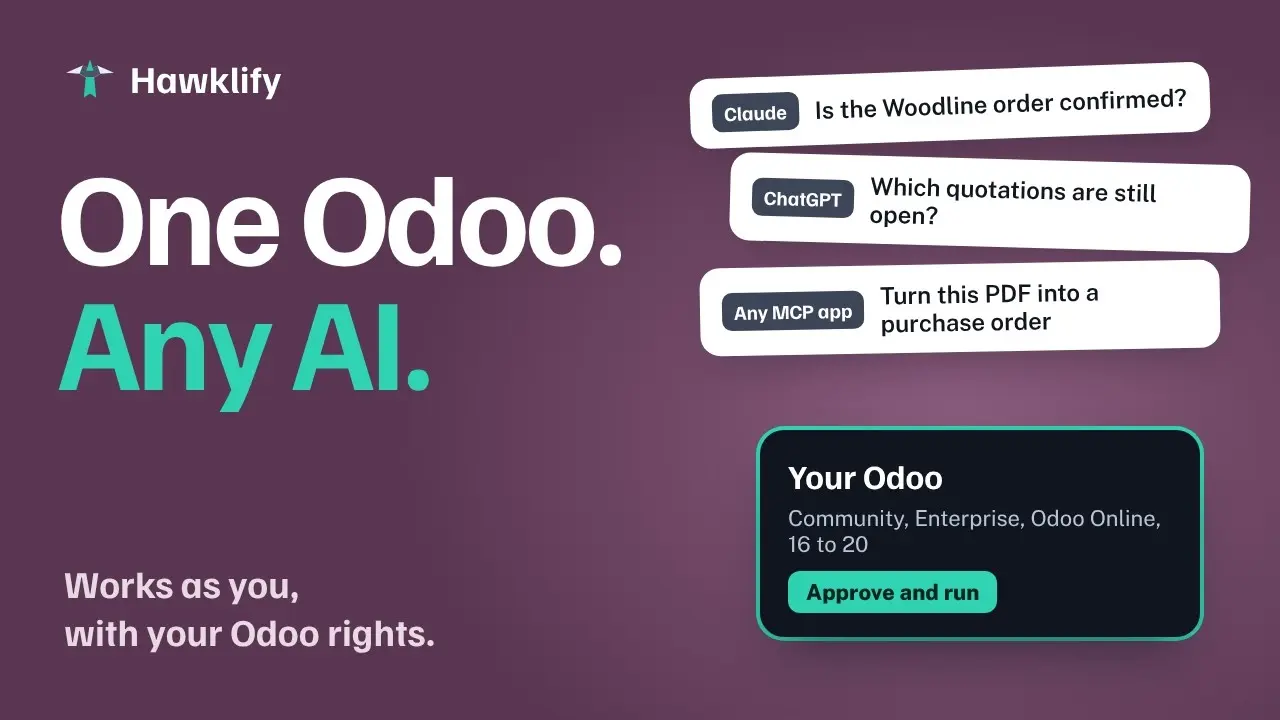
Your AI app asks, Hawklify works in Odoo as you, and a card asks for your approval before a change when you want one.

Now also on Odoo 20. Hawklify works with Odoo 16, 17, 18, 19 and 20: Community, Enterprise and Odoo Online.

Nothing loads from YouTube until you press play. Pressing play loads the video from YouTube (Google), which may store cookies or similar data in your browser. Privacy policy · Watch on YouTube

Quick start

Connect Claude, ChatGPT or another AI app to Odoo in five steps

  1. Sign up

    Work email and company, or Google or GitHub. Type the six-digit code we email you and choose a password.

  2. Connect your Odoo

    Its address, database and version (XML-RPC for 16–18, JSON-2 for 19 and 20). For odoo.com and Odoo.sh the database is filled in for you.

  3. Save your API key

    Create it in Odoo and enter it yourself on the protected page. It is stored encrypted and the assistant never sees it.

  4. Add the server to your AI app

    Paste https://mcp.hawklify.com/mcp as a custom connector in Claude, ChatGPT or your editor, then sign in and allow it once.

  5. Ask your first question

    For example: “Which invoices are overdue?”

Two ways to work

The right level of control for every colleague

Administrators choose the mode for each person, and new members start in Smart mode. See how the assistant works in each.

  • It decides whether to ask. The assistant decides by itself whether to ask you for confirmation before a change, from the context and how risky it is.
  • Your rules. Your admin writes how it should work for you, and they reach it with every change. They are suggestions, not locks.
  • Fixed limits, in Smart mode too. Your role and Odoo’s own rights, Odoo’s system settings refused until an admin allows them, every change in the activity log.

How approval works, step by step →

Create a quotation for Mobilificio Bianchi with 10 Aria chairs at €89 each, delivery by 30 October, and write an internal note about the reinforced packaging.

Done: quotation S00051 for Mobilificio Bianchi, 10 Aria chairs, total €890, delivery by 30 October. The note on the packaging is in its chatter.

Quotation ready in the blink of an eye. The assistant may also ask you first, if it thinks it useful or your rules say so.

Add an automated action that deletes all the customers.

I can’t do that: changes to Odoo’s own settings, such as automated actions, are refused for your organisation. An administrator can allow them on the members page.

Your data stays safe. Odoo’s own settings stay refused, in Smart mode too, until an admin allows them.

Features

What it can do

Everything your assistant can do in Odoo, with you in control of every change.

Search and read records

Customers, orders, invoices, stock: free-text search or precise filters, one record or many, only the fields you are allowed to see.

Totals and analysis

Sums, counts and averages by customer, month or product, computed by Odoo and not estimated.

Run Odoo actions

Confirm an order, validate a delivery, post an invoice: the buttons of Odoo’s forms, run as you, in the mode you chose.

Changes and messages

Create and update records, post notes and emails in the chatter. Each change is checked against your Odoo before it runs.

Accounting

Receivable and payable aging, open items, draft invoices: a summary of accounting health.

Data quality

Duplicates, missing required values, broken references, odd formats: found before they become mistakes.

Read attachments

PDF, Word, Excel and other documents attached to records: the assistant reads their text, files up to 4 MB, long documents in parts.

Ask what it may do

Ask “what may you change for me?”: the assistant explains your role, areas and actions, and why something was refused.

Your custom code · Max and Team plans

Connect GitHub and pick your repositories: before it runs a method, the assistant reads how your modules change it. Read only.

Admin panel

One page to manage what the assistant may do, colleague by colleague

Every organisation has its own members page: administrators invite colleagues and assign each a role and a mode. Control always stays with the company.

FERRETTI ARREDI SRL · PAID PLAN

Members

Who can use Hawklify, and how much the assistant may do for each.

Seats used 5 / 10Pending invitations take a seat.
LN
[email protected]
Odoo connected · no two-step sign-in

What the assistant may do for [email protected]

Read only BasicReads the data, changes nothing.
Full Best choiceChanges anything their Odoo user may change.
Operator AdvancedChanges the areas chosen below, or every area when none is chosen.

How the assistant works for [email protected]

SmartThe assistant decides whether to ask you
With cardFor maximum safety

No card: the assistant decides by itself whether to ask the member for confirmation before a change, from the context and how risky it is, and follows the member’s rules.

Their rules for the assistant

Do not ask me before cancelling a delivery. Ask me before changing the quantities of a validated delivery.

Passed to the assistant as a suggestion in every chat. Every change is in the activity.
Organisation administratorCan invite people and change these settings.
The members page, with an invented company. Pick a colleague.

Three roles, set person by person

  • Read only: reads and analyses, changes nothing.
  • Full: changes whatever the person’s Odoo user may change. It is the recommended role, and new members start here.
  • Operator: a layer of safety on top of Odoo permissions: the assistant changes only the areas you list by their Odoo technical names, and nothing if you list none. Reads still follow the person’s Odoo rights.
  • And a mode: Smart or With card, as above. A new person starts in Smart mode.

Who did what, at a glance

  • Changes made through the assistant, linked to the records in your Odoo
  • Approvals and rejections, in the card or on the Approvals page
  • Who changed a colleague’s rules for the assistant
  • Who changed which setting, before and after
  • Sign-ins, refusals and limits reached

Kept 90 days. The log names records by model and number, never by what they contain.

  1. Approved in the card: action_confirm on sale.order
    #42

    [email protected] · 12 Oct 2026, 11:33

  2. Ran action_confirm on sale.order
    #42

    [email protected] via the assistant · 12 Oct 2026, 11:32

  3. Invited [email protected]

    What the assistant may do:
    Full
    How the assistant works:
    Smart

    [email protected] · 12 Oct 2026, 10:38

  4. Changed the rules for the assistant of [email protected]

    [email protected] · 12 Oct 2026, 09:41

  5. Read attachment #318 of account.move

    [email protected] via the assistant · 12 Oct 2026, 09:13

  6. Disabled [email protected]

    [email protected] · 12 Oct 2026, 08:13

  7. Changed the settings of [email protected]

    Actions: sale.order.action_confirm → sale.order.action_confirm, sale.order.action_quotation_send, crm.lead.action_set_won_rainbowman

    [email protected] · 12 Oct 2026, 07:13

The activity tab of the members page.

Invitations and seats

Invite colleagues by email. Disable or delete someone and their access ends at once; the page shows how many seats are in use.

Odoo’s own settings stay safe

Changes to Odoo’s system models, such as users and access rights, are refused until an admin allows them.

Hidden fields

Fields your organisation wants out of reach, such as salaries, are left out of the assistant’s reads and searches. Enterprise plan, set up with us.

Standard sign-in

OAuth 2.1 with PKCE, two-step verification, Google or GitHub sign-in, one-click disconnect of any app.

An example

ColleagueRoleModeIn practice
Anna · SalesFullSmartCreates quotations and updates orders. Her rules: “always ask me before writing to a customer”.
Luca · WarehouseFullSmartValidates deliveries and receipts. His rules: “do not ask me before cancelling a delivery”.
Marco · AccountingFullWith cardEvery entry and every payment goes through a card he approves.
Giulia · ManagementRead only—Analyses sales and due dates, changes nothing.

Names are invented. The free trial has two seats, Team up to ten, Enterprise as many as you need.

Compared with the MCP server built into Odoo 20

Odoo 20 built-in
Before a changeNothing. The AI writes straight to Odoo.
Who can writeOff by default. Switch it on and it is on for every MCP user alike.
Which dataAny record the user can edit in Odoo. Nothing narrows it on the MCP side.
Odoo actionsNo ready-made tool. Someone must build one first.
Your custom codeNot read.
Odoo versionsEnterprise 20.

Data and privacy

Hosted in Europe, built around GDPR

Your Odoo data is handled under the European data protection rules (Regulation (EU) 2016/679, GDPR).

Data stored in the EU

The service runs on Cloudflare: its database is stored in the EU, and the calls to your Odoo are handled in the EU.

Encrypted keys, data never sold

Each user enters their Odoo API key directly on a protected page; it is stored encrypted and never passes through the chat. Your data is not used for advertising and is not sold.

A data processing agreement

For your company’s data we act as processor, under an Art. 28 GDPR agreement. Read the DPA